How to Use Bluetooth Headphones on Xbox One Easily

You cannot connect standard Bluetooth headphones directly to Xbox One. The easiest workaround is a Bluetooth transmitter, while TV Bluetooth or the Xbox app can work for some casual setups.
If you want to know how to use bluetooth headphones on xbox one, the short answer is that Xbox One does not support standard Bluetooth audio directly. The most reliable workaround is to use a Bluetooth transmitter, a TV with Bluetooth output, or the Xbox app for chat-related audio.
- Direct support: Xbox One does not pair with standard Bluetooth headphones natively.
- Best workaround: Use a Bluetooth transmitter for the most flexible setup.
- Casual use: TV Bluetooth can be fine, but it may add lag.
- Chat audio: The Xbox app can help for voice chat in some cases.
How to Use Bluetooth Headphones on Xbox One: What Works and What Doesn’t in 2026
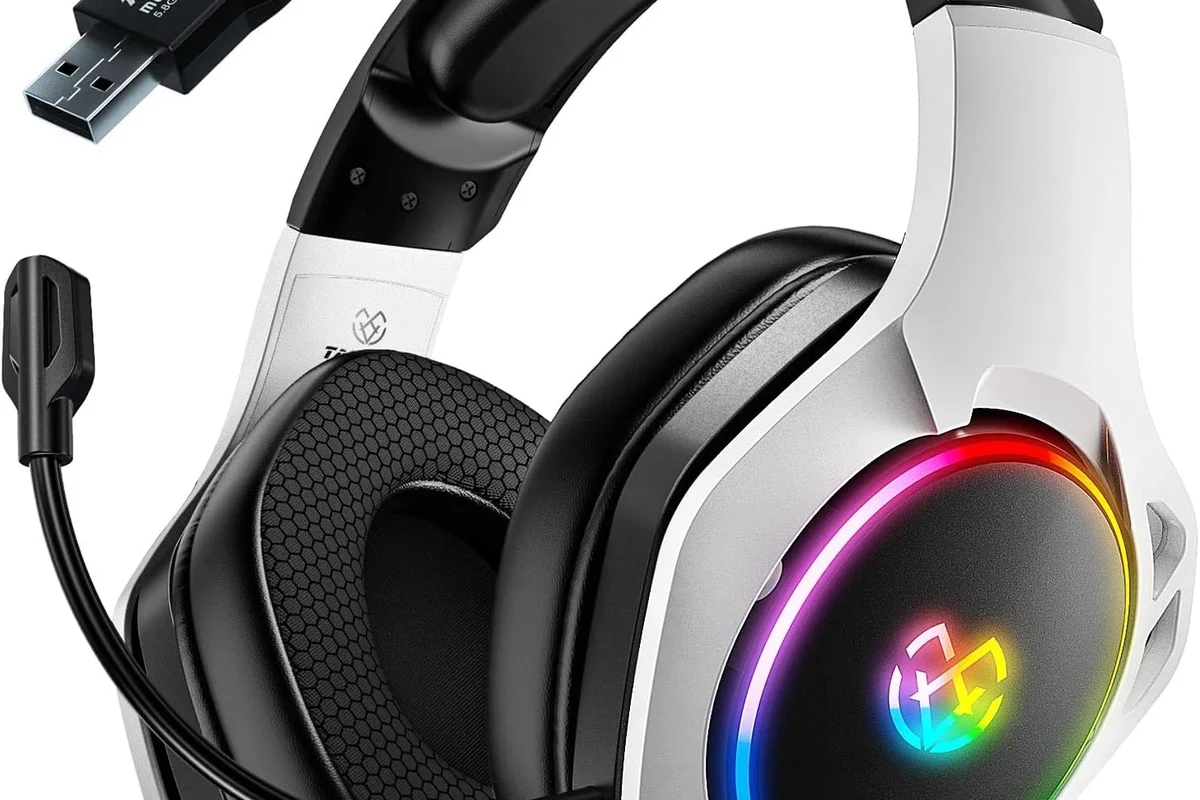
In 2026, the Xbox One still does not pair with regular Bluetooth headphones the way a phone, laptop, or tablet does. That means you cannot simply open Bluetooth settings on the console and connect your headphones.
What does work is using external gear or alternative audio routes. For many players, that means a transmitter plugged into the controller, the console, or the TV, depending on the setup and the kind of audio you want.
If you are new to wireless audio, it helps to understand the difference between Bluetooth and Xbox’s own wireless system. If you want a broader overview of wireless audio basics, our guide to Bluetooth headphones explained is a good place to start.
Why Xbox One Doesn’t Support Standard Bluetooth Audio
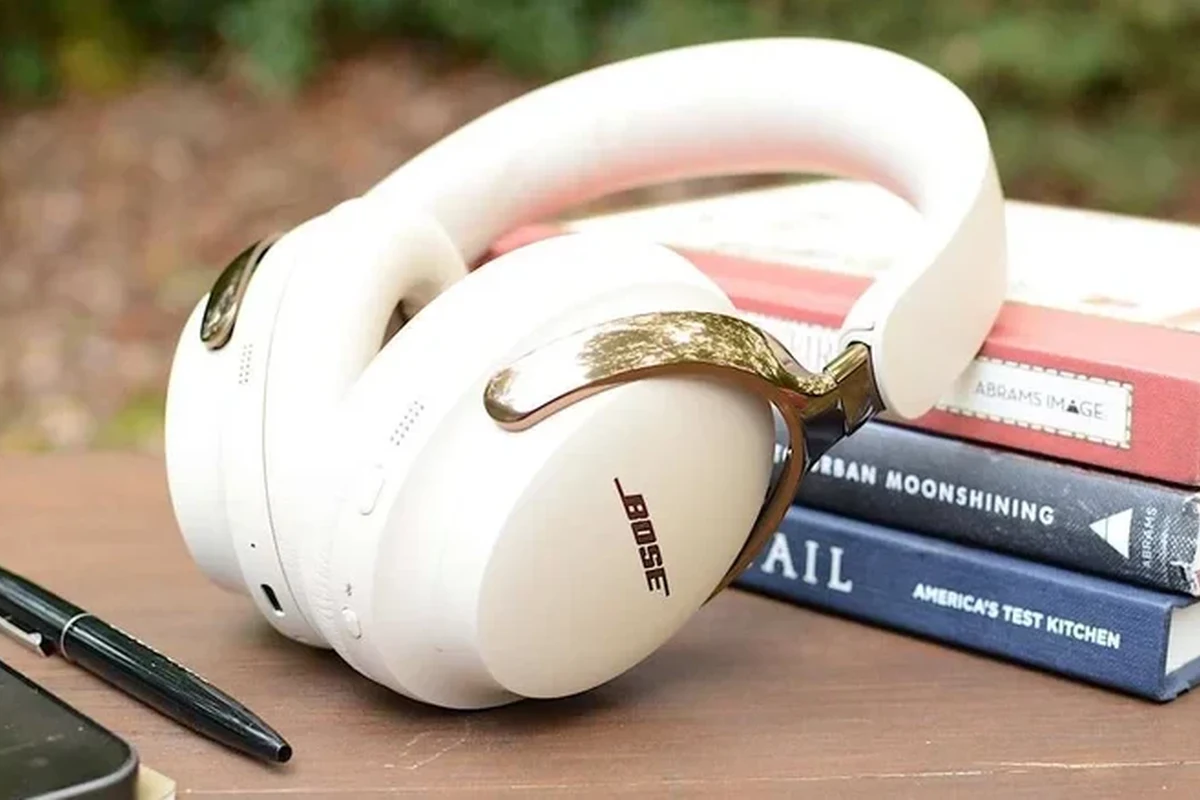
Xbox One was built around Microsoft’s own wireless accessory ecosystem, not generic Bluetooth audio. That is why Xbox controllers and some Xbox accessories may connect in one way, while headphones usually need another route.
This is one of the most common points of confusion for beginners. A headset can be wireless and still not be Bluetooth-compatible with Xbox One.
Xbox wireless vs. Bluetooth: the key difference
Xbox Wireless is a separate connection type designed for Xbox accessories. It is not the same as the Bluetooth found in most headphones, earbuds, and phones.
Bluetooth is universal and convenient, but Xbox Wireless is made for lower-latency gaming use on supported devices. That difference matters a lot when you are trying to keep audio in sync with gameplay.
What this means for your headphones and latency
Because Bluetooth adds extra processing time, audio can arrive slightly after the on-screen action. For movies or casual play, that delay may be acceptable. For fast shooters or rhythm games, it can be distracting.
Latency also varies by headphone model, transmitter quality, and the TV or monitor in the chain. So even if one setup feels fine, another may sound delayed.
Best Ways to Connect Bluetooth Headphones to Xbox One
The best method depends on whether you want game audio, party chat, or both. In many cases, the easiest setup is not the one with the fewest devices, but the one that avoids lag and compatibility problems.
For readers comparing wireless audio options, the difference between Bluetooth and wired headphones sound quality is worth understanding before buying new gear.
Using the Xbox app on a phone or tablet for chat audio
The Xbox app can be useful for party chat, especially if you only need voice communication and not full game audio through your headphones. In that case, your Bluetooth headphones connect to your phone or tablet, not the console itself.
This method is simple, but it is not a perfect all-in-one replacement. It is best for players who mainly want chat audio while the game sound comes from the TV or another output.
Connecting through the TV or monitor’s Bluetooth output
If your TV or monitor supports Bluetooth audio, you may be able to pair your headphones directly to the display. This is often the easiest option because the Xbox One sends audio to the screen, and the screen passes it to your headphones.
Still, TV Bluetooth can add noticeable delay. It is usually fine for casual gaming, but it may not be ideal if you are sensitive to lip-sync issues or play competitively.
Using a Bluetooth transmitter with the Xbox One controller or console
A Bluetooth transmitter is usually the most practical solution for people who specifically want to use Bluetooth headphones on Xbox One. The transmitter receives audio from the controller, console, or TV and sends it to your headphones.
These adapters are popular because they are flexible, but their performance varies. Some are better for low latency, while others are more convenient than precise.
Step-by-Step Setup Methods for the Most Reliable Results
Below are the most common setup methods, starting with the one many Xbox One owners find easiest to try first. Always check your controller, TV, and transmitter ports before buying anything.
Method 1: Bluetooth transmitter via 3.5mm controller jack
This is a common setup for Xbox One controllers that include a 3.5mm headphone jack. You plug a Bluetooth transmitter into the controller, then pair your headphones to the transmitter.
Make sure your Xbox One controller has a 3.5mm headset jack or an adapter that supports audio output.
Insert the Bluetooth transmitter into the controller’s audio jack and power it on if needed.
Put your headphones into pairing mode and connect them to the transmitter, following the adapter’s instructions.
Start a game or dashboard sound test to check volume, delay, and whether the connection stays stable.
This method is usually better for casual gaming than for competitive play. Transmitter quality and headphone latency can change the experience a lot.
Method 2: Bluetooth transmitter via optical audio on supported setups
Some older TVs, AV receivers, or compatible audio setups can send Xbox One sound through optical audio into a transmitter. This can be a cleaner option if your display setup supports it.
The benefit is that you are taking audio from the system output rather than relying on a controller connection. The downside is that not every modern TV or console setup includes the ports you need.
- Does your TV or receiver have optical output?
- Does your transmitter support optical input?
- Can your TV pass game audio without extra delay?
Method 3: TV Bluetooth passthrough setup for casual gaming
If your TV supports Bluetooth audio, you can pair the headphones directly to the TV and let the Xbox One feed audio through the display. This is simple and avoids extra adapters.
For casual single-player games, this can be perfectly usable. For fast-paced games, you may notice the sound arriving slightly late compared with the action on screen.
TV Bluetooth passthrough is convenient, but it is not always the best choice for low-latency gaming. If audio delay bothers you, a dedicated low-latency transmitter or Xbox Wireless headset may be a better fit.
Choosing the Right Gear: Headphones, Transmitters, and Price Ranges
The right setup depends on how often you play, how picky you are about delay, and whether you also want microphone support. In general, the more reliable the audio path, the more consistent your experience will be.
Low-cost vs. premium Bluetooth transmitters
Budget transmitters can work well enough for occasional gaming, but they may be more prone to lag, dropouts, or limited codec support. Premium models often cost more because they focus on stability, lower latency, and better build quality.
Since prices vary by brand and region, it is better to shop by features than by sticker price alone. Look for clear compatibility notes and return options when possible.
What to look for in low-latency headphones in 2026
If you are buying new headphones for Xbox One use, low latency matters more than flashy features. Look for models that mention gaming mode, low-latency support, or stable wireless performance with an external transmitter.
Also pay attention to comfort, battery life, and mic quality if you plan to use them for party chat. Over-ear designs often feel better for long sessions, but in-ear models can be lighter and easier to travel with.
When it’s worth upgrading to Xbox Wireless headphones instead
If your main goal is gaming on Xbox One, Xbox Wireless headphones may be the cleaner long-term solution. They are designed to work with the Xbox ecosystem without the same Bluetooth workarounds.
That said, if you already own a good Bluetooth headset, a transmitter may be the cheaper path. The best choice depends on whether you want convenience now or a more Xbox-focused setup later.
Common Mistakes When Using Bluetooth Headphones on Xbox One
Most connection problems come from expecting Bluetooth to behave like a native Xbox audio feature. A little setup planning usually prevents the most frustrating issues.
Audio lag and lip-sync issues
One of the biggest complaints is delayed sound. If voices, footsteps, or explosions seem late, the issue is usually the Bluetooth chain rather than the Xbox itself.
Try reducing the number of devices in the path, using a better transmitter, or switching to a wired or Xbox Wireless option if the delay keeps bothering you.
Mic not working for party chat
Many Bluetooth headphones can play audio but do not pass microphone input cleanly to Xbox One. That means you may hear the game but still need a separate mic solution for chat.
This is why it is important to check whether your headset supports voice chat through the exact device you plan to use. Bluetooth compatibility does not always mean full headset compatibility.
Connecting to the wrong device or output source
Another common mistake is pairing the headphones to the wrong device, such as the phone instead of the transmitter or the TV instead of the console path. When that happens, the audio may seem inconsistent or missing.
Always confirm where the Xbox audio is actually being output before troubleshooting the headset itself. The problem is often the source, not the headphones.
Expert Advice: When Bluetooth Is Fine and When It’s a Bad Idea
Bluetooth can be a practical solution if you understand its limits. It is not the best answer for every gamer, but it can be good enough for the right use case.
Best use cases for casual single-player gaming and streaming
Bluetooth headphones are usually fine for story games, relaxed couch play, and watching streamed content through a TV setup. In those cases, a small amount of delay may not ruin the experience.
If you mainly care about convenience and already own Bluetooth headphones, this can be a smart way to avoid buying a second headset right away.
Why competitive gamers should avoid standard Bluetooth
For multiplayer shooters, fighting games, and rhythm titles, even a little lag can be annoying. Competitive players usually benefit more from wired audio or Xbox Wireless gear.
That is especially true if you rely on footsteps, timing cues, or instant voice chat responses. In those situations, Bluetooth is often the wrong tool for the job.
Safety and compatibility warnings from the Top Headphone Reviews team
Not every adapter, TV, or headset combination will work the same way. Before buying, check return policies and make sure the transmitter supports the ports and audio format your setup needs.
If you use headphones for long sessions, keep volume at a safe level and take breaks. For hearing concerns, tinnitus, or ongoing discomfort, follow safe listening guidance or speak with an audiologist.
If you regularly notice delay, distorted chat, or ear fatigue, it may be worth asking an audiologist about safe listening habits or a professional audio specialist about the best Xbox-compatible setup for your room.
Listening at high volumes for long periods can cause hearing damage. Keep volume at 60% or below for extended sessions.
Final Recap: The Easiest Way to Use Bluetooth Headphones on Xbox One
The easiest way to use Bluetooth headphones on Xbox One is usually through a Bluetooth transmitter or a TV with Bluetooth output, not by pairing directly to the console. If you only need chat audio, the Xbox app can also help in some setups.
For the most reliable results, choose a low-latency transmitter, check your TV and controller connections, and remember that Bluetooth is better for casual gaming than for competitive play.
Frequently Asked Questions
No, Xbox One does not support standard Bluetooth audio directly. You need a workaround such as a Bluetooth transmitter, TV Bluetooth output, or the Xbox app for some chat use cases.
Often yes, because Xbox Wireless is designed for the console and usually offers more reliable gaming audio. Bluetooth can still work, but it may add more delay and compatibility issues.
Over-ear headphones are usually the most comfortable for long gaming sessions, while in-ear models can be lighter and more portable. The best choice depends on comfort, isolation, and how long you play.
They can, depending on the headset, transmitter, and TV setup. Bass, clarity, and soundstage may change from one wireless chain to another, so EQ and device quality matter.
Check the input type, latency support, and whether it works with your controller, TV, or console setup. It is also smart to confirm return options in case the delay or compatibility is not what you expected.
Look for lighter headphones, soft ear cushions, and a secure but not tight fit. Take breaks, keep volume at safe levels, and choose materials that do not trap too much heat around your ears.