How to Use Headphones with TV for Better Sound

Use Bluetooth for convenience, wired headphones for the most reliable sync, or a TV headphone transmitter for a balanced wireless setup. The best choice depends on your TV ports, your budget, and whether you care most about low latency or easy listening.
If you want clearer dialogue, private listening, or a way to enjoy TV without waking the house, learning how to use headphones with TV is a smart upgrade. The best setup depends on your TV ports, whether you want wireless freedom or zero-lag audio, and how much you want to spend.
- Bluetooth: Easiest to set up, but may add delay.
- Wired: Best for zero-lag TV audio and simple reliability.
- Transmitter: Great middle ground for wireless TV listening.
- Comfort: Over-ear designs often work best for long sessions.
Why Use Headphones with a TV in 2025: Better Sound, Privacy, and Less Disturbance
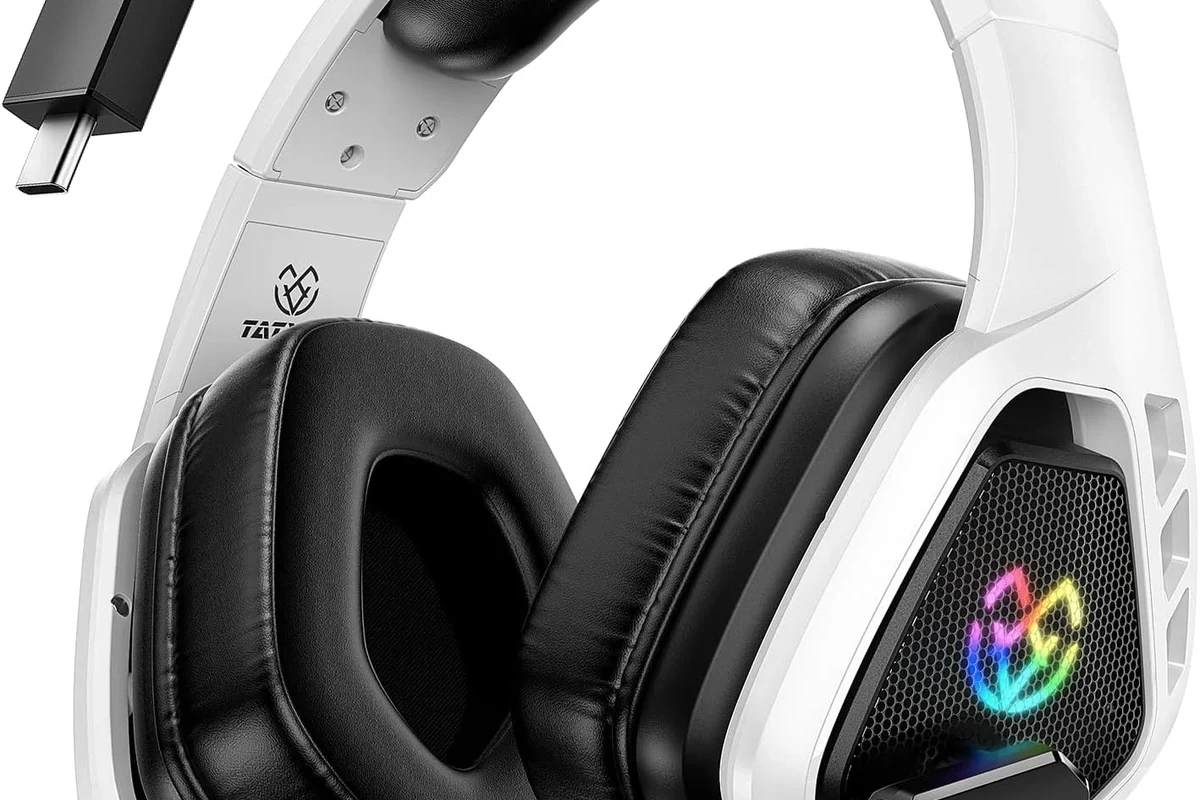
Headphones can make TV sound more detailed and easier to hear, especially when movie dialogue gets buried under background music or action effects. They also let you watch late at night, keep the volume lower for others, and enjoy a more personal listening setup.
For many homes, headphones are also a practical fix for shared spaces. If someone is sleeping, studying, or working nearby, private TV audio can be the simplest way to keep everyone happy.
Many smart TVs now support direct Bluetooth audio, but the experience can vary a lot depending on the TV model, codec support, and latency.
That said, not every setup is equal. Some options are easy but can add delay, while others cost more but give you better sync for gaming and live sports.
How to Use Headphones with TV: The Main Connection Methods Explained
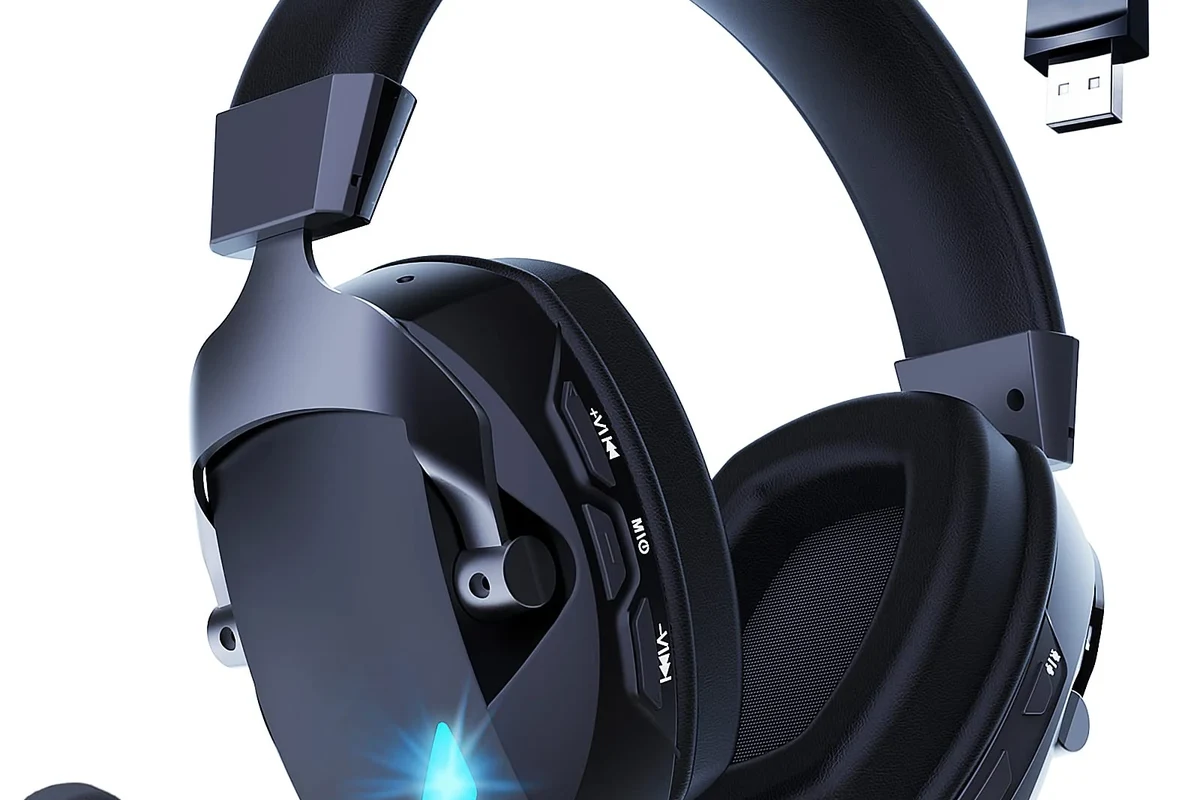
There are four common ways to connect headphones to a TV: Bluetooth, wired audio, a dedicated transmitter or base station, and audio routed through a streaming device or receiver. The right method depends on what your TV supports and how important sound delay is to you.
TV audio outputs and headphone compatibility vary by brand and model. Always check the TV manual or settings menu before buying an adapter or transmitter.
Bluetooth TV Connection for Wireless Listening
Bluetooth is the most convenient option if your TV has built-in wireless audio support. You pair your headphones in the TV’s sound or Bluetooth menu, then switch the audio output from speakers to headphones.
This is a good choice for casual viewing, especially if you already own Bluetooth headphones. The tradeoff is that some TVs introduce noticeable lag, which can make lips and voices feel slightly out of sync.
If you are using a pair with active noise cancelling, Bluetooth can be especially comfortable for long sessions because it reduces room noise without extra hardware. For a broader look at wireless tech, our guide on Bluetooth headphones explained simply covers the basics in plain language.
Wired Headphones via TV Jack, Adapter, or Controller
Wired headphones are still the most straightforward way to avoid wireless delay. If your TV has a 3.5mm headphone jack, you can plug in directly and listen immediately.
Some TVs use RCA audio outs, optical audio, or USB-C-style connections that need an adapter or DAC before a headphone plug will work. Game consoles and streaming controllers may also support headphone output, which can be handy if your TV itself lacks a jack.
Do not force the wrong cable into a port. A mismatched adapter can cause weak sound, no sound, or damage to the TV or headphones.
Wired listening is often best for viewers who want a simple, stable connection and do not mind being tethered to the screen.
Using a TV Headphone Transmitter or Base Station
A dedicated TV headphone transmitter is a popular middle ground between Bluetooth and wired audio. The transmitter connects to your TV or audio source, then sends sound wirelessly to compatible headphones or earbuds.
This setup can be especially useful in living rooms where the TV sits far from the couch or where Bluetooth range is unreliable. Many TV-specific headphone systems also include a charging cradle, which makes them convenient for older adults or anyone who wants a grab-and-go routine.
Connecting Through a Streaming Device, Soundbar, or AV Receiver
Sometimes the easiest path is not the TV itself, but the device connected to it. Some streaming boxes, soundbars, and AV receivers offer audio outputs or headphone-friendly routing that can make setup simpler.
This can be useful if your TV has limited ports or awkward audio settings. It is also a smart option for home theater users who want one audio hub for both speakers and headphones.
If you already use a receiver or soundbar, check whether it supports audio passthrough or a dedicated headphone output. That detail can save you from buying extra adapters you do not actually need.
Which Headphone Setup Works Best for Your TV and Budget?
The best setup depends on how you watch. Some people only need a cheap plug-in solution, while others need low-latency wireless sound for gaming, sports, or movie nights.
- Bluetooth is easiest, but delay can be a problem.
- Wired audio is the most reliable for sync.
- Transmitters and TV-specific systems are a strong middle ground.
- Choose based on your TV ports, comfort, and viewing habits.
Best for Simple Plug-and-Play Use
If you want the least complicated setup, wired headphones or built-in Bluetooth are usually the easiest. Wired is better when you want immediate sync, while Bluetooth is better when you want to move around the room.
For people who watch news, sitcoms, or casual shows, convenience often matters more than advanced audio features. In those cases, a basic connection that works reliably is usually the right answer.
Best for Low-Latency Gaming and Live Sports
For gaming and live sports, low latency matters a lot. Even a small delay can make dialogue feel off or make game audio feel disconnected from on-screen action.
In that case, wired headphones or a low-latency transmitter are usually safer choices than standard Bluetooth. If you are connecting a headset to a console or controller, you may also want to compare it with our guide on Turtle Beach headphones work on PC for more compatibility ideas that often overlap with TV setups.
Best for Shared Living Rooms and Long Viewing Sessions
For shared homes, comfort and range can matter as much as sound quality. Over-ear headphones with soft ear cushions are often better for long movie nights than smaller on-ear models, though preferences vary by head shape and fit.
If you plan to wear headphones for hours, look for a lightweight design, stable wireless connection, and easy volume control. Battery life also becomes important if you do not want to recharge every day.
Step-by-Step: How to Set Up Headphones with a TV Without Audio Delays
Reducing delay starts with choosing the right connection, but setup matters too. A few menu changes and volume adjustments can make a big difference in how natural the sound feels.
Pairing and Switching Audio Output on Smart TVs
Start by opening the TV sound settings and looking for Bluetooth, audio output, or speaker settings. Put your headphones in pairing mode, then select them from the TV’s device list.
Once connected, switch the TV’s sound output from internal speakers to headphones if the TV does not do this automatically. Some models remember the last device, while others need manual switching each time.
Find Bluetooth or audio output in the TV menu.
Put the headphones in pairing mode and select them on the TV.
Make sure the TV is sending sound to the headphones, not the speakers.
Reducing Lip-Sync Issues and Bluetooth Lag
If voices do not match the picture, look for a lip-sync or audio delay setting in the TV menu. Some TVs let you adjust sync manually, which can help when Bluetooth introduces a slight delay.
Also check whether your headphones or transmitter supports a low-latency codec or mode. Support varies by model, so do not assume every wireless headset will perform the same way.
- TV lip-sync or audio delay setting
- Headphone latency support
- Transmitter codec compatibility
- Distance between TV and headphones
Adjusting TV Volume, Headphone Volume, and Accessibility Settings
Many TVs let you control both TV volume and headphone volume separately, but not all do. If the sound is too quiet, raise the output from the TV first before maxing out the headphone volume.
Accessibility settings can also help. Some TVs offer dialogue enhancement, speech clarity, or night mode features that make voices easier to hear without blasting the overall volume.
If dialogue sounds muddy, try lowering bass-heavy processing and using a clearer sound mode before turning the volume up.
Common Mistakes People Make When Using Headphones with a TV
Most setup problems come from a few predictable mistakes: choosing the wrong port, ignoring latency, or assuming every wireless headset works the same way. A little planning can prevent a lot of frustration.
Ignoring Latency, Codec Support, and Range Limits
Bluetooth is convenient, but it is not always ideal for fast-moving content. If you watch sports or play games, even modest lag can be distracting.
Range matters too. Walls, furniture, and other wireless devices can affect signal quality, so a setup that works in one room may not work as well in another.
Using the Wrong Adapter or Port Type
TVs vary widely in their output options. Some use a dedicated headphone jack, while others rely on optical, HDMI ARC/eARC, RCA, or USB-based audio paths that need special adapters.
If the sound is weak, distorted, or missing completely, the problem is often the adapter chain rather than the headphones themselves. Check the TV manual before buying extra gear.
Overlooking Battery Life, Comfort, and TV Audio Passthrough
Wireless headphones can be great until the battery dies in the middle of a movie. If you watch long sessions, battery life and charging convenience matter more than many buyers expect.
Comfort is just as important. A headset that feels fine for 20 minutes may become tiring after a full double-feature, especially if the clamping force is strong or the ear pads trap heat.
- Private listening without disturbing others
- Clearer dialogue for many viewers
- Flexible options for wired and wireless use
- Bluetooth can add delay
- Adapters may be required
- Comfort and battery life vary by model
Expert Advice: When to Choose Wireless, Wired, or TV-Specific Headphones
There is no single best answer for every TV setup. The right choice depends on whether you value convenience, perfect sync, or long-term comfort more.
What to Look for in 2025 Models: Low Latency, Multipoint, and Comfort
In 2025, the most useful features for TV listening are still low latency, stable connection quality, and comfortable ear pads. Multipoint can also help if you want to switch between TV, phone, or tablet without re-pairing every time.
For buyers comparing options, focus on real-world fit and connection type first. Sound tuning matters too, but TV listening usually benefits most from clear mids, understandable dialogue, and reliable sync rather than exaggerated bass.
Safety Warning: Avoiding Overly Loud Listening and Cable Damage
Headphones can make it easy to listen louder than you realize, especially late at night. Keep volume at a safe level and take breaks during long sessions; if you already have hearing concerns or tinnitus, follow safe listening guidance or speak with an audiologist.
Listening at high volumes for long periods can cause hearing damage. Keep volume at 60% or below for extended sessions.
Wired users should also watch for cable strain. Pulling on the cord, bending it sharply, or letting it hang under tension can shorten the life of both the cable and the headphone jack.
If your TV sound is consistently distorted, painfully loud, or unusually unbalanced, consider checking the TV’s audio settings first. If hearing discomfort continues even at moderate volume, consult an audiologist or a qualified audio professional.
Final Takeaway: The Easiest Way to Get Better TV Sound at Home
The easiest way to use headphones with a TV is to match the connection method to your needs: Bluetooth for convenience, wired for reliability, or a transmitter for a balanced middle ground. If your priority is gaming or live sports, low latency should come first.
For most people, the best setup is the one that fits their TV ports, feels comfortable for long sessions, and keeps dialogue clear without constant troubleshooting. Once you choose the right method, TV listening becomes quieter for everyone else and much more enjoyable for you.
Frequently Asked Questions
Wired headphones are usually better for the lowest delay and most reliable sync. Wireless headphones are more convenient, but Bluetooth lag can vary by TV and model.
Yes, noise cancelling headphones can work very well for TV because they help reduce room noise and make dialogue easier to hear. Performance and comfort vary by brand and fit.
Closed-back headphones are usually better for TV because they block more outside noise and keep sound from leaking out. Open-back headphones can sound more spacious, but they are less private and less isolating.
Over-ear headphones are often the most comfortable for long sessions because they spread pressure around the ear. Ear cushion material, weight, and clamping force also matter a lot.
Check TV compatibility, latency support, battery life, comfort, and whether you need Bluetooth, a wired jack, or a transmitter. If you want clearer dialogue, also look for sound modes or EQ options.
Use EQ or the TV’s sound modes to reduce muddy bass and bring up voices. Small adjustments to treble, dialogue enhancement, and volume levels can make a big difference.