How to Make Sony Headphones Not Stop When I Talk Fast

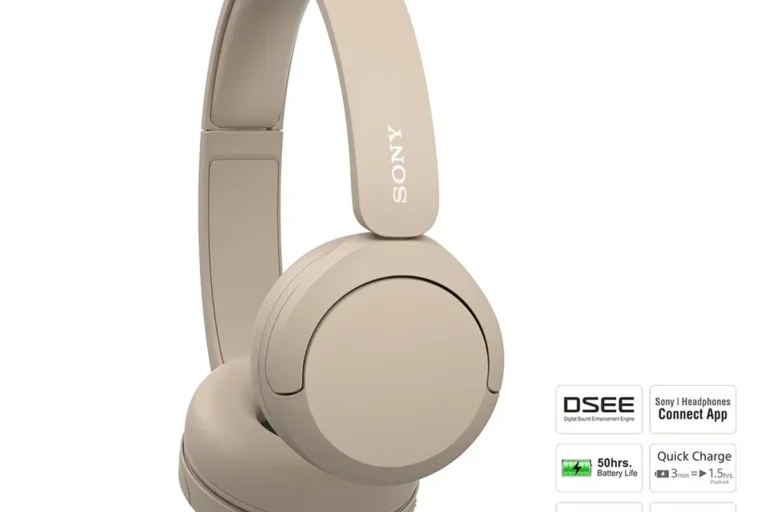
Turn off Speak-to-Chat in the Sony Headphones Connect app first, because that is the most common reason Sony headphones stop when you talk fast. If it still happens, check wear sensors, voice assistant settings, Bluetooth pairing, and firmware updates.
If your Sony headphones keep stopping when you talk fast, the most common cause is Speak-to-Chat or another voice-triggered feature. The good news is that this is usually a settings issue, not a broken headset, and it can often be fixed in a few minutes.
- Main fix: Disable Speak-to-Chat in the Sony app.
- Next check: Review wear sensors and voice assistant settings.
- If it continues: Re-pair Bluetooth and update firmware.
- Common cause: Fast speech can trigger voice detection.
Why Sony Headphones Pause or Stop When You Talk Fast: What’s Actually Happening

Many Sony wireless headphones include smart features that listen for your voice and react automatically. That can be useful in daily use, but it can also feel annoying if your music pauses every time you speak in a normal conversation or while you are on a call.
How Sony’s speak-to-chat and automatic pause features react to voice detection
On many Sony models, Speak-to-Chat lowers or pauses audio when the headphones detect that you are talking. Some models also have auto-pause behavior related to wear sensors, voice assistant activation, or app-based playback controls. If the headphones think your speech is a command or a cue to stop listening, they may interrupt media even when you do not want them to.
In simple terms, the headset is trying to be helpful. It is designed to notice your voice, but rapid speech can make that detection happen more often than expected. If you are using features like transparency mode or noise cancelling, those settings can also change how the headset interprets sound around you. For a broader look at how these listening modes affect behavior, see our guide to transparency mode headphones and how they differ from standard playback modes.
Why rapid speech, background noise, and mic sensitivity can trigger unwanted stops
Fast talking can create sharper voice patterns that the microphone system picks up quickly. Add wind, traffic, a fan, or a busy office, and the headset may mistake surrounding noise for speech or treat your voice as a signal to pause.
This is especially common with wireless headphones that rely on built-in microphones and software logic. In some cases, the issue is not the audio source at all, but the way the headset interprets your environment. If you are still learning how Bluetooth audio behavior works, our Bluetooth headphones explained guide may help make the settings easier to understand.
How to Make Sony Headphones Not Stop When I Talk Fast: The Fastest Fixes

If you want the quickest answer, start by turning off Speak-to-Chat in the Sony Headphones Connect app. That single change solves the issue for many people, especially if the stopping happens only when they start speaking.
Turn off Speak-to-Chat in the Sony Headphones Connect app
Open the Sony Headphones Connect app and look for the Speak-to-Chat setting. On many models, it is found in the sound or system section, and you can switch it off completely or adjust how it behaves.
Once disabled, the headphones should stop pausing just because you talk. If the feature is still on after a firmware update, it may turn back on automatically, so it is worth checking again after any update or reset.
If you use your Sony headphones for calls and music, turn off voice-triggered pause features first. It is the fastest way to tell whether the problem is software-based or something deeper.
Check pause-on-removal, auto-play, and voice assistant settings
Some Sony models also pause when the headphones think they have been removed from your head. If the fit is loose, the ear sensors may behave unpredictably and create stops that feel like voice-related interruptions.
Also review voice assistant access. If your headset is set to launch a voice assistant with a spoken trigger, it may react when you talk quickly. Auto-play and auto-resume settings can also make playback seem inconsistent when you start and stop speaking during a song, podcast, or meeting.
Menu names vary by model and firmware version, so the exact setting path may look slightly different on your headphones or phone.
Reset Bluetooth connection and re-pair if the issue keeps returning
If the headphones still stop after you change the settings, disconnect them from Bluetooth and pair them again. A fresh connection can clear minor app-sync problems or stale device profiles that keep old behavior active.
If that does not help, try resetting the headphones through Sony’s reset process for your model. For readers who want a deeper step-by-step reset walkthrough, our how to reset Bluetooth headphones guide covers the general process in a simple way.
Step-by-Step Setup Guide for Popular Sony Models in 2026
Sony’s menus are usually easy to navigate, but the exact layout can change from one model generation to the next. The good news is that the core fix is usually the same: find the voice-triggered feature and turn it off if it is causing unwanted pauses.
WF-1000XM5, WH-1000XM5, and newer Sony models: where the setting lives
On newer Sony earbuds and over-ear headphones, the Speak-to-Chat toggle is typically inside the Sony Headphones Connect app. Look for listening, sound, or system settings, then check any section related to voice detection, ambient sound, or automatic controls.
Newer models may also include wear detection or assistant shortcuts. If you use the headphones mainly for media playback, meetings, or gaming, it is often better to keep only the features you actually need. That reduces accidental pauses and makes the headset more predictable.
Some wireless headphones can change behavior after a firmware update, even if you did not touch the app settings. It is smart to re-check voice and sensor options after updating.
Older Sony headphones: differences in app menus and firmware behavior
Older Sony headphones may place the same feature in a different menu, or they may label it in a way that is less obvious. In some cases, the app version matters as much as the headphone model, so an outdated app can make settings harder to find.
Older firmware can also behave differently from newer releases. If your model is a few generations old, the app may not show every modern toggle, but the voice-triggered pause feature is usually still present in some form. That is why it helps to update both the app and the headset before making bigger changes.
What to do if your model does not show the expected toggle
If you cannot find Speak-to-Chat, check whether the headphones are fully supported by your current app version. Sometimes a phone OS update, app bug, or regional software difference changes what you see on screen.
In that case, test the headphones with another phone if possible. If the behavior changes, the issue may be tied to the app rather than the headset itself. If you are comparing Sony behavior with other brands, our how noise cancelling headphones work article can help you understand which smart features are likely to affect pause behavior.
Real-World Examples: When the Problem Happens Most Often
This issue tends to show up most often in everyday situations where you are talking, moving, and listening at the same time. That is why it can feel random even when the cause is actually a specific setting.
Phone calls, voice notes, and meetings on Zoom, Teams, or Google Meet
During calls and meetings, the headset may switch attention between media playback and your microphone. If Speak-to-Chat or voice assistant detection is active, the headphones may pause music or audio as soon as you begin talking.
This is especially noticeable in work calls, because fast back-and-forth conversation can trigger repeated pauses. If you use your headset for laptop meetings, it can also help to check your computer audio output settings so the app is not fighting with the headphones for control.
Talking to someone while listening to music or podcasts
Many people notice the problem when they speak to a coworker, partner, or family member while listening to audio. A short sentence can be enough to trigger a pause, which makes the headphones feel overly sensitive.
If you prefer uninterrupted listening, disabling voice-triggered features is usually the best choice. If you like the convenience of automatic pausing, you may want to keep it on and simply learn the speech pattern that activates it most often.
Outdoor walking, commuting, and gym use with wind or ambient noise
Outdoor use can make the issue worse. Wind, passing cars, gym machines, and public transit noise can all interfere with the microphones and sensors that Sony uses for smart detection.
If you walk or commute with your headphones, try testing them indoors first. That makes it easier to separate a real software issue from environmental noise that is confusing the headset.
Common Mistakes That Keep Sony Headphones Pausing Mid-Sentence
Many users fix the problem once, then see it come back later because one small setting changed again. These mistakes are common and easy to miss, especially after updates or when you use multiple devices.
Leaving Speak-to-Chat on after a firmware update
Firmware updates can improve stability, but they sometimes reset or re-enable features. If your Sony headphones suddenly start pausing again, check the app even if you already turned the feature off before.
This is one of the most common reasons people think the headset is broken. In reality, the update may have restored the factory behavior or changed the way the app syncs settings.
Confusing media pause issues with Bluetooth disconnects
Not every stop is caused by voice detection. Sometimes the audio pauses because of a weak Bluetooth connection, multipoint switching, low battery, or a software hiccup on the phone or computer.
If the audio stops without any speech at all, or if the headset disconnects entirely, the issue is probably not Speak-to-Chat. In that case, a Bluetooth re-pair or device restart is more likely to help than changing voice settings.
Using the wrong app profile or not saving settings correctly
Some users adjust settings in the wrong device profile, especially if they own more than one Sony headset. Others change the option but do not fully save or sync it before closing the app.
Make sure the app is connected to the exact headphone model you are using. If you switch between a phone and a laptop often, it is worth checking that both devices are not applying different control behavior.
Expert Advice: When a Setting Change Is Not Enough
If you have turned off the obvious voice features and the problem still happens, the issue may be deeper than a simple toggle. That does not automatically mean the headphones are defective, but it does mean you should troubleshoot more carefully.
Firmware bugs, sensor issues, and app glitches that can mimic voice-triggered stopping
Firmware bugs can cause strange behavior that looks like voice detection. Wear sensors, touch controls, and microphone logic all rely on software, so a glitch in one area can create pauses that seem unrelated.
App sync problems are also common. If the app and headset are not communicating correctly, the headphones may keep using old settings even after you think you changed them.
If you notice repeated false pauses, one earcup or earbud not responding, or settings that never seem to stick, consider a full reset and firmware update. If the problem continues after that, contact Sony support or a qualified audio repair service.
When to factory reset, update firmware, or contact Sony support
A factory reset makes sense when the headset behavior is inconsistent across devices or after a failed update. Before doing that, confirm the app is current and the headset firmware is fully updated.
If the issue survives a reset, re-pair, and firmware update, Sony support may be the next step. That is especially true if the headphones are under warranty or if the behavior started immediately after a software change.
Warning signs that the headset may need repair or replacement
Watch for signs like one-sided microphone failure, sensors that behave erratically, random shutdowns, or controls that stop responding altogether. Those symptoms may point to hardware trouble rather than a setting problem.
Listening at high volumes for long periods can cause hearing damage. Keep volume at 60% or below for extended sessions.
If you are unsure whether the problem is hardware or software, compare your headset with another device and another user account if possible. That can help isolate whether the headphones themselves are the cause.
Cost, Convenience, and Feature Trade-Offs: Keep the Smart Features or Turn Them Off?
There is a real trade-off here. Sony’s smart features can be convenient, but they are not ideal for everyone, especially fast talkers who want uninterrupted playback.
What you gain by disabling voice-triggered pauses versus what you lose
Disabling Speak-to-Chat gives you more predictable listening and fewer accidental stops. That is great for music, podcasts, gaming, and long meetings where you do not want the headset making decisions for you.
The downside is that you lose some convenience. If you liked the automatic pause when starting a conversation, you will need to pause audio manually instead.
Comparing Sony’s behavior with Bose, Apple, and JBL alternatives
Different brands handle voice, wear detection, and auto-pause in different ways. Some users prefer Sony because of its feature depth, while others prefer simpler behavior from competing models.
If you want a broader look at how headphone categories compare for everyday use, our types of headphones explained guide is a useful starting point. Brand behavior can vary by model, so the best choice often comes down to which smart features you are comfortable managing.
Whether upgrading to a newer model is worth it for better voice control
Upgrading can help if your current headset has old firmware, limited app support, or unreliable sensors. Newer models may offer better control over voice detection, but no headset is perfect for every user.
If your current Sony headphones still sound good and only have this one annoyance, turning off the feature is usually the most cost-effective fix. A new model makes more sense if you also want better battery life, improved comfort, or stronger noise cancellation.
Final Recap: The Best Way to Stop Sony Headphones from Interrupting You
For most people, the best answer to how to make sony headphones not stop when i talk is to disable Speak-to-Chat in the Sony Headphones Connect app. If that does not fully solve it, check wear sensors, voice assistant settings, Bluetooth pairing, and firmware updates next.
Quick summary of the most reliable fix for fast talkers
Turn off voice-triggered pause features first, then re-pair the headset if the behavior keeps returning. If the problem still happens after a reset and update, the issue may be app-related or hardware-related rather than a simple setting.
Best-practice settings for calls, meetings, and everyday listening
For calls and meetings, keep only the features you actually use and disable anything that auto-pauses audio when speech is detected. For everyday listening, test the headphones in a quiet room first so you can confirm the settings are stable before using them outdoors or in busy places.
Frequently Asked Questions
Wireless Sony headphones are usually more convenient for commuting and calls, while wired headphones can avoid Bluetooth lag and battery limits. Sound quality depends on the model, fit, and how you listen.
Noise cancelling can change how microphones hear your voice and the sounds around you. That may make voice-triggered pause features more or less sensitive depending on the model and environment.
Over-ear headphones often feel better for long sessions because they spread pressure around the ear. In-ear earbuds can be lighter, but comfort depends on ear shape, tip size, and seal.
Check battery life, microphone quality, Bluetooth version, comfort, and whether the app gives you control over smart features. For commuting, noise cancelling matters more, while gaming users should also watch for latency.
EQ can reduce muddy bass, lift vocals, or add brightness depending on your preference. Small changes usually work best, since big boosts can make the sound harsh or less balanced.
Look for a comfortable fit, solid hinges, replaceable ear cushions if possible, and a brand app that is easy to use. Build quality matters, but the best choice also depends on how often you travel, work, or listen for long periods.