Can You Connect Bluetooth Headphones to a Samsung TV Easily

Yes, many Samsung TVs can connect to Bluetooth headphones directly, but some models need a Bluetooth transmitter or another workaround. The easiest setup depends on your exact TV model, audio menu options, and whether you need low-latency sound for gaming.
Yes, in many cases you can connect Bluetooth headphones to a Samsung TV, but the exact steps depend on the TV model and software version. Some Samsung TVs support direct headphone pairing in the Sound settings, while others may need a Bluetooth transmitter or another workaround.
- Direct pairing: Many newer Samsung TVs support Bluetooth headphones in Sound Output settings.
- Model check: Older or limited TVs may need an external transmitter.
- Gaming note: Low latency matters more than brand names for smooth audio.
- Common fix: Re-pair, reset, or disconnect other devices if pairing fails.
Can You Connect Bluetooth Headphones to a Samsung TV in 2026? What Most Buyers Need to Know
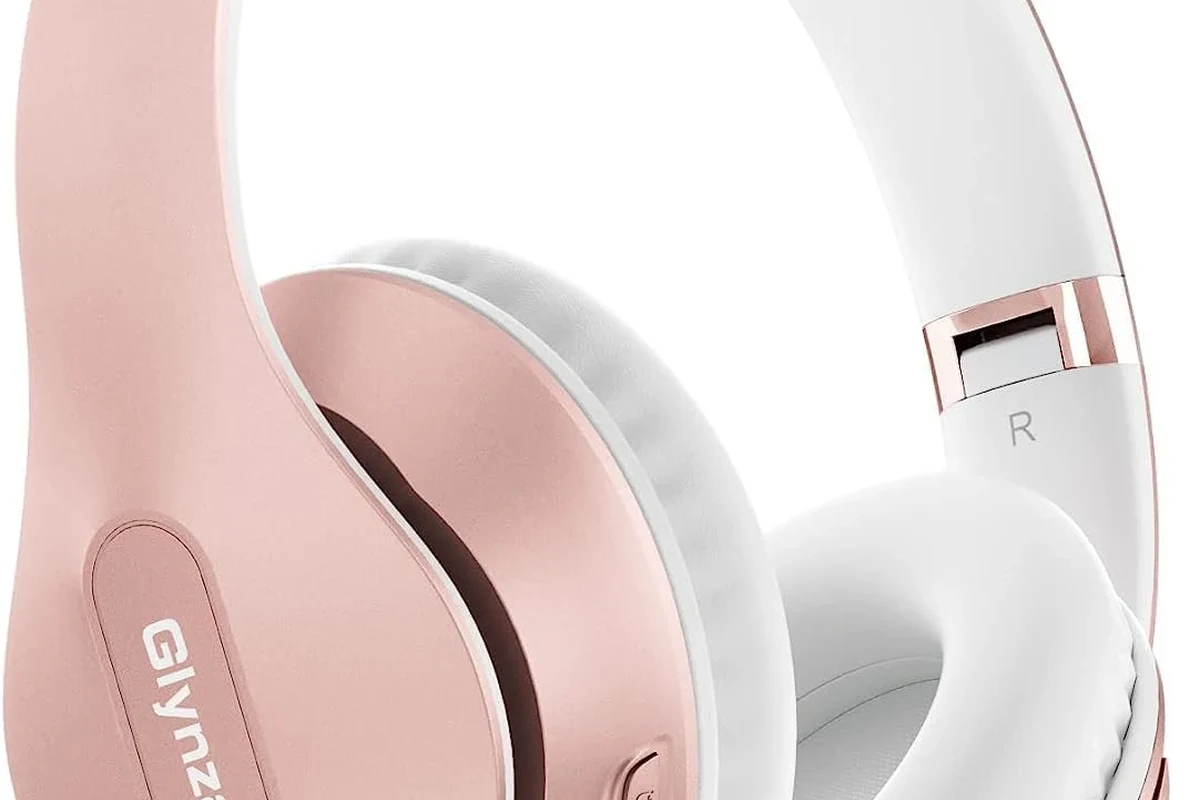
For most Samsung TV owners, the short answer is still yes: Bluetooth headphones can often be paired directly or with a simple adapter. The catch is that not every Samsung TV handles Bluetooth audio the same way, and some models support remotes and keyboards over Bluetooth but not headphones.
If you are shopping for a TV or headphones specifically for late-night viewing, gaming, or shared living-room use, it helps to check compatibility before you buy. A quick look at your TV’s settings and supported audio output options can save a lot of frustration later.
If you already own Bluetooth headphones, test them with another device first. That makes it easier to tell whether a problem is with the headphones or the TV.
For readers comparing wireless listening options in general, our guide on Bluetooth headphones explained simply is a useful starting point. It covers the basics of pairing, range, and everyday limitations that also matter on TVs.
How Samsung TV Bluetooth Audio Works: Supported Models, Menus, and Limits
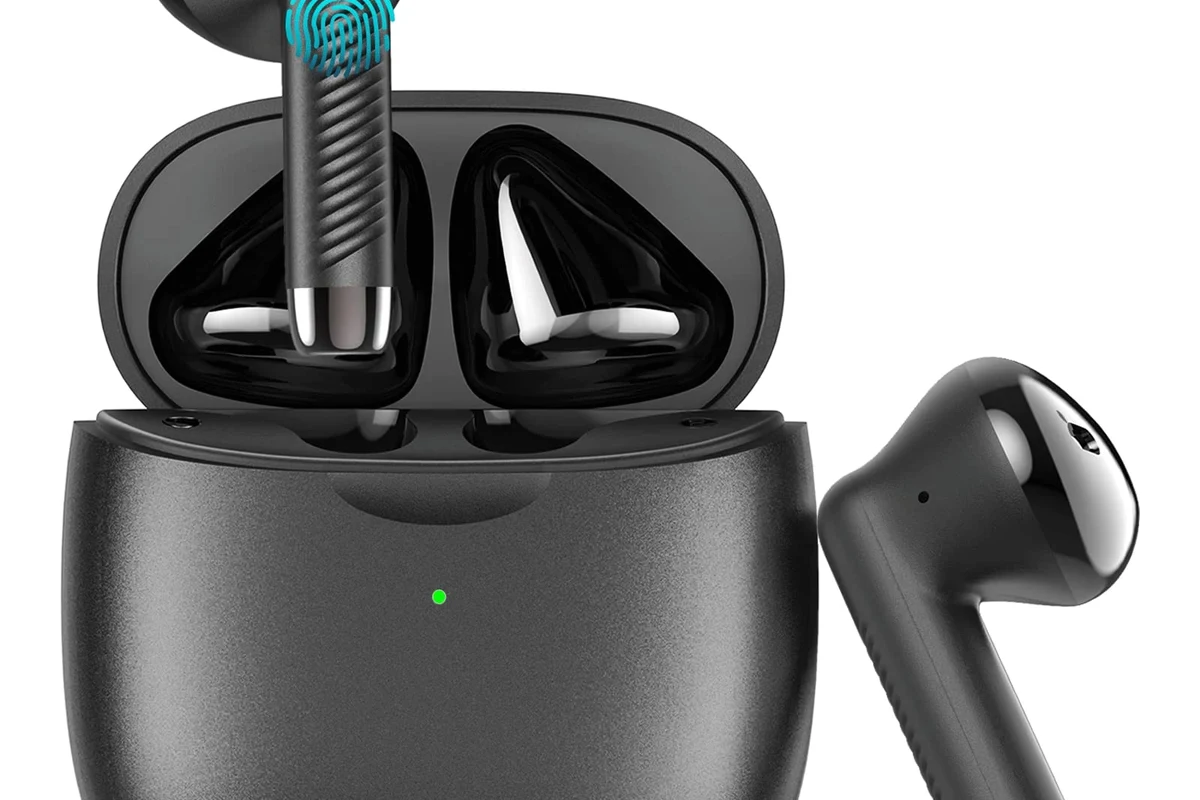
Samsung TV Bluetooth audio usually works through the TV’s sound output menu, where you can switch from speakers to a wireless audio device. On supported models, the TV scans for nearby headphones, earbuds, or speakers and then lets you pair them from the screen.
There are still limits. Some TVs may only support certain Bluetooth accessories, some may not remember devices reliably, and some may add a little audio delay that is noticeable during movies or games.
Where to Find Bluetooth Settings on Samsung TVs
On many Samsung TVs, Bluetooth-related options live under Settings, Sound, and Sound Output. Depending on the model, you may also see a device list or an option labeled Bluetooth Speaker List, Bluetooth Audio Device, or something similar.
If the menu looks different from one Samsung TV to another, that is normal. Samsung changes the interface across years and series, so the exact wording can vary even when the pairing process is essentially the same.
Menu names can vary by Samsung model year, region, and firmware version. If you do not see the exact option mentioned in a guide, look for the closest sound output or device connection menu.
Which Samsung TV Series Typically Support Headphones Directly
Many newer Samsung smart TVs support Bluetooth audio output directly, but support is not universal across every series. Higher-end and newer models are more likely to include easy pairing for headphones, while some older sets may need an external transmitter.
If you are unsure, check your TV manual or the support page for your exact model number. That is usually more reliable than assuming based on brand alone.
Step-by-Step: How to Pair Bluetooth Headphones to a Samsung TV
Pairing usually takes just a few minutes when the TV supports it. The main goal is to put the headphones into pairing mode, open the TV’s sound output settings, and let the TV discover the device.
Put your headphones into Bluetooth pairing mode using the button or touch control method listed in the manual.
Go to Settings, then Sound, and look for Sound Output or a Bluetooth device list.
Choose the headphones from the list, confirm pairing, and wait for the TV to switch audio output.
Putting Headphones in Pairing Mode the Right Way
Pairing mode is not always the same as simply turning the headphones on. In many cases, you need to hold a dedicated button until the light flashes or you hear a pairing prompt.
If the headphones have already been paired to your phone, tablet, or console, disconnect them first if needed. Some models connect to the last active device automatically, which can make the TV look like it is not detecting them.
Connecting Through Sound Output Settings
Once the headphones are in pairing mode, open the Samsung TV’s sound output menu and select the Bluetooth option if it appears. The TV should scan for nearby devices and show your headphones on the screen.
After pairing, test the volume and make sure the TV speakers are muted or disabled if you want private listening. If the audio still plays through the TV speakers, recheck the output selection.
What to Do If the TV Does Not Detect the Headphones
First, restart both devices and try again. Move the headphones closer to the TV, remove other nearby Bluetooth devices if possible, and confirm that the headphones are truly in pairing mode.
If the TV still does not see them, the model may not support direct Bluetooth headphone output. In that case, an external transmitter is often the cleanest fix.
If your Samsung TV does not list Bluetooth headphones as an audio output option, do not assume the headphones are broken. The TV may simply not support that type of connection natively.
When Bluetooth Is Not Enough: Common Connection Problems and Fixes
Even when pairing works, Bluetooth audio can still have practical issues. The most common complaints are delay, unstable connections, and occasional audio imbalance.
These problems are not unique to Samsung TVs. They are common to Bluetooth audio in general, especially when latency, interference, or device compatibility becomes an issue.
Audio Delay, Lip-Sync Issues, and Gaming Lag
Audio delay is one of the biggest reasons people look for alternatives to built-in Bluetooth. Movies may still be watchable, but gaming and fast dialogue scenes can feel off if the sound arrives late.
If your TV has audio delay settings, try them first. But if you are a gamer or very sensitive to lip-sync issues, a low-latency transmitter or a wired path may be a better fit than standard Bluetooth alone.
Connection Drops, One-Ear Audio, and Pairing Failures
Dropouts can happen if the signal is weak, the headphones are already connected elsewhere, or the TV firmware is acting up. One-ear audio may point to a headphone issue, a bad pairing session, or a temporary software glitch.
If you experience repeated failures, reset the headphones, forget the device on the TV if possible, and pair again from scratch. Our guide on how to reset Bluetooth headphones can help if your headset seems stuck or refuses to reconnect.
Best Workarounds for Samsung TVs Without Built-In Bluetooth Headphone Support
If your Samsung TV cannot pair headphones directly, you still have good options. The most common workaround is a Bluetooth transmitter that plugs into the TV’s audio output.
This is often the best route for older TVs, gaming setups, or anyone who wants more consistent audio performance than the built-in Bluetooth menu provides.
Using a Bluetooth Transmitter with Optical or 3.5mm Output
A Bluetooth transmitter takes audio from the TV and sends it to your headphones wirelessly. Many people use optical output for a cleaner setup, while others use a 3.5mm jack if the TV supports it.
When shopping for a transmitter, check the available inputs, the supported Bluetooth version, and whether low-latency support is included. Those details matter more than flashy packaging.
Soundbars, AV Receivers, and Other Alternative Routes
Some soundbars and AV receivers can pass audio to Bluetooth headphones or support headphone output more directly. This can be helpful if you already use a home theater setup and want one central audio hub.
Just remember that every extra device adds another possible compatibility issue. If your goal is simple solo listening, a direct TV-to-headphone connection or a dedicated transmitter is usually easier.
Cost Comparison: Built-In Bluetooth vs. External Transmitters and Adapters
Built-in Bluetooth is usually the simplest option because it does not require extra hardware. But if your TV lacks support, the cost of a transmitter is often worth it for the convenience alone.
Prices vary widely by brand, features, and latency support, so it is better to think in terms of budget, midrange, and premium solutions rather than a single fixed price.
Budget Options vs. Premium Low-Latency Solutions
Budget transmitters can work well for casual TV watching, but they may not offer the best connection stability or lip-sync performance. Premium models may include stronger codec support and better range, which can make a noticeable difference.
If you mostly watch talk shows or news, a basic solution may be enough. If you watch movies or play games, low-latency support becomes much more valuable.
What Matters More for Gaming and Late-Night TV Viewing
For gaming, latency and stability usually matter more than battery life or brand reputation. For late-night TV viewing, comfort, range, and easy pairing often matter more than technical extras.
If you are choosing between new headphones and a transmitter, think about your main use case first. The best setup is the one that matches your viewing habits, not just the one with the most features.
Expert Advice: Mistakes to Avoid Before Buying or Pairing Headphones
A lot of Bluetooth frustration comes from mismatched expectations. The headset may be fine, but the TV, transmitter, or settings may not line up with what the buyer needs.
Before spending money, check the TV model, audio output options, and whether your headphones are meant for general listening or low-latency use.
Why Codec Support and Low Latency Matter More Than Brand Hype
Codec support can affect how smooth and responsive your Bluetooth audio feels, especially if you care about lip-sync. Low-latency support is often more important than the logo on the earcup.
That said, codec names alone do not guarantee a great experience. Real-world performance can still vary based on the TV, transmitter, and headphone pairing.
If you have persistent audio delay, hearing discomfort, or a suspected hearing issue, consult an audiologist or qualified audio specialist. For safe listening, keep volume at comfortable levels and avoid long sessions at high output.
Warnings About TV Compatibility, Firmware, and Multipoint Conflicts
Some headphones support multipoint connections, which is useful for phones and laptops but can create confusion with TVs. The headphones may keep reconnecting to another device instead of the Samsung TV.
Firmware updates can also change behavior, sometimes improving support and sometimes changing menu locations. If something worked before and suddenly stops, a software update may be part of the reason.
Listening at high volumes for long periods can cause hearing damage. Keep volume at 60% or below for extended sessions.
Final Recap: The Easiest Way to Use Bluetooth Headphones with a Samsung TV
If your Samsung TV supports Bluetooth headphones directly, pairing is usually simple: open the sound settings, put the headphones in pairing mode, and connect them from the TV menu. That is the easiest and cleanest setup for most users.
If your TV does not support direct pairing, a Bluetooth transmitter is usually the best workaround. For gaming and movie watching, prioritize low latency, stable connection quality, and comfort over marketing claims or brand hype.
- Many Samsung TVs can pair Bluetooth headphones directly.
- Older or limited models may need a Bluetooth transmitter.
- Low latency matters most for gaming and lip-sync.
- Check TV compatibility before buying new headphones or adapters.
Frequently Asked Questions
Bluetooth is more convenient, but wired headphones usually avoid latency and connection drops. For gaming or lip-sync sensitive viewing, wired can still be the more reliable choice.
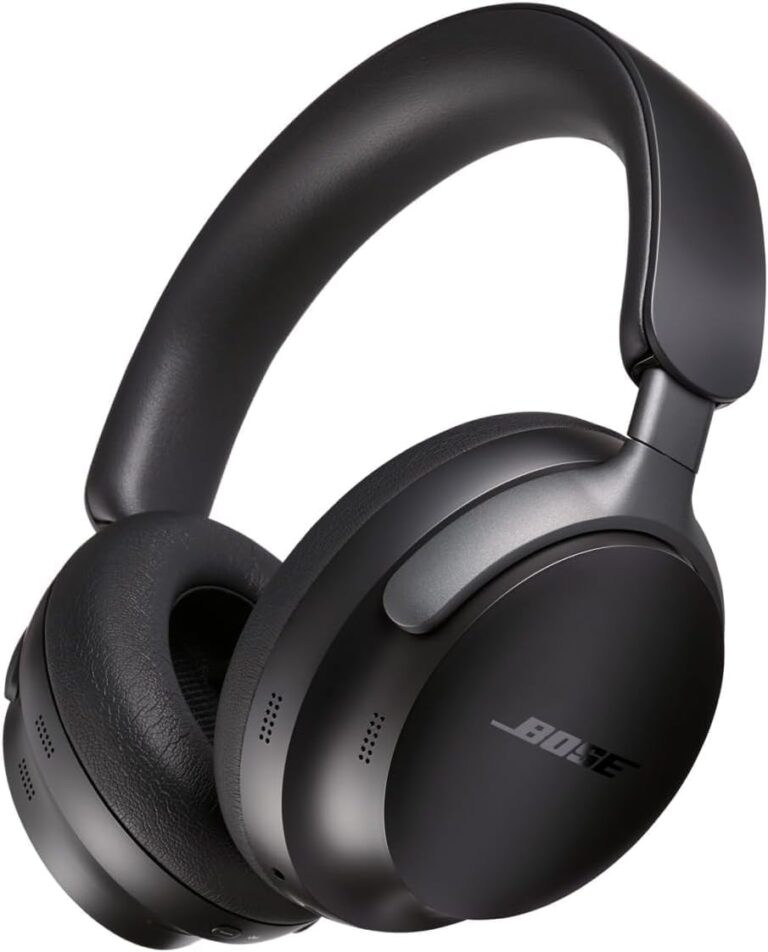
Yes, noise-cancelling headphones can be very helpful in shared homes because they reduce background noise. Just make sure the fit is comfortable for long sessions and that the TV connection is stable.
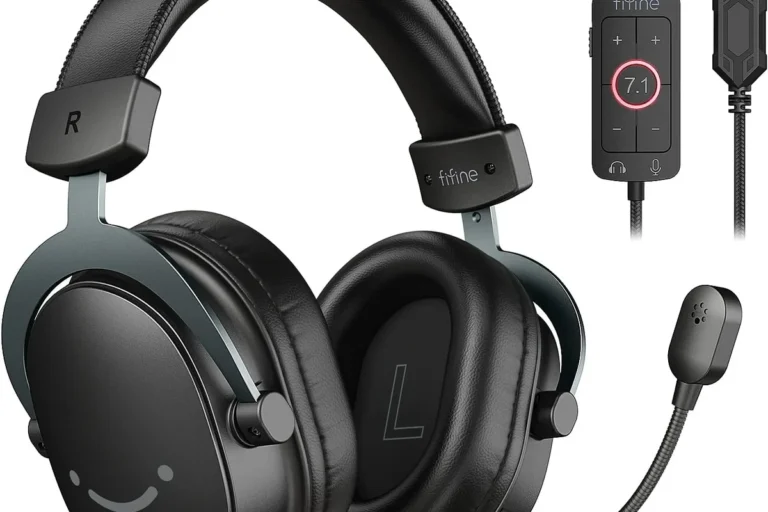
Over-ear headphones are often best for long TV sessions because they are usually more comfortable. In-ear models can work well too if you want something lighter and more compact.
Look at latency support, codec compatibility, battery life, and comfort first. Driver size and frequency response can matter, but real-world tuning and fit often affect sound more than spec sheets.
Start by checking whether your Samsung TV supports direct Bluetooth audio. If it does not, a budget transmitter plus a comfortable headset is often the most cost-effective setup.
Check weight, ear cushion material, headband padding, and build quality. For long viewing sessions, a lighter fit and softer cushions usually feel better than a heavy design.