How Can I Connect My Headphones to My TV Easily

You can connect headphones to your TV either wirelessly through Bluetooth or with a cable if your TV has a headphone or audio-out port. If your TV is older, a Bluetooth transmitter or adapter is usually the easiest workaround.
If you’re wondering how can i connect my headphones to my tv, the answer depends on your TV’s audio outputs and whether your headphones are wired, Bluetooth, or part of a wireless system. In most cases, you can connect directly, use a Bluetooth transmitter, or plug in with a simple cable or adapter.
- Best simple option: Use Bluetooth if your TV supports it.
- Most reliable option: Use a wired connection for the least delay.
- Older TV fix: Add a Bluetooth transmitter or audio adapter.
- Gaming tip: Low latency matters for fast-action content.
How Can I Connect My Headphones to My TV? Understanding the Best 2025 Options
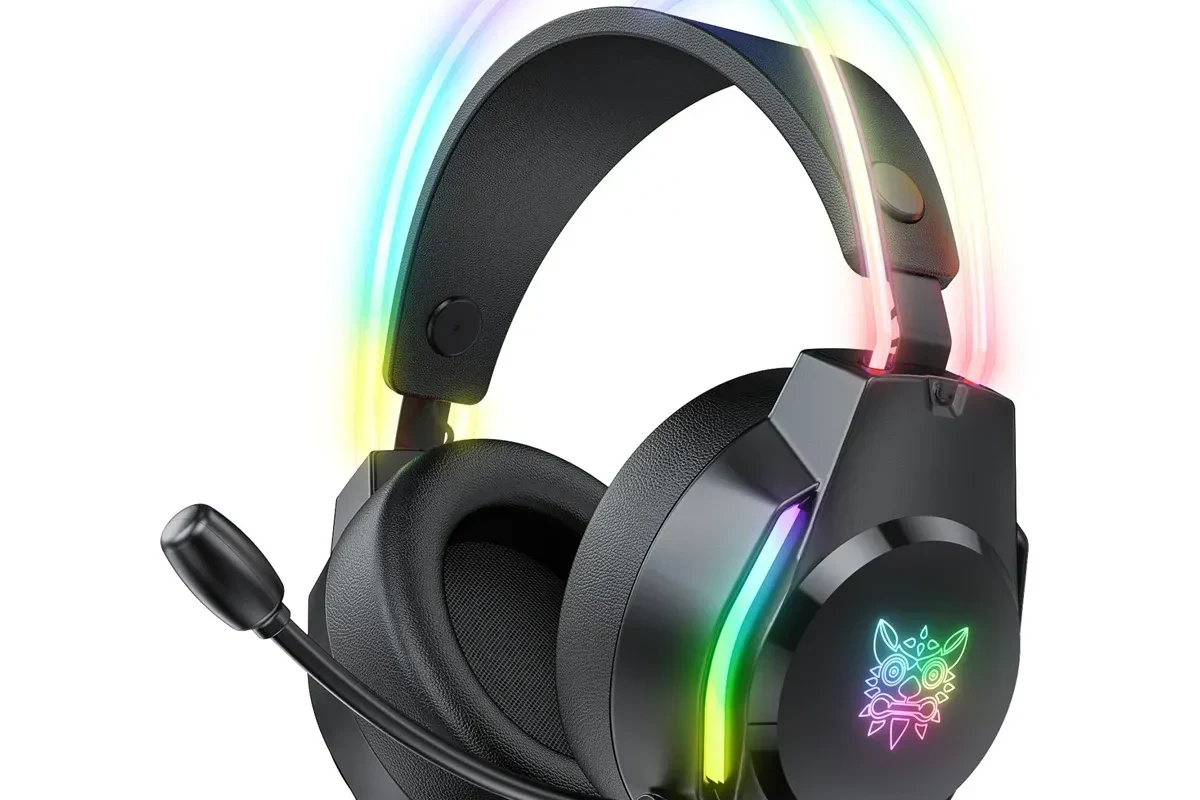
There is no single best method for every setup. The easiest option for many people is Bluetooth if the TV supports it, while the most reliable option for gaming and long movie nights is often a wired connection or a dedicated wireless headphone system.
Modern TVs vary a lot, so the right choice comes down to what ports your TV has, what kind of headphones you own, and how sensitive you are to sound delay. If you want a broader look at headphone categories before buying, our guide to types of headphones explained can help you choose a better match for your viewing habits.
Why People Use Headphones with TVs: Late-Night Viewing, Gaming, and Hearing Support
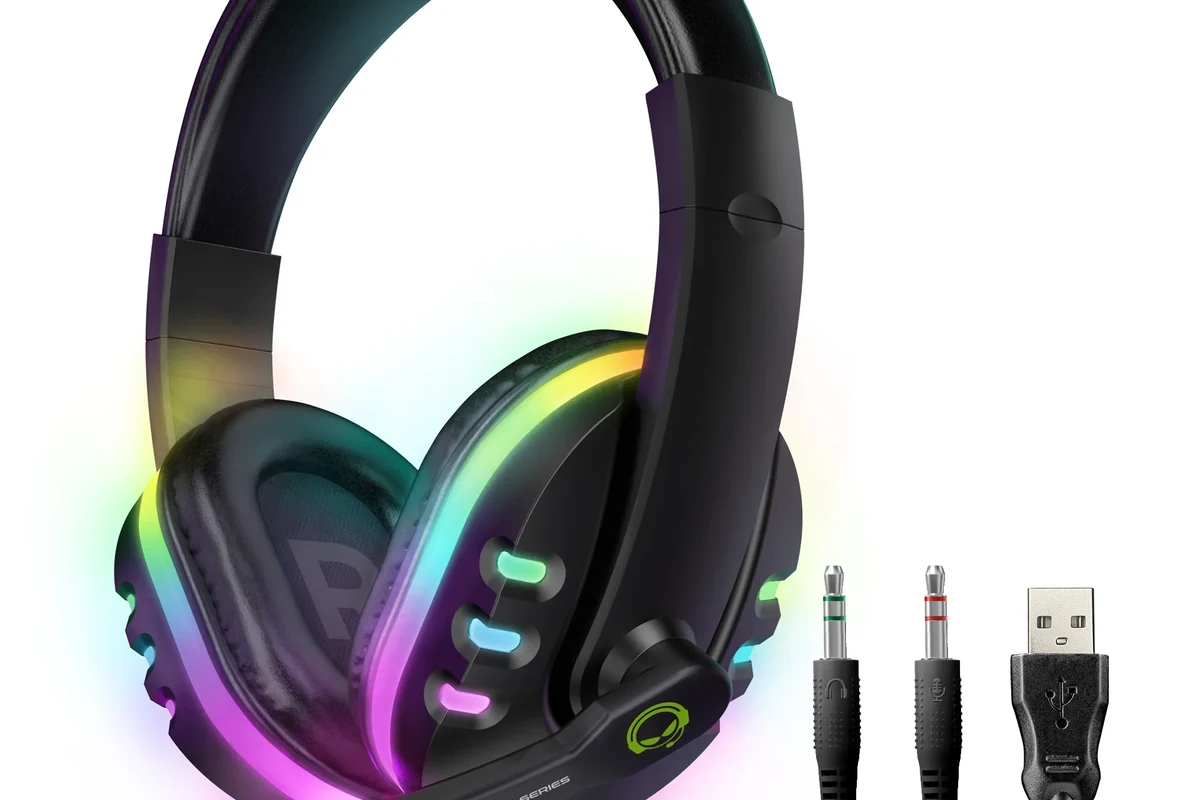
Many viewers use headphones to watch movies without disturbing family, roommates, or neighbors. That is especially useful in apartments, shared homes, and late-night sessions when TV speakers would be too loud.
Gamers also like headphones because they can improve detail, dialogue clarity, and immersion. For some people, headphones are simply easier to hear than TV speakers, especially when hearing support or clearer speech is the main goal.
TV headphone setups are often chosen for dialogue clarity, not just volume. A good fit and clear mids can make speech easier to follow than boosting the TV louder.
Check Your TV and Headphone Type Before You Start
Before buying anything, check the back and side of your TV for audio ports and look at your headphone connection type. This quick step can save you from buying the wrong adapter or transmitter.
- Does your TV support Bluetooth audio?
- Do your headphones use Bluetooth, a 3.5mm cable, USB, or another connection?
- Which ports are available on the TV: 3.5mm, RCA, optical, USB, or HDMI-based audio devices?
Bluetooth TVs vs. non-Bluetooth TVs
A Bluetooth TV can pair directly with compatible headphones, which is the simplest wireless route. Non-Bluetooth TVs usually need a transmitter or a wired solution.
Even on Bluetooth TVs, some models may limit audio output options or introduce a small delay. That matters more for gaming, sports, and fast-action content than for casual talk shows.
Wired headphones, wireless headphones, and true wireless earbuds
Wired headphones are the easiest to connect if your TV has a headphone jack or audio output. Wireless headphones offer more freedom, but they depend on battery life and pairing quality.
True wireless earbuds can work well with TVs too, but they may be less convenient for long sessions if one earbud battery runs down faster than expected. Comfort and fit matter here, especially for extended viewing.
What to look for on your TV: 3.5mm jack, RCA, optical, USB, or Bluetooth
A 3.5mm headphone jack is the simplest port for direct wired audio. RCA outputs, optical ports, and USB ports may also work, but some of them need adapters or special transmitters.
If you are unsure which port to use, check your TV manual or the labels near the ports. That small step can help you avoid compatibility issues and audio dropouts later.
Some TVs treat “audio out” ports differently from a true headphone jack. If the volume seems fixed or too low, the port may need an adapter or external volume control.
How to Connect Headphones to a TV Wirelessly
Wireless connections are popular because they remove cable clutter and let you sit farther from the screen. The main tradeoff is that wireless audio can sometimes add lag or require extra setup.
Pairing Bluetooth headphones directly to a smart TV
If your smart TV supports Bluetooth audio, open the TV’s sound or device settings and put your headphones into pairing mode. Once the TV finds them, select the headphones and test the volume.
This is usually the cleanest solution for everyday viewing. If pairing fails, try turning Bluetooth off and on again, resetting the headphones, or moving closer to the TV during setup.
Look for Bluetooth audio, sound output, or connected devices in the TV menu.
Follow the headphone manual so the TV can detect them.
Check for delay, low volume, or speaker switching before you settle in.
Using a Bluetooth transmitter for older TVs
If your TV does not support Bluetooth, a Bluetooth transmitter can send audio from the TV to wireless headphones. These devices usually connect through the headphone jack, RCA, or optical output, depending on the model.
This is one of the most flexible options for older TVs. Just make sure the transmitter supports the output on your TV and works with your headphone type.
Not every transmitter handles audio delay the same way. If you watch a lot of gaming or action content, look for low-latency support when possible.
Using a wireless TV headphone system for better range and stability
Dedicated wireless TV headphone systems often include a base station and headphones designed to work together. They can offer better range, stronger stability, and easier everyday use than a generic Bluetooth setup.
These systems are especially appealing for people who want consistent TV audio without worrying about phone-style Bluetooth pairing behavior. They can also be easier for older viewers who want a simple dock-and-listen routine.
How to Connect Headphones to a TV with a Cable
Wired connections are still the most dependable choice for many homes. They usually avoid pairing issues, battery concerns, and most latency problems.
Using the TV headphone jack or audio out port
If your TV has a 3.5mm headphone jack, simply plug in your headphones and lower the TV speaker output if needed. Some TVs automatically mute the speakers when headphones are connected, while others let you keep both active.
If the volume is too quiet, check the TV sound settings for a headphone or external audio option. Some sets limit headphone volume more than others.
Connecting through RCA, optical, or adapter-based setups
If your TV lacks a headphone jack, RCA-to-3.5mm adapters can sometimes solve the problem. Optical outputs may need a DAC or transmitter that converts the signal into a headphone-friendly format.
These setups are common when people want to use older headphones with newer TVs or older TVs with newer audio gear. The key is matching the adapter to the exact output on the TV.
When a wired connection is the simplest and cheapest choice
If you want the least expensive and most predictable setup, wired is usually the winner. It is especially useful if your headphones already have a long enough cable and your TV has the right port.
For many people, a wired setup is also easier to troubleshoot. There is no charging, no pairing menu, and far fewer compatibility surprises.
- Low cost
- No battery to charge
- Usually no audio delay
- Less freedom to move
- May need adapters
- Cables can feel inconvenient
Common Problems When Connecting Headphones to a TV
Even simple setups can run into issues. Most problems come down to the wrong port, incorrect TV settings, or a mismatch between the TV and the headphone connection type.
No sound, delayed audio, or weak volume
No sound usually means the wrong output is selected or the headphone plug is not fully seated. Delayed audio is more common with Bluetooth, while weak volume often happens with TV outputs that were not designed for direct headphone use.
If the audio sounds off, try another output mode in the TV menu or test the headphones on a different device. That helps you figure out whether the issue is the TV, the adapter, or the headphones themselves.
Bluetooth pairing failures and compatibility issues
Bluetooth problems can happen when the TV and headphones do not support the same pairing behavior or codec. Some TVs also limit the number of saved devices, which can cause confusion if too many devices were paired before.
If pairing fails, remove old devices from the TV, restart both devices, and try again in a quiet area with short distance between them. If you want more pairing help, our guide on how to connect Bluetooth headphones covers the basic process in more detail.
Why some TVs disable speakers when headphones are connected
Many TVs automatically mute the built-in speakers when headphones are plugged in. This is normal behavior designed to prevent double audio from playing at once.
Some TVs let you change this in the sound settings, but not all do. If you want shared listening, check whether your TV supports simultaneous speaker and headphone output.
If you notice persistent hearing difficulty, ringing, or discomfort during TV listening, consult an audiologist. Safe listening habits matter even when the audio seems “not that loud.”
Expert Advice: Mistakes to Avoid When Choosing a TV Headphone Setup
The best TV headphone setup is not always the most expensive one. It is the one that fits your TV, your listening habits, and the type of content you watch most.
Ignoring audio latency for gaming and fast-action content
Latency is the delay between what happens on screen and what you hear in the headphones. For movies, a tiny delay may not matter much, but for gaming it can be distracting.
If you play rhythm games, shooters, or fast sports titles, prioritize low-latency wireless gear or a wired connection. That usually gives you the most accurate lip sync and timing.
Buying the wrong adapter or transmitter for your TV
Not every adapter works with every TV output. A common mistake is assuming optical, RCA, and headphone jacks are interchangeable when they are not.
Check the exact port type before buying anything. If possible, match the adapter or transmitter to the TV’s output and the headphone input you actually plan to use.
Overlooking comfort, battery life, and range for long viewing sessions
Comfort matters more than many buyers expect. Heavy headphones, tight clamping force, or small ear cushions can become annoying during long movie marathons.
Battery life and wireless range also matter if you move around the room or watch for hours at a time. For longer sessions, choose headphones that feel comfortable and stay connected reliably.
Listening at high volumes for long periods can cause hearing damage. Keep volume at 60% or below for extended sessions.
Cost Comparison: Budget vs. Mid-Range vs. Premium Headphone Connection Methods
Costs vary widely because the price depends on whether you are using an existing pair of headphones, adding an adapter, or buying a full wireless system. Brand, features, and TV compatibility all affect the final cost.
Low-cost wired solutions
The cheapest setup is often a simple cable or adapter connected to a headphone jack or audio output. If your TV already has the right port, this can be the easiest path with the fewest moving parts.
This route works well for casual viewers who mainly want clear TV sound without extra features. It is also a smart option if you are trying to keep costs down.
Affordable Bluetooth transmitter setups
A Bluetooth transmitter adds wireless convenience to TVs that do not have built-in Bluetooth. This is a popular middle-ground solution because it can work with many headphones you already own.
The final cost varies depending on whether you need RCA support, optical support, or low-latency features. If you are comparing wireless headphones for TV use, our article on Bluetooth headphones explained simply may help you understand the tradeoffs.
Premium wireless systems for movie lovers and gamers
Premium TV headphone systems usually cost more because they are built for comfort, range, and stable audio. They can be a strong choice for people who watch TV often and want a more seamless experience.
If you care most about convenience and consistency, this category is worth considering. For buyers who want deeper headphone buying context, our guide to how noise cancelling headphones work can also help you judge whether isolation or wireless freedom matters more in your room.
Final Recap: The Easiest Way to Connect Headphones to Your TV in 2025
The easiest method is usually the one your TV already supports best: Bluetooth for simple wireless pairing, or a direct cable for the most reliable sound. If your TV is older, a Bluetooth transmitter or adapter can bridge the gap without replacing your headphones.
For most viewers, the right answer to how can i connect my headphones to my tv comes down to matching the TV port, headphone type, and your priorities for comfort, latency, and budget. If you want the quickest fix, start with the TV’s headphone jack or Bluetooth menu, then move to adapters or a wireless system only if needed.
- Bluetooth is easiest when your TV supports it.
- Wired connections are usually the most reliable.
- Adapters and transmitters help older TVs work with modern headphones.
- Low latency matters most for gaming and fast-action content.
Frequently Asked Questions
Wired headphones usually give the most reliable sound and the least delay. Wireless headphones are more convenient, but battery life and latency can matter more for gaming and action content.
Yes, noise cancelling headphones can work very well for TV viewing, especially in noisy homes. They are helpful for dialogue clarity, but comfort and latency still matter depending on the connection type.
Closed-back headphones usually isolate sound better and are more practical for shared spaces. Open-back headphones can sound more spacious, but they leak sound and are less ideal if you need privacy.
Over-ear headphones are often the most comfortable for long sessions because they spread pressure around the ear. Ear cushion material, weight, and clamp force can matter as much as the headphone style.
Check connection type, latency, battery life, comfort, and whether the TV supports Bluetooth or only wired audio. If sound quality matters, also look at driver type, clarity, bass balance, and EQ support.
For gaming, prioritize low latency and clear positional sound. For movies, comfort and dialogue clarity matter most, while studio-style listening benefits from balanced sound and accurate detail.