Why Do My Sony Headphones Keep Turning Off Fix It Fast

Sony headphones usually keep turning off because of auto power saving, battery wear, or Bluetooth dropouts that look like shutdowns. Start with a full charge, reset, re-pair Bluetooth, and update firmware before assuming the headphones are broken.
If your Sony headphones keep turning off, the cause is usually one of three things: battery trouble, a power-saving setting, or a Bluetooth connection issue that only looks like a shutdown. The good news is that most cases can be narrowed down quickly with a few simple checks and fixes.
- Battery first: Weak or aging batteries are a common cause of early shutdowns.
- Check connection: Bluetooth dropouts can mimic power loss.
- Update and reset: Firmware and pairing fixes solve many cases.
- Inspect hardware: Dirty contacts, worn buttons, and damaged ports matter.
Why Do My Sony Headphones Keep Turning Off? The Most Common Causes in 2026
Sony headphones are built with useful power-saving features, but those same features can make it seem like the headphones are failing. In many cases, the headphones are not truly broken—they are reacting to inactivity, weak battery health, or a connection drop.
If you are also trying to understand how wireless behavior affects power use, our guide to Bluetooth headphones explained simply can help you separate normal wireless behavior from an actual fault.
Auto power off and inactivity settings
Many Sony models use auto power-off logic to save battery when they are not actively playing audio. If the headphones sit idle, pause unexpectedly, or do not detect a stable connection, they may shut down after a set time.
This is especially common if you pause music, remove the headphones, or leave them connected without playing anything. Some users mistake that normal power-saving behavior for a defect.
Battery health issues in aging Sony models
As rechargeable batteries age, they hold less charge and can drop voltage more quickly under load. That can cause the headphones to power off even when the battery meter still shows some charge left.
Older Sony headphones are more likely to do this, especially if they have been charged heavily for years, stored empty for long periods, or used in hot conditions. Battery wear is one of the most common reasons a pair starts shutting down early.
Bluetooth dropouts that look like shutdowns
Sometimes the headphones are still on, but the Bluetooth signal drops and it feels like they turned off. The sound may cut out, the app may disconnect, or the headphones may briefly reconnect on their own.
If this happens often, the issue may be interference, an outdated pairing record, or a device-specific connection problem rather than a true power failure. For more context, see our guide on Bluetooth vs wired headphones sound quality.
Quick Checks to Identify Whether It’s a Battery, Firmware, or Connection Problem
Before you reset anything, it helps to figure out what the headphones are actually doing. A few quick observations can tell you whether the problem is power-related, software-related, or tied to one specific device.
How to tell if the headphones are truly powering off
Check for signs like no LED response, no power tone, no app detection, and no reconnection after a few seconds. If the headphones are still visible in Bluetooth settings but audio disappears, that often points to a connection issue instead of a full shutdown.
Try turning them off and back on manually. If they respond normally after that, the headphones may not be failing—they may just be disconnecting under certain conditions.
Signs of a low battery versus a software glitch
A low battery issue usually gets worse as playback continues, especially at higher volumes or with noise cancelling enabled. A software glitch often appears randomly, after updates, or when the headphones are paired with multiple devices.
If the headphones die faster than usual but still charge normally, battery wear is more likely. If they behave inconsistently after a recent app or firmware change, software may be the better suspect.
When the issue happens with one device but not another
If the headphones turn off only when connected to one phone, tablet, or laptop, the source device may be the problem. Bluetooth settings, power management, and interference can all affect stability.
Testing the headphones with a second device is one of the fastest ways to isolate the issue. If they work normally elsewhere, the headphones may be fine and the original device needs attention.
Fast Fixes You Can Try Right Now
Start with the simplest steps first. Many shutdown complaints are solved by a full charge, a clean reset, or a fresh Bluetooth pairing.
Fully charge and reset the headphones
Charge the headphones completely before troubleshooting. A weak battery can mimic a software problem, and a full charge gives you a more accurate test.
After charging, perform a proper reset according to your Sony model’s instructions. If you are unsure about the process, our article on how to reset Bluetooth headphones explains the general approach many wireless models follow.
If the headphones shut off during testing, note the exact battery percentage, app status, and device you were using. Those details make it much easier to identify the pattern.
Disable auto-off features and power-saving modes
Some Sony headphones and companion apps include power-saving settings that can shorten idle time or reduce background features. If the headphones seem to turn off after pauses, check the app and device settings for any sleep or auto-off behavior.
Also review whether features like wear detection or ambient sound controls are affecting playback behavior. A setting that saves battery can sometimes feel like a fault when you are using the headphones casually.
Re-pair Bluetooth and clear old device connections
Delete the headphones from your phone or computer, then pair them again from scratch. Old Bluetooth profiles can become messy over time, especially if the headphones have been used with multiple devices.
If you have a long list of saved devices, remove the ones you no longer use. That can reduce connection confusion and help the headphones stay stable during use.
Update Sony Headphones Connect app and firmware
Outdated firmware can cause power management bugs, pairing issues, or strange disconnects. Open the Sony Headphones Connect app and check whether an update is available for your model.
It is also worth updating your phone or computer’s Bluetooth software if possible. A mismatch between headphone firmware and the source device can create problems that look like random shutdowns.
Model-Specific Sony Features That Can Cause Unexpected Shutdowns
Different Sony product lines behave differently. What looks like a defect in one model may be normal behavior in another, especially with noise cancelling headphones and true wireless earbuds.
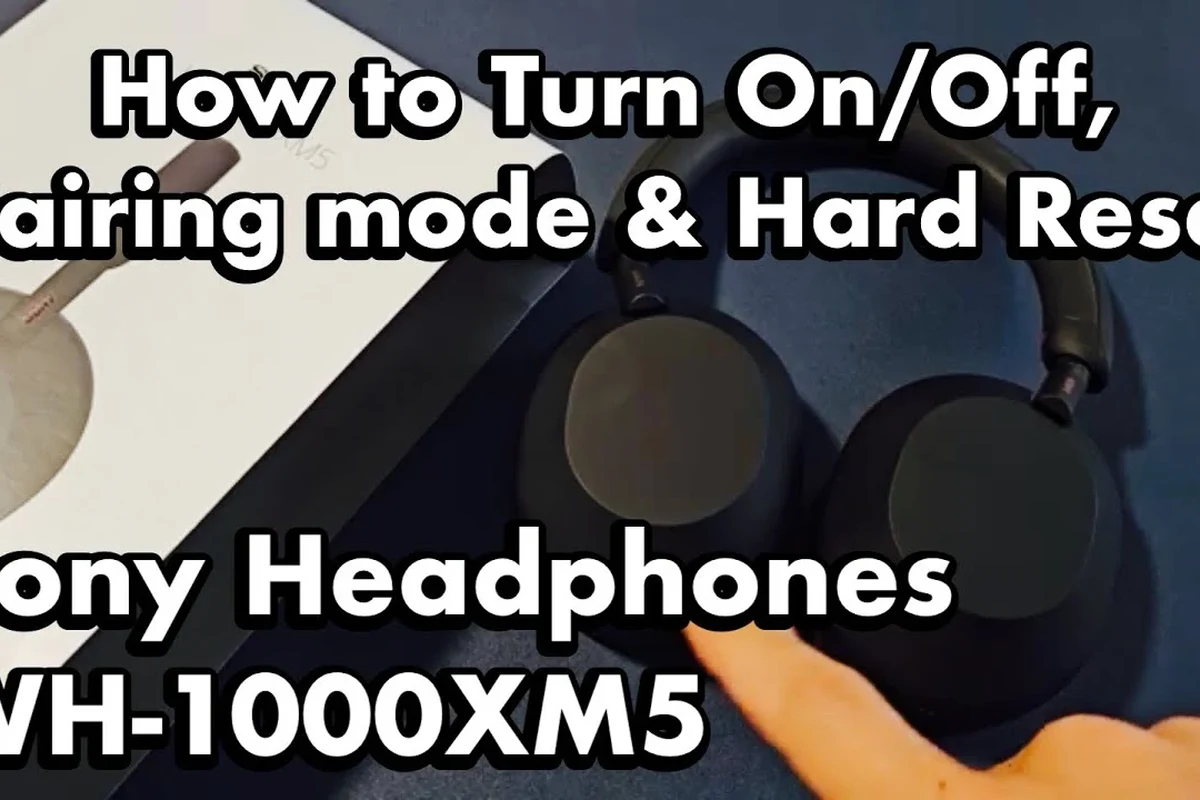
WH-1000XM series power management behavior
The WH-1000XM line is known for aggressive battery-saving logic and smart features that react to wearing status, connection state, and playback activity. If the headphones think they are not being used, they may power down sooner than expected.
That does not automatically mean the headphones are faulty. It means the power management is doing its job, even if the timing feels inconvenient.
WF-1000XM earbuds and charging case contact issues
With Sony earbuds, the charging case can be part of the problem. Dirty contacts, misaligned earbuds, or a case that is not fully charging the buds can make them seem like they are shutting off early.
If one earbud dies first or the pair behaves inconsistently after storage, inspect the case and contact points carefully. Earbuds are more sensitive to charging contact issues than over-ear models.
Older Sony headphones with worn buttons or unstable ports
Older headphones may have physical wear that affects power behavior. A worn power button, loose charging port, or damaged battery connection can interrupt power without warning.
If the problem changes when you touch the cable, press the button, or move the headband, hardware wear becomes more likely. In those cases, the issue is often not software at all.
Noise cancelling and wireless features can increase battery demand, especially at higher volume. If you want a deeper primer on ANC behavior, our guide to how noise cancelling headphones work is a useful next read.
Common Mistakes That Make the Problem Worse
Some troubleshooting habits can create new problems or hide the real one. Avoid these common mistakes so you do not waste time or damage the battery further.
Using the wrong charging cable or weak USB port
A poor cable or underpowered USB port may charge the headphones slowly or inconsistently. That can leave you thinking the battery is healthy when it is actually only partially charged.
Use a reliable cable and a stable power source, not a loose laptop port or a hub that cuts power. Charging problems often show up later as shutdowns during normal use.
Leaving headphones partially charged for long periods
Storing rechargeable headphones at very low charge for long stretches is hard on the battery. Over time, that can reduce runtime and cause early shutdowns even after a full top-up.
If you will not use the headphones for a while, store them with a healthy charge rather than nearly empty. That simple habit can help preserve battery life.
Ignoring dirty sensors, case contacts, or headphone jacks
Dust, earwax, skin oil, and pocket lint can all interfere with charging or wear detection. On earbuds especially, dirty contacts can make the case think the buds are charging when they are not.
For cleaning guidance, our article on how to clean headphones covers safe basic maintenance that helps avoid false shutdowns and charging issues.
Resetting too early without checking battery and firmware first
A reset is useful, but it should not be your first and only move. If the battery is failing or the firmware is outdated, resetting may temporarily hide the issue without fixing it.
Always check charge level, charging behavior, and app updates first. That gives you a better chance of solving the real cause the first time.
When the Problem Is Hardware: Battery Wear, Sensors, and Internal Damage
If software fixes do not help, the issue may be inside the headphones themselves. Battery wear, damaged sensors, or moisture exposure can all cause unstable power behavior.
How long Sony headphone batteries usually last
There is no universal battery lifespan because usage patterns vary so much. Volume level, noise cancelling use, charging habits, and storage conditions all affect how long a battery stays healthy.
As a general rule, a battery that no longer holds a useful charge after normal use is showing its age. That is often the point where replacement or service becomes more practical than repeated troubleshooting.
Warning signs of failing internal batteries
Common signs include much shorter runtime, sudden shutdowns at moderate battery levels, slow charging, or the headphones getting warm while charging. You may also notice the battery percentage jumping around instead of dropping smoothly.
If the headphones only work while plugged in, the battery may no longer be able to hold a stable charge. That is a strong sign the battery itself is the issue.
Physical damage, moisture exposure, and intermittent power loss
Headphones that have been dropped, exposed to sweat, or used in heavy rain may develop intermittent power problems later. Internal damage can appear as random shutdowns, weak buttons, or unstable charging.
Moisture-related issues can be delayed, which makes them tricky to diagnose. If the shutdowns began after a spill, workout, or humid storage, hardware damage should stay on your shortlist.
Listening at high volumes for long periods can cause hearing damage. Keep volume at 60% or below for extended sessions.
Repair, Replacement, or Upgrade: What Makes the Most Sense?
Once you know whether the issue is minor or hardware-related, you can decide whether to repair the headphones or move on. The best choice depends on age, condition, and how much you rely on the model.
Estimated repair costs versus buying a new pair
Repair costs can vary widely depending on the model, the battery, and whether parts are available. For older headphones, the total cost of service may come close to the price of a replacement.
That is why many buyers compare repair quotes against current alternatives before committing. If your headphones are several years old, replacement may be the simpler option.
When warranty or Sony service is worth it
If the headphones are still under warranty, contact Sony support before opening anything or trying advanced fixes. Warranty coverage may save you from paying for a repair that should be handled through service.
Even outside warranty, official service can be worthwhile when the headphones are high-end, recently purchased, or clearly suffering from a known hardware fault. It is often the safest route for battery or board issues.
How to compare replacement options for 2026 buyers
If you decide to upgrade, compare battery life, comfort, noise cancelling, and app support—not just brand name. The best replacement depends on whether you need travel-friendly ANC, gym durability, gaming latency, or long office wear.
For buyers comparing styles, our guide to types of headphones explained can help you choose between over-ear, on-ear, and in-ear designs before you spend money again.
Final Recap: The Fastest Way to Stop Sony Headphones From Turning Off
Most Sony shutdown problems can be solved by checking battery health, updating firmware, and clearing Bluetooth pairing issues. If those steps do not help, the problem is more likely to be hardware-related.
Best step-by-step order to troubleshoot the issue
Start with a full charge, then test the headphones on a second device. Next, reset them, re-pair Bluetooth, and check the Sony app for firmware updates.
If the headphones still turn off, inspect the charging contacts, buttons, and ports for damage or dirt. That order saves time and helps you avoid unnecessary resets.
Expert advice warning on when to stop DIY fixes and seek service
If the headphones shut down at high battery levels, only work when plugged in, or show signs of swelling, overheating, or moisture damage, stop troubleshooting and get professional help. Those are hardware warning signs, not simple pairing issues.
If you notice pain, ringing, or reduced hearing after using headphones, follow safe listening guidelines and consult an audiologist. No headphone fix is worth risking your hearing.
Frequently Asked Questions
They may be using auto power-off or inactivity settings. Check the Sony app and your device settings for power-saving features.
Wireless models can seem to turn off because of Bluetooth dropouts, battery drain, or power management. Wired headphones do not rely on battery power, so they avoid those issues.
Yes, active noise cancelling usually uses extra battery power. If ANC is on all the time, runtime may be shorter than expected.
Over-ear models are often more comfortable for long sessions, but fit and weight matter most. In-ear models are more portable, while on-ear designs can feel tighter over time.
Look at driver type, tuning, comfort, and whether the EQ can be adjusted. Frequency response alone does not guarantee better bass, clarity, or soundstage.
For commuting, prioritize noise cancelling and battery life. For gaming, check latency and mic quality, and for studio use, focus on wired stability and a balanced sound profile.