How to Connect Bluetooth Headphones on Xbox One Easily

You usually cannot connect Bluetooth headphones directly to Xbox One. The easiest workaround is to route audio through your TV, monitor, or a Bluetooth transmitter and pair the headphones there.
If you’re trying to figure out how to connect bluetooth headphones on xbox one, the short answer is that the console does not support standard Bluetooth audio directly. The easiest workaround is to send game sound through your TV, monitor, or a Bluetooth transmitter, then pair your headphones to that device instead.
- Direct support: Xbox One does not normally pair with standard Bluetooth headphones.
- Best workaround: Use a TV, monitor, or transmitter for audio output.
- Gaming quality: Low-latency options help reduce delay and lip-sync issues.
- Chat support: Check microphone compatibility before buying accessories.
Can You Connect Bluetooth Headphones to Xbox One? Understanding the Real Compatibility Limits
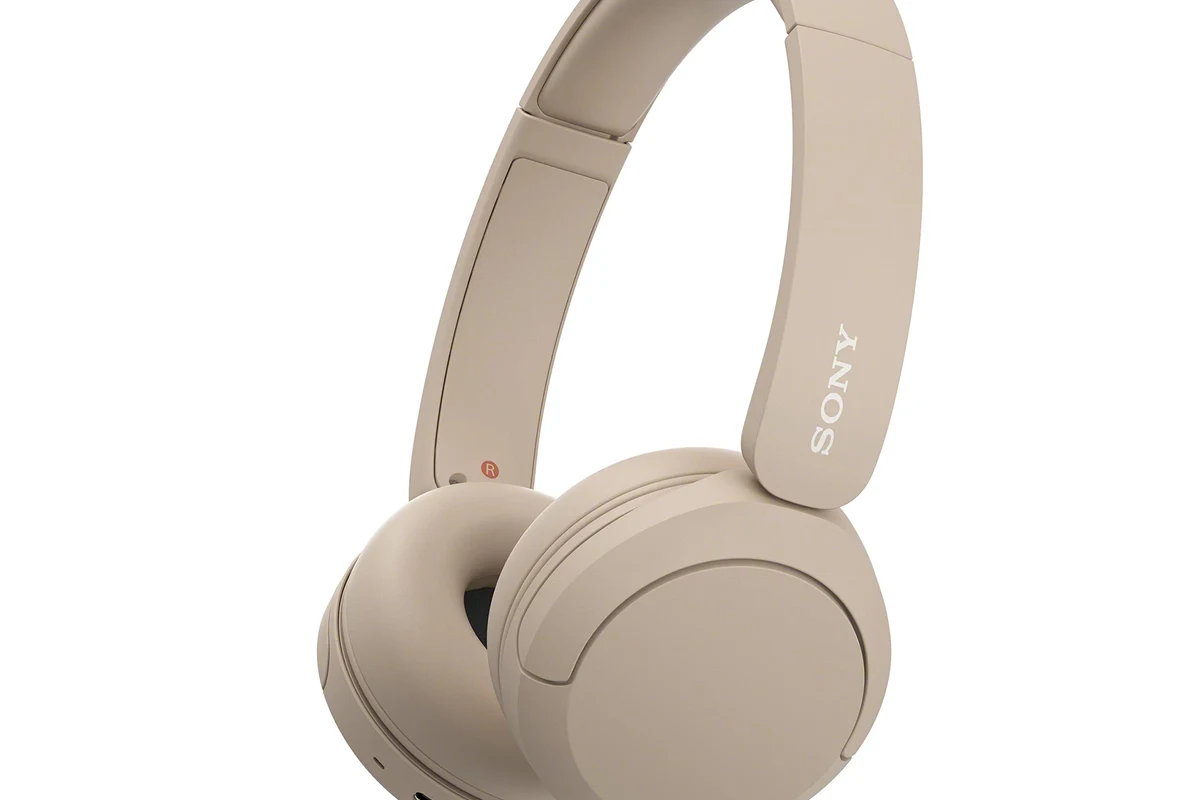
Xbox One is a little different from phones, laptops, and many smart TVs. It uses Microsoft’s own wireless ecosystem for controllers and some headsets, but it does not offer normal Bluetooth headphone pairing for game audio.
That means your Bluetooth headphones may connect to other devices in your setup, but not to the Xbox One console itself in the usual way. If you expected a simple “pair and play” experience, this is the main limitation to understand first.
Note
Some headset brands advertise “wireless” support, but that may mean Xbox Wireless, a USB dongle, or a separate transmitter rather than Bluetooth.
For readers comparing wireless options, it helps to think about the difference between Bluetooth headphones explained simply and console-specific wireless systems. The connection method matters just as much as the headphone brand.
Best Ways to Use Wireless Headphones with Xbox One in 2026
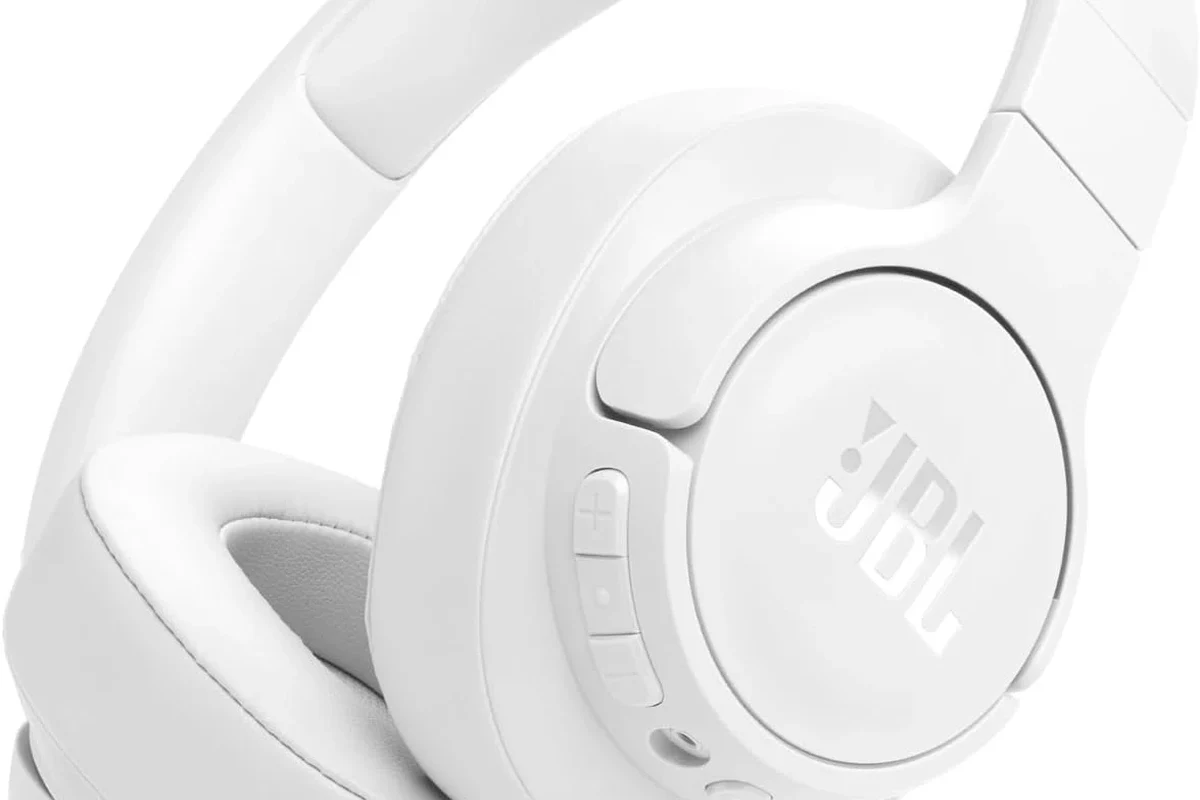
In 2026, the best method depends on whether you care most about convenience, sound quality, microphone support, or low latency. For gaming, delay matters more than it does for music or movies.
Using the Xbox Wireless protocol vs. Bluetooth: what actually works
Xbox Wireless is not the same as Bluetooth. Some headsets are designed to talk directly to Xbox consoles through Microsoft’s wireless standard, which can be a cleaner option than using generic Bluetooth accessories.
Bluetooth headphones, on the other hand, usually need a middle step. If your headset only supports Bluetooth, you’ll typically need to route audio through a TV, monitor, or transmitter.
Connecting through the TV, monitor, or AV receiver for audio output
This is often the simplest workaround. If your TV, monitor, or AV receiver supports Bluetooth audio output, you can send the Xbox One’s sound to that device and then pair your headphones there.
This method is easy, but audio delay can vary a lot by display model and headphone brand. It may be fine for single-player games and TV use, but less ideal for competitive titles where lip-sync and reaction timing matter.
Many TVs can pass game audio to Bluetooth headphones, but the amount of delay depends on the TV’s internal processing and audio settings.
Using a Bluetooth transmitter on the Xbox One controller, console, or TV
A Bluetooth transmitter is the most flexible workaround for many Xbox One owners. You plug the transmitter into a TV, monitor, controller adapter, or sometimes the console’s audio output, then pair your headphones to the transmitter instead of the Xbox.
This can improve convenience, and some transmitters are designed for lower latency than built-in TV Bluetooth. Still, performance varies, so it’s smart to choose a model that supports low-lag codecs or gaming-focused modes when available.
Step-by-Step: How to Connect Bluetooth Headphones on Xbox One the Right Way
Below are the most practical methods. Pick the one that matches your gear, because the “right” way depends on what your TV, headset, and accessories can actually do.
Method 1: Pair headphones to your TV or monitor
Look for Bluetooth audio, wireless audio, or headphone output settings. Not every display supports this, so confirm before you spend time pairing.
Make sure the console is outputting sound to the TV or monitor through HDMI. Then select the display as the audio source if your menu requires it.
Put your Bluetooth headphones into pairing mode and complete the connection from the TV or monitor menu. Test a game and a video to check for delay and volume balance.
This method is usually easiest for casual play. If you also watch streaming apps on the same screen, it can make your whole setup more convenient.
Method 2: Use a Bluetooth transmitter for low-latency gaming audio
First, connect the transmitter to the audio source you want to use. That may be your TV’s headphone jack, optical output, USB port, or another supported output depending on the transmitter model.
Next, place your headphones into pairing mode and connect them to the transmitter. Once paired, launch a game and listen for delay, crackling, or volume mismatch.
Important
Not every transmitter supports voice chat or microphone input. If in-game chat matters to you, verify mic support before buying.
Price Estimate
Method 3: Connect via the Xbox app, remote play, or companion devices
Another workaround is to use the Xbox app, remote play, or a companion device like a phone, tablet, or PC with its own headphone support. This does not connect the headphones to the Xbox One directly, but it can still let you hear gameplay in certain setups.
This approach is best for secondary play styles, remote sessions, or situations where you already use another device nearby. For many players, it’s more of a convenience option than a primary gaming solution.
What You Need Before You Start: Headphones, Adapters, and Settings Checklist
Before you buy an adapter or start pairing, it helps to check the basics. A few simple compatibility details can save you from delay, poor audio, or a setup that only works halfway.
Compatible headphone types and codec considerations
Most Bluetooth over-ear and in-ear headphones can work with a transmitter, but codec support matters. If your transmitter and headphones support a low-latency codec, you may get a better gaming experience than with basic Bluetooth alone.
Open-back headphones can sound spacious, but they leak sound and usually isolate less. Closed-back models are often better for gaming because they keep outside noise down and make game audio feel more focused.
For a broader look at fit and design, our guide to types of headphones explained can help you compare over-ear, on-ear, and in-ear styles before you buy.
Latency, microphone support, and battery life basics
Latency is the biggest issue with Bluetooth gaming audio. Even a small delay can make gunshots, footsteps, and dialogue feel slightly out of sync with the screen.
Microphone support is another common limitation. Some Bluetooth headphones can play audio well but do not handle Xbox chat the way a dedicated gaming headset would.
Battery life also matters if you game for long sessions. Longer battery life is convenient, but actual runtime can vary by volume level, codec, and whether noise cancellation is turned on.
Recommended budget range for transmitters and accessories
Budget transmitters can be a good starting point if you only need basic audio. Midrange and premium options may offer better codec support, better range, or lower lag, but prices vary widely by brand and feature set.
If you are shopping on a tighter budget, focus on the essentials first: stable pairing, low delay, and the correct audio connection for your TV or console. A flashy feature list is less useful than reliable sound.
Common Mistakes Gamers Make When Trying to Pair Bluetooth Headphones with Xbox One
Most problems come from expectations, not from the headphones themselves. Once you know the common mistakes, the setup process becomes much easier.
Expecting direct Bluetooth support from the console
This is the biggest misunderstanding. Xbox One does not work like a phone or laptop where you simply open Bluetooth settings and connect headphones directly.
Many users waste time searching for a hidden menu that does not exist. If your headphones are standard Bluetooth, plan on using a workaround instead.
Ignoring audio delay and lip-sync issues
Bluetooth can sound perfectly fine for movies but still feel off in games. Even a mild delay can throw off timing in racing games, shooters, and rhythm titles.
Protect Your Hearing
Listening at high volumes for long periods can cause hearing damage. Keep volume at 60% or below for extended sessions.
If you notice constant lag, try a different output path or a transmitter designed for lower latency. For more background on delay problems, see our Bluetooth headphone lag fix guide.
Overlooking chat audio and mic limitations
Game sound and party chat are not always handled the same way. A setup that plays audio well may still fail to route your microphone properly.
If voice chat is a priority, check whether the transmitter, headset, or Xbox-compatible wireless model supports both listening and talking. If not, you may need a different headset type.
Expert Advice: How to Reduce Lag and Get Better Sound for Gaming
If you want the most enjoyable wireless experience, sound quality and delay should be treated together. Good audio is not just about bass or volume; it is also about timing and clarity.
Choosing low-latency aptX or similar transmitter support
When available, low-latency codecs or gaming modes can help reduce the gap between what you see and what you hear. Support varies by transmitter and headphone model, so check both ends of the connection.
That said, codec names alone do not guarantee a perfect experience. Real-world results can still differ based on your TV, console output, and the headphone firmware.
If you experience persistent distortion, one-sided audio, or hearing discomfort, consult the headphone manufacturer’s support resources or an audiologist if the issue affects your ears or hearing.
Adjusting Xbox One and TV audio settings for cleaner output
Clean audio often starts with the source settings. Check your Xbox One audio output, TV sound mode, and any surround processing that might add delay or color the sound too much.
For gaming, simpler audio paths are often better. If your TV has a game mode or low-latency mode, it may help keep sound and picture closer together.
When wired or Xbox-compatible wireless headsets are the better choice
If you play competitive games often, a wired headset or an Xbox-compatible wireless headset may be the better long-term choice. These options usually offer more predictable latency and easier chat support.
Bluetooth still makes sense for casual play, streaming, and shared TV use. But if you want the most dependable gaming setup, native Xbox support usually beats a workaround.
For readers comparing wireless and wired sound quality more broadly, our Bluetooth vs wired headphones sound quality guide explains why latency and signal path matter so much.
Final Verdict: The Easiest and Most Reliable Way to Use Bluetooth Headphones on Xbox One
The easiest way to use Bluetooth headphones on Xbox One is not to connect them directly to the console, because that typically is not supported. Instead, route audio through your TV, monitor, or a Bluetooth transmitter, then pair the headphones to that device.
If you want the smoothest gaming experience, prioritize low latency, clear chat support, and a setup that matches how you actually play. For casual use, a TV or transmitter workaround is usually enough; for competitive gaming, an Xbox-compatible headset may be the smarter buy.
Frequently Asked Questions
No, Xbox One does not support standard Bluetooth headphone pairing directly. You usually need a TV, monitor, transmitter, or Xbox-compatible wireless headset instead.
Xbox-compatible wireless headsets are usually the most reliable choice because they are designed for the console. Bluetooth headphones can still work through workarounds, but they may add delay.
They can, especially if you connect through a TV or basic transmitter. Low-latency transmitters may reduce delay, but results vary by device and setup.
Over-ear headphones are often better for long gaming sessions because they are usually more comfortable and provide better isolation. In-ear models can be more portable, but comfort and soundstage depend on the design.
For gaming, focus on latency, comfort, microphone support, battery life, and a stable wireless connection. Sound quality also depends on tuning, drivers, and whether the headset supports useful audio features.
Start with the connection method you need, then look for comfort, decent battery life, and acceptable latency. Budget options can work well, but features and performance vary by brand and model.