How to Pair Headphones to Roku TV Easily and Fast

The fastest way to pair headphones to Roku TV is through direct Bluetooth if your model supports it. If not, the Roku mobile app is the easiest fallback for private listening.
If you want to know how to pair headphones to Roku TV, the fastest path depends on your TV model and the headphones you own. Some Roku TVs support direct Bluetooth audio, while others work best through the Roku mobile app or a wired workaround.
- Check compatibility: Not every Roku TV supports direct Bluetooth audio.
- Use the app: Roku private listening is often the simplest workaround.
- Match the use case: Low latency matters most for gaming and lip-sync.
- Prioritize comfort: Over-ear designs are usually best for long viewing.
How to Pair Headphones to Roku TV: What This Guide Covers and Why It Matters in 2025
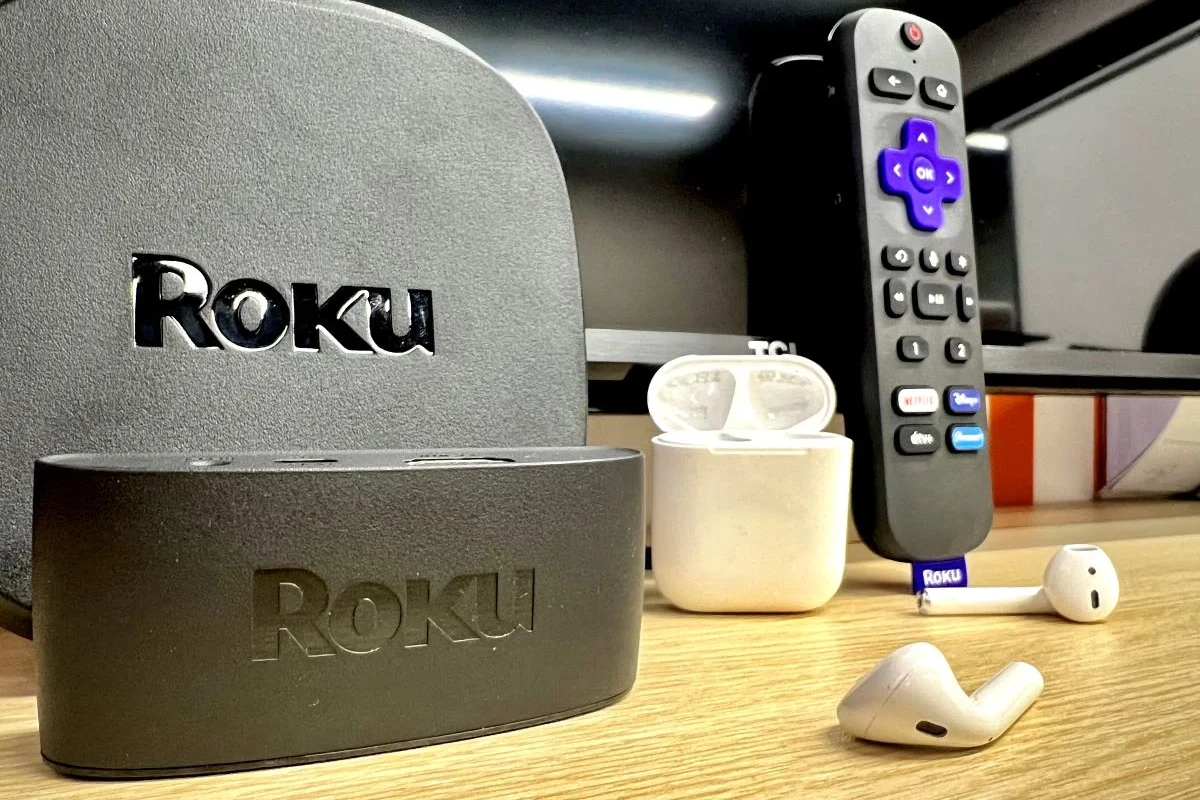
Private listening is one of the most useful TV features for late-night viewing, shared living rooms, and gaming sessions. It lets you keep the sound to yourself without turning the volume up for everyone else.
In 2025, the challenge is that Roku TV setups are not all the same. Some models make headphone pairing easy, while others need a workaround such as the Roku app, a Bluetooth adapter, or a headset connected through another audio device.
This guide keeps things simple and practical. We’ll cover what works, what doesn’t, and how to choose the best listening method for movies, sports, and gaming.
Roku TV Headphone Options Explained: Bluetooth, Roku Mobile App, and Wired Workarounds
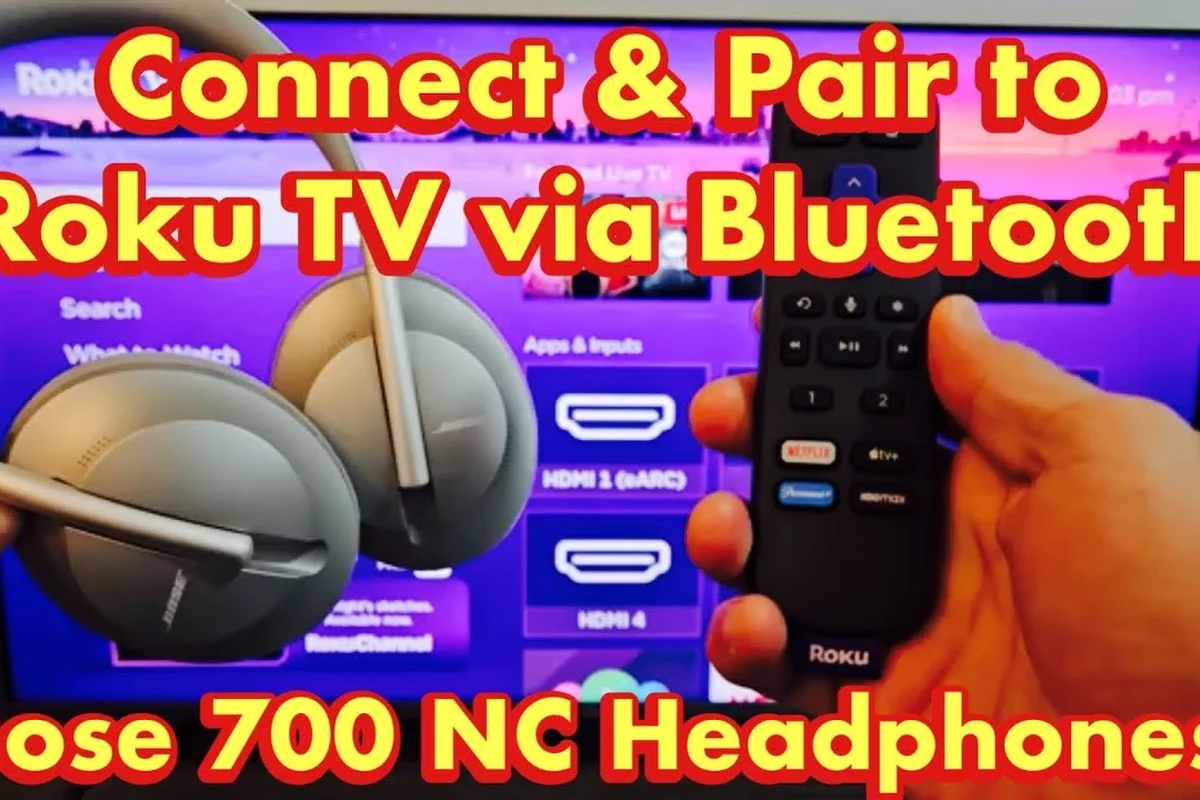
There are three main ways to listen privately on a Roku TV: Bluetooth headphones, the Roku mobile app’s private listening feature, and wired or adapter-based setups. The right choice depends on your Roku TV model, your budget, and how much audio delay you can tolerate.
If you already own wireless headphones, Bluetooth is usually the most convenient option. If your TV does not support direct pairing, the app can be a free and easy alternative, especially for casual viewing.
When Bluetooth Works on Roku TV Models and When It Doesn’t
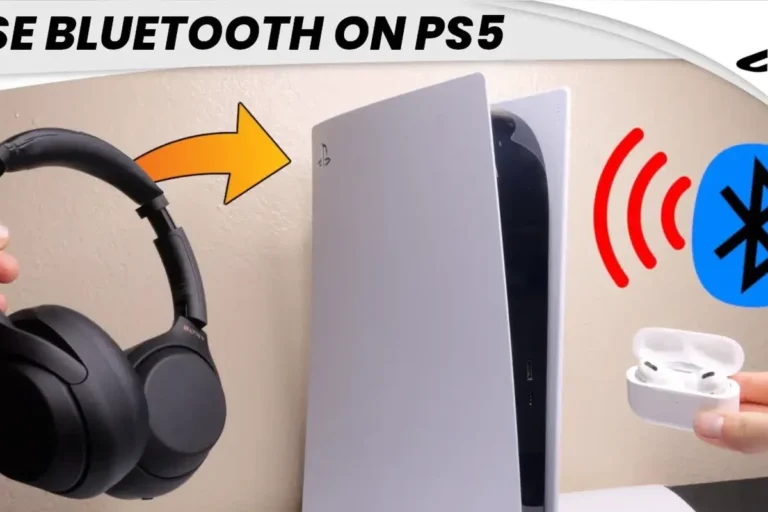
Some Roku TV models include direct Bluetooth audio support, but not all of them do. That means one Roku TV may pair with headphones in seconds, while another may not show Bluetooth headphones at all.
The easiest way to check is in your TV’s settings menu. Look for a Bluetooth or audio output option, then search for a headphone pairing menu or device list.
If you do not see a Bluetooth audio option, your TV may still support private listening through the Roku app or through external hardware. For readers comparing wireless options in general, our Bluetooth headphones explained guide can help you understand how wireless audio connections behave.
Using the Roku Mobile App for Private Listening
The Roku mobile app is often the simplest workaround when direct headphone pairing is unavailable. With private listening, the TV audio is routed to your phone, and your headphones connect to the phone instead of the TV.
This setup works well for many users because it is easy to start and does not require extra hardware. It can also be useful if you switch between earbuds and over-ear headphones during the day.
Keep in mind that app-based listening may not feel as immediate as a direct connection. Depending on your network, device, and headphones, you may notice a small delay or occasional drop in quality.
Wired Connections, HDMI Audio Gear, and Other Alternatives
If wireless pairing is not a good fit, wired solutions can still solve the problem. Some people use a soundbar with a headphone output, an HDMI audio extractor, or a TV-compatible splitter so they can plug in headphones directly.
These alternatives can be helpful for users who want a stable connection and less lag. They may also be a better choice for gaming, where lip-sync accuracy matters more than convenience.
Roku TV audio support can vary by brand and model, so always check the TV’s settings and manual before buying extra gear.
Step-by-Step: How to Pair Headphones to Roku TV Easily and Fast
Before you start, make sure your headphones are charged and in pairing mode. If you are using a wired or adapter-based setup, confirm that the cable, port, or converter matches your TV and headphones.
Pairing Bluetooth Headphones to a Roku TV
Use your remote to go to the TV settings and look for sound or Bluetooth options. If your model supports direct pairing, this is where the headphone connection usually starts.
Follow the headphone manufacturer’s pairing steps. Most wireless headphones flash a light or play a voice prompt when they are ready to connect.
Choose the headphones from the Bluetooth device list and wait for the connection to complete. If the connection fails, move the headphones closer and try again.
If you are new to wireless audio, it can help to review basic connection habits first. Our guide on how to connect Bluetooth headphones covers the general pairing process in a simple way.
Connecting Headphones Through the Roku App on iPhone and Android
Download the Roku mobile app on your iPhone or Android phone, then sign in or connect it to the same Wi-Fi network as the TV.
Open the remote or listening section in the app and choose the private listening feature. The TV sound should shift to your phone.
Pair your headphones to the phone through Bluetooth or plug in wired earbuds if your phone supports them. Then adjust volume from the phone side, not the TV.
This method is especially handy for viewers who already use their phone as a media hub. If you want a broader look at headphone compatibility across devices, our headphones vs earphones complete guide can help you choose the right style.
Setting Up a Soundbar or Audio Splitter for Headphone Use
Some users prefer to route TV audio through a soundbar or splitter and then connect headphones from there. This can be a smart option if the TV itself has limited audio settings or if you want a more stable signal path.
With these setups, check whether the output is designed for headphones or line-level audio. A mismatch can lead to weak volume, distorted sound, or a connection that simply does not work as expected.
Cheap adapters can create noise, lag, or compatibility problems. If you buy one, make sure it matches your TV’s output type and your headphone connection type.
Best Headphones for Roku TV Viewing: What Features to Look For
Not every headphone is equally good for TV watching. The best pick depends on whether you care most about lip-sync accuracy, comfort, noise blocking, or battery life.
For many readers, over-ear wireless headphones are the easiest all-around choice. Earbuds can be more compact, but over-ear models often feel better for long movie nights and gaming sessions.
Low Latency for Lip-Sync Accuracy
Low latency matters because even a small delay can make dialogue feel off. If you watch a lot of movies, sports, or games, look for headphones or adapters that are designed to reduce lag.
This is especially important for action scenes and fast-paced gameplay. A tiny audio delay may not bother everyone, but it is one of the first things many viewers notice.
Comfort for Long Movie and Gaming Sessions
Comfort can matter more than technical specs when you wear headphones for hours. Soft ear cushions, moderate clamp force, and a lightweight frame usually make a bigger difference than most beginners expect.
If you use Roku TV for gaming, comfort becomes even more important. Gaming sessions often last longer than a single episode, so pressure on the ears or head can become distracting.
Battery Life, Range, and Microphone Features
For wireless headphones, battery life and range are practical features to check. A headset that dies halfway through a movie is frustrating, and a weak wireless range can cause dropouts if you move around the room.
Microphones are less important for passive TV watching, but they can matter if you use the same headphones for calls, voice chat, or gaming. A built-in mic may also be useful if you switch between Roku TV and other devices.
Common Problems When Pairing Headphones to Roku TV and How to Fix Them
Most pairing problems come from compatibility, weak signal strength, or the wrong audio mode. The good news is that many issues can be fixed without buying new headphones.
Headphones Not Showing Up in Bluetooth Scan
If your headphones do not appear, first confirm that they are in pairing mode and close enough to the TV. Then restart both devices and try the scan again.
If the problem continues, the TV may not support direct Bluetooth audio. In that case, the Roku app or an external audio solution may be the better route.
Audio Delay, Dropouts, or One-Ear Sound Issues
Audio delay usually points to wireless latency or a connection that is being interrupted. Move closer to the TV, remove interference from other wireless devices, and check whether your headphones support a low-latency mode.
One-ear sound can happen with earbuds, a loose cable, or a bad balance setting. Test the headphones on another device to confirm whether the issue is with the headset or the Roku setup.
Many “sound problems” are caused by output settings, not the headphones themselves. A quick reset of the TV audio menu can sometimes solve the issue faster than replacing gear.
Volume Too Low or TV Audio Still Playing
If the volume is too low, check both the TV volume and the headphone volume, especially when using the Roku app. Some setups split volume control between the TV, phone, and headphones.
If the TV audio still plays out loud, look for a private listening toggle or audio output setting. Some Roku TV models need you to manually switch from speakers to headphones or private mode.
Expert Advice: Mistakes to Avoid Before You Buy or Connect Headphones
The biggest mistake is assuming every Roku TV works the same way. Before you buy anything, confirm whether your specific model supports direct Bluetooth audio or needs an alternate setup.
Why Not All Roku TVs Support Direct Bluetooth Audio
Roku TV is a software platform, but the hardware behind it can differ from brand to brand. That means one TV may have Bluetooth audio built in, while another may only support it through the app or accessories.
Checking the manual or settings menu first can save time and money. It also helps you avoid buying headphones or adapters that do not match your TV’s actual capabilities.
If you are unsure whether your TV supports a safe and stable headphone setup, ask the TV maker’s support team or a qualified audio specialist before buying extra gear.
Warning About Cheap Adapters and Unsupported Setups
Very cheap adapters can work poorly with TV audio, especially if they are not designed for the exact output you need. Problems may include hiss, lag, unstable pairing, or volume that is too low to be useful.
If you want a smoother experience, it is usually better to buy a known-compatible adapter than to gamble on the lowest price. That is especially true for gaming, where latency matters more than saving a few dollars.
Price Comparison: Free, Budget, and Premium Ways to Listen Privately on Roku TV
There is no single best price point for private listening. The right choice depends on whether you want a free app-based solution, a low-cost adapter, or a more polished wireless headphone setup.
Using Free Roku App Listening vs. Buying Bluetooth Headphones
The Roku app is the cheapest option because it does not require new hardware. It is a strong starting point if you only need private listening occasionally or want to test the feature before spending money.
Buying Bluetooth headphones gives you more freedom and can feel more convenient day to day. The tradeoff is that prices, battery life, comfort, and latency can vary a lot by model.
Budget Adapters vs. Premium Wireless Headphone Systems
Budget adapters can be a good middle ground if your TV lacks direct support. They may offer a simple way to add headphone listening without replacing your TV or buying a full new audio setup.
Premium wireless headphone systems usually cost more, but they may offer better comfort, stronger range, and more reliable sync. If you watch TV every day, the higher upfront cost may be easier to justify.
Final Recap: The Fastest Way to Pair Headphones to Roku TV in 2025
The fastest way to pair headphones to Roku TV is to use direct Bluetooth if your model supports it. If not, the Roku mobile app is usually the easiest no-extra-hardware fallback.
For the best long-term experience, choose headphones that match your use case: low latency for gaming, comfort for movies, and stable wireless performance for everyday viewing. If you are dealing with hearing concerns or ear discomfort, follow safe listening habits and consult an audiologist if needed.
Listening at high volumes for long periods can cause hearing damage. Keep volume at 60% or below for extended sessions.
Frequently Asked Questions
Wireless headphones are more convenient, but wired options can be more stable and may reduce lag. The better choice depends on your Roku TV model, your room setup, and whether lip-sync accuracy matters most.
Over-ear headphones are usually the most comfortable for long sessions because they spread pressure more evenly. Earbuds can work too, but fit and ear comfort vary more from person to person.
Yes, noise cancelling headphones can help block background noise so dialogue is easier to hear at lower volumes. They are especially useful in shared homes, but sound quality and comfort still depend on the model.
Closed-back headphones are usually better for Roku TV because they keep sound in and reduce outside noise. Open-back models can sound spacious, but they leak sound and are less private.
Check Bluetooth support, latency, battery life, comfort, and whether the headphones can pair with your specific Roku TV setup. If you plan to game or watch movies, low-lag performance matters a lot.
Look for soft ear cushions, a lightweight frame, and an adjustable headband. Comfort is personal, so it helps to compare fit, weight, and clamp force before buying.