How to Connect Bluetooth Headphones to Xbox One Easily

Xbox One does not support standard Bluetooth headphone pairing directly. The easiest workarounds are an Xbox Wireless headset or a Bluetooth transmitter connected through your TV, monitor, or controller.
If you want to know how to connect bluetooth headphones to xbox one, the short answer is that you usually cannot pair standard Bluetooth headphones directly to the console. The most reliable workaround is to use an Xbox Wireless headset, a Bluetooth transmitter, or route audio through your TV or controller setup.
- Direct pairing: Standard Bluetooth headphones usually will not connect directly to Xbox One.
- Best workaround: A low-latency Bluetooth transmitter is the most common fix.
- Best reliability: Xbox Wireless headsets usually give the smoothest setup.
- Common issue: Audio delay is the biggest downside of Bluetooth gaming workarounds.
- Chat support: Not every Bluetooth solution supports microphone use well.
Can You Connect Bluetooth Headphones to Xbox One in 2026?
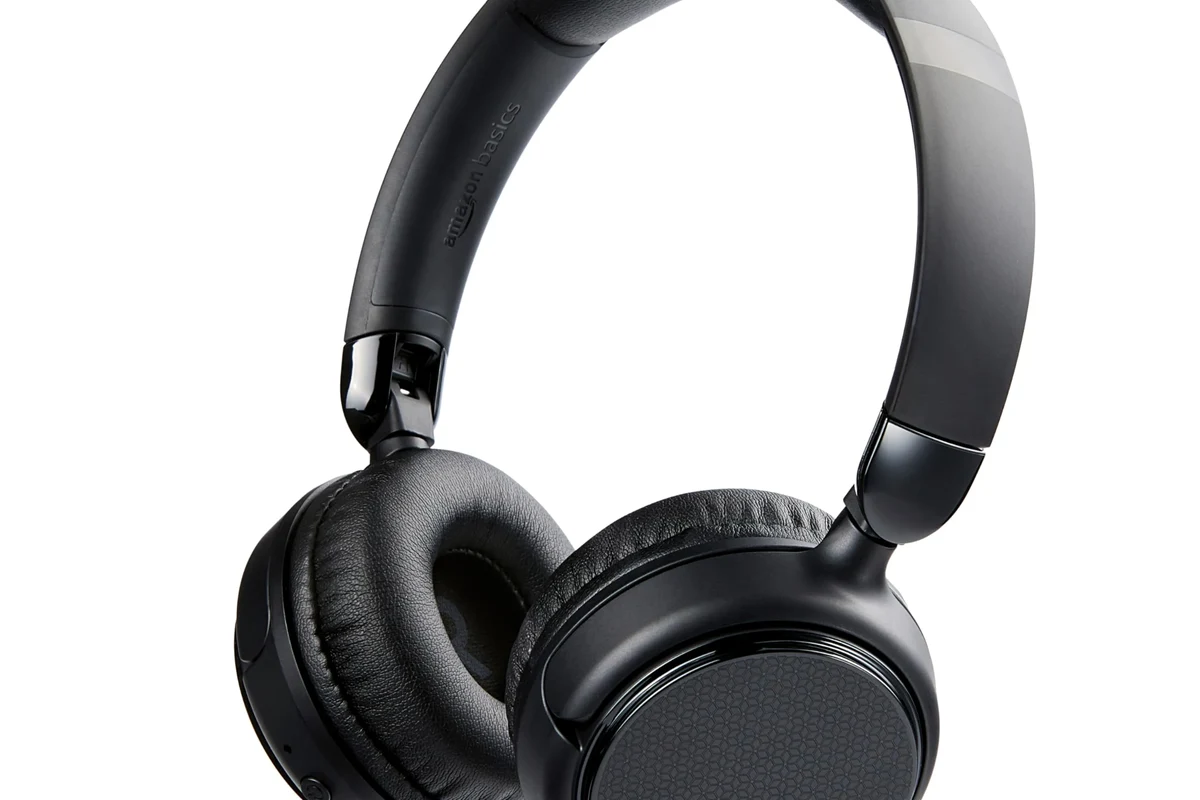
In 2026, the answer is still mostly no for standard Bluetooth audio. Xbox One does not support the same direct Bluetooth headphone pairing that you may be used to on phones, laptops, or tablets.
That means your wireless headphones may be excellent for music, calls, and mobile gaming, but they will not automatically show up as a normal Bluetooth accessory on the Xbox One menu. If you are new to wireless audio, our guide on Bluetooth headphones explained simply can help make the connection differences easier to understand.
Why Xbox One Does Not Support Standard Bluetooth Audio
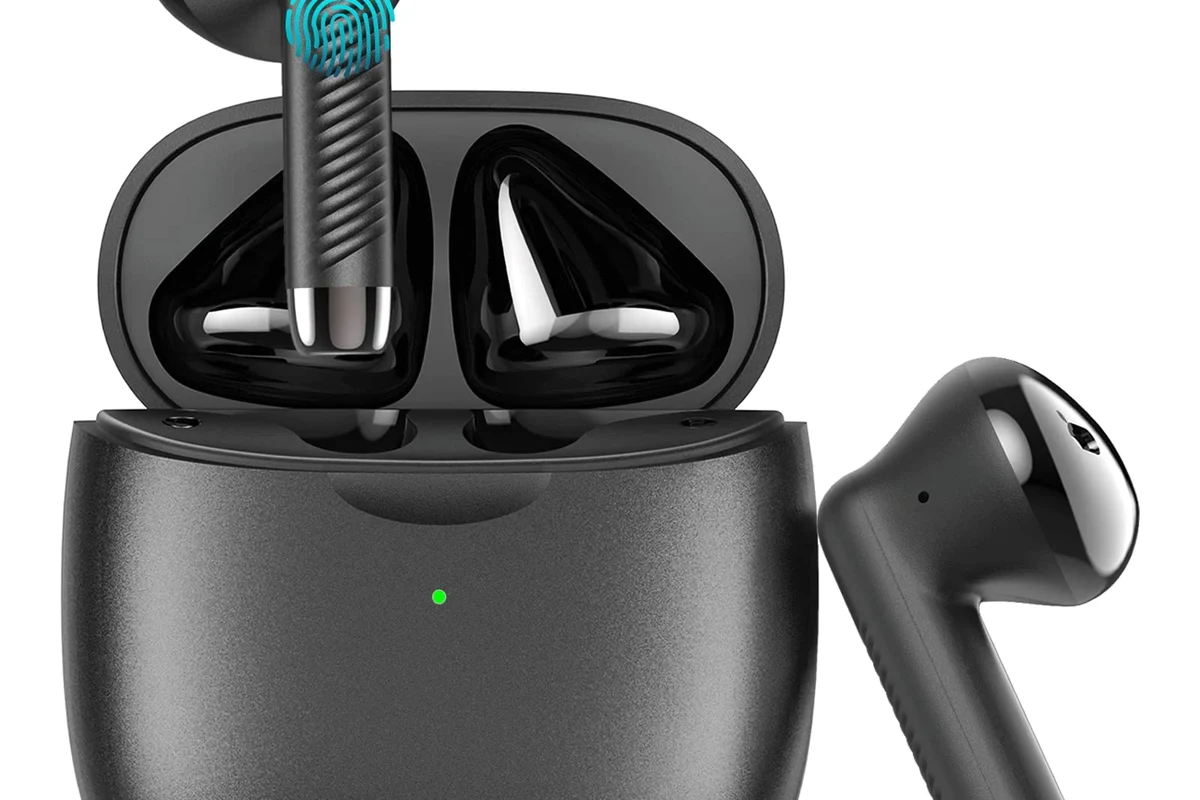
Xbox One uses its own wireless audio ecosystem rather than standard Bluetooth for most headset connections. This is mainly done to keep controller response and voice chat more stable during gaming sessions.
Standard Bluetooth can introduce latency, which is the small delay between the game and the sound reaching your ears. For movies or music, that delay may be fine, but for gaming it can make footsteps, gunfire, and voice chat feel out of sync.
Bluetooth also varies a lot by codec, adapter quality, and headphone model. That is why two people can use “Bluetooth” setups that behave very differently, even if the headphones look similar on the outside.
Best Ways to Use Wireless Headphones with Xbox One
Even though the console does not support regular Bluetooth pairing, you still have a few practical ways to go wireless. The best option depends on whether you care most about game audio, party chat, comfort, or the lowest possible lag.
Using Xbox Wireless Headsets for Direct Console Pairing
The cleanest solution is an Xbox Wireless headset that connects directly to the console through Xbox’s own wireless system. This avoids the Bluetooth limitation and usually gives you the simplest setup for both game sound and chat.
If you want a no-fuss experience, this is often the best path because it is designed around Xbox compatibility. You do not need to rely on extra dongles, TV settings, or transmitter placement.
Connecting a Bluetooth Transmitter to the Xbox One Controller or TV
A Bluetooth transmitter is the most common workaround for people who already own Bluetooth headphones. In many setups, the transmitter plugs into the controller, TV, or monitor and sends audio to your headphones wirelessly.
This method can work well for casual gaming, but performance depends heavily on the transmitter quality and the audio path you choose. If you are comparing wireless options, it also helps to understand the tradeoff between Bluetooth vs wired headphones sound quality, especially when you care about delay and clarity.
Using the Xbox App for Chat Audio on Mobile Devices
Some players use the Xbox app on a phone or tablet for party chat while listening to game audio another way. This can be useful if you only need voice chat and already have a separate audio setup for the game itself.
It is not the most elegant solution, but it can help when you want to keep using a favorite pair of headphones that does not connect directly to Xbox One. Just remember that game audio and chat audio may need separate volume control.
Step-by-Step Setup for the Most Reliable Connection Method
If your goal is the most dependable result with the least frustration, a Bluetooth transmitter is usually the most practical workaround for standard Bluetooth headphones. Below is a simple setup path that works for many players, though exact results can vary by TV, monitor, controller, and headphone model.
What You Need Before You Start
Before you begin, make sure you have a Bluetooth transmitter that matches your audio source. Some plug into a 3.5mm jack, while others use USB or optical audio depending on the device.
- Whether your TV, monitor, or controller has the right audio output
- Whether the transmitter supports low-latency audio if gaming is your priority
- Whether your headphones are already paired to another device
Note
Some transmitters are better for music than gaming. If you want fewer lip-sync issues, look for a model designed for low-latency audio rather than the cheapest option available.
How to Pair a Bluetooth Transmitter with Your Headphones
First, connect the transmitter to your chosen audio source and power it on. Then put your headphones into pairing mode and follow the transmitter’s pairing instructions until both devices connect.
Plug the transmitter into the controller, TV, or monitor, depending on the model.
Turn on your headphones and activate Bluetooth pairing mode.
Wait for the transmitter and headphones to connect, then test the sound with a game or menu audio.
If the sound cuts out, move the transmitter closer to your seat and away from other wireless devices. Bluetooth can be sensitive to distance and interference.
How to Route Game Audio Through Your TV or Monitor
Many Xbox One owners get the best results by sending console audio to the TV or monitor first, then using the TV’s headphone output or a transmitter connected there. This keeps the setup simple and can avoid controller-specific limitations.
If your TV has a headphone jack or optical output, that may be the easiest place to start. A monitor with a headphone output can also work, although volume control may be more limited than on a TV.
For readers who are still learning the basics of connection options, our guide on how to connect Bluetooth headphones gives a broader overview of pairing methods across different devices.
Common Problems When Trying to Connect Bluetooth Headphones to Xbox One
Most connection issues come from the same few causes: latency, pairing conflicts, weak transmitters, or chat limitations. Knowing what usually goes wrong can save you time before you buy another adapter or headset.
Audio Delay, Crackling, and Sync Issues
Audio delay is the most common complaint with Bluetooth gaming workarounds. If the sound feels late, the transmitter may not support low-latency transmission, or the TV/controller path may be adding extra delay.
Crackling can happen when the signal is weak, the battery is low, or there is wireless interference nearby. If you are already troubleshooting wireless audio on other devices, our Bluetooth headphone lag fix article may also help you narrow down the cause.
If your setup has noticeable lag, changing the transmitter or audio source is often more effective than repeatedly re-pairing the headphones.
Headphones Not Showing Up or Pairing Fails
If your headphones will not appear during pairing, check whether they are already connected to another phone, tablet, or laptop. Many Bluetooth headphones only stay in pairing mode when they are not actively connected elsewhere.
It also helps to reset the headphones and restart the transmitter or audio source. If you need a refresher on that process, see our guide on how to reset Bluetooth headphones.
Mic Not Working for Party Chat
Game audio and microphone support are not always included in every Bluetooth workaround. Some transmitters only send sound out and do not handle voice chat well, which can be frustrating if you play multiplayer often.
If party chat matters to you, look for a solution that explicitly supports both audio and microphone use, or consider an Xbox-compatible headset instead. In many cases, that is the simplest way to avoid chat problems altogether.
Expert Advice: Mistakes to Avoid Before Buying a Solution
Before you spend money, it helps to think about how you actually play. A cheap adapter may seem fine on paper, but gaming audio is less forgiving than music playback or casual video watching.
Why Cheap Bluetooth Adapters Often Cause Lag
Very inexpensive adapters can work, but they often create more delay, weaker range, or less stable sound. That can be especially annoying in fast-paced games where timing matters.
It is also common for budget adapters to perform differently depending on the TV, controller, or monitor they are attached to. In other words, the same transmitter may seem fine for one setup and disappointing in another.
When to Choose Xbox Wireless Over Bluetooth Workarounds
If you want the smoothest experience, Xbox Wireless is usually the better choice than forcing standard Bluetooth into the setup. It is especially worth considering if you play often, use party chat regularly, or hate troubleshooting audio delay.
Bluetooth workarounds make the most sense when you already own a good pair of headphones and only play casually. If you are comparing headset types, our types of headphones explained guide can help you decide whether over-ear, on-ear, or in-ear models fit your gaming style.
Cost Comparison: Bluetooth Workaround vs Xbox-Compatible Headset
The cheapest option is not always the best value. A Bluetooth transmitter may cost less upfront, but an Xbox-compatible headset can save you time, reduce lag, and make chat easier.
| Option | Best For | Typical Tradeoff |
|---|---|---|
| Bluetooth transmitter | Using headphones you already own | Possible lag and chat limitations |
| Xbox Wireless headset | Simple direct pairing | Usually costs more up front |
| TV audio output setup | Casual gaming and movies | Depends on TV output quality |
Protect Your Hearing
Listening at high volumes for long periods can cause hearing damage. Keep volume at 60% or below for extended sessions.
If you use headphones for long gaming sessions, comfort matters too. Weight, clamping force, ear cushion material, and heat buildup can all affect whether a headset feels good after an hour or after an entire evening.
Final Recap: The Easiest Way to Use Bluetooth Headphones with Xbox One
If you are asking how to connect bluetooth headphones to xbox one, the practical answer is that you usually need a workaround rather than direct pairing. The easiest path for most people is either an Xbox Wireless headset or a Bluetooth transmitter connected through the TV, monitor, or controller.
For the best overall experience, choose the method that matches your priorities: lowest lag, easiest setup, or the ability to keep using headphones you already own. If you are unsure, start with Xbox-compatible audio first, because it is usually the most reliable and least frustrating option.
If you have persistent hearing discomfort, ringing after sessions, or sensitivity to loud sound, consult an audiologist or hearing professional before making volume a daily habit.
Frequently Asked Questions
Usually no. Xbox One does not support standard Bluetooth headphone pairing, so most wireless headphones need a workaround or an Xbox-compatible headset.
An Xbox Wireless headset is usually the easiest direct option. If you already own Bluetooth headphones, a low-latency Bluetooth transmitter is the most common workaround.
It can, depending on the transmitter and audio source. Low-latency models usually perform better, but results still vary by TV, monitor, controller, and headphone model.
Over-ear headphones are often preferred for longer gaming sessions because they usually feel more comfortable and can offer better isolation. In-ear models can be more portable, but fit and comfort vary by person.
Look at latency, comfort, battery life, and whether the headset supports clear voice chat. Sound tuning, bass, and clarity matter too, but the best choice depends on your games and listening preference.
Check weight, ear cushion material, clamping force, and battery life if it is wireless. A comfortable fit matters as much as sound quality when you play for long periods.