Can Roku TV Connect to Bluetooth Headphones Easily

Yes, many Roku TVs can connect to Bluetooth headphones, but not every model supports direct pairing. If your TV does not, you can usually use the Roku app or a Bluetooth transmitter instead.
If you’re asking can roku tv connect to bluetooth headphones, the short answer is: sometimes yes, but not on every Roku TV in the same way. The easiest path depends on your exact Roku TV model, whether it supports Bluetooth audio directly, and whether you’re using the Roku mobile app or a Bluetooth transmitter.
- Model matters: Roku Bluetooth support varies by TV and setup.
- Best for comfort: Over-ear headphones are usually easiest for long viewing.
- Watch for lag: Gaming and sports need lower-latency audio paths.
- App workaround: Roku private listening is often the simplest fallback.
Can Roku TV Connect to Bluetooth Headphones in 2025? The Short Answer and What It Really Means
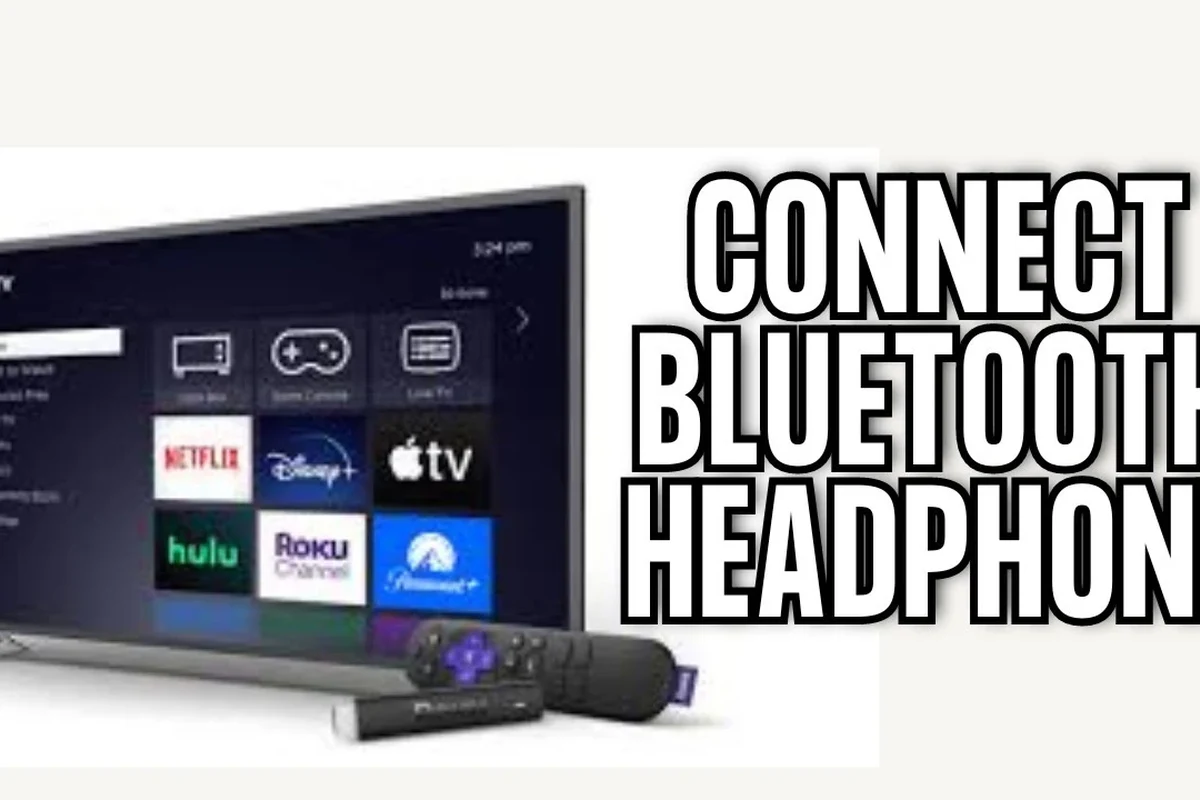
In 2025, Roku TV Bluetooth support is still a mixed bag. Some Roku TV sets can pair with Bluetooth headphones directly, while others rely on private listening through the Roku app or an external adapter.
That means “yes” is often the right answer, but only after you check the model and connection method. If you want a simple overview of pairing basics, our guide on how to connect Bluetooth headphones can help you understand the general process before you troubleshoot Roku-specific steps.
Roku TV support can vary by manufacturer, software version, and region. The same brand name does not always mean the same Bluetooth features.
How Roku TV Bluetooth Support Actually Works Across Models
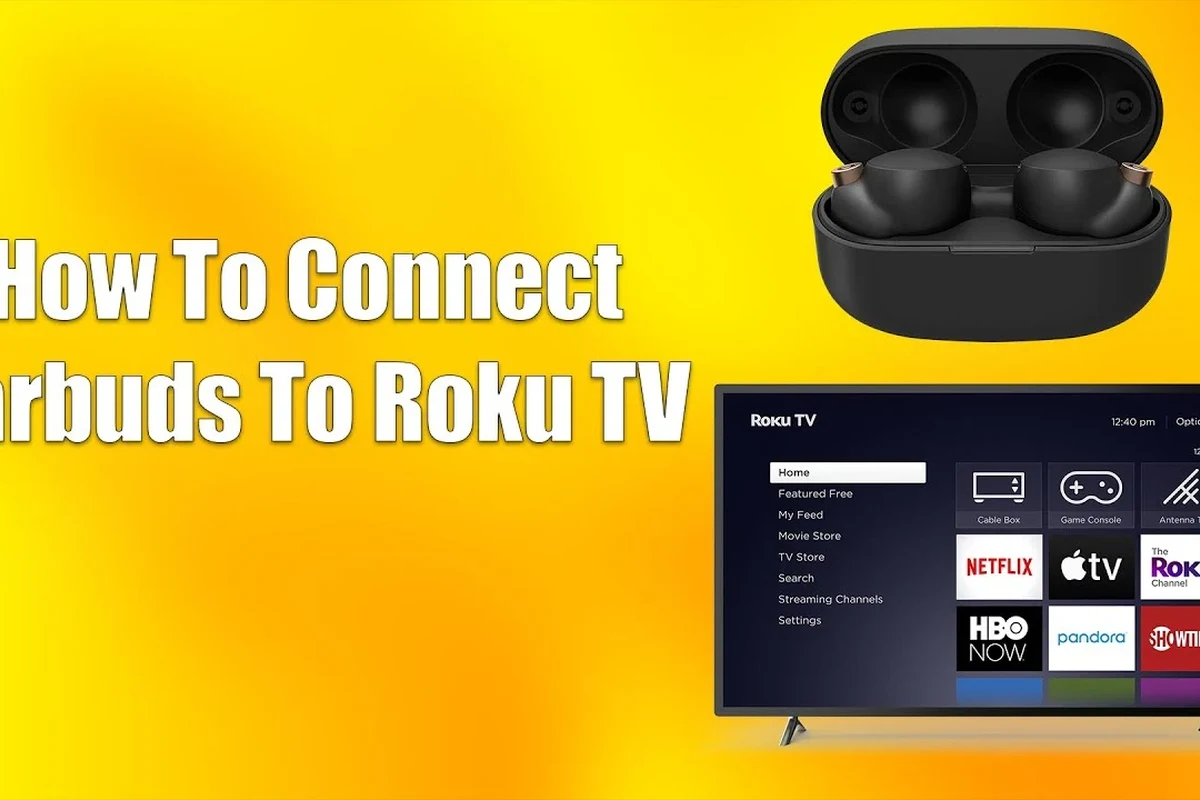
Roku uses a few different connection paths, and that’s where a lot of confusion starts. Some TVs have built-in Bluetooth audio support, some only support Bluetooth for remote controls, and others depend on the Roku app for wireless headphone listening.
Roku TVs with built-in Bluetooth audio support
If your Roku TV supports Bluetooth audio, you may be able to pair headphones directly through the TV settings. This is the cleanest setup because you don’t need a phone or extra hardware in the middle.
Still, pairing success can vary by headphone brand and firmware. If the TV menu shows Bluetooth audio or headphone pairing, that’s a good sign; if it only mentions remotes or accessories, headphones may not be supported directly.
Roku streaming devices versus Roku TV sets
It helps to separate Roku streaming sticks and boxes from Roku TV sets. A Roku player connected to a regular TV is different from a TV that has Roku built in, and the audio features are not always the same.
Some Roku players support private listening through the mobile app, even if the TV itself does not have Bluetooth headphone pairing. So the device you own matters just as much as the Roku interface you see on screen.
Why some Roku TVs still don’t pair directly with headphones
Many Roku TVs were built with streaming simplicity in mind, not full Bluetooth audio flexibility. In some cases, the TV may support Bluetooth for remotes, keyboards, or service functions, but not for headphones.
That’s why users sometimes think Bluetooth is “broken” when the real issue is that the TV never offered headphone audio pairing in the first place. A quick settings check can save a lot of frustration.
Step-by-Step Ways to Connect Bluetooth Headphones to a Roku TV
There are three main ways to listen privately on a Roku TV. The right one depends on whether your TV supports Bluetooth audio natively, whether you’re okay using your phone, and how important low-latency sound is for your setup.
If you plan to watch a lot of TV with headphones, choose a comfortable over-ear model with stable wireless performance rather than focusing only on flashy features.
Using the Roku mobile app and private listening
Private listening in the Roku app is often the easiest solution for many viewers. You connect your phone to the Roku system, then route the audio through your phone and into your Bluetooth headphones.
Make sure your phone and Roku device are on the same Wi-Fi network, then open the app and connect to your TV.
Look for the headphones or private listening feature inside the app and activate it before pairing your headphones to the phone.
Once your Bluetooth headphones are connected to the phone, the Roku audio should play through them.
This method is convenient, but it is not always ideal for gaming or fast-action content because phone-based audio routing can add delay. If you’re comparing wireless options more broadly, our Bluetooth headphones explained article breaks down the basics in simple terms.
Pairing through the TV’s Bluetooth menu when supported
If your Roku TV has a Bluetooth audio menu, this is usually the most direct option. Open the settings menu, find Bluetooth or audio accessories, and put your headphones into pairing mode.
Once the TV detects the headphones, confirm the pairing and test the volume. If the sound is too low, check both the TV volume and the headphone volume, since some devices use separate controls.
- TV settings menu for Bluetooth audio
- Headphones in pairing mode
- Volume on both devices
- Any audio delay or dropouts
Connecting via a Bluetooth transmitter for unsupported models
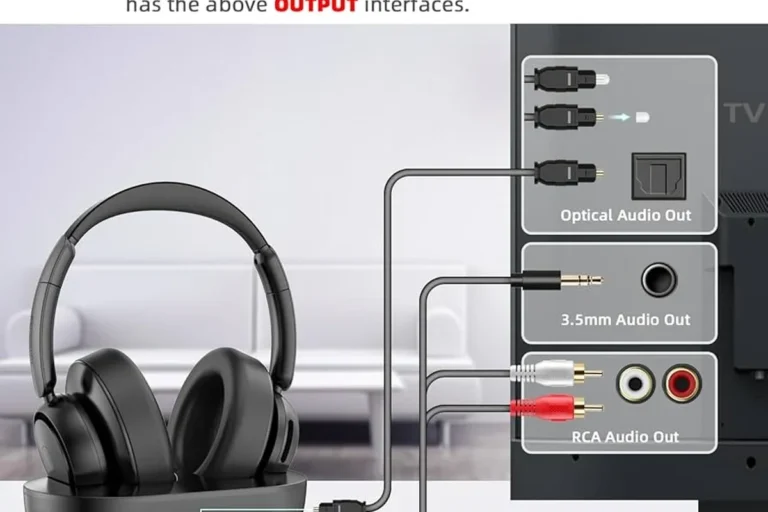
If your Roku TV does not support direct Bluetooth headphone pairing, a Bluetooth transmitter is often the best workaround. It plugs into the TV’s audio output and sends sound to your headphones wirelessly.
This can be especially useful for older TVs or models with limited wireless features. A good transmitter may also reduce lag compared with some app-based setups, though results still vary by model and codec support.
Not every Bluetooth transmitter works well with every TV output. Check whether your TV uses optical, 3.5mm, or HDMI ARC audio before buying an adapter.
Best Bluetooth Headphone Use Cases for Roku TV Viewers
Bluetooth headphones can be a great fit for Roku TV, but the best use case depends on what you watch. For some people, comfort matters most; for others, latency and clarity are the priorities.
Late-night streaming without disturbing others
Private listening is one of the biggest reasons people ask can roku tv connect to bluetooth headphones. It lets you watch shows quietly while roommates, kids, or a partner sleep nearby.
For late-night viewing, comfort and battery life matter more than studio-grade detail. Closed-back or noise-cancelling headphones can also help you keep the volume lower, which is better for long sessions.
Gaming on Roku TV with low-latency audio needs
If you use your Roku TV for casual gaming, audio delay becomes more important. Even a small lag can make dialogue, effects, and gameplay feel less responsive.
For games, direct TV pairing or a quality transmitter is usually better than routing audio through a phone. If you’re sensitive to delay, our Bluetooth headphone lag fix guide can help you understand the main causes and basic fixes.
Watching live sports or movies with clearer dialogue
Bluetooth headphones can make commentary, crowd noise, and dialogue easier to follow, especially if your room is noisy. This is helpful when the TV speakers are too thin or when speech gets buried in background sound.
Movie fans often prefer headphones with balanced mids and clear vocal detail. You do not need the strongest bass for TV use; clarity is usually more valuable than extra thump.
Common Problems Users Run Into and How to Fix Them
Most Roku TV headphone issues come down to pairing, delay, or output settings. The good news is that many of them are fixable without replacing your headphones.
Headphones not appearing in pairing mode
If the headphones do not show up, first make sure they are actually in pairing mode and not just powered on. Many models require a long press or a flashing light before they become discoverable.
Also clear old pairings if the headphones were previously connected to a phone, tablet, or laptop. If needed, try a reset using the headphone manufacturer’s instructions or review our how to reset Bluetooth headphones guide for general troubleshooting steps.
Audio delay, lip-sync issues, and lag
Bluetooth lag is one of the most common complaints with TV audio. You may notice voices slightly behind the picture, which can be distracting during dialogue-heavy scenes or games.
To reduce lag, try direct TV pairing instead of app-based routing, or choose headphones and transmitters that support low-latency behavior. For broader context on sound timing, our Bluetooth vs wired headphones sound quality article explains why wired connections often feel more immediate.
Volume control, connection drops, and one-ear playback issues
If the volume is too low, check both the Roku output level and the headphone controls. Some TVs also have separate audio settings that can limit sound or change how it is mixed.
Connection drops may happen if you move too far from the TV or if another wireless device is interfering. One-ear playback can sometimes happen if the headphones are in a special mode, so re-pairing them often helps.
If you regularly hear distortion, imbalance, or repeated dropouts even after resetting and re-pairing, consider speaking with a headphone specialist or audiologist if the issue also affects your hearing comfort.
What to Look for in Bluetooth Headphones for Roku TV Use
Not every Bluetooth headphone is equally good for TV watching. The best choice depends on latency, comfort, battery life, and whether you want stronger isolation or a more open sound.
Low-latency codecs and why they matter
For TV and gaming, low latency matters because it helps keep audio aligned with the picture. If your headphones or transmitter support a low-lag mode, that can improve the experience noticeably.
That said, codec support varies by brand and device, and not every Roku TV will use the same wireless path. A great-sounding headphone is still not ideal if the lip-sync is distracting.
Many people blame the headphones for TV lag when the real cause is the TV, transmitter, or app-based audio path.
Battery life, comfort, and range for long viewing sessions
For binge watching, battery life and comfort can matter more than premium sound features. Lightweight earcups, soft pads, and a secure but gentle fit help a lot during long sessions.
Range also matters if you walk to the kitchen or move around the room while listening. In most living rooms, a stable connection is more valuable than chasing the longest possible spec sheet number.
Budget vs premium options: what you really need to spend
You do not need the most expensive headphones just to watch Roku TV. Many budget models work well if they have decent comfort, acceptable latency, and reliable Bluetooth pairing.
Premium models may offer better materials, stronger noise cancellation, and more polished sound, but the value depends on your use case. If you want a rough budget framework, the actual cost will vary by brand and sales timing.
Expert Advice: When Bluetooth Is Not the Best Option for Roku TV
Bluetooth is convenient, but it is not always the best audio path for TV viewing. In some setups, wired or RF headphones can be simpler, faster, and more reliable.
Warning signs that a wired or RF headset may work better
If you are very sensitive to audio delay, Bluetooth may frustrate you. Wired headphones or RF headsets often feel more immediate, which can be better for gaming, sports, or fast-paced dialogue.
Wired and RF options can also be easier for users who do not want to manage pairing, charging, or app setup. The tradeoff is less freedom to move around the room.
Listening at high volumes for long periods can cause hearing damage. Keep volume at 60% or below for extended sessions.
When a Bluetooth transmitter is worth the extra cost
A Bluetooth transmitter is worth considering when your Roku TV lacks direct headphone support but you still want wireless listening. It can be a practical middle ground between app-based audio and a fully wired setup.
It is especially helpful if you already own good Bluetooth headphones and do not want to buy a second headset. Just make sure the transmitter matches your TV’s available audio output.
Final Recap: The Easiest Way to Get Roku TV Headphone Audio Right
So, can Roku TV connect to Bluetooth headphones? Yes, but the easiest method depends on your model and setup. Some TVs pair directly, some work best through the Roku app, and others need a Bluetooth transmitter to make wireless listening possible.
For most viewers, the smartest approach is to check the TV’s Bluetooth support first, then choose the simplest method that gives you the least delay and the most comfort. If you want the most dependable everyday experience, pick headphones that balance comfort, battery life, and stable wireless performance rather than chasing features you may never use.
- Some Roku TVs support Bluetooth headphones directly, but not all do.
- The Roku mobile app and a Bluetooth transmitter are common workarounds.
- Low latency, comfort, and battery life matter most for TV use.
- For gaming or sports, direct or low-lag setups usually work best.
Frequently Asked Questions
Wired headphones usually offer lower delay and more consistent audio. Wireless headphones are more convenient, but performance can vary by Roku TV model and connection method.
Over-ear headphones are usually best for long viewing because they are more comfortable and often sound fuller. In-ear models can be lighter and easier to wear, but fit and battery life vary by brand.
Yes, noise cancelling can help reduce room noise and let you listen at a lower volume. That can make dialogue clearer, but the effect depends on the headphone model and fit.
Look for low-latency support, comfortable fit, strong battery life, and balanced sound rather than only big bass. Frequency response, codec support, and EQ options may also matter depending on your preferences.
Often yes, especially for casual streaming and everyday viewing. For gaming or sensitive lip-sync use, it is worth checking latency and connection stability before buying.
Focus on light weight, soft ear cushions, and a secure but gentle fit. Build quality and battery life matter too, especially if you watch TV for several hours at a time.