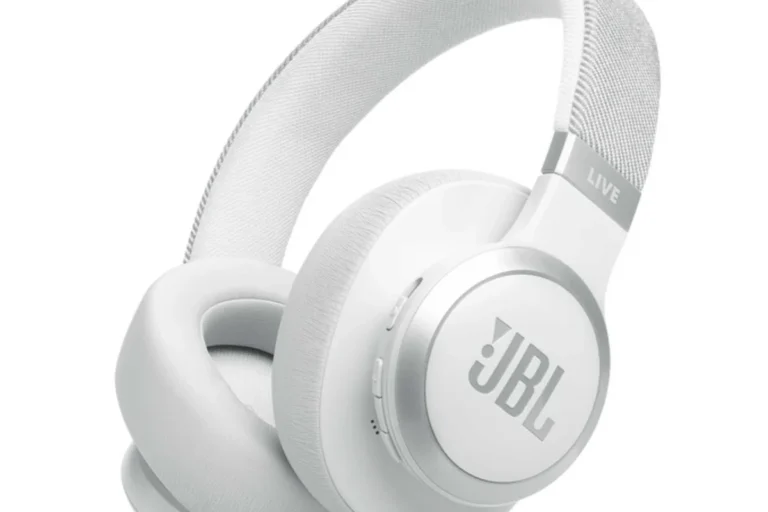
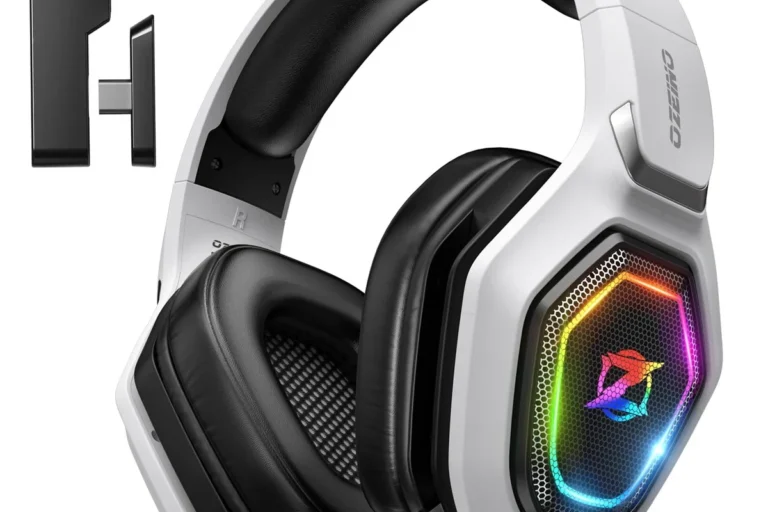
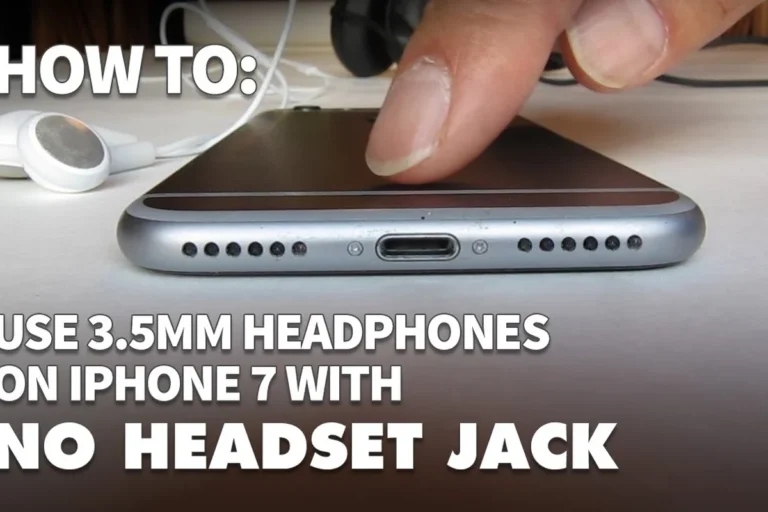
How to Use Headphones with Xbox for Better Gaming

Use headphones with Xbox by plugging a 3.5mm headset into the controller, pairing an Xbox-compatible wireless headset, or routing audio through your TV or monitor. For the best results, check compatibility first and adjust chat mix, volume, and audio mode after connecting.
If you want to know how to use headphones with Xbox, the good news is that the simplest setup is often the best one. Most players can get great game audio and voice chat through a wired headset, an Xbox-compatible wireless headset, or a TV/monitor audio path with the right settings.
The main thing to understand is that Xbox handles audio differently from some other gaming systems, especially when it comes to Bluetooth. In this guide, the Top Headphone Reviews Editorial Team breaks down the easiest connection methods, the best sound settings, and the common mistakes that can cause weak audio, no chat, or unnecessary lag.
- Fastest setup: The controller’s 3.5mm jack is the easiest option for most players.
- Wireless caution: Only Xbox-compatible wireless headsets and supported USB setups are reliable.
- Audio tuning: Chat mix and spatial audio settings can improve clarity more than you expect.
- Common issue: Bluetooth often needs a workaround and can add latency.
How to Use Headphones with Xbox: What Gamers Need to Know in 2026
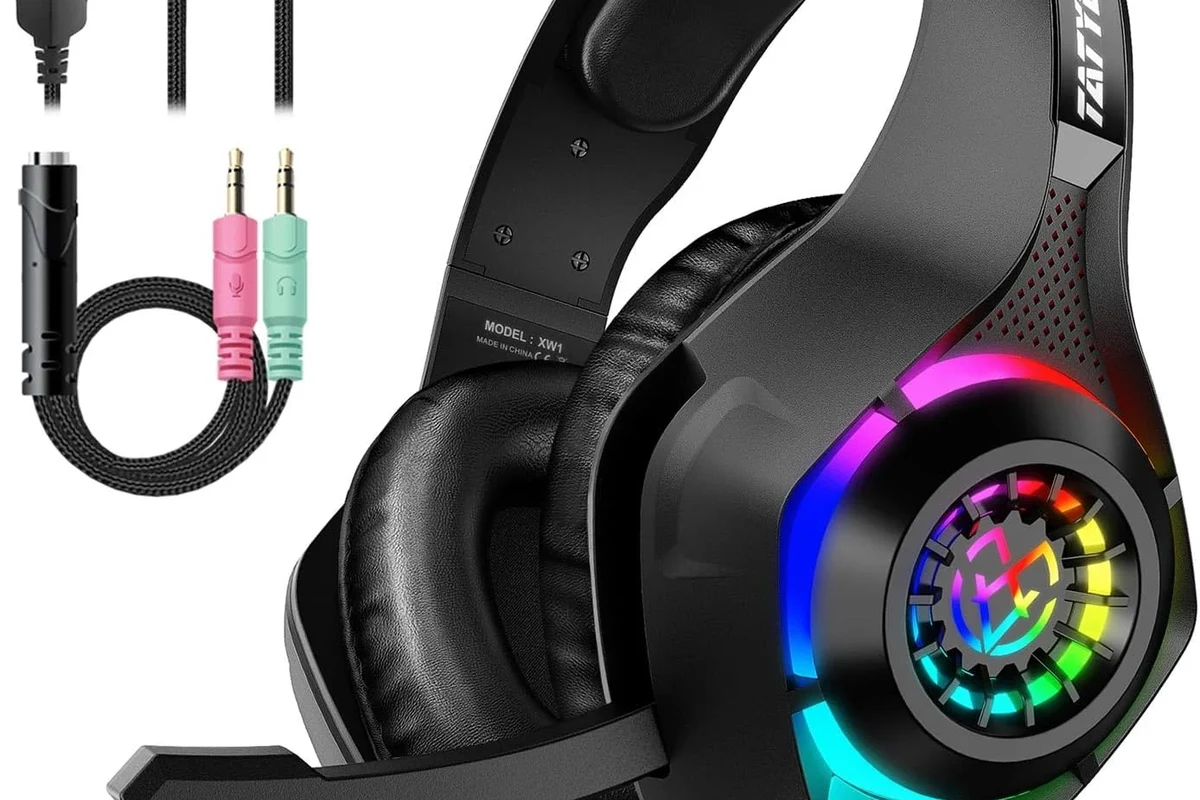
Using headphones with Xbox is straightforward once you match the headset type to the console and connection method. For most gamers, the decision comes down to wired convenience, wireless freedom, or using the TV or monitor as the audio source.
Xbox consoles support several audio paths, but not every headphone type works the same way. A standard 3.5mm headset plugged into the controller is usually the easiest option, while USB and Bluetooth setups can be more limited depending on the model and accessories.
Compatibility can vary by headset brand, Xbox model, controller version, and whether you need game audio only or both game audio and voice chat.
If you are comparing gaming audio setups more broadly, it can also help to understand the basics of different headphone types before buying. That makes it easier to choose between over-ear comfort, in-ear portability, and headset-style mic support.
Xbox Headphone Compatibility Basics: Wired, Wireless, and Controller Options
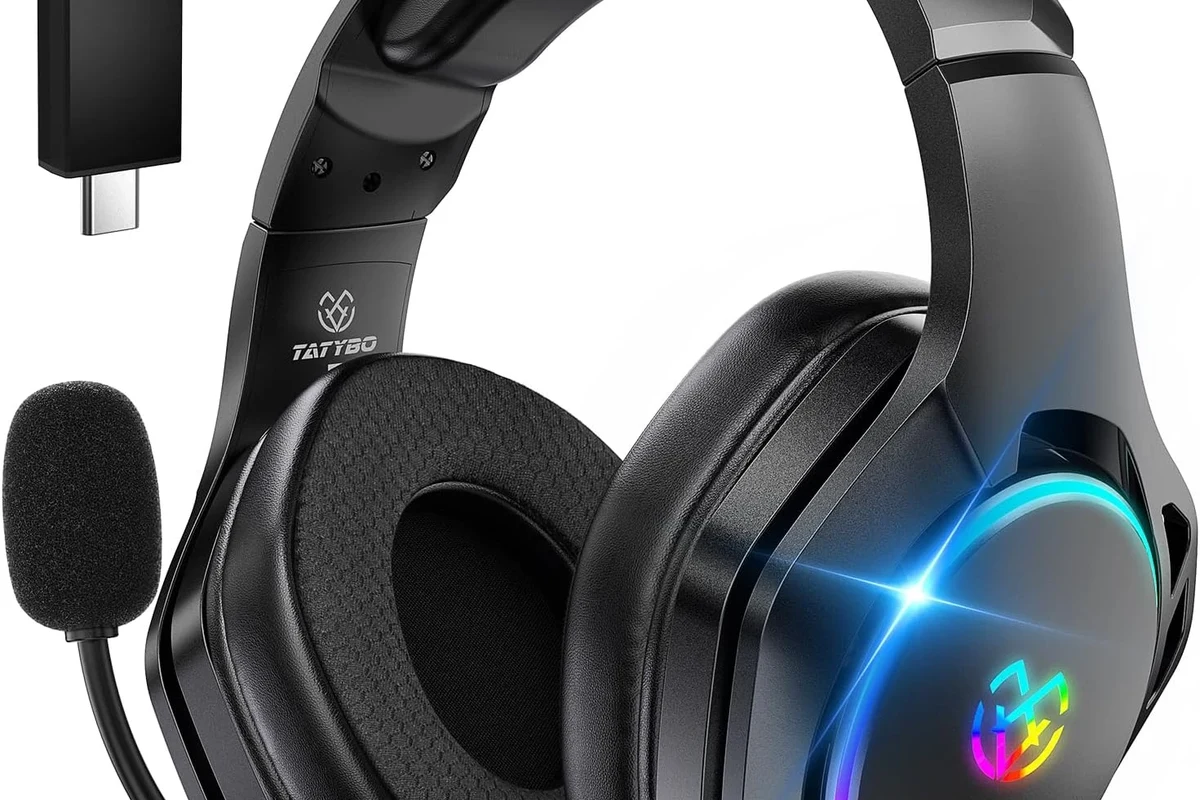
Before connecting anything, it helps to know what Xbox usually supports best. In general, the most reliable options are wired 3.5mm headphones through the controller or an Xbox-certified wireless headset designed for console use.
Bluetooth is where many players run into confusion. Xbox consoles do not work like phones or laptops in this area, so a Bluetooth headset may need a workaround rather than a direct pairing.
3.5mm Headphones vs USB Headsets vs Bluetooth Workarounds
3.5mm headphones are the easiest choice because they plug directly into the controller and usually support both game audio and chat. If your headset has a built-in microphone, that mic often works automatically once the headset is recognized.
USB headsets can be more complicated. Some work on Xbox, but others are designed mainly for PC and may only provide partial support or no support at all.
Bluetooth workarounds usually involve connecting the headset to your TV, monitor, or a separate adapter instead of the Xbox itself. That can be useful for listening, but it may introduce latency or break voice chat depending on the gear.
Do not assume every USB or Bluetooth headset will work fully with Xbox. Check the manufacturer’s Xbox compatibility notes before buying.
Xbox Series X|S, Xbox One, and Older Console Support Differences
Xbox Series X|S and Xbox One systems are the most flexible for modern gaming headsets, especially through the controller’s headphone jack and Xbox-compatible wireless models. Older consoles may need extra accessories or different audio routing depending on the controller and headset type.
If you are using an older Xbox setup, the safest move is to verify whether your controller has a 3.5mm jack and whether your headset supports the console directly. That simple check can save you from buying adapters you do not need.
Many Xbox audio problems come from the controller, not the headphones themselves. A loose jack, low controller battery, or outdated firmware can affect sound and chat quality.
How to Connect Headphones to Xbox Step by Step
There are a few easy ways to connect headphones to Xbox, and the best method depends on your headset type. Start with the simplest option first, then move to wireless or TV-based setups if needed.
Using the Xbox Controller’s Headphone Jack
This is the most beginner-friendly method. Plug your 3.5mm headphones or headset into the controller, then make sure the controller is turned on and paired with the console.
Insert the 3.5mm connector firmly into the controller’s headphone jack.
Turn up the inline volume, mute switch, or chat controls if your headset has them.
Open a game or party chat to confirm both sound and microphone input are working.
If the audio sounds too quiet, the issue is often the controller volume setting rather than the headset. Also check that the plug is fully seated, since a half-inserted cable can cause muffled sound or missing chat audio.
Connecting via Xbox-Compatible Wireless Headsets
Xbox-compatible wireless headsets are a cleaner option if you want fewer cables. These headsets usually connect through Xbox wireless pairing or a dedicated USB dongle made for console use.
Follow the headset manufacturer’s pairing steps carefully, since the process varies by model. In many cases, you will put the headset into pairing mode, then use the console or accessory pairing button to complete the connection.
If wireless audio cuts out, test the headset closer to the console and remove nearby interference sources such as other active wireless devices.
For readers who want a broader wireless overview, our guide on how to connect Bluetooth headphones can help explain why some wireless setups are simple while others need extra steps.
Setting Up Headphones Through a TV, Monitor, or Audio Extractor
Some players prefer to route sound through the TV or monitor instead of the controller. This can work well if your display has a headphone output, built-in Bluetooth, or an audio extractor connected to the HDMI chain.
That said, this setup is usually better for listening than for competitive voice chat. If you need low-latency game audio and a reliable mic, a direct controller connection or Xbox-compatible wireless headset is usually the safer choice.
- Does your TV or monitor have a headphone jack or audio output?
- Does the setup add noticeable audio delay?
- Will your microphone still work for party chat?
Best Audio Settings for Clear Game Sound and Voice Chat
Once your headphones are connected, the next step is tuning the Xbox audio settings. Good settings can make dialogue clearer, footsteps easier to hear, and voice chat less muddy.
Adjusting Chat Mixer, Volume, and Mic Monitoring
The chat mixer controls how loud game audio is compared with party chat. If your friends sound too quiet, shift more volume toward chat; if the game is overpowering, rebalance it the other way.
Mic monitoring is also worth adjusting if your headset supports it. This lets you hear a bit of your own voice, which can reduce the urge to shout during long sessions.
Choosing Stereo, Windows Sonic, Dolby Atmos, or DTS Headphone:X
Xbox gives you several spatial audio options, and the best one depends on your headset and your preference. Stereo is simple and dependable, while Windows Sonic, Dolby Atmos, and DTS Headphone:X can add a wider sense of space in supported games.
There is no single best choice for everyone. Some players prefer the extra positional detail, while others find stereo cleaner and more natural.
If you want a deeper understanding of wireless audio behavior and setup tradeoffs, our article on Bluetooth headphones explained simply is a useful background read.
- Stereo is the safest default if you want simple, consistent sound.
- Spatial audio can help with positioning, but it depends on the game and headset.
- Try one setting at a time so you can hear what actually improves your setup.
Common Mistakes When Using Headphones with Xbox
Most Xbox headphone problems are not caused by the headset itself. They usually come from the wrong connection method, a loose cable, or a setup that is not fully supported.
Bluetooth Pairing Assumptions and Latency Problems
A common mistake is assuming any Bluetooth headset will pair directly with Xbox. In many cases, it will not, and even when a workaround works, you may notice lag between the picture and the sound.
That delay matters more in fast games, shooters, and rhythm titles. If timing is important, wired or Xbox-certified wireless is usually the better path.
Wrong Port, Weak Cable, or Unsupported USB Setup
Another frequent issue is using the wrong jack or a damaged cable. A loose plug, worn connector, or incompatible splitter can make the audio cut in and out or disable the mic.
USB headsets can also cause frustration if they are built for PC first. If the headset does not explicitly support Xbox, it may only work partially or not at all.
Listening at high volumes for long periods can cause hearing damage. Keep volume at 60% or below for extended sessions.
Expert Advice: How to Get Better Sound Without Overspending
You do not need the most expensive headset to get good Xbox audio. In many cases, a well-fitting wired headset with clear mids and a decent mic will outperform a flashy but poorly matched wireless option.
What to Expect at Budget, Mid-Range, and Premium Price Points
Budget options usually focus on basic comfort and usable sound, but they may have simpler microphones and fewer extras. Mid-range models often strike the best balance for most gamers, with better build quality, more comfort, and more reliable chat performance.
Premium headsets may offer stronger materials, better wireless features, and more tuning options, but the improvement is not always dramatic for every player. Your room noise, game genre, and personal hearing preference matter just as much as the price.
When a Headset Is Better Than Separate Headphones and Mic
Separate headphones and a standalone mic can sound excellent, but they are not always the easiest choice for Xbox. If you want a simple plug-and-play setup, a gaming headset is usually more practical.
Separate gear makes more sense if you already own good headphones and want to upgrade slowly. It can also work well for players who care more about sound quality than convenience.
If you have persistent ear pain, ringing, or sensitivity to sound, consult an audiologist before increasing headphone use or volume.
Practical Gaming Examples: Best Headphone Setup for Party Chat, FPS, and Single-Player Games
For party chat, the easiest setup is usually a wired controller connection or a reliable Xbox wireless headset. That keeps voice chat stable and makes it easy to adjust volume on the fly.
For FPS games, low-latency audio matters more than extra features. A wired headset or a truly Xbox-compatible wireless model is usually best because positional cues and timing are more important than heavy bass.
For single-player games, comfort and immersion often matter most. A more spacious sound profile, softer ear pads, and optional spatial audio can make longer sessions more enjoyable.
- Wired setups are simple and dependable
- Wireless models reduce cable clutter
- Spatial audio can improve immersion
- Bluetooth can add lag or compatibility issues
- Cheap cables can cause dropouts
- Not every USB headset works on Xbox
If you are also deciding whether a headset style fits your needs, our overview of headphones vs earphones can help you compare comfort, isolation, and long-session wear.
Final Recap: The Easiest Ways to Use Headphones with Xbox for Better Gaming
The easiest way to use headphones with Xbox is still the controller’s 3.5mm jack, especially if you want quick setup and dependable chat. If you want more freedom, an Xbox-compatible wireless headset is the next best choice.
For most players, the best results come from matching the connection method to the headset, then fine-tuning chat mix and audio mode. Keep expectations realistic, check compatibility before buying, and choose the setup that sounds clear, feels comfortable, and works reliably for the games you play.
Frequently Asked Questions
Wired headphones are usually the simplest and most reliable option on Xbox. Wireless can work very well too, but only if the headset is Xbox-compatible and set up correctly.
Yes, but noise cancelling mainly helps with outside noise and comfort, not Xbox compatibility. Some models work best for listening only, while others support chat through the controller or a compatible adapter.
Closed-back headphones are usually better for Xbox gaming because they block more outside noise and keep sound from leaking out. Open-back models can sound wider, but they are less private and less isolating.
Comfort, connection type, mic support, and stable audio matter more than chasing one spec alone. If you compare sound quality, look at clarity, bass balance, and whether the headset supports the audio mode you want.
Start with the Xbox audio settings and try stereo first, then test spatial audio if your headset supports it. A small EQ adjustment, a better seal around the ears, and the right volume level can improve both bass and clarity.
Check Xbox compatibility, connection type, mic support, comfort, and build quality before you buy. If you plan long sessions, also look at ear cushion material, weight, and how the headset handles heat and pressure.