How to Connect Bluetooth Headphones to Roku TV Without App

Use a Bluetooth transmitter connected to your Roku TV’s audio output if you want to pair headphones without the app. If your TV has a headphone jack or RCA out, those are usually the simplest no-app options.
Connecting Bluetooth headphones to a Roku TV without the app is possible, but the method depends on your TV’s audio outputs and whether it supports Bluetooth audio natively. In most cases, the easiest path is to use a Bluetooth transmitter or another external audio adapter instead of relying on direct pairing.
- Best method: A Bluetooth transmitter is the most reliable no-app solution.
- Check ports first: Headphone jack, RCA out, or HDMI extractor support changes the setup.
- Latency matters: Low-latency support helps with movies and gaming.
- Not universal: Many Roku TVs still do not support direct Bluetooth headphone pairing.
How to Connect Bluetooth Headphones to Roku TV Without App: What Works in 2025
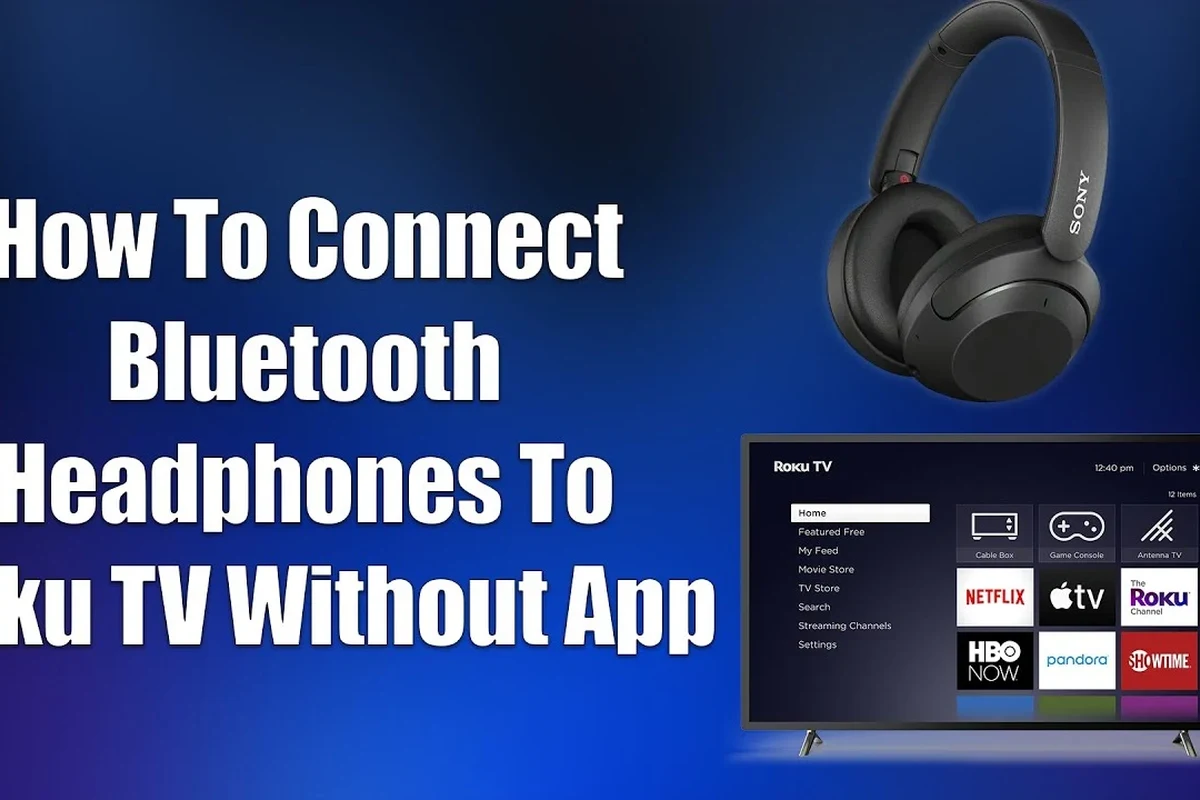
If you are trying to use wireless headphones for late-night viewing, gaming, or private listening, the good news is that you do not need the Roku app in every setup. The key is understanding where your TV can send audio and whether your headphones can receive it through a compatible device.
Some Roku TVs offer built-in Bluetooth for certain accessories, but many still do not support direct Bluetooth headphone pairing. That is why workarounds like transmitters, headphone jacks, and HDMI audio extractors remain the most practical choices in 2025.
For the most stable setup, match your headphone use case to the right output: transmitter for wireless convenience, headphone jack for simple wired-to-wireless conversion, and HDMI extractor for older TVs.
Can Your Roku TV Connect to Bluetooth Headphones Directly?
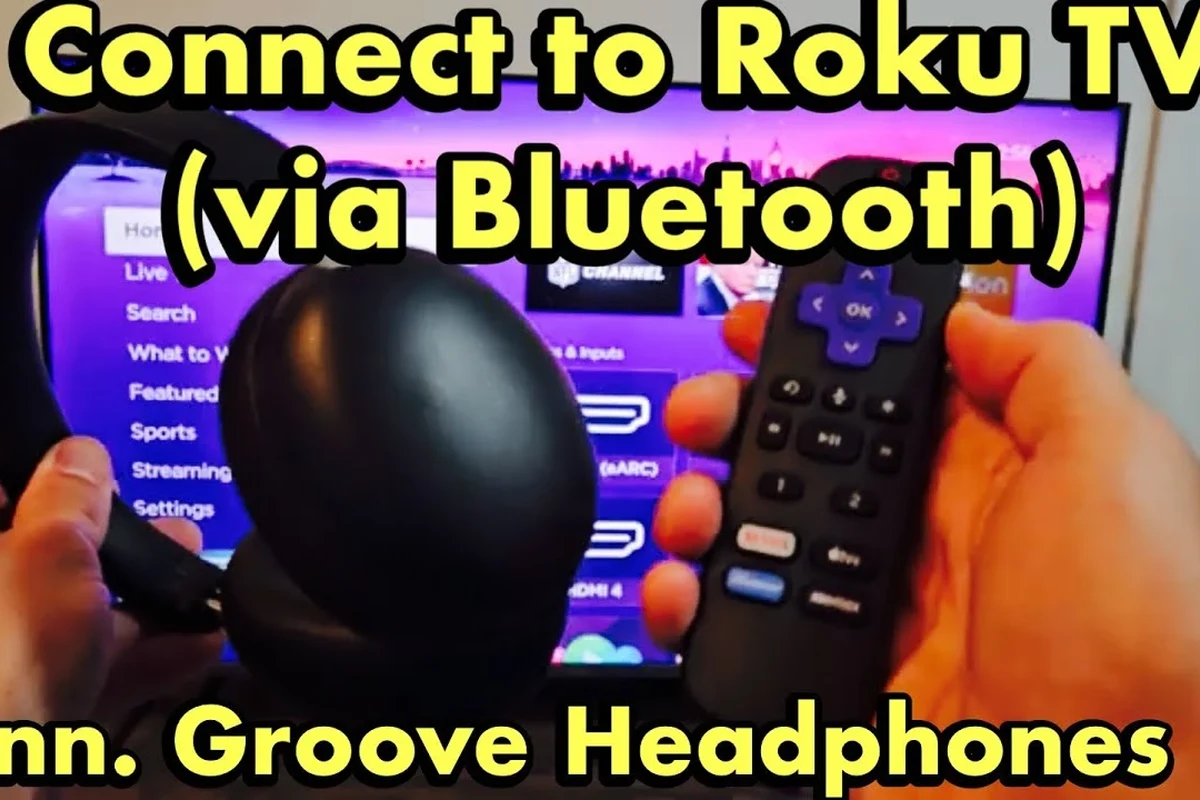
Before buying any adapter, check whether your Roku TV can send audio directly to Bluetooth headphones. This depends more on the TV model than on Roku software alone, so two Roku TVs can behave very differently.
How to check whether your Roku TV model has built-in Bluetooth audio support
Start by looking in the TV’s settings menu for Bluetooth or audio device options. If you see a headphone, speaker, or wireless audio pairing section, your model may support direct connection.
You can also check the TV manual or the manufacturer’s support page using the exact model number. If the manual only mentions Bluetooth for remotes or smart home features, it likely does not support Bluetooth headphones directly.
Roku TV menus can vary by brand, so the same Roku interface may appear on different hardware with different audio capabilities.
Why most Roku TVs still need a workaround instead of native pairing
Many Roku TVs are designed to work with the Roku app for private listening rather than with standard Bluetooth headphone pairing. That means the TV may not appear as a normal Bluetooth audio source at all.
Because of that limitation, users often need an external device that converts the TV’s audio output into a Bluetooth signal. This is usually the most reliable no-app solution and often works with more headphone models than native pairing would.
Best Ways to Use Bluetooth Headphones With Roku TV Without the Roku App
There are three common no-app methods worth considering. Each one works differently, and the best choice depends on what ports your TV has and how much latency you can tolerate.
Using a Bluetooth transmitter from the TV’s audio output
A Bluetooth transmitter plugs into the TV’s audio output and sends sound to your headphones wirelessly. This is the most common workaround for people who want a simple private-listening setup without using the Roku app.
Look for a transmitter that supports low-latency audio if you watch movies or play games, because standard Bluetooth delay can cause lip-sync problems. If you are comparing wireless options more broadly, our guide on Bluetooth headphones explained simply can help you understand the basics before buying.
Connecting through the TV’s headphone jack or RCA audio out
If your Roku TV has a 3.5mm headphone jack, you can connect a transmitter there and avoid using the app entirely. Some older TVs also offer RCA audio out, which can be adapted to a transmitter with the right cable.
This method is usually straightforward, but it depends on the TV actually providing a usable analog output. If you are unsure whether your setup is truly analog or digital, check the TV’s audio output labels carefully before purchasing anything.
Using an HDMI audio extractor for older or limited TV models
An HDMI audio extractor can split audio from an HDMI source and send it to a Bluetooth transmitter or wired output. This is useful when the TV’s built-in audio ports are limited or missing.
It is a more advanced setup, but it can be a smart fix for older televisions or home theater systems. The tradeoff is one more device in the chain, which can add cost and complexity.
Step-by-Step Setup Guide for Each No-App Method
Once you choose a method, setup is usually quick. The main goal is to make sure the TV is sending audio through the correct port and that your headphones are paired to the transmitter, not the Roku TV itself.
Pairing headphones with a Bluetooth transmitter
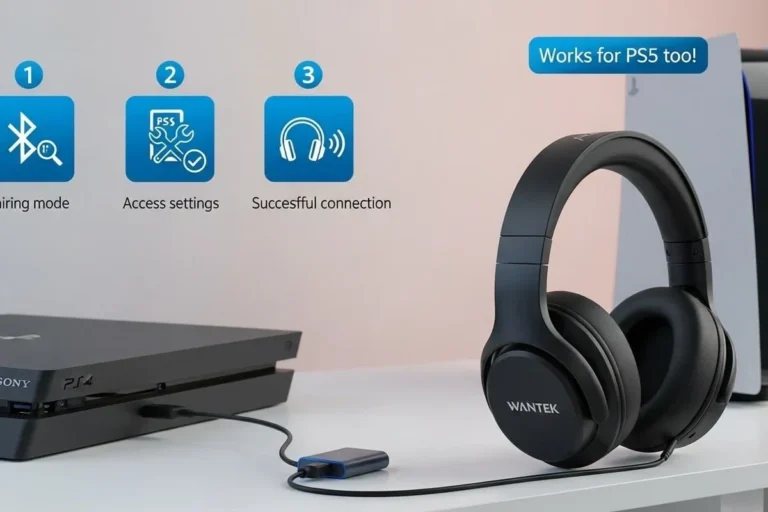
Plug the transmitter into the TV’s headphone jack, RCA output, or extractor output, depending on your setup.
Follow the transmitter’s instructions until its indicator light shows it is ready to pair.
Turn on your headphones and place them in Bluetooth pairing mode, then wait for the transmitter to connect.
If the connection is unstable, reset the headphones and transmitter, then try again from scratch. For more pairing troubleshooting, see our guide on how to connect Bluetooth headphones in general.
Adjusting Roku TV audio settings for stable sound
After pairing, check the Roku TV audio menu for volume leveling, audio mode, or headphone output settings if available. Some TVs automatically mute the speakers when an external output is active, while others need manual adjustment.
If the sound is too quiet or distorted, lower the TV volume and raise the transmitter or headphone volume instead. That balance often gives cleaner audio than maxing out the TV.
Testing latency and fixing lip-sync issues
Latency is the delay between the picture and the sound. If voices seem late, the transmitter may not support low-latency audio, or your headphones may not be ideal for video use.
Try a transmitter with aptX Low Latency or another low-delay mode if your headphones support it, but remember that codec support varies by brand and model. For gaming, even small delays can be distracting, so it is worth choosing carefully.
Listening at high volumes for long periods can cause hearing damage. Keep volume at 60% or below for extended sessions.
Common Mistakes When Connecting Bluetooth Headphones to Roku TV
Most setup problems come from compatibility mistakes, not from the headphones themselves. A little checking upfront can save time and prevent unnecessary returns.
Choosing a transmitter that does not support low-latency audio
Many cheap transmitters work, but they may add enough delay to make movies and games frustrating. If you care about lip-sync, low-latency support matters much more than flashy packaging.
Even then, performance can vary depending on the headphones you use and how crowded your wireless environment is.
Plugging into the wrong audio port or output mode
Some users accidentally plug a transmitter into an input instead of an output, or into a port that does not carry the audio they expect. Always confirm that the TV port is labeled as audio out, headphone out, or line out.
If you use RCA, make sure the red and white plugs are connected correctly and that the TV is set to send sound through that output if the menu requires it.
Assuming every Roku TV supports direct Bluetooth pairing
This is one of the biggest myths around Roku TVs. The Roku interface may look modern, but that does not guarantee native Bluetooth headphone support.
If you skip the compatibility check, you may waste time looking for a pairing menu that does not exist. That is why external transmitters are often the safest answer.
Some TVs can pair Bluetooth remotes but still cannot send TV audio to Bluetooth headphones directly, which confuses many first-time buyers.
Expert Advice: When to Avoid Cheap Adapters and What to Look For
Cheap adapters can work for casual use, but they are not always the best choice for movies, gaming, or everyday TV watching. The difference usually shows up in delay, connection stability, and audio clarity.
Why Bluetooth codec support matters for gaming and TV watching
Codec support affects how audio is compressed and transmitted. For TV and gaming, the most useful feature is often low-latency support, because it helps keep dialogue and action aligned.
If you mostly watch talk shows or news, standard performance may be fine. If you play games or notice lip-sync issues easily, codec quality becomes much more important.
Battery life, range, and dual-device pairing considerations
Battery life matters if you plan to watch long movies or binge several episodes in a row. Range matters too, especially if you move around the room while wearing your headphones.
Some transmitters also support dual-device pairing, which can be useful if two people want to listen privately. That feature can be convenient, but it may affect range or stability depending on the model.
If you have tinnitus, hearing sensitivity, or ongoing ear pain, keep listening levels conservative and consider speaking with an audiologist before long headphone sessions.
Warning signs of poor-quality transmitters and audio lag
Be cautious if a transmitter has vague compatibility claims, no clear audio input labels, or very little documentation. Those are often signs that setup may be frustrating.
Frequent dropouts, noticeable delay, and weak build quality are the most common complaints with lower-end adapters. A slightly better model is often worth it if you use your TV headphones often.
Cost Comparison: Free Workarounds vs Budget and Premium Bluetooth Solutions
Your cheapest option may already be built into the TV if it has a headphone jack or line out. If not, a Bluetooth transmitter or audio extractor is usually still affordable compared with replacing the TV.
What you can do at no extra cost if your TV already has audio out options
If your Roku TV has a headphone jack, RCA output, or another usable audio out port, you may only need a cable or a basic transmitter. In some cases, that is the only extra purchase required.
That said, “free” only applies if the port already exists and works properly. If your TV lacks the right output, you will need hardware to bridge the gap.
Typical price ranges for Bluetooth transmitters and audio extractors in 2025
Prices can vary a lot by brand, codec support, and whether the device includes extras like dual-link pairing or low-latency modes. Budget transmitters are usually the simplest starting point, while premium models tend to offer better stability and more connection options.
HDMI audio extractors usually cost more than the most basic transmitter setup, but they can solve compatibility problems that cheaper adapters cannot. If you want a broader headphone buying perspective, our guide to Bluetooth vs wired headphones sound quality explains why connection type still affects the listening experience.
- Use a transmitter if your Roku TV does not support direct Bluetooth headphone pairing.
- Check the TV’s audio outputs first so you buy the right adapter the first time.
- Choose low-latency support if you care about lip-sync for movies or gaming.
Final Recap: The Easiest Way to Connect Bluetooth Headphones to Roku TV Without the App
The easiest no-app solution for most Roku TV owners is a Bluetooth transmitter connected to the TV’s audio output. It is simple, flexible, and usually works even when the TV cannot pair with headphones directly.
If your TV has a headphone jack, that is often the fastest setup. If it does not, an HDMI audio extractor can fill the gap, especially on older or limited models.
In short, the best method depends on your TV’s ports, your need for low latency, and how often you plan to use your headphones. For readers comparing wireless listening options more broadly, our general guide on types of headphones explained can also help narrow down the right style for TV use.
Frequently Asked Questions
Yes, if your TV has an audio output you can use a Bluetooth transmitter or extractor. Direct pairing without the app depends on the exact Roku TV model.
Over-ear headphones are often the most comfortable for long TV sessions, while in-ear models are lighter and more portable. The best choice depends on comfort, isolation, and personal preference.
Yes, low-latency support can reduce lip-sync delay and make dialogue line up better with the picture. This is especially helpful for gaming and action movies.
Closed-back headphones usually work better for TV because they block more outside noise and keep sound from leaking. Open-back models can sound spacious but are less private.
Check Bluetooth version, codec support, battery life, comfort, and whether the headphones support low-latency modes. Also consider weight and ear cushion material for long sessions.
Look for lightweight designs, soft padding, and an adjustable headband. Taking short breaks also helps reduce pressure and fatigue during extended listening.