How to Connect Bluetooth Headphones to Xbox One Easily

Xbox One does not support standard Bluetooth headphones directly, so you need a workaround like a TV Bluetooth output, a Bluetooth transmitter, or the Xbox app for chat. For the easiest and most reliable experience, an Xbox-compatible wireless headset is usually the best choice.
If you’re trying to figure out how to connect bluetooth headphones to xbox 1, the short answer is that Xbox One does not support standard Bluetooth audio directly. The good news is that there are a few practical workarounds that can still get your headphones working for game sound or party chat.
- No direct pairing: Xbox One does not natively connect to standard Bluetooth headphones.
- Best workarounds: TV Bluetooth, transmitters, and the Xbox app can help.
- Watch for lag: Bluetooth delay can affect fast-paced games and lip-sync.
- Mic support varies: Not every workaround handles voice chat well.
Can You Connect Bluetooth Headphones to Xbox One? What Works in 2025
In 2025, the answer is still mostly no for direct Bluetooth pairing. Xbox One is not built like a phone, tablet, or laptop that can simply scan and connect to any Bluetooth headset.
That said, you can still use Bluetooth headphones with the console through workarounds such as a TV Bluetooth output, a Bluetooth transmitter, or the Xbox mobile app for chat. If you want a broader overview of headset setup basics, our guide on how to connect Bluetooth headphones can help you understand the general pairing process first.
Why Xbox One Doesn’t Support Standard Bluetooth Audio
Xbox One uses its own wireless system for accessories, and that system is not the same as regular Bluetooth audio. This is why many Bluetooth headphones connect easily to phones but not to the console itself.
How Xbox wireless and Bluetooth differ
Bluetooth is designed for broad device compatibility, while Xbox wireless is tuned for Microsoft accessories and gaming use. In simple terms, the console prioritizes its own wireless protocol instead of standard Bluetooth headphone support.
This difference matters because the Xbox needs stable, low-latency audio for gaming. Standard Bluetooth can add delay, which is less noticeable for music but more obvious in games and voice chat.
What this means for headphone compatibility
Most Bluetooth headphones will not show up as a normal audio device on Xbox One. If they do connect through a workaround, the experience may vary depending on the headphone model, TV, transmitter, and controller you use.
Note
Compatibility can change based on your Xbox model, TV settings, and headphone features like multipoint pairing or low-latency support.
Best Ways to Use Bluetooth Headphones with Xbox One
There are several ways to make Bluetooth headphones work with Xbox One, but each one has trade-offs. Some methods are better for game audio, while others are better for chat only.
Using the Xbox app on mobile for party chat
One of the simplest options is to use the Xbox app on your phone for party chat while you listen to game audio another way. This can work well if your main goal is talking with friends rather than routing every sound through the headset.
It is not a full replacement for console audio, but it is useful for casual players. For readers who also want to understand Bluetooth behavior in general, our article on Bluetooth headphones explained simply gives a helpful overview.
Connecting through a TV with Bluetooth audio output
If your TV supports Bluetooth audio, you may be able to send Xbox One sound from the console to the TV and then to your headphones. This is often the easiest no-extra-gadget route when the TV already includes Bluetooth.
The downside is that TV Bluetooth can introduce delay. That delay may be fine for single-player games, but it can be distracting in fast-paced titles where audio timing matters.
Using a Bluetooth transmitter with the Xbox controller or console
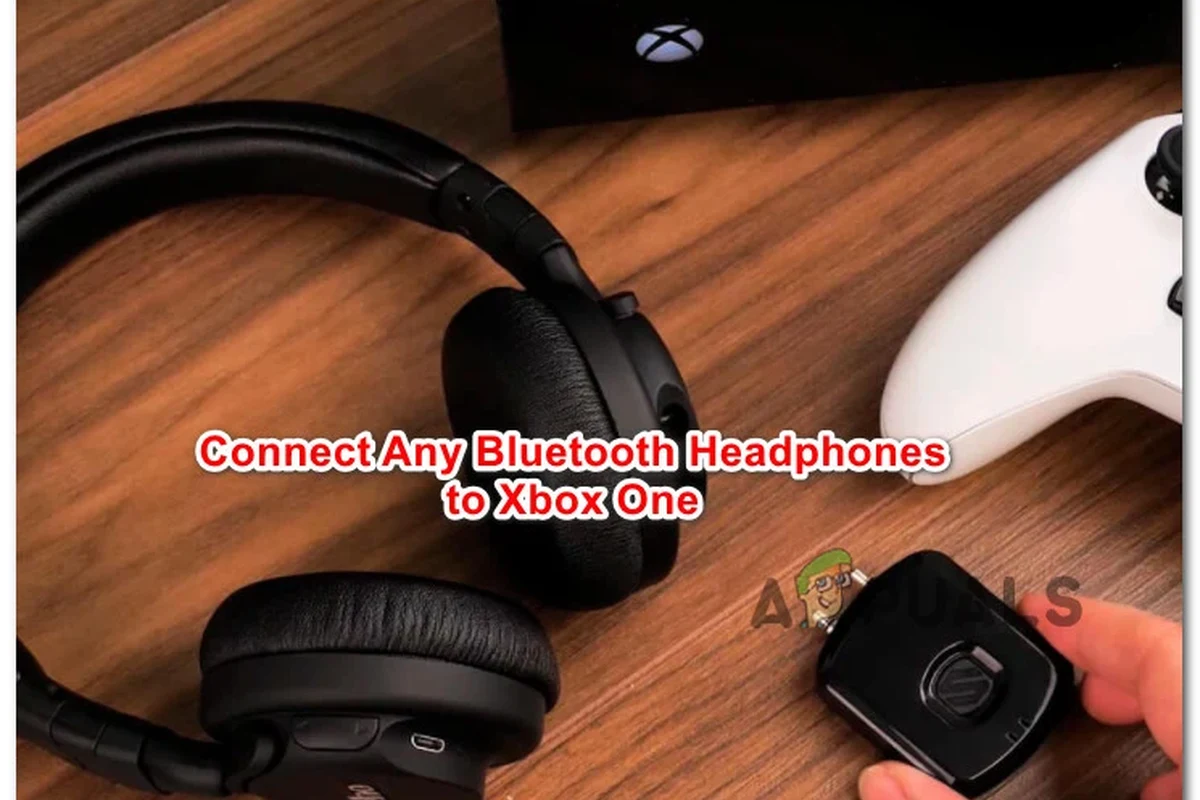
A Bluetooth transmitter is one of the most common workarounds for Xbox One. These adapters plug into a 3.5mm jack, optical output, or another audio source and then send sound to your Bluetooth headphones.
This method can be a solid choice if you want a more direct connection than TV Bluetooth. However, the final result depends heavily on transmitter quality, codec support, and whether the adapter is designed for gaming latency.
Switching to Xbox-compatible wireless headsets
If you want the least frustrating setup, an Xbox-compatible wireless headset is often the cleanest answer. These headsets are designed to work with the console without the Bluetooth limitations.
They usually provide easier setup, better chat integration, and more predictable game audio. For many players, that makes them a better long-term buy than forcing a Bluetooth workaround.
Step-by-Step Setup Methods That Actually Work
Below are the three most practical ways to get audio from Xbox One to headphones. Pick the one that matches your gear and how much latency you can tolerate.
Method 1: Bluetooth transmitter via 3.5mm jack or optical audio
Plug the transmitter into the Xbox controller’s 3.5mm jack, or into the console/TV audio output if your setup supports that path.
Follow the headset instructions and make sure it is ready to pair before turning on the transmitter.
Wait for the transmitter and headphones to connect, then test game audio and adjust volume slowly.
This is usually the most direct Bluetooth workaround for Xbox One. Still, latency and microphone support depend on the adapter, so check the product details before buying.
Method 2: TV Bluetooth pairing for game sound
- Does your TV support Bluetooth audio output?
- Can the TV send sound from HDMI inputs to Bluetooth?
- Does the TV have noticeable audio delay settings?
Find the Bluetooth or external audio output menu and enable pairing mode if available.
Connect your Bluetooth headphones to the TV, not the Xbox console.
Check whether sound matches the picture closely enough for your gaming style.
This method is convenient, especially if your TV already has a decent Bluetooth implementation. If you also want a refresher on wireless vs wired sound behavior, see our Bluetooth vs wired headphones sound quality guide.
Method 3: Wired controller connection for mixed audio use
Some Bluetooth headphones can also work in wired mode if they include a 3.5mm cable. In that case, you can plug them into the Xbox controller and avoid Bluetooth pairing entirely.
This is not true Bluetooth use, but it is often the most reliable way to get audio with lower delay. If your headset supports both wired and wireless use, this can be a smart fallback when wireless audio becomes unstable.
Common Problems When Trying to Pair Bluetooth Headphones with Xbox One
Even when a workaround works on paper, real-world use can still be frustrating. Most issues come down to latency, chat support, or weak Bluetooth hardware.
Audio lag and lip-sync delay
Bluetooth audio delay is the biggest complaint for Xbox One users. You may hear footsteps, gunshots, or dialogue slightly after they appear on screen.
For casual play this may be acceptable, but for competitive gaming it can be annoying. If you are already dealing with Bluetooth delay on other devices, our Bluetooth headphone lag fix article may help you understand what causes the problem.
Mic not working during multiplayer chat
Many Bluetooth headphones can play audio but still fail to handle microphone input properly on Xbox One. That means you might hear the game fine, but your teammates cannot hear you.
This is why some setups are better for listening than for full multiplayer communication. Before buying any adapter, make sure it supports both audio output and microphone pass-through if chat matters to you.
Low volume, dropouts, and connection instability
Cheap transmitters and weak TV Bluetooth modules can cause low volume or random disconnects. Walls, interference, and distance can make the connection even less reliable.
Important
Not all Bluetooth adapters are equal. A low-cost model may work poorly with gaming audio, especially if it lacks stable codec support or has a short range.
Expert Advice: When a Bluetooth Workaround Is Not Worth It
Bluetooth workarounds make sense in some living-room setups, but they are not always the best answer. If you care about responsiveness, voice chat, and easy setup, a native Xbox headset may save time and frustration.
Latency risks for competitive gaming
If you play shooters, rhythm games, or anything where timing matters, even a small audio delay can hurt the experience. In those cases, a direct wireless gaming headset or wired headset is usually safer than Bluetooth.
Why cheap transmitters can cause poor sound quality
Budget transmitters may compress audio, reduce clarity, or struggle with stable pairing. That can make game sound feel thin or inconsistent, especially at higher volumes.
Audio Tip
If you must use a transmitter, choose one with low-latency support and clear compatibility notes for gaming consoles or TVs.
When an Xbox Wireless headset is the better buy
If you want fewer connection headaches, an Xbox-compatible wireless headset is often the better value over time. You get a cleaner setup, more predictable performance, and usually better voice-chat support.
If you have persistent audio delay, hearing discomfort, or trouble balancing chat and game sound, consider speaking with an audiologist or a professional audio specialist for personalized guidance.
Cost Comparison: Bluetooth Adapter vs Xbox-Compatible Headset
Cost is often the deciding factor. A Bluetooth workaround can be cheaper upfront, but a better headset may be the smarter long-term purchase if you game often.
Budget setup options for casual players
A basic Bluetooth transmitter can be appealing for casual use, especially if you already own good headphones. This setup may work well for single-player games, media use, or occasional party chat.
Mid-range and premium headset alternatives in 2025
Mid-range Xbox-compatible headsets often offer better convenience than a transmitter setup, while premium models may add stronger microphones, better comfort, and more refined audio tuning. Exact value depends on the brand, fit, and whether you prefer over-ear, on-ear, or in-ear designs.
Final Recap: The Easiest Way to Connect Bluetooth Headphones to Xbox One
If you want the simplest answer, Xbox One does not support standard Bluetooth headphones directly. The easiest workarounds are a Bluetooth transmitter, TV Bluetooth audio, or using the Xbox app for chat while handling game sound another way.
For most players, the best choice depends on how often you game and how much delay you can tolerate. If you want the fewest problems, an Xbox-compatible wireless headset is usually the most reliable solution.
- Xbox One does not pair with standard Bluetooth headphones directly.
- TV Bluetooth and transmitters can work, but latency may be an issue.
- Mic support is not guaranteed with every workaround.
- Xbox-compatible wireless headsets are often the easiest long-term option.
Listening at high volumes for long periods can cause hearing damage. Keep volume at 60% or below for extended sessions.
Frequently Asked Questions
Wired headphones usually offer more consistent audio and less delay, which can help in gaming. Wireless models are more convenient, but sound quality and latency vary by headset and connection type.
Noise cancelling headphones can be helpful if you want to block room noise and focus on the game. Just make sure the headset still feels comfortable during long sessions and does not add distracting audio delay.
Closed-back headphones are usually better for Xbox gaming because they reduce outside noise and keep game sound more contained. Open-back headphones can sound wider, but they leak sound and are less ideal in shared spaces.
Look at connection type, latency, microphone support, comfort, and whether the headset works wired or wireless. Driver type, tuning, and EQ support can also affect bass, clarity, and overall soundstage.
Focus on reliable compatibility first, then compare comfort and mic quality before chasing extra features. A simple wired or Xbox-compatible wireless headset is often a better budget choice than a cheap Bluetooth workaround.
Check ear cushion material, headband padding, clamp force, and total weight before buying. For long sessions, a lighter headset with soft cushions and solid build quality usually feels better over time.