How to Pair Bluetooth Headphones to Roku TV Easily

Yes—if your Roku TV supports Bluetooth audio, you can pair headphones directly from the TV settings. If it does not, you can still use the Roku mobile app, a Bluetooth transmitter, or a soundbar bridge for private listening.
If you want private TV listening, the process can be simple once you know whether your Roku TV supports Bluetooth audio directly. In 2025, the fastest path depends on your specific TV model, your headphones, and whether you need a direct connection or a workaround.
- Check first: Not every Roku TV has built-in Bluetooth audio.
- Best direct method: Put headphones in pairing mode and select them in Roku settings.
- Best workaround: Use the Roku app, a transmitter, or a soundbar bridge.
- Watch for delay: Low-latency support matters for movies and gaming.
How to Pair Bluetooth Headphones to Roku TV: What This Guide Covers in 2025
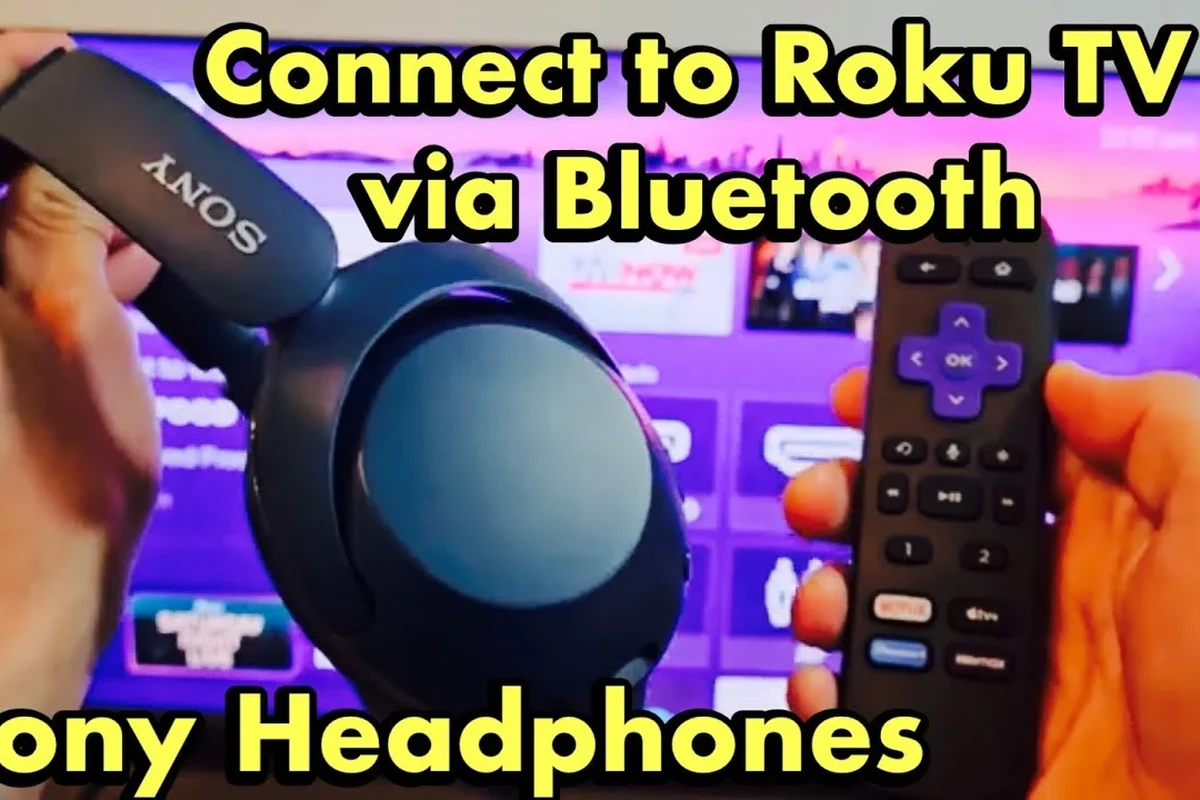
This guide explains how to pair Bluetooth headphones to Roku TV, what to do if your TV does not support Bluetooth natively, and how to troubleshoot the most common connection issues. It also covers latency, comfort, and buying tips so you can choose headphones that work well for movies, shows, and gaming.
For readers comparing wireless audio options, it helps to understand the difference between Bluetooth headphones, TV private listening, and other wireless setups. If you want a broader overview of wireless audio basics, see our guide on Bluetooth headphones explained simply.
Can Your Roku TV Connect to Bluetooth Headphones Directly?
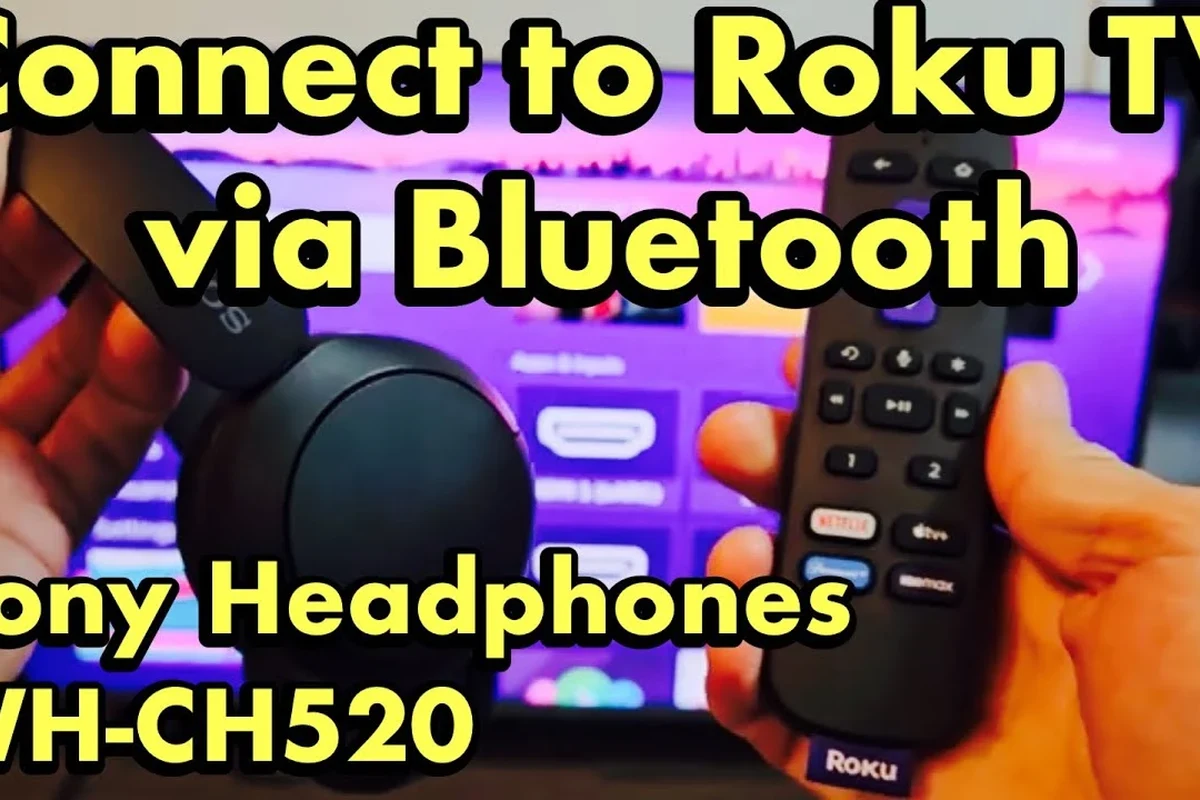
Some Roku TV models support Bluetooth audio directly, while others rely on Roku’s mobile app or an external adapter. The key is not assuming every Roku TV works the same way, because support can vary by brand, model, and software version.
Roku TV models with built-in Bluetooth vs. Roku OS devices that need workarounds
A Roku TV with built-in Bluetooth can usually pair with headphones from the settings menu or a connected audio device list. Other Roku devices may still let you listen privately, but often through the Roku mobile app, a Bluetooth transmitter, or a soundbar that acts as a bridge.
Roku TV and Roku OS support can vary by device generation. Always check your TV’s audio settings and model documentation before buying new headphones or adapters.
If you already use wireless headphones with other devices, the pairing process will feel familiar. For a quick refresher on general setup steps, our article on how to connect Bluetooth headphones can help you recognize pairing mode and device discovery behavior.
Why search intent matters: quick pairing, private listening, and lag-free TV audio
Most people searching for how to pair Bluetooth headphones to Roku TV want one of three things: a fast setup, private listening without disturbing others, or lower audio delay for movies and gaming. Those goals matter because the “best” solution is different for each use case.
Step-by-Step: How to Pair Bluetooth Headphones to Roku TV Easily
If your Roku TV supports Bluetooth audio, pairing is usually straightforward. The exact menu labels can vary, but the general process is the same: put the headphones in pairing mode, open the TV’s Bluetooth audio settings, and confirm the connection.
Put your headphones in pairing mode
Turn on your headphones and hold the pairing button until the indicator light flashes or you hear a pairing prompt. If they were previously connected to another device, disconnect them first so the Roku TV can find them more easily.
Enable Bluetooth audio on your Roku TV or connected device
Open your Roku TV settings and look for sound, audio, or Bluetooth options. If you are using a transmitter, soundbar, or receiver, put that device into pairing mode instead and make sure the TV audio output is routed through it.
- TV audio output settings
- Headphones are in pairing mode
- No other device is actively connected
Select your headphones and confirm the connection
When your headphones appear on the list, select them and wait for the confirmation message. If the TV asks for approval, accept it and test the sound right away so you know the connection is stable.
Test volume, latency, and audio sync
Play a scene with speech and background music to check clarity and lip sync. If the sound feels delayed, lower expectations for gaming and consider a low-latency transmitter or a different headphone model, because Bluetooth delay can vary by codec and device support.
Listening at high volumes for long periods can cause hearing damage. Keep volume at 60% or below for extended sessions.
Best Ways to Connect When Your Roku TV Doesn’t Support Bluetooth natively
If your Roku TV cannot pair directly, you still have good options. The best workaround depends on whether you want the simplest private listening setup or the lowest possible audio delay.
Using the Roku mobile app for private listening
The Roku mobile app can be a convenient option for private listening on supported devices. It sends audio to your phone, and you can connect your Bluetooth headphones to the phone instead of the TV, which is useful when the TV itself lacks Bluetooth audio.
This method is often the easiest for casual viewing, though it may not be the best choice for everyone. If you are comparing wired and wireless listening habits, our breakdown of Bluetooth vs wired headphones sound quality can help you decide whether convenience or consistency matters more to you.
Connecting through a Bluetooth transmitter or adapter
A Bluetooth transmitter plugs into your TV’s audio output and sends sound to your headphones. This is one of the most common solutions when you want direct TV-to-headphone audio without relying on a phone app.
Look for a transmitter that matches your TV’s output ports, such as optical, 3.5mm, or RCA. Compatibility matters here, because the wrong adapter can create poor sound quality, extra delay, or a frustrating setup process.
Using a soundbar or AV receiver as a Bluetooth bridge
Some soundbars and AV receivers can receive TV audio and then pass it to Bluetooth headphones. This can be useful if your home theater setup already includes one of these devices, but it adds another layer of compatibility to check.
If you notice lip-sync issues, try a different audio output path before blaming the headphones. TV settings, adapters, and Bluetooth codecs can all affect delay.
Common Problems When Pairing Bluetooth Headphones to Roku TV
Even when the setup should be simple, pairing can fail for small reasons like outdated firmware, distance, or a leftover connection to another device. Most issues are fixable once you narrow down whether the problem is the TV, the headphones, or the adapter.
Headphones not showing up in the device list
If your headphones do not appear, confirm that they are truly in pairing mode and not just powered on. Also move closer to the TV, disconnect them from your phone or laptop, and restart both devices if needed.
Sometimes the issue is not the headphones at all. Older Roku models or certain external audio setups may not support the kind of Bluetooth pairing you expect, so checking the device manual can save time.
Audio delay, dropouts, and weak range
Bluetooth audio delay is common enough that it should be part of your buying decision, especially for gaming and action-heavy shows. Dropouts can happen when the signal is blocked by walls, furniture, or interference from other wireless devices.
Some Bluetooth setups work better for dialogue-heavy TV than for gaming because even small delay can be noticeable when sound effects and on-screen action need to stay perfectly matched.
TV audio still playing through speakers
If the TV speakers keep playing, check whether private listening is enabled or whether the TV is sending audio to a different output. On some setups, you may need to manually switch the sound output to headphones, a transmitter, or the Roku app.
Expert Advice: What to Look for in Bluetooth Headphones for Roku TV
Choosing the right headphones matters just as much as pairing them correctly. For TV use, comfort, latency, and battery life usually matter more than flashy features you may never use.
What kind of headphones work best with Roku TV?
Closed-back wireless headphones or low-latency models are often the safest bet for TV watching. They usually block more outside noise and can feel more stable for long sessions, though performance varies by brand and model.
Low-latency codecs and why they matter for TV and gaming
For movies and especially gaming, lower latency helps keep voices, effects, and on-screen action in sync. Not every Roku setup supports every codec, so it is smart to buy headphones and adapters with TV use in mind rather than assuming all Bluetooth gear behaves the same.
If you want a deeper look at delay and sync issues, our guide to Bluetooth headphone lag fix explains why latency happens and what usually helps.
Battery life, comfort, and wireless range for long viewing sessions
Long battery life matters if you binge shows or watch late at night with private audio. Comfort is just as important, because over-ear headphones with soft ear cushions often feel better for extended sessions than tighter on-ear designs, though fit is always personal.
Price vs. performance: budget, mid-range, and premium options
Budget headphones can be fine for casual TV listening, but mid-range and premium models often offer better comfort, stronger wireless stability, and more useful features. The best value depends on how often you watch TV, whether you game, and how sensitive you are to audio delay.
Common Mistakes to Avoid Before You Pair Bluetooth Headphones to Roku TV
A few small mistakes cause most pairing problems. Avoiding them can save time and help you get better sound quality from the start.
Assuming every Roku TV has built-in Bluetooth
This is the biggest mistake. Some Roku TVs support Bluetooth audio directly, while others do not, so always confirm your exact model before you buy headphones or an adapter.
Skipping firmware updates on the TV or headphones
Outdated software can cause pairing failures, unstable connections, or missing audio options. Before troubleshooting anything else, check for updates on both the Roku TV and the headphones if the manufacturer supports them.
Ignoring compatibility with older Roku models and adapters
Older Roku devices and some third-party transmitters may work differently than newer models. If you are using an adapter, make sure it matches your TV’s output type and supports the kind of listening experience you want.
If you experience persistent hearing discomfort, ringing, or trouble understanding dialogue even at normal volume, consider speaking with an audiologist. Safe listening habits matter, especially during long TV sessions.
Final Recap: The Fastest Way to Enjoy Private Listening on Roku TV
The fastest way to pair Bluetooth headphones to Roku TV is to first confirm whether your TV supports Bluetooth audio directly. If it does, put your headphones in pairing mode, select them in the Roku audio settings, and test for volume and sync.
If your Roku TV does not support Bluetooth natively, the best alternatives are the Roku mobile app, a Bluetooth transmitter, or a soundbar/receiver bridge. Choose the method that fits your setup, then focus on comfort, latency, and stable connection quality so private listening feels effortless.
Frequently Asked Questions
Wireless headphones are more convenient for private TV listening, but wired headphones can offer simpler setup and less delay. The better choice depends on your Roku model, your room layout, and how sensitive you are to latency.
Noise cancelling headphones can be a strong choice if you want clearer dialogue in a noisy room. Results vary by model, and some listeners prefer passive isolation from closed-back headphones instead.
Closed-back headphones are usually better for TV because they block more outside noise and keep sound from leaking out. Open-back models can sound spacious, but they are less practical for private listening in shared spaces.
Look for low-latency support, stable wireless range, good battery life, and a comfortable fit. Driver type, tuning, and codec support can also affect clarity and bass, depending on the headphone and adapter used.
Choose lightweight headphones with soft ear cushions and a headband that does not clamp too tightly. Comfort is personal, so it helps to check materials, weight, and return policies before buying.
A budget-friendly closed-back wireless headphone or a simple Bluetooth transmitter can be a good starting point. Compare compatibility, delay, and comfort instead of focusing only on the lowest price.