How to Add Wireless Headphones to Roku TV Easily

The easiest way to add wireless headphones to Roku TV is to use Roku Mobile App private listening, then try Bluetooth if your TV supports it. If your Roku TV has no native Bluetooth audio, a compatible wireless transmitter is the best workaround.
If you’re trying to figure out how to add wireless headphones to Roku TV, the good news is that you usually have three practical options: Roku Mobile App private listening, Bluetooth pairing on supported Roku TV models, or a wireless transmitter connected to the TV’s audio output. The best method depends on your Roku model, your headphones, and whether you want the simplest setup or the lowest possible audio delay.
For most people, the easiest route is the Roku app. If your goal is better comfort, more privacy, or late-night viewing without disturbing others, wireless headphones can make a big difference. If you’re also comparing headphone styles for TV and gaming, our guide to wired vs wireless headphones is a useful place to start.
- Easiest method: Roku app private listening is usually the simplest free option.
- Best compatibility: A transmitter works well when your TV lacks Bluetooth audio.
- Gaming tip: Low-latency or 2.4GHz headphones are better for sync-sensitive use.
- Check first: Confirm your exact Roku TV model before buying extra gear.
How to Add Wireless Headphones to Roku TV: What Works in 2025
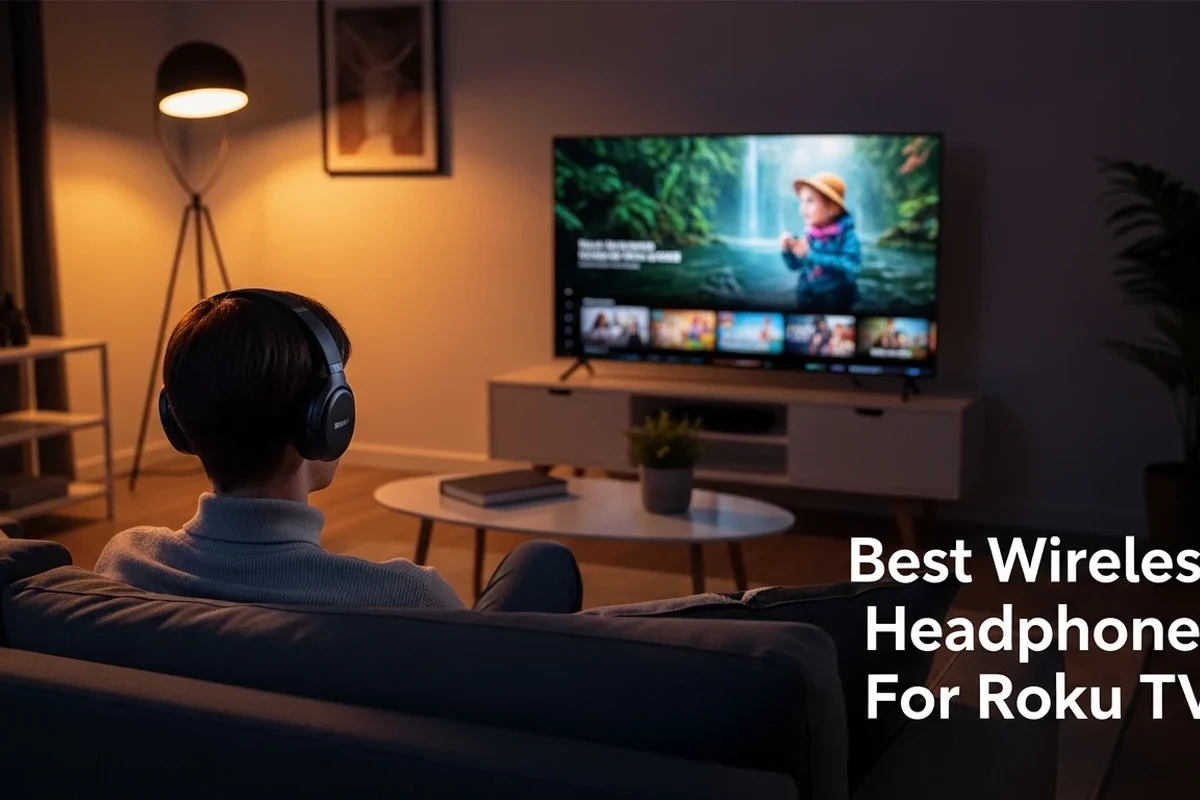
In 2025, the main ways to use wireless headphones with Roku TV are still straightforward, but not every Roku TV supports every method. Some Roku TVs offer built-in Bluetooth for direct pairing, while others rely on Roku’s private listening feature through the mobile app. If neither option fits your setup, a separate Bluetooth transmitter or 2.4GHz wireless transmitter can fill the gap.
The key detail is that “Roku TV” does not always mean the same hardware features across brands. One model may support Bluetooth audio, while another may not, even if both use the Roku interface. That is why checking your exact TV model matters before buying headphones or accessories.
Roku’s software features and TV hardware support can vary by model, brand, and region. Always confirm your exact TV’s audio options in the settings menu before purchasing extra gear.
Why Roku TV Wireless Headphone Setup Matters for Late-Night TV, Gaming, and Private Listening
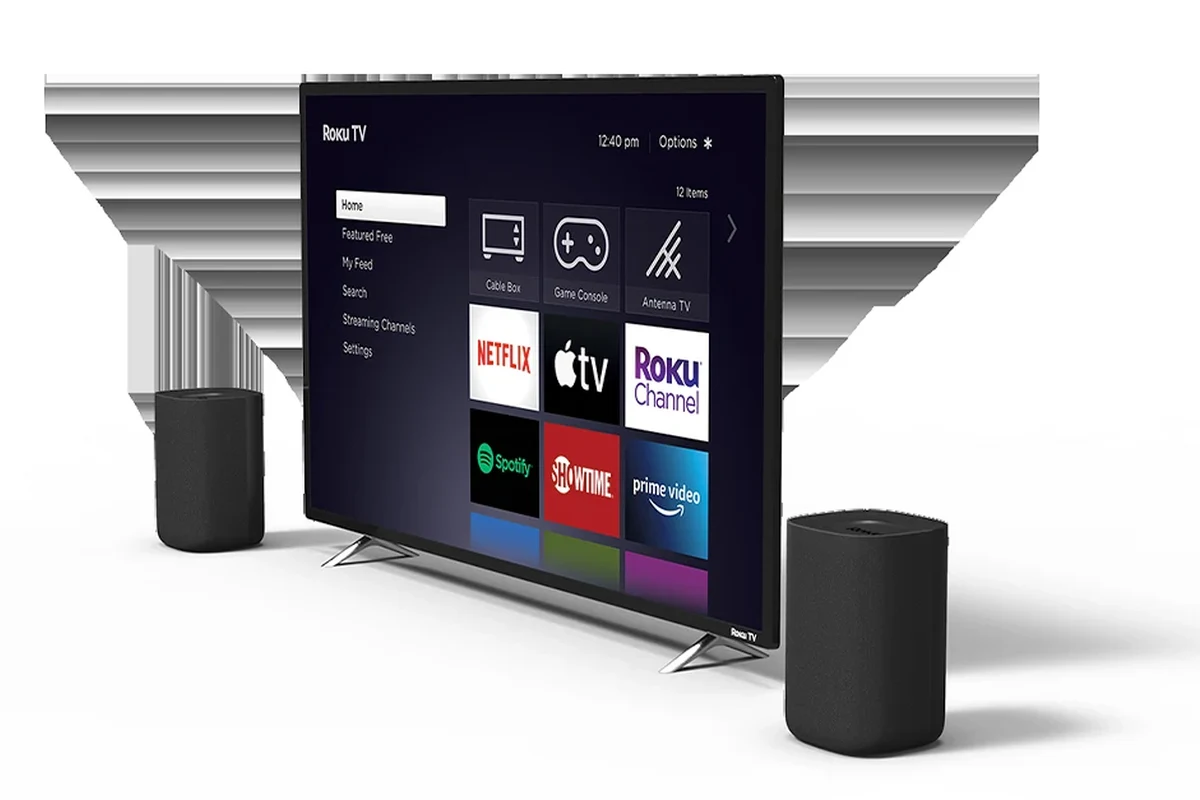
Wireless headphones are especially helpful when you want to watch movies after everyone else is asleep, play games without waking the house, or follow dialogue more clearly in a noisy room. They can also help if your TV speakers sound thin or if you prefer a more immersive, personal listening experience.
For gaming, headphone choice matters even more because sound timing can affect reaction time and immersion. If you care about audio delay, low-latency options are worth paying attention to. For general headphone basics, our explainer on Bluetooth headphones explained simply can help you understand why some wireless setups feel faster than others.
Bluetooth is convenient, but it is not always the lowest-latency wireless option. Some 2.4GHz headphone systems are designed specifically to reduce delay for TV and gaming use.
Best Ways to Connect Wireless Headphones to Roku TV
There are three common connection paths, and each one has tradeoffs. The Roku app is the simplest, Bluetooth is the most familiar, and a transmitter is the most flexible when your TV lacks built-in wireless audio support.
Using Roku Mobile App Private Listening
Private Listening in the Roku Mobile App routes TV audio to your phone, then sends it to your wireless headphones through your phone’s Bluetooth connection or wired adapter. This is often the easiest solution because it does not require your TV to have Bluetooth audio built in.
It is also a smart choice if you already use the Roku app regularly. The downside is that your phone becomes part of the chain, so battery life, app stability, and wireless range all matter. If you want a broader look at headphone behavior across devices, our guide on how to connect Bluetooth headphones may help.
Pairing Bluetooth Headphones Through a Roku TV with Built-In Bluetooth
Some Roku TV models support direct Bluetooth pairing, which lets you connect headphones without using the phone app. This is usually the cleanest setup if your TV includes the feature, because your headphones connect straight to the television.
The main advantage is convenience. The main limitation is compatibility: not every Roku TV has this option, and some TVs support Bluetooth for remotes or accessories but not for audio output. If you are unsure, check the TV’s sound settings before assuming it will work.
Connecting via a Wireless Transmitter to the TV’s Audio Output
If your Roku TV does not support Bluetooth audio, a wireless transmitter can connect to the TV’s optical, AUX, or headphone output and send audio to compatible headphones. This is the most universal workaround and often the best choice for older TVs or models with limited wireless features.
Transmitters can be a strong option for people who want more control over latency and compatibility. They do add another device to your setup, though, so you will need to match the transmitter’s input and your headphones’ wireless type carefully.
Not all transmitters work with every TV output or every headphone type. Check whether your TV has optical, AUX, or headphone out before buying, and confirm that the transmitter supports your headphones.
Step-by-Step Setup Guide for Each Connection Method
Once you know which method fits your TV, the setup process is usually simple. The most important part is pairing devices in the correct order and checking the TV’s sound output settings if audio does not switch automatically.
Private Listening Setup on iPhone and Android
Download the Roku Mobile App on iPhone or Android and make sure your phone is on the same Wi-Fi network as the Roku TV.
Pair your Bluetooth headphones to your phone, or connect wired headphones if your phone supports that connection.
Open the remote screen in the Roku app and tap the headphones icon to route TV audio to your phone.
If the audio does not appear right away, confirm that both devices are on the same network and that the app has permission to discover the TV. This method is simple, but it depends on your phone and app connection staying stable.
Bluetooth Pairing Steps for Supported Roku TV Models
Hold the pairing button or follow the manufacturer’s instructions until the headphones are discoverable.
Go to the TV settings menu and look for Bluetooth or audio device options if your model supports them.
Choose your headphones from the list, then test the sound and adjust the volume as needed.
If you want to reduce the chance of lag, choose headphones that are known for stable Bluetooth performance or low-latency features. For more background on connection issues, our article on Bluetooth headphone lag fix explains the common causes of delay and how to reduce them.
Transmitter Setup for TVs Without Native Bluetooth
Use the TV’s optical, AUX, or headphone output, depending on what the transmitter supports.
Turn on the transmitter, then place your headphones into pairing mode and wait for the connection to complete.
Set a comfortable listening level and check for sync issues, especially if you plan to game or watch dialogue-heavy content.
Transmitters are often the best fallback for older televisions, but they can also introduce extra setup steps and possible delay. If you want headphones that are easier to use across multiple devices, it helps to understand whether you prefer standard Bluetooth or another wireless format.
Common Roku TV Compatibility Issues and How to Fix Them
Most setup problems come down to pairing order, unsupported hardware, or signal interference. The good news is that many issues can be fixed without replacing your headphones or TV.
Headphones Not Showing Up in Pairing Mode
If your headphones do not appear, first make sure they are actually in pairing mode and not already connected to another device. It also helps to turn Bluetooth off on nearby devices temporarily, because some headphones reconnect automatically to the last phone or laptop they used.
Restarting the headphones, the Roku TV, or the Roku app can also help. If you are using a transmitter, confirm that it is set to pairing mode too, since the TV will not detect headphones directly in that setup.
Audio Delay and Lip-Sync Problems
Audio delay is one of the most common complaints with wireless TV listening. Bluetooth compression, TV processing, and the headphone model itself can all affect lip-sync timing.
If the delay is mild, try reducing extra audio processing on the TV and use headphones with low-latency support if possible. If the delay is severe, a transmitter with a faster wireless codec or a 2.4GHz system may be a better fit than standard Bluetooth.
Even a small delay can be distracting during gaming or fast dialogue scenes. If timing matters most, test the setup before committing to a new headphone or transmitter purchase.
Weak Signal, Dropouts, and Range Limits
Wireless headphones can cut out if you move too far from the TV, if walls block the signal, or if other wireless devices create interference. This is especially common with crowded Wi-Fi environments or older Bluetooth gear.
To improve stability, keep the transmitter or TV in a clear line of sight when possible, reduce distance, and avoid placing the signal source behind metal objects or inside cabinets. If your headphones support both Bluetooth and 2.4GHz, the latter may offer better stability for TV use.
Choosing the Right Wireless Headphones for Roku TV Use
The best headphones for Roku TV are not always the best headphones for commuting or workouts. For TV watching, comfort, latency, battery life, and ease of connection usually matter more than flashy extras.
Should you buy TV headphones or regular Bluetooth headphones?
Regular Bluetooth headphones can work well, but TV-focused models or low-latency wireless headphones often give a better viewing experience. If you watch a lot of movies or play games, the simpler and faster the connection, the better.
Bluetooth vs 2.4GHz Wireless Headphones
Bluetooth headphones are the most common and easiest to find, so they are a natural first choice for Roku TV. They work well for casual viewing, but latency can vary by model and by TV setup.
2.4GHz wireless headphones usually use a dedicated transmitter and are often designed for lower delay. That makes them attractive for gaming and dialogue-heavy content, though they may be less flexible outside the TV setup. If you want more detail on headphone categories, our page on types of headphones explained is a helpful reference.
Comfort, Battery Life, and Low-Latency Features for TV Watching and Gaming
For long viewing sessions, over-ear headphones with soft ear cushions are often more comfortable than smaller on-ear designs. Battery life matters too, because a headset that dies halfway through a movie or gaming session quickly becomes frustrating.
Low-latency features are worth prioritizing if you watch sports, play games, or notice lip-sync issues easily. Noise cancelling can also help in shared spaces, but it is not always necessary if your home is already quiet. If you are comparing fit styles, think about whether you prefer lighter headphones or a more sealed, immersive feel.
- More private listening for TV, movies, and games
- Less disturbance for family or roommates
- Can improve clarity in noisy rooms
- Possible audio delay with some wireless setups
- Compatibility varies by Roku TV model
- Extra devices may be needed without native Bluetooth
Cost Breakdown: Free Roku App Method vs Budget Transmitters vs Premium Headphone Setups
The Roku app method is usually the lowest-cost option because it uses hardware you already own. If your TV supports Bluetooth, you may only need headphones, which keeps the setup simple and relatively affordable.
Budget transmitters add cost, but they can unlock wireless listening on TVs that would otherwise need a workaround. Premium setups may include low-latency headphones, a dedicated transmitter, and better comfort for long sessions. Prices can vary widely by brand, features, and current market conditions, so it is best to compare based on your specific use case rather than chasing the biggest spec sheet.
| Model | Best For | Price Range |
|---|---|---|
| Roku app private listening | Simple, low-cost TV listening | Free to use |
| Bluetooth TV headphones | Easy wireless pairing on supported TVs | Varies by brand |
| 2.4GHz transmitter setup | Lower-latency TV and gaming use | Varies by brand |
Expert Tips, Mistakes to Avoid, and Final Recap
The easiest way to add wireless headphones to Roku TV is to start with the Roku app, then move to Bluetooth or a transmitter only if your TV supports it or needs it. That keeps costs down and avoids buying the wrong accessory too early.
A common mistake is assuming every Roku TV has the same Bluetooth features. Another is overlooking latency, which matters more for gaming and fast-action video than for casual talk shows. If you want a quick refresher on wireless basics, our guide to noise cancelling headphones can also help you think through comfort and listening environment choices.
If you have hearing loss, tinnitus, or you notice that dialogue sounds muffled even at normal volume, consider speaking with an audiologist. They can help you choose a safer listening level and a headphone type that better matches your hearing needs.
Warning About Unsupported Roku Models and Audio Delay Risks
Some Roku TV models do not support direct Bluetooth headphone pairing, and some wireless setups can introduce enough delay to bother sensitive viewers. Before buying anything extra, check your TV’s audio menu and test the free app method first if possible.
Listening at high volumes for long periods can cause hearing damage. Keep volume at 60% or below for extended sessions.
Quick Summary of the Easiest Way to Add Wireless Headphones to Roku TV
Use Roku Mobile App private listening if you want the simplest and most affordable setup. If your TV supports Bluetooth, pair directly; if it does not, use a compatible wireless transmitter for the most reliable workaround.
Frequently Asked Questions
Wireless headphones are more convenient for couch viewing and late-night TV, while wired headphones usually avoid latency and battery issues. If you care most about lip-sync, wired can still be the safer choice.
Yes, noise cancelling headphones can help block room noise and make dialogue easier to hear. They are especially useful in shared spaces, but comfort and latency still matter more for TV use.
Closed-back headphones are usually better for Roku TV because they keep sound in and reduce outside noise. Open-back models can sound more spacious, but they leak sound and are less private.
For gaming, low-latency wireless headphones or a 2.4GHz headset are often better than standard Bluetooth. They help reduce delay so sound stays closer to the action on screen.
Check connection type, latency, battery life, comfort, and whether your TV supports Bluetooth audio. If you want better sound detail, also look at driver type and whether EQ settings are available.
Look for lightweight over-ear designs, soft ear cushions, and an adjustable headband. For long sessions, comfort and battery life usually matter more than extra features.