How to Connect Smart Roku TV to Wireless Headphones Easily

You can connect wireless headphones to a Smart Roku TV through built-in Bluetooth, the Roku mobile app, or an external transmitter. The easiest method depends on your TV model and whether you want the simplest setup or the lowest audio delay.
If you want to know how to connect smart Roku TV to wireless headphones, the easiest path depends on your TV model and the type of headphones you own. In many cases, you can pair directly, use the Roku mobile app for private listening, or add a Bluetooth transmitter for older TVs.
- Fastest option: Use built-in Bluetooth if your Roku TV supports it.
- Best backup: Try Roku private listening through the mobile app.
- Older TVs: A Bluetooth transmitter or RF base station works well.
- Gaming tip: Low-latency audio matters for lip-sync and gameplay.
How to Connect Smart Roku TV to Wireless Headphones in 2025: What This Guide Covers
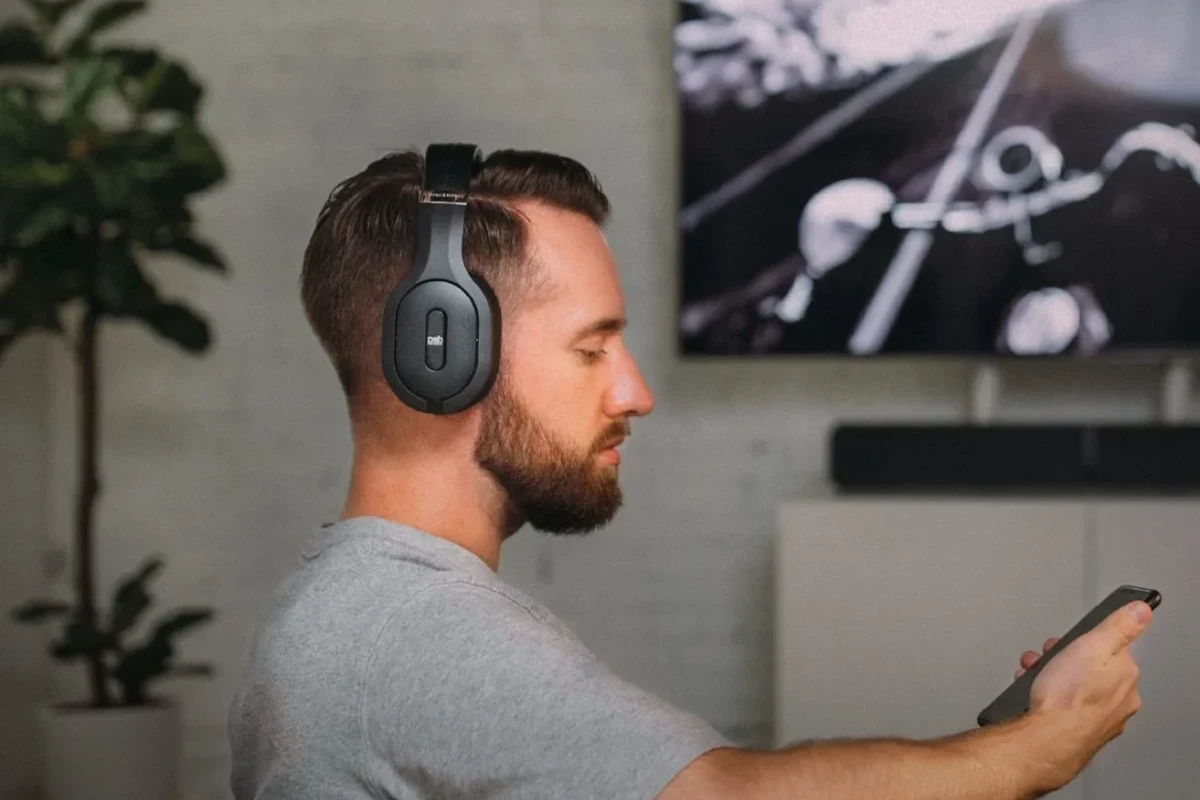
Roku TVs make private listening fairly simple, but the exact method changes based on whether your set supports Bluetooth audio output or needs a workaround. This guide walks through the practical options, the setup steps, and the common problems that can get in the way.
For readers who want a broader wireless audio refresher, our guide on wired and wireless headphones can help you compare the tradeoffs before you buy. If you are still learning the basics of pairing, our article on how to connect Bluetooth headphones is also useful.
Who this setup is for: late-night viewing, gaming, shared spaces, and hearing-friendly audio
Wireless headphones are ideal if you watch TV late at night, share a room, or want to keep the sound private without waking anyone up. They are also helpful for gaming and for anyone who prefers listening at a controlled volume.
Some viewers use headphones because they want clearer dialogue, while others simply want a more personal listening experience. If you are sensitive to noise, a good closed-back headset or noise-cancelling model may make long sessions more comfortable.
What “wireless headphones” means for Roku TV: Bluetooth, RF, and TV-compatible transmitters
When people say wireless headphones, they usually mean Bluetooth headphones, but RF headphones and transmitter-based systems are also common. Bluetooth is the most familiar option, while RF systems often use a dedicated base station that plugs into the TV.
Not every Roku TV supports the same audio output options, so it helps to know what your headphones need. In some setups, the TV sends sound directly; in others, a transmitter converts the signal into something your headphones can receive.
Quick Answer: The Best Ways to Connect a Roku TV to Wireless Headphones
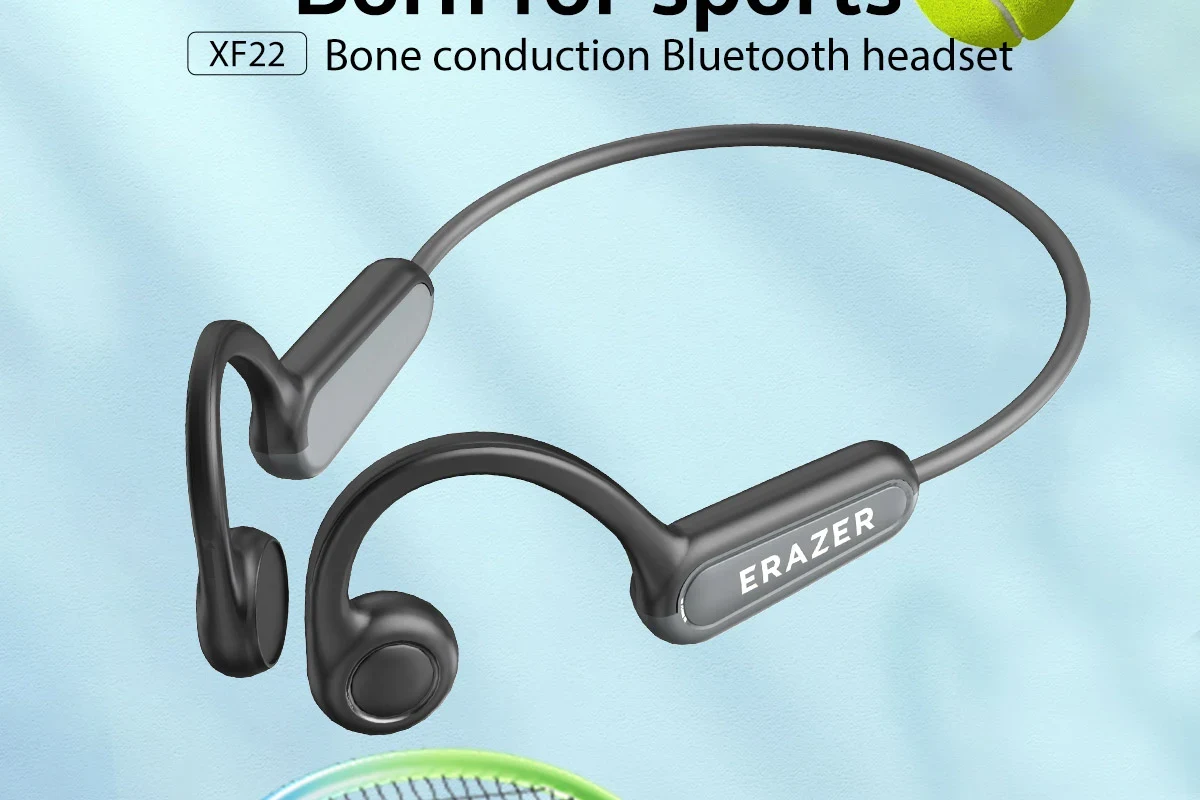
The best method is the one your TV supports without extra hassle. If your Roku TV has Bluetooth audio output, direct pairing is usually the simplest; if not, the Roku app or an external transmitter is the next best choice.
Using Roku TV’s built-in Bluetooth headphone support
Some Roku TV models let you pair Bluetooth headphones directly through the settings menu. This is the cleanest option because it avoids extra hardware and keeps your setup simple.
Performance can still vary by brand, model, and headphone type, especially for delay and range. For movies and gaming, that latency difference matters more than it does for casual talk shows or news.
Using the Roku mobile app for private listening
The Roku mobile app includes a private listening feature on many devices, which routes TV audio to your phone and then to your headphones. This is a popular backup plan when the TV itself does not support direct Bluetooth audio.
It is convenient, but it does depend on your phone staying connected and charged. If you already use the app often, this can be a very low-cost solution.
Using an external Bluetooth transmitter or RF base station
An external transmitter is often the best fix for older Roku TVs or budget models with limited audio features. You plug the transmitter into the TV’s optical, HDMI ARC, or 3.5mm output, then pair your headphones to the transmitter.
RF base stations can be a strong choice for longer range and stable listening, while Bluetooth transmitters are more common and easier to find. If you want to compare wireless behavior in different environments, our wireless headphones airplane guide explains why signal rules and connection methods can matter so much.
Step-by-Step: How to Pair Wireless Headphones to a Smart Roku TV
Before you start, make sure your headphones are charged and your TV is updated. A quick reset or firmware update can prevent many pairing issues before they begin.
Check whether your Roku TV model supports Bluetooth audio output
Open your Roku TV settings and look for Bluetooth or headphone-related audio options. If you see a Bluetooth menu, your TV may support direct pairing.
If you do not see that option, your model may still work with the Roku app or an external transmitter. That does not mean you are stuck; it only means the connection method changes.
Put your headphones into pairing mode
Turn on your headphones and activate pairing mode according to the brand’s instructions. Usually, that means holding a power or Bluetooth button until an indicator light flashes.
If your headphones were previously paired with a phone, tablet, or laptop, disconnect them first. Many connection problems happen because the headphones automatically reconnect to another device.
Navigate Roku settings and complete the pairing process
On the Roku TV, go to the Bluetooth or audio settings menu and search for nearby devices. Select your headphones from the list once they appear.
After pairing, test the audio with a show, movie, or game. If your TV supports it, adjust the volume from both the TV and the headphones to find a comfortable balance.
Confirm audio output, volume control, and lip-sync performance
Once connected, check that sound is coming through the headphones only, or through the output mode you expected. If the TV speakers are still active, you may need to change the audio output setting manually.
Watch for lip-sync delay, especially in action scenes or gaming. A small delay may be acceptable for casual viewing, but competitive gaming usually needs a more responsive setup.
Listening at high volumes for long periods can cause hearing damage. Keep volume at 60% or below for extended sessions.
When Roku TV Doesn’t Support Direct Headphone Pairing
Not every Roku TV has built-in Bluetooth audio output, and that is where workarounds become important. The good news is that there are still several reliable ways to get private listening without replacing the TV.
How to use the Roku app’s private listening feature on your phone
Install the Roku mobile app, connect it to the same network as your TV, and look for the private listening option. From there, the TV audio plays through your phone and then to your headphones.
This is especially useful if you already own good Bluetooth headphones and do not want to buy extra gear. It is also a smart option for shared households because it keeps the setup simple and reversible.
How to connect a Bluetooth transmitter through optical, HDMI ARC, or 3.5mm output
A transmitter is the most flexible option when direct pairing is unavailable. Plug it into the TV’s available audio output, then pair the transmitter with your headphones just like you would pair a phone.
Optical connections are common for cleaner digital audio, while 3.5mm outputs are simple but may vary in quality by TV. HDMI ARC can work well in the right setup, but compatibility depends on the transmitter and television model.
Best use cases for older Roku TVs and budget setups
If your Roku TV is older or you bought a lower-cost model, a transmitter is often the most practical solution. It can extend the life of the TV without forcing you into a full upgrade.
Budget-minded viewers often choose this route because it lets them keep their current headphones and still gain private listening. In many homes, that is the most cost-effective path.
Choosing the Right Wireless Headphones for Roku TV Use
The best headphones for Roku TV are not always the most expensive ones. What matters most is comfort, latency, battery life, and whether the connection type matches your setup.
Bluetooth headphones vs. RF headphones: range, latency, and convenience
Bluetooth headphones are easier to find and usually work with more devices, which makes them a convenient choice. RF headphones often offer a dedicated base station and can be a strong option if you want stable TV listening from across the room.
Bluetooth is more universal, but RF can be simpler for some living rooms because it avoids app pairing and may reduce dropouts. The tradeoff is that RF systems are less flexible outside the home.
Why low-latency codecs matter for movies and gaming
Low-latency audio matters when you want dialogue, footsteps, and on-screen action to stay in sync. This is especially important for gaming, where even a small delay can feel distracting.
Not all headphones or transmitters support the same codecs, so results can vary. If gaming is a priority, look for a setup designed to minimize lag rather than one that only focuses on battery life or style.
Comfort, battery life, and microphone features for long viewing sessions
For long TV sessions, comfort may matter more than bass or flashy features. Lightweight over-ear headphones with soft ear cushions are often better for extended use than tight on-ear designs.
Battery life is also important if you watch several episodes at a time. A built-in microphone can be useful for calls or voice assistants, but it is not essential for TV listening.
If dialogue sounds muddy, try lowering bass in the headphone EQ before raising the volume. Clarity often improves more from tuning than from simply turning things up.
Common Mistakes That Cause Roku Headphone Connection Problems
Most pairing issues are not caused by broken hardware. They usually come from a wrong setting, a busy Bluetooth connection, or a small compatibility mismatch.
Pairing the wrong device or leaving headphones connected to another source
Wireless headphones often reconnect to the last device they used. If your phone or laptop is nearby, the headphones may never fully enter Roku pairing mode.
To avoid that, turn off Bluetooth on other devices temporarily or unpair the headphones from anything else nearby. That simple step solves a lot of connection headaches.
Ignoring audio delay, weak signal, or incompatible Bluetooth profiles
Some headphones connect successfully but still sound delayed, choppy, or out of sync. That usually points to signal quality or profile compatibility rather than a failed pairing.
If the room is large or crowded with wireless devices, the signal may become less stable. In that case, a transmitter with better placement or a different headphone model may work better.
Forgetting TV firmware updates and headphone reset steps
Roku updates can improve device compatibility, so it is worth checking for TV software updates before troubleshooting deeper problems. Headphones sometimes need a reset too, especially if they remember too many old pairings.
If you need a refresher on resetting audio gear, our guide on how to reset Bluetooth headphones can help you clear connection issues step by step.
Expert Advice: Best Practices for Better Sound, Less Delay, and Safer Listening
A good Roku headphone setup is not only about connection success. It is also about keeping audio clean, reducing lag, and making sure long listening sessions stay comfortable.
How to reduce lip-sync issues and improve connection stability
Try keeping the transmitter or TV in a clear line of sight when possible, and avoid placing it behind metal objects or crowded electronics. Small placement changes can improve stability more than people expect.
If your setup still feels delayed, choose a lower-latency transmitter or a headphone model known for responsive playback. For more background on delay issues, see our Bluetooth headphone lag fix guide.
Recommended volume habits to protect hearing during long sessions
Long listening sessions can quietly become too loud, especially with action movies or games. A steady, moderate volume is usually safer and less tiring than frequent volume spikes.
If you already notice ringing, discomfort, or trouble hearing after listening, consider speaking with an audiologist. Hearing health is more important than any convenience feature.
When to choose a transmitter upgrade instead of replacing your headphones
If your headphones are comfortable and sound good, upgrading the transmitter may be the smarter move. That is especially true when the main problem is delay, range, or TV compatibility.
Replacing the headphones makes more sense when the battery is weak, the fit is uncomfortable, or the model lacks the features you need. In many cases, the TV setup is the real bottleneck, not the headphones themselves.
If you have persistent hearing discomfort, tinnitus, or frequent trouble understanding dialogue even at normal volume, consult an audiologist or hearing professional. If your setup keeps dropping audio, a TV support specialist or audio technician can help confirm whether the issue is the TV, transmitter, or headphones.
Cost Breakdown and Final Recap: Easiest Setup by Budget and TV Type
There is no single best answer for every Roku TV, but there is usually a best-value option for your situation. The right choice depends on whether your TV already supports Bluetooth and how much you want to spend.
Free and low-cost options: Roku app and built-in Bluetooth
If your TV supports Bluetooth directly, that is often the easiest and lowest-friction route. If it does not, the Roku app’s private listening feature may be the cheapest workaround because it avoids extra hardware.
These options are best for casual viewing, bedroom setups, and users who do not mind using a phone as part of the process. They are also great starting points before buying anything else.
Mid-range and premium options: transmitters, RF headphones, and low-latency upgrades
A Bluetooth transmitter or RF base station adds cost, but it also adds flexibility. That can be worth it if you want more stable audio, better range, or lower delay for gaming and movies.
If you are shopping for a new listening setup, our types of headphones explained guide can help you decide whether over-ear, on-ear, or in-ear models fit your space and comfort needs best.
Final recap: the fastest path to private TV listening on a Roku Smart TV
If your Roku TV supports Bluetooth audio output, pair your headphones directly. If it does not, use the Roku app for private listening or add a transmitter for a more permanent fix.
For most readers, the simplest answer to how to connect smart Roku TV to wireless headphones is to start with the built-in option, then move to a transmitter only if you need better compatibility, lower delay, or a more reliable connection.
Frequently Asked Questions
Start with the main purpose, the common mistakes, and the safety or cost details that apply to your situation.
It matters because the wrong choice can waste time, cost more money, or create avoidable problems later.
Check the details for the headphone brand, model, use case, budget, or personal preference before making a final decision.
The most common mistake is following generic advice without checking condition, model, usage, and real-world limits.
Get professional help if the task involves safety risk, expensive parts, electrical systems, legal issues, or anything you are not confident handling.
Review it whenever prices, products, tools, rules, or your situation changes, because some details can become outdated.