How to Work Bose Headphones with Easy Setup Tips

To work Bose headphones, pair them in Bluetooth settings, learn the main controls, and use the Bose app only for extra features like updates and mode changes. Most problems are fixed by checking the audio output, reconnecting Bluetooth, or resetting the headphones.
If you want to learn how to work Bose headphones without getting stuck in menus or app settings, the good news is that the basics are simple. Most Bose models follow the same pattern: charge, pair, learn the main buttons or touch controls, then adjust noise cancellation and listening modes to fit your day.
This guide from the Top Headphone Reviews Editorial Team walks you through setup, controls, noise cancelling, comfort, and common fixes in a beginner-friendly way. Because Bose offers several headphone lines and features can vary by model, always check your specific user guide when a setting looks different.
- Setup first: Pair the headphones and confirm they are the active audio output.
- Learn controls: Buttons or touch gestures vary by model.
- Use modes wisely: Switch between noise cancelling and awareness based on the environment.
- Keep sound safe: Moderate volume and proper fit improve comfort and hearing safety.
How to Work Bose Headphones: What This Guide Covers for First-Time and Everyday Users
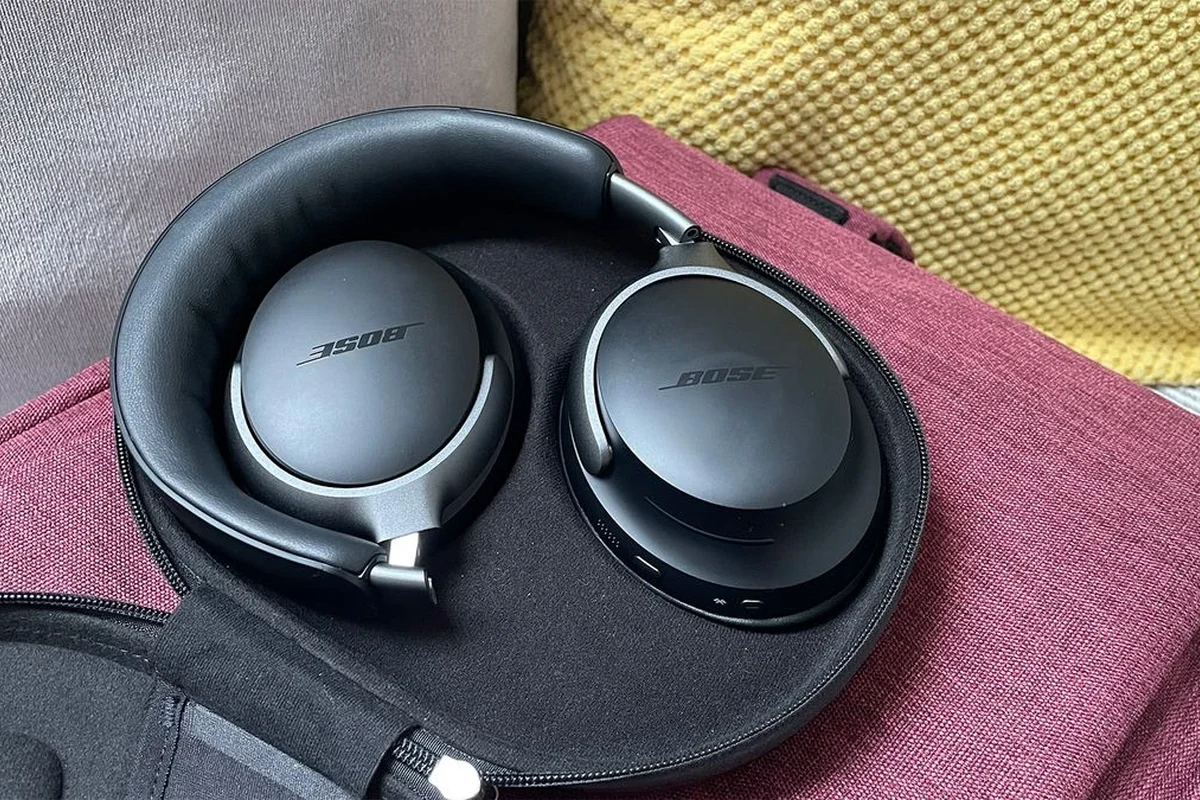
Bose headphones are designed to be easy to use, but the experience is smoother when you understand the core workflow. That means knowing how to pair them, how to switch between listening modes, and how to handle common issues like dropped Bluetooth connections or one-ear playback.
If you are new to wireless audio, it also helps to understand the difference between app-based controls and on-device controls. For a broader primer on wireless audio behavior, our guide to Bluetooth headphones explained simply can help put the basics in context.
Exact button placement, app features, and listening modes can vary by Bose model and firmware version. If something looks different on your headset, match the steps to your model’s manual.
Quick Setup Basics: Pairing Bose Headphones with iPhone, Android, Windows, and Mac
The first setup goal is simple: get your Bose headphones into pairing mode and connect them to your device. On most models, that means turning the headphones on, holding the Bluetooth or power button until you hear a pairing prompt, and then selecting the headphones from your device’s Bluetooth menu.
iPhone and Android users usually pair through the standard Bluetooth settings first. Windows and Mac computers work similarly, although some users find it easier to manage audio output and reconnect behavior after reading a dedicated guide on selecting headphones in Windows 11.
Using the Bose Music App or Bose Connect App in 2026
Depending on the model, Bose may use the Bose Music app, the Bose Connect app, or a newer model-specific setup flow. These apps can help with firmware updates, device management, noise cancellation settings, and shortcut customization.
The app is helpful, but it is not always required for basic listening. If the app refuses to sync, the headphones may still work normally through Bluetooth, so do not assume the product is broken just because the app is slow to recognize it.
After pairing, open your device’s Bluetooth list and confirm the Bose headphones are set as the active audio output. That small check solves a lot of “connected but no sound” complaints.
Bluetooth pairing steps that solve the most common connection issues
If pairing fails, the fastest fix is often the simplest one: turn Bluetooth off and on again, then restart the headphones and your phone or computer. If the device still does not appear, remove the Bose headphones from the saved Bluetooth list and pair them again from scratch.
For a deeper troubleshooting approach, our article on how to connect Bluetooth headphones covers the usual pairing flow, while how to reset Bluetooth headphones can help when an old connection is blocking a new one.
Hold the relevant Bose button until you hear the pairing prompt or see the Bluetooth light flash.
Find the headphones in your phone, tablet, or computer list and tap or click to connect.
Make sure the headphones are selected for sound, not just paired in the background.
Core Controls Explained: Power, Volume, Playback, Calls, and Voice Assistant Functions
Once the headphones are connected, the next step is learning the controls you will actually use every day. Bose models often keep the essentials close at hand: power, volume, play and pause, track skipping, call handling, and voice assistant access.
That simplicity is one reason many people prefer Bose over more complicated wireless models. If you are comparing control styles across categories, our guide to types of headphones explained can also help you see where over-ear, on-ear, and in-ear designs differ in everyday use.
Button layouts and touch controls on popular Bose models
Some Bose headphones use physical buttons, while others use touch or swipe controls for volume and playback. The exact layout depends on the model, so it is worth spending a minute learning which side handles power and which gestures or buttons control music.
As a general rule, a short press often means play or pause, a double press may skip tracks, and a long press may activate voice assistant features. On touch-based models, volume and track gestures can feel natural after a short adjustment period, but accidental touches can happen if you are moving around a lot.
Many headphone control complaints are not caused by the headphones themselves, but by a mismatch between the user’s expectations and the model’s specific button or gesture layout.
Practical examples for skipping tracks, answering calls, and adjusting sound
If a song is too quiet, raise the volume in small steps rather than jumping straight to maximum. If a call comes in, answer using the dedicated call button or the same multifunction control the model uses for playback.
Voice assistant support can be handy for quick tasks, but it is not always the best option in noisy places. In that case, physical controls are usually more reliable than spoken commands.
Why does my Bose headphone volume feel low even when it is connected?
Check both the headphone volume and the source device volume. On many systems, the two are separate, so one may be high while the other is still limiting output.
How to Use Bose Noise Cancelling and Awareness Modes the Right Way
Bose is best known for noise cancelling, but the feature works best when you use it intentionally. Instead of leaving one mode on all day, switch modes based on your environment so you get better comfort, better awareness, and less listening fatigue.
If you want a deeper explanation of the technology itself, our article on how noise cancelling headphones work is a useful companion read.
When to switch between Quiet, Aware, and custom listening modes
Quiet mode is usually the best choice when you want to reduce background noise on trains, planes, or busy streets. Aware mode is more useful when you need to hear announcements, coworkers, or traffic around you.
Custom modes, when available, are worth trying if you want a middle ground. They let you tune how much outside sound comes through, which can be more comfortable than using full noise cancellation all the time.
Real-world use cases for commuting, office work, travel, and study
For commuting, strong noise cancellation can make engines and train rumble less distracting. In the office, Aware mode can be better if you need to hear your name or join quick conversations without taking the headphones off.
Travelers often prefer quieter listening because it lowers the urge to turn the volume up. Students may like a balanced mode that blocks enough noise to focus without making them feel too isolated.
Listening at high volumes for long periods can cause hearing damage. Keep volume at 60% or below for extended sessions.
Sound and Comfort Settings: Getting the Best Audio Without Overdoing It
Good Bose headphone use is not just about features; it is also about getting the sound and fit right. A comfortable seal, sensible EQ choices, and moderate volume levels can make the headphones sound cleaner and more enjoyable over time.
If your audio sounds dull or uneven, it may be a settings issue rather than a hardware problem. Our guide on best EQ settings for headphones is a practical next step for shaping sound without overcomplicating it.
EQ, volume habits, and battery-saving tips for daily listening
EQ can help if you want a little more bass, clearer vocals, or less sharp treble. The best approach is usually small adjustments, because extreme boosts can make music sound unnatural or fatiguing.
Battery life also improves when you avoid unnecessary max-volume listening, keep noise cancellation only as strong as you need, and power the headphones off when you are done. For wireless models in general, that kind of habit matters more than people expect.
- Source device volume and headphone volume are both set correctly
- EQ changes are subtle, not extreme
- Noise cancelling is only as strong as needed
- Headphones are turned off or charged after use
Fit adjustments that improve seal, comfort, and noise isolation
Fit has a bigger impact on sound than many beginners realize. On over-ear Bose headphones, the ear cups should sit evenly around the ears, while on-ear or in-ear styles depend more on pressure, seal, or tip fit.
A better seal usually improves bass and passive noise isolation, while a poor fit can make the headphones sound thin or leak more sound. If you are comparing styles, our article on over-ear vs on-ear vs in-ear explains why comfort and fit vary so much by design.
Common Mistakes When Working Bose Headphones and How to Fix Them Fast
Most Bose headphone problems are small, repeatable issues rather than major failures. The usual culprits are stale Bluetooth connections, app sync errors, partial charging, or a model that is paired correctly but not selected as the audio output.
A few quick checks can save a lot of frustration, especially if the headphones seem to work in one app but not another.
Pairing failures, app sync problems, one-ear audio, and charging mistakes
If pairing fails, remove the headphone from Bluetooth memory and reconnect it. If the app will not sync, close it fully, reopen it, and make sure the headphones are awake and near the phone.
One-ear audio can happen when the source device is sending balance settings, when one earcup is not charged, or when the connection is unstable. Charging mistakes are also common, especially if the cable is loose or the port has dust in it.
If your headphones will not charge, avoid forcing the cable or using damaged accessories. Check the port, cable, and power source before assuming the battery has failed.
Reset steps and troubleshooting checks most users overlook
Before doing a full reset, try the overlooked basics: confirm the headphones are selected as the output device, restart your phone or computer, and test with a different audio app. Those steps often reveal whether the issue is with the headphones or the source device.
If the problem remains, a reset may help clear a stuck Bluetooth profile or frozen setting. If you are troubleshooting on a computer, our article on selecting headphones in Windows 11 can help you confirm the system audio path before you reset anything.
Make sure the Bose headphones are selected in Bluetooth or sound settings.
Power-cycle the headphones and the phone, tablet, or laptop.
Use a reset when the connection is stuck or the controls stop responding.
Expert Advice: Safety Warnings, Battery Care, and When a Bose Model Is Worth the Price
Bose headphones are often chosen for convenience, comfort, and strong noise cancellation, but they are not automatically the best fit for every listener. The right value depends on how often you travel, how much you care about ANC, and whether you prefer wireless convenience over wired simplicity.
If you want to compare listening styles more broadly, our guide on wired vs wireless headphones is useful for understanding the trade-offs before you spend more.
What to avoid when cleaning, storing, and updating firmware
Do not soak the headphones, use harsh cleaners, or let moisture sit around the ear pads or charging port. A soft dry or slightly damp cloth is usually safer than aggressive cleaning products.
When updating firmware, keep the battery charged and avoid interrupting the process. A failed update can create temporary pairing or control issues, even if the headphones were working fine before.
If you notice persistent hearing discomfort, ringing, or pressure after using headphones, consult an audiologist or hearing professional. If the issue is physical damage, battery swelling, or repeated charging failure, contact Bose support or a qualified repair specialist.
Price vs. performance comparison for casual listeners, travelers, and audiophiles
For casual listeners, Bose can be worth it if you value simple controls, comfort, and dependable wireless use more than advanced tuning. Travelers often get the most obvious benefit because noise cancellation and portability matter a lot on the road.
Audiophiles may care more about sound tuning, codec support, wired options, or the ability to fine-tune EQ. In that case, Bose may still be a strong choice, but not always the most technical one.
- Pair the headphones first, then confirm they are the active audio output.
- Learn the physical or touch controls before relying on the app.
- Use noise cancelling and awareness modes based on your surroundings.
- Keep volume moderate and fit adjusted for comfort and better sound.
Final Recap: The Fastest Way to Master Bose Headphones in Everyday Use
The fastest way to work Bose headphones is to keep the process simple: pair them correctly, learn the main controls, and use the right listening mode for the moment. Once those basics are in place, most of the daily experience becomes easy and predictable.
For most users, the biggest improvements come from better fit, sensible volume habits, and quick troubleshooting when Bluetooth gets stuck. If you treat the headphones as a small system rather than just a music device, they become much easier to use every day.
Frequently Asked Questions
Most Bose headphones are used wirelessly, which is best for convenience and everyday mobility. Wired use can still be useful on some models or in situations where you want a direct connection or less battery dependence.
Bose noise cancelling headphones are built to reduce outside noise and improve focus in busy places. Open-back headphones usually sound more spacious but leak sound and do not isolate as well.
Check the fit, EQ settings, source volume, and whether noise cancelling is affecting the sound you hear. Small adjustments often improve bass, clarity, and balance more than large changes.
Yes, Bose headphones are often a strong choice for commuting and travel because noise cancellation can make loud environments easier to handle. Comfort and battery life also matter, so choose the model that matches your trip length and fit preference.
Look at battery life, noise cancelling strength, Bluetooth stability, comfort, weight, and control style. If you care about sound tuning, also check EQ options, codec support, and whether the model offers wired playback.
Adjust the headband and ear cups so the seal feels even without too much pressure. Taking short breaks and keeping volume moderate also helps reduce fatigue during long sessions.