How to Use Skullcandy Headphones Easy Step by Step Guide

To use Skullcandy headphones, identify your model, charge it fully, then pair it through Bluetooth and learn the main buttons or touch controls. If anything goes wrong, check the battery, Bluetooth settings, and earbuds fit before resetting the headphones.
If you want a simple, beginner-friendly guide on how to connect Bluetooth headphones and use Skullcandy gear confidently, this article walks you through the basics. The exact steps can vary a little by model, but most Skullcandy headphones and earbuds follow the same core setup, controls, and charging habits.
- Model first: Wired, wireless, and true wireless Skullcandy gear use different setup steps.
- Pairing basics: Put the headphones in pairing mode, then connect from your device’s Bluetooth menu.
- Controls matter: Learn power, volume, playback, and call shortcuts before daily use.
- Charging counts: Use the right cable and keep earbuds seated correctly in the case.
- Fixes are simple: Reconnect, clean contacts, or reset before assuming the headphones are faulty.
How to Use Skullcandy Headphones: What This Guide Covers and Who It’s For

This guide is for anyone who just bought Skullcandy headphones, earbuds, or a gaming headset and wants a quick, practical start. It also helps if you already own a pair and need a refresher on pairing, buttons, charging, or app settings.
We’ll keep things simple and model-friendly. Since Skullcandy makes wired, wireless, and true wireless designs, the right steps depend on which type you have.
Identify Your Skullcandy Model Before You Start: Wired, Wireless, or True Wireless
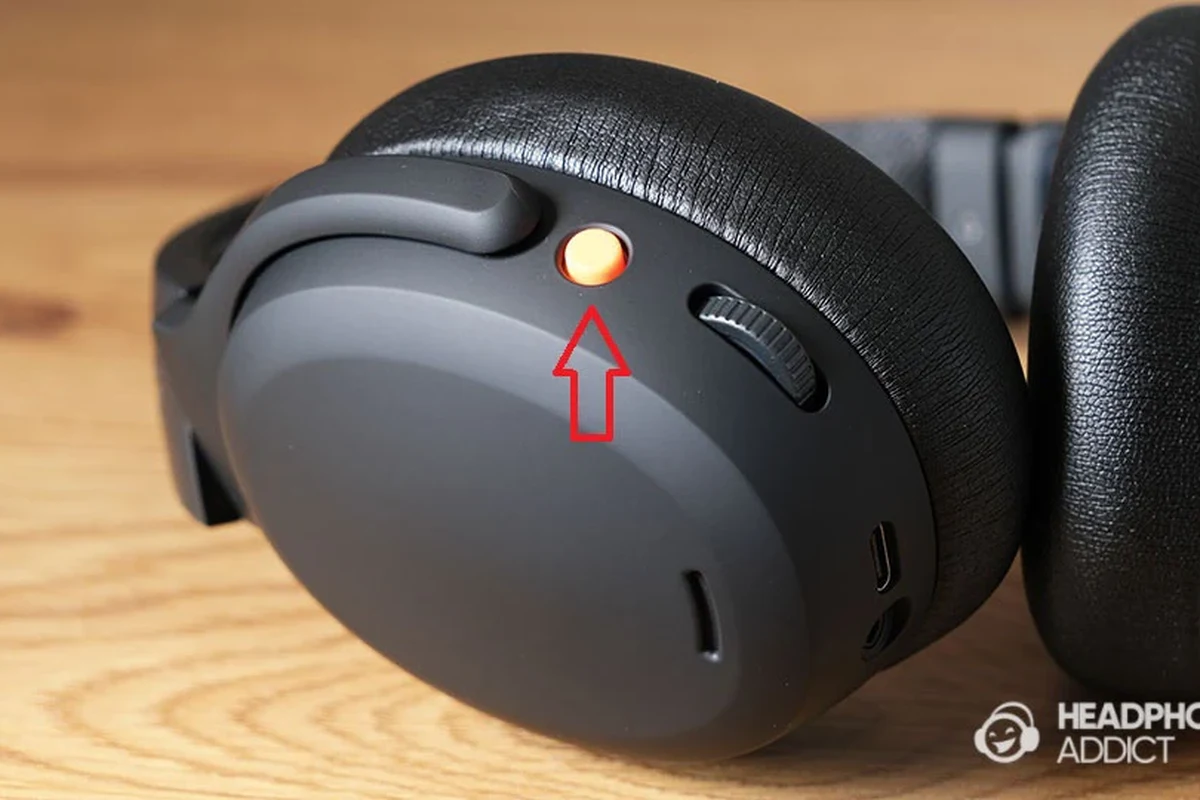
Before you press any buttons, look at the design. Wired Skullcandy headphones usually connect with a 3.5 mm audio cable, wireless over-ear models use Bluetooth and physical buttons, and true wireless earbuds use a charging case plus touch or button controls.
That first check matters because the controls are not identical across every product line. If you try to pair a wired model like a Bluetooth set, or charge true wireless earbuds the wrong way, you can waste time and think something is broken when it is not.
Quick model check: where the buttons, ports, and charging case matter
Look for a power button, volume buttons, a USB-C or micro-USB charging port, and any LED lights. On true wireless earbuds, the charging case is part of the system, so the earbuds may not turn on until they are removed from the case.
Some Skullcandy products use touch controls, while others rely on physical buttons. If the controls feel unresponsive, check whether you are pressing the correct surface or using the right earbud.
How to Pair Skullcandy Bluetooth Headphones and Earbuds Step by Step
Pairing is usually straightforward. First, make sure your headphones are charged, then switch them on and put them into pairing mode so your phone, tablet, or computer can find them.
Press and hold the power button until the LED light turns on or you hear a startup tone. For true wireless earbuds, remove them from the case if they power on automatically.
Hold the Bluetooth or power button until the light flashes in the pairing pattern listed in your manual. If the earbuds were previously connected, you may need to clear the old connection first.
On your phone or computer, turn Bluetooth on and wait for the Skullcandy name to appear in the available devices list.
Tap or click the device name, then wait for the confirmation sound or status message that shows the connection is complete.
First-time pairing on iPhone, Android, Windows, and Mac
The process is nearly the same on all major platforms. On iPhone or Android, open Bluetooth in Settings and tap the Skullcandy device name. On Windows and Mac, open Bluetooth settings, scan for new devices, and choose your headphones from the list.
If you need a deeper computer-specific walkthrough, our guide on select headphones in Windows 11 can help with PC setup. Mac users with wired models may also want to check whether wired headphones work on MacBook if they switch between wired and wireless listening.
Reconnecting to a previously paired device
After the first setup, most Skullcandy headphones reconnect automatically when Bluetooth is on and the headphones are powered up. If they do not reconnect, go back to Bluetooth settings and tap the device name again.
If a headset keeps failing to reconnect, remove the old pairing from your device and try again. For persistent Bluetooth issues, a reset is often more effective than repeated pairing attempts, especially if the headphones remember too many devices.
Using the Core Controls: Power, Volume, Calls, Playback, and Voice Assistant
Once connected, the next step is learning the basic controls. Skullcandy products usually keep things simple, but the exact button layout depends on whether you have over-ear headphones, on-ear headphones, or earbuds.
Button shortcuts and touch controls on popular Skullcandy designs
Common controls include power on/off, play/pause, track skip, volume up/down, call answer/end, and voice assistant activation. Some models use a single multi-function button, while others separate volume and playback into different buttons or touch zones.
If your earbuds support touch controls, a tap may pause music and a longer press may trigger your voice assistant. Always check the model guide because the shortcut pattern can vary from one Skullcandy line to another.
Practical examples for music, podcasts, and hands-free calls
For music, use play/pause and track skip to move between songs without touching your phone. For podcasts, volume controls are especially useful because spoken audio often needs a slightly different level than music.
For calls, answer with a short press and end the call the same way, if your model supports that shortcut. If you take calls often, test the microphone in a quiet room first so you know how your voice sounds before an important meeting.
If your headphones sound too quiet, check both the headphone volume and the volume on your phone or laptop. Many “low volume” complaints are really device settings, not headphone faults.
Charging, Battery Life, and LED Indicators: How to Avoid Power Issues
Charging habits make a big difference in daily use. Most Skullcandy wireless models charge through USB-C, while some older products may use micro-USB, so match the cable to the port on your specific model.
LED lights usually tell you whether the battery is low, charging, or fully charged. If the light pattern seems confusing, the user manual is the best reference because indicator behavior can vary by product family.
Charging case habits, cable types, and battery-saving tips
For true wireless earbuds, place both earbuds fully into the case and make sure the case itself has charge. A partially seated earbud may not charge, which can lead to one side dying much sooner than the other.
To save battery, lower volume slightly, turn the headphones off when not in use, and avoid leaving the charging case empty for long periods. If you travel often, keep a short USB cable in your bag so you are not dependent on a single charger.
Listening at high volumes for long periods can cause hearing damage. Keep volume at 60% or below for extended sessions.
Skullcandy App Features and Sound Settings: How to Customize Your Listening Experience
Some Skullcandy models work with a companion app that adds extra control. App features may include EQ presets, button remapping, firmware updates, and tools that help locate misplaced earbuds or headphones.
Not every model supports every feature, so it is worth checking compatibility before you expect app controls to appear. If your product supports the app, install it after pairing so you can fine-tune the sound to your preference.
EQ presets, button remapping, and find-my-headphones tools
EQ presets are useful if you want more bass for workouts, clearer vocals for podcasts, or a more balanced sound for mixed listening. These settings can change the listening experience more than many users expect, especially on budget and mid-range models.
Button remapping is helpful if you want a different shortcut for voice assistant or track control. Find-my-headphones tools can also be useful for true wireless earbuds, since small earbuds are easier to misplace than over-ear headphones.
EQ changes do not just affect bass. They can also improve clarity, reduce harshness, and make podcasts easier to hear at lower volumes.
Common Mistakes When Using Skullcandy Headphones and How to Fix Them
Most Skullcandy issues are simple to solve once you know where to look. Common problems include pairing errors, one earbud not working, low volume, weak battery life, and charging case confusion.
Pairing errors, one-earbud issues, low volume, and charging problems
If pairing fails, turn Bluetooth off and on again on your device, then put the headphones back into pairing mode. If only one earbud works, clean the contact points, reseat both earbuds in the case, and check whether one side is still charging.
For low volume, confirm that both the device volume and headphone volume are turned up. For charging problems, inspect the cable, the port, and the case contacts for dust or debris before assuming the battery has failed.
Do not keep re-pairing the same device over and over if the headphones are clearly malfunctioning. A proper reset is often the cleaner fix because it clears old Bluetooth memory and helps the headset start fresh.
Expert warning: when to reset the headphones instead of repeatedly re-pairing
If your Skullcandy headphones connect to one device but not another, or keep dropping the connection, a reset is often the best next step. Repeated pairing attempts can make the problem harder to diagnose if the headset is holding onto corrupted connection data.
If you have ongoing Bluetooth dropouts, distorted sound, or hearing discomfort, consider checking the device settings first and speaking with an audiologist if the issue may involve hearing health rather than headphone setup.
Skullcandy Headphones in 2026: Value, Price Range, and Which Type Fits Your Needs Best
Skullcandy remains popular because it usually focuses on easy use, bold styling, and approachable pricing. Exact prices vary widely by model, retailer, sales, and whether you choose wired, wireless, or true wireless designs.
For casual listeners, the brand is often attractive because it offers simple controls and a lot of lifestyle-friendly options. For buyers who care most about sound balance, comfort, and long-term durability, it is still smart to compare individual models rather than assume every Skullcandy product sounds the same.
Budget vs mid-range comparisons for casual listening, workouts, and travel
Budget Skullcandy options are usually best for everyday music, school, commuting, and backup use. Mid-range models may be a better fit if you want stronger battery life, better comfort, or more customization through an app.
For workouts, true wireless earbuds or secure-fit wireless designs are often easier to carry. For travel, over-ear headphones with a comfortable fit may be more practical, especially if you want better passive isolation or optional noise cancellation.
| Model Type | Best For | Typical Value Focus |
|---|---|---|
| Wired headphones | Simple listening and no battery worries | Low-cost reliability |
| Wireless over-ear | Travel, commuting, and long sessions | Comfort and battery life |
| True wireless earbuds | Workouts and portability | Compact convenience |
- Easy to use for beginners
- Good variety of styles
- Often budget-friendly
- Controls vary by model
- Sound tuning may not suit everyone
- App features are not universal
Final Recap: The Fastest Way to Start Using Skullcandy Headphones Confidently
The fastest way to use Skullcandy headphones well is to identify the model, charge it fully, pair it once, and learn the basic controls before relying on it daily. After that, the app, EQ settings, and charging habits can help you get more comfort and better sound from the same pair.
If you run into trouble, start with the simple fixes first: check Bluetooth, check the battery, reseat the earbuds, and reset the headphones if needed. That approach solves most issues without guesswork and helps you enjoy your Skullcandy headphones with less frustration.
Frequently Asked Questions
Skullcandy makes wired headphones, wireless headphones, and true wireless earbuds. The setup steps depend on which type you own, so check the model before pairing or charging.
Try EQ presets to adjust bass, vocals, or overall balance. Small EQ changes can make podcasts clearer or music more comfortable at lower volume.
Check battery life, comfort, microphone quality, and whether the model supports the connection type you need. For gaming, latency and mic performance matter more than flashy features.
Over-ear models are often more comfortable for long sessions, while in-ear models are usually more portable. Comfort depends on fit, weight, and ear cushion or ear tip materials.
Keep them dry, store them in a case, and avoid pulling on cables or forcing the charging port. Regular cleaning also helps protect sound quality and charging contacts.
Focus on connection type, battery life, comfort, microphone quality, and whether the model offers app controls or noise cancellation. Sound preferences such as bass or clarity are also important because they vary by listener.