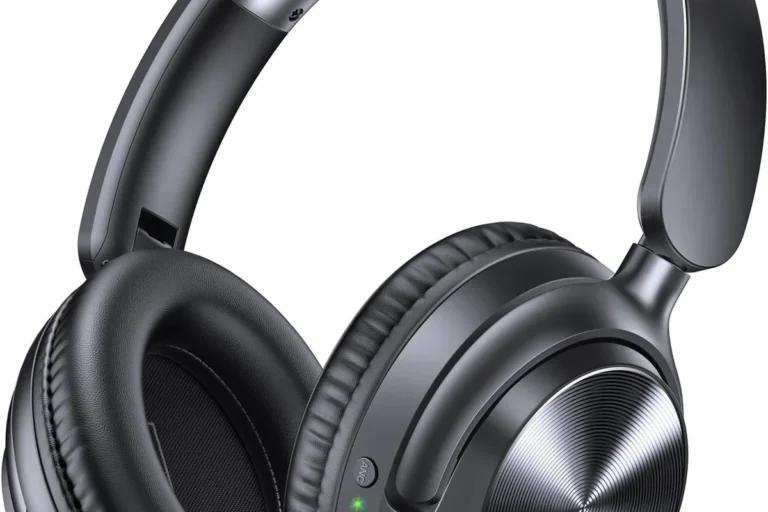
How To Set Up Noise Cancelling Headphones: Quick Guide

Noise-canceling headphones can make flights, commutes, offices, and home listening much quieter. In the United States, most models work with iPhones, Android phones, Windows PCs, Macs, tablets, and airplane entertainment systems—but the setup steps can differ by brand and device.
To set them up, charge the headphones, install the maker’s app if needed, pair them with your device, choose the right noise-control mode, and test the fit. Then adjust sound, calls, firmware, and safety settings before regular use.
Introduction
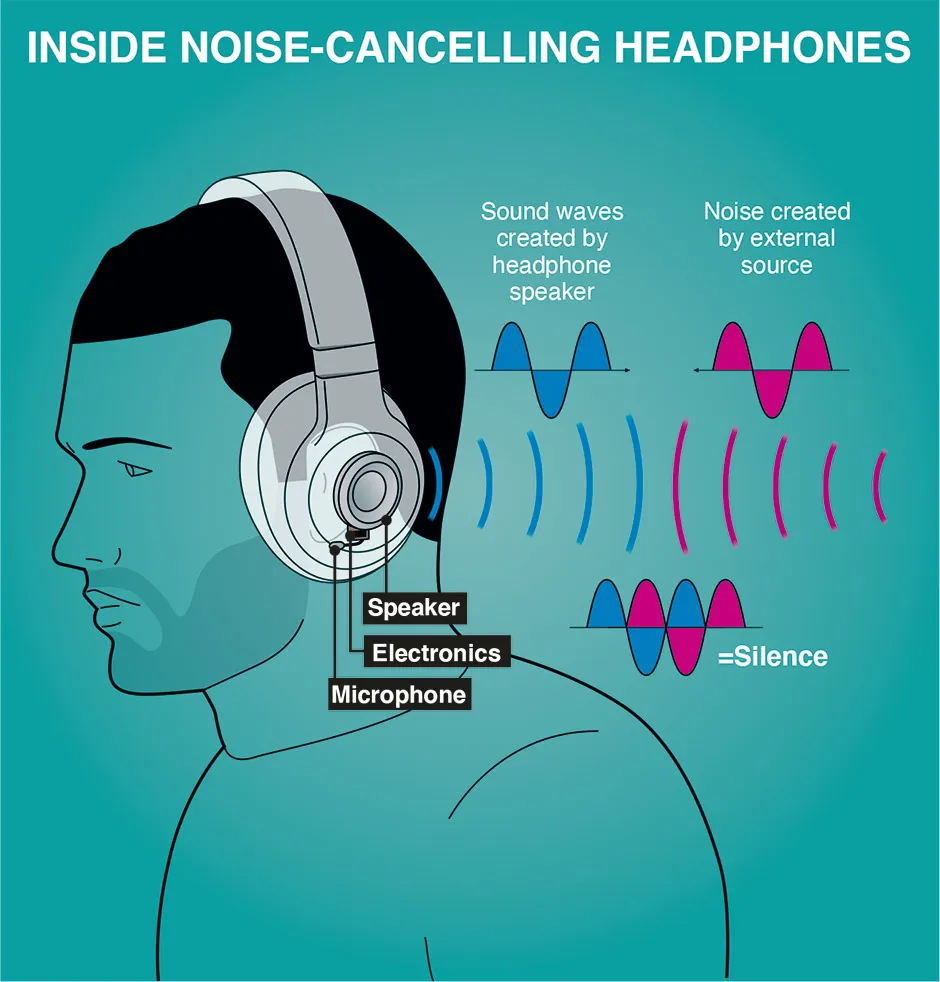
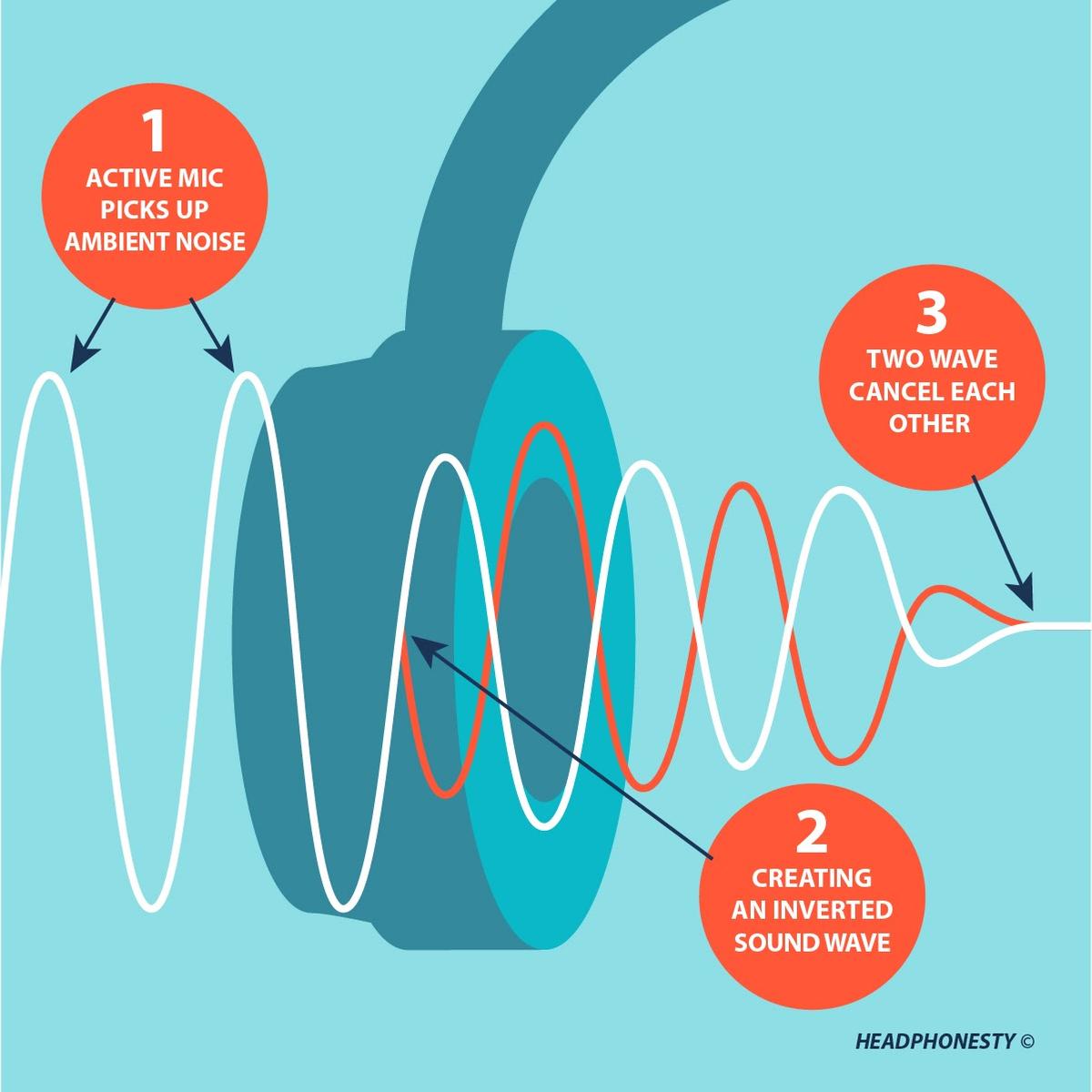
Active noise cancellation, often called ANC, uses microphones and electronic processing to reduce steady outside sounds. It works best against sounds such as airplane engines, bus noise, air conditioners, and office fans.
Noise canceling does not create complete silence. It may reduce low, constant noise more effectively than sudden sounds, speech, alarms, or a crying child. A good ear-cup seal also matters because the headphones use both electronic processing and physical sound blocking.
What You Need Before Setup
Before you start, gather the following:
- The headphones
- The charging cable or charging case
- A phone, tablet, computer, or other audio source
- The headphone brand’s mobile app, if the model uses one
- The device’s Bluetooth turned on
- The account password for the headphone app, if registration is required
Charge the headphones first. Many models arrive with some battery power, but a low battery can interrupt pairing, firmware updates, or noise-control features.
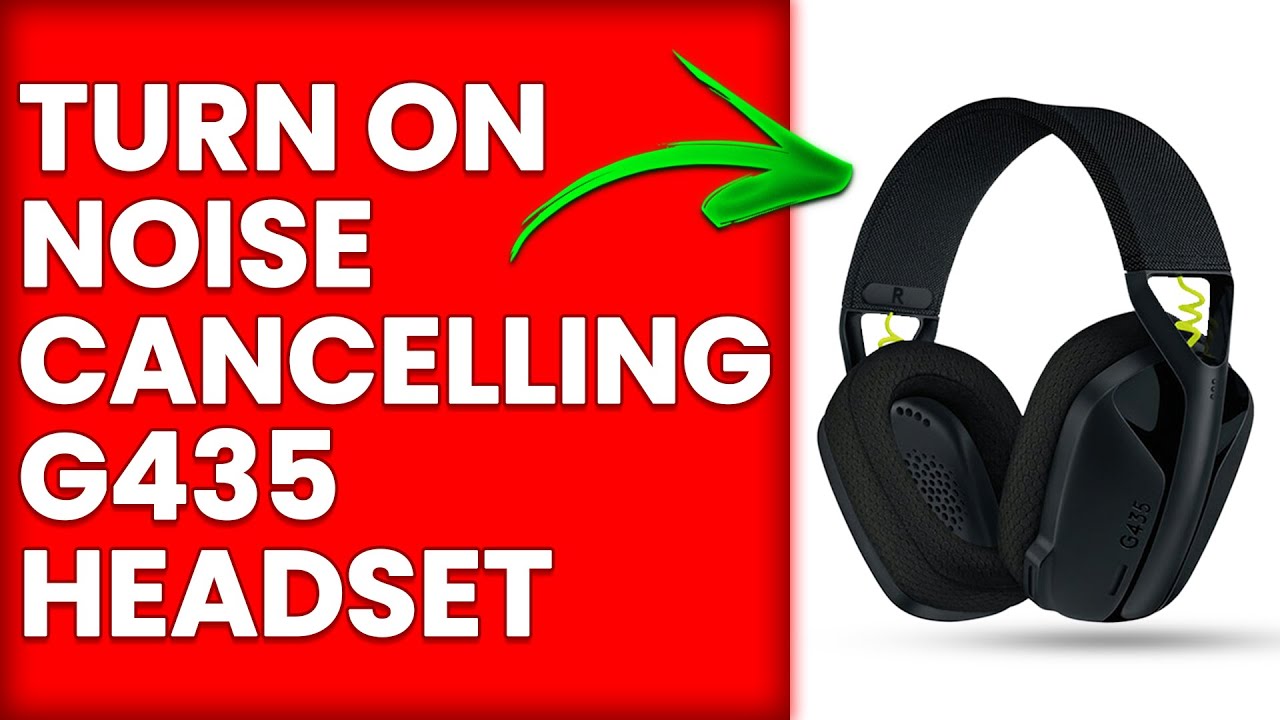
Check the model name on the headband, ear cup, charging case, or box. Similar product names can use different apps and instructions. For example, Bose headphones generally use the Bose app, Sony models use Sony | Sound Connect, and many JBL models use the JBL Headphones app. App names and menus may change over time, so use the official support page for your exact model.
Understand the main controls
Most noise-canceling headphones include some version of these controls:
- Noise canceling or ANC: Reduces outside sound through electronic processing.
- Transparency, ambient, or aware mode: Uses microphones to let outside sound in.
- Off mode: Turns off active processing on models that support it.
- Playback controls: Play, pause, skip, and volume.
- Call controls: Answer, end, or mute calls.
- Voice assistant access: Opens Siri, Google Assistant, or another assistant.
Some models use a button. Others use touch controls, a slider, or an app menu.
How to Pair Noise-Canceling Headphones With Bluetooth
The basic Bluetooth setup takes only a few minutes. Keep the headphones close to the device during pairing.
1. Turn on pairing mode
Remove the headphones from their case or turn them on. Then press and hold the Bluetooth or power button until the status light flashes or a voice prompt says “pairing.”
Some headphones enter pairing mode automatically the first time you turn them on. If they do not, check the manual for the model-specific button combination.
2. Open Bluetooth settings
On an iPhone or iPad:
- Open Settings.
- Tap Bluetooth.
- Turn Bluetooth on.
- Wait for the headphone name to appear under Other Devices.
- Tap the name.
On an Android phone:
- Open Settings.
- Tap Connected devices, Connections, or Bluetooth.
- Turn Bluetooth on.
- Select Pair new device if needed.
- Tap the headphone name.
On a Windows 11 PC:
- Open Settings.
- Select Bluetooth & devices.
- Turn Bluetooth on.
- Select Add device.
- Choose Bluetooth.
- Select the headphones.
On a Mac:
- Open the Apple menu.
- Select System Settings.
- Choose Bluetooth.
- Find the headphones.
- Select Connect.
The menu names can vary with the device’s operating-system version. Microsoft, Apple, Google, and the headphone maker provide current instructions for their supported products.
3. Confirm the connection
Play a short song or video. You should hear sound in both ear cups. If the headphones show as connected but sound still comes from the device speakers, select them as the audio output.
On Windows, select the speaker icon on the taskbar and choose the headphones. On a Mac, use Control Center > Sound. On an iPhone or iPad, open the playback controls and select the AirPlay or output icon. Android devices usually let you select the output from the media panel or Bluetooth settings.
4. Allow the needed permissions
The headphone app may ask for permission to use Bluetooth, location, notifications, or a microphone. Bluetooth and nearby-device permissions may be needed for setup and device detection.
Do not grant permissions that the app does not need. If you reject a required permission, the headphones may still play audio but fail to show advanced controls or firmware updates.
Set Up the Manufacturer’s Headphone App
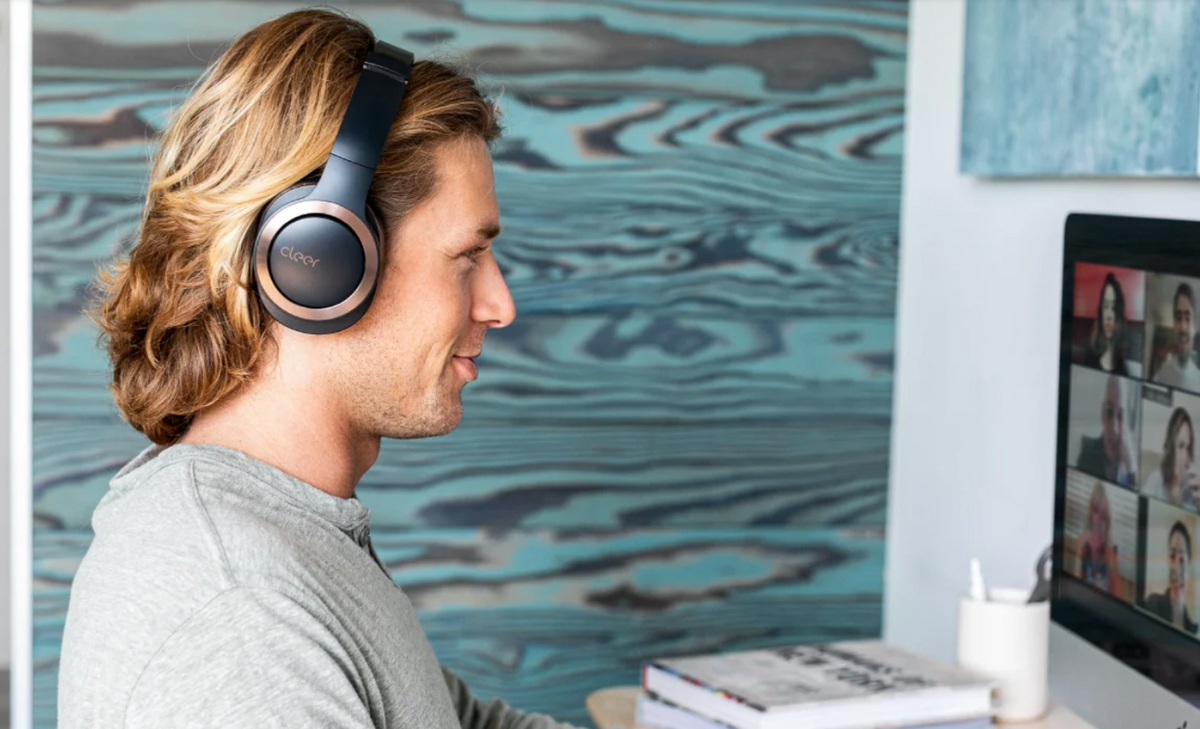
The official app can add controls that are not available from the headphones alone. It may let you change noise-control modes, update firmware, adjust the equalizer, manage connections, and locate the device.
Install the app from the Apple App Store or Google Play. Confirm that the developer name matches the headphone brand. Avoid unofficial “booster” or “headphone control” apps that request unnecessary access.
After installing the app:
- Open the app.
- Accept only the permissions needed for setup.
- Select Add device, Set up product, or a similar option.
- Choose your headphone model.
- Follow the pairing instructions.
- Install a firmware update if the app offers one.
- Keep the headphones charged and near the phone during the update.
Do not turn off the headphones or close the app during a firmware update unless the app tells you to do so. A failed update can cause connection or control problems.
Useful app settings
Look for these options:
- ANC level: Sets how much active noise reduction the headphones apply.
- Ambient or transparency level: Controls how much outside sound enters.
- Adaptive sound control: Changes the mode based on movement or location.
- Speak-to-chat: Temporarily lowers music when you speak.
- Equalizer: Adjusts bass, midrange, and treble.
- Multipoint: Connects to two devices at the same time.
- Auto pause: Stops playback when you remove the headphones.
- Wear detection: Uses sensors to detect whether the headphones are being worn.
- Button or touch customization: Changes what controls do.
The names and available features depend on the model. An app setting does not guarantee that the same setting will work on every phone or computer.
Choose the Right Noise-Control Mode
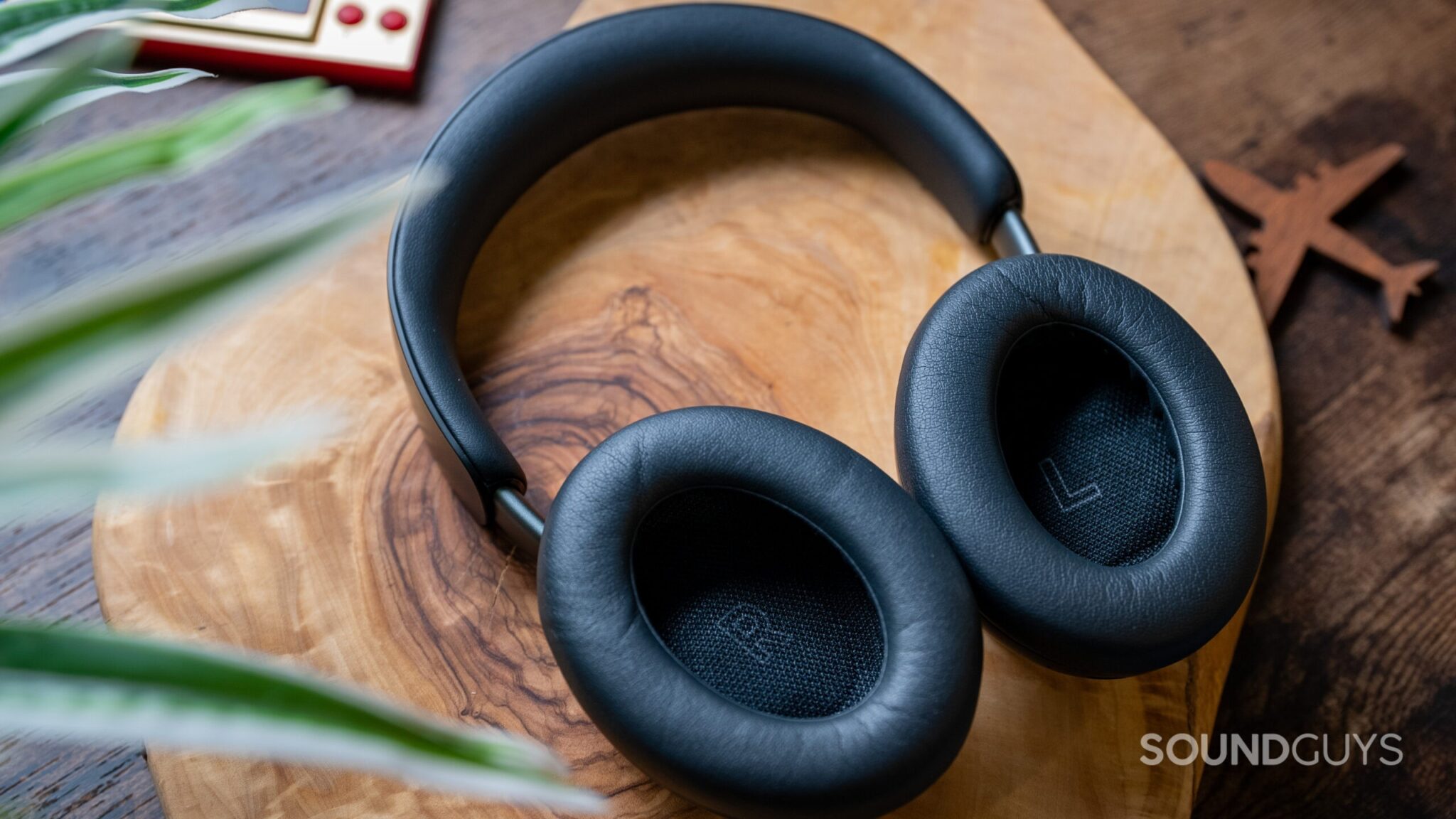
Use full noise canceling when you want to reduce steady background noise. Use transparency or ambient mode when you need to hear people, announcements, traffic, or nearby sounds.
Active noise cancellation
ANC is useful in places such as:
- Airplanes
- Trains and buses
- Open offices
- Coffee shops
- Hotel rooms
- Homes with fans or air conditioners
ANC may reduce low-frequency sound more than high-frequency sound. This is why engine rumble may fade while nearby speech remains understandable.
Transparency or ambient mode
Transparency mode uses the headphone microphones to send outside sound into your ears. It can help you hear a gate announcement, a coworker, or a conversation without removing the headphones.
For safety, do not rely on transparency mode alone near roads, bike paths, construction zones, or other hazards. Sound may be delayed, softened, or masked by music.
Noise control off
Some headphones offer an off mode. This can reduce battery use or make the headphones feel more natural in quiet places. Other models always use some form of processing when powered on.
Adaptive modes
Adaptive systems change noise control based on the environment. They may be convenient, but they can also change the sound when you move between locations. If the change is distracting, select a fixed ANC or transparency mode instead.

Adjust the Fit for Better Noise Cancellation
A proper fit is one of the most important parts of noise-canceling headphone setup. Even strong ANC cannot fully compensate for a poor seal.
For over-ear headphones:
- Center each ear inside the ear cup.
- Adjust the headband until the cups sit evenly.
- Make sure hair, glasses, or hats do not create a large gap.
- Check that the ear cushions sit flat against your head.
- Avoid pressing the cups too tightly.
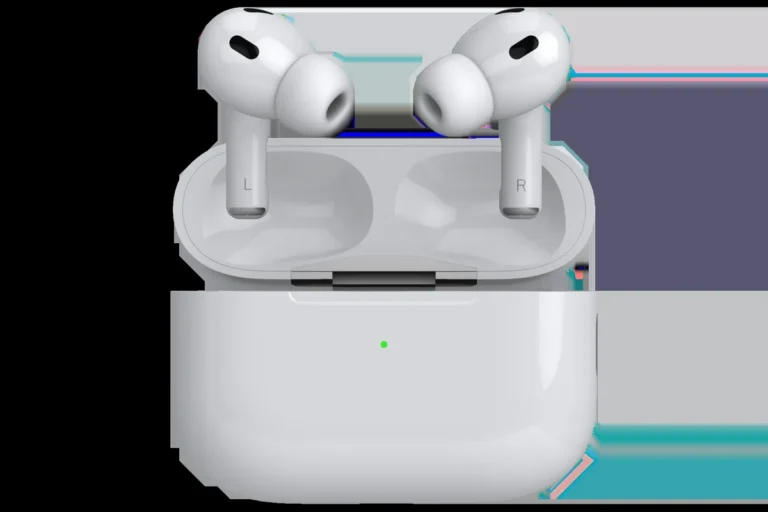
For in-ear noise-canceling earbuds:
- Choose the correct ear-tip size.
- Insert each earbud gently.
- Twist or angle the earbuds as shown in the manual.
- Run the app’s fit test if available.
- Try a different tip size if bass sounds weak or outside noise remains loud.
A good seal often increases bass and reduces outside sound. If one ear sounds louder than the other, reseat the earbuds and inspect the tips for dirt or damage.
Do not force earbuds deep into the ear canal. Stop if you feel pain, pressure, ringing, or dizziness. Persistent symptoms require advice from a qualified health professional.
Set Up Headphones for Calls and Video Meetings
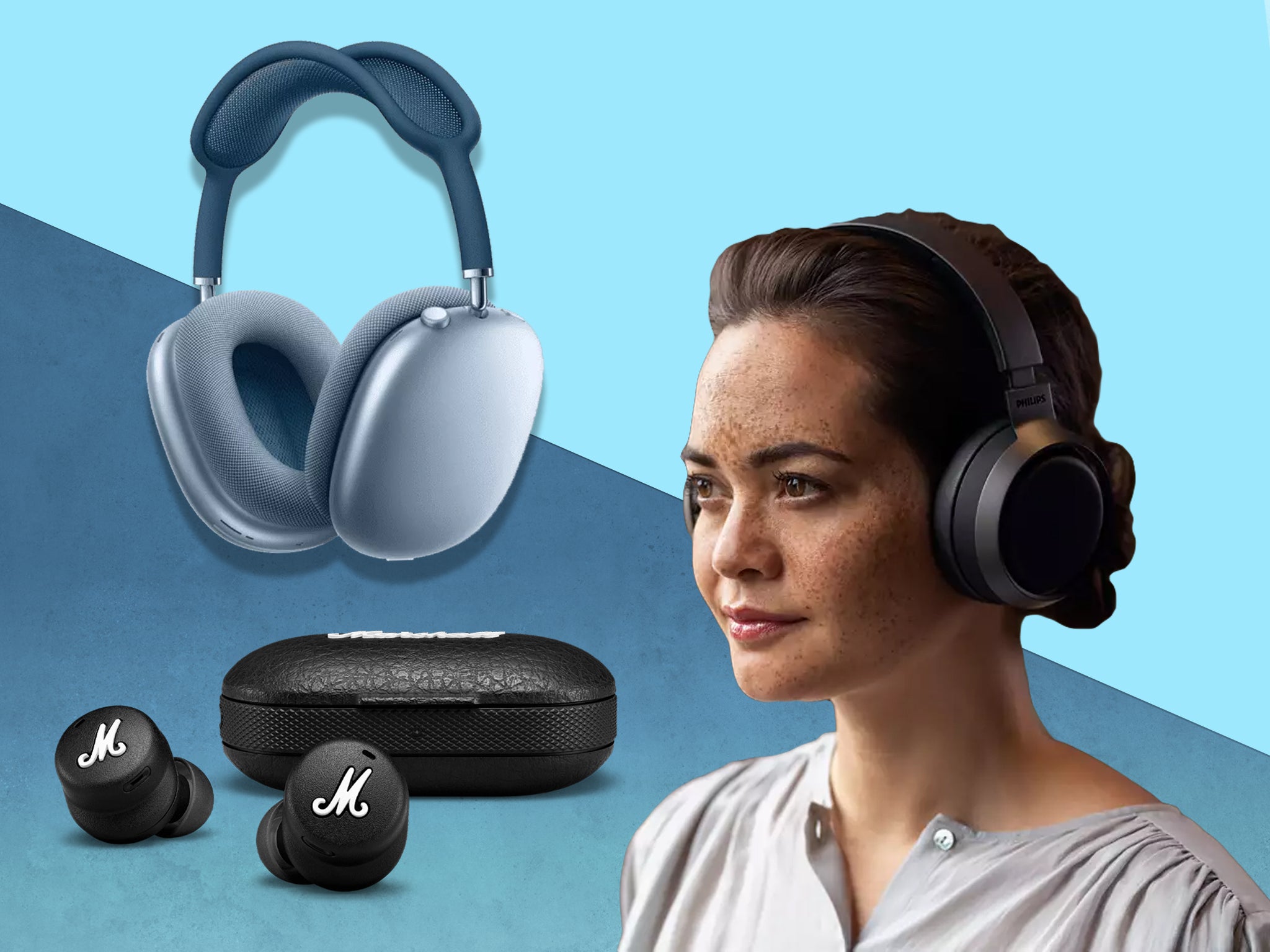
Bluetooth headphones can use different audio profiles for music and calls. Music may sound better than a call because calls can activate a lower-bandwidth microphone mode.
Before a meeting:
- Connect the headphones to the computer.
- Open the meeting app.
- Go to its audio settings.
- Choose the headphones as both the speaker and microphone.
- Make a short test call.
- Confirm that your voice is clear.
- Check whether the app is using the correct input device.
On Windows, a headset may appear as two audio choices, such as a stereo option and a hands-free option. The hands-free option may be required for the built-in microphone, but it can reduce music quality during calls.
If call quality is poor, try these steps:
- Move the phone or computer closer.
- Disconnect unused Bluetooth devices.
- Close apps that may be using the microphone.
- Use the computer’s built-in microphone with the headphones as speakers.
- Connect with a USB cable if the model supports USB audio.
- Use a wired headset for critical meetings.
ANC can reduce background noise for you, but it does not always remove background noise from the microphone signal sent to other people.
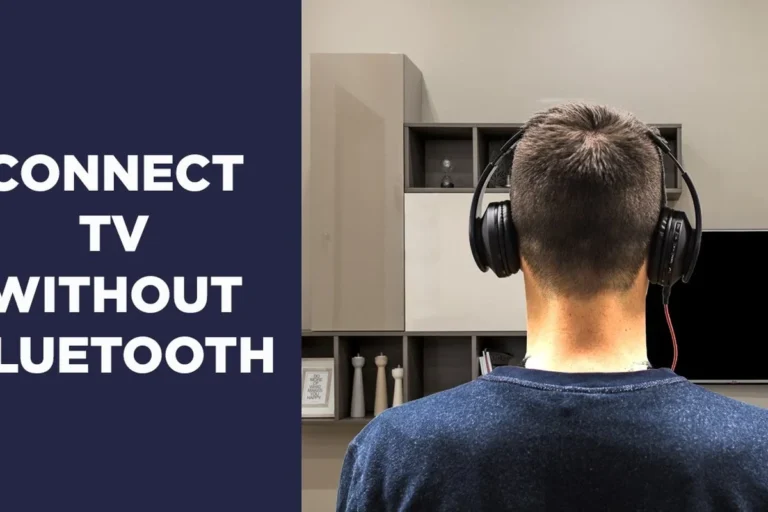
Connect Noise-Canceling Headphones With a Cable
A wired connection can help with airplane entertainment systems, computers without Bluetooth, gaming systems, or devices with Bluetooth problems.
Check whether the headphones support audio when powered off. Some models require power for ANC, while others can play passively through the cable.
For a standard headphone jack:
- Plug the correct cable into the headphones.
- Connect the other end to the device.
- Select the headphone output if the device does not switch automatically.
- Turn on ANC if the headphones require power for noise cancellation.
Many newer U.S. phones and laptops do not include a 3.5-millimeter headphone jack. You may need a compatible USB-C or Lightning adapter. The adapter must support audio output; a charging-only adapter will not work.
For an airplane, bring a suitable adapter if the entertainment system uses a dual-prong jack. Airline equipment varies, so wired compatibility is not guaranteed on every aircraft.
A wired connection may not support every wireless feature. Buttons, microphones, ANC, and app controls can behave differently depending on the cable and device.

Connect to Two Devices With Multipoint
Multipoint lets compatible headphones stay connected to two devices, such as a phone and a laptop. This can make it easier to switch between music and calls.
To use it:
- Pair the headphones with the first device.
- Open the manufacturer’s app.
- Turn on Multipoint, Connect to two devices, or a similar option.
- Pair the headphones with the second device.
- Test switching between both devices.
Not every model supports multipoint. Some models support two devices but do not switch automatically for every app. A phone call may take priority over computer audio, while some video apps may keep the connection active.
If multipoint causes dropouts, turn it off and use one active device at a time. This is often more stable in crowded areas with many nearby Bluetooth devices.
Fix Common Setup Problems
Use the simplest checks first. Many pairing problems come from pairing mode, battery level, or a previous connection.
| Problem | Likely cause | What to try |
|---|---|---|
| Headphones do not appear | Pairing mode is off | Turn them off, then hold the pairing button until the light flashes |
| They appear but will not connect | Connected to another device | Turn off Bluetooth on the old device or disconnect the headphones |
| Connected but no sound | Wrong audio output | Select the headphones in the device’s sound menu |
| One side is silent | Poor fit, debris, or balance setting | Reseat the earbud, clean it safely, and check left-right balance |
| ANC seems weak | Poor seal or wrong mode | Adjust the fit and select ANC instead of transparency |
| Music cuts out | Distance, interference, or multipoint conflict | Move closer, disconnect other devices, or disable multipoint |
| App cannot find headphones | Missing permission or outdated app | Allow nearby-device access and update the app |
| Battery drains quickly | High ANC use, calls, or aging battery | Lower features, disable unused connections, and check battery health |
| People cannot hear you | Wrong microphone selected | Choose the headphone microphone in the call app |
Reset the Bluetooth connection
If the headphones worked before but now fail:
- Turn Bluetooth off and back on.
- Restart the phone or computer.
- Turn the headphones off and on.
- Select the headphones in Bluetooth settings.
- Choose Forget This Device, Remove Device, or Unpair.
- Put the headphones into pairing mode.
- Pair them again.
Reset the headphones
A factory reset can remove stored devices and custom settings. Use it only after normal reconnection steps fail. Follow the exact instructions for the model because reset button combinations differ.
After resetting, pair the headphones again and reinstall any preferred settings.

Use Noise-Canceling Headphones Safely
Keep the volume low enough that you can listen comfortably. The World Health Organization advises reducing loud sound exposure and taking breaks; the National Institute for Occupational Safety and Health also provides guidance on occupational noise exposure.
ANC is not hearing protection unless the manufacturer specifically states that the product has an approved hearing-protection rating. Consumer noise-canceling headphones should not be treated as a substitute for certified protection around firearms, industrial machinery, or very loud work areas.
Follow these safety habits:
- Keep one ear free or use transparency mode when you need awareness.
- Do not wear both headphones while crossing streets or cycling in traffic.
- Pause audio before speaking with someone.
- Stop use if you feel pain, dizziness, or persistent ringing.
- Clean ear tips and cushions according to the manual.
- Keep volume moderate during long listening sessions.
- Store the headphones dry and away from extreme heat.
The Environmental Protection Agency and the Federal Aviation Administration provide U.S. travel and noise-related information, but airline rules can vary. Follow crew instructions during flights, especially during takeoff, landing, and emergencies.
Key Takeaways
- Charge the headphones before pairing.
- Put them into Bluetooth pairing mode.
- Select them from your phone, tablet, Mac, or Windows Bluetooth menu.
- Install the official app for firmware updates and advanced controls.
- Choose ANC for steady background noise and transparency mode when you need to hear your surroundings.
- Improve the seal before assuming ANC is defective.
- Select the headphones as the speaker and microphone for calls.
- Forget and re-pair the device if connection problems continue.
- Do not treat consumer ANC headphones as certified hearing protection.
Frequently Asked Questions
Do noise-canceling headphones need Bluetooth?
No. Many models work with a cable. Bluetooth is needed for wireless audio, app controls, and features such as multipoint. Some headphones still need battery power for ANC even when connected by cable.
Why can I still hear voices with noise canceling on?
ANC works best against steady, low-frequency sounds. Voices are more variable and contain higher frequencies, so they may remain partly audible. A better ear-cup or ear-tip seal can reduce them further.
Can I use noise-canceling headphones without the app?
Usually, yes. Basic audio and ANC controls often work without the app. However, the app may be required for firmware updates, equalizer settings, fit tests, multipoint, or customized controls.
How do I know if noise canceling is working?
Turn ANC on and off in a steady-noise environment, such as near an air conditioner or airplane cabin. The background should sound lower or less prominent with ANC enabled. Test the fit before judging performance.
Why do my headphones keep disconnecting?
Common causes include low battery, excessive distance, Bluetooth interference, multipoint conflicts, outdated firmware, or a saved connection to another device. Restart both devices, remove the old pairing, and connect again.
Can I wear noise-canceling headphones on an airplane?
Yes, many people use them during flights. Follow the airline’s instructions about Bluetooth and electronic devices. Use a wired connection for the seat-back entertainment system if needed, and keep the headphones available for crew announcements.
Conclusion
Setting up noise-canceling headphones is mainly a matter of charging, pairing, fitting, and choosing the right listening mode. Start with the official app and device Bluetooth settings, then test music, calls, ANC, and transparency before relying on the headphones during travel or work.
If the headphones still fail after a reset and a fresh pairing, check the model’s official support page or warranty service. The exact reset method, app features, cable support, and device limits depend on the manufacturer and model.