How To Connect Noise Cancelling Headphones: Easy Guide

In the United States, most noise-canceling headphones connect to phones, tablets, laptops, and TVs through Bluetooth. To connect them, charge the headphones, turn on pairing mode, select them in your device’s Bluetooth menu, and then enable noise cancellation with the headphone button or app. Some models also work with a wired audio cable.
This guide explains how to connect noise-canceling headphones on iPhone, Android, Windows, and Mac. It also covers pairing problems, noise-canceling controls, wired connections, multipoint Bluetooth, and safe listening.

What You Need Before Connecting
You need three things before you start:
- Noise-canceling headphones with some battery charge
- The device you want to use, such as a phone or laptop
- Bluetooth turned on, unless you plan to use a cable
Most headphones use active noise cancellation, or ANC. ANC uses microphones to detect outside sound. The headphones then create an opposing sound signal to reduce steady noise, such as engine rumble, air conditioners, or office noise.
Bluetooth connection and noise cancellation are separate features. Your headphones may connect successfully while ANC is still off. Look for a button marked ANC, NC, Noise Control, or Ambient.
Check the headphone battery
Charge the headphones before pairing them. Low battery power can stop pairing, cause dropouts, or disable some features.
Many headphones show battery status through:
- A voice prompt
- A status light
- The maker’s mobile app
- The Bluetooth menu on your phone or computer
Install the maker’s app when needed
Many brands offer an app for setup and control. The app may let you:
- Update headphone firmware
- Change ANC levels
- Turn on transparency mode
- Adjust sound settings
- Rename the headphones
- Manage multipoint connections
- Find the correct control for noise cancellation
The headphones can often pair without the app. Still, the app may be needed for advanced settings.
How to Connect Noise-Canceling Headphones by Bluetooth
The basic Bluetooth setup takes about a minute. Keep the headphones close to the device during pairing.
- Turn off Bluetooth on nearby devices that may already connect to the headphones. This prevents automatic connection to the wrong device.
- Turn on the headphones.
- Enter pairing mode. Hold the power or Bluetooth button until the status light flashes or a voice prompt says “pairing.”
- Open Bluetooth settings on your phone, tablet, computer, or TV.
- Select the headphone name from the list of available devices.
- Confirm the connection if the device asks for permission.
- Play audio to test the connection.
- Turn on ANC with the headphone control or app.
A successful connection usually shows the headphones as Connected or Paired. You may also hear a tone or voice prompt.
How to connect headphones to an iPhone or iPad
On an iPhone or iPad:
- Open Settings.
- Tap Bluetooth.
- Turn Bluetooth on.
- Put the headphones into pairing mode.
- Tap the headphone name under Other Devices.
- Wait until the name moves to My Devices and shows Connected.
After the first setup, the headphones should connect when they are turned on and within range. If they do not, open the Bluetooth menu and tap their name.
Apple provides Bluetooth setup guidance through its official support page.
How to connect headphones to an Android phone or tablet
Android menus can vary by manufacturer and software version. The usual steps are:
- Open Settings.
- Tap Connected devices, Connections, or Bluetooth.
- Turn Bluetooth on.
- Tap Pair new device if that option appears.
- Put the headphones into pairing mode.
- Select the headphone name.
- Tap Pair if prompted.
Google’s Android Help guidance explains the standard Bluetooth process. Samsung Galaxy devices may use slightly different menu names.
How to connect headphones to a Windows PC
On Windows 11:
- Open Start > Settings.
- Select Bluetooth & devices.
- Turn Bluetooth on.
- Select Add device.
- Choose Bluetooth.
- Put the headphones into pairing mode.
- Select the headphones from the list.
- Choose Done.
To select them for sound:
- Select the speaker icon on the taskbar.
- Open the sound output list.
- Choose your noise-canceling headphones.
On Windows 10, open Settings > Devices > Bluetooth & other devices, then select Add Bluetooth or other device.
Microsoft lists additional Bluetooth steps in its Windows support documentation.
How to connect headphones to a Mac
On a Mac:
- Open the Apple menu.
- Choose System Settings.
- Select Bluetooth.
- Turn Bluetooth on.
- Put the headphones into pairing mode.
- Click Connect next to the headphone name.
To choose them for audio:
- Open System Settings.
- Select Sound.
- Choose the headphones under Output.
On older macOS versions, Bluetooth settings may appear under System Preferences.
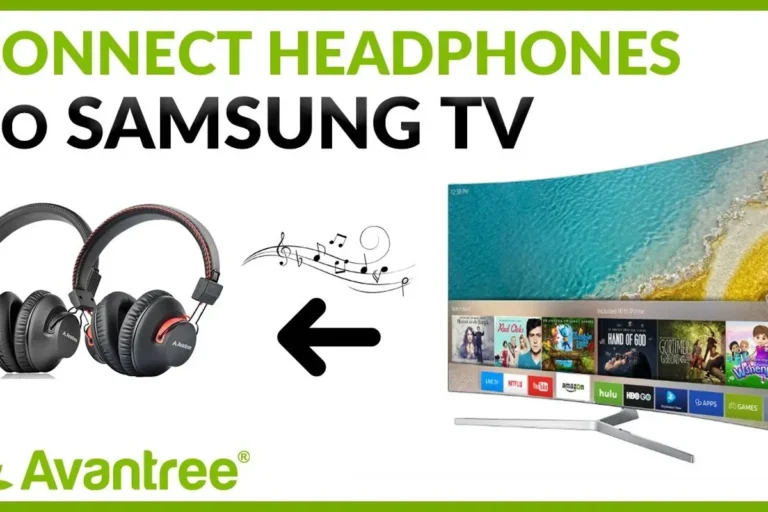
How to connect headphones to a smart TV
The TV must support Bluetooth audio. The menu may be called Sound Output, Bluetooth Speaker List, Audio Device, or Wireless Speaker.
A typical setup is:
- Put the headphones into pairing mode.
- Open the TV’s settings.
- Go to Sound, Audio, or Bluetooth.
- Select the Bluetooth headphone option.
- Choose the headphones.
- Confirm the connection.
Some TVs do not support Bluetooth headphones. Others may create a delay between video and sound. A Bluetooth transmitter connected to the TV’s audio output can help when built-in Bluetooth is unavailable.

How to Turn On Noise Cancellation
After connecting the headphones, press the ANC, NC, or Noise Control button. Some models cycle through several modes:
- Noise cancellation: Reduces outside sound.
- Transparency or ambient mode: Lets outside sound in.
- Off: Disables both ANC and transparency processing.
- Adaptive mode: Changes the level based on surrounding sound.
A short press may change modes. A long press may open a voice assistant or enter pairing mode, depending on the model. Check the control diagram in the user manual if the button does not behave as expected.
Use the companion app
The manufacturer’s app may provide more control than the physical buttons. Common settings include:
- Strong, mild, or adaptive ANC
- Wind-noise reduction
- Conversation detection
- Custom sound profiles
- Automatic pause
- Touch-control settings
If ANC seems weak, check the app first. The headphones may be in transparency mode or using a low ANC setting.
Understand what ANC can and cannot block
ANC works best with steady, low-frequency sound. It can reduce:
- Airplane engine noise
- Bus and train rumble
- HVAC systems
- Fan noise
- Road noise
It may reduce, but not fully remove:
- Human voices
- Dogs barking
- Doorbells
- Sudden impacts
- High-pitched sounds
A good seal also matters. On over-ear headphones, the ear cups must sit evenly around the ears. On in-ear models, the ear tips must fit well. Glasses, hair, hats, and loose ear tips can reduce the seal and make ANC seem weaker.

How to Connect Noise-Canceling Headphones With a Cable
A wired connection can work when Bluetooth is unavailable, when you want to save battery, or when wireless audio has a delay.
- Check which cable the headphones use.
- Plug the cable into the headphones.
- Plug the other end into the device.
- Select the headphones as the audio output if the device does not switch automatically.
- Turn ANC on if the model supports ANC while wired.
Common cable types include:
- 3.5-millimeter audio cable
- USB-C audio connection
- Airline adapter
- USB audio cable
A USB-C port does not always support audio. Some headphones use USB-C only for charging. Check the manual before buying a USB-C audio cable.
Some noise-canceling headphones require battery power for ANC, even with a cable connected. Other models allow passive listening without power but disable ANC. Wired audio may also bypass app features, microphones, or touch controls.
How to Use Multipoint Bluetooth
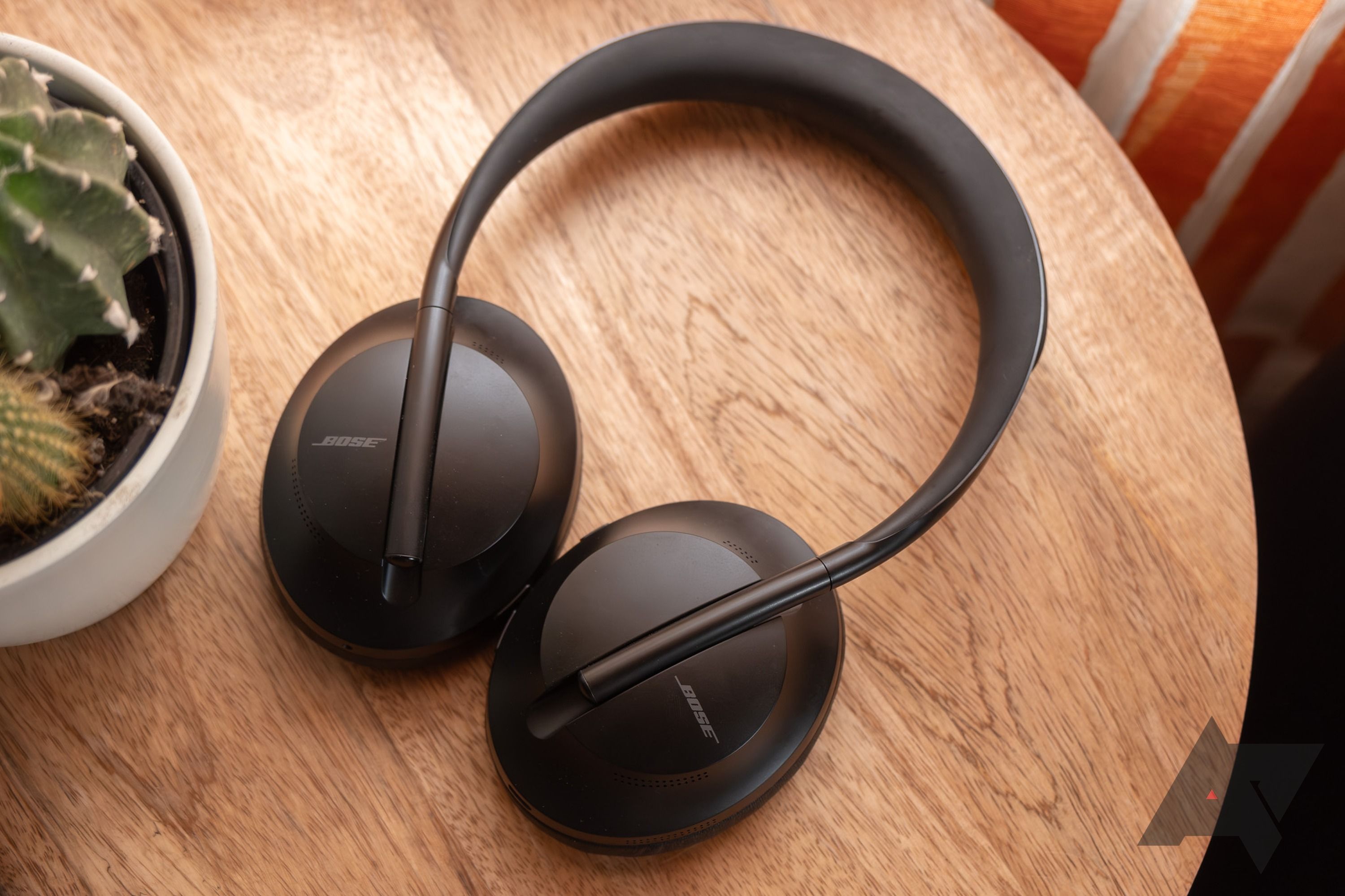
Multipoint lets compatible headphones connect to two devices at the same time. For example, the headphones may connect to an iPhone and a Windows laptop.
A common setup is:
- Pair the headphones with the first device.
- Pair them with the second device.
- Open the headphone app.
- Turn on Multipoint, Two-device connection, or a similar setting.
- Test audio from both devices.
Multipoint does not work the same way on every model. Some headphones switch automatically when a call arrives. Others require you to pause audio on one device before playing audio on the other.
If multipoint causes dropouts, disable it and test one device at a time. Older headphones may support only one active Bluetooth connection.
What to Do If Your Headphones Will Not Connect
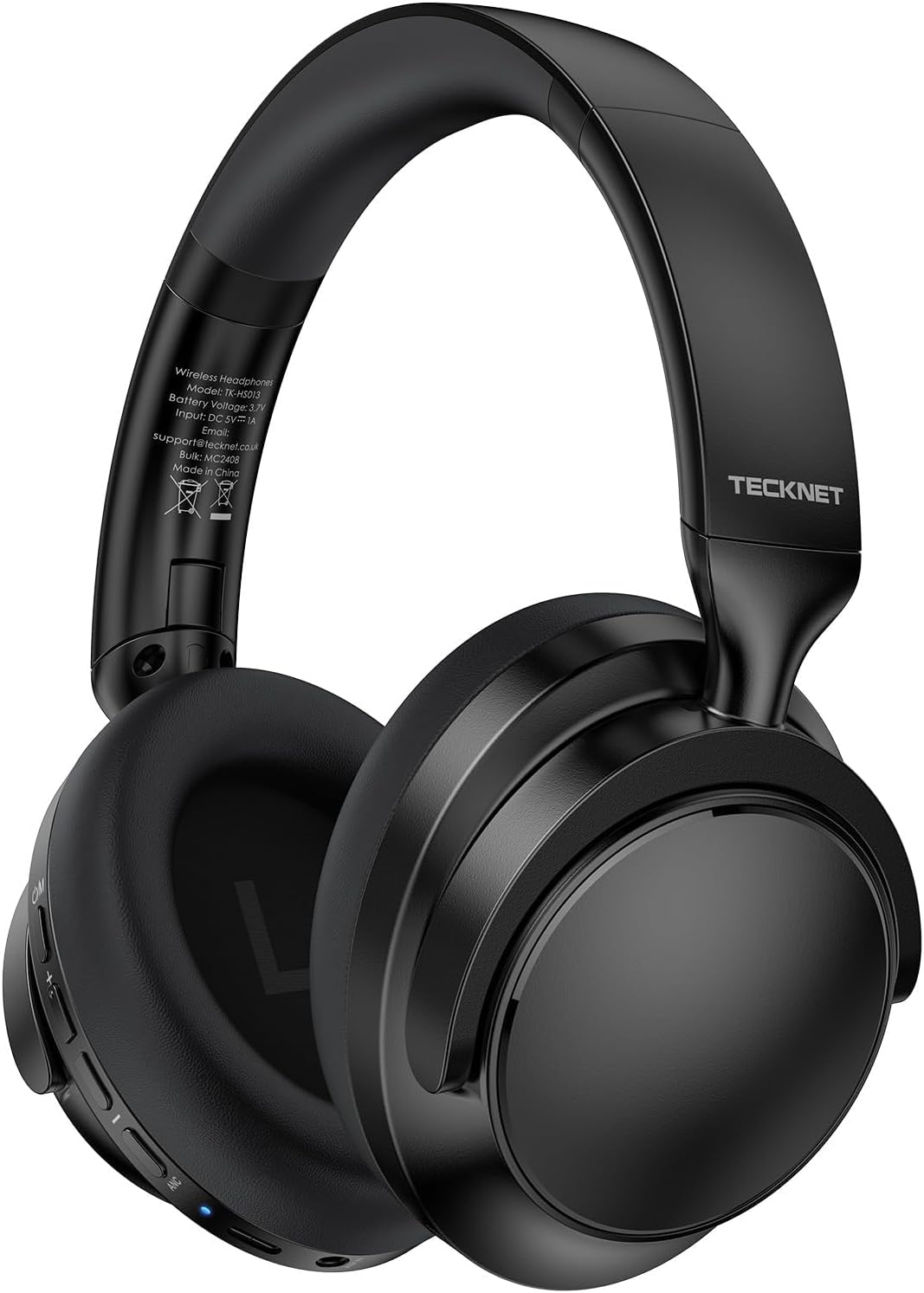
Start with simple checks before resetting the headphones. Most connection problems come from pairing mode, an old saved connection, low battery, or another nearby device taking control.
Headphones do not appear in the Bluetooth list
Try these steps:
- Move the headphones within a few feet of the device.
- Confirm that the headphones are in pairing mode, not just turned on.
- Turn Bluetooth off and back on.
- Restart the phone or computer.
- Turn off Bluetooth on nearby devices.
- Charge the headphones.
- Reset the headphones to factory pairing mode if needed.
Pairing mode often times out. If the headphones stop flashing, activate pairing mode again.
Headphones appear but will not pair
Remove the old Bluetooth record and pair again.
On most devices, open the headphone entry and choose Forget, Remove, or Unpair. Then restart both devices and repeat the setup.
If a PIN is requested, check the manual. Some older Bluetooth devices use a default code such as 0000, but do not assume a code unless the manufacturer documents it.
Headphones connect but there is no sound
Check the output device. A computer may remain set to its built-in speakers even after pairing.
- On iPhone or iPad, open the audio output menu and choose the headphones.
- On Android, check the media output panel.
- On Windows, select the headphones from the taskbar sound menu.
- On Mac, select the headphones under Sound > Output.
- On a TV, check the audio output setting.
Also check the headphone volume and the device volume. Some devices maintain separate volume levels.
Audio cuts out or sounds poor
Possible causes include distance, interference, multipoint switching, or a weak battery.
Try:
- Staying within the normal Bluetooth range
- Moving away from crowded wireless areas
- Disconnecting unused Bluetooth devices
- Disabling multipoint
- Restarting the headphones
- Updating the headphone firmware
- Testing with a different phone or computer
Bluetooth performance can vary by device, software, walls, and nearby wireless equipment. A test with a second device helps show whether the issue is with the headphones or the original source.
ANC is not working
Check the following:
- ANC is turned on, not transparency mode.
- The headphones have enough battery.
- The ear cups or ear tips seal correctly.
- The app does not limit ANC strength.
- The microphones are clean and uncovered.
- The headphones have the latest supported firmware.
Do not cover or press the external microphones while testing. These microphones help the headphones detect outside sound.
The connection fails after a software update
A software update can change Bluetooth permissions or reset device settings. Forget the headphones on the phone or computer, restart both devices, and pair them again.
If the issue affects only one device, check that device maker’s Bluetooth support steps. If the issue affects every device, contact the headphone manufacturer before attempting an undocumented reset.

Common Connection Mistakes to Avoid
Avoid these mistakes when setting up noise-canceling headphones:
- Pressing the power button once and assuming pairing mode is active. Many models need a longer press.
- Pairing while the headphones are connected to another device. Turn off Bluetooth on nearby devices during setup.
- Using the wrong audio output. A successful Bluetooth connection does not always change the computer’s speaker setting.
- Expecting ANC to remove every sound. ANC reduces certain sounds; it does not create silence.
- Ignoring fit. A poor seal can make both ANC and sound quality seem weak.
- Using a USB-C cable without checking audio support. USB-C ports often support charging only.
- Resetting too soon. A reset may erase saved devices and custom settings.
- Listening at high volume to overcome outside noise. Better fit and ANC can reduce the need for unsafe volume levels.
Keep the headphone firmware and companion app updated through official sources. Avoid unofficial firmware files or apps that request unnecessary account access.

Safe Listening With Noise-Canceling Headphones
Noise cancellation can make listening more comfortable, but it does not make loud sound safe. The National Institute for Occupational Safety and Health, or NIOSH, recommends controlling noise exposure and using hearing protection when sound levels are hazardous. The World Health Organization also advises keeping personal audio volume at a safe level and taking breaks.
Use these habits:
- Set the volume as low as practical.
- Take regular listening breaks.
- Use transparency mode near traffic, cyclists, alarms, or public announcements.
- Do not rely on ANC as certified hearing protection.
- Keep enough awareness of your surroundings when walking outdoors.
- Stop using the headphones if they cause pain, dizziness, or unusual discomfort.
If you work around loud machinery, use hearing protection rated for that environment. Consumer noise-canceling headphones are not automatically approved hearing protection.
Key Takeaways
- Charge the headphones before pairing.
- Put them into Bluetooth pairing mode.
- Select them in the device’s Bluetooth settings.
- Choose the headphones as the audio output when needed.
- Turn on ANC with the headphone button or app.
- Use a proper ear seal for better noise reduction.
- Forget and re-pair the headphones when normal troubleshooting fails.
- Do not treat ANC as a replacement for certified hearing protection.
Frequently Asked Questions
Can noise-canceling headphones connect without Bluetooth?
Yes. Many models support a 3.5-millimeter cable. Some support USB audio, but USB-C audio compatibility varies. ANC may still need battery power when the headphones are wired.
Why do my headphones connect but not cancel noise?
Bluetooth pairing and ANC are separate controls. Press the ANC or Noise Control button, check the app, and confirm that transparency mode is not active. A poor ear seal can also reduce the effect.
Can I connect noise-canceling headphones to two devices?
Only if the headphones support multipoint or a similar two-device feature. Pair both devices, then enable the feature in the headphone app when required.
Do noise-canceling headphones work on airplanes?
They can work with Bluetooth on supported aircraft systems or with a wired connection to the seat’s entertainment system. Some aircraft require Bluetooth to remain off during parts of the flight. Follow crew instructions and airline rules.
How do I connect headphones after buying a new phone?
Turn on pairing mode, open the new phone’s Bluetooth settings, and select the headphones. If the headphones connect to the old phone instead, turn Bluetooth off on the old phone or remove the saved connection there.
Conclusion
To connect noise-canceling headphones, charge them, activate Bluetooth pairing mode, select them from your device’s Bluetooth menu, and then turn on ANC. If the connection fails, check pairing mode, battery level, saved Bluetooth records, audio output settings, and nearby devices in that order.
For the best result, use the correct ear tip or ear-cup fit, keep the firmware current, and use transparency mode when you need to hear traffic, people, alarms, or announcements.