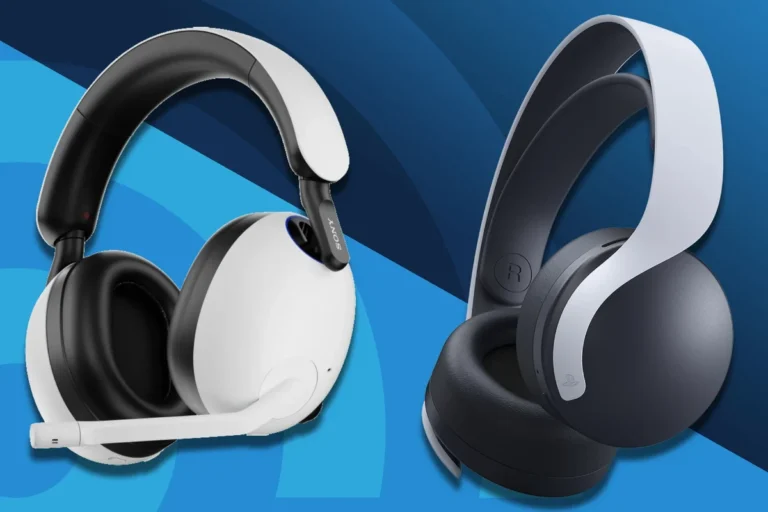
How to Hook Up Headphones to Samsung TV Easily

The easiest way to hook up headphones to a Samsung TV is usually Bluetooth if your model supports it. If you want the most reliable audio for gaming or lip-sync, wired headphones or a Bluetooth transmitter are often better.
If you want private audio on a Samsung TV, the easiest route is usually Bluetooth, followed by a wired connection if your model supports it. For gaming, movie nights, and late-night streaming, the best setup depends on your TV model, your headphones, and how much delay you can tolerate.
- Bluetooth: Best for simple, wireless private listening.
- Wired: Best for stable audio and lower delay.
- Transmitter: Best for gaming and compatibility fixes.
- Settings: Check TV output, volume, and lip-sync.
How to Hook Up Headphones to Samsung TV: What Works Best in 2026
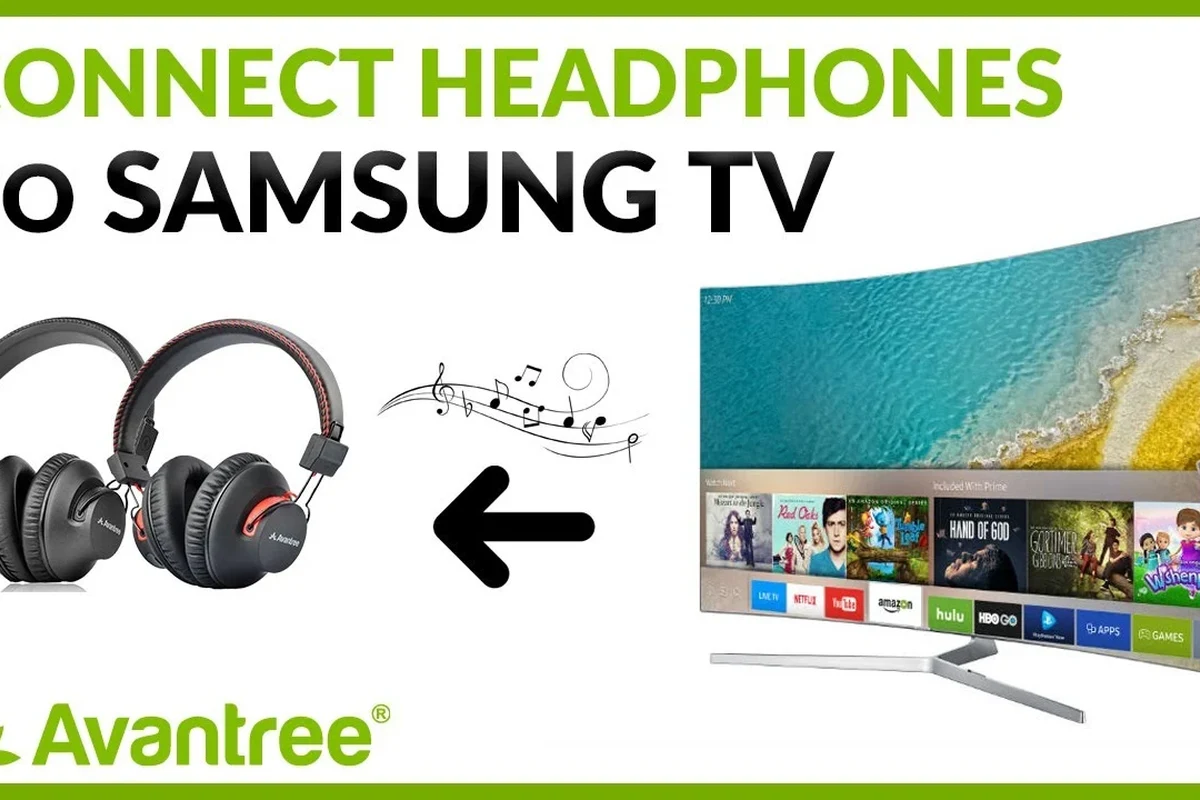
Samsung TVs have improved a lot over the years, but headphone compatibility still varies by model. Some sets support Bluetooth directly, while others are easier to use with a cable, adapter, or external transmitter.
Search intent: quick, reliable ways to get private audio on Samsung TVs
Most readers are looking for a fast way to watch TV without disturbing other people. That usually means one of three things: pairing wireless headphones, plugging in wired headphones, or adding a transmitter for better latency and range.
Which Samsung TV models and headphone types this guide covers
This guide applies to modern Samsung smart TVs as well as older models that may have a headphone jack, optical audio out, or RCA outputs. It also covers Bluetooth headphones, wired over-ear headphones, earbuds, and gaming headsets that can work through adapters or transmitters.
Samsung menus and audio ports can differ by year and model series, so your exact steps may look slightly different. If your TV has no obvious headphone output, check the back panel and the audio settings menu before buying extra gear.
Method 1: Connect Bluetooth Headphones to a Samsung TV
For many people, Bluetooth is the cleanest and most convenient option. It removes cable clutter and works well for casual viewing, as long as your TV and headphones support stable pairing.
Step-by-step pairing from the Samsung TV settings menu
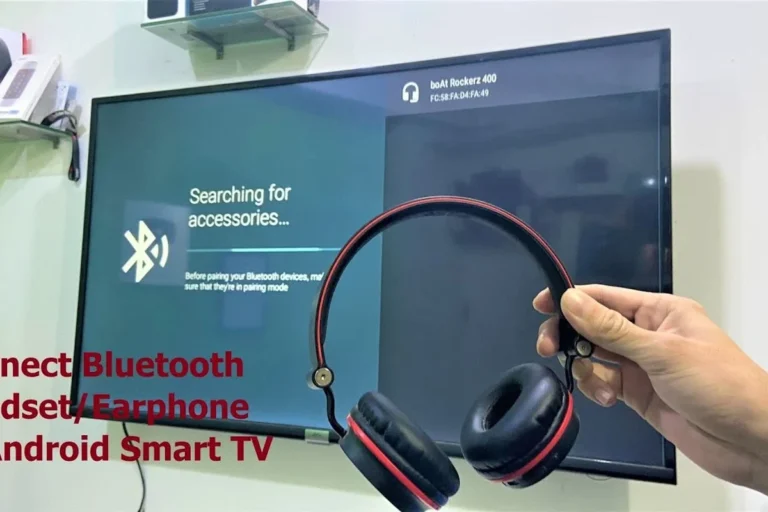
Start by putting your headphones into pairing mode. Then open the Samsung TV settings menu, go to Sound or Bluetooth Speaker List, and search for nearby devices.
Follow the headphone manual and make sure the device is discoverable before searching from the TV.
On most Samsung TVs, Bluetooth audio devices appear under Sound Output or Speaker List.
Choose the headphones from the list and confirm pairing when the TV prompts you.
Play a video or game and check that sound is coming through the headphones at a comfortable level.
If the headphones do not appear right away, turn Bluetooth off and back on in the TV menu, then restart pairing mode on the headphones. A fresh pairing attempt often solves simple discovery problems.
Best use cases: late-night gaming, streaming, and everyday TV watching
Bluetooth headphones are best for casual streaming, news, and regular TV viewing. They are also handy for late-night gaming if your headphones and TV keep delay low enough to avoid distracting audio lag.
For readers comparing headphone styles, it helps to understand the difference between closed-back and open-back designs. If you want more isolation and less sound leakage, our types of headphones explained guide is a useful place to start.
Common Bluetooth issues: lag, dropouts, and devices not appearing
Bluetooth can be convenient, but it is not always perfect. Lag, short dropouts, or pairing failures can happen depending on the TV, headphone codec support, room interference, and distance from the screen.
If you notice audio delay during gaming or action scenes, that is a sign you may want a lower-latency solution. For more troubleshooting help, our Bluetooth headphone lag fix article covers common causes of delay in a simple way.
Not every Bluetooth headphone pairs smoothly with every Samsung TV. Compatibility can vary by model, and some TVs may support only basic Bluetooth audio profiles rather than the latest low-latency options.
Method 2: Use Wired Headphones with a Samsung TV
Wired headphones are still one of the most dependable ways to get private audio. They avoid battery issues and often reduce latency, which makes them a strong choice for gaming and lip-sync sensitive content.
When the TV has a headphone jack
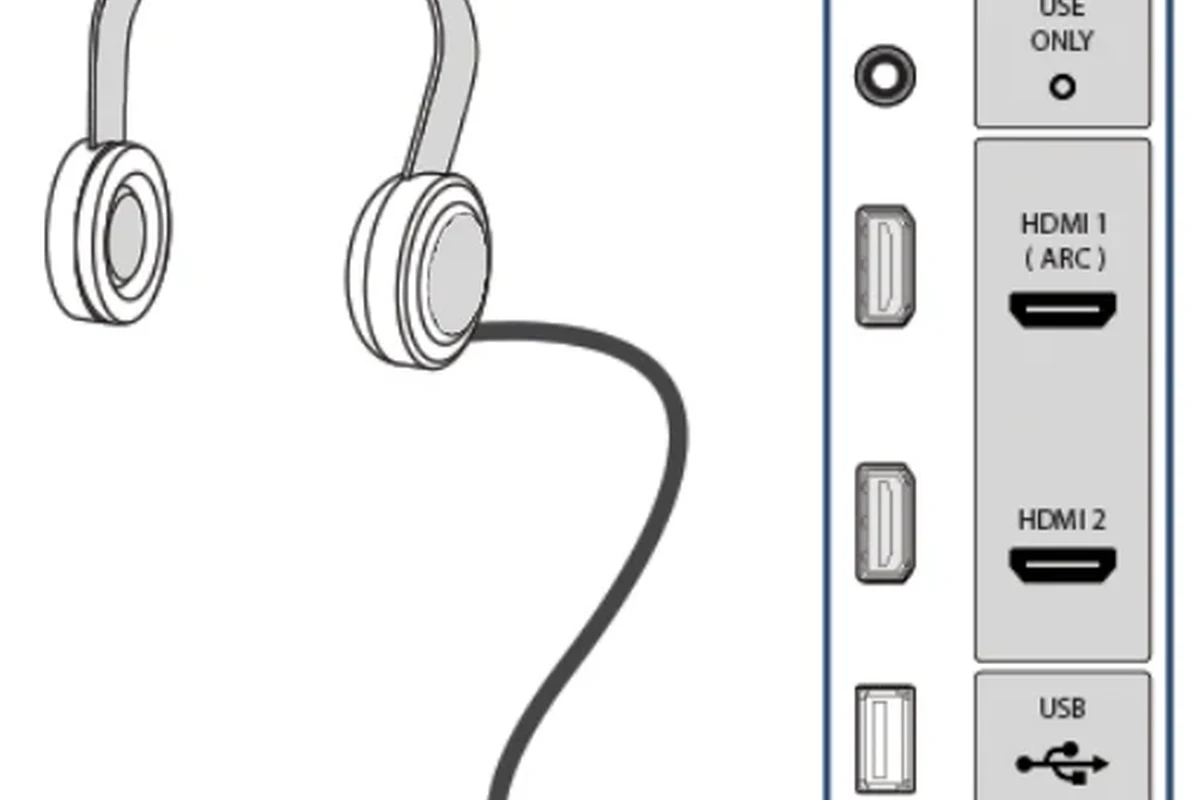
If your Samsung TV includes a 3.5mm headphone jack, the setup is simple: plug in your headphones and switch the TV audio output if needed. This is usually the easiest wired option because it does not require extra converters.
Wired listening can also be a good choice if you already own comfortable over-ear headphones and do not want to manage another battery. If you are browsing gear for PC and TV use, our wired headphones guide explains why direct connections still matter for many users.
Using a 3.5mm-to-RCA adapter for older Samsung models
Older Samsung TVs may not have a dedicated headphone jack, but they may include red and white RCA audio outputs. In that case, a 3.5mm-to-RCA adapter can let you connect compatible headphones through the TV’s analog output path.
This method works best when the TV can send audio to the RCA output without muting the speakers in a confusing way. Because output behavior varies, it is worth checking your TV manual before buying a cable you may not need.
Using a USB-C or DAC solution when direct audio out is missing
If your TV lacks a simple headphone output, a digital-to-analog converter, or DAC, can sometimes bridge the gap. In some setups, you may also use a USB-C or external audio adapter if the TV supports it, though compatibility depends heavily on the model.
Many “headphone problems” on TVs are really output-routing problems. The headphones may be fine, but the TV could still be sending audio to the wrong port or speaker mode.
Method 3: Connect Headphones Through a Bluetooth Transmitter or Audio Adapter
If built-in Bluetooth is unreliable or too slow for gaming, an external transmitter is often the smarter choice. It can provide more consistent pairing, better range, and in some cases lower latency than the TV’s built-in wireless audio.
Why a transmitter can outperform built-in Bluetooth for gaming
Gaming headsets and action-heavy movies expose audio delay more quickly than casual TV watching. A dedicated transmitter can help reduce that delay and make footsteps, dialogue, and on-screen motion feel better aligned.
For readers who want a deeper look at wireless headphone behavior, our how to connect Bluetooth headphones guide is helpful, especially if you are new to pairing audio gear across devices.
Optical, HDMI ARC, and 3.5mm transmitter options compared
Optical transmitters are common on TVs that include optical audio out, and they can be a strong fit for home theater use. HDMI ARC setups may also work through certain adapters, while 3.5mm transmitters are simpler but usually depend on the quality of the TV’s analog output.
The best option usually depends on your TV’s available ports and how sensitive you are to delay. If your main goal is gaming, prioritize a setup that is known for low latency rather than one that simply connects the easiest.
Best scenarios for apartments, shared homes, and low-latency listening
Transmitters are especially useful in apartments and shared homes where you want reliable private listening without bothering others. They can also be a strong upgrade for people who switch between TV shows, console gaming, and late-night movie sessions.
Samsung TV Audio Settings You Should Adjust Before Listening
Even when the connection works, the wrong TV settings can make audio sound weak, echoey, or out of sync. A few quick adjustments can make a big difference in how your headphones perform.
Turning off TV speakers or setting audio output to headphones
After pairing or plugging in your headphones, check the Sound Output menu and make sure the TV is sending audio to the correct device. Some Samsung TVs keep internal speakers active unless you switch outputs manually.
Volume leveling, sound mode, and lip-sync settings
Volume leveling can help smooth out loud commercials and sudden scene changes. Sound mode may also affect clarity, while lip-sync or audio delay settings can help if the sound arrives slightly before or after the picture.
Why does my Samsung TV headphone audio sound different from the speakers?
Headphones often reveal more detail and less room echo than TV speakers, so the sound may seem clearer or more direct. If it sounds too thin or too bass-heavy, try a different sound mode or a small EQ adjustment on the headphones if available.
How to avoid echo, distortion, or weak volume
Echo usually happens when both the TV speakers and headphones are active at the same time. Distortion can come from volume being too high on either the TV or the headphones, while weak volume may mean the output mode is not set correctly.
Listening at high volumes for long periods can cause hearing damage. Keep volume at 60% or below for extended sessions.
Common Mistakes When Hooking Up Headphones to a Samsung TV
Most setup problems are simple, but they can still be frustrating if you do not know what to check first. A careful setup saves time and helps you avoid buying the wrong accessory.
Assuming all Bluetooth headphones will pair instantly
Some headphones pair quickly, while others need manual pairing mode, a reset, or a fresh Bluetooth scan. If the TV does not detect them, the issue may be compatibility rather than a broken device.
Ignoring latency for gaming and action movies
Latency is easy to overlook until you notice voices moving out of sync with the screen. For gaming and fast-paced films, low delay is often more important than flashy features like extra wireless range.
Using the wrong cable, adapter, or audio format
A cable that works on one TV may not work on another if the output is different. Always match the connector to the port, and check whether the TV sends audio through analog, optical, or digital output before buying accessories.
If you have persistent ringing, discomfort, or hearing sensitivity, speak with an audiologist before using headphones for long TV sessions. If you are choosing a setup for a shared living space or for gaming, a headphone specialist or knowledgeable retailer can also help you match the right transmitter, cable, and headphone type.
What Headphone Setup Is Best for Your Budget and Use Case?
The best setup is not always the most expensive one. It is the one that fits your TV, your listening habits, and the amount of audio delay you can accept.
Budget pick: simple wired connection or basic transmitter
If you want the lowest-cost path, start with a wired connection if your TV supports it. If not, a basic transmitter may be the next best option, especially if you already own a pair of comfortable headphones.
Mid-range pick: low-latency Bluetooth headphones or aptX-compatible gear
Mid-range buyers often want a balance of convenience and better sync. Low-latency Bluetooth gear or headphones with stronger codec support can be a good fit, though exact performance still depends on the TV and transmitter.
Premium pick: wireless headphones with dedicated TV transmitter support
Premium TV headphone systems are built for people who watch for long sessions and want fewer pairing headaches. They often include a dedicated transmitter, which can make the whole setup feel more stable and easier to use.
Cost comparison: built-in Bluetooth vs adapters vs dedicated headphone systems
Built-in Bluetooth is usually the simplest and cheapest because it requires no extra hardware. Adapters and transmitters add cost, but they can improve compatibility, reduce delay, and make the experience more reliable for gaming or shared homes.
Final Recap: The Easiest Way to Hook Up Headphones to a Samsung TV
For most people, the easiest solution is Bluetooth if the TV pairs cleanly and the audio delay is acceptable. If you want the most dependable sync, especially for gaming, a wired connection or a dedicated transmitter is usually the safer bet.
Quick decision guide for choosing the right connection method
Choose Bluetooth for convenience, wired for stability, and a transmitter for better low-latency performance. If your TV has limited outputs, check the ports first so you can buy the right adapter the first time.
Expert advice warning: prioritize compatibility and latency before buying
Before you spend money, confirm your Samsung TV’s audio outputs and your headphone’s pairing method. Compatibility and latency matter more than marketing claims, especially if you want private audio that feels smooth, clear, and comfortable for long sessions.
Frequently Asked Questions
Wired headphones are usually more reliable and have less delay. Wireless headphones are more convenient, but performance depends on pairing quality and latency.
Yes, noise cancelling headphones can work well for TV watching and late-night viewing. They are especially useful if you want to block out room noise, but sound quality and comfort still depend on the model.
Closed-back headphones are usually better for TV because they leak less sound and keep audio more private. Open-back headphones can sound spacious, but they are less ideal for shared rooms.
Check connection type, latency, comfort, battery life, and whether the headphones support the TV’s Bluetooth or wired output. Sound quality details like bass, clarity, and EQ options also matter for your personal preference.
Look for a lightweight design, soft ear cushions, and a secure but not tight fit. Over-ear models are often more comfortable for long sessions, though fit depends on head shape and ear size.
Try adjusting the TV sound mode, volume leveling, and lip-sync settings first. If the audio still sounds weak or delayed, a better adapter, transmitter, or EQ-capable headphone setup may help.