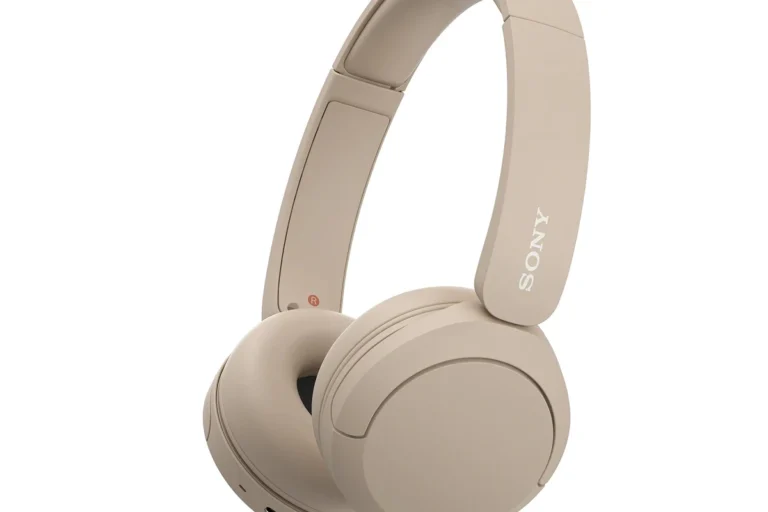
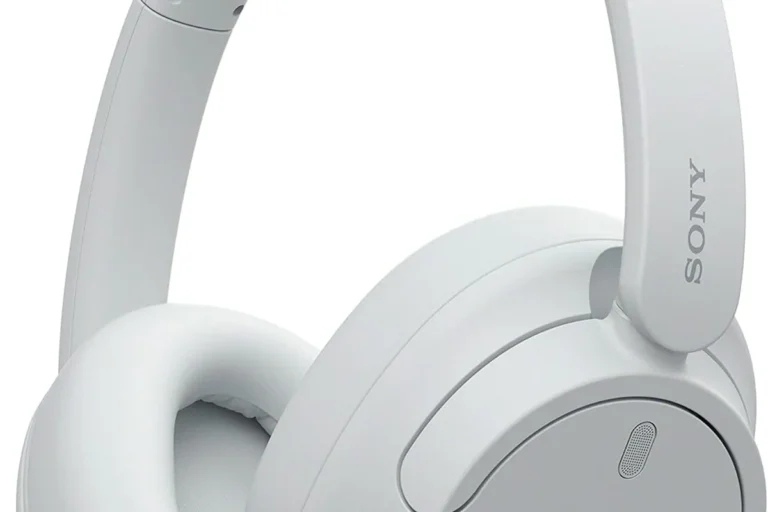
How to Stop Sony Headphones From Pausing When I Talk

Turn off Speak-to-Chat in the Sony Sound Connect app first, since that is the most common reason Sony headphones pause when you talk. If that does not fix it, check adaptive sound, wearing detection, firmware updates, fit, and Bluetooth conflicts.
If your Sony headphones pause every time you speak, the most likely cause is Speak-to-Chat, Sony’s voice-detection feature. The fastest fix is usually to turn that feature off in the Sony Sound Connect app, then check for any other auto-pause settings that may still be active.
- Start with Speak-to-Chat: It is the most common voice-triggered pause feature on Sony headphones.
- Check other smart settings: Adaptive sound, call detection, and wearing sensors can also interrupt playback.
- Fit matters: Loose earbuds or shifted ear cups can trigger false pauses.
- Update and reset: Firmware updates and re-pairing often solve stubborn glitches.
Why Sony Headphones Pause When You Talk: Understanding Speak-to-Chat and Auto-Pause Features
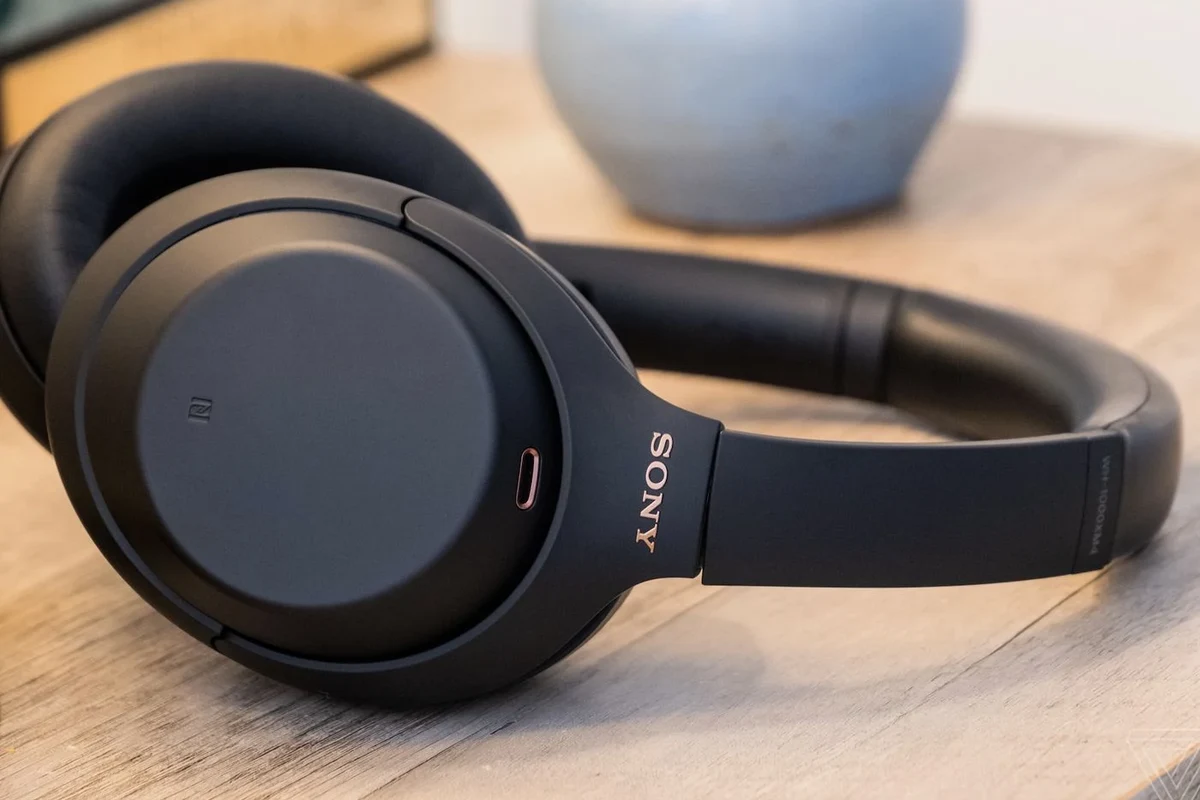
Sony built Speak-to-Chat to automatically lower or pause audio when it thinks you are talking. That can be useful if you often need quick conversations without removing your headphones, but it can also become annoying if it triggers too easily.
On many Sony wireless headphones and earbuds, the feature listens for your voice through the built-in microphones. If it detects speech, it may pause music, switch into ambient listening, or reduce playback volume depending on the model and settings.
It is also easy to confuse Speak-to-Chat with other pause triggers. Touch controls, wearing detection, call handling, adaptive sound modes, and even playback behavior from your phone or computer can all make it seem like the headphones are pausing for no reason.
Feature names and menu paths can vary by Sony model, firmware version, and app version. If your menus look slightly different, look for the closest voice-detection or auto-pause option.
How to Turn Off Speak-to-Chat in the Sony Headphones App

For most users, this is the main fix. Sony has moved app names over time, so you may see Bluetooth headphones explained differently across devices, but the goal is the same: find the voice-detection feature and disable it.
Step-by-Step Settings Path in the Sony Sound Connect App
Launch Sony Sound Connect on your phone and connect your headphones or earbuds.
Tap your connected Sony headphones from the device list if more than one product appears.
Look under sound, system, or voice-related settings for Speak-to-Chat or a similar voice-activation toggle.
Disable the toggle, then test playback by speaking normally to confirm audio stays on.
If you still want quick conversation control, check whether Sony offers a sensitivity option on your model. Some versions let you reduce how easily the feature triggers instead of fully disabling it.
After changing a voice-detection setting, close and reopen your music app before testing. That helps rule out a playback app glitch instead of a headphone setting issue.
What to Do if the App Doesn’t Show the Toggle
If you cannot find the Speak-to-Chat switch, update the Sony app first. Then check whether the headphones are fully connected and whether you are signed into the correct device profile.
Some older models or older firmware versions hide the setting in a different menu. In that case, try the headphone’s quick settings page, the general sound settings, or the help section inside the app.
If the toggle is still missing, a reset or re-pairing step may restore the missing controls. For a deeper refresh, you can also follow a general how to reset Bluetooth headphones guide before setting the Sony device up again.
Other Sony Settings That Can Make Audio Stop When You Speak
Even after disabling Speak-to-Chat, other smart features may still affect playback. This is especially common on Sony over-ear models and true wireless earbuds that use multiple sensors at once.
Adaptive Sound Control and Voice-Aware Behavior
Adaptive Sound Control can change how your headphones behave based on movement, location, or activity. In some cases, it may not fully pause audio, but it can make the experience feel like the headphones are switching modes whenever you talk or move around.
Look for settings tied to ambient sound, voice focus, or automatic scene detection. If you prefer stable playback, set the headphones to a fixed sound mode instead of an automatic one.
Some smart headphone features are designed to prioritize conversation and awareness over uninterrupted playback, which is why they can feel “too sensitive” in everyday use.
Multipoint, Call Detection, and Wearing Detection Conflicts
Multipoint can connect your Sony headphones to two devices at once, which is convenient but sometimes confusing. A notification, call, or voice assistant prompt from one device may interrupt music on the other.
Call detection can also make audio stop if the headphones think a call is starting. If your headphones pause only when a phone is nearby, check whether a call, assistant, or app permission is triggering the interruption.
Wearing detection is another common culprit. If the ear cups shift, the earbud seal loosens, or a sensor is blocked, the headphones may think you removed them and pause playback.
Model-Specific Fixes for Popular Sony Headphones in 2026
Different Sony models handle voice detection differently, so the best fix can vary. The good news is that most modern Sony models still let you control the behavior through the app, even if the menu labels are slightly different.
WH-1000XM5 and WH-1000XM6
These over-ear models are known for smart features that can react quickly to speech, ambient noise, and wear detection. If music pauses when you talk, start by checking Speak-to-Chat, then review adaptive sound and wearing detection settings.
Because over-ear headphones sit on sensors and microphones near the ear pads, a loose fit or a shifted cup can create false triggers. Make sure the headband is adjusted properly and the ear cushions are sealing evenly around both ears.
WF-1000XM5 and Other Sony Earbuds
With earbuds, the fit matters even more because the microphones and sensors are closer to your mouth and jaw movement. If the earbuds shift when you speak, the device may interpret that movement as a cue to pause or change modes.
Try a different ear tip size if the earbuds feel unstable. A better seal can reduce false pauses, improve bass response, and make noise cancellation more consistent during calls and daily listening.
Older Sony Models and Firmware Differences
Older Sony headphones may use different app layouts or older feature names. Some may show the same function under a different label, while others may not support the latest controls at all.
If your model is older, update the firmware before troubleshooting further. Firmware updates can fix sensor bugs, Bluetooth stability issues, and unexpected auto-pause behavior.
Common Mistakes People Make When Trying to Stop the Pausing
Many people spend time changing the wrong setting. Before you assume the headphones are broken, make sure you are not dealing with a feature conflict or a playback app issue.
Confusing Speak-to-Chat with Touch Controls or Media App Pauses
Speak-to-Chat pauses when it hears your voice. Touch controls pause when you tap the earcup or earbud. Media apps, meanwhile, may stop playback because of notifications, battery saver settings, or background restrictions on your phone.
If the pause happens only when you touch the headphones, the issue is not voice detection. If the pause happens only in one app, the problem may be in the phone or streaming app rather than the Sony headset.
Ignoring Firmware Updates and Reset Options
Firmware updates can quietly fix false triggers and sensor bugs. If you have not updated the headphones in a while, do that before changing too many settings.
If updates do not help, a full reset and re-pair can clear stuck behavior. If you are also troubleshooting pairing problems, our general guide on how to connect Bluetooth headphones can help you rebuild the connection cleanly.
When the Problem Is Not a Setting: Hardware, Mic, and Environment Checks
If Sony headphones still pause when you talk after changing the settings, the issue may be physical or environmental. Microphones, sensors, Bluetooth, and even wind noise can all cause false detection.
Dirty Sensors, Loose Fit, or Wind Noise Triggering False Pauses
Clean the earcup or earbud sensors gently with a dry, soft cloth. Sweat, skin oil, dust, and makeup residue can interfere with the sensors that detect wearing position or voice activity.
A loose fit is another common issue. If the headphones move when you speak, the sensors may think you removed them or changed listening mode.
Outdoor wind can also confuse microphones, especially on ANC headphones and earbuds. If the problem happens mostly outside, test the headphones indoors to see whether the environment is the trigger.
Do not use liquids, sprays, or abrasive cleaners on headphone sensors or microphone openings unless Sony specifically allows it for your model.
Bluetooth Interference and Device-Side Playback Issues
Bluetooth interference can cause brief pauses, dropouts, or skipped playback that feel like feature-related stopping. Wireless congestion from nearby devices, crowded offices, and weak phone Bluetooth performance can all contribute.
Try pairing with a different device to see whether the issue follows the headphones or stays with the phone, tablet, or computer. If the problem only happens on one device, the playback settings there may need attention.
For readers comparing wireless behavior in general, our guide to how noise cancelling headphones work is useful for understanding why ANC and microphones sometimes interact with voice detection.
Expert Advice: Best Practices to Prevent Accidental Pausing Without Losing Useful Voice Features
Not everyone wants to turn every smart feature off. In some cases, it is better to reduce sensitivity or change how the headphones behave during conversations.
When to Disable the Feature Completely vs. Adjust Sensitivity
Disable Speak-to-Chat completely if you listen in quiet spaces, gaming setups, or work calls where surprise pauses are frustrating. This is usually the best choice for people who want stable playback above all else.
If you often take short conversations and still want the headphone to react quickly, try adjusting sensitivity first if your model allows it. That gives you a middle ground between convenience and control.
If your headphones pause because one side sounds unstable, one earbud disconnects, or a sensor seems physically damaged, contact Sony support or a qualified repair service. If you also notice hearing changes, ringing, or discomfort, consult an audiologist.
Cost and Value Comparison: App Fixes vs. Replacement or Service
Most pausing problems can be solved with app settings, firmware updates, cleaning, or re-pairing, which costs nothing. That is why software troubleshooting should always come before replacement.
If the headphones still misbehave after those steps, service may be worth considering only if the model is still in good condition and the repair cost makes sense for your budget. For older or heavily worn models, replacement can be the better value.
Listening at high volumes for long periods can cause hearing damage. Keep volume at 60% or below for extended sessions.
Final Recap: The Fastest Way to Stop Sony Headphones From Pausing When You Talk
The quickest fix is to open the Sony Sound Connect app, find Speak-to-Chat, and turn it off. If that does not solve it, check adaptive sound, multipoint, call detection, wearing detection, firmware updates, and fit-related sensor issues.
In most cases, the problem is a setting rather than a defect. Once you identify the trigger, you can keep the useful parts of Sony’s smart features without the frustrating pause every time you speak.
Frequently Asked Questions
Wireless Sony headphones are more convenient and often include smart features like noise cancellation and voice detection. Wired headphones can be more stable for latency-sensitive use, but they do not usually include those app-based controls.
Noise cancelling can improve clarity in loud places by reducing background sound, but it may also interact with microphone-based features. If you hear unexpected pauses, check whether voice detection or ambient sound modes are active.
Closed-back headphones are usually better for travel, commuting, and shared spaces because they block more outside noise. Open-back headphones can feel more spacious, but they are less private and usually not ideal for noisy environments.
Look at the driver type, tuning style, and EQ support more than a single spec like frequency response. Bass, clarity, and soundstage can vary by model and personal preference, so app-based EQ can make a big difference.
For commuting, prioritize noise cancelling, comfort, and battery life. For gaming or studio work, focus on low latency, microphone quality, wired compatibility, and a sound profile that matches your use case.
Weight, clamp force, cushion material, and ear tip fit all affect long-term comfort. Build quality and replaceable pads or tips can also help the headphones last longer.