Can I Connect Bluetooth Headphones to TV Easily

Yes, you can connect Bluetooth headphones to a TV if the TV supports Bluetooth audio or if you use a Bluetooth transmitter. The easiest setup depends on your TV model, and the biggest thing to watch for is audio delay.
If you’re asking, “can i connect bluetooth headphones to tv,” the short answer is yes in many cases. The easiest method depends on whether your TV already has Bluetooth built in, or whether you need a transmitter, streaming device, or console workaround.
For most viewers, the real question is not just whether it works, but how well it works. Audio delay, pairing limits, and volume control can make a big difference for gaming, movies, and late-night TV.
- Built-in Bluetooth: Easiest option when your TV supports headphone audio.
- Transmitters help: Best fallback for TVs without native Bluetooth output.
- Latency matters: Gaming and movies can suffer from lip-sync delay.
- Comfort counts: Over-ear models usually suit long viewing sessions best.
Can I Connect Bluetooth Headphones to TV? What Most Viewers Need to Know in 2025
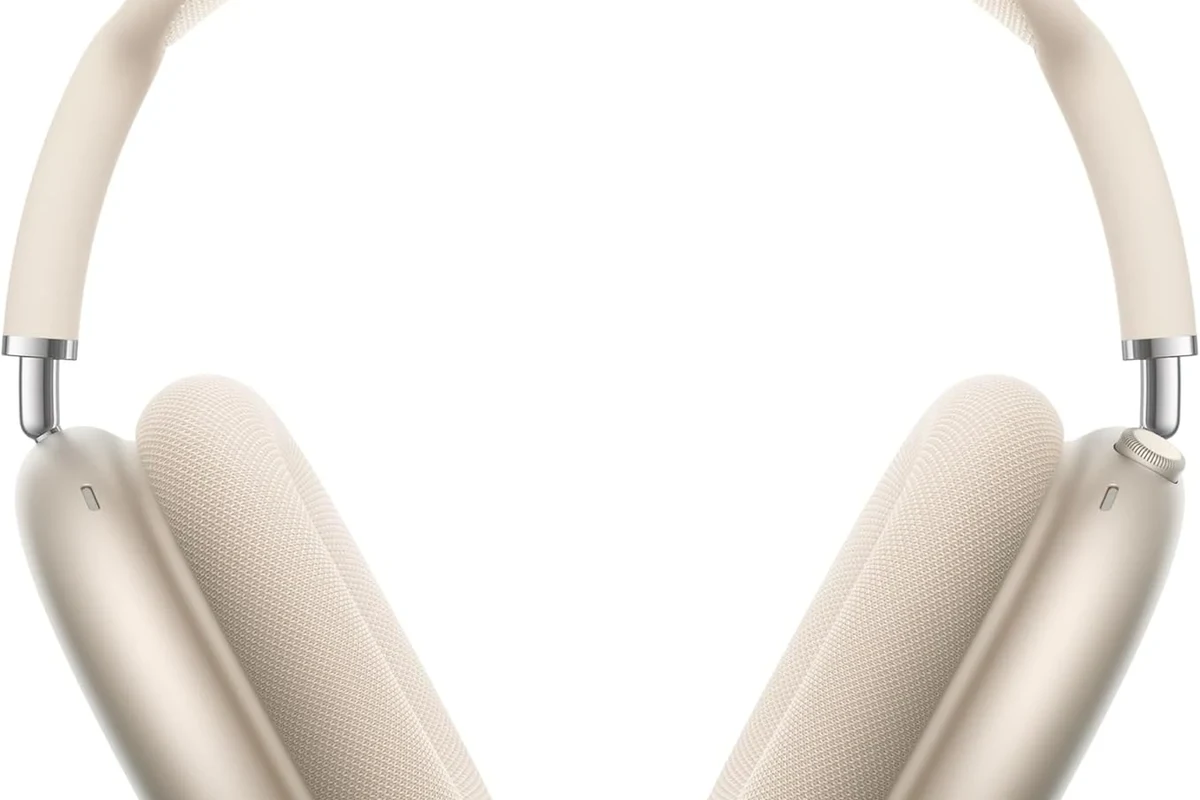
In 2025, Bluetooth headphone support on TVs is much more common than it used to be, but it is still not universal. Some TVs connect directly through built-in Bluetooth menus, while others only support Bluetooth for remotes or accessories, not audio.
That means the first step is checking your TV’s audio settings or user manual. If the TV does not support headphone audio over Bluetooth, you can usually solve the problem with an external transmitter or adapter.
Bluetooth support varies by TV brand, model, and software version. A feature listed as “Bluetooth” does not always mean it supports wireless headphone audio.
How Bluetooth TV Headphone Connections Work and Why Compatibility Matters
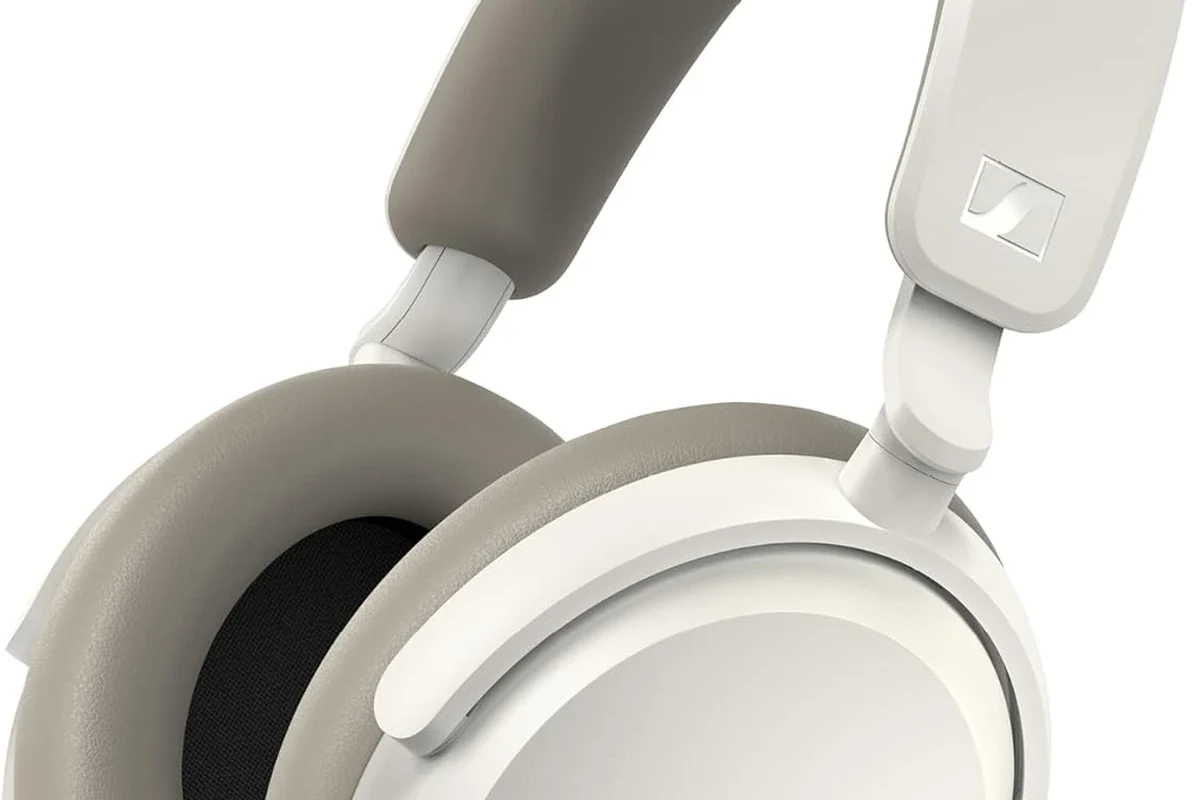
Bluetooth headphones need a source device that can send audio wirelessly. On a TV, that source may be built in, or it may come from an external transmitter plugged into the TV’s audio output.
Compatibility matters because not every Bluetooth implementation behaves the same way. Some setups are smooth and stable, while others introduce lag, dropouts, or limited range depending on the TV, headphones, and codec support.
Built-in Bluetooth vs. External Transmitters
Built-in Bluetooth is the simplest option because it avoids extra cables and accessories. You open the TV settings, put the headphones in pairing mode, and connect them like you would with a phone or laptop.
An external transmitter is often the better fallback when the TV lacks audio Bluetooth or when you want more control over latency. Many people use a transmitter with optical, AUX, or USB audio output to add wireless headphone support to older TVs.
TV Audio Delay, Codec Support, and Lip-Sync Issues
Bluetooth audio delay is one of the biggest reasons people get frustrated. Even a small delay can make dialogue look out of sync with the picture, which is especially noticeable during movies and fast-paced games.
Codec support can help, but only if both the TV and headphones support the same codec. In practice, many users care less about the technical name and more about whether the audio feels tight, natural, and usable.
Low-latency claims are not always reliable across every TV and headphone combination. Real-world results may differ by brand, signal path, and distance from the TV.
Step-by-Step Ways to Connect Bluetooth Headphones to a TV
There are several ways to connect Bluetooth headphones to a TV, and the best one depends on your gear. The steps below cover the most common setup paths for beginners and casual viewers.
Using a TV’s Native Bluetooth Settings
If your TV has native Bluetooth audio, start in the settings menu and look for sound, audio output, or Bluetooth device options. Put your headphones in pairing mode, then select them from the TV list when they appear.
After pairing, test the volume and check for any delay. If the TV lets you save the headphones as an output device, that makes reconnecting much easier the next time you watch.
Look for Bluetooth, sound output, or device connection settings.
Follow the headset’s pairing instructions until it appears on the TV.
Confirm the connection, then check volume, lip sync, and range.
Pairing Through a Bluetooth Transmitter or Adapter
If your TV does not support Bluetooth headphones directly, a transmitter is often the easiest fix. Plug the transmitter into an audio output on the TV, then pair the transmitter with your headphones.
This approach can be especially useful for older televisions, projectors, and some sound systems. It also gives you a bit more control over the connection because you can choose a transmitter designed for low latency or stronger range.
If you notice a delay, check whether your transmitter and headphones support the same low-latency mode. Matching the hardware matters more than the marketing label.
Connecting via Streaming Devices, Soundbars, or Consoles
Some viewers connect headphones through a streaming device, soundbar, or game console instead of the TV itself. This can work well when the TV’s own Bluetooth features are limited or missing.
For example, a console may support headset pairing directly, while a soundbar may pass audio through in a way that is more convenient for shared living-room setups. Just remember that every extra device can change audio delay and volume behavior.
For readers who want a broader setup walkthrough, our guide on how to connect Bluetooth headphones covers the general pairing process in more detail.
Best TV and Headphone Pairing Scenarios for Gaming, Movies, and Late-Night Viewing
The best Bluetooth headphone setup is not the same for everyone. A gaming setup usually needs lower latency, while movie watchers may care more about comfort, battery life, and stable range from the couch.
Late-night TV viewers often want one simple thing: clear sound without waking anyone else. In that case, a reliable pair of wireless headphones can be more useful than a premium feature list.
Low-Latency Setup for Gaming
Gaming is where Bluetooth can be tricky. If the sound is even slightly behind the action, it can affect timing, dialogue, and overall immersion.
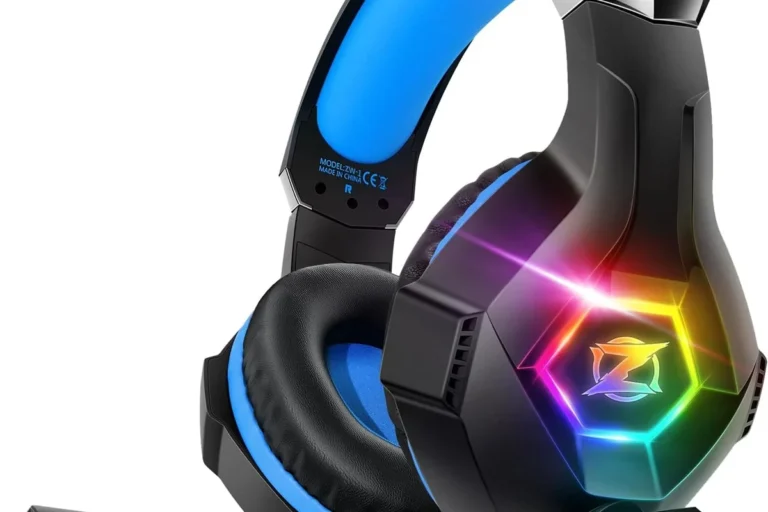
For this use case, a low-latency transmitter or a gaming-focused wireless solution is often the smarter choice. If you also play on a console, it may be worth comparing Bluetooth with dedicated wireless headset options before buying.
Some people notice lip-sync problems only after switching from speakers to headphones, because headphone detail makes timing issues easier to hear.
Comfort and Range for Movies and Sports
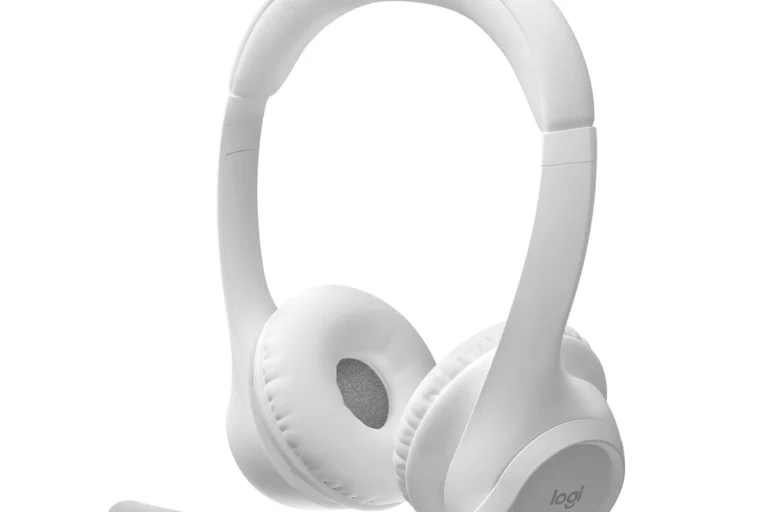
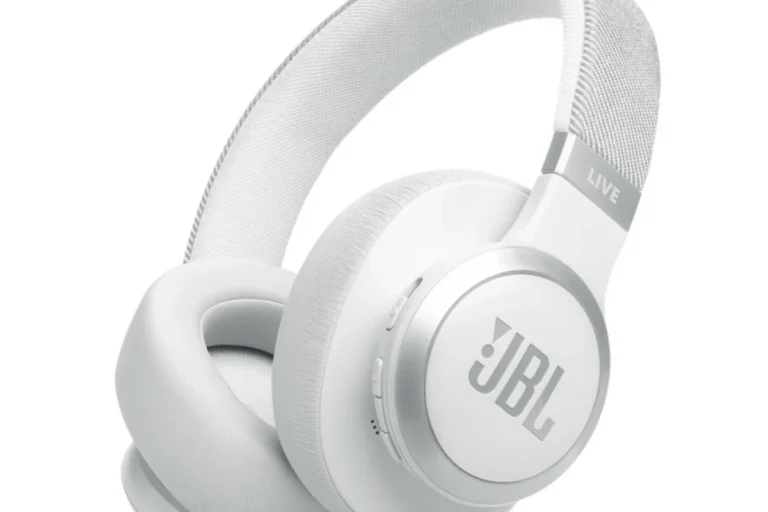
For movies and sports, comfort matters almost as much as sound quality. Over-ear headphones usually feel better for long viewing sessions, while lighter on-ear or in-ear models may be better for quick use.
Range also matters if you move around the room, grab snacks, or step away during commercials. A stable connection is often more valuable than chasing the highest possible spec on paper.
Shared Listening and Multi-Device Use Cases
Some households want one TV setup that works for more than one person. That could mean sharing a transmitter, switching between headphones, or pairing multiple devices one at a time.
In these situations, simplicity usually wins. A setup that reconnects quickly and behaves consistently is often better than one with advanced features you rarely use.
Common Problems When Connecting Bluetooth Headphones to TV
Even when Bluetooth works, it does not always work perfectly. The most common complaints are missing Bluetooth menus, lag, unstable range, and limited control over volume or microphone features.
No Bluetooth Option on the TV
If you cannot find a Bluetooth audio option, your TV may not support headphone output over Bluetooth at all. Some models only use Bluetooth for remotes, keyboards, or service accessories.
In that case, an external transmitter is usually the most practical solution. It is often cheaper and easier than replacing the TV just for wireless headphone support.
Audio Lag, Dropouts, and Limited Range
Audio lag can happen when the TV, transmitter, and headphones do not communicate efficiently. Dropouts can also appear if you sit too far away, if there is interference, or if the signal path is blocked.
To reduce issues, keep the transmitter in a clear line of sight when possible and avoid crowding it behind other electronics. If the lag is still noticeable, a different transmitter or a lower-latency headphone set may be needed.
Listening at high volumes for long periods can cause hearing damage. Keep volume at 60% or below for extended sessions.
Volume Control and Microphone Limitations
TV Bluetooth setups often handle playback better than two-way communication. That means microphone support may be limited or unavailable, especially if you are using standard headphones rather than a full headset.
Volume control can also vary by device. Sometimes the TV controls the level, sometimes the headphones do, and sometimes both affect the final loudness in slightly different ways.
If you have persistent hearing difficulty, ringing in the ears, or pain during listening, speak with an audiologist or hearing professional before increasing volume or changing your audio setup.
What It Costs: Built-In Bluetooth vs. Bluetooth Transmitter vs. Upgrading Headphones
Costs vary a lot because there is no single “right” setup. A TV with built-in Bluetooth may cost nothing extra to use, while a transmitter or headphone upgrade adds another layer of spending.
The best value depends on what you already own and how sensitive you are to delay, comfort, and convenience. For many people, the cheapest path is not always the most satisfying one.
Budget-Friendly Adapter Options
Budget adapters can be a good entry point if you only want basic wireless headphone support. They are often enough for casual TV watching, but performance can vary widely.
When shopping budget gear, pay attention to audio output support, latency claims, and how easy it is to pair. A low sticker price is not helpful if the connection is unstable or confusing to use.
Mid-Range and Premium Solutions for Better Latency
Mid-range and premium transmitters usually make sense for viewers who care more about smooth lip-sync and consistent range. They may also offer better build quality and easier switching between devices.
If you already own good headphones, upgrading the transmitter can be a smarter move than replacing everything. But if your headphones are uncomfortable or outdated, a new pair may improve your experience more than a better adapter.
Expert Advice: Mistakes to Avoid Before Buying or Pairing Bluetooth Headphones with a TV
The biggest mistake is assuming all Bluetooth setups behave the same. Two devices may both say “Bluetooth,” yet one works beautifully for TV audio while the other struggles with lag or poor range.
It also helps to think about your main use case before buying. Gaming, movies, sports, and late-night viewing all put different demands on headphones and transmitters.
Warning About Codec Mismatch and Latency Claims
Codec names can sound reassuring, but they only matter if the full chain supports them. If the TV, transmitter, and headphones do not line up, the feature may not deliver the result you expect.
When a product promises “no lag,” read that as a best-case claim, not a guarantee. Real-world performance can still change with distance, interference, and the device you are using.
Why Not All “Bluetooth” TV Features Are Equal
Some TVs advertise Bluetooth without supporting headphone audio in a useful way. Others support pairing but make it awkward to reconnect, control volume, or keep the audio in sync.
That is why it helps to check the exact wording in the manual or settings menu before buying anything extra. A few minutes of research can save a lot of frustration later.
If you are still learning the basics of wireless audio, our article on Bluetooth headphones explained simply is a helpful companion read. For readers comparing wireless and wired use cases, Bluetooth vs wired headphones sound quality is also worth a look.
Final Recap: The Easiest Way to Connect Bluetooth Headphones to TV Without Hassle
So, can you connect Bluetooth headphones to a TV? In many cases, yes, but the easiest path depends on whether your TV already supports Bluetooth audio or needs an external transmitter.
If you want the simplest setup, start with the TV’s built-in Bluetooth menu. If that fails, a good transmitter is usually the most practical fix for reliable listening, especially when you care about movies, gaming, or late-night use.
For readers who want to troubleshoot pairing problems later, our guide on how to reset Bluetooth headphones can help when a headset refuses to reconnect.
Frequently Asked Questions
No, not all TVs support Bluetooth headphone audio. Some only use Bluetooth for remotes or accessories, so you may need a transmitter.
Wireless headphones are more convenient, but wired headphones usually avoid Bluetooth lag. The better choice depends on whether you value freedom of movement or zero-delay audio.
Yes, noise cancelling headphones can make dialogue easier to hear in noisy rooms. Comfort and latency still matter, especially for long movie sessions.
Closed-back headphones are usually better for TV because they block more outside noise and keep sound from leaking out. Open-back models can sound spacious, but they are less private.
For gaming, focus on latency, comfort, battery life, and stable wireless range. Driver type and EQ can affect sound, but timing and fit usually matter more.
Look for lightweight designs, soft ear cushions, and a secure but gentle fit. Build quality and padding materials can make a big difference during long viewing sessions.