How to Connect Wireless Headphones to Samsung TV Without Bluetooth Easily

The easiest non-Bluetooth method is usually an optical audio transmitter connected to the Samsung TV. If your TV lacks optical out, RCA or 3.5mm transmitter setups can still work well depending on the model.
If you want to connect wireless headphones to a Samsung TV without Bluetooth, the easiest path is usually an external audio transmitter or an audio bridge device. The right setup depends on which outputs your TV has, but in most cases you can get clear, private listening without relying on built-in Bluetooth at all.
- Best method: Optical audio plus a wireless transmitter is usually the simplest choice.
- Older TVs: RCA or headphone jack setups can work well with the right adapter.
- Buy carefully: Check latency, range, and TV output compatibility before purchasing.
- Watch for delay: Test lip-sync and volume control before long viewing sessions.
How to Connect Wireless Headphones to Samsung TV Without Bluetooth: What This Guide Covers
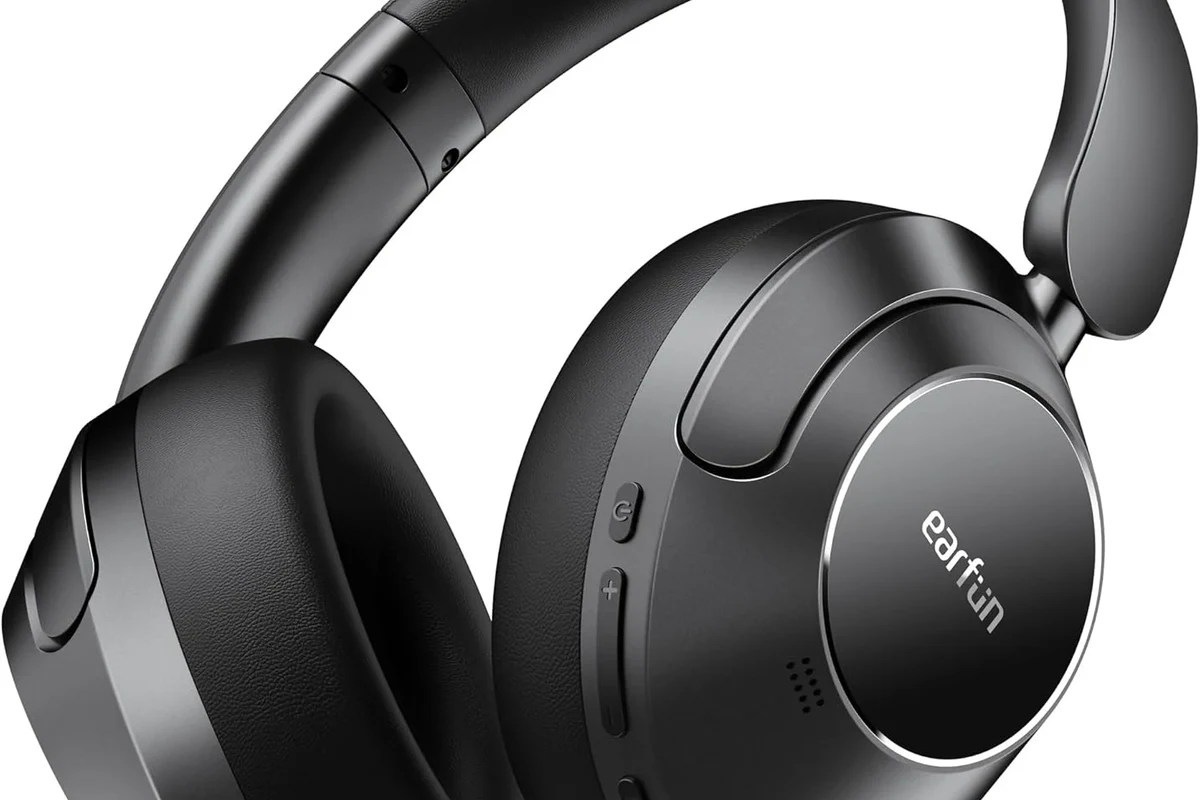
This guide explains the most practical ways to use wireless headphones with a Samsung TV when Bluetooth is missing, disabled, or not ideal. We’ll cover optical audio transmitters, RCA and 3.5mm setups, USB-style adapters, and even soundbars or AV receivers as a middle step.
You’ll also see simple setup examples for common Samsung TV output types, plus buying tips for latency, range, and compatibility. If you’re comparing audio connection methods in general, our guide on wired and wireless headphones is a helpful starting point.
Why Samsung TV Bluetooth Isn’t Always the Best Option in 2026
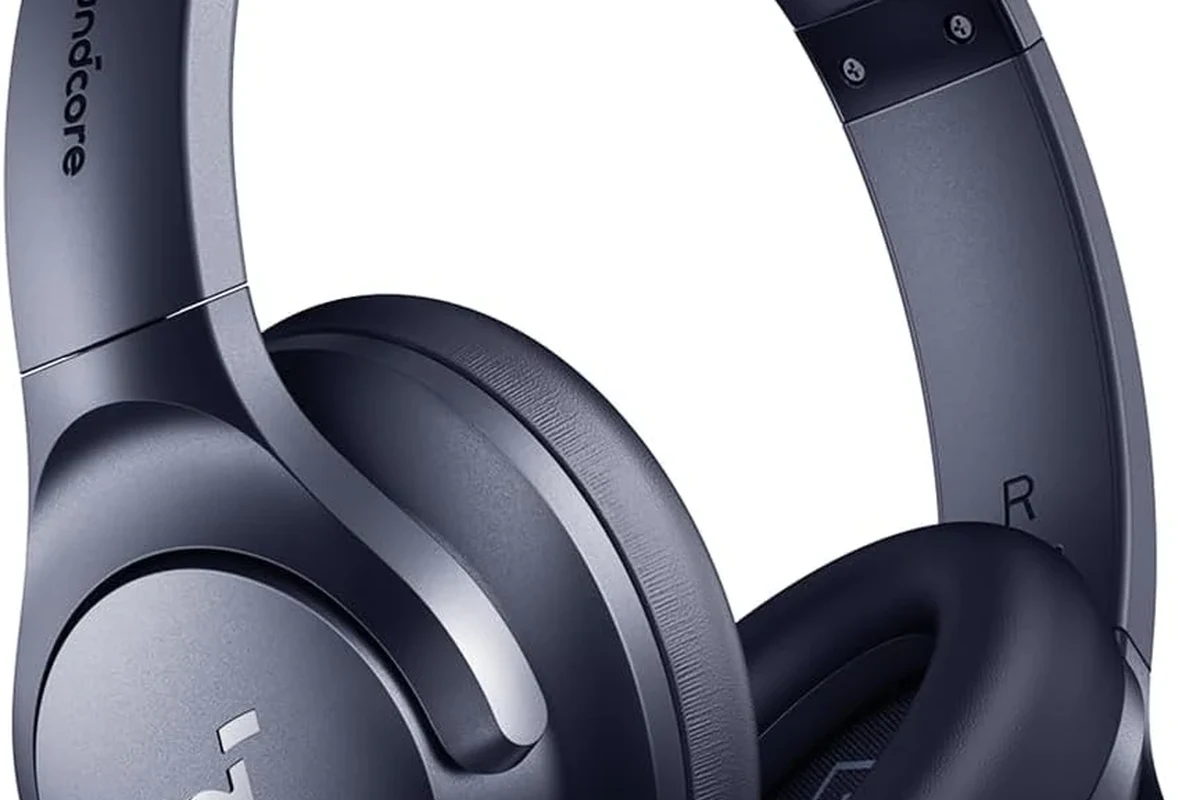
Bluetooth is convenient, but it is not always the best audio path for TV watching. On some Samsung TVs, Bluetooth can introduce delay, limit codec support, or create pairing issues that are especially noticeable during movies, sports, or gaming.
That matters because lip-sync problems are easier to notice on a big screen than on a phone. Some users also prefer a dedicated transmitter because it can provide a more stable connection, especially when the TV’s built-in wireless features are limited or inconsistent.
Audio behavior can vary by Samsung TV model, headphone brand, and transmitter type. A setup that works well for one home theater may behave differently in another room.
Best Ways to Use Wireless Headphones with a Samsung TV Without Bluetooth
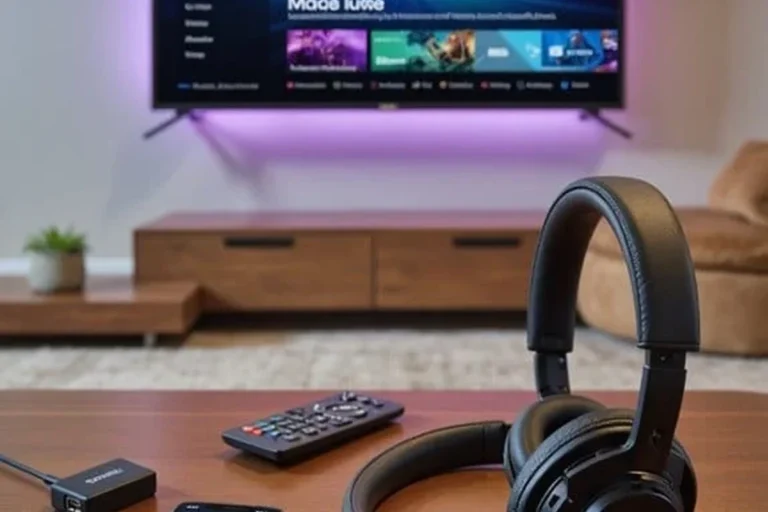
The best method depends on what audio outputs your Samsung TV provides. In many homes, the cleanest solution is to send TV audio into a wireless transmitter, which then pairs with your headphones.
If you are still deciding between connection styles, our Bluetooth vs wired headphones sound quality article can help you understand the tradeoffs. For TV use, the goal is usually low delay, easy volume control, and a stable connection across the couch.
Using a Wireless Headphone Transmitter with Optical Audio
This is often the most reliable option for modern Samsung TVs. If your TV has an optical audio output, you can connect it to a wireless transmitter that sends sound to your headphones without using Bluetooth on the TV itself.
Optical connections are popular because they are simple and usually deliver clean digital audio. They are especially useful if you want to avoid extra noise or interference from analog cabling.
Using a 3.5mm or RCA Audio Transmitter Setup
Older Samsung TVs may include a headphone jack or RCA outputs, and those can work well with a compatible transmitter. You simply route the TV’s analog audio into the transmitter, then pair the transmitter with your wireless headphones.
This method is straightforward and often affordable. The main limitation is that analog outputs can vary in quality, so the result depends on the TV’s sound hardware and the transmitter you choose.
If your TV has both optical and analog outputs, try optical first for the cleanest signal and simplest setup.
Using a USB Audio Adapter or TV-Compatible Dongle
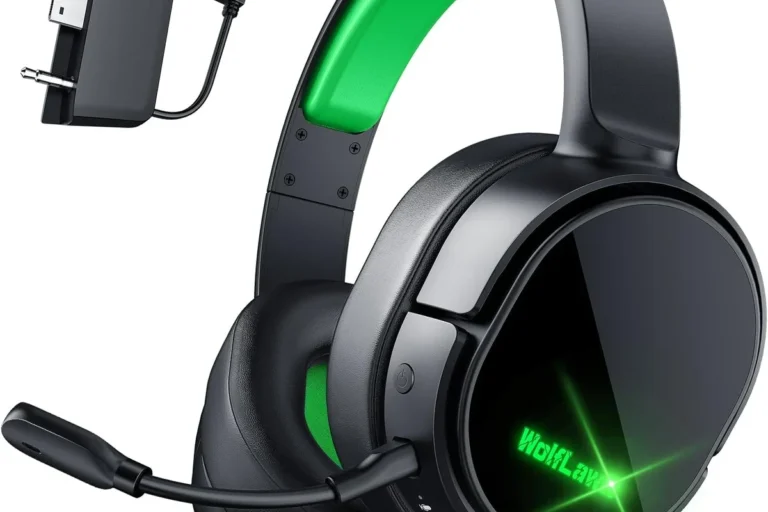
Some users look for a USB audio adapter or a TV-compatible dongle when the TV’s built-in outputs are limited. In practice, this only works if the Samsung TV supports that USB audio device properly, so compatibility matters more than the connector itself.
Before buying, check whether the dongle is designed for television audio, not just for computers or game consoles. A USB port on a TV is not automatically an audio output, so this option needs more caution than optical or RCA.
Do not assume every USB audio adapter will work with every Samsung TV. TV USB ports often support media playback or service functions, not full audio output.
Using a Soundbar or AV Receiver as the Audio Bridge
If your Samsung TV already connects to a soundbar or AV receiver, that device may become the easiest bridge to your headphones. Some soundbars and receivers can pass audio through, or provide a headphone output that works with a separate wireless transmitter.
This can be a smart option for living rooms that already use a home theater setup. It may also reduce cable clutter because the transmitter sits closer to the main audio system rather than directly behind the TV.
Step-by-Step Setup Examples for Real Samsung TV Models
Samsung TV models vary a lot by year and series, so the easiest setup depends on the outputs available on your specific set. Use the examples below as practical templates rather than exact instructions for every model.
- Available audio outputs on the TV
- Whether the transmitter supports that output
- How you will control volume for the headphones
Example: Samsung TV with Optical Out Only
This is one of the simplest modern setups. Connect an optical cable from the TV to a wireless headphone transmitter, power the transmitter, and pair your headphones according to the transmitter’s instructions.
Then go into the TV audio settings and make sure the optical output is active. If the sound is too quiet or too loud, adjust the transmitter or headphones rather than assuming the TV volume alone will solve it.
Run the optical cable from the Samsung TV’s optical output to the transmitter input.
Turn on the transmitter, then pair your wireless headphones following the device instructions.
Play dialogue-heavy content and check for lip-sync delay before settling in for a long session.
Example: Samsung TV with HDMI ARC/eARC and No Bluetooth
If your TV uses HDMI ARC or eARC with a soundbar, you may be able to connect the headphones through the soundbar instead of the TV. In that case, the soundbar becomes the audio hub and the transmitter connects to the soundbar’s available output.
This can be useful if the TV itself has fewer audio ports. It is also common in setups where the TV is wall-mounted and the sound system already handles most of the audio work.
Example: Older Samsung TV with RCA or Headphone Jack
Older Samsung TVs often offer the easiest analog options. A 3.5mm or RCA cable can feed a transmitter directly, which then sends audio to your wireless headphones.
This setup is especially useful if you want a low-cost solution and do not need advanced features. Just remember that analog outputs may need a little more volume balancing than optical setups.
Some headphone lag issues are caused by the transmitter, not the headphones themselves. That is why audio bridge quality matters so much for TV use.
What to Look for When Buying a Wireless Headphone Transmitter
Not every transmitter is built for TV listening, and that difference matters. The best choices usually focus on low latency, stable range, and support for the exact audio output on your Samsung TV.
It also helps to think about your listening habits. Gaming, late-night movies, and casual news watching all place slightly different demands on the audio chain.
Latency, Range, and Audio Codec Support
Latency is the delay between what happens on screen and what you hear in your headphones. For TV and gaming, lower latency is usually better because it keeps dialogue and sound effects aligned with the picture.
Range matters too, especially in open floor plans or larger living rooms. Codec support can also affect performance, but the real-world result depends on both the transmitter and the headphones, so it is best to check compatibility carefully.
If you notice persistent lip-sync issues or hearing discomfort, consider speaking with an audiologist or a professional audio specialist. For safe listening, follow general hearing guidelines and avoid long sessions at high volume.
Compatibility with Samsung TV Audio Outputs
This is the part many buyers overlook. A transmitter may be excellent, but if it does not match your TV’s output type, it will not help you.
Check whether your Samsung TV has optical out, RCA, headphone out, HDMI ARC/eARC, or only USB ports. That single detail will narrow your options much faster than comparing marketing claims.
Price Comparison: Budget vs Mid-Range vs Premium Options
Budget transmitters can be fine for simple movie watching, especially if your TV already has a clean audio output. Mid-range models often strike a better balance between latency, build quality, and connection stability.
Premium options may offer stronger range, better codec support, or more flexible input/output choices. Still, the right model depends on your TV and headphones, so a higher price does not automatically guarantee a better experience.
Common Mistakes People Make When Connecting Wireless Headphones to Samsung TV
One common mistake is buying a transmitter before checking the TV’s actual outputs. Another is assuming every wireless headphone model will work the same way, even though latency and pairing behavior can differ.
People also forget to test volume control early. Some setups make the TV volume irrelevant once the transmitter is in use, while others still rely on the TV’s audio level for proper output.
- Private listening without TV Bluetooth
- Works with many Samsung TV models
- Can reduce lag with the right transmitter
- Not every output is equally compatible
- Some setups need extra cables or adapters
- Audio delay can still happen with poor devices
Expert Advice: Audio Delay, Volume Control, and Lip-Sync Warnings
For TV viewing, audio delay is the issue most likely to ruin the experience. If dialogue looks slightly late or early, try a different transmitter mode, a different output, or a TV audio sync setting if your Samsung model offers one.
Volume control can also be confusing. Some systems let the transmitter control headphone volume, while others depend on the headphones themselves, so test both before a long movie night.
Protect Your Hearing
Listening at high volumes for long periods can cause hearing damage. Keep volume at 60% or below for extended sessions.
For readers who also use headphones with other devices, our guide on how to connect Bluetooth headphones can help you compare pairing styles. And if you want a broader overview of comfort, fit, and design, check out types of headphones explained for more buying context.
Final Recap: The Easiest Non-Bluetooth Method for Samsung TV Headphones
If you want the simplest answer, optical audio plus a wireless headphone transmitter is usually the easiest non-Bluetooth method for a Samsung TV. It is often the cleanest mix of stability, sound quality, and low setup hassle.
If your TV does not have optical out, a 3.5mm or RCA transmitter setup can still work well, especially on older models. The best choice is the one that matches your TV’s outputs, your listening distance, and your tolerance for audio delay.
- Optical audio with a transmitter is usually the easiest solution.
- Analog outputs work well on older Samsung TVs.
- Check latency, range, and output compatibility before buying.
- Test volume and lip-sync before long listening sessions.
If you are shopping for a TV headphone setup, focus on compatibility first and features second. That approach will save you time, reduce frustration, and give you a much better chance of getting clear wireless sound from your Samsung TV without Bluetooth.
Frequently Asked Questions
Wireless headphones are more convenient for couch viewing and late-night TV, while wired headphones usually avoid latency and charging issues. The better choice depends on whether you value freedom of movement or the most direct audio path.
Noise cancelling headphones can help block room noise and make dialogue easier to hear at lower volume. They are useful for shared spaces, but comfort and audio delay still matter for long TV sessions.
Closed-back headphones are usually better for TV because they keep sound in and reduce outside noise. Open-back models can sound wider, but they leak audio and are less private for living room use.
For TV use, look at latency, wireless range, battery life, and comfort first. Sound quality details like bass, clarity, and frequency response still matter, but sync and fit usually affect the experience more.
Start by checking the TV audio mode, transmitter settings, and headphone EQ if available. Small EQ changes can improve dialogue clarity or bass balance, but the best result depends on the headphone driver and tuning.
Look for comfortable ear cushions, stable wireless connection, and enough battery life for your viewing habits. Budget models can be a good value if they match your TV setup and do not introduce noticeable lag or weak build quality.