Does Apple Headphones Work on PC A Quick Guide

Yes, Apple headphones usually work on a PC for basic listening and calls. The exact experience depends on the model, the connection type, and how well Windows supports the microphone and controls.
If you’re asking does apple headphones work on pc, the short answer is yes in most cases. The exact experience depends on which Apple headphones you own and whether you connect them by wired jack, Bluetooth, or an adapter.
- Basic playback: Usually works on Windows PCs.
- Best connection: Wired is simplest; Bluetooth needs pairing.
- Feature limits: Apple-only extras often do not carry over.
- Mic support: May need app and Windows settings checks.
Does Apple Headphones Work on PC? Search Intent and Quick Answer
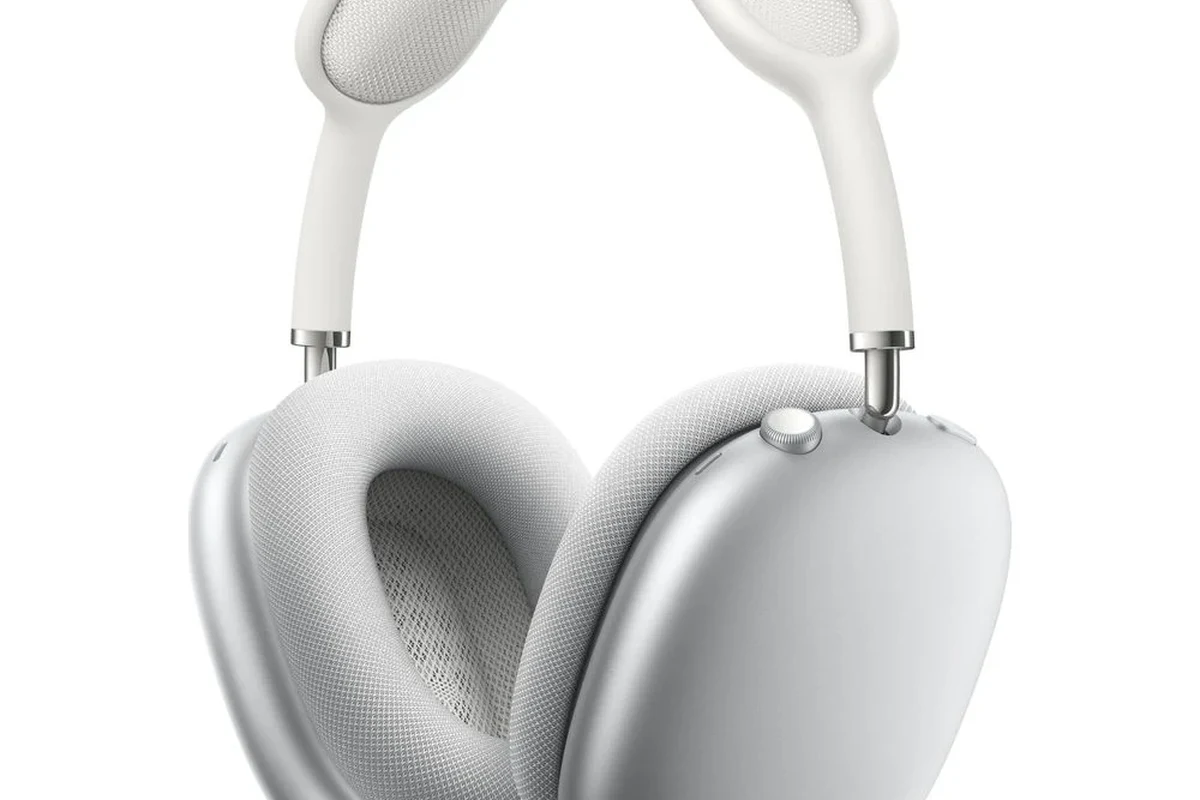
Apple headphones can work on a Windows PC for listening to music, watching videos, gaming, and even calls. But not every Apple feature carries over, and some models need a little setup to work properly on Windows 10 or Windows 11.
For many users, the biggest question is not “will they connect?” but “what will actually work once they do?” That’s where model type matters. If you want a broader look at connection methods, our guide on how to connect Bluetooth headphones can help you understand the basics before pairing.
Which Apple Headphones Are We Talking About in 2026?
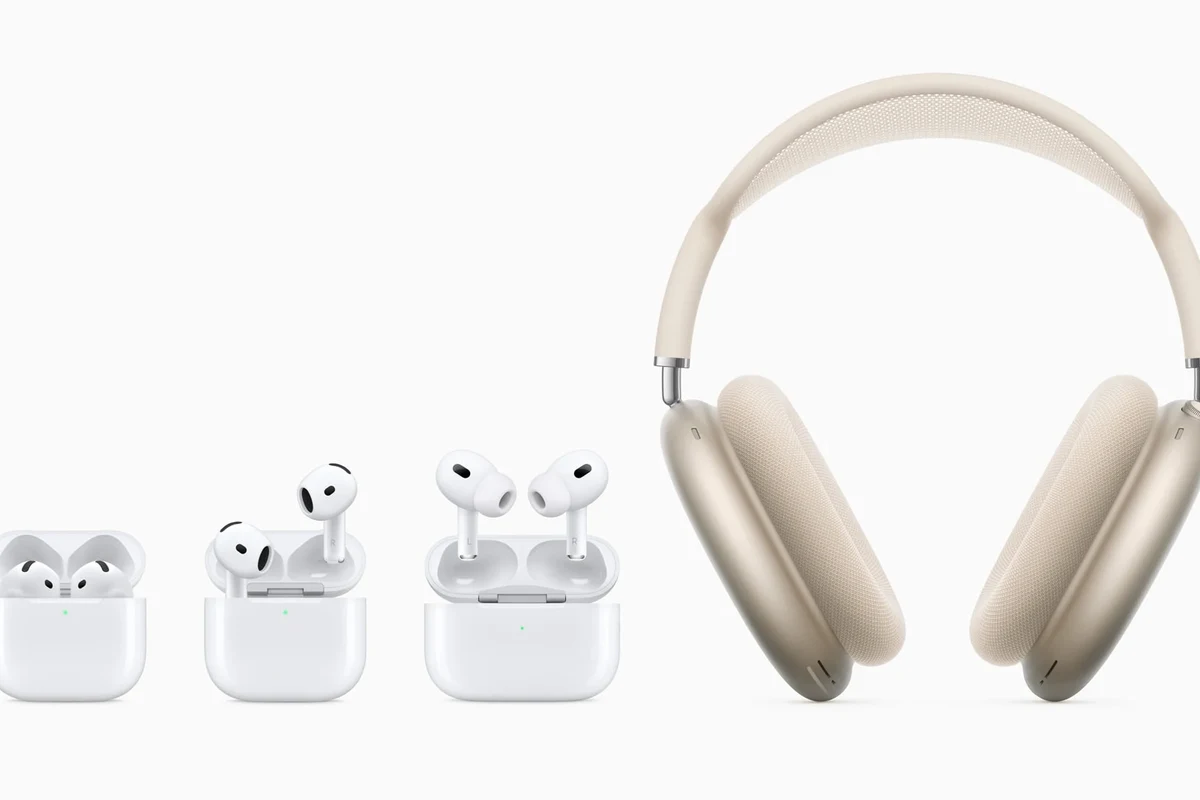
“Apple headphones” can mean several different products, and each one behaves a little differently on a PC. That includes classic EarPods, newer USB-C versions, AirPods, AirPods Pro, and AirPods Max.
Before buying or troubleshooting, it helps to know the connection type first. If you want a simple overview of how different designs compare, see our guide to types of headphones explained.
Wired EarPods and Lightning EarPods
Standard wired EarPods are usually the easiest Apple headphones to use on a PC. If your desktop or laptop has a 3.5mm headphone jack, they often work right away for audio playback and basic microphone use.
Lightning EarPods are a different story. Those are designed for Apple devices with Lightning support, so on a PC they usually need an adapter or a compatible interface to work at all.
AirPods, AirPods Pro, and AirPods Max
AirPods and AirPods Pro connect to Windows PCs over Bluetooth. That means they can work for listening, video calls, and general use, but Windows will not always handle them exactly like an iPhone or Mac does.
AirPods Max can also work on PC, either over Bluetooth or with a wired connection if your setup supports it. The result is usually solid for casual listening, though not every Apple feature is available in the Windows environment.
USB-C Apple Headphones and Adapter-Based Models
USB-C Apple headphones are becoming more common, especially as device ecosystems move away from Lightning. On a PC, USB-C audio may work if the port and adapter chain are compatible.
That said, adapter-based setups can be hit or miss. The more adapters you stack, the more likely you are to run into mic issues, detection problems, or lower build quality.
Compatibility can vary by exact model, Windows version, and whether your PC uses a built-in audio jack, a Bluetooth adapter, or a USB-C audio path.
How Apple Headphones Connect to a Windows PC
There are three main ways Apple headphones connect to a PC: the 3.5mm audio jack, Bluetooth, or an adapter path through USB-C or Lightning. Each one has its own strengths, and each one can fail for different reasons.
3.5mm Audio Jack Setup
If your Apple headphones have a standard 3.5mm plug, this is usually the simplest option. Plug them into the PC’s headphone port, then check Windows sound settings to make sure the correct output and input devices are selected.
This setup is often the most stable for everyday use because it avoids Bluetooth pairing issues and battery concerns. It’s also the easiest route for users who just want sound to work without extra configuration.
Insert the 3.5mm connector fully into the PC’s audio jack.
Open Windows sound settings and select the headphones as the playback device.
Bluetooth Pairing on Windows 10 and Windows 11
AirPods and other wireless Apple headphones can pair with Windows through Bluetooth settings. Put the headphones into pairing mode, then add them from the PC’s Bluetooth menu.
Once connected, they should appear as an audio device in Windows. If you need a deeper walkthrough for wireless setups, our article on Bluetooth headphones explained simply is a useful companion read.
If Bluetooth audio sounds unstable, move closer to the PC and disconnect other nearby Bluetooth devices that may interfere.
Using USB-C or Lightning Adapters
Adapter use can help when your Apple headphones do not match the PC’s port type. For example, a USB-C adapter may be needed for newer Apple headphones, while Lightning models may need Apple-specific or third-party conversion hardware.
Be careful here, because not every adapter handles audio and microphone signals equally well. Cheap adapters may work for playback but fail on calls, or they may introduce noise and dropouts.
Not all adapters support both headphone audio and microphone input. If you need calls for Zoom, Discord, or Teams, check full headset support before buying.
What Works Well on PC and What Does Not
Apple headphones can be perfectly usable on PC, but they are not always a full-featured experience. The basics usually work well, while some Apple-specific functions are limited or unavailable.
Audio Playback Quality and Stability
For music, YouTube, streaming, and casual gaming, Apple headphones often sound fine on a Windows PC. Wired models tend to be more stable, while Bluetooth models can vary depending on signal strength, Windows drivers, and codec support.
If you’re trying to understand why wireless sound can behave differently from wired sound, our guide to Bluetooth vs wired headphones sound quality breaks down the tradeoffs in simple terms.
Windows often treats wireless earbuds and wired headphones differently, so the same pair can feel more reliable in one mode than the other.
Microphone Support, Controls, and Call Features
The microphone may work on PC, but it is not always seamless. Some users get one device for audio output and a separate one for microphone input, which can complicate app settings in Zoom, Discord, or Teams.
Inline controls may also be limited. Volume buttons, play/pause, and call controls can work inconsistently depending on the headphone model and the Windows driver behavior.
Spatial Audio, Siri, and Apple-Only Functions
Apple’s ecosystem features are where PC users usually notice the biggest gap. Siri, automatic device switching, and many Apple-specific audio features are not designed to work fully on Windows.
Spatial audio support can also be limited or unavailable depending on the exact model and software environment. If you want Apple-only features to work as intended, a Mac or iPhone is usually the better match.
- Basic sound usually works on PC.
- Mic and controls may need extra setup.
- Apple-only features are often limited on Windows.
Common Problems People Run Into When Using Apple Headphones on PC
Most compatibility complaints come from a small set of issues: detection problems, one-sided audio, low volume, or microphone trouble. The good news is that many of these are fixable with the right settings check.
Windows Not Detecting the Headphones
If Windows does not detect the headphones, start with the basics. Reconnect the cable, re-pair Bluetooth, restart the PC, and check whether the headphones appear in the sound menu.
For wireless models, you may also need to remove the device and pair it again. If you’re dealing with stubborn Bluetooth behavior, our Bluetooth headphone lag fix guide can help with some of the same connection issues.
One Ear Not Working, Low Volume, or Static
One-ear audio problems often point to a loose plug, dirty connector, bad adapter, or a Windows balance setting that is off. Low volume can also happen if the PC is using the wrong output profile or if the headphone jack is not fully seated.
Static or crackling may come from interference, a failing cable, or a low-quality adapter. If the sound seems muffled rather than just quiet, you may also want to read about why headphones sound muffled.
Mic Not Showing Up in Zoom, Discord, or Teams
App settings matter a lot here. Windows might see the headphones as one device, while Zoom or Discord is still set to use the laptop’s internal mic or a different input source.
Check both Windows sound settings and the app’s audio settings. If the microphone still does not appear, the adapter or cable may not support headset mic input properly.
If you regularly need a dependable microphone for work calls, gaming chat, or online classes, it may be worth testing the headset with one app at a time or asking a computer repair specialist to confirm the audio path.
Expert Advice: Best Practices and Compatibility Warnings
The easiest way to avoid frustration is to match the headphone type to the job. If you want simple playback, Apple headphones are often fine. If you want full PC compatibility, you need to be more selective.
Why Bluetooth Codecs and Windows Drivers Matter
Bluetooth quality is not just about the headphones. Windows drivers, Bluetooth adapter quality, and codec support can all affect latency, clarity, and stability.
That is why some wireless headphones sound great on one PC and only average on another. If you want a broader explanation of wireless audio behavior, our wired vs wireless headphones guide is a good starting point.
When a Cheap Adapter Causes More Problems
Low-cost adapters are tempting, but they can create more issues than they solve. Common problems include weak microphone pickup, buzzing, dropouts, and connectors that loosen over time.
If you need a reliable setup for daily use, a better-quality adapter is often worth the extra cost. The same is true for a stable USB audio path, especially on older PCs with finicky ports.
How to Avoid Buying the Wrong Apple Model for PC Use
If your main device is a Windows PC, do not buy Apple headphones just because they look convenient. Decide first whether you need wired simplicity, Bluetooth convenience, or microphone reliability.
For a more general buying perspective, our article on headphones vs earphones complete guide can help you choose the right style before you commit.
- Does your PC have a working 3.5mm jack or Bluetooth?
- Do you need microphone input for calls or games?
- Will you use Apple-only features, or just basic audio?
- Is the adapter fully compatible with headset audio?
Cost, Value, and Better Alternatives for PC Users
Apple headphones can be a good value if you already own them. But if you are buying specifically for PC use, there may be better options depending on your budget and how you listen.
Apple Headphones vs Budget PC Headsets
Budget PC headsets often include simpler Windows compatibility, built-in microphones, and easier controls. That can make them more practical than Apple headphones for gaming, work calls, or school use.
Apple headphones may still win on comfort or portability for some users, but the value depends on your priorities. If you want more affordable options to compare, you can also browse our best headphones under 100 guide.
| Model | Best For | Price Range |
|---|---|---|
| Wired EarPods | Simple plug-and-play PC use | Varies |
| AirPods / AirPods Pro | Wireless convenience | Varies by brand |
| PC gaming headset | Mic reliability and Windows ease | Varies |
When Apple Headphones Are Worth Keeping vs Replacing
Keep Apple headphones if you already own them and only need casual listening or occasional calls. They are often good enough for that role, especially if your PC setup is straightforward.
Replace them if you need dependable microphone performance, low-latency gaming, or a headset that is built specifically for Windows. In those cases, a PC-focused model may save you time and troubleshooting.
Final Recap: Should You Use Apple Headphones on a PC?
Yes, Apple headphones can work on a PC, and in many cases they work well enough for everyday listening. The main limitations show up with microphones, Bluetooth stability, and Apple-only features that Windows does not fully support.
If you already own them, they are worth trying before buying something new. If you are shopping specifically for a Windows PC, choose based on your exact use case, because the best headset for calls, gaming, and casual listening is not always the same.
Listening at high volumes for long periods can cause hearing damage. Keep volume at 60% or below for extended sessions.
Frequently Asked Questions
Wired Apple headphones are usually simpler and more stable on PC. Wireless models work too, but Bluetooth quality and mic behavior can vary by Windows setup.
Yes, but they are better for casual gaming than for competitive play. Bluetooth latency and mic limitations may be noticeable depending on the model and adapter.
Most basic audio functions do not need special drivers. However, Bluetooth performance and microphone behavior can depend on Windows drivers and your Bluetooth adapter.
Check the selected output device, update audio drivers, and test a different port or adapter. If the sound still seems off, EQ settings can sometimes help.
Comfort depends on the model, fit, and ear shape. In-ear models are portable, while over-ear models may feel better for longer sessions if the headband and cushions suit you.
Check connection type, microphone support, comfort, durability, and Windows compatibility. If you need calls or gaming, make sure the headset works well with your PC and preferred apps.