How to Use Headphones Xbox One for Better Gaming Audio

Use a wired headset through the Xbox One controller for the simplest setup, then adjust chat mix, volume, and audio format in the console settings. If you want stronger positional sound or wireless use, check compatibility first because not every headset works the same way.
If you want to know how to use headphones Xbox One players can rely on, the short version is this: match the headset to the right connection, then adjust the Xbox audio settings for chat and game sound. The best setup depends on whether you are using a controller jack, an adapter, a TV audio route, or a headset with its own mix controls.
- Simple setup: A 3.5mm controller connection is usually the easiest option.
- Settings matter: Chat mix and output format can change the sound a lot.
- Compatibility first: Bluetooth and USB headsets may need workarounds.
- Game-specific tuning: Shooters, racing games, and story games benefit from different audio balances.
How to Use Headphones Xbox One: What Gamers Need to Know First
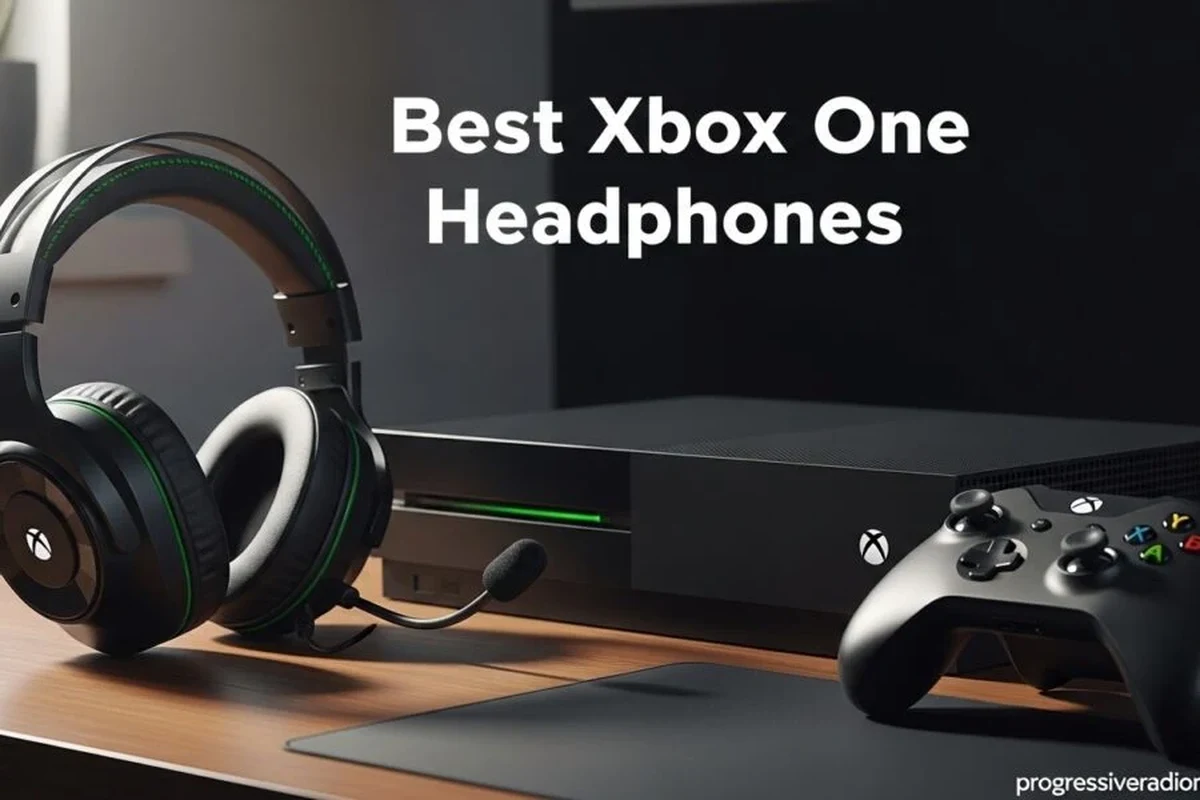
Xbox One supports several headphone setups, but they do not all work the same way. Some headphones plug straight into the controller, while others need an adapter, a USB audio route, or help from your TV or monitor.
The first thing to check is what kind of headphones you own and where the audio is supposed to come from. A simple wired headset may be enough for most players, but wireless and USB models can be more limited depending on the brand and the exact Xbox One version.
Compatibility can vary by headset model, controller version, and whether your Xbox One is connected to a TV, monitor, or audio receiver.
It also helps to separate two audio goals: game sound and voice chat. A good gaming setup should make footsteps, dialogue, and music clear without drowning out teammates in party chat.
Compatible Xbox One Headphone Connections and Audio Setup Options
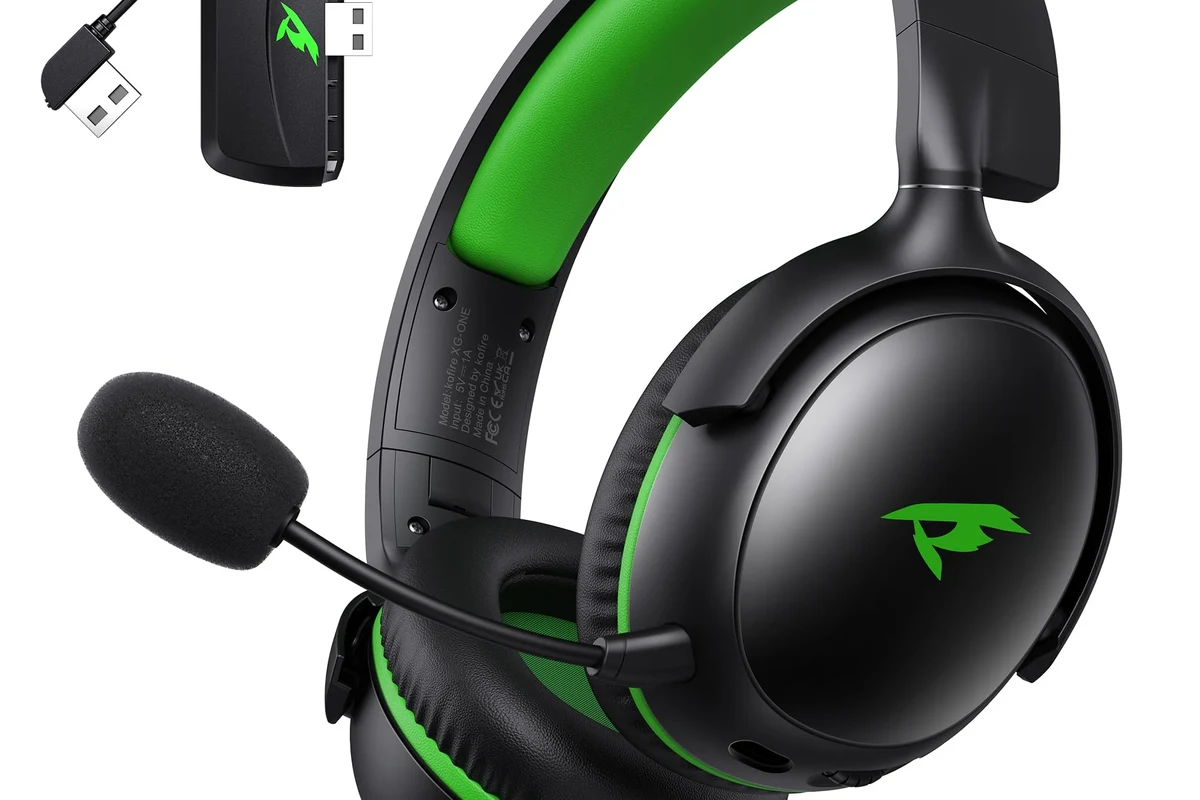
Before you plug anything in, it is worth understanding the main connection types Xbox One users run into. This saves time and helps avoid the common mistake of buying headphones that need an extra accessory to work properly.
3.5mm Controller Jack vs. Stereo Headset Adapter vs. Optical Audio
The most straightforward option is the 3.5mm jack on the Xbox One controller, which supports many wired gaming headsets and headphones. If your controller has that port, you can often connect directly and start listening right away.
Older controllers may need a stereo headset adapter. This small accessory sits on the controller and gives you a headphone connection plus controls for volume and chat balance.
Optical audio is another route, but it usually comes from a TV, monitor, soundbar, or audio extractor rather than the controller itself. This setup is more common for people using a MixAmp or external DAC-style solution for more control over sound.
Wired Headphones, USB Headsets, and Bluetooth Workarounds
Wired headphones are usually the simplest and most reliable choice for Xbox One. They avoid battery issues, reduce setup steps, and often give you direct chat support through the controller.
USB headsets can work in some cases, but Xbox compatibility is model-specific. Do not assume every USB headset will work just because it works on a PC.
Bluetooth is where many gamers get stuck. Xbox One does not support standard Bluetooth headphones for direct console audio in the same way phones and laptops do, so most wireless users need an Xbox-compatible wireless headset or a workaround such as a TV Bluetooth output, transmitter, or controller adapter setup.
Do not buy a Bluetooth headset expecting it to pair directly with Xbox One the same way it pairs with a phone. Many models will not connect to the console without extra hardware.
Step-by-Step: How to Connect Headphones to Xbox One for the Best Sound
The best connection method depends on your gear, but the basic process is always the same: connect the headset, confirm the audio route, then fine-tune volume and chat settings. If you are also comparing headset styles, our guide to types of headphones explained can help you choose between over-ear, on-ear, and in-ear options.
Connecting Directly to the Xbox One Controller
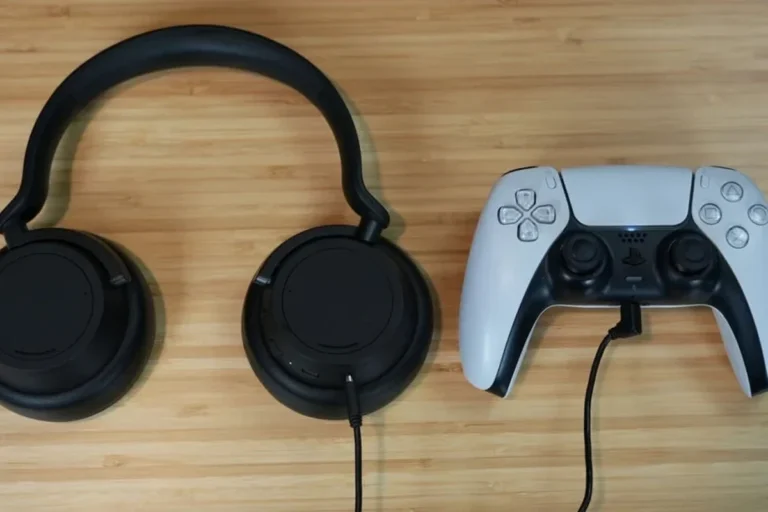
This is the easiest method for most players. Plug the headset’s 3.5mm cable into the controller jack, then turn on the console and test the sound in a game or party chat.
If the headset has an inline mic mute switch, make sure it is not muted. If the audio is too quiet, raise both the headset volume and the Xbox chat/output settings rather than forcing the headset to maximum from the start.
Insert the 3.5mm connector firmly into the controller jack.
Open a party or game chat to confirm the mic and headphone output both work.
Set the headset and Xbox audio levels to a comfortable, balanced level.
Using an Xbox Stereo Headset Adapter
If your controller does not have a 3.5mm jack, an adapter can make older controllers much more useful. It also gives you physical controls for volume and chat mix, which many gamers like because it is faster than opening menus mid-match.
Connect the adapter to the controller, plug your headphones into the adapter, and then test both game sound and voice chat. If the chat is too loud or too quiet, use the adapter controls first before changing console settings.
If your headset sounds fine in games but teammates sound distant, the issue is often chat mix, not the headphones themselves.
Setting Up a TV, Monitor, or MixAmp Audio Route
Some players prefer to route game sound through a TV, monitor, or external audio device. This can be useful if you want to use a high-end headset, a DAC, or a MixAmp-style controller for better control over surround processing and balance.
In this setup, the console sends audio to the display or audio device first, then the headphones receive the sound from there. That can be great for flexibility, but it may also introduce extra steps if the TV does not pass chat audio the way you expect.
If you use this route, check the display settings, audio output settings, and whether your device supports stereo or surround passthrough. For some users, this is the best way to get a richer soundstage, especially when paired with a headset that has good detail and comfort.
Best Audio Settings for Clear Game Chat, Bass, and Positional Sound
Once the headphones are connected, the next step is getting the Xbox One settings right. Good settings can make dialogue cleaner, footsteps easier to place, and voice chat less tiring during long sessions.
Adjusting Volume, Chat Mixer, and Mic Monitoring
Start with the overall volume at a moderate level, then adjust chat balance so teammates are easy to hear without overpowering the game. If your headset supports mic monitoring, turn it up only enough to hear your own voice naturally.
Mic monitoring can help prevent shouting, especially in noisy rooms. But too much sidetone can be distracting, so it is best used lightly.
Listening at high volumes for long periods can cause hearing damage. Keep volume at 60% or below for extended sessions.
Choosing Stereo Uncompressed vs. Windows Sonic or Dolby Atmos
Xbox One gives you several sound processing options, and the best one depends on the headset and the game. Stereo uncompressed is often the cleanest and most predictable choice for many wired headphones.
Windows Sonic and Dolby Atmos can create a wider sense of space, which some players enjoy for immersion and positional cues. However, the effect is personal, and one setting may sound better than another depending on your ears, your headset tuning, and the game engine.
Some gamers prefer plain stereo because it preserves natural direction cues better than virtual surround on certain headphones.
Practical Gaming Examples: Headphone Setup for FPS, Racing, and Story Games
The best headphone setup changes depending on what you play. A competitive shooter, a racing game, and a story-driven adventure all benefit from slightly different audio priorities.
Why Footstep Clarity Matters in Competitive Shooters
In FPS games, the most useful sound is often subtle sound: footsteps, reloads, distant movement, and directional cues. Headphones with clear mids and controlled bass usually make these details easier to hear than bass-heavy models.
If your headset has too much low-end, it can mask important details and make explosions sound exciting but less useful. For competitive play, clarity usually matters more than raw bass.
That is why many players use a slightly reduced bass setting or a neutral EQ when they want better positional awareness. A strong soundstage can also help, but it should not come at the cost of precise imaging.
How to Balance Voice Chat and Game Audio in Party Play
Party games and co-op sessions need a different balance. Here, you want teammates to stay clear while game audio remains present enough to keep the experience fun.
If the game is too loud, lower the game channel first before touching the mic level. If voices still sound harsh or buried, try a different chat mix setting or a headset with a more natural vocal range.
Should I use bass-heavy headphones for Xbox One gaming?
Sometimes, but not always. Bass-heavy headphones can make movies and single-player games more exciting, while balanced headphones usually work better for shooters and chat-heavy play.
Common Mistakes When Using Headphones on Xbox One
Most headphone problems on Xbox One come from setup mistakes, not broken gear. A quick check of the connection type and audio settings usually solves the issue.
Wrong Adapter, Low Volume, and Misconfigured Chat Settings
One common mistake is using the wrong adapter for the controller generation. Another is assuming the headset is defective when the real issue is low chat volume or the wrong output route.
Always test the headset with both game audio and party chat. If one works and the other does not, the problem is usually in the settings or the adapter path, not the drivers inside the headphones.
- Controller jack or adapter compatibility
- Chat mixer and headset volume
- Mute switch and microphone position
- Console audio output format
Why “Any Headphones” Do Not Always Work the Same Way
It is easy to assume that any pair of headphones should work on Xbox One, but that is not always true. Some models are made only for music listening, while others are built for gaming chat, console routing, or wireless pairing.
Even when two headsets both use a 3.5mm plug, they may sound very different because of their tuning, sensitivity, and microphone design. If you are comparing general headphone categories, our guide to headphones vs earphones complete guide can help you decide which style fits your gaming habits.
Expert Advice: Choosing the Right Headphones for Xbox One in 2026
By 2026, the Xbox One is still a practical console for many players, but the headphone market has become even more crowded. The best choice is not always the most expensive one; it is the one that fits your setup, comfort needs, and audio priorities.
Budget vs. Mid-Range vs. Premium Headphones: What You Get for the Price
Budget headphones can be perfectly fine for casual gaming, especially if you mainly want clear chat and simple plug-and-play use. Mid-range models often improve comfort, mic quality, and sound balance, which matters more for long sessions.
Premium options may offer better build quality, more refined tuning, stronger noise isolation, or advanced wireless features. But results vary by brand and model, so price alone does not guarantee better Xbox One performance.
When to Upgrade for Better Mic Quality, Comfort, and Surround Sound
Upgrade when your current headset causes discomfort, picks up too much background noise, or makes teammates hard to understand. Comfort is especially important if you play for more than an hour or two at a time.
You may also want to upgrade if you are chasing better positional audio, cleaner voice pickup, or a lighter headset for long sessions. If you already enjoy your current sound but want better isolation, a model with stronger passive noise blocking or active noise cancelling may help, depending on the design and use case.
If you notice ringing, discomfort, or persistent ear fatigue after gaming, consider lowering volume and speaking with an audiologist or hearing professional.
Final Recap: The Easiest Way to Get Better Xbox One Audio with Headphones
The easiest way to use headphones on Xbox One is usually to connect a wired headset to the controller, confirm the chat settings, and adjust the volume before you start playing. If your setup is more advanced, a stereo headset adapter, TV audio route, or external mixer can give you more control over sound.
For the best results, choose headphones that match your game type, keep the audio balanced, and avoid pushing the volume too high. With the right setup, Xbox One can deliver clear chat, solid bass, and better positional sound without a complicated setup.
- Direct controller connections are the simplest for most Xbox One players.
- Chat mix and audio format settings matter as much as the headphones themselves.
- Balanced sound usually works best for shooters, while bass can suit cinematic games.
- Not every Bluetooth or USB headset works the same way on Xbox One.
Frequently Asked Questions
Wired headphones are usually simpler and more reliable on Xbox One. Wireless models can work well too, but compatibility varies by brand and connection method.
Noise cancelling headphones can help block room noise and improve focus. They may be useful for story games and party chat, but sound quality still depends on the model.
Closed-back headphones are usually better for gaming because they block more outside noise and keep sound from leaking out. Open-back models can sound wider, but they are less private and less isolating.
Look at comfort, microphone quality, connection type, and overall tuning more than one single spec. Driver size and frequency response can matter, but the full design is often more important.
Try adjusting the Xbox audio format and any EQ settings on your headset or app. Lowering bass slightly can improve clarity in games where footsteps and dialogue matter.
Lightweight over-ear headphones with soft ear cushions are usually the most comfortable for long sessions. Build quality, clamping force, and padding material can make a big difference over time.