How To Use Sennheiser Headphones: Easy Setup Guide

Introduction
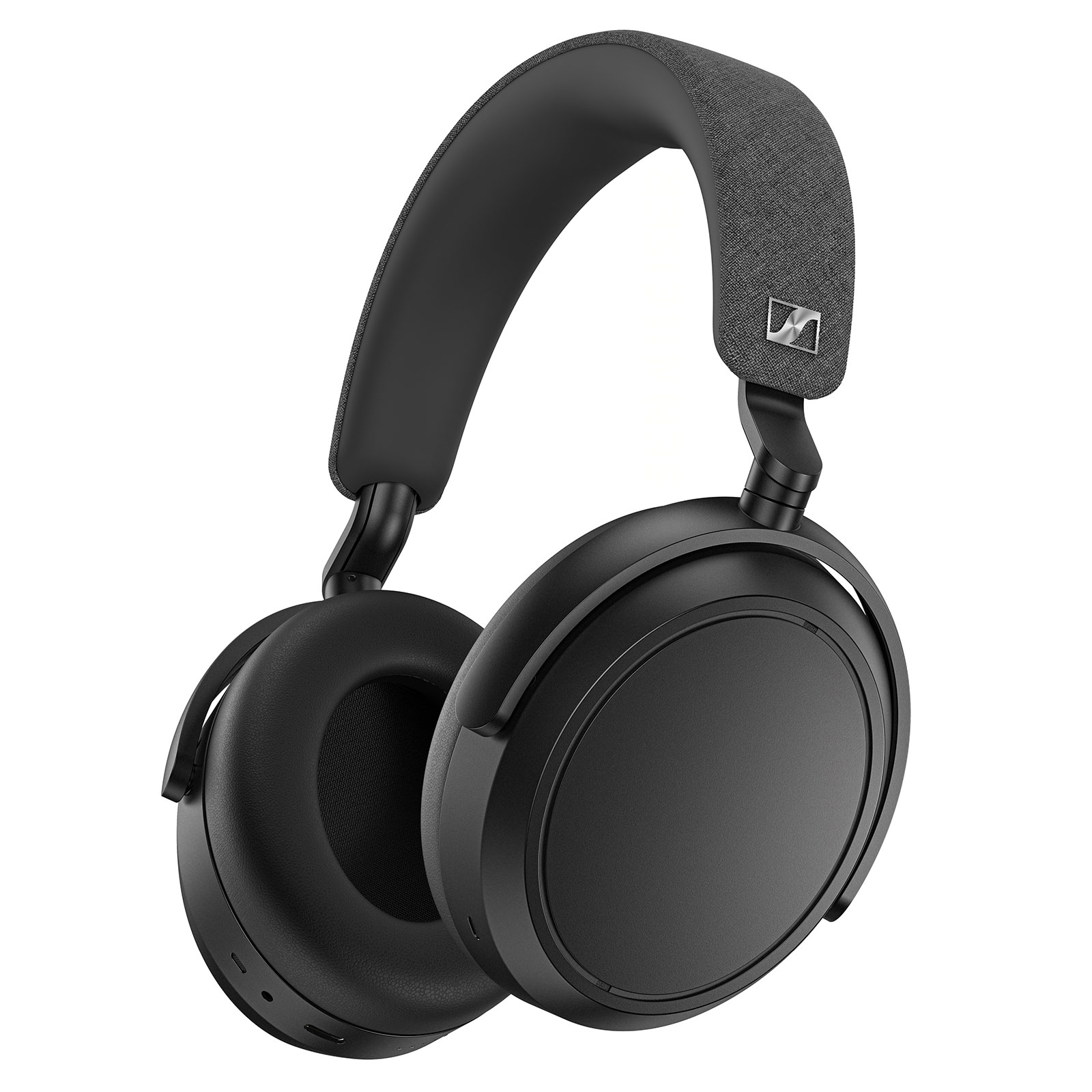
If you use Sennheiser headphones in the United States, the setup depends on the model. Bluetooth headphones need charging and wireless pairing. Wired models need the right cable and audio jack. True wireless earbuds also require correct placement in the charging case.
The basic process is simple: charge the headphones, turn them on, pair them with your device, adjust the fit and sound, then learn the main controls. This guide explains how to use Sennheiser over-ear headphones, earbuds, and wired headphones with phones, tablets, computers, TVs, and game systems in the USA.
Always check the manual for your exact model. Sennheiser features differ between product lines such as momentum, ACCENTUM, HD, CX, IE, and SPORT.

Quick Answer: How Do You Use Sennheiser Headphones?
To use Sennheiser Bluetooth headphones:
- Charge the headphones or earbuds.
- Turn them on.
- Put them in Bluetooth pairing mode.
- Open Settings > Bluetooth on your phone, tablet, or computer.
- Select the Sennheiser model from the device list.
- Play audio and adjust the volume.
- Use the buttons, touch controls, or Sennheiser Smart Control app to manage calls and sound.
For wired Sennheiser headphones, connect the cable to the headphone jack or use a compatible USB-C, Lightning, or 3.5 mm adapter. Wired models usually do not need Bluetooth pairing or app setup.
Before You Start
You need four things before setting up Sennheiser headphones:
- The headphones, earbuds, or charging case
- A charged battery for wireless models
- The device you want to connect
- The correct cable or adapter, if the headphones are wired
Keep the headphones close to the device during first-time pairing. A distance of a few feet is best. Turn off Bluetooth on nearby devices if the headphones keep connecting to the wrong phone or computer.
Identify your Sennheiser headphone type
The type of headphones changes the setup.
| Headphone type | Main connection | Battery needed | Common use |
|---|---|---|---|
| Bluetooth over-ear | Wireless Bluetooth | Yes | Travel, music, calls |
| Bluetooth on-ear | Wireless Bluetooth | Yes | Daily use, work |
| True wireless earbuds | Wireless Bluetooth | Yes | Exercise, commuting, calls |
| Wired over-ear | 3.5 mm, 6.3 mm, or USB | Usually no | Home audio, studio use |
| Wired earbuds | 3.5 mm or USB-C | No, in most cases | Phones, laptops, portable audio |
| Wireless gaming headset | Bluetooth, USB, or wireless receiver | Usually yes | PC and console gaming |
Some models support more than one connection method. For example, a wireless headset may work through Bluetooth, a USB cable, or a dedicated wireless transmitter. Use the method listed in the model’s manual.
How to Pair Sennheiser Headphones With Bluetooth
Pairing connects your Sennheiser headphones to a phone, tablet, computer, or other Bluetooth device.
Pair with an iPhone or iPad
- Charge the headphones.
- Turn the headphones on.
- Hold the power or Bluetooth button until the status light flashes or the headphones announce pairing mode.
- Open Settings on the iPhone or iPad.
- Tap Bluetooth.
- Turn Bluetooth on.
- Tap the name of your Sennheiser headphones under Other Devices.
- Wait for the status to change to Connected.
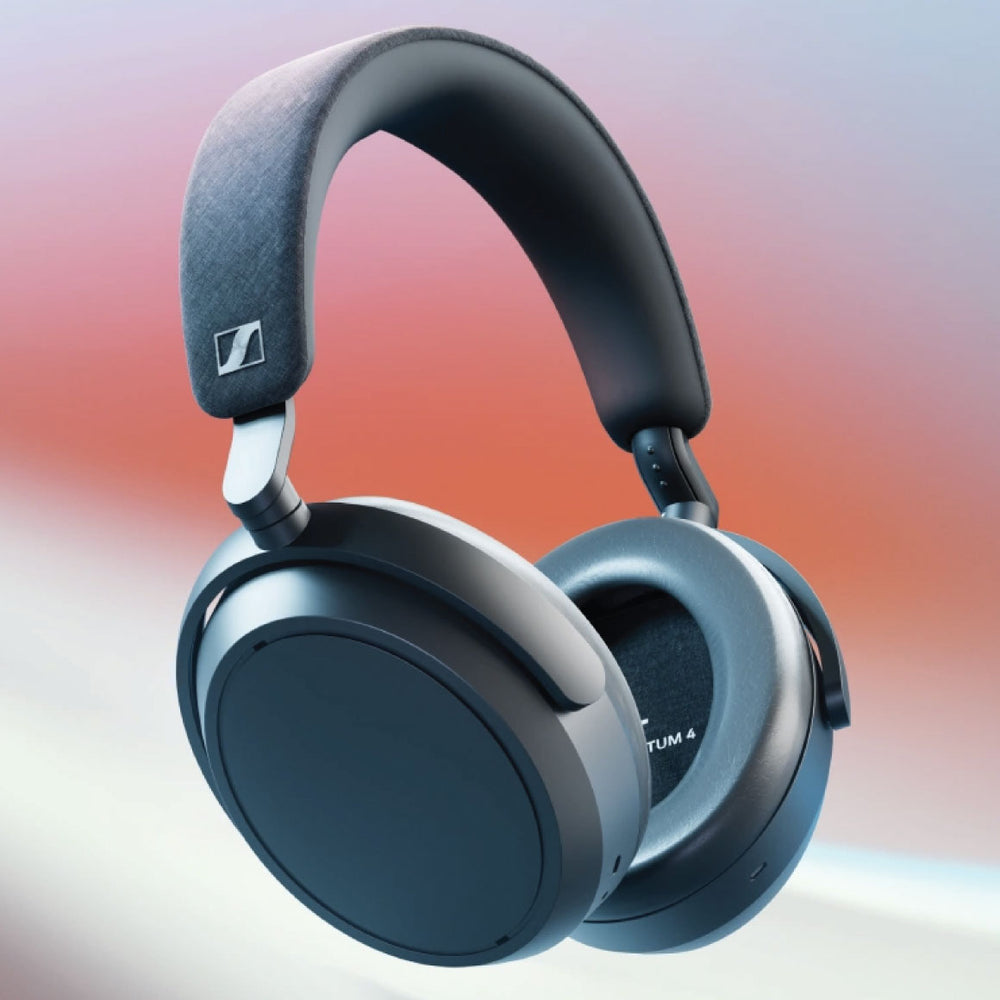
The model name may look like “MOMENTUM 4,” “ACCENTUM,” “CX True Wireless,” or a similar product name.
If the model does not appear, turn the headphones off and on. Then hold the Bluetooth or power button again to restart pairing mode.
Pair with an Android phone or tablet
- Turn on the Sennheiser headphones.
- Activate pairing mode.
- Open Settings.
- Select Connected devices, Connections, or Bluetooth. The wording varies by Android device.
- Turn Bluetooth on.
- Tap Pair new device if needed.
- Select the Sennheiser model.
- Approve the pairing request.
Android menus vary by phone brand and software version. If you cannot find Bluetooth, use the search box in the Settings app and search for “Bluetooth.”
Pair with a Windows PC
- Put the Sennheiser headphones into pairing mode.
- Open Settings on the Windows PC.
- Select Bluetooth & devices.
- Turn Bluetooth on.
- Select Add device.
- Choose Bluetooth.
- Select the Sennheiser headphones.
- Open the sound controls and choose the headphones as the output device.
Windows may show more than one audio option. A setting labeled Headphones usually provides better music quality. A setting labeled Headset may be needed when you use the built-in microphone for a call.
Pair with a Mac
- Turn on pairing mode on the Sennheiser headphones.
- Open the Apple menu.
- Select System Settings.
- Choose Bluetooth.
- Find the Sennheiser model.
- Click Connect.
- Open System Settings > Sound and select the headphones for output.
During a video call, macOS may switch to a hands-free microphone mode. This can change the sound quality. That behavior is common with Bluetooth headsets and does not always indicate a fault.
How to Connect Sennheiser Headphones to a TV
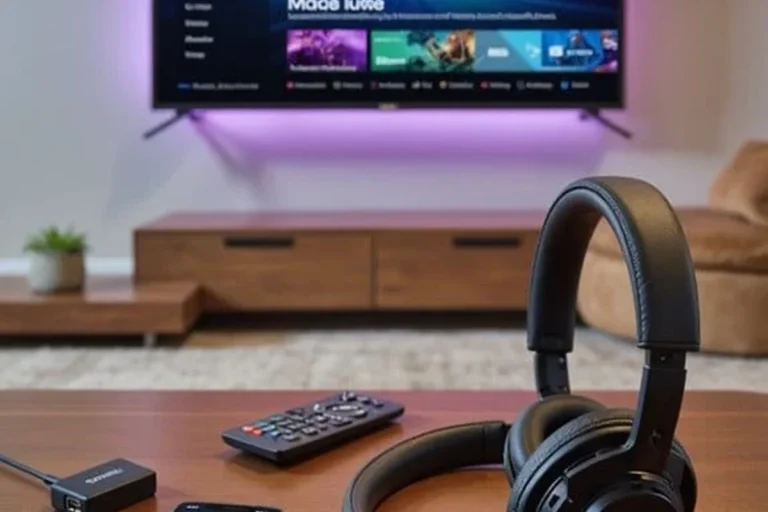
Sennheiser headphones can connect to a TV if the television supports Bluetooth audio or has a compatible headphone output.
Connect through TV Bluetooth
- Put the headphones into pairing mode.
- Open the TV’s settings menu.
- Find Sound, Audio Output, or Bluetooth Speaker List.
- Search for nearby Bluetooth devices.
- Select the Sennheiser headphones.
- Confirm the connection.
- Play a program to test the sound.
TV menus vary. Some televisions do not support Bluetooth headphones, even if they include Bluetooth for keyboards, remotes, or other accessories.
Connect through a headphone jack
If the TV has a 3.5 mm headphone output, connect the Sennheiser cable directly. Some TVs use a 6.3 mm jack, RCA output, optical output, or HDMI audio connection instead.
Optical and RCA outputs may require a separate Bluetooth transmitter or digital-to-analog converter. The correct device depends on the TV’s output and the headphone’s connection method.
Fix TV audio delay
Bluetooth audio can have a delay between the picture and sound. If the TV offers an audio sync, lip sync, or AV sync setting, adjust it.
If the delay remains, try a wired connection or a low-latency transmitter that is compatible with the headphones. Do not assume that every Sennheiser Bluetooth model supports the same low-latency technology.
How to Use the Sennheiser Smart Control App
The Sennheiser Smart Control app supports selected wireless headphones and earbuds. It may provide firmware updates, equalizer settings, noise-control options, touch-control settings, and connection features.
Set up the app
- Install Sennheiser Smart Control from the Apple App Store or Google Play Store.
- Turn on Bluetooth.
- Turn on the headphones.
- Open the app.
- Allow the requested Bluetooth permissions.
- Select your Sennheiser product.
- Follow the on-screen setup steps.
The available controls depend on the product and app version. The app cannot add hardware features that the headphones do not support.
Use the equalizer
An equalizer changes the balance of bass, midrange, and treble.
- Increase bass for more impact in music.
- Reduce bass if voices sound covered.
- Increase midrange for clearer speech.
- Reduce treble if music sounds sharp or tiring.
Make small changes. A large boost can cause distortion or reduce battery life on some active models.
Update the headphones
If the Smart Control app offers a firmware update, keep the headphones charged and close to the phone. Do not turn off Bluetooth during the update.
Firmware can change performance, fix bugs, or add documented functions. It may also reset some settings. Record your preferred controls before updating if the app warns that settings may change.

How to Use Sennheiser Headphone Controls
Controls vary by model, but most Sennheiser wireless headphones use physical buttons, touch panels, or a mix of both.
Common controls
| Function | Typical action |
|---|---|
| Power on or off | Press and hold the power button |
| Play or pause | Press a multifunction button or tap the control panel |
| Skip track | Press or swipe according to the model |
| Change volume | Press volume buttons or swipe up and down |
| Answer a call | Press the call or multifunction control |
| End a call | Press the same control again |
| Activate voice assistant | Press and hold the assigned control |
| Enter pairing mode | Hold the Bluetooth or power control |
| Adjust noise control | Press the noise-control button or use the app |
These actions are not universal. Check the control diagram in the manual for your model.
Use noise cancellation correctly
Active noise cancellation, or ANC, uses microphones and electronic processing to reduce steady outside sounds. It often works best with low, constant noise such as airplane engines, air conditioners, and buses.
ANC does not block every sound. Voices, alarms, horns, and sudden sounds may still be heard. Use transparency or ambient mode when you need to hear people, traffic, announcements, or other nearby sounds.
Do not use noise cancellation as a substitute for awareness around roads, bicycles, machinery, or other hazards.
Get the right earbud fit
For true wireless earbuds, choose the ear tip that seals the ear without causing pressure. A poor seal can reduce bass, weaken noise cancellation, and make the earbuds seem quieter.
Try each supplied ear tip size. The best fit is secure but not painful. Clean the ear tips and speaker openings with a dry, soft cloth. Do not push tools into the sound openings.
How to Use Sennheiser Headphones for Calls
Sennheiser Bluetooth headphones can often handle phone calls, video meetings, and voice assistants.
- Connect the headphones to the phone or computer.
- Open the call or meeting app.
- Select the Sennheiser headphones as the speaker.
- Select the Sennheiser microphone if you want to use the headset mic.
- Make a short test call.
- Adjust the microphone and speaker volume.
If the other person cannot hear you, check the app’s microphone permission and input setting. Also check whether the microphone is muted in the meeting app.
For the clearest call, keep the microphones uncovered. Wind, hair, clothing, and a high collar can interfere with microphone pickup. On a computer, a wired connection or separate microphone may provide more consistent results.

How to Use Wired Sennheiser Headphones
Wired headphones do not need Bluetooth pairing. Connect the cable to the correct port, then select the headphone output on the audio device.
Common wired connections
- 3.5 mm: Common on laptops, controllers, older phones, and audio devices
- 6.3 mm: Common on home audio equipment and some studio devices
- USB-C: Used by some modern headphones and earbuds
- USB-A: Common with computer audio accessories
- Lightning: Used by some Apple-compatible wired products
A 3.5 mm plug may not work in a USB-C port without a compatible digital adapter. Some adapters include a digital-to-analog converter, while simple passive adapters may work only with devices that support analog audio through USB-C.
Connect to a headphone amplifier
Some high-impedance headphones need more power than a phone or laptop can provide. Signs may include low volume, weak dynamics, or distortion at higher levels.
Check the headphone’s specifications and the output device’s specifications. A headphone amplifier can help when the source cannot provide enough power. It will not automatically improve every headphone or recording.
How to Reset Sennheiser Headphones
A reset can help when headphones will not pair, controls stop responding, or one earbud does not connect. The reset method differs by model.
Before resetting:
- Check the battery.
- Remove the headphones from the device’s Bluetooth list.
- Restart the phone, computer, or tablet.
- Turn the headphones off and on.
- Try pairing again.
If that fails, use the exact reset steps in the Sennheiser manual or Smart Control app. A reset may erase paired devices and custom settings.
For true wireless earbuds, placing both earbuds in the charging case can help restore charging and connection. Make sure the charging contacts are clean and that each earbud sits correctly in the case.

Sennheiser Headphones Not Connecting: Troubleshooting Steps
Use this order because it starts with simple, low-risk checks.
The headphones do not appear in Bluetooth
Possible causes include:
- Pairing mode is not active.
- The headphones are already connected to another device.
- The battery is too low.
- Bluetooth is disabled on the phone or computer.
- The headphones are too far away.
- The device has saved a corrupted pairing record.
Try this:
- Turn off Bluetooth on nearby devices.
- Restart the headphones.
- Enter pairing mode again.
- Restart Bluetooth on the source device.
- Remove the old Sennheiser entry from Bluetooth settings.
- Pair again.
The headphones connect but produce no sound
Check the output selection. On a phone, raise the media volume, not only the ringtone volume. On Windows or macOS, select the Sennheiser headphones as the active audio output.
If you use a computer meeting app, check its separate speaker setting. A meeting app can use a different output from the system setting.
Only one earbud works
Place both earbuds in the charging case. Confirm that each earbud shows a charging response. Clean the contacts with a dry cloth, then remove and reinsert the earbuds.
If one earbud still fails, forget the Bluetooth connection and complete the model-specific reset. Avoid mixing earbuds from different sets.
The sound cuts out
Keep the phone or computer close to the headphones. Remove physical obstacles where possible. Test another location and another source device.
Wireless interference can come from crowded radio environments, routers, computers, and other Bluetooth devices. If the problem happens with every device, update the firmware if an official update is available.
The headphones will not charge
Try a different charging cable and power source. Check the charging port and contacts for dust or damage. For earbuds, confirm that the case itself has power.
Stop using the product if the battery becomes unusually hot, swells, leaks, or smells strange. Do not open or puncture a lithium-ion battery. Contact Sennheiser support or an authorized service provider.
How to Care for Sennheiser Headphones
Good care protects sound quality and battery life.
- Store the headphones in a dry place.
- Keep sweat and water away unless the model has a stated water-resistance rating.
- Wipe ear pads and earbuds with a soft, slightly damp cloth.
- Do not use alcohol, solvents, or strong cleaners unless the manual allows them.
- Keep the charging port dry.
- Avoid leaving wireless headphones in a hot car.
- Replace worn ear pads with compatible parts.
- Do not charge damaged headphones.
Water resistance is not the same as waterproofing. A product rated for exercise may tolerate sweat but still require protection from swimming, showers, or heavy rain. Follow the exact rating and care instructions for the model.
Safe Listening Tips
Keep the volume as low as practical. If you need to raise the volume to overcome traffic or nearby noise, move to a quieter place or use suitable noise control instead.
Ringing, muffled hearing, ear pain, or discomfort are signs to stop and lower the volume. If symptoms continue, seek medical advice. Do not share earbuds without cleaning them, and do not insert ear tips deeply into the ear canal.
Take breaks during long listening sessions. Be especially careful when walking, driving, cycling, working near traffic, or operating equipment. Headphones can reduce awareness of warning sounds.
Key Takeaways
- Charge wireless Sennheiser headphones before first use.
- Use Bluetooth pairing mode, then select the headphones in your device settings.
- Wired models only need the correct cable or adapter.
- Use the Smart Control app only with supported models.
- Check the output device when headphones connect but make no sound.
- Reset the headphones only after basic troubleshooting.
- Use transparency mode when you need to hear your surroundings.
- Keep volume moderate and stop if listening causes pain or ringing.
Frequently Asked Questions
Can I use Sennheiser headphones with an iPhone?
Yes. Compatible Sennheiser Bluetooth headphones can pair through Settings > Bluetooth. Wired models may need a suitable Lightning or USB-C adapter, depending on the iPhone.
Can I connect Sennheiser headphones to two devices?
Some Sennheiser models support multipoint Bluetooth, which lets them stay connected to two devices. The feature and supported device combinations vary by model. Check the manual or Smart Control app.
Do Sennheiser headphones work with a PS5 or Xbox?
Compatibility depends on the connection method. A wired model may work through a controller or compatible audio port. A Bluetooth model may not connect directly to every console. A USB transmitter or console-approved headset may be required.
Why are my Sennheiser headphones quiet?
Check the device volume, headphone volume, audio output, earbud seal, and any volume limit. With wired headphones, the source may not provide enough power. With earbuds, a poor seal can make sound seem weak.
How do I find the manual for my Sennheiser headphones?
Search the official Sennheiser support site using the exact model name printed on the headphones, case, box, or Bluetooth menu. Use the manual for pairing, controls, reset steps, charging details, and water-resistance limits.
Conclusion
Using Sennheiser headphones starts with identifying the connection type. Bluetooth models need charging and pairing. Wired models need the correct port or adapter. True wireless earbuds also need a clean charging case and a secure ear-tip fit.
If setup fails, check power, pairing mode, Bluetooth records, output selection, and firmware before attempting a reset. For model-specific controls or limits, the official Sennheiser manual remains the most reliable source because features differ across product lines.