How to Use Headphones with Xbox One Easily and Fast

Wired headphones are the easiest way to use headphones with Xbox One, and Xbox Wireless headsets are the best wireless option. Standard Bluetooth headphones usually need a workaround or may not connect directly at all.
If you want to know how to use headphones with Xbox One, the fastest answer is simple: wired headphones are the easiest option, and Xbox Wireless headsets are the smoothest wireless choice. Bluetooth headphones usually need a workaround, so the best setup depends on your controller, headset type, and whether you want game audio, chat audio, or both.
- Fastest setup: Plug wired headphones into the controller for instant audio.
- Best wireless choice: Use Xbox Wireless or compatible 2.4GHz headsets.
- Common issue: Standard Bluetooth rarely pairs directly with Xbox One.
- Best value: Budget wired headsets are simple and reliable.
How to Use Headphones with Xbox One: What Works in 2026 and What Doesn’t
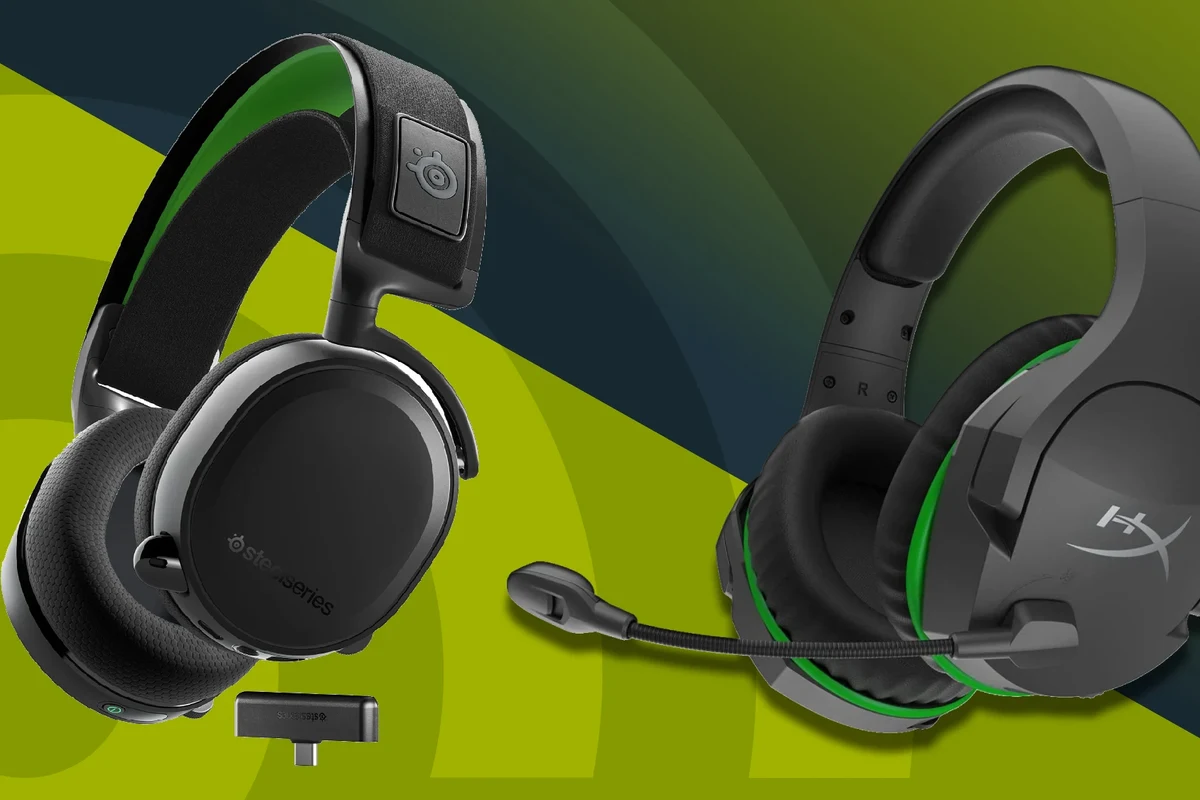
In 2026, Xbox One still supports several practical headphone setups, but not every “wireless” option works the way people expect. The most reliable choices are a wired headset through the controller, an Xbox Wireless headset, or audio routed through your TV or monitor.
What usually does not work directly is standard Bluetooth pairing, even if your headphones connect easily to a phone or laptop. That limitation is one of the biggest reasons Xbox users still ask for a simple, step-by-step guide.
Headphone compatibility can vary by controller revision, headset model, and console audio settings. If your headset supports multiple connection types, check the manual before buying extra adapters.
Xbox One Audio Basics: Controller Jack, Console Settings, and Wireless Limits
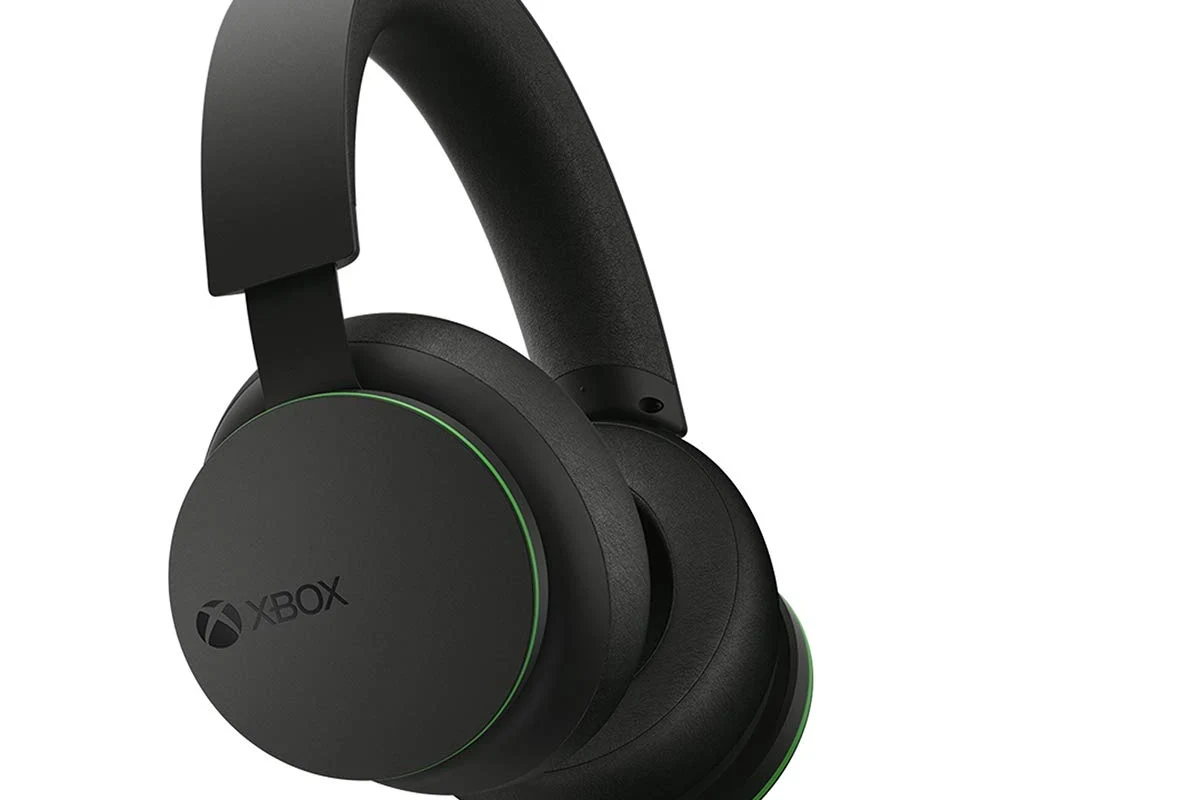
Before you plug anything in, it helps to understand how Xbox One sends audio. The controller jack is the easiest path for most wired headphones, while console settings control chat balance, volume levels, and mic behavior.
Wireless support is more limited than many players expect. Xbox One works best with headsets designed for Xbox Wireless or with a compatible transmitter system, not with generic Bluetooth earbuds in most cases.
Understanding the 3.5mm controller port vs. older Xbox One controllers
Newer Xbox One controllers usually include a built-in 3.5mm headset jack, which makes connection fast and simple. You just plug in your wired headphones or gaming headset, and the console should detect them automatically.
Older Xbox One controllers may not have that jack. In that case, you may need a stereo headset adapter or a newer controller with the port built in.
When headset adapters and stereo adapters are still useful
Headset adapters are still helpful if your controller lacks a 3.5mm port or if you want easier access to chat volume and mute controls. They can also be useful when a headset cable is short or awkward to reach.
That said, adapters are not magic fixes. If the headset itself is incompatible, has a broken mic, or uses the wrong connector type, the adapter will not solve every issue.
Why Bluetooth headphones usually don’t connect directly to Xbox One
Most Bluetooth headphones are not supported for direct Xbox One pairing because the console is not designed like a phone or tablet. This is why many users can connect to a TV, phone, or PC, but not to the Xbox console itself.
If you want to learn more about Bluetooth behavior in general, our guide to Bluetooth headphones explained simply can help clarify why some devices connect easily while others need workarounds.
Do not assume every wireless headset will work with Xbox One just because it is Bluetooth. Always confirm Xbox compatibility, especially if you need both game audio and microphone chat.
Step-by-Step: How to Connect Wired Headphones to Xbox One Fast
If you want the quickest setup, wired headphones are still the most dependable option. They avoid pairing problems, reduce delay, and usually give you instant chat and game audio through the controller.
Plugging into the controller for instant audio
Start by checking whether your controller has a 3.5mm jack. If it does, plug in your headphones or headset firmly until you feel a clean connection.
Once connected, Xbox One should route audio through the headset automatically. If sound does not switch right away, check the console’s audio settings and make sure the headset is not muted.
Connect the 3.5mm cable to the controller jack or adapter.
Open Xbox audio settings and confirm headset output is active.
Join a party or launch a game to confirm both audio paths work.
Adjusting headset volume, chat mixer, and mic monitoring
After connecting, adjust headset volume slowly so the sound stays clear without becoming harsh. If you play multiplayer, the chat mixer matters because it controls the balance between game sound and voice chat.
Mic monitoring can also help, especially if you speak loudly or want to hear your own voice in the headset. Small changes here can make a big difference in comfort during long sessions.
If voices sound too quiet, raise chat audio first before increasing overall volume. That often keeps explosions and music from becoming overpowering.
Best use cases: solo play, party chat, and late-night gaming
Wired headphones are ideal for solo gaming because they are simple, stable, and low-latency. They are also a good choice for party chat if you want a reliable mic without worrying about battery life.
For late-night gaming, wired headphones can be especially useful because you can keep volume controlled and avoid waking anyone else. Closed-back designs often work well here because they help keep sound focused.
How to Use Wireless Headphones with Xbox One Without Frustration
Wireless can be convenient, but on Xbox One it works best when the headset is made for the console or when you use a proper transmitter. The goal is to avoid lag, dropouts, and unsupported pairing methods.
Using Xbox Wireless headsets and compatible 2.4GHz models
Xbox Wireless headsets are usually the easiest wireless option because they are built for Xbox compatibility. Some 2.4GHz gaming headsets also work well if they include a USB dongle or Xbox-specific support.
These setups are often better than generic Bluetooth because they are designed for lower latency and more stable voice chat. If you care about fast response in shooters or competitive games, that matters.
Wireless gaming headsets often use a dedicated radio connection instead of standard Bluetooth, which is one reason they can feel faster and more stable on consoles.
Connecting through a TV, monitor, or external transmitter
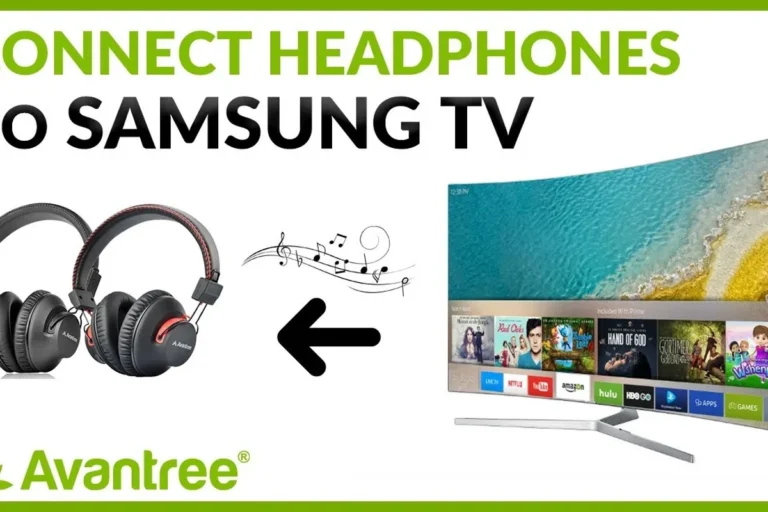
Another option is to route audio through your TV, monitor, or an external transmitter. This can work well for listening to game sound, but chat support may be limited depending on the device.
If you use this route, check whether your display has a headphone output or whether the transmitter supports low-latency audio. Otherwise, you may notice delay or lose microphone functionality.
Choosing between console-connected and TV-connected audio
Console-connected audio is usually the better choice for chat, gaming accuracy, and simpler troubleshooting. TV-connected audio can be more convenient if you mainly want game sound and already use your display’s audio system.
If you are comparing different listening styles, our general guide to types of headphones explained can help you decide whether over-ear, on-ear, or in-ear designs fit your setup best.
Best Headphone Setups for Different Xbox One Gaming Needs
The best Xbox One headphone setup depends on how you play and how much convenience you want. A budget wired headset can be the smartest value, while premium wireless models are better for comfort and freedom of movement.
Budget setup: affordable wired headphones with clear chat audio
A budget wired setup is usually the easiest way to get good results without spending much. Look for clear voice pickup, a comfortable fit, and a cable that is long enough for your couch or desk distance.
For players who mostly want straightforward sound and a simple connection, wired headphones often offer the best value. They are also easier to replace if something wears out.
Mid-range setup: gaming headset with mic and surround sound features
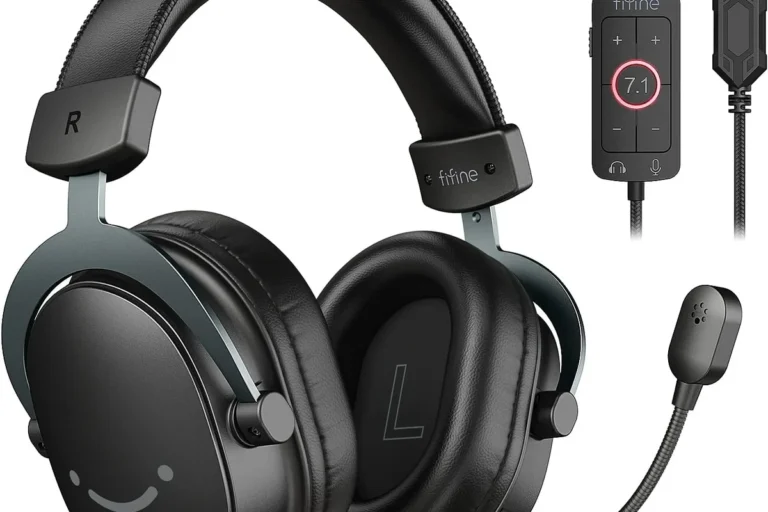
Mid-range gaming headsets often add a better microphone, stronger padding, and virtual surround features. These extras can improve multiplayer communication and help some players feel more immersed.
Just remember that surround sound features vary by brand and may not always sound better for every person. Some users prefer cleaner stereo audio because it feels more natural.
- Good balance of price and comfort
- Usually includes a mic for chat
- Better feature set than basic headphones
- Sound quality can vary a lot
- Extra features are not always necessary
- Some models feel bulky over time
Premium setup: wireless headset for comfort, latency, and long sessions
Premium wireless headsets are best for players who want freedom, comfort, and fewer cable hassles. They are especially appealing if you play for long sessions and want a headset that feels easy to wear.
Look for strong battery life, stable connection quality, and a microphone that keeps your voice clear without sounding thin or distant. Premium does not always mean perfect, but it often means fewer compromises.
Comparing price, convenience, and sound quality for Xbox One users
Wired headsets usually win on price and reliability. Wireless headsets usually win on convenience, while Xbox-compatible wireless models often strike the best overall balance for serious console users.
If you are trying to keep costs down, check our guide to best headphones under 100 for a broader look at value-focused options that may also work well for gaming.
Common Mistakes When Using Headphones with Xbox One
Most Xbox One headphone problems come from small setup mistakes, not from the console itself. A quick settings check often fixes issues that feel more complicated than they really are.
Expecting standard Bluetooth pairing to work like on phones
This is the most common mistake. Xbox One is not built to pair with every Bluetooth headset the way a phone does, so many users waste time trying to force a connection that will never appear.
Ignoring controller firmware and audio settings
Sometimes the headset is fine, but the controller or audio settings need attention. Updating controller firmware and checking chat output can solve problems like no sound, weak volume, or broken mic detection.
Using the wrong cable, adapter, or splitter for chat and game audio
Not every cable carries the same signal. A simple headphone cable may work for sound but not for microphone chat, while some splitters only fit certain headset layouts.
If you need a cleaner understanding of wired compatibility, our article on wired headphones on MacBook covers why connector types matter across devices.
Overlooking microphone compatibility in party chat
Some headphones can play audio but do not support the microphone path the way Xbox chat needs it. If party chat matters to you, always confirm that the headset supports both listening and speaking.
Listening at high volumes for long periods can cause hearing damage. Keep volume at 60% or below for extended sessions.
Expert Advice: Sound Quality, Latency, and Comfort Tips from Top Headphone Reviews
When you choose headphones for Xbox One, the best option is not always the one with the most features. Sound quality, latency, mic clarity, and comfort all matter, but the right mix depends on how you play.
How to avoid audio delay in fast-paced games
If you play shooters, racing games, or rhythm-heavy titles, keep latency low by choosing wired or Xbox-compatible wireless headphones. Generic wireless workarounds can introduce delay that makes timing feel off.
A good rule is simple: if you notice the sound arriving late, switch to a more direct connection before blaming the headset alone.
What to look for in mic clarity for multiplayer and streaming
For multiplayer, a clear mic matters more than flashy design. Voice should sound understandable without too much background hiss, distortion, or muffling.
If you stream, mic pickup and sidetone become even more important because they affect how natural your voice sounds during long sessions.
Comfort features that matter for long Xbox sessions in 2026
Comfort is one of the most underrated parts of a good gaming headset. Soft ear cushions, manageable clamping force, and a lighter frame can make a big difference after a few hours.
Materials also matter. Leather-like pads may isolate sound well, while fabric pads can feel cooler over long play sessions, depending on your preference and climate.
Warning signs that a headset is not worth the price
Be cautious if a headset promises everything but gives no clear details about Xbox compatibility, mic support, or connection method. Vague marketing is often a warning sign.
It is also worth skipping models that feel uncomfortable after a few minutes, because poor fit can ruin even decent sound quality. For long-term value, comfort and stability matter as much as bass.
If you have ringing in your ears, pain, or ongoing hearing sensitivity, speak with an audiologist before using high-volume headphones for gaming sessions.
Final Recap: The Easiest Way to Use Headphones with Xbox One
The easiest way to use headphones with Xbox One is usually a wired headset plugged into the controller. If you want wireless, choose an Xbox Wireless headset or another clearly compatible 2.4GHz model instead of assuming Bluetooth will work.
Quick summary of the best connection method for most players
For most people, wired is the fastest and least frustrating solution. It gives you simple setup, reliable audio, and easy chat support with minimal troubleshooting.
Which setup to choose based on budget, convenience, and gaming style
Choose wired if you want the lowest cost and easiest setup. Choose Xbox-compatible wireless if you value comfort and freedom, especially for long sessions.
And if you mainly play casually, focus on clear sound, a working mic, and a fit you can wear comfortably for hours. That combination matters more than chasing the most complicated headset features.
Frequently Asked Questions
Usually, not directly. Most Bluetooth headphones need a workaround such as a TV connection, transmitter, or Xbox-compatible wireless adapter.
Wired headphones are usually easier, cheaper, and lower-latency. Wireless can be more convenient if you choose an Xbox-compatible model.
Closed-back headphones usually block more outside noise and work better for shared rooms. Open-back models can sound more spacious, but they leak sound and are less private.
Focus on connection type, mic support, comfort, and low latency first. Sound signature, driver type, and EQ flexibility matter too, but compatibility comes first.
Look for clear chat audio, a comfortable fit, and a reliable wired connection. Avoid paying extra for features you will not use, like advanced surround modes.
Lightweight build, soft ear cushions, and moderate clamping pressure usually help most. Comfort can vary by head shape and ear size, so fit matters as much as specs.