How to Connect Bluetooth Headphones to Roku Easily

You can connect Bluetooth headphones to Roku directly only on compatible Roku TVs or newer Roku devices. If your model does not support native pairing, use Roku Private Listening or a Bluetooth transmitter instead.
If you want to know how to connect bluetooth headphones to roku, the answer depends on your Roku model. Some Roku devices support direct Bluetooth pairing, while others need Roku TV settings, the mobile app, or a Bluetooth transmitter.
- Check the model: Roku Bluetooth support varies by device.
- Use pairing mode: Put headphones in discovery mode before searching.
- Try workarounds: Private Listening and transmitters solve many older setups.
- Watch for lag: Low-latency gear is better for movies and gaming.
How to Connect Bluetooth Headphones to Roku: What Works in 2025 and What Doesn’t

In 2025, Roku audio setup is still a mix of convenience and model-specific limits. If you have a compatible Roku TV or a newer Roku device with Bluetooth audio support, pairing can be quick and simple.
If you own an older Roku player, though, direct Bluetooth headphone pairing may not be available. In that case, you’ll usually need a workaround such as Private Listening in the Roku app or an external transmitter.
Roku support can vary by device generation, TV brand, software version, and region. Always check your exact model before buying headphones or accessories.
Roku Models That Support Bluetooth Headphones vs. Roku Devices That Need a Workaround
Not every Roku product handles Bluetooth audio the same way. That’s why one person can pair headphones in seconds, while another has to use a phone app or extra hardware.
Roku TV Bluetooth support, Roku Streambar, and Roku Ultra compatibility
Many Roku TVs include Bluetooth headphone support through the TV’s built-in settings, even if the Roku operating system itself is doing the work behind the scenes. Some Roku audio products and newer streaming devices also support wireless audio more directly.
Roku Ultra and Roku Streambar models may offer better flexibility than older sticks or players, but compatibility still depends on the exact version. If you’re shopping for a setup mainly for private listening, it’s smart to confirm Bluetooth audio support before you buy.
Why many older Roku players still can’t pair headphones directly
Older Roku players were built primarily for streaming video, not for acting like a full Bluetooth audio hub. That means they may connect to a remote, but not to headphones.
In those cases, the device may not show a Bluetooth audio menu at all. If you do not see a headphone or audio output option in settings, the model likely needs Private Listening or a transmitter.
Connecting Bluetooth headphones to a TV or streamer is usually easier when the device was designed for it from the start.
Step-by-Step: How to Pair Bluetooth Headphones to a Compatible Roku Device
If your Roku model supports direct Bluetooth headphone pairing, the process is straightforward. The exact menu names can vary slightly, but the basic flow is usually the same.
Putting your headphones into pairing mode
Start by turning on your headphones and putting them into pairing mode. On most models, that means holding the power button or a dedicated Bluetooth button until the light flashes.
If your headphones are already connected to a phone, tablet, or laptop, disconnect them first. Some wireless headphones will not appear on Roku if they are busy with another device.
Using the Roku on-screen menu to complete the connection
On the Roku home screen, go to Settings and look for a Bluetooth or Audio section. If your device supports headphone pairing, you should see an option to add or search for devices.
Select your headphones from the list and wait for the connection to complete. If the pairing fails, move the headphones closer to the Roku device and try again.
Go to the audio or Bluetooth menu on your Roku device or Roku TV.
Let Roku search for nearby Bluetooth headphones in pairing mode.
Select your headphones and wait for the pairing confirmation.
Testing audio and switching between TV speakers and headphones
Once connected, play a show or movie and check the volume at a comfortable level. If the sound is too low, adjust the headphone volume first before raising the Roku or TV volume.
Many Roku setups let you switch back to TV speakers from the same audio menu. That is useful if you want private listening at night but normal room audio during the day.
If the voice track sounds delayed, reduce other wireless interference nearby and test again with the headphones closer to the Roku device.
How to Use Bluetooth Headphones with Roku When Native Pairing Isn’t Available
If your Roku model does not support direct pairing, you still have a few good options. The best choice depends on whether you are using a Roku TV, a streaming player, or a setup with a soundbar.
Connecting through a Roku TV’s built-in Bluetooth settings
Some Roku TVs allow Bluetooth headphones through the TV’s own settings menu rather than the streaming box interface. In that case, the TV acts as the audio source, so the connection path is different from a standard Roku player.
Look in the TV’s sound or accessories menu for Bluetooth audio output. If your TV supports it, this is often the cleanest way to get private audio without extra accessories.
Using the Roku mobile app Private Listening feature
Private Listening is one of the most practical ways to watch Roku with headphones when native Bluetooth pairing is missing. Instead of sending audio directly from the TV or player to the headphones, the Roku mobile app routes sound to your phone and then to your Bluetooth headphones.
This is especially handy if you already use wireless headphones with your phone. It may not be perfect for everyone, but it is often the simplest workaround for older Roku devices.
Private Listening can be a lifesaver for apartment viewing, especially when you want to keep dialogue clear without turning up the TV speakers.
If you want a deeper look at wireless audio basics, our guide on Bluetooth headphones explained simply can help you understand pairing, range, and connection limits.
Using a Bluetooth transmitter for non-Bluetooth Roku players
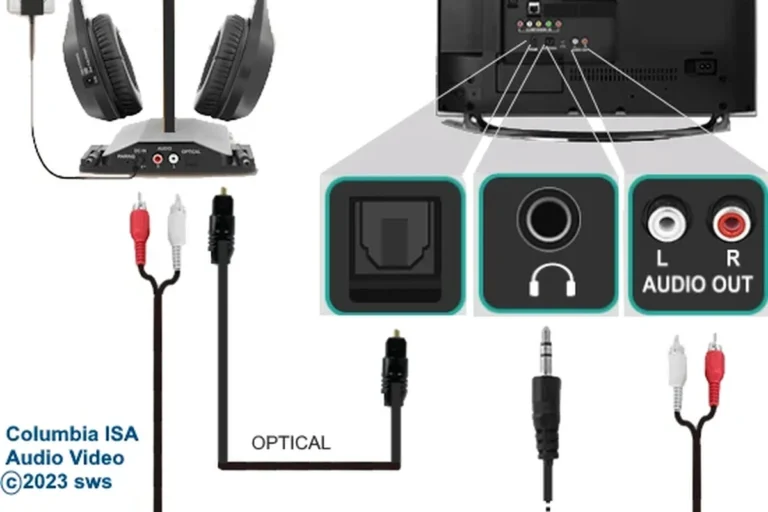
A Bluetooth transmitter is a small external device that plugs into your Roku setup and sends audio to your headphones. This can be a smart solution when your Roku player itself has no Bluetooth audio support.
Transmitters are especially useful if you want a dedicated setup with more stable audio than phone-based private listening. Just make sure the transmitter matches your TV or audio output connection type.
Transmitter quality varies a lot. Cheap models can add delay, weak range, or low volume, so check compatibility and return policies before buying.
Best Headphone and Transmitter Pairing Tips for Movies, Gaming, and Late-Night Viewing
The best headphones for Roku are not always the most expensive ones. For TV watching, comfort, lip-sync, and stable wireless performance often matter more than flashy specs.
Low-latency headphones for lip-sync and gaming
If you watch a lot of dialogue-heavy content or play games through Roku, low latency matters. A small delay between video and audio can be distracting, especially during fast scenes or competitive gaming.
Closed-back over-ear headphones are often a good pick because they block more room noise and make dialogue easier to hear. If you are comparing headphone styles, our guide to types of headphones explained can help you choose the right fit for long viewing sessions.
When a transmitter is better than a direct Bluetooth connection
A transmitter can be better if you want more consistent audio than a phone-based app connection. It may also help when your headphones struggle to pair directly with your Roku device.
For some homes, a transmitter is the more reliable choice for movie nights because it reduces the chance of app interruptions or device switching issues. It is not always necessary, but it can be worth it for a cleaner setup.
- Works with more Roku setups
- Can improve headphone compatibility
- Useful for private late-night viewing
- Adds another device to manage
- May introduce latency if low quality
- Needs the right audio output port
Common Problems When Connecting Bluetooth Headphones to Roku
Even when a Roku setup supports wireless audio, small issues can get in the way. Most of them are easy to fix once you know what to check.
Headphones not showing up in pairing mode
If your headphones do not appear, make sure they are truly in pairing mode and not just powered on. Many headphones use different behavior for power-on and pairing, so the indicator light matters.
Also check whether the headphones are still connected to another device. Resetting the headphones can help if they were previously paired with a phone or computer and are not entering discovery mode correctly.
If you need a refresher on wireless reset steps, our guide on how to reset Bluetooth headphones may help when pairing gets stuck.
Audio lag, dropouts, and low volume issues
Audio lag usually comes from wireless processing, distance, or interference. Try moving closer to the Roku device, removing obstacles, and closing nearby Bluetooth connections that may compete for signal.
Dropouts can also happen if the headphones are low on battery or if the transmitter is overloaded. Low volume may be a headphone setting issue, a TV output setting issue, or a mismatch between the source and the accessory.
Listening at high volumes for long periods can cause hearing damage. Keep volume at 60% or below for extended sessions.
Why Roku may disconnect after sleep or app switching
Some Bluetooth setups disconnect when the TV sleeps, the app changes, or the streaming session pauses too long. That behavior is common with many wireless audio devices, not just Roku.
If this happens often, reconnecting from the same menu usually solves it. For more persistent issues, a transmitter or wired audio path may be more stable for your room.
Expert Advice: Mistakes to Avoid Before Buying Headphones or Accessories for Roku
Buying for Roku is less about brand hype and more about compatibility. A good pair of headphones can still be frustrating if the connection method does not match your device.
Ignoring Roku model compatibility and Bluetooth codec limits
Before you buy, check whether your exact Roku model supports Bluetooth audio or only app-based private listening. This one detail can save you from returning headphones that work perfectly elsewhere but not with your TV.
Also keep codec limits in mind. Even if your headphones sound great on a phone, your Roku connection may not support every codec or feature, so performance can differ from device to device.
If you have hearing loss, tinnitus, or you notice frequent volume fatigue, consult an audiologist for safer listening guidance. A professional can help you choose a setup that stays clear without pushing the volume too high.
Choosing budget gear that adds delay or weak range
Very cheap headphones and transmitters can be tempting, but they may create more problems than they solve. Weak range, unstable pairing, and noticeable delay are common tradeoffs in low-cost gear.
If your main use is movies or gaming, it is usually better to spend a little more on reliable wireless audio than to fight constant dropouts. If you are comparing connection methods, our guide on Bluetooth vs wired headphones sound quality explains why wired setups still matter for low-lag listening.
Final Recap: The Easiest Way to Enjoy Private Roku Audio in 2025
The easiest way to use Bluetooth headphones with Roku is to start by checking your exact model. If it supports direct pairing, use the Roku menu; if not, use Private Listening or a Bluetooth transmitter.
For most viewers, the best setup is the one that balances comfort, low delay, and simple daily use. Once you know your Roku’s limits, private listening becomes much easier to set up and enjoy.
Frequently Asked Questions
Yes, but it depends on your Roku model and TV setup. Some devices support Bluetooth headphones directly, while others need the Roku app or a transmitter.
Yes, noise cancelling headphones can work very well for movies and late-night viewing. They help reduce background noise, but sound quality and comfort still depend on the model.
Closed-back headphones are usually better for Roku because they block more outside noise and keep dialogue clear. Open-back models can sound wider, but they leak sound and are less private.
Look at comfort, wireless stability, latency, battery life, and overall tuning more than one single spec. Drivers, frequency response, and codec support can matter, but real-world performance varies by model.
A budget pair can work for casual viewing, but better build quality and lower latency usually cost more. Choose based on your use case, and expect prices to vary by brand and features.
Check ear cushion material, headband padding, weight, and how long you can wear them without pressure. For long sessions, comfort matters as much as sound quality.