How to Update Sony Headphones Step by Step Guide

Use the Sony | Headphones Connect app, keep the battery charged, and do not interrupt the update once it starts. If the app fails, re-pair the headphones or use Sony’s official support tools before trying again.
If you want to know how to update Sony headphones, the safest method is usually the Sony | Headphones Connect app on your phone. Most updates are simple, but they work best when the battery is charged, the Bluetooth connection is stable, and you let the process finish without interruption.
- Best method: The Sony app is the safest update path for most models.
- Preparation: Charge the headphones and keep Bluetooth stable.
- During update: Do not close the app or disconnect the headphones.
- If stuck: Re-pair, reset, or reinstall before retrying.
How to Update Sony Headphones: What This Guide Covers and Why Firmware Updates Matter
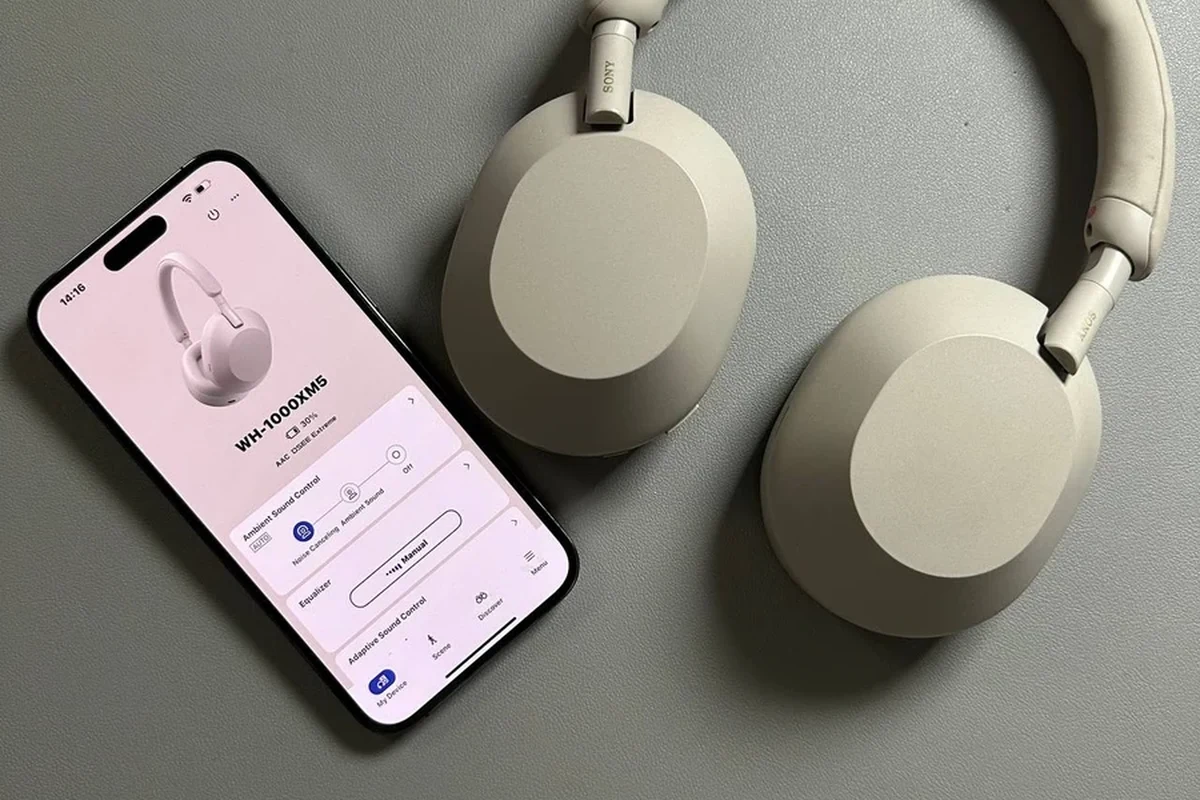
Firmware updates can improve how your Sony headphones behave day to day. Depending on the model, an update may refine noise cancellation, improve Bluetooth stability, fix bugs, or adjust how touch controls and call features respond.
This guide walks through the common update process, the models most likely to support it, and what to do if the app does not cooperate. If you are also trying to improve pairing or connection reliability, our guide on how to connect Bluetooth headphones may help before you begin.
Firmware updates can vary by model, region, and app version. Always follow the instructions shown in the Sony app or on Sony’s support page for your exact headphones.
Which Sony Headphones Can Be Updated in 2026? Compatibility, App Support, and Model Differences

Many modern Sony wireless headphones and earbuds support firmware updates through the companion app, but not every model uses the same process. In 2026, app-based updates are still the most common route for newer Bluetooth headphones and true wireless earbuds.
Older models may rely on a computer-based update tool or support page instead. The exact path depends on your product line, your phone, and whether Sony still supports that model with current software tools.
WH-1000XM5, WH-1000XM6, LinkBuds, ULT Wear, and WF Series Update Support
Flagship over-ear models such as the WH-1000XM series are typically designed with app support in mind. Sony’s smaller products, including LinkBuds and many WF-series earbuds, also commonly use the mobile app for firmware checks and installation.
If you own a newer Sony wireless model, there is a good chance the update will appear inside the app once your headphones are paired. For a broader look at wireless basics, our Bluetooth headphones explained guide can help you understand why app support matters.
Some headphone updates are not visible immediately. The app may need a fresh connection or a short sync before the firmware notice appears.
What you need before starting: battery level, app version, and Bluetooth connection
Before you start, charge the headphones to a comfortable level. A low battery can interrupt the update, and that is one of the easiest ways to cause trouble.
You should also make sure the Sony app is updated on your phone, Bluetooth is on, and the headphones are already paired. A stable connection matters more than speed here, so avoid switching devices while the update is pending.
How to Update Sony Headphones Step by Step Using the Sony | Headphones Connect App
For most users, the app is the simplest and safest way to update Sony headphones. The process is designed to guide you through download, installation, and confirmation without needing technical tools.
Prepare your phone, pair the headphones, and check for available firmware
Open the Sony | Headphones Connect app and confirm that your headphones are connected. If the app prompts you to sign in, allow it to finish before moving on.
Once connected, look for a firmware update notice or a device settings section that mentions software version. If an update is available, read the release notes first so you know what may change.
- Headphones are paired to the correct phone
- Phone battery is not critically low
- Bluetooth stays on during the full process
- App permissions are allowed if requested
Install the update safely without disconnecting or closing the app
Start the update only when you can leave the headphones and phone alone for a while. Keep the app open, keep the headphones nearby, and avoid answering calls or switching apps if possible.
Do not power off the headphones, close the app, or walk too far away from the phone while the firmware is downloading or installing. If the update pauses, the app may tell you what to do next, but in many cases patience is the best choice.
Do not interrupt a firmware install. Closing the app, losing Bluetooth connection, or letting the battery die can cause update errors that may require a reset or re-pairing.
Confirm the new firmware version after installation
After the update finishes, the app usually shows a confirmation message or a new software version number. Check that the version changed before you assume the update worked.
If the app asks you to reconnect the headphones, follow the prompt and test basic functions such as playback, ANC, touch controls, and voice calls. If you are troubleshooting a connection issue afterward, our how to reset Bluetooth headphones guide can be a useful next step.
Alternative Update Methods for Sony Headphones: When the App Doesn’t Work
Sometimes the mobile app does not show the update, or the installation fails partway through. That does not always mean your headphones are broken; it may just mean the app, phone, or pairing needs a refresh.
Updating through a computer or manual firmware support page
Some Sony models support computer-based firmware tools or download pages on Sony’s support site. This is more common for older products or situations where the phone app is no longer the best option.
Use only the official Sony support resources for your exact model. Avoid third-party firmware files, since the wrong package can create more problems than it solves.
When to reset, re-pair, or reinstall the app before trying again
If the update will not start, try removing the headphones from Bluetooth, re-pairing them, and reopening the app. A simple reset can also clear temporary pairing glitches.
Reinstalling the app may help if the app itself is outdated or stuck. This is often worth trying before you assume the headphones need service.
If your Sony headphones keep disconnecting during updates, move closer to your phone and turn off other nearby Bluetooth accessories temporarily.
Why Sony Releases Firmware Updates: Sound, ANC, Stability, and Bug Fixes
Sony usually releases firmware updates to improve real-world performance, not just add a version number. That can mean better stability, refined feature behavior, or fixes for issues users have reported.
In headphone terms, that may affect how smooth your listening experience feels rather than how the product looks on paper. The changes can be small, but they often matter in daily use.
Real-world examples of improvements users may notice after updating
After a firmware update, some users may notice fewer Bluetooth dropouts, quicker reconnection, or better consistency between the left and right channels. Others may find that app controls feel more responsive.
Noise cancellation or ambient sound behavior may also feel more polished after an update, although results can vary by model and by how you wear the headphones. For readers comparing listening modes, our how noise cancelling headphones work guide explains the basics in plain language.
When an update can change battery behavior, touch controls, or call quality
Firmware can sometimes affect battery reporting, touch sensitivity, or microphone tuning. That does not always mean the headphones suddenly use more or less power; it may simply mean the software is measuring or managing things differently.
Call quality updates can be especially noticeable for people who use Sony headphones for meetings or commuting. If you depend on your headphones for long sessions, keep an eye on comfort and battery behavior after any major update.
Common Mistakes to Avoid When Updating Sony Headphones
Most update problems come from simple mistakes, not from the headphones themselves. If you avoid a few common issues, the process is usually straightforward.
Low battery, unstable Wi-Fi, Bluetooth dropouts, and interrupted downloads
Low battery is one of the biggest risks because the update may stop before it finishes. Even if the headphones still have some charge, it is smarter to start with plenty of battery left.
Unstable internet can also slow the download inside the app, while Bluetooth dropouts can interrupt the installation. Try to update at home or in another stable environment instead of on the move.
Listening at high volumes for long periods can cause hearing damage. Keep volume at 60% or below for extended sessions.
Skipping release notes or installing updates during travel
Release notes tell you what Sony changed, and that information can help you decide whether to update right away. Skipping them means you may miss an important fix or a known issue.
Travel is also a poor time for firmware installs. If you are on a plane, in a station, or switching between devices, wait until you are back in a stable place with time to spare.
Expert Advice: When to Update Immediately and When to Wait
Not every firmware release needs to be installed the moment it appears. A good update strategy balances stability, convenience, and how much you rely on the headphones each day.
Warning signs that make an update worth installing right away
If Sony’s notes mention bug fixes for connection drops, charging issues, microphone problems, or repeated app crashes, updating sooner is usually sensible. The same is true if your headphones are already behaving unpredictably.
When a firmware release addresses a problem you are actively experiencing, waiting rarely helps. In those cases, updating can save you time compared with repeated troubleshooting.
If you notice persistent audio imbalance, sudden volume changes, or hearing discomfort that does not improve after a reset, consult an audiologist or a qualified headphone specialist.
Situations where waiting a few days is smarter for troubleshooting and stability
If your headphones are working perfectly and the update is not fixing a problem you have, waiting a few days can be a cautious move. Early adopters sometimes find issues first, which is why some users prefer to let a release settle before installing it.
This is especially true if you depend on the headphones for work calls, long commutes, or travel. Stability matters more than novelty for most everyday listeners.
Final Recap: The Fastest Way to Update Sony Headphones in 2026
The fastest and safest way to update Sony headphones in 2026 is to use the Sony | Headphones Connect app with a charged battery, a stable Bluetooth connection, and no interruptions. Check the firmware notice, follow the prompts, and confirm the new version after installation.
If the app fails, try re-pairing, resetting, or using Sony’s official support tools before assuming the headphones have a serious problem. For readers who want a broader look at headphone types and use cases, our types of headphones explained guide is a helpful next read.
- Use the official Sony app first for most updates.
- Keep the battery charged and the connection stable.
- Do not close the app or interrupt installation.
- Reset or re-pair if the update gets stuck.
Frequently Asked Questions
Open the Sony | Headphones Connect app, make sure the headphones are paired, and check for a firmware update notice. Keep the app open and the headphones nearby until the install finishes.
Try re-pairing the headphones, restarting your phone, or reinstalling the app before trying again. If the model supports it, Sony’s official support page or computer tool may be the next step.
Sometimes they can improve tuning, stability, or noise-canceling behavior, but results vary by model. Updates more often improve reliability and bug fixes than change the sound dramatically.
Wireless Sony headphones usually offer app support, firmware updates, and extra features like ANC or touch controls. Wired headphones do not usually need firmware updates because they rely less on onboard software.
For commuting, look for strong ANC and stable Bluetooth. For gaming or studio work, check latency, comfort, microphone quality, and whether you need wired or wireless use.
Look at weight, ear cushion material, headband fit, battery life, and build quality. Comfort can be personal, so long listening sessions are the best real test once you own the headphones.