How to Connect Headphones to Xbox Easily and Fast

Use the Xbox controller’s 3.5mm jack for the fastest wired setup, or pair an Xbox Wireless headset if you want cable-free gaming. Bluetooth headphones usually need a TV, monitor, or adapter because Xbox does not support standard Bluetooth pairing directly.
Connecting headphones to Xbox is usually simple once you know which Xbox model and headphone type you have. In 2025, the fastest setup is often a wired headset through the controller, while wireless Xbox headsets and TV audio outputs are the best alternatives when you need more flexibility.
- Fastest option: Use the controller jack for most wired headphones.
- Best wireless option: Choose an Xbox Wireless headset for easier pairing.
- Bluetooth limit: Most Bluetooth headphones need a TV or adapter workaround.
- Audio quality: Adjust chat mixer, volume, and spatial audio settings.
How to Connect Headphones to Xbox: What Works in 2025

If you want to know how to connect headphones to Xbox, the first thing to understand is that Xbox does not treat every headphone the same way. Some headsets work directly with the controller, some use Xbox Wireless, and some need a TV, monitor, or adapter to route audio correctly.
The good news is that most players can get sound fast without buying extra gear. The catch is that Bluetooth headphones usually do not connect directly to Xbox consoles, so it helps to choose the right method from the start.
Headphone compatibility can vary by brand, Xbox model, and firmware version. If you already own a headset, check the connection type before buying any adapter.
Know Your Xbox Model Before You Start
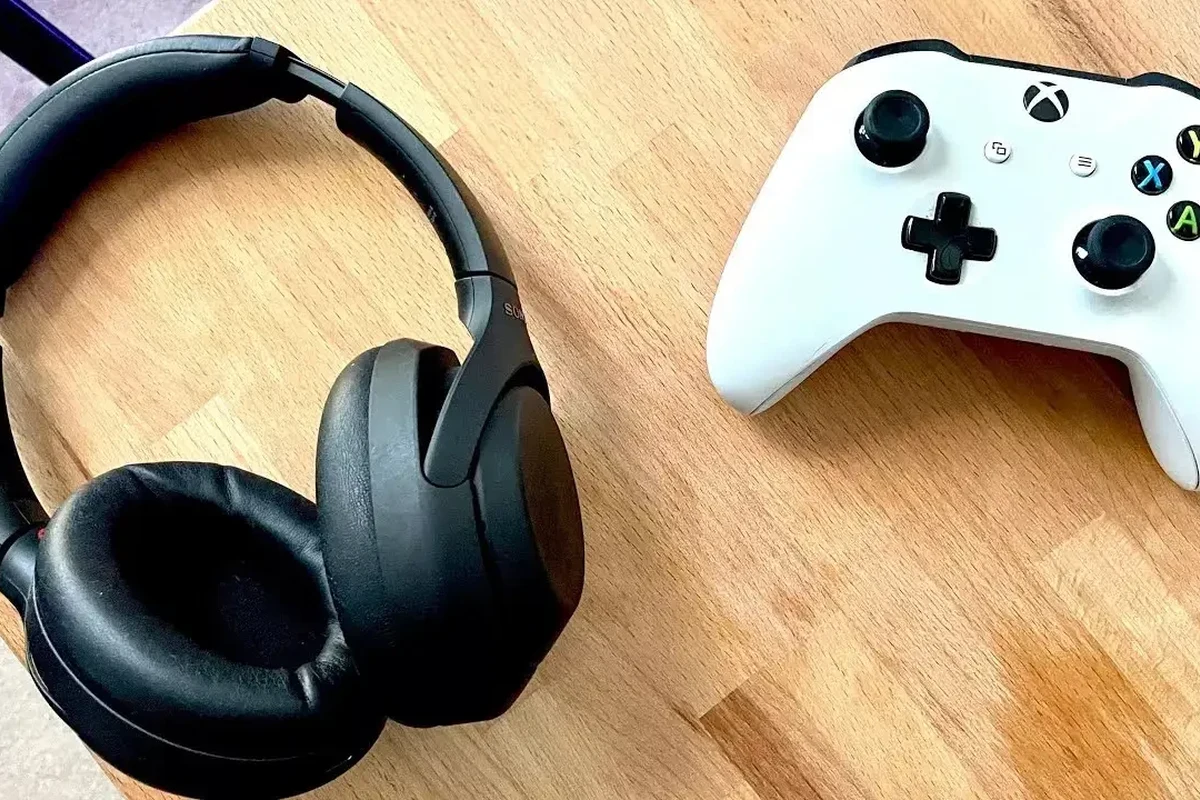
Before you plug anything in, identify your Xbox model. The connection options are similar across newer systems, but older consoles and certain accessories can behave differently.
Xbox Series X|S, Xbox One, and older consoles: why the connection method changes
Xbox Series X|S and most Xbox One controllers include a 3.5mm headphone jack, which makes wired audio much easier. Older Xbox One controllers may need a headset adapter if they do not have that built-in jack.
Older consoles can also rely more heavily on controller accessories, optical audio, or TV output. That means the easiest method for one Xbox may not be the easiest method for another.
Wired, wireless, and Bluetooth: what Xbox supports and what it does not
Wired headphones are the most straightforward option because they usually work through the controller or TV. Wireless Xbox headsets that use Xbox Wireless are also well supported and tend to offer the cleanest console experience.
Bluetooth is where many people get stuck. Xbox consoles generally do not support standard Bluetooth headphone pairing directly, so you usually need a TV, monitor, or external adapter if your headphones only use Bluetooth.
Do not assume a Bluetooth symbol means direct Xbox support. Many wireless headphones that work with phones and laptops still will not pair to an Xbox console on their own.
Fastest Ways to Connect Headphones to Xbox
If you want the quickest setup, start with the controller jack or an Xbox Wireless headset. These are the least complicated routes and usually give the most reliable results for game sound and chat.
Using the Xbox controller 3.5mm headphone jack
This is the easiest method for many players. Just plug your wired headphones or headset into the 3.5mm port on the controller, then adjust the audio settings in the Xbox menu if needed.
If your headset has both audio and mic support, the controller jack can usually handle both. For simple plug-and-play use, this is often the best answer for casual gaming, party chat, and quick setup.
If your headset sounds too quiet, raise the headset volume in Xbox settings before increasing the controller or TV volume. That usually gives cleaner results than maxing out every device at once.
Connecting a wired headset through the controller adapter
Some older Xbox controllers need a headset adapter if they do not have a built-in 3.5mm jack. This adapter lets you connect a standard wired headset and control chat or volume more easily.
It is a useful fix when you already own a good wired headset and do not want to replace it. Just make sure the adapter matches your controller model and is seated firmly.
Pairing a wireless Xbox headset with Xbox Wireless
Wireless headsets made for Xbox can connect directly through Xbox Wireless, which is different from normal Bluetooth. This method is popular because it avoids cable clutter and usually keeps latency low enough for gaming.
The pairing steps vary by headset, but the general process is simple: put the headset in pairing mode, press the Xbox pairing button, and wait for the connection to complete. If the headset includes a companion app, you can often fine-tune EQ and mic settings there.
Using TV audio output for headphones when the controller route is not enough
If your controller jack is unavailable or you want to listen directly from the TV, use the TV’s audio output. Depending on the TV, that may mean a 3.5mm output, optical output, USB audio support, or Bluetooth passthrough.
This route can be handy for couch gaming or shared setups, especially with noise cancelling headphones that help block room noise. Just remember that TV audio can add delay on some setups, which matters more in fast-paced games.
Step-by-Step Setup for the Most Common Headphone Types
The best method depends on the type of headphone you own. Wired models are usually simplest, while USB and Bluetooth headphones often need a workaround.
How to connect wired headphones to Xbox with a 3.5mm plug
Insert the 3.5mm plug fully into the Xbox controller’s headphone jack. If the connection is loose, remove and reinsert it carefully.
Make sure the mic is not muted on the cable, inline control, or ear cup. Many “no mic” problems are just a mute switch turned on.
Open the Xbox audio menu and set headset volume, chat mixer, and mic monitoring to comfortable levels.
How to connect a USB headset to Xbox: compatibility limits and workarounds
USB headsets can be tricky because not every USB headset works on Xbox. Some are designed for PC or PlayStation only, while others are specifically made for Xbox support.
If your USB headset is not recognized, try another USB port, check the manufacturer’s compatibility notes, or use a controller connection instead. In many cases, a USB headset that works on a console base station may still need the correct Xbox-supported mode.
If you rely on a USB headset for long sessions and the mic or audio keeps dropping, contact the headset maker or an audiologist if you suspect hearing fatigue, imbalance, or discomfort from prolonged listening.
How to connect Bluetooth headphones to Xbox using a TV, monitor, or adapter
Since Xbox usually does not pair directly with Bluetooth headphones, the most common workaround is to connect the headphones to your TV or monitor instead. If the display supports Bluetooth audio, pair the headphones there and route Xbox sound through the screen.
Another option is a Bluetooth transmitter connected to the TV’s audio output. This can work well, but latency, pairing stability, and mic support may vary by adapter and headphone model.
How to connect wireless gaming headsets with a USB dongle or base station
Some wireless gaming headsets use a USB dongle or base station. These often work best on devices they were designed for, so Xbox compatibility should be confirmed before you buy.
If the headset includes a base station, follow the manufacturer’s pairing steps and connect the base to the correct port on the Xbox or TV. For broader setup help, our guide on selecting headphones in Windows 11 can also help you understand device output and default audio routing in simple terms.
Best Audio Settings for Clear Chat and Game Sound
Once the headphones are connected, the right audio settings make a big difference. Good setup can improve voice clarity, reduce echo, and make footsteps or environmental cues easier to hear.
Adjusting headset volume, mic monitoring, and chat mixer
Start with headset volume at a moderate level, then adjust chat mixer so game audio does not overpower voices. If your headset has mic monitoring, keep it low enough that your own voice does not become distracting.
For party chat, a balanced mix is usually best. For competitive play, many players prefer slightly lower chat volume so game cues stay clear.
Choosing stereo uncompressed, Windows Sonic, Dolby Atmos, or DTS Headphone:X
Stereo uncompressed is simple and often sounds natural with many headphones. Spatial audio options like Windows Sonic, Dolby Atmos, or DTS Headphone:X can improve direction cues, but the best choice depends on your headset and personal preference.
If you use closed-back gaming headsets, spatial modes can feel more focused. If you prefer a wider soundstage, open-back models may feel more spacious, though they leak more sound and isolate less.
Many gamers switch between stereo and spatial audio depending on the game. A setting that sounds great in one shooter may feel too processed in an RPG or story game.
Practical settings for shooters, RPGs, and party chat
For shooters, prioritize directional clarity and keep bass from overwhelming footsteps. For RPGs and single-player games, a slightly richer sound profile can make music and effects more enjoyable.
For party chat, use a balanced chat mixer and test your mic before jumping into a match. If you want help understanding headset types more broadly, see our types of headphones explained guide for a simple breakdown of fit and sound differences.
Common Mistakes When Connecting Headphones to Xbox
Most Xbox headphone problems come from small setup mistakes rather than broken gear. A quick check of ports, cables, firmware, and audio routing often solves the issue.
Assuming every Bluetooth headset works directly with Xbox
This is the most common mistake. Standard Bluetooth headphones may work with phones, tablets, and laptops, but Xbox support is different and often requires a workaround.
If your headset only uses Bluetooth, plan on using TV audio, a transmitter, or a different headset type instead of expecting direct pairing.
Using the wrong port, cable, or adapter
A loose 3.5mm plug, an incompatible USB cable, or the wrong adapter can make it seem like the headset is broken. Double-check that the connector matches the Xbox controller or console accessory you are using.
Also confirm whether the headset needs a TRRS plug for mic support or a separate adapter for chat functions. Small connector differences matter more than many buyers expect.
Ignoring controller firmware, headset firmware, or battery issues
Controllers and wireless headsets can behave poorly if firmware is outdated or the battery is low. If audio cuts out, disconnects, or sounds distorted, update the firmware and charge the device fully.
This is especially important for wireless gear, where signal stability depends on both the headset and controller staying in good shape.
Overlooking TV passthrough delay and audio sync problems
If you connect headphones through a TV, you may notice a slight delay between the action and the sound. That delay can be distracting in rhythm games, shooters, or anything timing-based.
Try the TV’s game mode, lower-latency audio settings, or a direct controller connection if sync matters more than convenience.
Expert Advice: What to Buy If You Need Better Xbox Headphone Support
If you are still deciding what to buy, think about how you actually play. The best choice for a casual couch player is not always the best choice for a competitive gamer or someone who shares a living room.
Budget vs premium: what you gain for the extra cost
Budget headsets can be perfectly usable if you mainly want clear game audio and basic chat. Premium models may offer better comfort, stronger microphones, longer battery life, or more flexible connectivity.
The value difference depends on how long you play and how sensitive you are to fit, clamp force, and sound balance. If you want a broader buying comparison, our headphones vs earphones complete guide can help you decide which style fits your setup best.
Xbox Wireless headset vs wired headset vs TV-connected headphones
Xbox Wireless headsets are the cleanest wireless option for console use, especially if you want simple pairing and low-latency play. Wired headsets are still the easiest budget-friendly choice and rarely cause pairing headaches.
TV-connected headphones can be useful for shared rooms, but they depend on your display’s audio features and may introduce delay. For many players, wired or Xbox Wireless remains the most dependable route.
Recommended features for 2025: low latency, mic quality, comfort, and battery life
Look for low latency if you play fast games, good mic clarity if you use party chat often, and comfortable ear pads if you game for hours. Battery life matters for wireless models, but comfort often matters even more during long sessions.
Protect Your Hearing Listening at high volumes for long periods can cause hearing damage. Keep volume at 60% or below for extended sessions.
Final Recap: The Easiest Way to Connect Headphones to Xbox
The easiest way to connect headphones to Xbox is usually through the controller’s 3.5mm jack or a headset made for Xbox Wireless. If that is not an option, use your TV or monitor audio output and confirm that your headphones are compatible with the setup.
For most players, the best path is simple: choose the connection type your Xbox supports, keep the audio settings balanced, and avoid assuming Bluetooth will work directly. With the right method, you can get clear game sound and chat without wasting time on trial and error.
Frequently Asked Questions
Wired headphones can offer a very stable connection with no pairing hassle, while wireless headphones add convenience. Sound quality depends more on the headset model, fit, and Xbox audio settings than the cable alone.
Xbox consoles generally do not support standard Bluetooth audio pairing the way phones and laptops do. You usually need a TV, monitor, or Bluetooth transmitter as a workaround.
Noise cancelling headphones can help block room noise and make game audio easier to hear. They are especially useful in shared spaces, but the best results depend on comfort, latency, and mic quality.
Closed-back headphones are usually better for Xbox gaming because they isolate outside noise and keep sound from leaking. Open-back headphones can feel wider and more natural, but they are less private and less immersive in noisy rooms.
Look at comfort, mic quality, latency, and how the headset handles bass, clarity, and directional cues. Frequency response and driver type can matter, but real-world tuning and fit often matter more than numbers alone.
Prioritize lightweight comfort, soft ear cushions, and a headband that does not clamp too hard. Durable build quality and a headset that stays comfortable for hours are usually more important than extra features you may not use.