Can I Connect Bluetooth Headphones to Roku TV Easily

Yes, but not every Roku TV supports Bluetooth headphones directly. If direct pairing is unavailable, the Roku app or a Bluetooth transmitter are the easiest alternatives.
Yes, you can connect Bluetooth headphones to a Roku TV in some cases, but the method depends on your exact Roku TV model and setup. Some Roku TVs support Bluetooth audio directly, while many users need the Roku app or a Bluetooth transmitter as a workaround.
- Direct support: Some Roku TVs can pair Bluetooth headphones in settings.
- Best workaround: The Roku app can provide private listening without extra hardware.
- Most stable option: A Bluetooth transmitter often works best on non-Bluetooth TVs.
- Gaming tip: Choose low-latency headphones or a transmitter to reduce delay.
Can You Connect Bluetooth Headphones to a Roku TV in 2025?
The short answer is: sometimes directly, sometimes not. Roku TV support varies by brand, model year, and software features, so it is worth checking your TV’s audio options before buying anything extra.
If you are comparing wireless listening options, it can help to understand the basics of Bluetooth headphones and how they differ from wired headphones in latency, convenience, and compatibility.
What Roku TV models support Bluetooth audio directly
Some newer Roku TV models include Bluetooth audio support, but not every Roku TV does. Even when Bluetooth is available, it may be limited to certain audio devices or specific software menus rather than a universal pairing screen.
That means one Roku TV may pair with headphones easily, while another Roku TV from a different brand or year may not offer Bluetooth headphone pairing at all. The safest approach is to check the settings menu first instead of assuming all Roku TVs work the same way.
Why many users search for this solution: late-night TV, gaming, and private listening
Most people want Bluetooth headphones for quiet, personal listening. Late-night TV is the most common reason, but gaming and shared living rooms are close behind.
Headphones are also useful when you do not want to disturb a partner, family member, or roommate. For gamers, the biggest concern is usually lag, which makes the connection method more important than the headphone brand alone.
How to Check Whether Your Roku TV Has Built-In Bluetooth
Before you try pairing anything, check whether Bluetooth audio is actually built into your Roku TV. This saves time and helps you avoid buying the wrong accessory.
Where to look in Roku settings for Bluetooth or wireless audio options
Open the Roku settings menu and look for sound, remotes, or Bluetooth-related audio options. On some TVs, wireless audio features may appear under a private listening or audio output menu rather than a clearly labeled Bluetooth page.
Note
If you only see Wi-Fi, remote, or speaker settings and no Bluetooth audio option, your TV may not support direct headphone pairing.
Signs your TV is Roku TV but not Bluetooth-ready
A Roku TV can still be “smart” without being Bluetooth-ready. If the menu never shows Bluetooth audio, if pairing fails repeatedly, or if the manual only mentions streaming apps and remote pairing, that is a strong sign the TV does not support headphones directly.
Another clue is when the TV supports Bluetooth for remotes but not for audio output. That is a common limitation, and it confuses many first-time buyers.
Model-specific limitations that affect headphone pairing
Different TV manufacturers use Roku TV software in different ways, so Bluetooth support is not guaranteed across all models. A feature available on one Roku TV may be missing on another, even if both look nearly identical from the outside.
If your TV does not support direct pairing, the next best option is usually the Roku mobile app or an external transmitter. Those methods are often more reliable than trying random pairing attempts.
Best Ways to Use Bluetooth Headphones with Roku TV
There are four practical ways to listen privately on a Roku TV. The best one depends on whether your TV supports Bluetooth, how much lag you can tolerate, and whether you want a simple or more flexible setup.
Direct Bluetooth pairing when supported
If your Roku TV supports Bluetooth audio directly, this is the cleanest method. Pair the headphones in the TV menu, confirm the connection, and then use the headphones for all TV sound.
Audio Tip
For the smoothest experience, put your headphones into pairing mode before opening the Roku TV audio menu.
Using the Roku mobile app as a wireless headphone workaround
The Roku mobile app can be a very convenient workaround for private listening. In many setups, the app sends TV audio to your phone, and you listen through your phone-connected headphones.
This is especially useful if your TV has no Bluetooth audio support. It is also one of the easiest ways to get private listening without buying extra hardware, though sound quality and delay can vary by phone, network, and app behavior.
Adding a Bluetooth transmitter to the TV’s audio output
A Bluetooth transmitter is often the most flexible solution for non-Bluetooth Roku TVs. It connects to the TV’s audio output, then sends sound to your headphones wirelessly.
This option works well if your TV has optical, AUX, or another compatible audio output. It is also a smart choice if you want to use your own headphones rather than depend on app-based listening.
Using Roku Voice Remote with a headphone jack or private listening features
Some Roku setups offer private listening through the Roku Voice Remote or through the mobile app. If your remote has a headphone jack, that can be a simple wired alternative when you do not need Bluetooth specifically.
Wired private listening usually has less delay than wireless methods, which can be helpful for dialogue-heavy shows and gaming. If you are comparing audio paths, our guide on Bluetooth versus wired headphones explains why wired connections often feel more responsive.
Step-by-Step Setup: Connecting Bluetooth Headphones the Right Way
The exact steps depend on the method you use, but the goal is the same: get stable audio with minimal lag and no confusing volume issues. Start with the simplest method your TV supports.
Pairing headphones through Roku TV settings
Go to your Roku TV settings and find the audio, remote, or Bluetooth section if available.
Turn on your Bluetooth headphones and activate pairing mode according to the manufacturer’s instructions.
Choose the headphones from the TV list, then test sound and adjust volume as needed.
Setting up the Roku app for private listening on iPhone and Android
Install the Roku mobile app on your phone, sign in, and connect it to the same network as your TV. Then open the app’s private listening feature, if available, and connect your headphones to the phone.
This method is often the easiest for casual viewers because it does not require extra hardware. If you are new to wireless audio connections in general, our guide on how to connect Bluetooth headphones can help you understand the basic pairing process before you troubleshoot a TV setup.
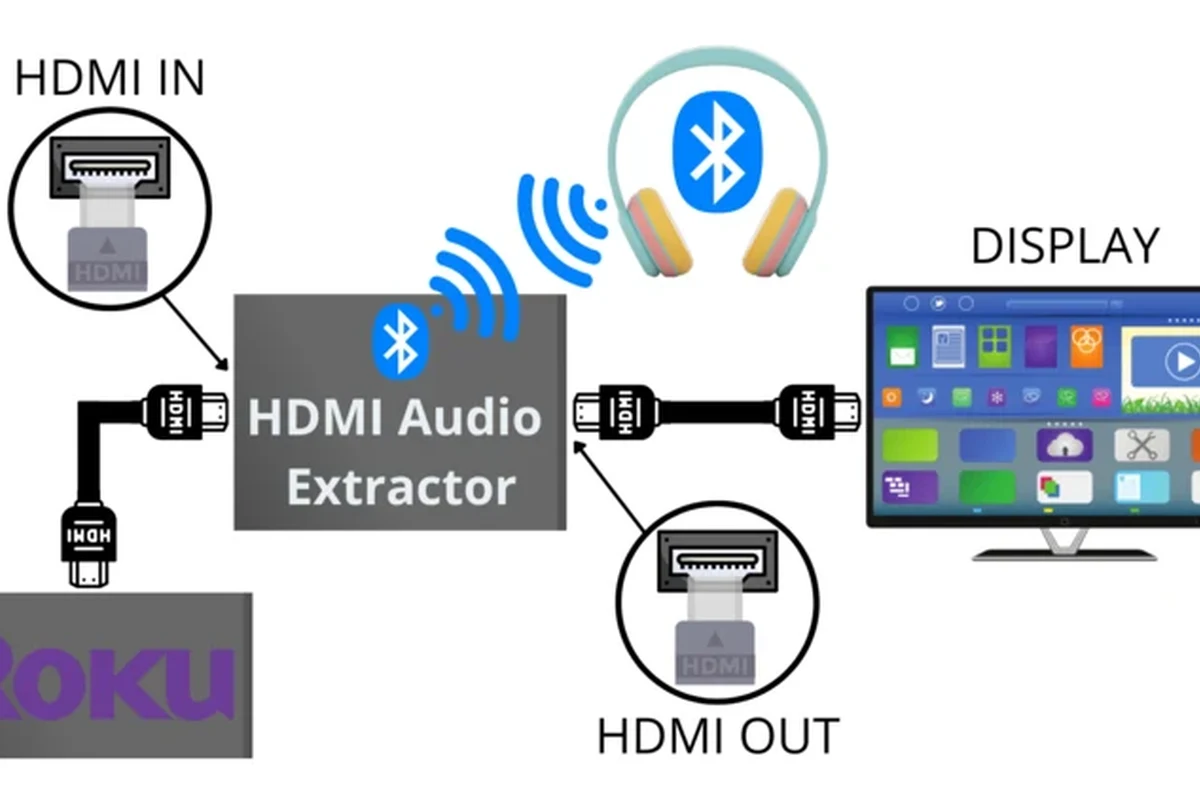
Connecting an external Bluetooth transmitter to HDMI ARC, optical, or AUX
First, check which audio output your Roku TV provides. Common choices include optical, HDMI ARC, or AUX, and the transmitter must match the output you plan to use.
Connect the transmitter to the TV, pair your headphones to the transmitter, and then test the audio. This setup often gives better control than app-based listening, especially for people who use headphones regularly.
Important
Not every transmitter supports every TV output. Check compatibility carefully before buying, or you may end up with an adapter that does not work with your specific Roku TV.
Common Problems and Mistakes People Run Into
Most Roku headphone problems come down to three things: compatibility, delay, and volume control. Once you know what to look for, troubleshooting becomes much easier.
Audio delay and lip-sync issues during movies or gaming
Bluetooth can introduce a small delay, which is more noticeable in gaming and fast action scenes. If lips do not match the dialogue, the issue is usually the connection path rather than the headphones themselves.
Low-latency headphones or a better transmitter can reduce this problem, but results vary by model and TV. For gaming, prioritize a setup designed to minimize delay instead of focusing only on battery life or brand name.
Headphones not appearing in pairing mode
If the headphones do not show up, they may not be in pairing mode, may already be connected to another device, or may need a reset. This is one of the most common Bluetooth headaches across all devices.
If you run into repeated pairing failures, try resetting the headphones and checking whether they connect to a phone first. Our guide on how to reset Bluetooth headphones may help if the headset seems stuck or unresponsive.
Volume control confusion between TV, app, and headset
Volume can be controlled in more than one place depending on the method you use. Sometimes the TV sets the main level, while the app or headset controls the final listening volume.
That can make the sound seem too quiet or too loud if you only adjust one device. Start low, then raise the volume gradually until dialogue is clear and comfortable.
Connection drops, interference, and range limits
Bluetooth connections can drop if you move too far from the TV or if there is interference from walls, routers, or other wireless devices. This is normal with many wireless setups, but it is still frustrating when you are halfway through a movie.
Protect Your Hearing
Listening at high volumes for long periods can cause hearing damage. Keep volume at 60% or below for extended sessions.
Expert Advice: What to Know Before Buying Accessories
If your Roku TV does not support Bluetooth directly, the right accessory can make a big difference. The key is buying for your actual use case, not just the lowest price.
When a Bluetooth transmitter is worth the extra cost
A transmitter is worth it if you plan to use headphones often, want more stable private listening, or need a setup that does not depend on your phone. It is usually the better long-term choice for dedicated TV headphone use.
If you have ongoing hearing discomfort, tinnitus, or trouble understanding dialogue even at moderate volume, consider speaking with an audiologist. A professional can help you choose a safer listening setup and rule out hearing-related issues.
Choosing low-latency headphones for gaming and TV
For gaming, low-latency support matters more than flashy features. Look for headphones or transmitters that are advertised for reduced delay, then test them with your favorite game or show before relying on them full-time.
Closed-back headphones are often a practical choice for TV because they block more outside noise and keep sound private. If you are comparing styles, our article on types of headphones explained is a useful starting point.
Price comparison: free app solution vs budget transmitter vs premium audio gear
The Roku app solution is the cheapest because it may already be included in what you own. A budget transmitter adds cost, but it can be more reliable and easier to use for regular listening.
Premium headphones and higher-end transmitters may improve comfort, stability, and sound quality, but results vary by brand and model. There is no single best choice for everyone, especially if you only watch TV occasionally.
Warning signs of incompatible or low-quality adapters
Be cautious if an adapter does not clearly list supported TV outputs, headphone pairing support, or low-latency behavior. Vague product descriptions are often a red flag.
Also watch for poor build quality, weak range claims, or adapters that seem to support everything without explaining how. In audio gear, unclear compatibility usually leads to frustration later.
Which Option Is Best for Different Roku TV Users?
The best setup depends on how you watch, how often you use headphones, and whether you care more about convenience or performance. There is no one-size-fits-all answer.
Best choice for casual viewers and late-night watching
For casual use, the Roku mobile app is often the simplest answer. It avoids extra hardware and works well when you just want to watch quietly after everyone else goes to bed.
If your TV already supports Bluetooth audio, direct pairing is even easier. That is usually the most convenient option for everyday viewing.
Best choice for gamers who need minimal lag
Gamers should focus on the lowest-delay option available, which is often a transmitter paired with low-latency headphones. That setup usually performs better than app-based listening for fast action and competitive play.
If you want a deeper look at wireless delay, our guide on Bluetooth headphone lag fix covers the main causes of delay and what to do about them.
Best choice for households with multiple listeners
In shared homes, a transmitter can be the most flexible solution because it keeps the TV free for others while giving one person private audio. Some setups also make it easier to switch between speakers and headphones.
If more than one person needs audio access, think about convenience, charging, and how quickly the headphones reconnect. A simple setup is often better than a technically “better” one that nobody wants to use.
Final Verdict: The Easiest Way to Connect Bluetooth Headphones to Roku TV
So, can i connect bluetooth headphones to roku tv? Yes, but the easiest method depends on whether your TV supports Bluetooth audio directly. If it does, pair the headphones in settings; if not, the Roku app or a Bluetooth transmitter are the most practical alternatives.
Quick recap of the most reliable methods
Direct Bluetooth pairing is the cleanest option when your TV supports it. The Roku mobile app is the easiest no-extra-hardware workaround, while a transmitter is usually the best choice for stable, everyday private listening.
Best-practice recommendation from the Top Headphone Reviews Editorial Team
For most readers, we recommend checking the TV settings first, then using the Roku app if you want the simplest free solution. If you watch TV often or care about gaming delay, a good Bluetooth transmitter and a comfortable pair of headphones will usually give you the most dependable result.
Quick Summary
- Check whether your Roku TV supports Bluetooth audio before buying accessories.
- Use the Roku app for easy private listening if direct pairing is unavailable.
- Choose a Bluetooth transmitter for better compatibility and lower-lag TV audio.
- Pick low-latency headphones if you plan to game or watch lip-sync-sensitive content.
Frequently Asked Questions
Wireless headphones are more convenient, but wired headphones usually have less delay. For gaming or lip-sync-sensitive viewing, wired can be the safer pick.
Over-ear headphones are often the most comfortable for long sessions, while in-ear models are more compact. The best choice depends on fit, comfort, and how much outside noise you want to block.
Yes, noise cancelling headphones can make dialogue easier to hear in noisy rooms. They are especially useful if you watch TV at night or share space with other people.
Closed-back headphones are usually better for private TV listening because they block more outside sound. Open-back headphones can sound wider, but they leak sound and are less private.
Look at latency, comfort, battery life, and connection type first. Sound quality details like driver type, bass, and clarity matter too, but compatibility is usually the priority.
Choose lightweight headphones with soft ear cushions and a fit that does not clamp too hard. If you listen for long periods, take breaks and keep volume at a safe level.