How to Connect Headphones to Xbox Series X Easily

Use the Xbox controller’s 3.5mm jack for the easiest wired setup, or an Xbox Wireless headset for the simplest wireless option. Standard Bluetooth headphones usually need a TV, monitor, or transmitter workaround because they do not pair directly with Xbox Series X.
If you want to know how to connect headphones to Xbox Series X, the simplest answer is that wired headphones work through the controller, while wireless options usually need Xbox Wireless or a TV/monitor workaround. Standard Bluetooth headphones do not pair directly with the console, so the best method depends on the headset you already own.
- Fastest method: Plug wired headphones into the controller.
- Best wireless method: Use an Xbox Wireless-compatible headset.
- Bluetooth limit: Most Bluetooth headphones do not pair directly.
- Setup check: Confirm game audio, chat audio, and mic settings.
How to Connect Headphones to Xbox Series X: What Works in 2026
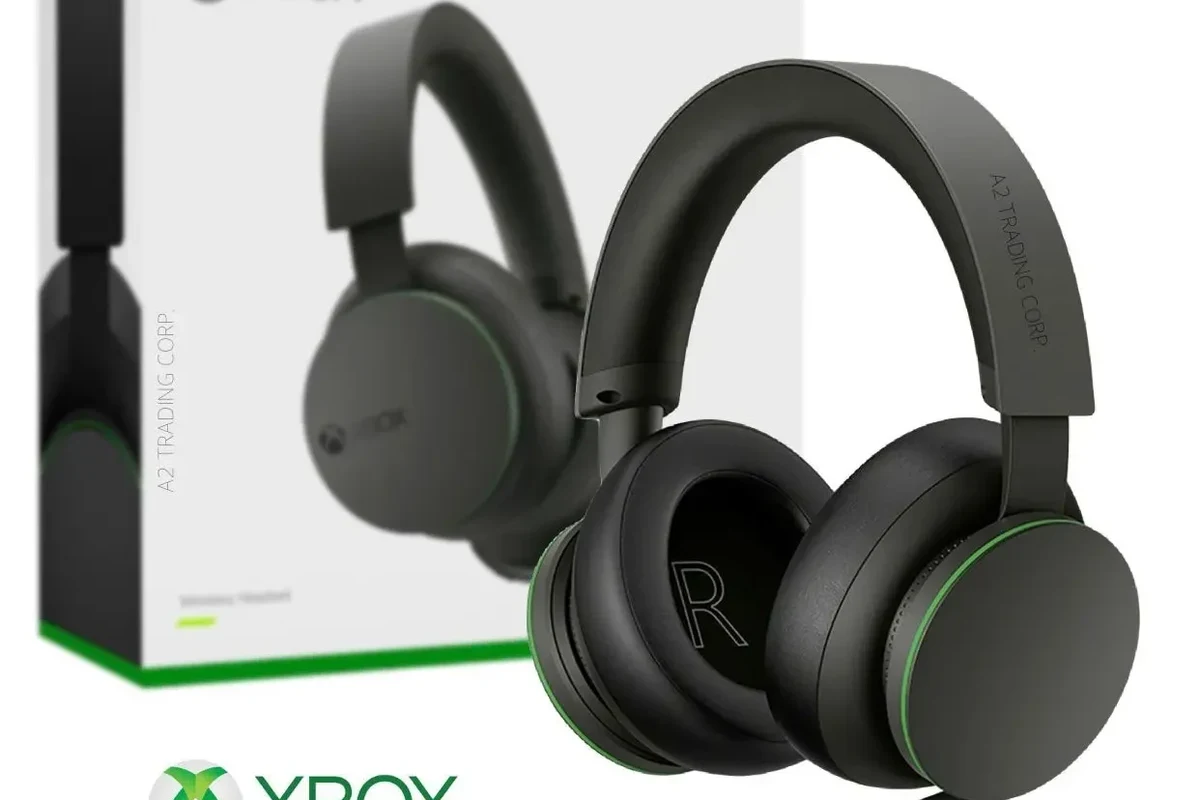
In 2026, Xbox Series X still follows the same basic rule: it is friendly to wired headsets and Xbox-certified wireless gear, but not to most regular Bluetooth headphones. That matters because many buyers assume any wireless headset will pair like a phone accessory, which is not the case.
If you are shopping for a new headset, it helps to understand the difference between console support and device support. A headset may sound great on a phone or laptop, yet still fail to deliver game audio on Xbox unless it uses the right connection method. For a broader look at wireless pairing basics, our guide on connect Bluetooth headphones explains why some devices pair easily and others need a workaround.
Xbox Series X audio support can vary by headset model, controller version, TV settings, and firmware updates. Always check the headset manual and the Xbox audio menu before assuming a connection problem.
Best Ways to Use Headphones with Xbox Series X Based on Your Setup
The best connection method depends on whether you want simple plug-and-play use, low-latency wireless audio, or a setup that works with a TV or monitor. There is no single “best” option for everyone, especially if you also care about mic quality, chat balance, or comfort during long sessions.
Think about how you play. Competitive shooters usually benefit from low delay and clear directional audio, while casual single-player gaming may prioritize comfort and convenience. If you are comparing headset styles, our article on types of headphones explained can help you match the headset style to your gaming habits.
Wired headphones through the Xbox controller 3.5mm jack
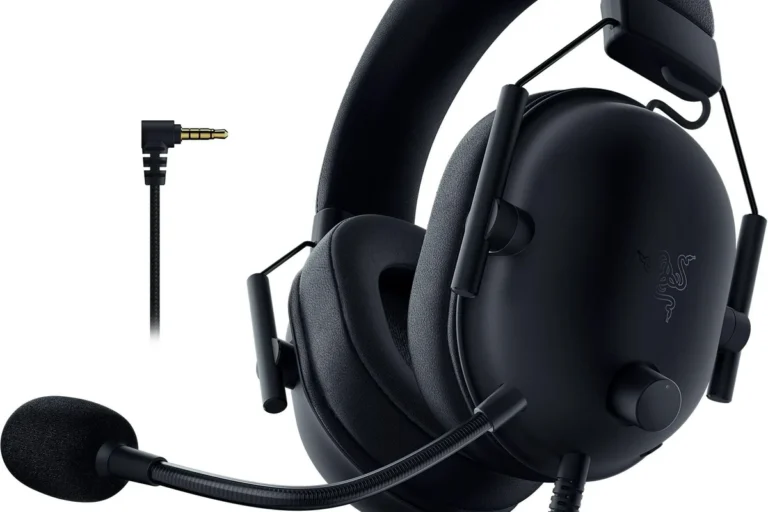
This is the easiest and most reliable option for most players. If your headphones or gaming headset has a 3.5mm plug, connect it directly to the bottom of the Xbox controller and you should get game audio right away.
Wired headphones are especially useful if you want zero pairing hassle, no battery charging, and a stable connection. They are also a smart choice for budget buyers who do not need fancy wireless features.
USB and wireless options: what the console supports and what it does not
Xbox Series X does not support every USB headset or every wireless dongle in the same way a PC might. Some USB headsets work, but many are designed for Windows or PlayStation and may not provide full Xbox audio support.
Xbox Wireless headsets are the safest wireless choice because they are built for the console’s own wireless system. If you are buying a new model, look for explicit Xbox compatibility rather than assuming “wireless” automatically means “works on Xbox.”
Bluetooth workarounds for TV, monitor, and external devices
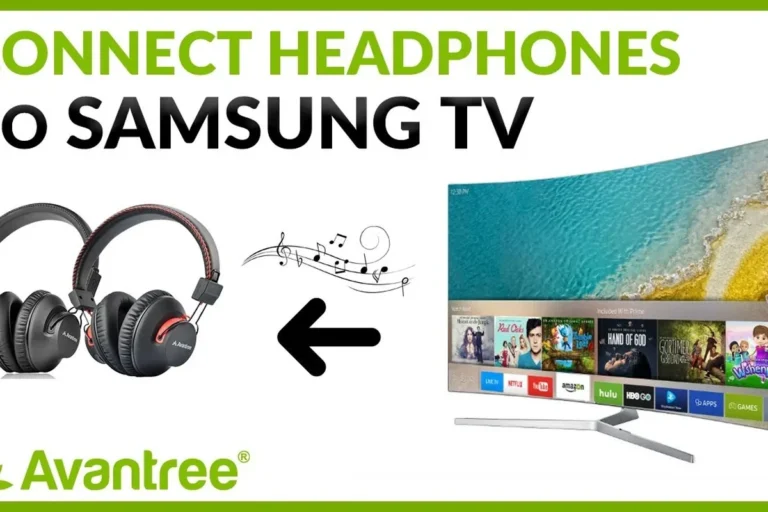
If your headphones only support Bluetooth, the console itself usually will not pair with them directly. In that case, the workaround is to connect the headphones to your TV, gaming monitor, soundbar, or an external Bluetooth transmitter.
This can work well for casual play, but it may introduce delay depending on the TV, codec support, and transmitter quality. For players sensitive to audio lag, a direct controller connection or Xbox Wireless headset is usually the cleaner option.
Step-by-Step: Connecting Wired Headphones to Xbox Series X
Wired setup is the fastest route for beginners because it avoids pairing menus and wireless compatibility issues. If your headset has an inline mic, detachable boom mic, or simple stereo plug, the process is usually straightforward.
Insert the 3.5mm plug firmly into the controller’s headset jack. If the fit feels loose, remove it and reconnect it carefully to avoid partial audio.
Go to the Xbox guide, then check audio and headset settings. Make sure headset volume, chat mix, and mic monitoring are set where you want them.
Launch a game or party chat and confirm that both game audio and voice audio are working. Adjust balance if voices are too quiet or game sound is overpowering chat.
Plugging into the controller and adjusting audio settings
Once the headset is connected, the Xbox should route audio through the controller automatically. If you do not hear anything, check that the controller is powered on, the plug is seated properly, and the console output is not muted.
Some headsets also have their own volume wheel or mute switch. If the headset has inline controls, make sure they are not set too low before troubleshooting the console.
Using a headset with inline controls or a detachable mic
Inline controls can be helpful, but they can also confuse first-time users if the headset has separate knobs for volume, mic mute, or chat balance. Detachable mics are usually simple: attach the mic securely if you need party chat, or remove it if you only want listening audio.
If you use a headset with a boom mic, make sure the microphone is positioned close to your mouth but not touching your face. That usually improves voice clarity without making plosives or breathing sounds too noticeable.
Testing game audio, chat audio, and volume balance
After setup, test three things: game sound, voice chat, and overall loudness. A headset can appear connected but still have the wrong balance, which is common when the chat mixer is set too far toward game audio or party audio.
If you play for long sessions, keep the volume at a comfortable level. Noise cancelling headphones can make lower volumes feel more immersive because they reduce background distractions, but they do not replace safe listening habits.
Listening at high volumes for long periods can cause hearing damage. Keep volume at 60% or below for extended sessions.
How to Connect Wireless Headphones to Xbox Series X Without Frustration
Wireless is convenient, but Xbox is stricter than many people expect. The key is to choose a connection path that the console actually supports rather than trying random Bluetooth combinations.
Using Xbox Wireless headsets and pairing them correctly
If you have an Xbox Wireless headset, pairing is usually the smoothest option. Put the headset in pairing mode, press the console’s pairing button, and wait for the connection to complete.
The exact steps vary by brand, so the headset manual matters. Some models also need a firmware update through an app or companion software before features like mic monitoring, EQ, or game/chat balance work properly.
Connecting via TV or monitor Bluetooth when the console itself will not pair
Many players use Bluetooth headphones with the TV instead of the console. This can be a practical workaround if your TV supports Bluetooth audio output and you mainly care about single-player sound or casual gaming.
Just remember that TV Bluetooth can add delay, and some TVs limit volume control or mic support. That means it is not always ideal for competitive games or party chat, even if it seems convenient at first.
Using a transmitter, USB dongle, or optical workaround
A Bluetooth transmitter can help if you want to send audio from the TV or another output to your headphones. USB dongles may also work in some setups, but compatibility is inconsistent, so you should verify Xbox support before buying.
Older optical-style workarounds are less common on modern setups, but some users still rely on external audio gear for specific monitors or sound systems. If you are unsure which path is best, start with the simplest method: controller jack for wired, Xbox Wireless for wireless, and TV Bluetooth only as a fallback.
Common Mistakes When Connecting Headphones to Xbox Series X
Most connection problems come from a few predictable mistakes. The good news is that these are usually easy to fix once you know what to look for.
Assuming standard Bluetooth headphones will pair directly
This is the biggest misunderstanding. Xbox Series X does not work like a phone, so regular Bluetooth headphones generally will not connect straight to the console.
If you buy headphones expecting instant pairing, you may end up disappointed. Always check whether the headset is Xbox Wireless compatible, wired, or intended for another platform.
Overlooking controller firmware, console updates, and audio output settings
Sometimes the headset is fine, but the controller firmware or console software is outdated. That can cause audio dropouts, mic issues, or a headset that seems connected but produces no sound.
It is also easy to miss the audio output menu. Make sure the Xbox is sending sound to the controller or headset path you actually want, especially if you recently changed TVs, controllers, or accessories.
Confusing headset chat support with full game audio support
Some accessories handle chat only, while others support full stereo or spatial game audio. That distinction matters because a headset may let you talk in party chat without giving you the complete gaming sound you expected.
Before you buy, look for the exact wording: game audio, chat audio, microphone support, and Xbox compatibility. Those details are more useful than vague “works with consoles” marketing claims.
If your headphones sound distorted, the mic cuts out, or one ear is silent after checking cables and settings, consult the headset maker’s support or an audiologist if hearing feels uneven or uncomfortable. Persistent ear pain, ringing, or pressure should be taken seriously.
Expert Advice: Audio Quality, Latency, and Mic Performance
Good Xbox headphone setup is not just about making sound appear on screen. It is also about keeping audio clean, keeping delay low, and making sure your voice comes through clearly in chat.
Why low-latency matters for shooters, racing games, and party chat
Low latency matters most when timing is important. In shooters, racing games, and rhythm-heavy titles, delayed audio can make footsteps, engine cues, and reaction timing feel off.
For party chat, lower delay also makes conversation feel more natural. If you notice lip-sync issues or a slight echo, that is often a sign that your wireless path is adding too much delay.
When a cheap adapter is enough and when it causes problems
A low-cost adapter can be fine for basic stereo listening, especially if you only need to convert a plug or add a simple cable extension. But cheap adapters can also create hiss, imbalance, loose connections, or weak microphone pickup.
If you care about long-term reliability, spend more carefully on the part that actually matters most to your setup. For some players, that means a better headset; for others, it means a more stable transmitter or a proper Xbox Wireless model.
Warning signs of poor compatibility or weak microphone pickup
If audio cuts out when you move the controller, the plug may be loose or the cable may be wearing out. If your friends say you sound far away, muffled, or too quiet, the mic may be blocked, positioned badly, or simply not designed for clear voice pickup.
Another warning sign is constant crackling or one-sided sound. That usually points to a cable issue, adapter problem, or unsupported wireless setup rather than a problem with the Xbox itself.
Price Guide: Budget vs Premium Headphone Options for Xbox Series X
Headphone pricing for Xbox can vary a lot by brand, wireless support, comfort, and microphone quality. Instead of chasing the most expensive option, focus on the connection method and features you actually need.
Affordable wired picks for casual players
Budget wired headphones are often the easiest recommendation for casual Xbox players. They usually offer simple plug-in use, decent sound, and fewer compatibility headaches than wireless models.
If you mostly play story games or use headphones only occasionally, a basic wired headset can be the best value. You may give up some convenience, but you gain simplicity and lower cost.
Mid-range wireless headsets for most gamers
Mid-range wireless headsets are a strong middle ground for players who want freedom from cables without paying premium prices. They are often the sweet spot for comfort, battery life, and clear chat audio.
Look for Xbox-specific wireless support, a comfortable ear pad material, and easy volume controls. A good mid-range model should feel dependable for everyday use, not just impressive on the spec sheet.
Premium models worth paying more for in 2026
Premium Xbox headsets can be worth it if you want stronger build quality, more refined microphone performance, better comfort over long sessions, or more flexible audio controls. That said, premium does not automatically mean better for every ear or every game.
Choose premium only when the extra features match your needs. If you are curious about how headset style affects comfort and sound, our guide on headphones vs earphones can help you decide whether over-ear or in-ear design fits your gaming setup better.
- Better comfort for long sessions
- More stable wireless options at higher price points
- Usually stronger mic and chat features
- Higher cost does not guarantee better Xbox compatibility
- Some premium models still need app setup or firmware updates
- Wireless convenience can come with latency tradeoffs
Final Recap: The Easiest Way to Connect Headphones to Xbox Series X
The easiest way to connect headphones to Xbox Series X is usually the controller’s 3.5mm jack for wired use or an Xbox Wireless headset for cable-free play. Standard Bluetooth headphones are the most common source of confusion, so it is best to plan around Xbox’s actual compatibility rules instead of assuming every wireless headset will pair directly.
If you want the least frustration, choose the connection method that matches your setup, then check audio settings, mic position, and volume balance before you start gaming. That simple approach solves most headset problems and gives you cleaner, more comfortable sound from the start.
- Wired headphones work best through the Xbox controller jack.
- Xbox Wireless headsets are the easiest wireless option.
- Standard Bluetooth usually needs a TV or transmitter workaround.
- Check audio, chat, and mic settings before troubleshooting hardware.
Frequently Asked Questions
Usually not directly. Most standard Bluetooth headphones need a TV, monitor, or transmitter workaround to play Xbox audio.
Plug them into the 3.5mm jack on the Xbox controller. Then check headset volume, chat mix, and mic mute settings.
For Xbox, they are usually the better wireless choice because they are designed for the console. They often offer simpler pairing and lower-latency audio than Bluetooth workarounds.
Closed-back headphones are usually better for gaming because they block more outside noise and keep sound from leaking. Open-back models can sound wider, but they are less private and less isolating.
Look at comfort, tuning, and whether the headset supports the connection type you need before chasing specs. Driver size, frequency response, and EQ options can influence bass and clarity, but real-world sound still varies by model.
Prioritize light weight, soft ear cushions, and a secure but not tight fit. If you get ear pain or ringing, lower the volume and consider speaking with an audiologist.