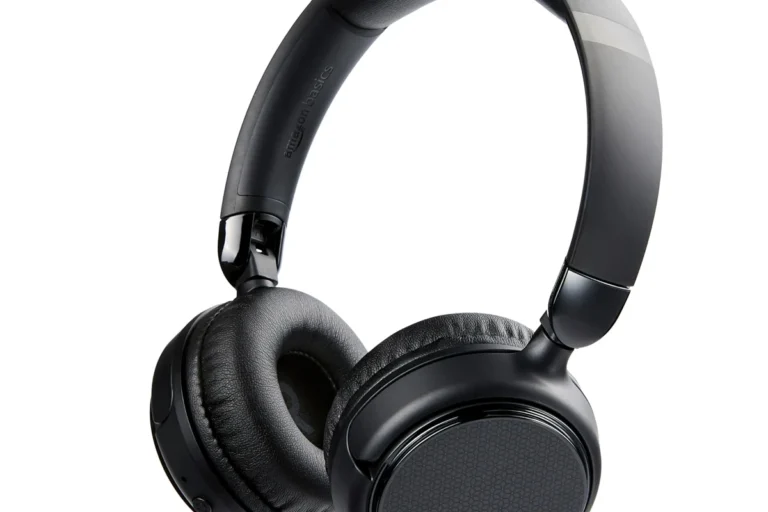
Can I Connect My Bluetooth Headphones to My PS5 Easily

No, most Bluetooth headphones do not connect directly to a PS5 in the usual way. The easiest workaround is a USB Bluetooth adapter, a TV Bluetooth connection, or Remote Play through another device.
If you’re asking can i connect my bluetooth headphones to my ps5, the short answer is: not directly in the same easy way you would with a phone, tablet, or PC. The PS5 has built-in Bluetooth, but Sony limits standard Bluetooth audio support, so most headphones need a workaround.
That does not mean you’re stuck with wires forever. There are a few practical ways to listen through Bluetooth headphones on PS5, and the best one depends on whether you care most about convenience, low latency, or microphone support.
- Direct support: Most standard Bluetooth headphones are not supported natively on PS5.
- Best workaround: A quality USB Bluetooth transmitter is usually the simplest option.
- Gaming priority: Low latency matters more than basic wireless convenience.
- Chat support: Check microphone compatibility before you buy.
Can You Connect Bluetooth Headphones to a PS5 in 2025? Quick Answer and What Sony Actually Supports
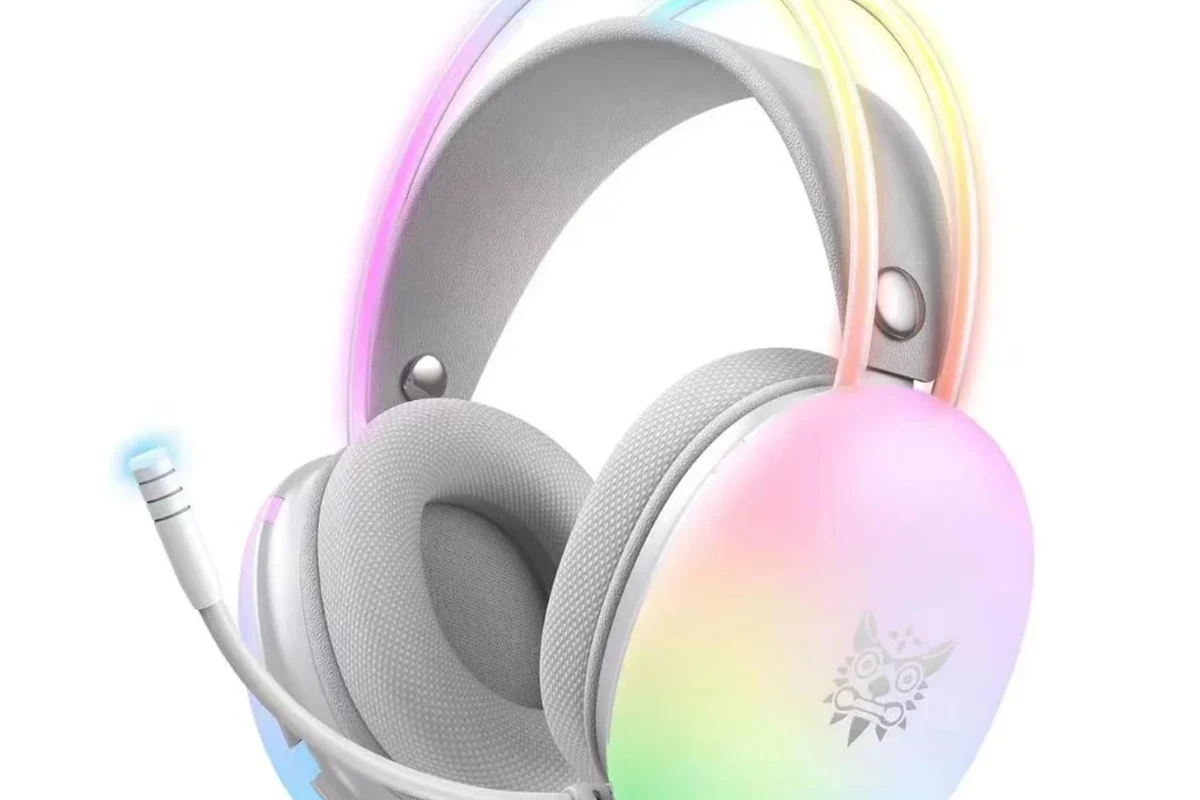
In 2025, the PS5 still does not support most standard Bluetooth headphones as a simple direct audio device. Sony’s console is designed to work best with approved wireless headsets, wired headsets, or external adapters rather than generic Bluetooth pairing.
If you try to pair many regular Bluetooth headphones straight to the PS5, the console may not recognize them for audio, or it may reject them entirely. That is why many gamers end up using a USB Bluetooth transmitter, a TV connection, or the Remote Play app instead.
Compatibility can vary by headphone brand, Bluetooth version, and the adapter or display device you use. Always check the headset and console settings before buying extra gear.
Why PS5 Bluetooth Audio Is Limited: Latency, Compatibility, and Sony’s Built-In Restrictions
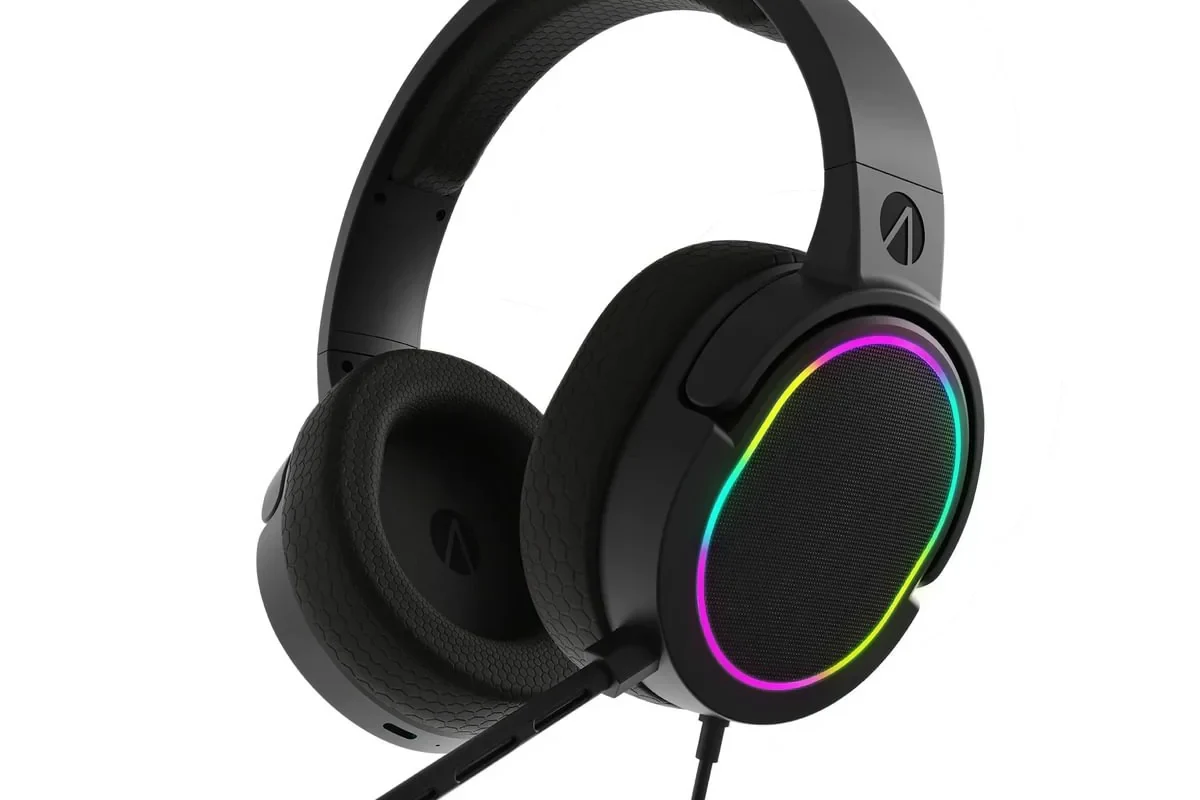
The main reason for PS5 Bluetooth limits is gaming performance. Audio in games needs to stay synced with the action, and standard Bluetooth can introduce delay that becomes noticeable during fast gameplay.
Sony also keeps tight control over supported accessories so the console can maintain stable voice chat, reliable audio output, and fewer connection issues. That is why many players find the PS5 less flexible than a phone or laptop for Bluetooth audio.
How audio lag affects gaming, voice chat, and competitive play
Audio lag can make footsteps, gunfire, menu sounds, and character dialogue feel slightly behind the picture. In casual play, that may only be annoying, but in competitive games it can hurt timing and awareness.
Voice chat can also feel less natural if the headset or adapter adds delay. If you play shooters, rhythm games, or anything where sound cues matter, low-latency audio is much more important than simple wireless convenience.
Not every Bluetooth headset is a good fit for gaming. Even if it connects through a workaround, lag and unstable mic behavior can still affect the experience.
Why most standard Bluetooth headphones are not supported directly
Most regular Bluetooth headphones are built for phones, laptops, and tablets, where a small delay is often acceptable. A console is different because it has to keep game audio, system sounds, and party chat working smoothly at the same time.
That is why many PS5-friendly options are actually wireless gaming headsets using a USB dongle rather than traditional Bluetooth. If you want a broader overview of general setup basics, our guide on how to connect Bluetooth headphones covers the usual pairing process on other devices.
Best Ways to Use Bluetooth Headphones with PS5 Without the Headache
If you want the simplest path, you usually need a workaround instead of direct pairing. The best choice depends on whether you want the most stable audio, the easiest setup, or the least extra hardware.
Using a Bluetooth USB adapter or dongle
A Bluetooth USB adapter plugs into the PS5 and acts like a bridge between the console and your headphones. This is one of the most common ways to get wireless audio without relying on the console’s limited built-in Bluetooth support.
The upside is convenience. The downside is that performance depends heavily on the adapter quality, supported codecs, and how well it handles latency and microphone audio.
If you are buying a USB transmitter, look for low-latency support and clear PS5 compatibility notes. A cheap adapter may connect, but it may not sound smooth during fast-paced games.
Connecting through your TV, monitor, or soundbar
Another workaround is to send PS5 audio to your TV or monitor first, then pair your headphones to that display if it supports Bluetooth. This can be easy if your screen already has good Bluetooth audio support built in.
However, this method can still add delay, and microphone support is usually limited or unavailable. It works best for single-player gaming, streaming, or relaxed couch play where chat quality is not a priority.
Using the PS5 Remote Play app as a workaround
Remote Play lets you stream your PS5 to a phone, tablet, or PC, then use Bluetooth headphones with that second device. Because the headphones connect to your phone or computer instead of the console itself, the setup is often much easier.
This can be a useful option if you already use a laptop or mobile device nearby. The tradeoff is that your experience depends on your network quality, and Remote Play may not feel ideal for competitive gaming.
Step-by-Step Setup Examples for the Most Common Connection Methods
There is no single “best” setup for everyone. The right method depends on whether you want direct audio, less lag, or the ability to keep your microphone working for party chat.
How to pair Bluetooth headphones with a USB transmitter on PS5
Insert the USB Bluetooth adapter into an open USB port on the PS5 and wait for it to power on.
Use the headset’s pairing button or power button sequence until the indicator light shows it is ready to connect.
Allow the transmitter and headphones to pair, then confirm that the PS5 audio is routed through the adapter.
Test game sound, system sound, and microphone input so you can confirm everything is working as expected.
Before you buy, it helps to know what kind of wireless setup you are actually building. Our article on Bluetooth headphones explained simply can make the difference between standard Bluetooth and gaming-focused wireless options easier to understand.
How to route PS5 audio through a TV and pair headphones to the display
Use the normal HDMI connection so the console sends picture and sound to the display first.
Open the TV or monitor audio settings and look for Bluetooth pairing or wireless headphone options.
Put the headphones into pairing mode and select them from the display’s Bluetooth menu.
Check whether the sound is delayed and adjust the TV audio settings if your display offers any game mode or latency options.
How to use Remote Play with Bluetooth headphones on phone, tablet, or PC
Download the PS Remote Play app on your phone, tablet, or computer and sign in with your PlayStation account.
Pair the headphones with the phone, tablet, or PC just like you would for any other wireless audio setup.
Start streaming your PS5 and use the headphones for audio from the device running the app.
Make sure game sound, chat, and microphone permissions are set correctly on the secondary device.
What to Look for in a PS5-Friendly Bluetooth Headphone Setup
Not every Bluetooth setup is equal, even if it technically works. For PS5 gaming, the most useful features are the ones that reduce delay, keep voice chat usable, and stay comfortable during long sessions.
Low-latency codecs and why they matter for gaming
Low-latency support matters because it helps audio stay closer to the action on screen. If you are using a Bluetooth adapter or a display with wireless audio support, codec and transmission quality can make a noticeable difference.
That said, codec support varies by headphone and adapter, so it is worth checking compatibility before buying. If you want a deeper comparison of wireless and cable-based sound behavior, see our guide to Bluetooth vs wired headphones sound quality.
Mic support, battery life, and comfort for long sessions
If you play multiplayer games, microphone support is just as important as sound output. Some Bluetooth workarounds handle audio well but make chat audio awkward, which can be frustrating during parties or squad play.
Battery life and comfort also matter because gaming sessions can run long. Soft ear cushions, a secure fit, and manageable weight usually matter more than fancy feature lists when you are wearing a headset for hours.
Listening at high volumes for long periods can cause hearing damage. Keep volume at 60% or below for extended sessions.
Budget vs premium options: what you actually get for the price
Budget setups may get you basic wireless audio, but they can be less reliable with latency, range, or mic behavior. Premium options often improve stability, comfort, and feature support, though results still depend on the exact model and your setup.
If you are comparing purchases, think about your main use case first. Casual single-player players may be fine with a simple workaround, while competitive players usually get better results from a purpose-built wireless gaming headset.
Common Mistakes Gamers Make When Trying to Connect Bluetooth Headphones to PS5
A lot of frustration comes from expecting the PS5 to behave like a phone or laptop. Once you understand the console’s limits, it becomes much easier to avoid bad purchases and setup problems.
Assuming every Bluetooth headset works with the console
This is the biggest mistake. A headset can be excellent on mobile and still be a poor match for PS5 if it relies on standard Bluetooth audio only.
Before buying, confirm whether the product is PS5-compatible, transmitter-compatible, or meant for a different device type entirely. If you have ever had to reset a headset to fix pairing problems, our guide on how to reset Bluetooth headphones may also help with general troubleshooting.
Ignoring latency, pairing mode, and audio output settings
Even a good headset can feel bad if the pairing mode is wrong or the audio output is set incorrectly. Small setup mistakes can create the impression that the headphones are broken when the real issue is the connection path.
Always check the PS5 sound settings, the adapter instructions, and the headset’s pairing method. If your audio sounds out of sync, latency is usually the first thing to investigate.
Overlooking microphone limitations in chat and party audio
Many gamers focus only on hearing game audio and forget about voice chat until later. Some Bluetooth workarounds support listening but do not offer a clean mic path back to the console.
If you use party chat often, make sure the solution you choose supports both output and input. Otherwise, you may end up hearing everything clearly but still need a separate mic solution.
Expert Advice: When Bluetooth Is Worth It and When a Wireless Gaming Headset Is the Better Buy
Bluetooth can be worth it if you want convenience, already own a good pair of headphones, or only play casually. It is less ideal if you play competitive games, rely on voice chat, or want the most stable console-friendly experience.
Best use cases for casual single-player gaming
Bluetooth headphones make the most sense for story games, streaming, and relaxed play where a tiny delay will not ruin the experience. They are also handy if you want to keep using one headset across your phone, laptop, and PS5 setup.
For many people, that flexibility is the main appeal. If your goal is comfort and convenience more than perfect sync, a Bluetooth workaround can be perfectly reasonable.
When to choose a PS5 wireless headset instead of Bluetooth
If you want simple setup, lower lag, and dependable party chat, a PS5-focused wireless headset is usually the better buy. These headsets are designed for console use, so they often avoid the connection headaches that come with generic Bluetooth.
In other words, Bluetooth is best when you already own the headphones and want a workaround. A wireless gaming headset is better when you want the smoothest PS5 experience from the start.
If you have ongoing hearing discomfort, ringing in the ears, or trouble understanding chat audio at normal volumes, consider speaking with an audiologist or audio professional. A proper fit and safe listening habits matter as much as the headset itself.
Final Verdict: The Easiest and Most Reliable Way to Use Bluetooth Headphones on PS5
So, can you connect Bluetooth headphones to a PS5 easily? Not directly, but you can still use them with the right workaround. The most reliable options are usually a quality USB Bluetooth adapter, a TV or monitor with Bluetooth audio, or Remote Play through another device.
If you want the least hassle, a PS5-compatible wireless gaming headset is usually the cleanest choice. If you already own Bluetooth headphones and only need casual gaming audio, a workaround can be a practical and budget-friendly solution.
- PS5 does not support most standard Bluetooth headphones directly.
- USB adapters, TV Bluetooth, and Remote Play are the main workarounds.
- Latency and mic support matter most for gaming and chat.
- For the easiest setup, a PS5 wireless headset is often the better buy.
Frequently Asked Questions
Often, yes. Wireless gaming headsets made for PS5 usually offer lower latency and better chat support than standard Bluetooth headphones.
Usually over-ear headphones are more comfortable for longer sessions because they spread pressure over a larger area. Earbuds can be lighter, but fit and comfort vary by model.
Look at latency support, codec compatibility, driver tuning, and whether the headset lets you adjust EQ. Bass, clarity, and soundstage can vary a lot by model and personal preference.
They can be a strong all-around choice if you want less background noise. For gaming, make sure the headset still feels comfortable and does not add too much delay.
Closed-back headphones usually isolate better and are more practical for shared spaces or noisy rooms. Open-back models can sound more spacious, but they leak sound and block less noise.
Check build quality, hinge strength, ear cushion material, and weight. A comfortable fit and replaceable pads can matter more than extra features for long-term use.