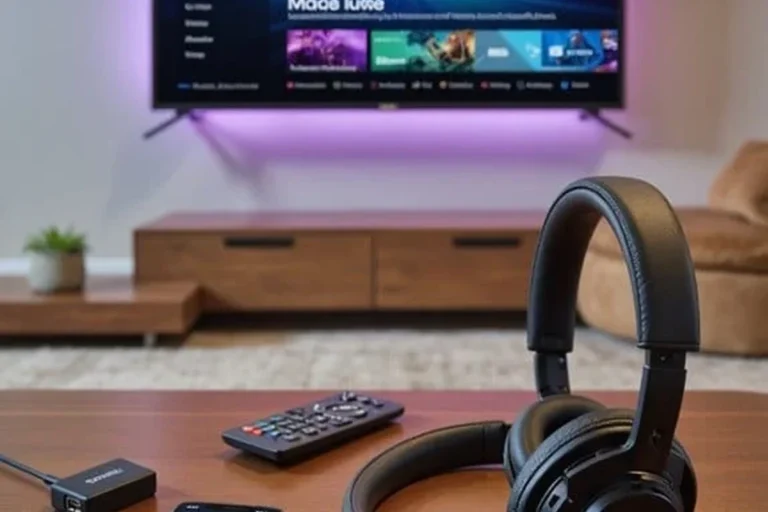
How Do You Connect Headphones to a TV Easily and Fast

The fastest way is usually Bluetooth, a TV headphone jack, or a simple adapter that matches your TV’s audio output. If your TV does not support wireless audio directly, a Bluetooth transmitter or RCA/optical adapter usually solves the problem.
If you’re asking how do you connect headphones to a TV, the fastest answer is usually Bluetooth, a headphone jack, or a simple adapter. The best method depends on your TV model, your headphones, and whether you care more about convenience, sound quality, or low delay.
For Top Headphone Reviews readers, the goal is simple: get clear TV audio without disturbing anyone else. In many cases, the setup takes only a few minutes once you know which output your TV supports and whether your headphones are wired or wireless.
- Check the output first: Match the adapter to the TV port before buying anything.
- Wired is simplest: A 3.5mm jack or RCA adapter is often the easiest setup.
- Wireless needs compatibility: Built-in Bluetooth or a transmitter may be required.
- Watch for delay: Gaming and sports are more sensitive to Bluetooth lag.
How to Connect Headphones to a TV in 2025: Fast Methods for Any Setup
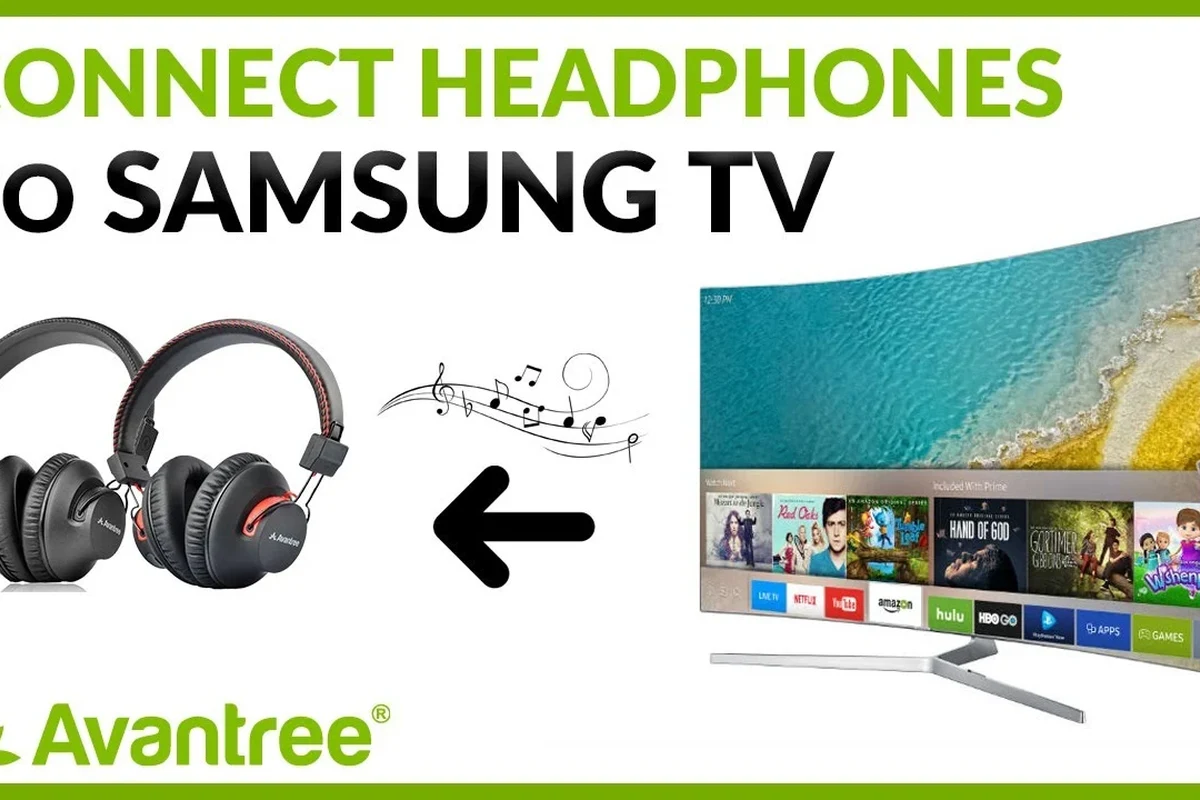
Modern TVs can connect to headphones in several ways, but not every method works on every set. Some TVs have built-in Bluetooth, while others need a transmitter or a cable-based adapter.
The easiest option is the one your TV already supports. If your TV has Bluetooth and your headphones are wireless, pairing can be quick. If not, a wired connection or external transmitter often solves the problem with less frustration.
What readers are trying to solve when they search “how do you connect headphones to a tv”
Most people want private listening for movies, late-night shows, sports, or gaming. Others are trying to improve dialogue clarity, avoid waking family members, or get audio closer to the screen than a soundbar can provide.
Some readers also want a setup that works with a gaming headset or earbuds they already own. If you are still learning the basics of Bluetooth headphones explained simply, it helps to know that TV compatibility is often about the output port, not just the headphones themselves.
When wired is easier and when wireless is worth it
Wired is usually easier if your TV has a headphone jack or if you want the most straightforward setup. It also avoids battery charging and usually reduces audio delay.
Wireless is worth it when you want freedom to move around the room or a cleaner setup with no cable hanging from the TV. For long viewing sessions, many people prefer wireless comfort, especially if they already use over-ear headphones or a headset for gaming.
Check Your TV First: Audio Outputs, Bluetooth, and Compatibility
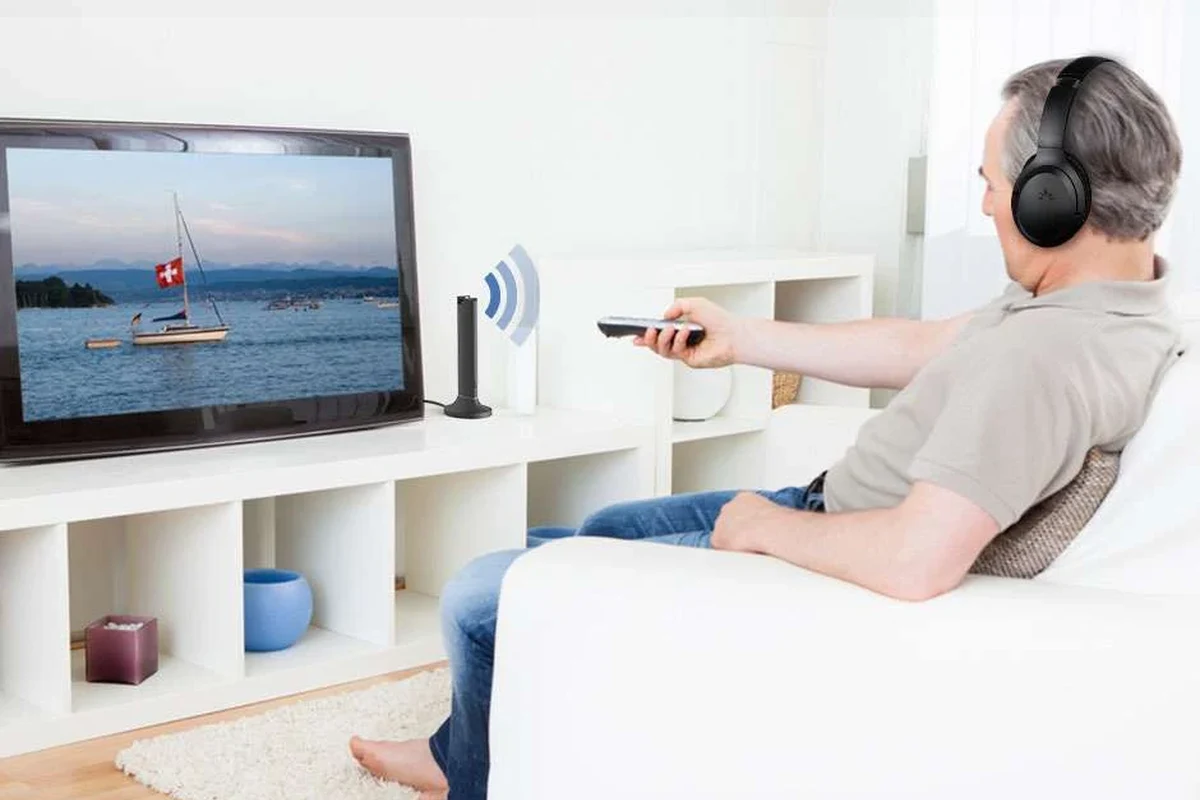
Before buying anything, look at the TV’s audio outputs. The connection method you choose should match what the TV actually offers, not what you hope it has.
This step saves time and prevents the common mistake of buying an adapter that does not match the TV port. A quick look at the back or side of the TV usually tells you almost everything you need to know.
How to identify optical, 3.5mm, RCA, USB, and Bluetooth support
A 3.5mm port looks like a standard headphone jack and is the easiest wired option. Optical audio outputs are usually labeled “optical,” “digital audio out,” or “TOSLINK,” and they need a converter or transmitter that accepts optical input.
RCA ports use red and white plugs and are common on older TVs. USB ports are less common for direct headphone audio, and Bluetooth support is usually listed in the TV settings or manual rather than on the port panel itself.
TV menus can be confusing, so check the audio or sound settings page for Bluetooth, external speaker, or headphone output options.
Why some smart TVs still need a separate transmitter
Even if a smart TV has Bluetooth, it may not support all wireless headphones equally well. Some models only work with certain devices, or they may limit audio output while the TV speakers stay on.
A separate Bluetooth transmitter can be a better choice when you want more control, stronger range, or a more reliable connection. This is especially useful if you are also comparing setup flexibility with other devices, like when people ask whether wireless headphones work on a plane and need a simple pairing process.
Best Ways to Connect Headphones to a TV
There is no single best answer for everyone. The right method depends on whether you want the easiest setup, the best stability, or the lowest chance of audio lag.
Bluetooth pairing directly from the TV
If your TV supports Bluetooth audio, this is often the cleanest wireless method. Put the headphones in pairing mode, open the TV’s Bluetooth menu, and select your headphones from the device list.
This option is convenient for movies and casual TV watching. The downside is that some TVs introduce delay, and not every Bluetooth codec or headphone model will behave the same way.
If your TV offers an audio delay or lip-sync setting, use it to reduce the gap between speech and on-screen movement.
Using a Bluetooth transmitter for TVs without built-in Bluetooth
A Bluetooth transmitter plugs into your TV’s audio output and sends sound to wireless headphones. This is one of the best solutions for older TVs or smart TVs with weak Bluetooth support.
Transmitters can connect through optical, RCA, or 3.5mm output depending on the model. If you want a deeper look at delay troubleshooting, our guide on Bluetooth headphone lag fix can help you understand why some wireless setups feel more in sync than others.
Wired connection through the 3.5mm headphone jack
If your TV has a headphone jack, wired connection is simple: plug in the headphones and adjust the volume. In many cases, the TV speakers will mute automatically when headphones are connected.
This is usually the easiest choice for people who want zero charging and minimal setup. It is also a practical solution for viewers who do not want to worry about pairing, signal dropouts, or battery life.
Optical audio adapter setup for better sound stability
An optical adapter or optical Bluetooth transmitter can offer a steadier connection than some basic wireless setups. It is a common choice when the TV lacks a headphone jack but does have digital audio out.
Optical connections do not carry analog headphone sound directly, so you need the right converter or transmitter. The upside is a cleaner path from TV to audio device, which can help with stability and reduce interference in busy wireless environments.
RCA-to-headphone adapter for older televisions
Older TVs often still have red and white RCA outputs. With the right RCA-to-3.5mm adapter or RCA Bluetooth transmitter, you can connect headphones even if the set is not smart at all.
This is a good fix for legacy TVs in bedrooms, guest rooms, or basements. The sound quality may vary by adapter quality, but it is often enough for everyday viewing.
Step-by-Step Setup Examples for Common TV Types
Different TV brands and models can hide the same basic features in different menus. The steps below are general examples, so your exact menu names may vary.
Samsung, LG, Sony, and Roku TV wireless pairing examples
On many Samsung, LG, Sony, and Roku TVs, the process starts in the sound or Bluetooth settings menu. Turn on pairing mode on the headphones, then scan for devices from the TV.
Once the headphones appear, select them and confirm the connection. If the TV asks whether to use the headphones as the main audio output, choose the option that best fits your listening needs.
Go to the audio or Bluetooth section in the TV menu.
Put your headphones into Bluetooth pairing mode until the indicator flashes.
Choose the headphones from the TV list and confirm the connection.
How to connect headphones to a non-smart TV
Non-smart TVs usually need a wired adapter, an RCA converter, or a Bluetooth transmitter. Start by checking whether the TV has a headphone jack or RCA output before buying anything.
If it only has RCA, use an RCA-to-headphone adapter or transmitter. If it has optical audio out, an optical transmitter may be the cleaner choice for wireless listening.
How to connect gaming headphones to a TV for console play
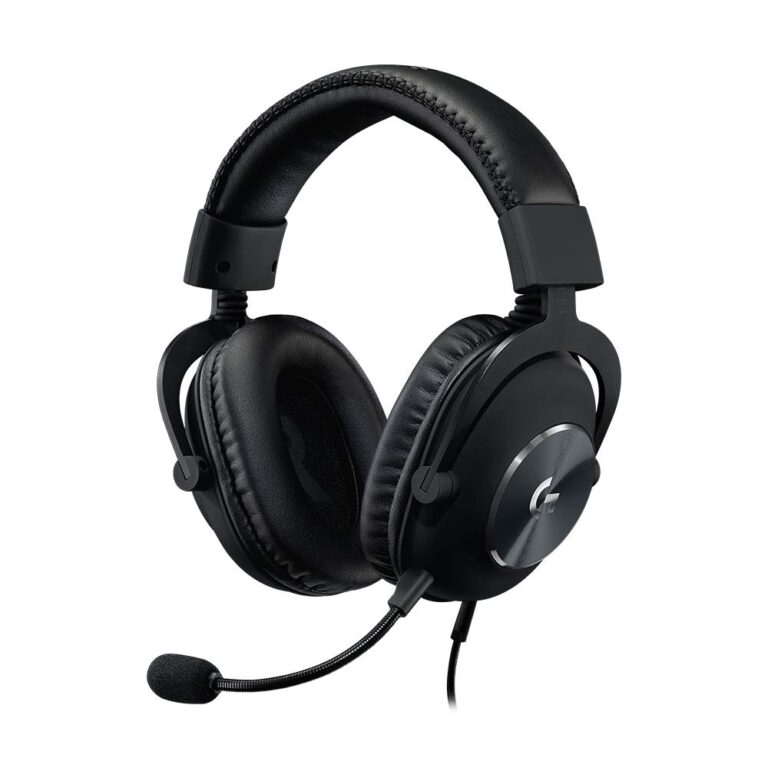
Gaming headphones can work with a TV, but the best path depends on where the console is connected. If your console is plugged into the TV, you may use the TV’s headphone output, Bluetooth transmitter, or a console-specific wireless setup.
For gaming, low delay matters more than it does for casual TV watching. If you want help understanding headphone types before choosing a setup, our article on types of headphones explained is a useful starting point.
Sound Quality, Delay, and Comfort: What to Expect
Connecting headphones to a TV is not just about making sound come through. It is also about how clear the audio feels, whether voices stay in sync, and how comfortable the headphones are during a full movie or game session.
Bluetooth latency issues and how to reduce audio lag
Bluetooth can introduce a slight delay between the picture and the sound. That delay may be small for casual viewing but more noticeable during action scenes, sports, or gaming.
To reduce lag, use a low-latency transmitter if possible, check for lip-sync settings in the TV menu, and avoid older wireless gear when better options are available. Results can vary by TV model, headphone model, and codec support.
Not all Bluetooth headphones and TVs support the same wireless standards, so a connection that works may still have delay or dropouts depending on the setup.
Wired vs wireless audio quality for movies, sports, and gaming
Wired connections often deliver more consistent sound and no battery concerns. Wireless connections win on convenience, but the audio path depends more heavily on the transmitter, codec, and TV compatibility.
For movies and sports, either can work well if the setup is stable. For gaming, wired is often the safer choice if you want the lowest chance of noticeable lag.
Why volume control and headset comfort matter for long viewing sessions
TV headphone use can last for hours, so comfort matters as much as audio quality. Over-ear models usually spread pressure better than smaller in-ear options, but fit and ear cushion material still make a big difference.
Volume control matters too, especially if the TV output is louder than expected. If you regularly watch for long periods, choose headphones that stay comfortable and easy to adjust without digging into your ears or head.
Listening at high volumes for long periods can cause hearing damage. Keep volume at 60% or below for extended sessions.
Common Mistakes People Make When Connecting Headphones to a TV
Most connection problems are caused by a few simple mistakes. The good news is that they are usually easy to fix once you know what to look for.
Choosing the wrong adapter or output port
A common mistake is assuming every port works the same way. A headphone jack, optical output, and RCA output all need different accessories, and some require a converter rather than a simple cable.
Before buying, confirm the TV output type and the input your headphones or transmitter need. This avoids wasted money and the frustration of a setup that almost works.
Forgetting TV audio settings or muting the speakers incorrectly
Some TVs keep the internal speakers active unless you change the audio output setting. Others mute the speakers automatically once headphones are connected.
If you hear nothing, check whether the TV is still sending sound to the built-in speakers, external speakers, or a soundbar. The answer is often buried in the sound menu rather than the remote’s volume buttons.
Ignoring codec, range, and battery limitations on wireless models
Wireless headphones are not all equal. Codec support, range, battery life, and transmitter quality can all affect how reliable the setup feels in daily use.
If you want a broader understanding of wireless behavior, our guide to how noise cancelling headphones work can also help you think about battery use and feature tradeoffs in real-world listening.
Expert Advice: Best Budget and Premium Options for TV Headphone Use
You do not need the most expensive gear to get good TV headphone audio. The best choice is usually the one that matches your TV, your room, and your patience for setup.
Low-cost adapters and transmitters for simple setups
Budget adapters are best for straightforward needs like late-night TV watching or guest-room setups. A simple 3.5mm cable, RCA adapter, or basic Bluetooth transmitter can be enough if your expectations are practical.
The tradeoff is that lower-cost gear may have weaker range, more delay, or less reliable pairing. That does not make it bad, but it does mean you should match the accessory to the use case.
When premium wireless headphones are worth the extra price
Premium wireless headphones can be worth it if you watch TV often and want stronger comfort, better build quality, and a more polished wireless experience. They may also offer better battery life or more stable connectivity, depending on the model.
If you care about long sessions, comfort and consistency can matter more than flashy features. Premium options are most useful when TV listening is a daily habit rather than an occasional backup.
How to compare convenience, range, and performance before buying
Before you buy, compare the connection method, expected range, battery life, and whether you need a transmitter. Also think about whether you want one headset for TV only or one that can move between TV, phone, and gaming use.
What to check: TV output type, headphone compatibility, audio delay tolerance, and comfort for long wear. If you are still deciding between headphone styles, a quick review of your use case often matters more than brand name alone.
Final Recap: The Fastest Way to Connect Headphones to Your TV
The fastest method is usually the one your TV already supports: Bluetooth if it is built in, or the headphone jack if your TV has one. If neither is available, a Bluetooth transmitter or RCA/optical adapter is the next best path.
Once you identify the TV’s output and match it to the right accessory, the setup is usually simple. That is the real answer to how do you connect headphones to a tv: check the ports first, then choose the easiest connection that fits your listening needs.
Quick decision guide for choosing the right connection method
If you want the simplest setup, use the headphone jack. If you want wireless convenience, use built-in Bluetooth or a transmitter. If you have an older TV, use RCA or optical adapters.
Key takeaways for easy setup, better sound, and fewer problems
Match the adapter to the TV output, not just the headphones. Keep an eye on delay, comfort, and volume so the setup works well for real-world viewing, not just the first test.
Frequently Asked Questions
Wired headphones usually give the most stable connection and the least delay. Wireless headphones are more convenient, but performance can vary by TV, transmitter, and headset model.
Yes, they can work very well for movies and late-night viewing because they help reduce background noise. Sound quality and comfort still depend on the model, and some TVs may need a transmitter or adapter.
Closed-back headphones are usually better for TV because they block more outside noise and keep sound from leaking out. Open-back headphones can sound more spacious, but they are less private and less ideal in shared rooms.
For TV use, look at connection type, comfort, battery life for wireless models, and whether the headphones support low-latency audio. Driver type, frequency response, and EQ options can also affect bass, clarity, and dialogue.
Start by checking your TV output and then buy only the adapter or transmitter you need. A budget setup can work well if you prioritize compatibility, comfort, and acceptable latency over premium extras.
Check ear cushion material, headband pressure, weight, and build quality before buying. For long sessions, a comfortable fit matters as much as sound, and if you have hearing concerns, follow safe listening guidelines or ask an audiologist.