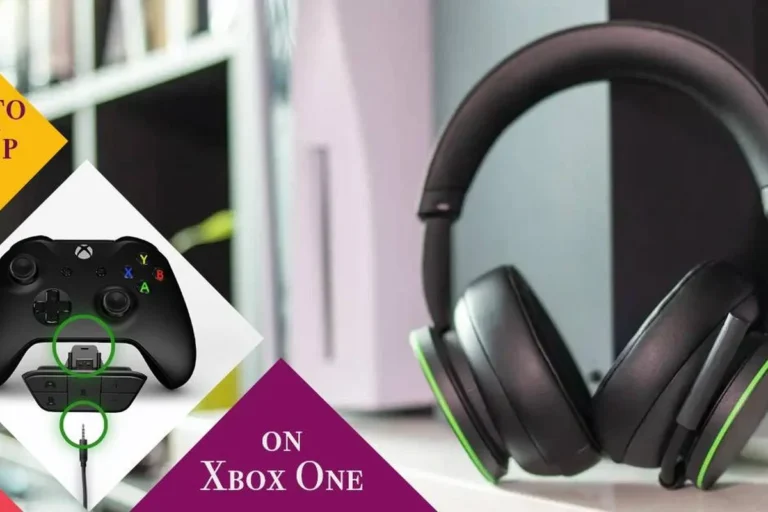
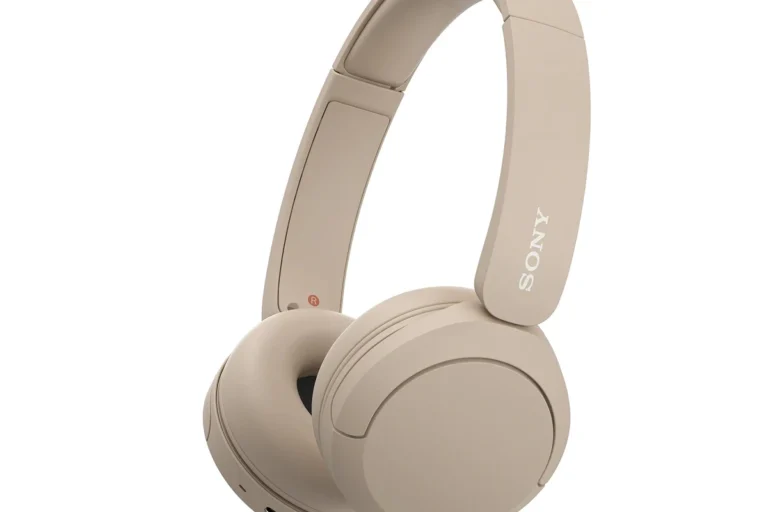
How To Reduce Noise In Bluetooth Headphones: Easy Fixes

If your Bluetooth headphones sound noisy, the fix usually starts with identifying the type of noise. External sounds call for a better seal or active noise cancellation (ANC). Hiss, crackle, or dropouts may come from Bluetooth interference, low battery power, software problems, or a damaged cable or speaker.
For listeners in the United States, the steps below work with most Bluetooth headphones, earbuds, phones, tablets, and computers. Start with the simple checks first. They are fast, safe, and often solve the problem without buying new equipment.

Key Takeaways
- Use the right ear tip or adjust the ear cup seal before changing settings.
- Turn on ANC when you want to reduce steady sounds such as airplane, bus, or air conditioner noise.
- Use Transparency, Ambient, or Awareness mode when you need to hear people and traffic.
- Move away from crowded wireless areas if you hear skips, clicks, or connection drops.
- Keep your headphones, phone, and companion app updated.
- Lower the volume if hiss or harsh sound becomes more noticeable.
- Clean earbud microphones and speaker grilles with a dry, soft brush.
- Replace or repair headphones that still produce noise after resets and testing with another device.
First, Identify the Noise You Want to Reduce
The cause matters because different kinds of noise need different fixes. “Noise” may mean sound from the room, unwanted electronic hiss, or a broken Bluetooth connection.
| What you hear | Likely cause | Best first step |
|---|---|---|
| Air conditioner, engine, or road noise | External background sound | Improve the seal and enable ANC |
| Voices or sudden nearby sounds | Open fit or limited ANC | Use snug ear tips or a closed-back design |
| Hiss during quiet parts | Amplifier noise, high gain, or audio processing | Lower volume and test another device |
| Crackle or pops | Wireless interference, low battery, or hardware trouble | Move closer to the source and recharge |
| Music that cuts out | Bluetooth range, obstacles, or radio congestion | Keep the phone nearby and remove obstacles |
| Sound from only one side | Poor fit, blocked grille, balance setting, or damage | Clean, check balance, and test another source |
| Echo of your own voice | Transparency mode or call sidetone | Reduce or disable ambient sound mode |
A steady low rumble is often easier for ANC to reduce than a sharp sound. Human speech, horns, clapping, and keyboard clicks contain changing frequencies that may remain audible.
If the sound is present even when Bluetooth is disconnected, the problem is likely inside the headphones. If it happens only with one phone or app, check that device or app before blaming the headphones.

Improve the Physical Fit Before Changing Settings
A good seal is the simplest way to reduce noise in Bluetooth earbuds and headphones. In-ear earbuds use the ear tip to block part of the outside sound. Over-ear headphones rely on cushions that surround the ear.
For Bluetooth earbuds
Try these steps:
- Clean the ear tips and speaker grilles with a dry, soft brush.
- Test each included ear tip size.
- Insert the earbuds gently and twist them into place if the design allows it.
- Check that both earbuds sit at the same depth.
- Run the brand’s ear-fit or seal test if the app provides one.
- Replace worn, stiff, or torn ear tips.
A tip that is too small may leak sound. A tip that is too large may feel painful and still fail to seal if it cannot sit correctly. Foam tips may block more outside sound for some people, but they can wear faster and may change the sound balance.
For over-ear Bluetooth headphones
Check whether the ear cushions fully surround your ears. Glasses, long hair, hats, and thick earrings can create small gaps. Those gaps let outside sound in and reduce the effect of ANC.
Replace flattened or cracked cushions when possible. A damaged cushion can also cause uneven sound between the left and right sides.
Do not force an earbud deep into the ear canal. A secure fit should feel stable, not painful. Stop using an earbud if it causes pain, pressure, skin irritation, or a sudden change in hearing.

Turn On and Adjust Active Noise Cancellation
Active noise cancellation uses microphones to detect outside sound and creates an opposing signal. It works best against steady, low-frequency sounds, such as:
- Aircraft and bus engine rumble
- Air conditioners and fans
- HVAC systems
- Train noise
- Office background hum
ANC does not create silence. It may reduce some sounds while leaving voices, sharp clicks, wind, and sudden impacts noticeable.
How to enable ANC
Open the headphone controls or companion app. Look for a setting named:
- Noise Cancellation
- Active Noise Cancellation
- ANC
- Quiet mode
- Noise control
Many headphones switch between ANC, Transparency, and Off modes. Confirm the current mode after connecting to your phone. Some models use a long press on an earbud or ear cup, while others use an app or on-screen control.
Adjust ANC for comfort
If ANC causes pressure, dizziness, or an unnatural feeling, try a lower ANC level or turn it off. That sensation does not mean the headphones are damaging your ears, but discomfort is a good reason to stop and change the setting.
Wind can also make ANC sound worse. On a windy walk, use a wind-reduction mode if available, adjust the earbud position, or switch ANC off. Some headphones create extra microphone noise when wind hits the external microphones.
Do not use strong noise cancellation as a reason to raise the volume. You should still be able to listen at a comfortable level.

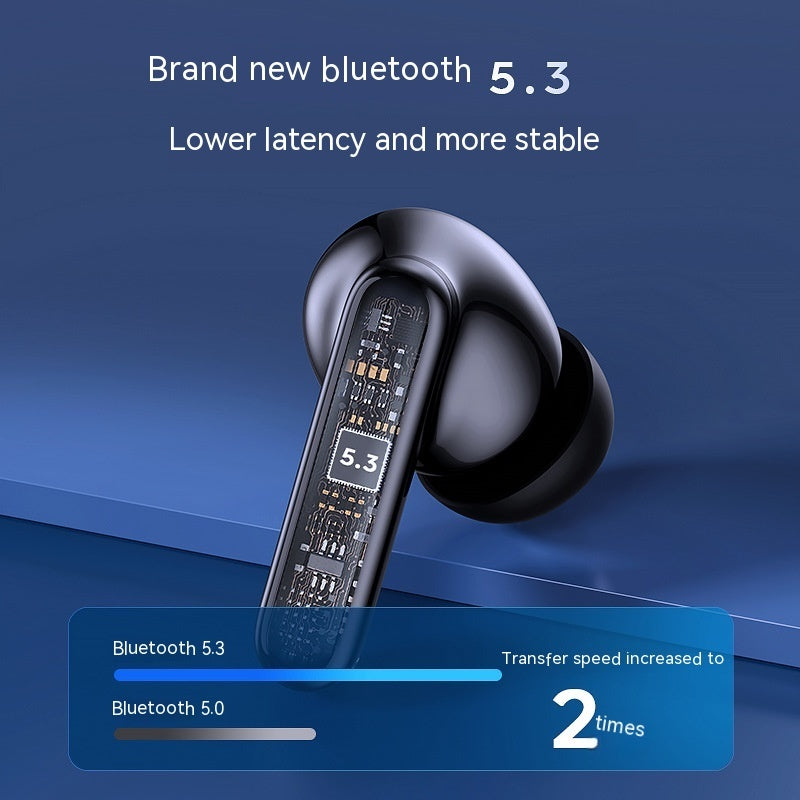
Reduce Bluetooth Interference, Static, and Audio Dropouts
Bluetooth headphones do not usually pick up normal household sound as “noise.” Instead, interference often causes skips, clicks, robotic audio, or brief silence.
Use this troubleshooting order:
- Keep the phone or computer within a short distance of the headphones.
- Remove thick walls, metal objects, and crowded obstacles between the devices.
- Move away from busy wireless areas, such as airports, large offices, or dense public spaces.
- Turn Bluetooth off and on again.
- Disconnect unused Bluetooth devices.
- Recharge the headphones and the source device.
- Restart both devices.
- Forget the headphones in Bluetooth settings, then pair them again.
- Test with a different phone, tablet, or computer.
Wi-Fi and Bluetooth can share the crowded 2.4 GHz radio band. Other wireless devices may not always cause a problem, but congestion can increase the chance of connection issues.
If the headphones work well with one device but not another, inspect the problem device. Check its operating system, Bluetooth driver, audio settings, and nearby wireless connections.
If only one app has the problem, download or stream another audio file. A damaged file, poor network connection, or app error can sound like a headphone fault.

Fix Hiss, Buzzing, and Background Sound
A faint hiss is different from outside noise. It may come from the headphone amplifier, microphone monitoring, aggressive audio processing, or a source device that sends a noisy signal.
Try the following:
- Lower the headphone volume and raise the phone or computer volume slightly, if needed.
- Turn off Transparency, Ambient, or Awareness mode.
- Disable sidetone or microphone monitoring during calls.
- Turn off equalizer boosts, sound enhancements, and virtual surround effects.
- Test a downloaded audio file instead of streaming.
- Test the headphones with another device.
- Check whether the hiss appears only when ANC is active.
- Remove USB hubs, chargers, or adapters that may introduce electrical noise.
Some wireless headphones produce a faint sound when ANC or ambient microphones remain active. If the hiss is quiet and constant, the model may have a design limitation. If it suddenly becomes loud, uneven, or accompanied by crackling, stop using the headphones until you test them more carefully.
A buzzing sound that changes when a laptop charger is connected may come from the computer, charger, adapter, or wired connection rather than Bluetooth itself. Test the headphones on battery power and with Bluetooth disconnected from other devices.

Change Audio and Device Settings
Software settings can make sound harsh, muddy, or louder than expected. They can also create the impression that headphones are noisy.
Check the phone or computer
Review these settings:
- Left-right audio balance
- Mono audio
- Hearing or accessibility adjustments
- Equalizer presets
- Volume normalization
- Spatial audio
- Bass boost or treble boost
- Call noise reduction
- Microphone monitoring
- Bluetooth audio device selection
Keep the balance control centered. A shifted balance can make one side seem weak or defective.
Turn off sound effects one at a time. If the problem disappears, re-enable settings individually to find the cause. Avoid stacking several equalizers because strong boosts can cause distortion.
Update the headphones and source
Install official firmware updates for the headphones when the manufacturer provides them. Also update the phone, tablet, computer, or Bluetooth driver.
An update can fix connection faults or improve control behavior, but it cannot repair a damaged speaker or worn ear cushion. Read the manufacturer’s instructions before updating. Keep the headphones charged and do not interrupt the process.
Reset and pair again
A factory reset can clear a corrupted pairing profile. The exact method varies by model, so use the manufacturer’s support instructions rather than guessing.
After resetting:
- Remove the headphones from the device’s Bluetooth list.
- Turn Bluetooth off and back on.
- Reset the headphones.
- Pair them as a new device.
- Test music, calls, and ANC separately.
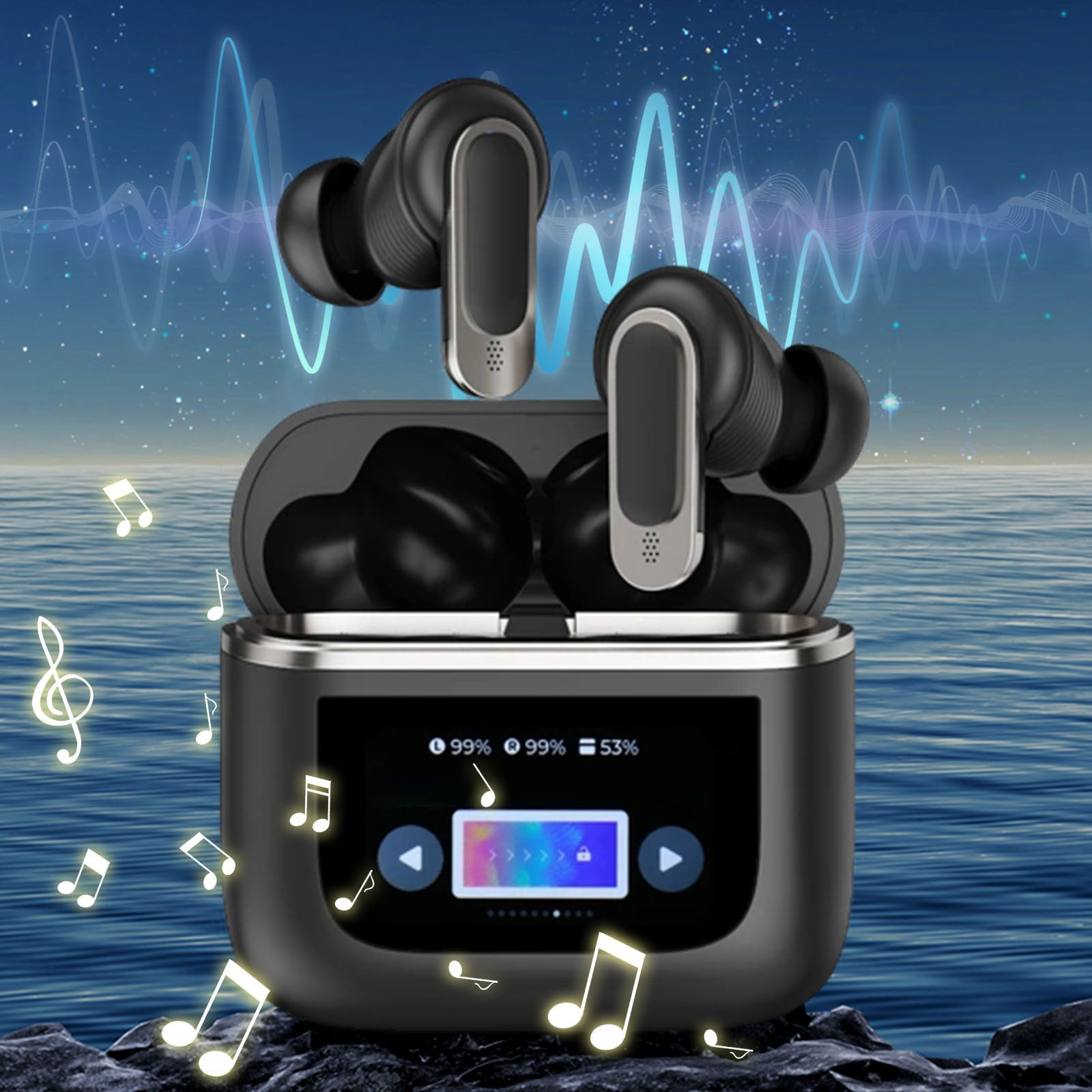
Clean Bluetooth Headphones Safely
Dirt and earwax can block earbud grilles, affect the seal, or cover ANC microphones. Clean headphones carefully because moisture can damage internal parts.
For routine cleaning:
- Turn off the headphones.
- Disconnect the charging cable.
- Remove detachable ear tips.
- Use a dry microfiber cloth on plastic and metal surfaces.
- Use a dry, soft brush on speaker grilles.
- Wipe silicone tips separately and let them dry fully.
- Keep liquid away from openings and microphones.
Do not push a sharp object into a speaker grille. Do not pour alcohol, water, or cleaning fluid into the earbud. Do not use compressed air at close range because it can push debris farther inside.
Follow the product’s water-resistance instructions. Sweat resistance does not mean that a device is safe to submerge or wash under a tap.

Use a Simple Testing Process
A short test can show whether the source, fit, setting, or headphones cause the noise.
Test 1: Quiet file
Play a familiar downloaded track or a silent audio file. Streaming problems may come from the network or app.
Test 2: Bluetooth source
Pair the headphones with another phone or computer. If the noise follows the headphones, they may be the cause. If it stays with the first device, check that device.
Test 3: Different modes
Test ANC, Transparency, and Off modes. Note whether the noise appears in one mode or all three.
Test 4: Each side
Test the left and right earbuds separately if the design allows it. Uneven noise may point to a blocked grille, poor fit, balance setting, or hardware damage.
Test 5: Wired mode
If the headphones support a wired connection, compare Bluetooth and wired playback. This test is not perfect because some headphones process wired audio through internal electronics, but it can still reveal a Bluetooth-specific problem.
Signs that the problem is likely hardware
Contact the manufacturer or a qualified repair service if:
- One side remains noisy after cleaning and resetting.
- Crackling changes when you move the ear cup or cable.
- The headphones were dropped or exposed to liquid.
- The battery becomes unusually hot or swells.
- The noise is loud enough to hurt or startle you.
- The issue occurs with several devices and audio sources.
Stop using headphones with a swollen battery, burning smell, smoke, or unusual heat. Keep the device away from flammable materials and follow the manufacturer’s battery guidance.

Common Mistakes That Make Headphone Noise Worse
Several quick fixes can create new problems.
Raising the volume to cover outside sound
This hides noise but increases sound exposure. Use a better seal or ANC instead. The National Institute for Occupational Safety and Health provides guidance on occupational noise exposure, while personal listening risk varies with volume, time, and individual sensitivity.
Using ANC without checking the fit
ANC cannot fully compensate for a loose earbud or damaged ear cushion. Fix the fit first.
Cleaning with too much liquid
Moisture can enter the speaker, charging contacts, or microphones. Use a dry method unless the product instructions say otherwise.
Assuming every dropout is a damaged speaker
A dropout may come from range, interference, a low battery, an old driver, or a bad app. Test another device before replacing the headphones.
Using Transparency mode in a quiet room
Ambient microphones may add hiss or room sound. Turn the mode off when you do not need it.
Expecting ANC to remove all voices
Speech changes quickly and contains many frequencies. Even strong ANC may reduce voices without removing them.
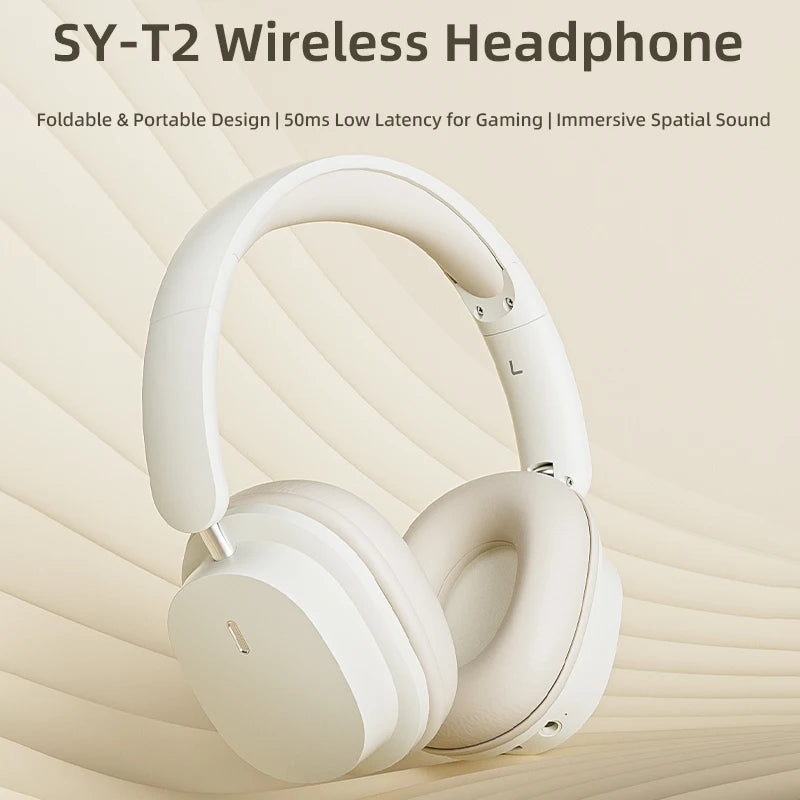
How to Choose the Right Fix
Use this quick decision guide:
- You hear the room: Improve the seal, then use ANC.
- You hear engine rumble: ANC should help most.
- You hear voices clearly: Try a better seal, but expect some speech to remain.
- You hear hiss with ANC or Transparency: Test with those modes off.
- You hear clicks or skips: Reduce distance, remove interference, and pair again.
- You hear distortion at high volume: Lower the volume and disable audio boosts.
- Only one ear sounds wrong: Clean the grille, check fit and balance, and test another device.
- The problem continues everywhere: Consider service, replacement, or a warranty claim.
The best solution depends on the type of noise. Buying a new pair may help if the current design has weak isolation, but a reset or new ear tip may solve the issue at much lower cost.

Evidence and Limits
The Bluetooth Special Interest Group defines Bluetooth technology and publishes technical specifications, but it does not guarantee that every headphone model will perform the same way in every environment. Product manuals and official support pages are the best sources for model-specific controls, reset steps, firmware procedures, and water-resistance limits.
The U.S. National Institute for Occupational Safety and Health explains how noise exposure depends on sound level and time. Its guidance supports a cautious approach: reducing outside noise should not lead you to play music louder than necessary.
Independent tests can compare ANC performance, but results may differ because of ear shape, fit, test equipment, wind, and background sound. Treat published measurements as useful comparisons, not a promise of identical performance for every listener.
For technical background and safety information, consult:
- Bluetooth SIG
- NIOSH Noise and Hearing Loss Prevention
- Your headphone manufacturer’s official support page and user manual

Frequently Asked Questions
Why are my Bluetooth headphones making a static noise?
Static may come from wireless interference, low battery power, a poor Bluetooth connection, microphone monitoring, or hardware damage. Recharge the headphones, move closer to the phone, turn off ambient modes, and test another device. If static remains across several devices, service may be needed.
Does active noise cancellation reduce all outside sound?
No. ANC works best with steady, low-pitched noise. It may reduce engines, fans, and air conditioners more effectively than speech, wind, clicks, or sudden sounds. A good physical seal improves the result.
Why do my headphones sound worse when ANC is on?
The fit may be poor, wind may hit the external microphones, or the ANC system may add a faint hiss. Try another ear tip or adjust the ear cups. Test a lower ANC level, wind reduction, or ANC off.
Can Bluetooth interference damage my headphones?
Normal Bluetooth interference usually causes dropouts, skips, or distortion rather than permanent damage. Moving closer to the source and reducing wireless congestion often helps. Physical damage, liquid, heat, or a faulty battery is more concerning.
How do I reduce noise during phone calls?
Use a stable fit, clean the microphone openings, and check whether the phone or headphone app offers call noise reduction. Avoid windy locations. If callers hear an echo, turn off microphone monitoring or sidetone.
Conclusion
To reduce noise in Bluetooth headphones, identify the sound first. Improve the fit for outside noise, use ANC for steady background rumble, and troubleshoot Bluetooth interference when you hear skips or crackles. For hiss or buzzing, test different modes, audio sources, settings, and devices.
Start with a clean fit, a full charge, and a second device. If the same fault remains after resetting and testing, contact the manufacturer instead of increasing the volume or continuing to use headphones that become hot, painful, or unusually loud.