How To Adjust Volume On Sennheiser Headphones: Quick Fix

For people in the United States, the way to adjust volume on Sennheiser headphones depends on the model, connection type, and device. Most wireless Sennheiser headphones use buttons or a touch control. Wired models often use the phone, computer, TV, or an in-line remote instead.
Start with the volume controls on the headphones. If your model has no volume buttons, adjust the volume on the connected device. For Bluetooth models, check both the headphone controls and the device volume. They may work together, or they may use separate volume levels.
This guide covers Sennheiser Momentum, Accentum, HD, PXC, and other common headphone families sold in the U.S. Always check the manual for your exact model because control layouts can differ.

How to adjust volume on wireless Sennheiser headphones
Most wireless Sennheiser headphones let you change volume with physical buttons or a touch panel. The button method is common on models such as the Momentum 3 Wireless, Momentum 4 Wireless, HD 450BT, HD 458BT, PXC 550-II, and Accentum series.
Using physical volume buttons
- Put on the headphones and start playing audio.
- Find the Volume + and Volume − buttons.
- Press Volume + to raise the sound.
- Press Volume − to lower the sound.
- Release the button when the volume reaches a comfortable level.
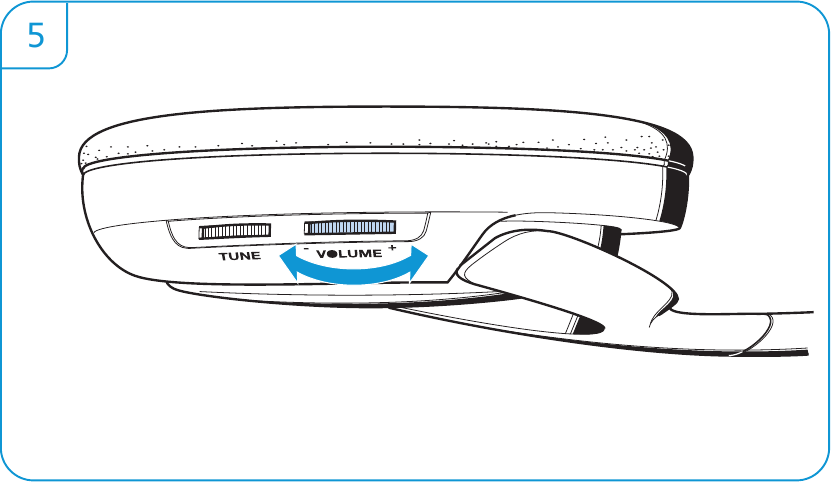
On many Sennheiser models, a short press changes the volume in small steps. Holding the button may change the volume continuously. Some models use a rocker switch instead of two separate buttons.
You may hear a tone when the volume changes. The headphones may also speak the current battery level or connection status, depending on the model and firmware.
Using touch controls
Some Sennheiser headphones use a touch panel on the ear cup. The exact gesture depends on the model.
A common control pattern is:
- Swipe up to increase volume.
- Swipe down to decrease volume.
- Tap once to play or pause.
- Tap twice or three times to manage calls or tracks, depending on the model.
Use a light, deliberate swipe on the touch surface. If the gesture does not work, remove gloves, dry the ear cup, and try again. Touch controls can fail when the panel is wet or when a hand covers too much of the surface.
Using the Sennheiser Smart Control app
The Sennheiser Smart Control app can manage settings on supported headphones. It may offer equalizer controls, firmware updates, sound modes, and connection settings.
The app does not always replace the main volume control. In many cases, you still change volume with the headphones or the connected phone. Use the app to check whether your model is supported and whether a firmware update is available.
The safest first step is to use the headphone buttons. If they do not change the sound, check the phone or computer volume next.
How to change volume on a Sennheiser headset with a phone
When Sennheiser headphones connect to an iPhone or Android phone by Bluetooth, you can normally adjust volume in three ways:
- Press the volume buttons on the headphones.
- Press the phone’s volume-up or volume-down button.
- Move the volume slider in the phone’s Control Center, notification panel, or media player.
Start playback before testing the controls. Some phones show a media volume slider only when audio is playing or when the headphones are connected.
iPhone
To adjust volume on an iPhone:
- Connect the Sennheiser headphones through Settings > Bluetooth.
- Play music, a video, or a podcast.
- Press the iPhone’s side volume buttons.
- Use the volume slider in Control Center if needed.
On newer iPhones, open Control Center by swiping down from the upper-right corner. On models with a Home button, swipe up from the bottom.
If the headphone buttons do not work, confirm that the iPhone is sending sound to the Sennheiser headphones. Tap the audio output icon in the media controls and select the headphones.
Android phone
To adjust volume on most Android phones:
- Pair the Sennheiser headphones in Settings > Connected devices or Settings > Bluetooth.
- Start playing audio.
- Press the phone’s volume buttons.
- Tap the three-dot menu or slider control if you need to adjust media volume separately from ring volume.
Android menus vary by manufacturer. Samsung Galaxy, Google Pixel, Motorola, OnePlus, and other phones may use different names.
If the volume is too low, raise the media volume, not just the ringtone volume. Also check the Bluetooth device settings. Some Android phones show a separate setting for media audio.
When headphone and phone volume do not match
Bluetooth devices may use either synchronized volume or separate volume controls. With synchronized volume, the phone and headphones act like one control. With separate volume, each device has its own level.
If the sound stays quiet after you raise the phone volume:
- Raise the Sennheiser headphone volume.
- Raise the phone’s media volume.
- Stop and restart playback.
- Disconnect and reconnect Bluetooth.
- Restart both the phone and headphones.
Do not assume that maximum phone volume means maximum headphone volume. The two controls may not be linked.

How to adjust volume on Sennheiser headphones with a computer
You can change volume on a Windows PC or Mac by using the headphone controls, the system volume control, or the media app.
Windows 11 and Windows 10
- Connect the Sennheiser headphones through Bluetooth, USB, or a headphone jack.
- Play audio.
- Select the speaker icon in the Windows taskbar.
- Move the volume slider.
- Select the arrow next to the volume control and confirm that the Sennheiser headphones are the active output device.
You can also use the keyboard volume keys if your keyboard has them.
If an app has its own volume control, check that control too. A web browser, music app, video call app, or game can have a separate setting. Windows also has an app mixer under Settings > System > Sound > Volume mixer.
macOS
- Connect the Sennheiser headphones through Bluetooth, USB, or the headphone port.
- Play audio.
- Select Control Center in the menu bar.
- Select Sound.
- Choose the Sennheiser headphones.
- Move the volume slider.
You can also use the volume keys on a compatible Mac keyboard. If the volume keys do not respond, confirm that the headphones are selected as the sound output.
Bluetooth versus wired computer connections
Bluetooth headphones usually receive a digital volume command from the computer. Wired headphones may depend on the computer’s headphone jack and system volume.
USB headphones may appear as a separate audio device. Select them in the computer’s sound settings before changing volume.
For video calls, check the meeting app separately. Zoom, Microsoft Teams, Google Meet, and other apps can have microphone and speaker settings that override the computer’s normal output.

How to adjust volume on wired Sennheiser headphones
Wired Sennheiser headphones do not always have built-in volume controls. The adjustment method depends on the cable and the device.
Wired headphones without an in-line remote
Use the volume control on the source device:
- Phone or tablet: use the side buttons or on-screen slider.
- Laptop: use the keyboard volume keys or system settings.
- Desktop computer: use Windows or macOS sound controls.
- Television: use the TV remote.
- Stereo receiver: use the receiver’s volume knob.
- Portable music player: use the player’s volume controls.
If the headphones connect through a 3.5-millimeter plug, confirm that the plug is fully inserted. A loose plug can cause low volume, missing sound, or audio in only one ear.
Wired headphones with an in-line remote
Some Sennheiser cables include an in-line remote with volume buttons. Press the plus button to increase volume and the minus button to lower it.
The remote may not work with every phone or computer. Button compatibility depends on the cable wiring, plug type, operating system, and device. If the buttons do not respond, use the source device’s volume controls.
USB headphones
For a Sennheiser headset connected by USB, adjust volume through the computer’s sound settings or the headset controls. Make sure the computer has selected the USB headset as the output device.
A USB headset may have separate controls for:
- System audio.
- Chat audio.
- Microphone monitoring.
- Game audio.
Use the operating system or headset software to check which control is changing.

How to adjust volume on Sennheiser headphones connected to a TV
The TV controls the volume when Sennheiser headphones are connected through a headphone jack, optical adapter, Bluetooth, or a transmitter.
Try this sequence:
- Start a TV program or streaming video.
- Raise the volume with the headphone controls, if available.
- Raise the TV volume with the remote.
- Check the TV’s sound output menu.
- Confirm that the correct audio output is selected.
Some TVs mute their built-in speakers when headphones are connected. Others use a separate volume level for Bluetooth or optical audio.
Optical audio can create a special problem. Many TVs send a fixed-level optical signal, so the TV remote may not change the volume. In that case, use a Sennheiser transmitter, an audio converter with volume control, or the headphone controls if the model supports them.
If you use a Sennheiser RS wireless headphone system, adjust the volume with the control on the headset. The transmitter sends audio from the TV, while the headset normally handles listening volume.

What to do when Sennheiser headphone volume is too low
Low volume usually comes from a low source setting, the wrong output device, a poor connection, or a sound limit on the phone or computer. Check the simplest causes first.
Follow this troubleshooting order
- Raise volume on the Sennheiser headphones.
- Raise media volume on the phone, computer, or TV.
- Confirm that the correct output device is selected.
- Check the app’s own volume control.
- Turn off any volume limiter or hearing-safety limit that is reducing output.
- Disconnect and reconnect the headphones.
- Restart the source device.
- Charge the headphones.
- Clean the ear pads and check the fit.
- Test the headphones with another device.
Testing another device helps separate a headphone problem from a phone, computer, app, or TV problem.
Check the fit and ear pads
Over-ear and on-ear headphones can sound quiet when the ear pads do not form a good seal. Glasses, hair, a loose headband, or worn pads can let sound escape.
In-ear Sennheiser models may sound quiet if the ear tips do not fit correctly. Try a different tip size and place the earbuds securely in the ears. Do not push them in painfully or use them at an unsafe level to compensate for a poor fit.
Check sound limits
Phones and computers may include hearing protection settings. These can limit headphone volume even when the volume slider appears high.
Look for settings with names such as:
- Headphone safety.
- Reduce loud audio.
- Volume limit.
- Safe listening.
- Hearing protection.
- Loud sound reduction.
The exact menu depends on the device and operating system. If a volume limit is active, change it only within a level that protects your hearing.

Volume buttons can stop responding because of a temporary Bluetooth error, a locked touch panel, low battery, firmware trouble, or a hardware fault.
Try these steps:
- Make sure the headphones are powered on.
- Confirm that audio is playing.
- Press the volume button briefly instead of holding it.
- Try the phone or computer volume control.
- Disconnect other Bluetooth devices.
- Forget the headphones in Bluetooth settings.
- Pair the headphones again.
- Charge them fully.
- Check for a firmware update in the Sennheiser Smart Control app.
- Reset the headphones according to the model’s manual.
A reset removes stored settings or Bluetooth connections on some models. Use the correct reset method for your model rather than applying a reset sequence from another Sennheiser product.
If only one side is quiet
One quiet ear cup or earbud can result from:
- A blocked grille or ear tip.
- Poor earbud placement.
- Balance settings that favor one channel.
- A damaged cable.
- A Bluetooth connection problem.
- An audio recording with uneven channels.
Check the device’s left-right balance setting. On an iPhone, this is under Settings > Accessibility > Audio & Visual. Windows and Android devices have similar balance controls, though the menu names vary.
If one side remains quiet on several devices, inspect the cable, connector, grille, and ear tip. Do not insert sharp objects into the speaker grille.

How loud should Sennheiser headphones be?
Use the lowest volume that lets you hear the content clearly. Loudness depends on the headphone model, ear seal, audio source, recording level, and listening environment, so a volume percentage is not a reliable measure of sound pressure.
The World Health Organization recommends reducing exposure to loud sound and taking breaks. If you hear ringing, muffled sound, pain, or a blocked feeling after listening, lower the volume and give your ears a break. Seek medical advice if symptoms continue.
Avoid raising the volume to block traffic, machinery, or other hazards. Noise-canceling headphones can reduce background sound, but they do not make loud listening harmless. Keep awareness of vehicles, cyclists, alarms, and other hazards when outdoors.

Sennheiser volume controls by connection type
The table below shows the most likely control point for each connection. The exact result can vary by model and device.
| Connection type | Main volume control | Other control to check |
|---|---|---|
| Bluetooth phone | Headphone buttons or touch panel | Phone media volume |
| Bluetooth computer | Headphone buttons or computer slider | App volume mixer |
| 3.5 mm wired connection | Phone, computer, TV, or receiver | In-line remote, if included |
| USB connection | Computer system controls | Headset buttons or software |
| Optical TV connection | Headphone transmitter or headset | TV audio output settings |
| Sennheiser RS system | Headset volume control | Transmitter and TV output |
The practical rule is simple: adjust the control closest to the headphones first, then check the source device. If the source uses a fixed-level output, the headphone or transmitter may be the only working volume control.

Common mistakes when changing Sennheiser headphone volume
Changing ringtone volume instead of media volume
A phone can show separate levels for calls, alerts, and media. Start music or video before pressing the phone volume buttons so the media level changes.
Selecting the wrong Bluetooth output
Your phone or computer may remain connected to a speaker, car stereo, or another headset. Open the audio output menu and select the Sennheiser headphones.
Using the wrong Sennheiser manual
Sennheiser control layouts differ across Momentum, Accentum, HD, PXC, and RS products. A button sequence for one model may not apply to another. Search the official Sennheiser support site using the full model name printed on the headphones or box.
Assuming every cable has volume controls
Many wired headphones have no volume buttons. If the cable lacks an in-line remote, use the source device.
Raising volume to fix a poor seal
A bad ear-pad or ear-tip fit can make audio seem weak. Fix the fit first. Increasing volume may make the sound louder without solving the real problem.

Frequently asked questions
Why are my Sennheiser headphones not getting louder?
Raise both the headphone volume and the source device’s media volume. Then confirm that the correct audio output is selected. If the problem remains, check volume limits, app settings, Bluetooth pairing, battery level, and ear-pad or ear-tip fit.
Do Sennheiser headphones have volume buttons?
Many wireless Sennheiser headphones have volume buttons, a rocker switch, or touch controls. Some wired models have no headphone volume control. The exact feature depends on the model.
Can I control Sennheiser volume from my iPhone?
Yes. You can usually use the iPhone’s side buttons, Control Center, or the controls on the Sennheiser headphones. The headphones must be selected as the active audio output.
Can I control Sennheiser volume from an Android phone?
Yes. Use the phone’s media volume buttons or the volume control on the headphones. If the two levels do not stay synchronized, raise both separately.
Why does volume change on my phone but not on the headphones?
The headphones and phone may use separate Bluetooth volume levels. A pairing error or unsupported control profile can also cause this. Reconnect the headphones, raise both volume levels, and test them with another device.
How do I adjust volume on Sennheiser headphones without buttons?
Use the connected phone, computer, TV, or receiver. If the model has a touch panel, use its volume gesture. Wired headphones without an in-line remote must use the source device.
Conclusion
To adjust volume on Sennheiser headphones, first use the headphone buttons or touch controls. If those controls are missing or do not respond, change the media volume on the connected phone, computer, TV, or audio system. Check both controls because Bluetooth devices may use separate volume levels.
If the sound remains low, verify the output device, app volume, fit, battery, volume limits, and connection. For model-specific button sequences or reset steps, use the official Sennheiser manual for the exact product. Keep listening levels comfortable and lower the volume if you notice ringing or muffled hearing.