How To Increase Bass On Headphones: Easy Sound Boost

Introduction
You can increase bass on headphones by adjusting the equalizer (EQ), changing the audio source, improving the ear seal, or using headphones with stronger low-frequency output. On a Windows PC, Mac, iPhone, Android phone, or game console, the best first step is usually a small EQ boost around 60–120 Hz.
If the sound becomes muddy, harsh, or distorted, lower the boost. More bass is not always better. The goal is a full, controlled sound that does not hide vocals, details, or effects.
This guide explains how to increase headphone bass in the United States using built-in device tools, music apps, computer settings, and simple hardware checks.

What Does “More Bass” Mean?
Bass is the low part of the sound range. It usually covers about 20 to 250 Hz.
For headphones, these ranges matter most:
| Frequency range | What you may hear |
|---|---|
| 20–50 Hz | Deep rumble, sub-bass, movie effects |
| 50–100 Hz | Kick drums, bass guitar weight, electronic bass |
| 100–200 Hz | Warmth, body, and fullness |
| 200–300 Hz | Lower vocal body; too much can sound muddy |
Most people who want “more bass” need a modest boost between 60 and 120 Hz. A boost below 40 Hz may add rumble but little audible power, especially on small earbuds.
Bass also depends on volume, fit, music quality, headphone design, and the device that powers the headphones. A software setting cannot fully replace weak hardware or a poor ear seal.
The Fastest Way to Increase Bass
Use your device or music app’s EQ and raise the low bands slowly.
Start with this safe adjustment:
- Raise 60 Hz by 2–3 dB.
- Raise 120 Hz by 1–2 dB.
- Leave the other bands unchanged.
- Lower the main volume if the sound becomes too loud.
- Compare the result with the EQ off.
A decibel, or dB, measures a change in sound level. A small boost can make a clear difference. Large boosts can cause clipping, which creates crackling or harsh sound.
Use a bass preset first
Many apps offer presets such as:
- Bass Boost
- Deep Bass
- Hip-Hop
- Electronic
- Dance
- Rock
A preset is a useful starting point, but it may raise too many frequencies. If voices sound thick or drums lose detail, switch to a custom EQ.
Use a preamp or volume control
Some equalizers include a preamp slider. A strong bass boost can push the signal above the available limit. This may cause distortion.
If your EQ has a preamp:
- Set the preamp to about -3 dB.
- Add a small bass boost.
- Raise the device volume only as needed.
- Stop if you hear crackling or buzzing.
If there is no preamp, lower the main volume by a few steps after applying the EQ.

How to Increase Bass on Windows
Windows does not provide one identical bass control for every computer. The available options depend on the sound driver, audio device, and manufacturer software.
Method 1: Check Windows sound enhancements
- Right-click the speaker icon in the taskbar.
- Open Sound settings.
- Select your headphones under the output device.
- Open the device properties.
- Look for Audio enhancements, Enhancements, or Bass Boost.
- Turn on bass enhancement if it is available.
- Test a familiar song.
The exact menu names can vary between Windows versions and sound drivers.
Method 2: Use your headphone or laptop app
Some computers and gaming headsets include an audio control app. Common features include:
- A graphic equalizer
- Bass boost
- Game, music, or movie modes
- Surround processing
- Per-device profiles
Open the app and select the profile for your headphones. Start with a small low-frequency boost rather than the highest preset.
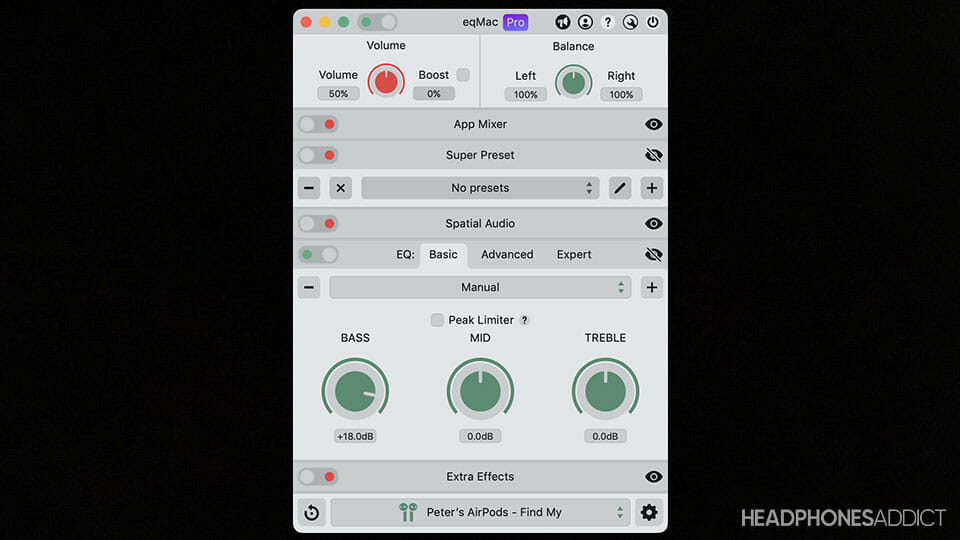
Method 3: Use a trusted equalizer
A system-wide equalizer can affect audio from several apps. Before installing one, check that it comes from a known publisher and works with your version of Windows.
A useful starting curve is:
- 32 Hz: +1 dB
- 64 Hz: +3 dB
- 125 Hz: +2 dB
- 250 Hz: 0 dB
- 500 Hz and above: 0 dB
This curve adds weight without greatly changing vocals. Adjust it based on the music and the headphones.
If the Windows bass setting does nothing
Check these points:
- Make sure the correct headphones are selected.
- Test both wired and Bluetooth output if possible.
- Turn off other sound effects that may conflict.
- Check the headphone manufacturer’s app.
- Restart the audio app after changing settings.
- Test with a different song or browser.
- Confirm that the headphones are not connected to another device.
Some Bluetooth headphones process sound inside their own firmware. In that case, a computer EQ may work differently than expected.

How to Increase Bass on a Mac
macOS does not include a universal system-wide EQ for every audio output. However, many music services and audio apps include their own equalizers.
Apple Music
In Apple Music for Mac:
- Open Window.
- Choose Equalizer.
- Select a bass-oriented preset or create a custom setting.
- Raise the low bands by a small amount.
- Use the Preamp control if the sound distorts.
Apple’s current menus may vary by macOS version. If you do not see the equalizer, check the app version and its help menu.
Other Mac audio apps
Music players and streaming apps may offer their own EQ. Look in:
- Playback settings
- Audio settings
- Equalizer
- Sound effects
- Advanced settings
An app-level EQ may affect only that app. If you need bass changes across games, video players, and calls, you may need a compatible system-wide audio tool.
Mac troubleshooting
If the sound does not change:
- Confirm that the EQ is enabled.
- Check the selected output device.
- Turn off competing sound effects.
- Test the EQ with a local audio file.
- Compare wired and Bluetooth playback.
- Check whether the headphone app has its own EQ.

How to Increase Bass on an iPhone or iPad
The easiest method on an iPhone or iPad is to use the EQ inside the music app.
Apple Music
- Open Settings.
- Tap Apps, then Music. On some older versions, tap Music directly.
- Select EQ.
- Choose Bass Booster or another bass preset.
- Play several songs and compare the result.
This setting is designed for Apple Music playback. It may not change audio from every other app.
Spotify
In the Spotify app:
- Open Settings.
- Choose Playback.
- Tap Equalizer.
- Turn on the EQ.
- Raise the low-frequency bands slightly.
- Keep the higher bands near their original levels at first.
Spotify’s menus can change with app updates. The EQ may also behave differently with different playback modes and devices.
Apple Music versus Bluetooth headphone controls
Some wireless headphones have a companion app. If the headphones store EQ changes internally, the setting may work with several sources. Other apps apply EQ only during playback through that app.
If you use two EQs at once, such as a phone EQ and a headphone EQ, the bass may become excessive. Use one main EQ first, then add a second only when you understand how the two settings interact.

How to Increase Bass on Android
Android menus vary by phone maker, Android version, and headphone type. Look in the phone’s sound settings and the audio app first.
Check the phone’s sound settings
Try these locations:
- Settings > Sound and vibration
- Sound quality and effects
- Equalizer
- Dolby Atmos
- Audio effects
- Headphone sound
You may see presets such as Bass boost, Music, Movie, or Custom. Choose a custom setting when available.
Use the streaming app’s EQ
Many Android music apps include an equalizer under settings. This may be the simplest option because it is less likely to affect calls, alarms, or other sounds.
Start with:
- A small boost at 60–100 Hz
- No boost above 200 Hz
- A lower preamp if available
Use the headphone maker’s app
A companion app may offer:
- Custom EQ
- Firmware updates
- Fit tests
- Hearing profiles
- Saveable sound modes
Update the app and headphone firmware before troubleshooting. Firmware updates can change sound processing, connection behavior, or EQ features.

How to Increase Bass on Spotify, YouTube, and Other Apps
The method depends on whether the app has its own EQ.
Spotify
Spotify includes an in-app equalizer on supported devices. Use it for Spotify playback only. A small boost in the first two or three bands is usually enough.
YouTube
YouTube’s standard app and website may not offer a full EQ on every device. You can try:
- The phone’s built-in EQ
- A computer sound enhancement
- A headphone companion app
- An operating system audio tool
Be careful with browser extensions. Install only tools from trusted publishers and review the permissions they request.
Apple Music
Use the device or app EQ. The Bass Booster preset is a quick test, while a custom EQ gives you more control.
Tidal and other music services
Look under playback or audio settings. Some apps include EQ, while others rely on the phone, computer, or headphone hardware.
A simple test can identify the problem: play the same track through two apps. If one has more bass, the difference may come from EQ, loudness normalization, spatial audio, or the app’s playback settings.
Check the Headphone Fit Before Changing EQ
A poor seal can remove bass, especially with in-ear headphones.
For earbuds:
- Try a different ear tip size.
- Insert the earbuds as directed by the manufacturer.
- Check whether outside noise drops when the fit is correct.
- Test both ears.
- Clean the ear tips and speaker openings.
If the seal improves, bass may return without any EQ change. This is common with in-ear models because low-frequency sound depends on the seal between the ear tip and ear canal.
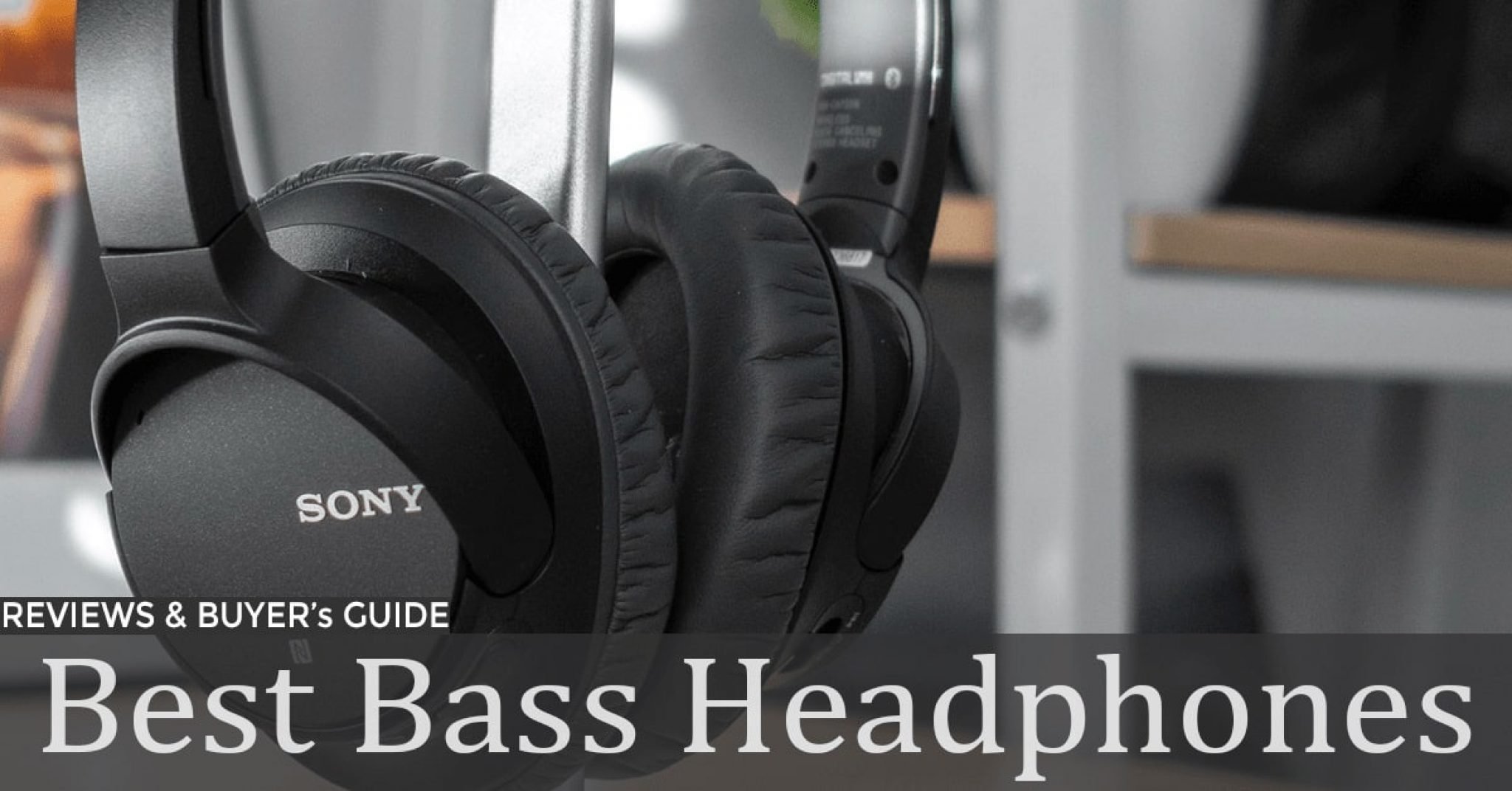
For over-ear headphones:
- Adjust the headband so the ear cups sit evenly.
- Check for gaps around glasses or thick hair.
- Inspect worn ear pads.
- Replace damaged or flattened pads with compatible parts.
Do not block vents or modify the ear cups. A blocked vent can change the sound and may damage the headphone.

Why Bass Boost Can Sound Bad
Bass boost can cause several unwanted effects.
Muddiness
Too much energy around 150–300 Hz can make vocals and instruments sound thick. Reduce this range before adding more sub-bass.
Distortion
Distortion often comes from excessive EQ gain, a weak amplifier, damaged drivers, or a poor Bluetooth connection. Lower the EQ boost and volume to test the cause.
Loss of detail
Heavy bass can cover cymbals, speech, guitar, and other midrange sounds. If you hear less detail, reduce the bass rather than raising the treble right away.
Uneven bass
A headphone may produce some bass notes well and other notes poorly. EQ can reduce a narrow problem, but it cannot fully correct every design limit.
Spatial audio changes
Spatial audio, surround modes, and virtual sound effects can change bass response. Turn them off during testing so you can hear the effect of the EQ alone.
A Better Bass EQ: Boost or Cut?
Cutting other frequencies can sometimes work better than boosting bass.
For example, if headphones sound too bright, you might lower the upper midrange or treble by 1–2 dB instead of raising the bass. This can make the bass seem stronger while reducing the risk of clipping.
Try this order:
- Turn off spatial and surround effects.
- Set the EQ flat.
- Lower the volume slightly.
- Add 2 dB around 60–100 Hz.
- Cut muddy sound near 200–300 Hz if needed.
- Compare the result with the original.
Do not make many large changes at once. Small changes are easier to hear and reverse.
Example settings by listening goal
| Goal | Starting adjustment | Main risk |
|---|---|---|
| More kick drum | +2 to +3 dB at 60–100 Hz | Boom |
| More deep rumble | +1 to +3 dB below 60 Hz | Little audible change or distortion |
| More warmth | +1 to +2 dB at 100–200 Hz | Muddy vocals |
| Less harsh sound | Cut upper mids or treble by 1–2 dB | Dull detail |
These are starting points, not universal settings. Headphone models differ widely.

Does a DAC or Amplifier Add More Bass?
A digital-to-analog converter, or DAC, changes digital audio into an analog signal. An amplifier increases the signal’s ability to drive headphones.
A DAC or amplifier does not automatically add bass. It may help when:
- The current device cannot provide enough volume.
- The headphones need more power.
- The current output has audible noise or distortion.
- The new device includes an EQ or bass control.
For most efficient earbuds and easy-to-drive headphones, a separate amplifier is not the first fix for weak bass. Test fit, EQ, source settings, and headphone condition first.
If you use difficult-to-drive headphones, check the manufacturer’s impedance and sensitivity specifications. A qualified audio retailer or the headphone maker can help you confirm whether your device supplies enough power.
How to Increase Bass on a TV or Game Console
TVs and consoles often have limited EQ controls.
On a TV
Check:
- Sound mode
- Equalizer
- Bass and treble
- Movie or music mode
- Headphone output settings
If you use a Bluetooth transmitter, the transmitter may control the sound. If you use a soundbar or receiver, check that device as well.
On PlayStation, Xbox, or Nintendo Switch
The console may not offer a full headphone EQ. Try:
- The headset’s companion app
- A headset with onboard EQ
- The controller’s audio settings
- The TV or receiver’s sound menu
- A compatible USB audio device
Some headsets save EQ profiles in their own memory. That can make the setting work across a console, computer, and phone.

Safe Listening When Increasing Bass
Bass can make music feel quieter or softer, which may tempt you to raise the volume. That can increase the risk of hearing damage.
The National Institute for Occupational Safety and Health (NIOSH) uses an occupational exposure limit of 85 dBA averaged over 8 hours for workplace noise, with allowable exposure time decreasing as sound levels rise. That workplace limit is not a personal guarantee of safe listening, but it shows why long exposure to loud sound matters.
Use these habits:
- Keep the volume as low as needed.
- Take regular quiet breaks.
- Stop if your ears ring or feel muffled.
- Do not use a strong bass boost to mask outside noise.
- Use well-fitting noise-isolating headphones in loud places.
- Do not wear headphones when you need to hear traffic or warnings.
If ringing, pain, muffled hearing, dizziness, or sound sensitivity continues after listening, stop using the headphones and contact a qualified health professional.

Troubleshooting: Bass Still Sounds Weak
Use this order because it starts with simple and low-risk checks.
1. Check the seal and fit
Try new ear tips or adjust the ear cups. A leak is one of the most common reasons for weak bass.
2. Test another song
Some recordings have little low bass. Use a track with a clear kick drum or bass line.
3. Turn off sound processing
Disable spatial audio, surround effects, loudness normalization, and other enhancements. Test the sound again.
4. Compare devices
Play the same track on another phone or computer. If the bass changes, the source device or app may be responsible.
5. Check the EQ
Make sure the correct preset is active. Some apps reset EQ settings when you connect a new device.
6. Check for clipping
If the sound crackles after the bass boost, lower the preamp, volume, or EQ gain.
7. Inspect the headphones
Look for:
- Damaged ear pads
- Blocked vents
- Dirt in earbud openings
- A loose cable
- Moisture damage
- A weak or failing driver
8. Test another pair
If several devices produce weak bass with one pair, the headphones may have a hardware fault or a sound signature that cannot be changed much with EQ.
Common Mistakes to Avoid
- Using the largest Bass Boost setting first: This can cause distortion and mask detail.
- Ignoring the ear seal: EQ cannot fully restore bass lost through an air leak.
- Raising every EQ band: This often increases volume, not quality.
- Running multiple EQs at once: Two boosts can create excessive bass or clipping.
- Judging with one song: Different mixes have different bass levels.
- Using untrusted audio software: Unknown apps may create security and privacy risks.
- Increasing volume to hear more bass: Loudness can harm hearing.
- Assuming an amplifier fixes every problem: Power helps only when power is the real limit.
- Blocking headphone vents: This can change the tuning or damage the device.
- Ignoring damaged hardware: A failing driver may sound distorted even with a flat EQ.

Key Takeaways
- Start with a 2–3 dB boost around 60–100 Hz.
- Check the earbud seal or ear cup fit before using heavy EQ.
- Lower the preamp or volume if you hear distortion.
- Use one main EQ at a time.
- Test several songs and compare the EQ on and off.
- Bass boost should not lead to unsafe listening levels.
- If the bass stays weak on every device, test another pair of headphones.
FAQs
Can I increase bass without an equalizer?
Yes. Improve the ear seal, replace worn ear pads, use a headphone app with sound profiles, or choose headphones designed for stronger low-frequency output. Fit often makes a large difference with earbuds.
Why does bass disappear when I turn on noise cancellation?
Noise cancellation changes the headphone’s signal processing. Some models sound fuller with ANC on, while others sound different or thinner. Test the headphone in its normal, ANC, and transparency modes.
Is bass boost bad for headphones?
A small boost is usually not a problem. A large boost at high volume can create clipping, stress the driver, or make distortion more noticeable. Keep the volume moderate and stop if the sound becomes harsh.
Why do my headphones have more bass on my phone than on my computer?
The two devices may use different EQ settings, volume limits, audio drivers, Bluetooth codecs, or sound enhancements. Compare both devices with flat EQ and the same track.
Can I add bass to headphones that sound flat?
Usually, yes, within limits. EQ can change the tonal balance, but it cannot fully overcome weak drivers, a poor seal, physical damage, or a device that cannot power the headphones properly.
Conclusion
The best way to increase bass on headphones is to start with fit, then apply a small EQ boost around 60–100 Hz. Adjust one setting at a time, watch for distortion, and compare the result with the original sound.
If the bass remains weak, test the headphones on another device and inspect the ear tips, pads, vents, and cable. When the problem follows the headphones, the model or hardware may be the limit. When the problem follows one device or app, check its EQ, sound effects, and output settings.