How To Use Apple Headphones: Easy Setup Guide

Apple headphones usually mean AirPods, AirPods Pro, AirPods Max, or wired EarPods. In the United States, AirPods work best with an iPhone or iPad, but many models also connect to a Mac, Apple Watch, Apple TV, Android phone, or Windows PC.
To use Apple headphones, charge them if needed, connect them through Bluetooth or a cable, then use the model’s controls to play audio, answer calls, adjust sound, and activate Siri. The exact steps depend on whether you have wireless AirPods, AirPods Max, or wired EarPods.

Identify Which Apple Headphones You Have
The model determines how you connect and control the headphones. Check the shape, case, and charging port before following the setup steps.
| Apple headphone type | How it connects | Main controls |
|---|---|---|
| AirPods | Bluetooth through a charging case | Stem taps, presses, or touch controls |
| AirPods Pro | Bluetooth through a charging case | Stem presses and swipes |
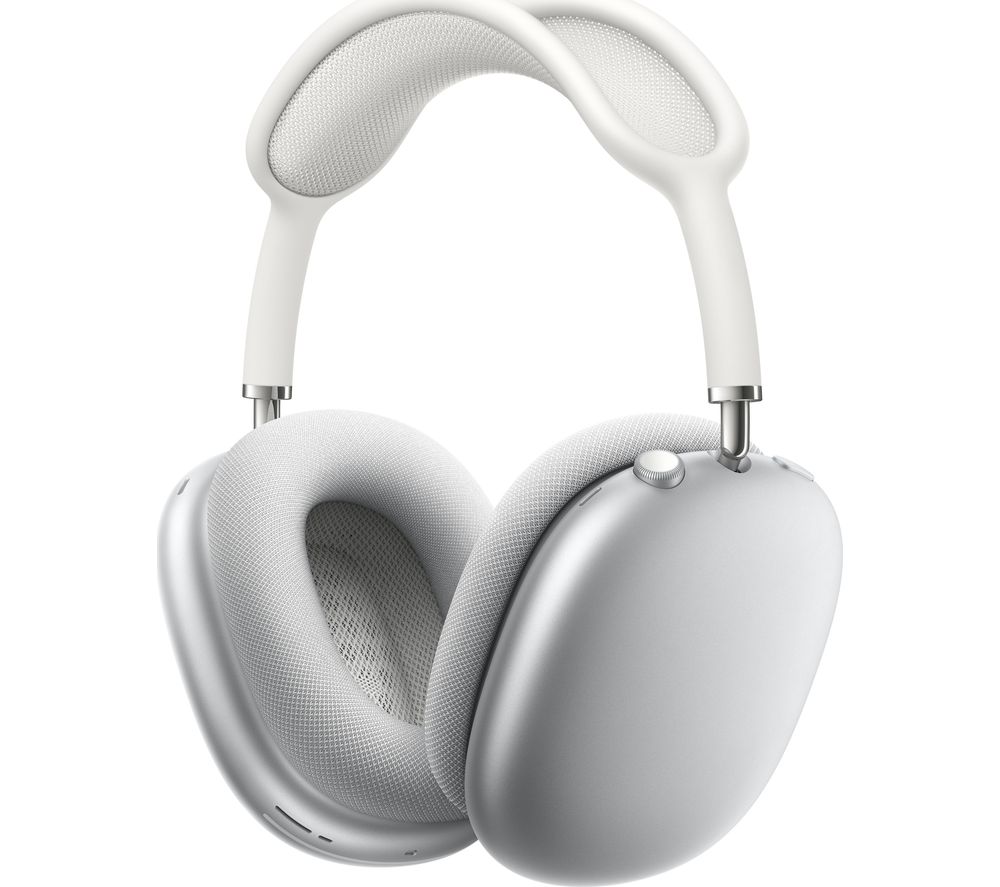
| AirPods Max | Bluetooth, with a headband and ear cups | Digital Crown and noise-control button |
| EarPods with Lightning connector | Lightning cable | Inline remote |
| EarPods with USB-C connector | USB-C cable | Inline remote |
| EarPods with 3.5-millimeter plug | Headphone jack or adapter | Inline remote |
Apple has released several AirPods generations. Controls can differ by model, so do not assume that a double tap, stem press, or swipe works the same way on every pair.
You can check the model on your iPhone by opening Settings > Bluetooth, tapping the Info button next to the AirPods, and viewing the device details. Apple also lists model numbers in its official AirPods identification guide.
Wired EarPods versus AirPods
Wired EarPods do not need Bluetooth pairing or a battery. Plug them into the matching port, then use the remote on the cable.
AirPods need a charged battery and a wireless connection. Their charging case also stores power and helps with pairing.

How to Connect AirPods to an iPhone or iPad
The fastest way to pair AirPods is to use the setup card that appears when you open the charging case near an unlocked iPhone or iPad.
- Go to the Home Screen on your iPhone or iPad.
- Open the AirPods charging case with both earbuds inside.
- Hold the case near the device.
- Wait for the setup animation.
- Tap Connect.
- Follow any remaining instructions.
- Tap Done.
Keep Bluetooth turned on. You can check it in Settings > Bluetooth or from Control Center. Your iPhone or iPad also needs a compatible version of iOS or iPadOS for some features.
After pairing, place the AirPods in your ears. Audio should move from the device speaker to the AirPods. If it does not, open Control Center, tap the audio output button, and select your AirPods.
Pair AirPods manually
If the setup card does not appear:
- Open Settings > Bluetooth.
- Leave the Bluetooth screen open.
- Put the AirPods in their case and open the lid.
- Press and hold the setup button on the case until the status light flashes white.
- Select the AirPods under Other Devices.
Some newer AirPods cases use a front-case interaction instead of a visible rear button. Follow the pairing prompt for your model if the case has no standard setup button.
Connect AirPods to another Apple device
Once AirPods are linked to the same Apple Account, they may switch between compatible Apple devices. For example, audio can move from an iPhone call to a Mac video.
Automatic switching depends on the AirPods model, device software, and account settings. To choose the device yourself:
- Open Control Center.
- Tap the audio output button.
- Select the AirPods.
For a Mac, open Control Center > Sound, then select the AirPods. You can also use System Settings > Bluetooth.

How to Pair Apple Headphones with Android or Windows
AirPods can work with Android phones and Windows PCs as standard Bluetooth headphones. Some Apple-only features will not be available.
Pair AirPods with an Android phone
- Open Settings on the Android phone.
- Open Connected devices or Bluetooth.
- Turn on Bluetooth.
- Open the AirPods case.
- Put the AirPods into pairing mode by holding the setup control until the light flashes white.
- Select the AirPods from the list of available devices.
- Confirm the pairing request.
The menu names may differ by Android brand. Basic audio and microphone functions should work, but features such as automatic Apple-device switching, detailed battery information, and some Siri functions may not.
Pair AirPods with a Windows PC
- Open Settings > Bluetooth & devices.
- Turn on Bluetooth.
- Select Add device.
- Choose Bluetooth.
- Put the AirPods into pairing mode.
- Select the AirPods from the list.
If the microphone sounds poor during a video call, the computer may be switching to a lower-quality Bluetooth call mode. Select the correct input and output devices in the meeting app and in Windows sound settings.

How to Use AirPods Controls
AirPods controls vary by generation. You can change many of them on an iPhone by opening Settings > Bluetooth, tapping the Info button next to the AirPods, and choosing the available control options.
AirPods with touch or stem controls
Depending on the model, you may be able to:
- Press once to play or pause audio.
- Press once to answer a call.
- Press twice to skip to the next track.
- Press three times to return to the previous track.
- Press and hold to switch listening modes or activate Siri.
- Swipe up or down on the stem to change volume on supported models.
Use a firm press rather than a light tap on models with a force sensor. A soft tap may not register.
AirPods Pro controls
AirPods Pro models use the flat area on the stem. Common controls include:
- Press once to play or pause.
- Press once to answer or end a call.
- Press twice to skip forward.
- Press three times to skip back.
- Press and hold to switch between noise cancellation and Transparency mode.
- Swipe up or down to change volume on supported models.
To change what a press-and-hold action does, open the AirPods settings on your iPhone. You may be able to assign the left and right stems to listening modes or Siri.
AirPods Max controls
AirPods Max use physical controls on the top of the right ear cup:
- Turn the Digital Crown to change volume.
- Press the Digital Crown once to play or pause.
- Press it twice to skip forward.
- Press it three times to skip back.
- Press the noise-control button to switch listening modes.
The Digital Crown may feel similar to the control on an Apple Watch, but it does not control every Apple Watch function.

How to Use Siri with Apple Headphones
Siri can play music, make calls, read messages, set reminders, and answer simple questions when the headphones and device support the feature.
Say “Hey Siri” or “Siri,” depending on the settings and software on your Apple device. You can also press and hold the assigned AirPods control or Digital Crown.
To change Siri settings on an iPhone:
- Open Settings.
- Tap Siri or Apple Intelligence & Siri, depending on the iOS version.
- Review the voice activation and response options.
- Check the AirPods control assignment in Settings > Bluetooth.
Siri needs a compatible device, an active connection, and access to Apple services. It may not respond if the microphone is blocked, the device is offline, or the selected AirPods are not connected.

How to Control Calls with Apple Headphones
Apple headphones can answer and end calls without requiring you to hold the iPhone.
For most AirPods:
- Press the stem or control once to answer an incoming call.
- Press again to end the call.
- Use the assigned control to reject a call when supported.
- Speak toward the microphone on the AirPod.
For wired EarPods, press the center button on the inline remote to answer or end a call.
During a call, check the audio output in the Phone app or Control Center if you cannot hear the other person. Select the AirPods instead of the iPhone speaker.
For video calls, choose the AirPods as both the microphone and speaker in the calling app. This applies to apps such as FaceTime, Zoom, Microsoft Teams, and Google Meet.

How to Adjust Volume and Listening Modes
You can adjust volume in three main ways:
- Use the iPhone, iPad, Mac, or Apple Watch volume controls.
- Use AirPods stem swipes when supported.
- Use the Digital Crown on AirPods Max.
AirPods Pro and AirPods Max may offer Active Noise Cancellation, Transparency mode, and related listening options. Noise cancellation reduces some outside sounds. Transparency mode lets more outside sound reach your ears.
To change listening modes on an iPhone:
- Connect the AirPods.
- Open Control Center.
- Touch and hold the volume control.
- Tap the listening mode button.
- Choose the available option.
Noise cancellation is not a guarantee that you will hear nothing outside the headphones. Stay alert near traffic, bikes, trains, machinery, and other hazards.
Turn on Conversation Awareness or Adaptive Audio
Some newer AirPods Pro models include features that adjust sound when you speak or when the surrounding sound changes. The exact options depend on the AirPods model and Apple software.
Open Settings > Bluetooth, tap the Info button next to the AirPods, and review the available listening settings. If an option is not listed, the model or software may not support it.

How to Charge AirPods and AirPods Max
Place AirPods in the charging case and close the lid. Connect the case to power with the correct cable or place it on a compatible wireless charger if the case supports wireless charging.
To check battery status on an iPhone:
- Open the AirPods case near the iPhone.
- View the battery card that appears.
- Or add the Batteries widget to the Home Screen.
You can also check battery levels in the Batteries widget, Control Center, or the Bluetooth settings page.
For AirPods Max, connect the charging cable to the charging port. Keep the headphones within the temperature range recommended by Apple. Avoid charging or storing them in very hot places, such as a closed car in direct summer sun.
A case light usually shows charging or pairing status, but its meaning can vary by model. The iPhone battery card gives more useful information than the light alone.

How to Use Wired Apple EarPods
Wired EarPods are simple to use because they do not require Bluetooth setup.
- Plug the EarPods into the correct port.
- Start music, a podcast, or a video.
- Use the inline remote to control playback.
- Speak into the microphone during calls.
Common inline remote actions include:
- Press once to play or pause.
- Press twice to skip forward.
- Press three times to go back.
- Press and hold to activate Siri on compatible Apple devices.
- Press the center button to answer or end a call.
- Use the plus and minus buttons to change volume.
A Lightning or USB-C EarPods model will not plug directly into every iPhone, iPad, or computer. Do not force the connector. If the device has a different port, use a suitable adapter that supports audio.

How to Fix Apple Headphones That Do Not Work
Check the simplest and safest causes first. The problem is often low battery, the wrong audio output, dirt in the charging contacts, or an incomplete Bluetooth connection.
AirPods do not connect
Try these steps in order:
- Put both AirPods in the charging case.
- Close the lid for about 30 seconds.
- Open the lid near the iPhone.
- Check Settings > Bluetooth.
- Charge the case and AirPods.
- Restart the iPhone.
- If needed, select Forget This Device, then pair the AirPods again.
Resetting the AirPods removes the existing pairing record. Use it only after charging, Bluetooth, and manual pairing checks fail.
Only one AirPod works
Check that both earbuds are charging. Clean the charging contacts and speaker mesh with a dry, soft brush. Do not insert sharp objects or apply liquid inside the case.
Then place both AirPods in the case, close the lid, wait, and try again. Check the left-right balance at Settings > Accessibility > Audio & Visual. A balance slider moved fully to one side can make one AirPod seem silent.
The sound is quiet or distorted
Check the volume on both the source device and the headphones. Then:
- Remove any earwax or debris from the speaker mesh.
- Test another app or audio file.
- Move closer to the device.
- Disconnect other Bluetooth accessories.
- Check whether an audio limit is enabled.
- Test the AirPods with another compatible device.
If distortion continues after cleaning and reconnecting, the issue may involve hardware, moisture, or the source device.
The microphone does not work
Confirm that the app has microphone permission. On an iPhone, open Settings > Privacy & Security > Microphone and check the app.
Also check which microphone the app uses. A computer may select its built-in microphone instead of the AirPods. If one AirPod has a blocked microphone opening, the call may sound muffled.
AirPods keep disconnecting
Keep the AirPods within normal Bluetooth range and remove physical barriers when possible. Charge the AirPods and update the connected device.
If disconnections happen only with one phone or computer, test another device. If they happen everywhere, reset the AirPods and contact Apple Support if the problem remains.
Common Mistakes to Avoid
Avoid these errors when using Apple headphones:
- Pairing the wrong device: Select the AirPods in the audio output menu.
- Ignoring the case battery: Earbuds may show a connection but still lack enough charge.
- Using the wrong control: AirPods generations do not all use the same tap or press action.
- Forcing a connector: Lightning, USB-C, and 3.5-millimeter plugs are different.
- Cleaning with liquid: Moisture can damage microphones, speakers, and charging contacts.
- Assuming all features work on Android: Basic Bluetooth audio works more broadly than Apple-specific features.
- Turning the volume up to block noise: High volume can increase hearing risk.
- Using noise cancellation near hazards: Noise control does not replace awareness.
Apple advises keeping listening levels reasonable. If music sounds harsh, your ears ring, or hearing seems muffled after use, lower the volume and take a break. Seek medical advice for persistent hearing changes or pain.

How to Keep Apple Headphones Clean and Safe
Clean the exterior with a soft, dry, lint-free cloth. Keep water away from openings, charging ports, microphones, and speaker mesh unless Apple’s instructions for your exact model say otherwise.
Do not share in-ear headphones without cleaning them. Store AirPods in the case when not in use. Keep the case and earbuds away from heat, moisture, children who may swallow small parts, and loose objects that can damage the charging contacts.
Do not wear headphones in situations where hearing outside sounds is necessary. This includes crossing streets, working near moving equipment, and driving. Local laws may also restrict headphone use while driving or cycling.

Key Takeaways
- Open the AirPods case near an unlocked iPhone to begin setup.
- Use Settings > Bluetooth when automatic pairing does not appear.
- AirPods work with Android and Windows as Bluetooth headphones, but some Apple features may be unavailable.
- Controls differ between AirPods, AirPods Pro, AirPods Max, and EarPods.
- Charge the case and earbuds before troubleshooting connection problems.
- Clean headphones with a dry cloth or soft brush, not liquid or sharp tools.
- Keep volume moderate and stay aware of nearby hazards.
Frequently Asked Questions
Do Apple headphones work with Android phones?
Yes. AirPods can connect to Android phones through Bluetooth. Music, calls, and basic controls usually work, but Apple-only features such as automatic switching, Siri integration, and some battery tools may not be available.
How do I make AirPods louder?
Raise the volume on the connected device and use the AirPods controls if supported. Check the speaker mesh for debris and review any volume limit or hearing-safety setting. Do not keep increasing volume if the sound is already uncomfortable.
Can I use one AirPod by itself?
Yes, many AirPods models can play audio through one earbud. Place the other AirPod in the case. The microphone and listening features may work differently when only one earbud is active.
Why do AirPods connect but play no sound?
The iPhone or computer may still be using its built-in speaker. Open the audio output menu and select the AirPods. If that fails, check the battery, pause and restart playback, and reconnect Bluetooth.
How do I reset AirPods?
Place the AirPods in the case, close the lid briefly, then open it. Use the case’s reset or setup control according to the instructions for your model until the status light indicates pairing mode. Then remove the AirPods from Bluetooth settings and pair them again.
Can I use wired EarPods with an iPhone?
Yes, if the connector matches the iPhone or you use a compatible adapter. EarPods with Lightning, USB-C, and 3.5-millimeter connectors are not interchangeable without the correct port or adapter.
Conclusion
Using Apple headphones is mostly a matter of matching the right setup to the model. Wireless AirPods need Bluetooth and battery power, while wired EarPods work as soon as they are plugged into a compatible port.
Start with charging, select the correct audio output, and learn the controls for your exact model. If the headphones fail, check the connection, battery, cleanliness, and device settings before resetting or seeking Apple Support.