How to Connect Headphones to Switch Easily and Fast

Connect headphones to Switch through Bluetooth in System Settings or by plugging a 3.5mm cable into the console. For the best gaming responsiveness, wired audio is usually the fastest and most reliable option.
If you want to know how to connect headphones to Switch quickly, the good news is that Nintendo now supports both Bluetooth and wired audio. The easiest method depends on your Switch model, your headphones, and whether you care more about convenience or low-latency gaming.
- Fastest method: Use the Switch’s 3.5mm jack in handheld mode.
- Wireless option: Bluetooth is convenient but can add latency.
- Docked play: Use a controller, TV output, or adapter if needed.
- Best for gaming: Choose wired or low-latency accessories for competitive play.
How to Connect Headphones to Switch: What You Need to Know First
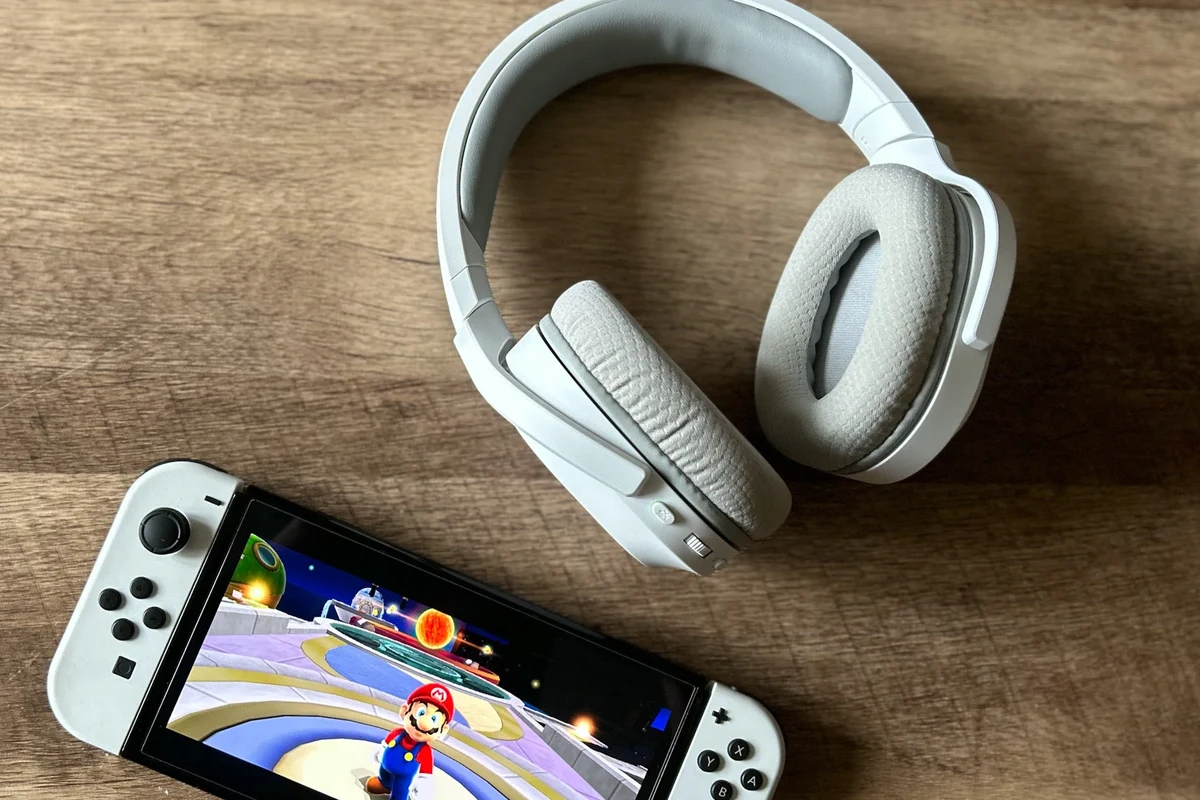
Before you pair anything, it helps to know that the Nintendo Switch can send audio in a few different ways. Some setups are simple plug-and-play, while others need a Bluetooth transmitter, adapter, or dock-based solution.
For most players, the best choice comes down to three things: how you play, how often you move around, and whether audio delay matters to you. If you mainly play story games, wireless is fine for many users. If you play competitive titles, wired or low-latency accessories may be better.
Compatibility can vary by headphone brand, Switch model, firmware version, and accessory design. If a headset does not connect as expected, check the manufacturer’s instructions and Nintendo’s current support notes.
Understanding Nintendo Switch Audio Options in 2026
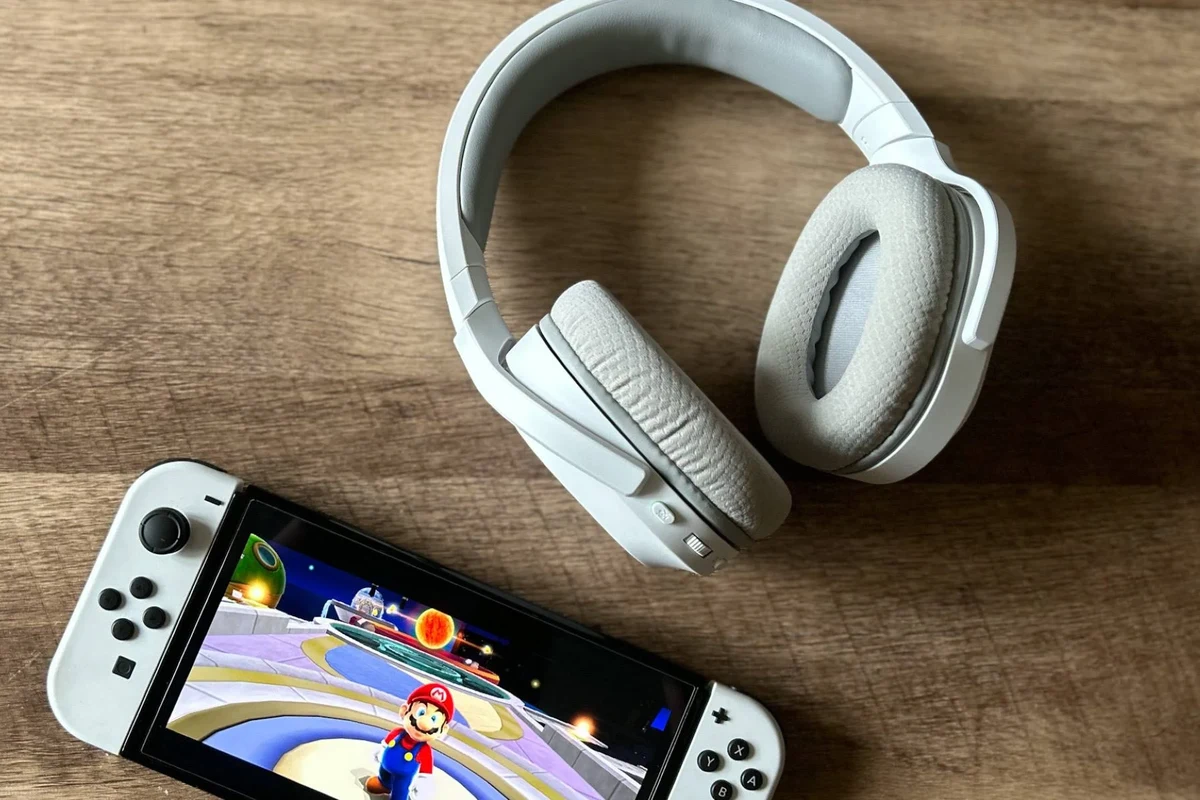
As of 2026, Switch audio is still straightforward, but there are limits you should know about. The console supports Bluetooth audio natively, but not every Bluetooth feature works the same way across all headphones.
Bluetooth headphones vs. wired headphones vs. USB-C headsets
Bluetooth headphones are the most convenient because they remove cable clutter. They are great for casual play, but they can introduce a little delay, which some gamers notice in fast action or rhythm games.
Wired headphones usually give the most reliable connection and the lowest latency. USB-C headsets can also work well in certain setups, especially in handheld mode or with the right accessory, but results depend on the headset and adapter.
Which Switch models support which connection methods
The original Switch, Switch OLED, and Switch Lite all support Bluetooth audio through system settings. The built-in 3.5mm headphone jack also works on handheld models, which makes wired listening simple.
When the console is docked, the headphones usually need to connect through the controller, the TV, the dock’s USB ports, or a compatible adapter. If you want a deeper look at wireless pairing basics, our guide on how to connect Bluetooth headphones can help as a general reference.
How to Connect Bluetooth Headphones to Switch Step by Step
Bluetooth pairing on Switch is easy once you know where to look in the menu. The process is similar for earbuds, over-ear headphones, and many gaming headsets that support standard Bluetooth pairing.
Pairing from the System Settings menu
From the Home menu, go to System Settings, then find Bluetooth Audio.
Put your headphones or earbuds into pairing mode using the button or touch controls from the manufacturer.
Choose the headphone name from the list and wait for the connection to complete.
If the device does not appear, move closer to the console and make sure no other device is already connected. Some headphones only allow one active Bluetooth connection at a time, which can block pairing.
Connecting earbuds, over-ear headphones, and gaming headsets
Earbuds often pair quickly and are easy to use in handheld mode. Over-ear headphones may be more comfortable for long sessions, especially if you play at home and want fuller sound and better passive isolation.
Gaming headsets can work well too, but not all of them use the same wireless standard. Some are Bluetooth-only, while others rely on a USB dongle or a proprietary wireless transmitter. That difference matters more than the brand name alone.
Bluetooth headphones may connect to Switch, but voice chat and audio behavior can still depend on the game, app, and accessory setup.
Practical example: pairing AirPods or Sony headphones
For AirPods, open the case, press the setup button until the light flashes, then select the AirPods from the Switch Bluetooth list. For many Sony headphones, hold the power or Bluetooth button until pairing mode is active, then choose the device on-screen.
If you use Apple headphones with other devices too, you may also find our article on Apple headphones on PC useful for understanding cross-device behavior. The exact pairing steps can vary a little by model, so always check the headphone manual if the first try fails.
How to Use Wired Headphones with Nintendo Switch
Wired headphones remain one of the simplest and most dependable ways to listen on Switch. They are especially useful if you want a stable connection without worrying about battery life or wireless interference.
Direct 3.5mm plug-in connection
In handheld mode, the easiest setup is to plug a 3.5mm headphone jack directly into the Switch console. This works with most standard headphones and many gaming headsets.
Once connected, audio should route automatically to the headphones. If you do not hear sound, check the console volume, the headphone plug, and whether the headset has its own inline mute switch.
Using a dock, controller, or USB-C adapter
When the Switch is docked, you can often use the TV’s headphone output, a controller with a headphone jack, or a USB audio adapter if the accessory supports it. This is helpful if you want to sit farther from the console.
USB-C adapters can be convenient for handheld play, but not every adapter behaves the same way. For readers comparing physical headphone types, our guide on types of headphones explained can help you choose between earbuds, over-ear models, and gaming headsets.
When wired is better for gaming latency
Wired is usually the safer choice for players who notice even small delays. Competitive games, rhythm games, and fast platformers often feel more accurate when the audio is coming through a cable.
If sound timing matters more than convenience, wired headphones are often the best choice. That does not mean wireless is bad, only that the trade-off is different.
Best Adapter and Accessory Choices for Better Switch Audio
If your current headphones do not connect the way you want, the right accessory can make a big difference. The best add-on depends on whether you want lower latency, better portability, or a cleaner desk setup.
Bluetooth transmitters for low-latency play
A Bluetooth transmitter can help if you want to use non-Bluetooth source devices or improve flexibility with certain setups. Some transmitters are marketed for low-latency use, but actual performance still depends on the headset and codec support.
For gamers, this is often the most practical wireless upgrade. If you are troubleshooting delay, our article on Bluetooth headphone lag fix may also help you narrow down the cause.
USB-C to 3.5mm adapters and splitter options
USB-C to 3.5mm adapters are useful if you want to keep using wired headphones on a device without a traditional jack. Splitter options can also help if you need to share audio or separate mic and headphone functions.
Just make sure the adapter is compatible with the Switch and your headset. Some inexpensive adapters work fine for basic listening, while others may introduce noise or inconsistent volume.
Price comparison: budget vs. premium audio accessories
Budget accessories can be good enough for casual play, but build quality and connection stability may be less consistent. Premium options may offer better materials, stronger wireless performance, or more reliable latency handling, depending on the brand and model.
Common Mistakes When Connecting Headphones to Switch
Most connection problems come from simple setup issues rather than broken headphones. A quick check of pairing mode, volume, and dock behavior usually solves the problem.
Why headphones won’t show up in pairing mode
If your headphones do not appear, they may already be paired to a phone, tablet, or laptop nearby. Turn off Bluetooth on other devices, reset the headphones if needed, and try pairing again from scratch.
Some headphones support multipoint or automatic reconnection, which can cause them to grab another device instead of your Switch. Disconnect them from other devices before pairing.
Volume, mute, and dock-related issues
Sometimes the headphones are connected correctly, but the sound is muted or turned down too low. Check both the Switch volume controls and any inline controls on the headset cable or earcup.
Docked setups can also confuse people because audio may route through the TV instead of the headphones. If you are using a dock or controller, confirm where the audio output is actually going.
Audio lag, disconnects, and channel imbalance
Bluetooth lag is normal to a degree, especially in fast games. If it becomes distracting, switch to wired audio or use a better low-latency transmitter.
Channel imbalance can happen if one earbud is not seated correctly, if the headset battery is low, or if the audio balance setting is off. In those cases, re-pairing the device or testing another source can help isolate the issue.
Expert Advice: Getting the Best Sound and Avoiding Problems
The best Switch audio setup is the one that matches your play style. Convenience matters, but sound quality, comfort, and latency matter too.
Warning about Bluetooth latency in fast-paced games
Bluetooth is fine for many games, but it is not always ideal for competitive play. If you notice sound arriving slightly after the action, that delay can affect timing in shooters, fighters, and rhythm games.
Listening at high volumes for long periods can cause hearing damage. Keep volume at 60% or below for extended sessions.
Battery life tips for portable and wireless setups
Wireless headphones are convenient, but battery life can become a limitation during long sessions. Charge your headphones before travel or play, and keep a cable nearby if your headset supports wired fallback.
A lightweight headset can also feel easier to wear for long handheld sessions. Comfort often matters as much as sound quality when you are playing for hours.
When to choose a headset made for gaming instead of music
Music headphones can sound great on Switch, but gaming headsets may offer better mic support, easier controls, or a more practical fit for long play. That said, not every gaming headset sounds better than a good pair of music headphones.
If you are shopping for a new pair, look at comfort, build quality, mic needs, and how you actually play. If you want broader buying guidance, our general headphone comparison articles can help you weigh sound, fit, and durability before you spend money.
If you experience ringing, discomfort, or hearing fatigue after gaming, lower the volume and consider speaking with an audiologist or hearing professional.
Quick Recap: The Fastest Way to Connect Headphones to Switch
The fastest way to connect headphones to Switch is usually to use Bluetooth from System Settings or plug a 3.5mm cable directly into the console in handheld mode. If you want the best responsiveness for gaming, wired audio is usually the safer pick.
If you prefer wireless convenience, make sure your headphones are in pairing mode, not connected to another device, and close enough to the console. For the smoothest experience, choose the method that fits your games, your comfort, and your listening habits.
Frequently Asked Questions
Wired headphones usually give the lowest latency and the most reliable connection. Wireless is more convenient, but it can add a little delay depending on the headset and game.
Yes, most noise cancelling headphones can work with Switch if they connect through Bluetooth or a cable. Noise cancelling can help you focus, but sound quality and comfort still depend on the model.
Closed-back headphones are usually better for Switch because they block more outside noise and keep sound from leaking out. Open-back models can sound spacious, but they are less practical for shared spaces or portable play.
Look at connection type, comfort, battery life, and whether the headset has low-latency support. Driver type, frequency response, and EQ options can matter too, but real-world fit and tuning often matter more than numbers alone.
Choose a light headset with soft ear cushions and a headband that does not clamp too hard. Over-ear models often feel better than on-ear designs for longer sessions, but fit depends on your head shape and preference.
A budget pair can work well for casual play if the fit and connection are solid. If you want better comfort, mic quality, or wireless stability, a higher-priced model may be worth it depending on your needs.