How To Tell If Sennheiser Headphones Are Charged: Check

For most Sennheiser headphones sold in the United States, you can check the battery in three ways: look at the status light, open the Sennheiser Smart Control app, or check the battery level on your connected phone or computer. A solid green light often means the headphones are fully charged, while a red light usually means they are still charging. However, the exact light pattern depends on the model.
For the most accurate result, identify your Sennheiser model first. Headphones such as the MOMENTUM 4 Wireless, ACCENTUM, and HD 450BT may use different light patterns. Sennheiser wireless earbuds also show the charge of the earbuds and charging case separately.

The quickest ways to check Sennheiser headphone battery status
The fastest method is to turn on your headphones and check the battery level on the device they are connected to. You can also use the Sennheiser Smart Control app if your model supports it.
Try these methods in this order:
- Check the LED on the headphones.
- Open the Sennheiser Smart Control app.
- Check the bluetooth battery indicator on your phone, tablet, or computer.
- Listen for a battery voice prompt, if your model provides one.
- Review the model-specific user manual if the signals are unclear.
A full battery may show as 100%, fully charged, or a green status light. A battery that is still charging often shows a red light or a blinking charge indicator. Some models turn the light off after charging, so a dark LED does not always mean the battery is empty.
What the common LED colors mean
| LED signal | Common meaning | Important limitation |
|---|---|---|
| Red or orange | Charging, low battery, or a warning | The exact meaning varies by model |
| Green | Fully charged or ready for use | Not used in the same way on every model |
| White or blue | Power, Bluetooth pairing, or connection status | Usually not a charging signal |
| Flashing light | Charging, pairing, or an error | Check the model manual |
| No light | Fully charged, powered off, inactive, or no power | Do not use this signal alone |
The light color is useful, but it is not a universal Sennheiser code. The same color can have a different meaning on headphones, earbuds, or a charging case.
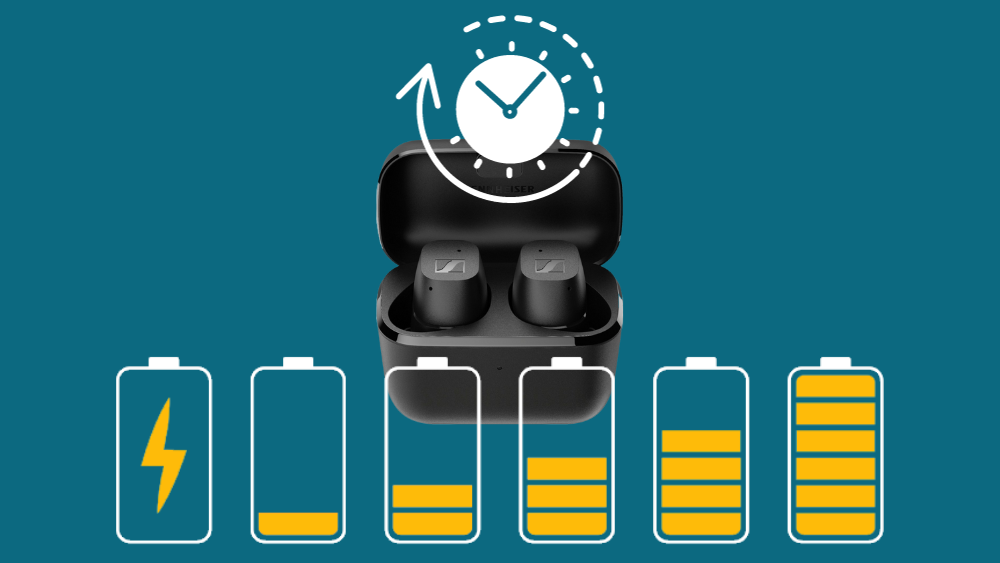
How to check the battery with the Sennheiser Smart Control app
The Sennheiser Smart Control app is the clearest option when your headphones are compatible with it. The app can show the remaining battery level and, on some models, separate battery information for each earbud and the charging case.
Steps for Android and iPhone
- Charge and turn on the Sennheiser headphones.
- Turn on Bluetooth on your Android phone or iPhone.
- Open the Sennheiser Smart Control app.
- Select your connected headphones.
- Look for the battery percentage or battery icon.
- If the percentage does not appear, place the headphones near the phone and reconnect them.
A reading of 100% normally indicates that the headphones are fully charged. A lower number means the battery still needs charging. If the app shows a battery level that does not change, close the app, restart Bluetooth, and reconnect the headphones.
Why the app may not show a battery percentage
The app may not display a battery level when:
- The headphones are not connected.
- Bluetooth is connected to a different device.
- The headphones are switched off.
- The model is not supported by the current app.
- The app or headphone firmware needs an update.
- The battery reading has not refreshed after charging.
- The headphones have a very low battery.
The Smart Control app is a useful check, but it is not a replacement for the model manual. Features and displays can change by model, firmware version, and operating system.
How to tell if Sennheiser headphones are charging
To confirm that your Sennheiser headphones are charging, connect the supplied or compatible USB cable to the charging port. Then connect the other end to a powered USB port or a suitable USB power adapter.
Use this process:
- Turn the headphones off if the manual recommends charging them while powered off.
- Insert the USB-C or micro-USB cable firmly.
- Connect the cable to a working power source.
- Watch for the charging LED.
- Leave the headphones connected until the light changes, turns off, or the app reports a full battery.
- Disconnect the cable and check the battery again.
Many Sennheiser wireless headphones use a red LED during charging and a green signal when the battery is full. Some models use a blinking light, and some stop showing a light when charging ends. The user manual for the exact model is the final reference.
How to confirm the charger is working
A charging light is the best immediate sign that power is reaching the headphones. If there is no light:
- Try another USB cable.
- Try another USB port or power adapter.
- Check the charging port for lint or damage.
- Make sure the connector is fully inserted.
- Leave the headphones connected for 15 to 30 minutes if the battery may be completely drained.
- Test the cable with another compatible device.
Do not force the connector into the port. Do not use a damaged cable or a wet charging port. If the headphones become unusually hot, smell burnt, swell, or show physical damage, unplug them and stop using them.
Model-specific signs of a full charge
The exact battery signal depends on the Sennheiser model. The following guide covers common wireless headphones and earbuds, but it should not replace the manual supplied with your product.
| Sennheiser product type | Best way to check charge | What to expect |
|---|---|---|
| MOMENTUM 4 Wireless | Smart Control app, phone battery menu, or LED | The app gives the clearest percentage; the LED may show charging or full status |
| ACCENTUM Wireless | Smart Control app, LED, or connected device | Use the app or battery menu for a numeric reading |
| HD 450BT and similar Bluetooth models | LED, Bluetooth device menu, or app support | The light may show charging status; device menus can show an estimate |
| MOMENTUM Wireless over-ear models | LED and model-specific app or manual | Charging signals differ between generations |
| MOMENTUM True Wireless earbuds | Earbud and case LEDs, Smart Control app | Check both the earbuds and the charging case |
| Sennheiser wireless earbuds with a case | Case LED and app | A full case does not always mean the earbuds are full, and vice versa |
Sennheiser MOMENTUM 4 Wireless
For the MOMENTUM 4 Wireless, the Sennheiser Smart Control app usually provides the most useful battery reading. You can also check the battery indicator shown by a connected phone or computer.
When connected to a charger, the status light indicates charging activity. A full-charge signal may be shown by a changed LED state or by the app. Because firmware can affect the indicator, use the app and the current MOMENTUM 4 user guide together.
Sennheiser ACCENTUM Wireless
The ACCENTUM Wireless headphones can report battery information through a connected device and compatible Sennheiser software. The charging LED provides a quick visual check, but the phone or app is better when you need an exact percentage.
If the LED does not respond, test the cable and power source before assuming the battery has failed.
Sennheiser HD 450BT
The HD 450BT uses a status light and can report battery information through connected Bluetooth devices. The light can also indicate Bluetooth activity, so do not confuse a pairing or connection signal with a charge signal.
If the headphone battery appears full but the headphones shut down soon after use, repeat the charge with another cable and verify the battery reading after disconnecting the cable.
Sennheiser MOMENTUM True Wireless earbuds
True wireless earbuds have two battery levels:
- The charge remaining in the left and right earbuds.
- The charge remaining in the charging case.
The earbuds may be full while the case is nearly empty. The reverse can also happen if the earbuds were not seated correctly in the case. Open the Sennheiser Smart Control app, place both earbuds in the case, and check whether the app displays each component.
How to check Sennheiser earbuds and the charging case
Sennheiser earbuds must make contact with the charging pins inside the case. If one earbud is not seated correctly, it may not charge even when the case LED shows activity.
Follow these steps:
- Put both earbuds into the correct sides of the charging case.
- Check that the case magnets pull them into place.
- Look for the earbud charging indicators.
- Close the lid if the model requires it to begin charging.
- Connect the case to a USB charger.
- Check the case LED and the Smart Control app.
- Remove and reinsert each earbud if one battery level does not increase.
Clean charging contacts with a dry, soft cloth. Do not use water, metal tools, or abrasive materials. Earwax, dust, and skin oil can stop the contacts from touching even when the earbuds appear to be in the case.
How to tell whether the case itself is charged
The case has its own battery. To check it, connect the case to a power source and observe the case LED. Some models use a single light to show the case state, while others show different patterns for low, charging, and full power.
The app may display the case battery only when the earbuds are connected and placed correctly in the case. If the case level is missing, charge the case for a while and reconnect the earbuds to the app.
What to do when the battery indicator is wrong
A battery percentage that stays at the same number does not always mean the battery is defective. Bluetooth devices can report an estimate, and the estimate may not refresh until the headphones reconnect.
Try this troubleshooting sequence:
- Disconnect the charging cable. Some headphones do not report normal battery status while connected to power.
- Turn the headphones off and on.
- Restart Bluetooth on the phone or computer.
- Close and reopen Smart Control.
- Forget the headphones in Bluetooth settings and pair them again.
- Update the app and headphone firmware if an update is offered.
- Try a different cable and power source.
- Charge the headphones for the period listed in the manual.
If the battery remains at 0%, the headphones will not turn on after charging, or the charge drops very quickly, the issue may involve the battery, charging port, cable, or internal charging circuit.
Symptoms and likely causes
| Symptom | Possible cause | First check |
|---|---|---|
| No charging light | Bad cable, weak power source, blocked port, or empty battery | Try another cable and USB source |
| Light stays red for a long time | Charging is incomplete or the battery reading is delayed | Leave it connected and check the app |
| Battery shows 100% but headphones shut off | Battery estimate is wrong or battery health is poor | Restart, update, and test a full charge |
| One earbud does not charge | Poor contact or incorrect seating | Clean the contacts and reseat the earbud |
| Case is full but earbuds are not | Earbuds did not touch the charging pins | Check fit and earbud LEDs |
| App shows no battery level | Wrong connection, unsupported model, or app issue | Reconnect and confirm model support |
| Headphones charge only at one angle | Damaged or loose charging port | Stop bending the cable and seek service |
Do not open the headphones or replace an internal lithium-ion battery yourself unless the manufacturer specifically provides a safe, approved procedure. Internal battery work can cause fire, injury, or permanent damage.
How long should Sennheiser headphones charge?
Charging time depends on the model, battery condition, charger, cable, and power source. The user manual for your exact Sennheiser headphones should provide the expected charge time.
A completely empty battery may not show an immediate response. Leave it connected to a known-good power source for 15 to 30 minutes, then check the LED again. If the indicator still does not appear, test a different cable and power source.
Do not judge charge time by the battery percentage alone. A battery may rise quickly at first and slow near full capacity. The practical sign of a completed charge is a full-charge LED state or a 100% reading in the app after disconnecting the cable.
Can you use Sennheiser headphones while they charge?
Some Sennheiser wireless headphones may allow listening while connected to USB power, while other models may limit Bluetooth operation during charging. The answer depends on the model.
If you need to listen immediately, use the wired connection only when the model and cable support audio through that connection. Do not use the headphones while charging if the cable, port, or headphones become hot or damaged.
Common mistakes when checking a Sennheiser charge
Several simple mistakes can make a charged headphone appear empty or an uncharged headphone appear full.
Confusing Bluetooth status with battery status
A blue or white LED often relates to Bluetooth power, pairing, or connection. It may not show the battery level. Use the app or device battery menu for a better reading.
Checking only the charging case
With wireless earbuds, the case and earbuds have separate batteries. Check both before leaving home.
Assuming every green light means 100%
Green often means full, but the meaning can vary by product and operating state. Confirm the result in the Smart Control app or model manual.
Leaving a loose cable connected
A cable may sit in the port without making a proper connection. Push the connector in gently and check for a charging signal.
Using a damaged or wet port
Moisture and debris can block charging or cause damage. Let a wet device dry fully, and do not insert tools into the port.
Frequently asked questions
How do I know when my Sennheiser headphones are fully charged?
Check the LED or the Sennheiser Smart Control app. A green light or a 100% battery reading often indicates a full charge. Since signals vary, confirm the result with the manual for your exact model.
Why are my Sennheiser headphones not showing a charging light?
The cable, USB power source, charging port, or battery may be the cause. Try another cable and power source, inspect the port, and leave the headphones connected for 15 to 30 minutes if the battery is fully drained.
Can I check the Sennheiser battery level on my iPhone?
Yes, if the model sends battery data over Bluetooth. The iPhone may show the level in its battery widget or Bluetooth information. The Smart Control app can provide a more detailed reading on supported models.
Why does one Sennheiser earbud charge while the other does not?
The earbud may not be touching the charging pins, or the contacts may be dirty. Remove and reseat it, clean the contacts with a dry cloth, and confirm that the correct earbud is in the correct side of the case.
Does a solid red light mean my Sennheiser headphones are charged?
Usually, a red light means the headphones are charging or have a low battery, not that they are full. However, the meaning is model-specific. Check the user manual or Smart Control app before relying on the color.
Final answer
The most reliable way to tell if Sennheiser headphones are charged is to check the Smart Control app or the battery indicator on your connected phone. Use the LED as a quick guide: red commonly means charging, while green often means full. For Sennheiser earbuds, check both the earbuds and the charging case.
If the light does not appear or the battery reading seems wrong, test the cable, power source, charging contacts, and Bluetooth connection in that order. The exact model manual remains the final authority for LED patterns and charging behavior.