How To Use Apple Wireless Headphones: Easy Guide

Introduction
Apple wireless headphones, including AirPods and AirPods Max, connect to an iPhone, iPad, Mac, Apple Watch, Apple TV, Android phone, or Windows PC through bluetooth. In the United States, the fastest setup is usually with an iPhone: open the charging case near the phone, follow the on-screen steps, and then choose the headphones when you want to listen.
This guide explains how to pair, use, charge, clean, and troubleshoot Apple wireless headphones. It covers AirPods, AirPods Pro, AirPods 4, and AirPods Max. Some controls and features vary by model and device.

What You Need Before Setup
You need three things before pairing Apple wireless headphones:
- A charged pair of headphones and charging case, if your model uses one
- Bluetooth turned on
- A compatible device with updated software when possible
On an iPhone or iPad, open Settings > Bluetooth and turn Bluetooth on. On a Mac, open Apple menu > System Settings > Bluetooth. On Android and Windows, use the Bluetooth menu in the device settings.
AirPods work best with Apple devices because features such as automatic switching, battery display, Siri, Find My, and audio sharing may require Apple hardware and supported software. AirPods can still work as standard Bluetooth headphones with Android and Windows, but some Apple-only functions will not be available.
Apple lists current compatibility and software requirements in its AirPods user guides.
Identify your headphone type
The setup method depends on the product:
| Product | Main pairing method |
|---|---|
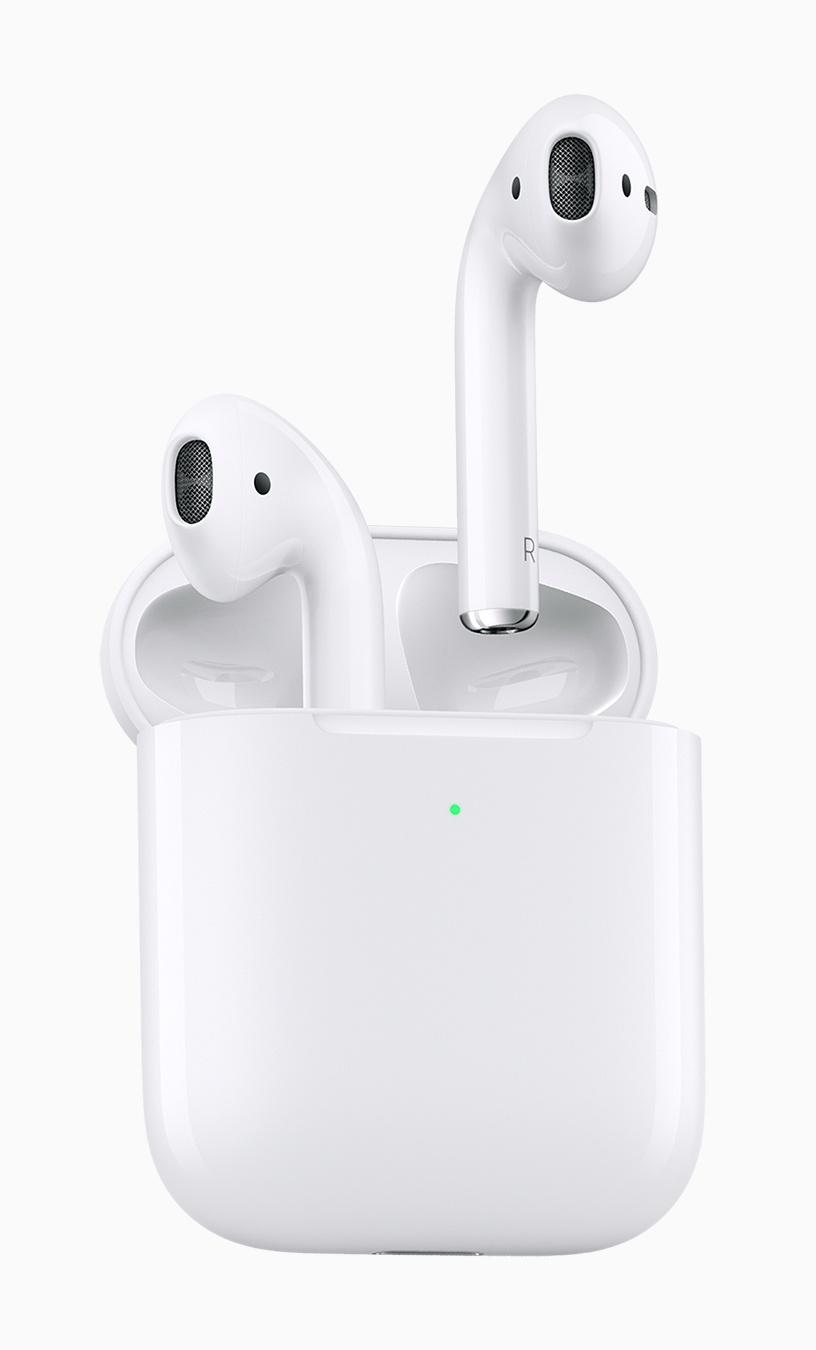
| AirPods, AirPods 2, and AirPods 3 | Open the case and hold the setup button |
| AirPods 4 | Open the case and double-tap the front of the case when prompted |
| AirPods Pro | Open the case and use the case setup control |
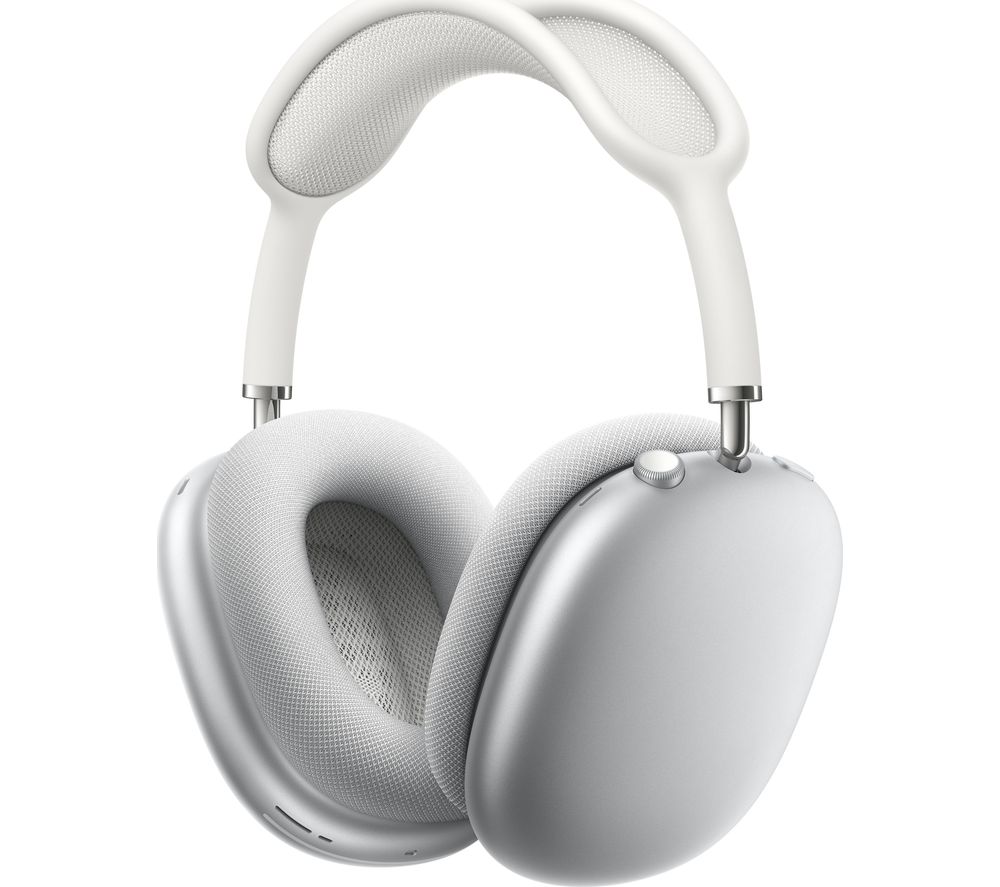
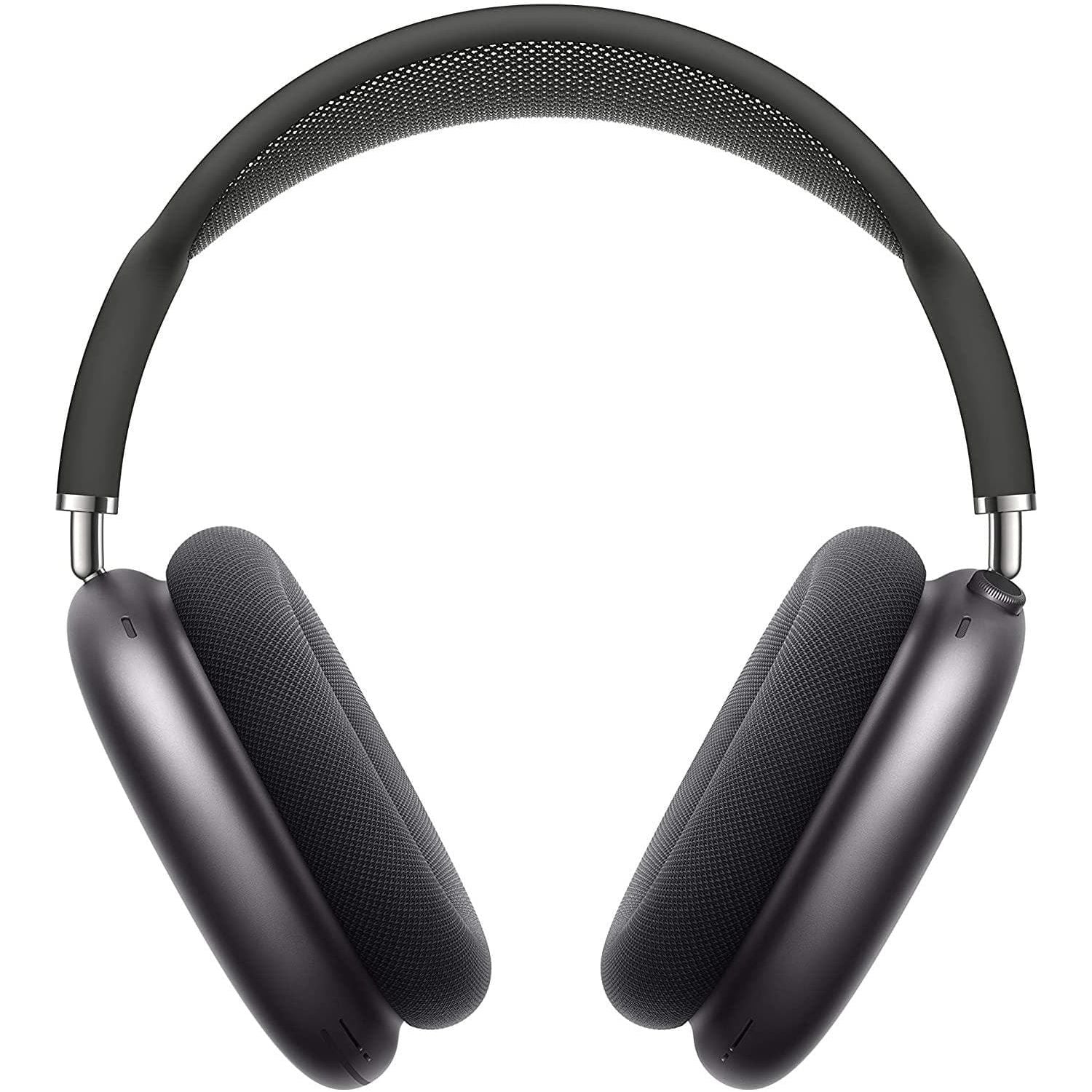
| AirPods Max | Hold the listening mode button until the status light flashes white |
If your case has no visible button, use the front control method described for AirPods 4 in the on-screen instructions or Apple’s model-specific guide.

How to Connect AirPods to an iPhone or iPad
The easiest way to connect AirPods to an iPhone or iPad is to use the setup animation.
- Unlock your iPhone or iPad.
- Go to Settings > Bluetooth and turn Bluetooth on.
- Place both AirPods in the charging case.
- Open the case lid.
- Hold the open case close to the device.
- Follow the setup message on the screen.
- Tap Connect.
- Complete any instructions for Siri, automatic switching, or other features.
- Tap Done.
For most older AirPods models, you may need to press and hold the setup button on the back of the case until the status light flashes white. For AirPods 4, follow the front-case instructions shown by Apple.
If the setup animation does not appear
Pair the headphones from Bluetooth settings:
- Keep the AirPods in the case and open the lid.
- Put the AirPods into pairing mode.
- On the iPhone or iPad, open Settings > Bluetooth.
- Look under Other Devices.
- Tap the name of your AirPods.
The headphones are ready when their name moves to the My Devices section and shows Connected.
Connect AirPods Max to an iPhone or iPad
- Turn on Bluetooth on the iPhone or iPad.
- Remove AirPods Max from their Smart Case.
- Hold the listening mode button until the status light flashes white.
- Select AirPods Max from the Bluetooth list.
- Follow the instructions on the screen.
AirPods Max do not use a charging case in the same way as standard AirPods. Keep them charged through their supported charging port.
How to Pair Apple Wireless Headphones with a Mac
AirPods may connect to a Mac automatically when the Mac uses the same Apple Account as your iPhone. If they do not, pair them manually.
- Open the AirPods case with the earbuds inside.
- Put the AirPods into pairing mode.
- On the Mac, select Apple menu > System Settings > Bluetooth.
- Find the AirPods in the device list.
- Click Connect.
For AirPods Max, hold the listening mode button until the status light flashes white, then select them in the Mac’s Bluetooth settings.
After pairing, choose the headphones for sound output:
- Select Control Center in the menu bar.
- Select Sound.
- Choose your AirPods or AirPods Max.
You can also open System Settings > Sound > Output and choose the headphones.
Automatic switching between Apple devices
AirPods may switch between an iPhone, iPad, and Mac when all devices use the same Apple Account and support automatic switching. The feature can change based on what you are doing, such as answering a call on an iPhone after watching a video on a Mac.
To change this setting on an iPhone:
- Connect the AirPods.
- Open Settings.
- Tap the AirPods name near the top of the screen.
- Tap Connect to This iPhone.
- Choose Automatically or When Last Connected to This iPhone.
Automatic switching can be convenient, but it may feel unexpected if several devices are active nearby.

How to Connect AirPods to Android Phones and Windows PCs
AirPods work with Android phones and Windows PCs as Bluetooth audio devices. You can listen and speak through the built-in microphone, but Apple-specific features may not work.
Pair AirPods with an Android phone
- Open Settings on the Android phone.
- Open Connected devices, Connections, or Bluetooth. The wording varies by phone.
- Turn Bluetooth on.
- Put the AirPods in pairing mode.
- Select the AirPods from the available devices list.
- Approve the pairing request.
Android phones may not show the AirPods battery level without a separate app. Siri is also not available on Android.
Pair AirPods with a Windows PC
- Open Settings > Bluetooth & devices.
- Turn Bluetooth on.
- Select Add device.
- Choose Bluetooth.
- Put the AirPods into pairing mode.
- Select the AirPods from the list.
If the AirPods connect but you hear no sound, select them as the output device:
- Click the speaker icon in the Windows taskbar.
- Open the sound output menu.
- Select the AirPods.
For calls, Windows may show separate Headphones and Headset options. The headset mode uses the microphone but may reduce audio quality. This is a Bluetooth limitation, not always a fault with the AirPods.

How to Use AirPods Controls
AirPods controls vary by model. You can change many controls on an iPhone through the AirPods settings page.
AirPods Pro and AirPods 4
Depending on the model, you can:
- Press the stem once to play or pause audio
- Press the stem twice to skip forward
- Press the stem three times to skip back
- Press and hold the stem to change listening modes
- Swipe or tap the stem to adjust volume on supported models
To change press-and-hold behavior:
- Connect the AirPods to an iPhone.
- Open Settings.
- Tap the AirPods name.
- Adjust the left or right earbud control.
AirPods Pro usually offer Noise Cancellation, Transparency, and Off listening modes. Transparency lets outside sound pass through. Adaptive Audio, Conversation Awareness, and related features depend on the model and software.
AirPods 1, 2, and 3
Older models use taps rather than stem presses for some actions. To customize them:
- Connect the AirPods to an iPhone.
- Open Settings > Bluetooth.
- Tap the information button next to the AirPods.
- Choose the left or right AirPod.
- Assign actions such as play, pause, skip, or Siri.
AirPods Max controls
AirPods Max use physical controls:
- Press the Digital Crown to play or pause audio
- Turn the Digital Crown to change volume
- Press the listening mode button to switch between noise control settings
- Press the Digital Crown twice to skip forward
- Press it three times to skip back
The exact behavior may vary by software and app.
Use Siri with AirPods
On supported Apple devices, say “Hey Siri” or “Siri” when that feature is enabled. You can ask Siri to:
- Play or pause music
- Change the volume
- Call a contact
- Read or send a message
- Ask for directions
- Check the battery level
Siri needs an internet connection for many requests. Siri is not available when AirPods are paired with Android or Windows in the same way.
How to Check Battery Life and Charge AirPods
The quickest way to check AirPods battery life on an iPhone is to open the charging case near the device. You can also add the Batteries widget to the Home Screen or Today View.
To check battery status on a Mac, connect the AirPods and select them from the sound menu or Bluetooth settings. Android and Windows devices may show battery information differently, and some devices may not show it at all.
Charge AirPods
- Place the earbuds in the charging case.
- Close the lid.
- Connect the case to power with its compatible cable or place it on a supported wireless charger.
- Watch the case status light or check the battery level on a connected device.
The status light can show the charging or pairing state, but the exact meaning depends on the model. Apple’s official charging instructions explain the light behavior for different AirPods generations.
Charge AirPods Max
Use the charging cable made for your AirPods Max model. Newer versions use USB-C, while older versions use a Lightning connector. Avoid forcing a cable into the port.
Keep the headphones and charging contacts dry. Moisture can damage charging parts and may cause intermittent charging.

How to Change AirPods Settings
AirPods settings appear on an iPhone or iPad after the headphones connect.
- Connect the AirPods.
- Open Settings.
- Tap the AirPods name near the top of the screen.
Depending on the model, you may be able to change:
- Microphone selection
- Automatic ear detection
- Automatic device connection
- Listening modes
- Press-and-hold actions
- Spatial Audio
- Conversation Awareness
- Headphone safety settings
- Personalized Spatial Audio
Turn off automatic ear detection
Automatic ear detection pauses audio when an AirPod leaves your ear. If the feature causes unwanted pauses, you can turn it off:
- Connect the AirPods.
- Open Settings.
- Tap the AirPods name.
- Turn off Automatic Ear Detection.
The trade-off is that audio may continue playing when an earbud is removed.
Use Spatial Audio
Spatial Audio can create a theater-like sound field in supported apps and content. Some versions also track head movement.
To adjust it:
- Connect compatible AirPods.
- Open Control Center on the iPhone or iPad.
- Touch and hold the volume control.
- Tap Spatial Audio.
- Choose an available mode.
Spatial Audio does not work with every app or audio file. Its effect can also vary with the content and the selected mode.

How to Use AirPods for Phone Calls and Video Meetings
AirPods use their built-in microphones for calls, meetings, voice recordings, and video chats.
Before a call:
- Connect the AirPods.
- Open the phone, meeting app, or computer sound settings.
- Select the AirPods as both the speaker and microphone.
- Make a short test call if clear speech matters.
During an iPhone call, you can change the audio route by tapping the audio button and selecting the AirPods.
If the other person hears an echo, low volume, or background noise, check the following:
- Make sure the correct microphone is selected.
- Move away from strong wind or loud noise.
- Clean the microphone openings with a dry, soft brush.
- Disconnect the AirPods from other nearby devices.
- Update the meeting app and device software.
Do not use compressed air, sharp tools, or liquid near the microphone openings.

How to Clean and Care for Apple Wireless Headphones
Clean AirPods and the charging case with a soft, dry, lint-free cloth. For the speaker mesh, use a clean, dry, soft-bristled brush.
Avoid:
- Running water
- Household cleaners
- Alcohol directly on the mesh
- Sharp objects
- Paper clips
- Compressed air
- Submerging the earbuds or case
If your AirPods Pro model has removable ear tips, remove the tips before cleaning them. Let the tips dry fully before putting them back on.
Earwax, dust, and skin oils can block the speaker mesh. This may reduce sound or make one earbud seem quieter. Clean gently rather than pressing debris deeper into the opening.
Sweat and water resistance are not the same as waterproofing. Even a water-resistant model should not be worn in a shower, pool, or heavy rain unless Apple’s current instructions specifically support that use.

How to Troubleshoot Apple Wireless Headphones
Use this order: check charge, check Bluetooth, reconnect, then reset. This avoids deleting settings before simpler fixes are tried.
AirPods will not connect
- Charge the case and earbuds for at least a few minutes.
- Turn Bluetooth off and on.
- Keep the case open near the device.
- Put the AirPods into pairing mode.
- Select them from Bluetooth settings.
- Restart the phone, tablet, Mac, or PC.
If the AirPods appear in Bluetooth but fail to connect, forget the device and pair it again.
On an iPhone:
- Open Settings > Bluetooth.
- Tap the information button next to the AirPods.
- Tap Forget This Device.
- Confirm.
- Pair the AirPods again.
Only one AirPod works
- Put both AirPods in the case.
- Confirm that each earbud shows a charge.
- Remove and reinsert the earbuds.
- Clean the charging contacts and speaker mesh carefully.
- Check the left-right balance under Settings > Accessibility > Audio & Visual.
- Reconnect the AirPods.
If one earbud still does not charge, the case contact or battery may need service.
Sound is quiet or muffled
Check the following:
- Clean the speaker mesh.
- Increase volume on the connected device.
- Check the left-right audio balance.
- Turn off a listening mode that changes the sound.
- Test a different app or audio file.
- Disconnect and reconnect the headphones.
If the problem affects only one app, the app or its audio settings may be the cause.
AirPods keep disconnecting
Move the device closer to the AirPods and reduce obstacles. Then:
- Charge the AirPods and case.
- Close unused Bluetooth connections.
- Restart the connected device.
- Install available device updates.
- Forget and pair the AirPods again.
Bluetooth performance can change near heavy wireless traffic, metal objects, or other connected devices.
Reset AirPods
For many AirPods models:
- Put the AirPods in the case.
- Close the lid for about 30 seconds.
- Open the lid.
- On the iPhone, forget the AirPods if they appear in Bluetooth settings.
- Press and hold the case setup control until the status light flashes amber and then white.
- Pair the AirPods again.
The reset method can differ for AirPods 4 and newer products. Use the model-specific steps in Apple’s AirPods support guide.
Reset AirPods Max
If AirPods Max do not respond, hold the listening mode button and Digital Crown together until the status light flashes amber. A longer hold can erase settings and return the headphones to factory settings, so use Apple’s current instructions before doing this.
Safe Listening and Battery Expectations
Keep the listening level low enough that you can still notice nearby sounds when safety requires it. Long exposure to loud audio can harm hearing. Apple devices include Headphone Safety options that can warn about high volume and reduce loud sound exposure.
On an iPhone, open:
Settings > Sounds & Haptics > Headphone Safety
You can also review headphone audio levels in the Health app when supported.
Do not wear noise-canceling headphones when you need to hear alarms, traffic, machinery, or other hazards. Noise cancellation reduces outside sound; it does not make the environment safe.
Battery life changes with volume, listening mode, calls, temperature, battery age, and the AirPods model. Apple’s stated battery figures are tested under specific conditions, so real use may differ.

Key Takeaways
- Use the Bluetooth menu when the automatic setup message does not appear.
- AirPods work with Android and Windows, but Apple-only features may be limited.
- Charge the case and earbuds before troubleshooting connection problems.
- Clean the speaker mesh with a dry, soft brush.
- Reset the AirPods only after checking power, Bluetooth, and device settings.
- Do not treat water resistance as waterproofing.
- Keep volume at a safe level and stay aware of your surroundings.
Frequently Asked Questions
Can I use Apple AirPods with a non-Apple phone?
Yes. AirPods can pair with Android phones and other Bluetooth devices. They work mainly as wireless earbuds, but Siri, automatic Apple-device switching, and some battery features may not be available.
Why do my AirPods connect but play no sound?
The wrong output device may be selected. Open the sound or media output menu and choose the AirPods. On a computer, check both the speaker and microphone settings.
How do I make AirPods louder?
Raise the device volume, check the audio balance, and clean the speaker mesh. If Headphone Safety has reduced the maximum level, review Settings > Sounds & Haptics > Headphone Safety on the iPhone.
Can I use only one AirPod?
Yes. Leave one AirPod in the case and use the other. The active earbud can handle audio and calls. Battery life and microphone behavior may differ.
How do I find lost AirPods?
Use the Find My app on a supported Apple device. The app may show a last known location or play a sound when the AirPods can connect. Find My results depend on the model, battery level, network access, and when the earbuds were last detected.
Conclusion
To use Apple wireless headphones, charge them, put them in pairing mode, and select them from your device’s Bluetooth settings. An iPhone or iPad provides the widest set of features, while Android and Windows support basic wireless audio and calls.
If pairing fails, work from simple checks to more advanced fixes: charge the headphones, restart Bluetooth, forget the connection, and reset the AirPods only if needed. Clean them with dry tools, protect them from moisture, and keep listening levels within a safe range.