How to Connect Wireless Headphones Xbox One Easily

The easiest way to connect wireless headphones to Xbox One is to use an Xbox Wireless-compatible headset or a supported wireless adapter. Standard Bluetooth headphones usually need a workaround such as a transmitter or TV audio output.
If you’re trying to figure out how to connect wireless headphones Xbox One users can actually rely on, the short answer is this: Xbox One does not support standard Bluetooth headphones directly. The easiest path is usually an Xbox Wireless headset, a compatible adapter, or a TV-based audio workaround.
- Compatibility first: Xbox One does not pair with most Bluetooth-only headphones directly.
- Best reliability: Xbox Wireless headsets are usually the simplest option.
- Workarounds exist: Transmitters, dongles, and TV audio outputs can help.
- Sound matters: Low latency, clear chat, and correct audio settings are essential.
How to Connect Wireless Headphones Xbox One: What Works in 2026
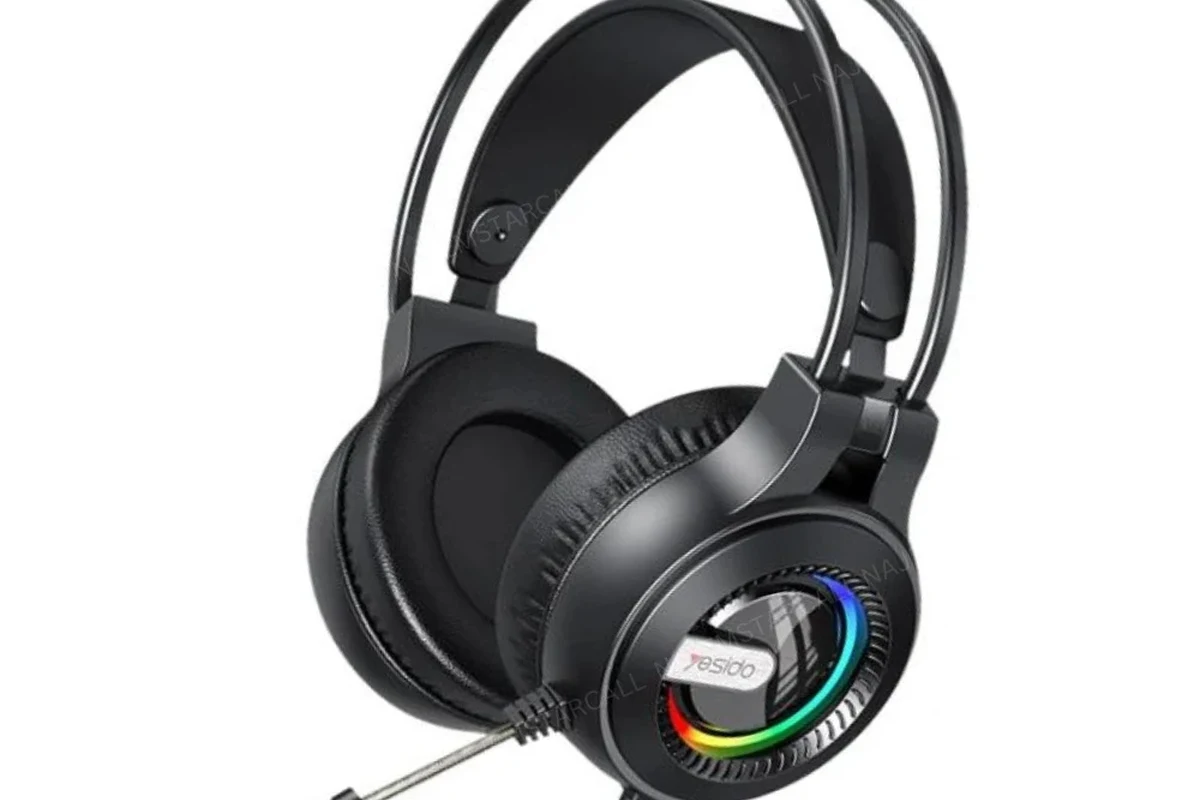
Xbox One can still be a little confusing for headphone setup because not every “wireless” headset uses the same connection method. Some headsets use Xbox Wireless, some use Bluetooth, and some need a USB dongle or transmitter to work properly.
That means the best method depends on the headset you already own and how you want to use it. If you want the cleanest setup for gaming and chat, Xbox-compatible wireless gear is usually the most reliable choice.
Check Your Xbox One Audio Options Before You Pair
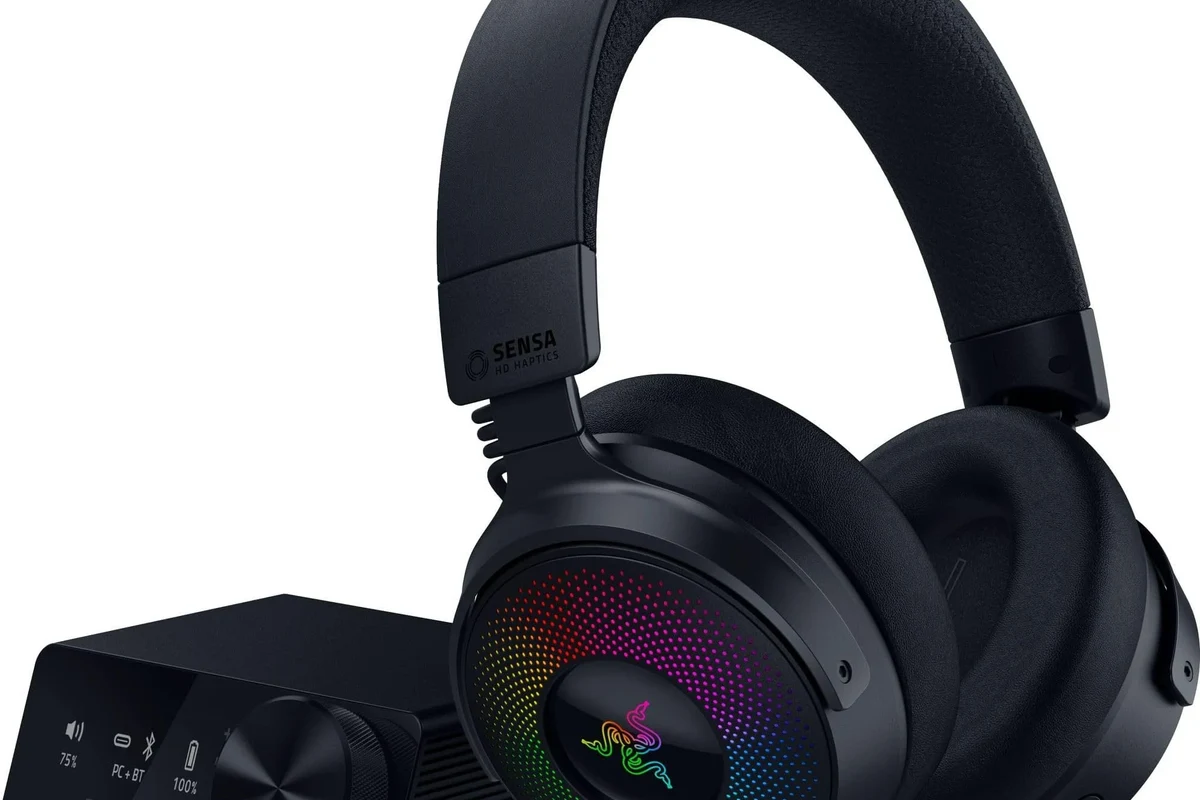
Before you start pairing, it helps to know what audio paths your console and TV can support. A few minutes of checking now can save you from sound delay, missing chat audio, or a headset that never connects the way you expected.
Understanding Xbox One Bluetooth limitations
One of the biggest surprises for new users is that Xbox One does not work like a phone or laptop when it comes to Bluetooth. In most cases, you cannot just put a normal Bluetooth headset into pairing mode and connect it directly to the console.
That limitation is why many people think their headset is broken when the real issue is compatibility. If your headset only supports standard Bluetooth, you will usually need a workaround instead of a direct connection.
Why some wireless headphones need a workaround
Some wireless headphones are designed for music, calls, or travel, not console gaming. They may connect easily to a phone but still fail on Xbox One because the console expects a different wireless standard or a supported audio route.
In those cases, the workaround is often a transmitter, a USB base station, or audio routed through the TV. If you want a broader comparison of connection types, our guide on wired vs wireless headphones can help you decide which setup fits your gaming habits.
Best Ways to Connect Wireless Headphones to Xbox One
There are several ways to get wireless audio on Xbox One, but not all of them are equally smooth. The best method depends on whether you care most about chat quality, audio delay, convenience, or budget.
Using Xbox Wireless headsets and compatible adapters
If your headset is made for Xbox Wireless, this is usually the simplest route. These headsets are built to talk directly to the console, which can make setup faster and reduce the guesswork that comes with third-party wireless gear.
Some compatible adapters can also help certain headsets connect more cleanly, but compatibility can vary by brand and model. Always check the headset’s Xbox support details before you buy or pair.
Connecting via the controller’s 3.5mm jack with a wireless transmitter
If you already own a wireless headset that includes a transmitter, you may be able to connect the transmitter to the controller’s 3.5mm audio path or another supported source, depending on the product design. This is a common workaround for headsets that are wireless to the earcups but not natively Xbox wireless.
This method can work well, but the experience depends on the transmitter quality and the headset’s latency handling. If you want fewer surprises, look for low-latency gaming models rather than general-purpose Bluetooth headphones.
Using a TV or monitor audio output for wireless headphones
Another practical option is to send audio from the TV or monitor into a wireless headphone transmitter. This is especially useful if your display has an optical, 3.5mm, or line-out connection that supports external audio devices.
This setup is popular for couch gaming because it keeps the console itself simple. The tradeoff is that chat audio and game audio may need extra adjustment, especially if you want a mic for party chat.
Connecting through a compatible USB dongle or base station
Some gaming headsets use a USB dongle or desktop base station instead of standard Bluetooth. When the headset and dongle are designed to work together, the connection can be stable and easy to use.
This is often a strong option for players who want low delay and decent voice chat without a complicated setup. Just remember that USB compatibility on consoles can vary, so the headset should explicitly support Xbox One.
Step-by-Step Setup for the Most Reliable Method
For most players, the most reliable setup is an Xbox-compatible wireless headset or a headset made specifically for Xbox use. It tends to offer the best balance of sound quality, chat support, and convenience.
If your headset offers both Bluetooth and a gaming wireless mode, use the gaming mode for Xbox One. Bluetooth is often better for phones and travel, while the gaming mode is usually lower-latency.
Pairing an Xbox Wireless headset to the console
Start by turning on the headset and putting it into pairing mode according to the manufacturer’s instructions. Then use the console’s pairing button or supported wireless pairing process to link the headset to Xbox One.
Once the connection is established, wait a few seconds for the headset to finish syncing. If the headset has a companion app or base station, follow the brand’s pairing order carefully, since some products require the transmitter to be connected first.
Setting audio output and chat settings on Xbox One
After pairing, open the Xbox One audio settings and confirm that headset output is enabled. Make sure game audio, chat audio, and microphone monitoring are set the way you want them.
If you hear sound but cannot hear other players, the chat balance may be off. If your mic is too quiet, check both the headset controls and the console’s privacy or chat permissions.
Audio menus can look slightly different depending on your Xbox One model, system updates, and headset brand. If the headset includes its own app or inline controls, those settings may override the console.
Testing game audio, voice chat, and mic performance
Before you jump into a match, test all three parts: game sound, voice chat, and microphone pickup. A headset can seem connected while still having a weak mic, muted chat, or delayed audio.
Play a game menu, join a party chat, and speak into the mic at a normal volume. If the sound is uneven or delayed, recheck the transmitter placement, headset battery, and output mode.
Common Mistakes That Cause No Sound or Lag
Most wireless headphone problems on Xbox One come from a few predictable setup errors. The good news is that once you know what to look for, many of them are easy to fix.
Assuming standard Bluetooth will connect directly
This is the most common mistake by far. Many users try to pair a normal Bluetooth headset to Xbox One the same way they would with a phone, then assume the headset is defective when the console does not find it.
In reality, the headset may be working exactly as designed; it just is not supported for direct Xbox Bluetooth pairing. If your headset is Bluetooth-only, you will usually need a transmitter or a different Xbox-compatible model.
Using the wrong audio output mode or TV settings
If you route sound through your TV or monitor, the display settings matter a lot. A muted audio output, the wrong source format, or a disabled external speaker option can make the headset seem silent.
Check whether the TV is sending audio through the correct port and whether the headset transmitter is receiving a clean signal. This is especially important if you are using a soundbar, AV receiver, or HDMI audio pass-through.
Ignoring latency, interference, and battery issues
Even when a wireless headset connects, lag can still ruin the experience. Interference from other wireless devices, a weak battery, or a crowded 2.4GHz environment can all create delay or dropout.
If you notice lip-sync problems or a slight echo in chat, move the transmitter closer, recharge the headset, and reduce nearby wireless clutter. For more on connection delay, our guide to Bluetooth headphone lag fix covers the basics of reducing wireless delay.
Listening at high volumes for long periods can cause hearing damage. Keep volume at 60% or below for extended sessions.
Wireless Headphone Options: Budget vs Premium for Xbox One
There is no single “best” headset for every Xbox One player. Budget setups can be perfectly usable, while premium models often make setup easier and improve chat clarity, comfort, and wireless stability.
Affordable transmitter-based setups
Budget-friendly setups often rely on a simple transmitter and a headset you already own. This can be a smart way to get wireless audio without paying for a full gaming headset upgrade right away.
The downside is that budget gear may be more sensitive to interference or may not handle chat as smoothly. If you go this route, focus on low-latency support and clear compatibility language rather than marketing buzzwords.
Mid-range gaming headsets with low-latency support
Mid-range gaming headsets often offer the best value for Xbox One players who want a cleaner all-around experience. They usually improve comfort, microphone quality, and wireless reliability compared with basic adapters.
These models are often a good fit for players who split time between solo gaming and party chat. They may not be the most luxurious option, but they often solve the biggest connection headaches.
Premium Xbox-compatible headsets worth the price
Premium headsets can be worth it if you play often and want less setup friction. Better build quality, more comfortable ear cushions, and stronger wireless performance can matter a lot during long sessions.
As always, the right choice depends on your ears, your room, and your gaming style. Price does not guarantee better sound for every listener, so it helps to compare comfort, mic performance, and Xbox compatibility before buying.
Expert Advice: Best Practices for Clear Game Audio and Chat
Once your headset is connected, the next goal is keeping audio clean and stable. Small habits can make a big difference in how your headset sounds during gameplay and voice chat.
If you have persistent hearing discomfort, ringing, or trouble understanding speech even at moderate volume, consider speaking with an audiologist or hearing professional. If your headset sounds distorted at normal levels, a headset specialist or retailer support team may help you rule out a product issue.
When to choose wired over wireless for competitive play
Wireless is convenient, but wired can still be the better choice for competitive gaming. If you need the lowest possible delay and the simplest signal path, a cable often wins.
That does not mean wireless is bad. It just means competitive players may prefer wired for fast-paced shooters, while casual players may value wireless freedom more.
How to avoid audio delay and voice dropouts
Keep the transmitter close to the headset and avoid blocking it with consoles, cabinets, or other electronics. If the headset supports a dedicated gaming mode, use it instead of a general Bluetooth mode.
Also make sure the battery is charged, because low power can reduce stability on some models. If dropouts continue, re-pair the headset and check for firmware updates from the manufacturer.
Which setup is best for couch gaming, streaming, and party chat
For couch gaming, a TV-based wireless transmitter can be convenient because it keeps the setup simple. For streaming or frequent party chat, an Xbox-compatible gaming headset is usually easier to manage.
If you swap between games, movies, and chat often, choose a headset with clear controls and stable wireless performance. That flexibility matters more than fancy features you may never use.
Final Recap: The Easiest Way to Connect Wireless Headphones to Xbox One
The easiest way to connect wireless headphones Xbox One players can trust is to use an Xbox Wireless headset or another headset that explicitly supports Xbox One. That route gives you the best chance of getting game audio and chat working without extra adapters.
If your current headphones are standard Bluetooth only, you will usually need a workaround such as a transmitter, dongle, or TV audio output. For most users, checking compatibility first is the fastest path to better sound and fewer setup problems.
- Xbox One does not support standard Bluetooth headphones directly.
- Xbox Wireless headsets and compatible adapters are the most reliable option.
- TV outputs, dongles, and transmitters can work as practical workarounds.
- Low-latency support and correct audio settings matter as much as the headset itself.
Frequently Asked Questions
Usually no. Xbox One does not support direct standard Bluetooth headphone pairing, so you often need an Xbox-compatible headset or a workaround.
An Xbox Wireless headset is usually the easiest setup. It is designed to connect directly to the console with fewer compatibility issues.
It can, depending on the transmitter and headset. Low-latency gaming models usually perform better than general-purpose wireless audio gear.
Check the headset pairing, Xbox audio output settings, TV audio output, and battery level. If the headset uses a transmitter, make sure it is connected to the correct source.
Over-ear headsets are often more comfortable for long gaming sessions and may offer better mic options. Earbuds can be more portable, but compatibility and chat support vary by model.
Check Xbox compatibility, wireless type, latency support, microphone quality, comfort, and battery life. It also helps to review whether the headset supports game audio and chat at the same time.