How To Use Samsung Wireless Headphones: Quick Guide

Samsung wireless headphones, including Galaxy Buds, connect to most phones, tablets, computers, and TVs through Bluetooth. To use them, charge the earbuds, place them in pairing mode, select them in your device’s Bluetooth menu, and adjust settings in the Galaxy wearable app when supported.
This guide is written for users in the United States. Menu names and app features can vary by Galaxy Buds model, Samsung phone, Android version, iPhone, computer, or TV.
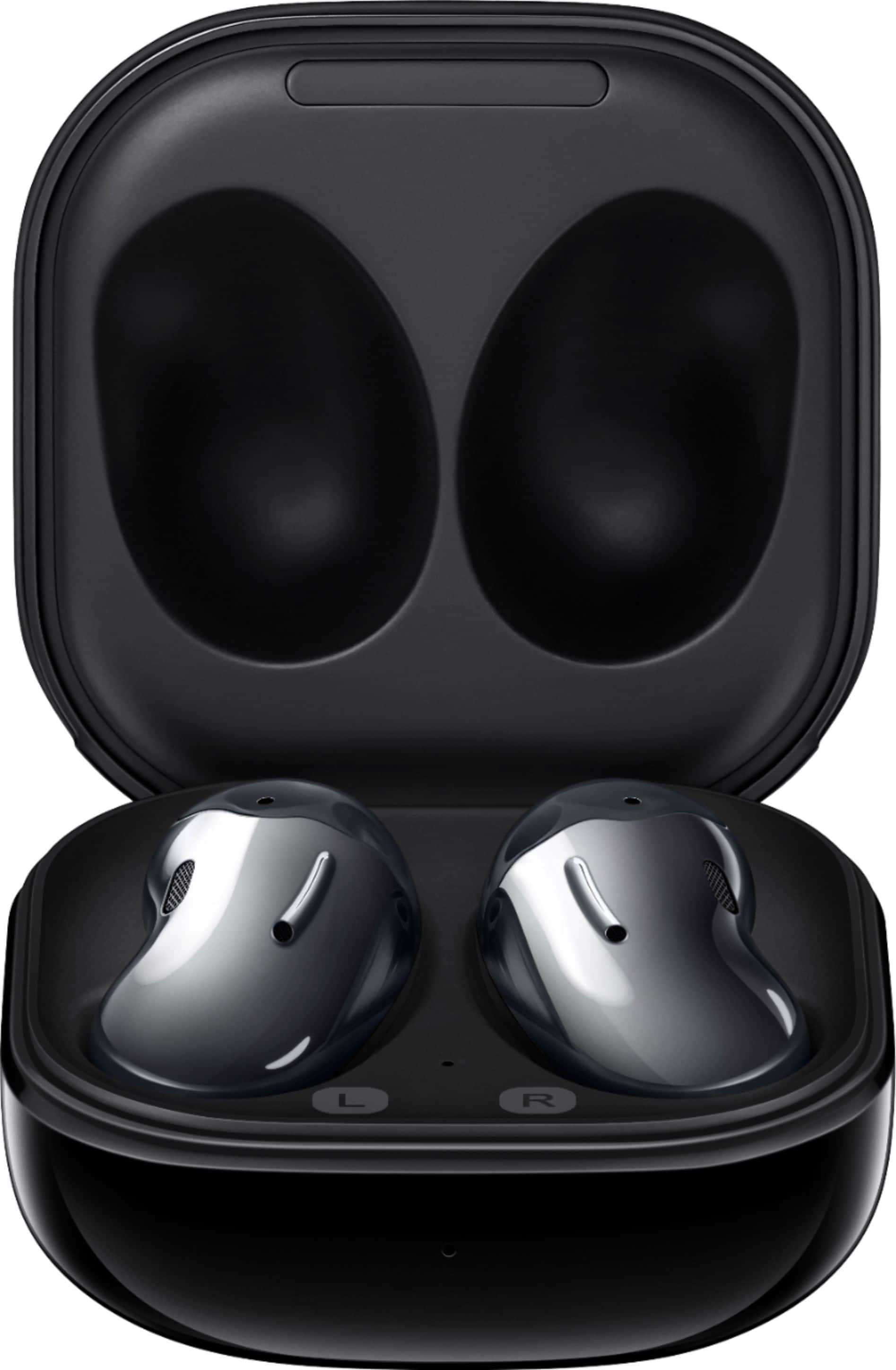
What You Need Before Setting Up Samsung Wireless Headphones
You need three things to get started:
- Samsung Galaxy Buds or another Samsung Bluetooth headset
- A device with Bluetooth turned on
- Enough battery power in the earbuds and charging case
Most Samsung wireless headphones use Bluetooth. Some Galaxy Buds features work best with a Samsung Galaxy phone, but basic audio and calls usually work with many Bluetooth devices.
Before pairing, check these points:
- Charge the earbuds. Place both earbuds in the case and connect the case to power if the battery is low.
- Remove protective film. New earbuds may have thin film over the charging contacts. Remove it before charging.
- Install the right app when needed. Galaxy Buds models often use the Galaxy Wearable app on Android.
- Keep the earbuds near the device. Stay within a few feet during the first connection.
- Turn off nearby Bluetooth devices if pairing is difficult. The earbuds may try to reconnect to a device they already know.
The Galaxy Wearable app does not support every Samsung headphone model or every operating system. Basic Bluetooth pairing is still the main way to connect unsupported devices.
How to Pair Samsung Wireless Headphones With an Android Phone
The fastest method is to use the Galaxy Wearable app with a compatible Android phone. The app can help pair the earbuds and manage features such as touch controls, noise control, software updates, and battery status.
Pair Galaxy Buds with the Galaxy Wearable app
- Open the Google Play Store.
- Search for Galaxy Wearable.
- Install or update the app.
- Open the charging case with the earbuds inside.
- Turn on Bluetooth on your Android phone.
- Open Galaxy Wearable.
- Select Add new device or choose your Galaxy Buds model.
- Follow the instructions on the screen.
- Allow the requested permissions if you want features such as device detection and notifications.
- Confirm the connection.
If the earbuds do not appear, close the case for a few seconds. Then open it again near the phone. Some models enter pairing mode automatically when they have no saved connection.
Pair through Android Bluetooth settings
You can also connect without the Galaxy Wearable app:
- Open Settings on your Android phone.
- Tap Connections, then Bluetooth. The exact menu may differ by phone.
- Turn Bluetooth on.
- Open the charging case.
- If the earbuds do not appear, touch and hold both earbuds while they are in your ears until you hear a pairing sound. The method varies by model.
- Select the earbuds under Available devices.
- Tap Pair or Connect.
A successful connection normally shows the earbuds as Connected. You may also see separate battery levels for the left earbud, right earbud, and case in the Galaxy Wearable app.

How to Connect Samsung Wireless Headphones to a Samsung Galaxy Phone
Samsung Galaxy phones may offer a faster setup process. When you open the Galaxy Buds case near an unlocked Galaxy phone, a connection prompt may appear.
Tap Connect on the prompt and follow the on-screen steps. If no prompt appears, use the Galaxy Wearable app or the Bluetooth menu.
After setup, the earbuds may connect automatically when you open the case. Auto-connection works only when Bluetooth is on and the earbuds are not already connected to another device.
Change Galaxy Buds settings on a Galaxy phone
Open Galaxy Wearable, then select your earbuds. Depending on the model, you may be able to change:
- Touch or tap controls
- Active noise cancellation
- Ambient sound
- Equalizer settings
- Find My Earbuds
- Earbud fit tests
- Voice detect
- 360 Audio
- Software updates
- Notifications
- Earbud battery settings
Some features require a specific Galaxy Buds model, Samsung phone, One UI version, or app version. A setting shown in one model may not appear in another.
Use Samsung Seamless Codec and advanced audio features
Some Galaxy Buds features use Samsung-specific software or codecs. These features can improve integration with compatible Galaxy devices, but they do not mean the earbuds cannot work with other phones.
With a non-Samsung phone, you may still get standard Bluetooth audio and calls. You may lose some controls, app settings, automatic switching, or advanced audio features.
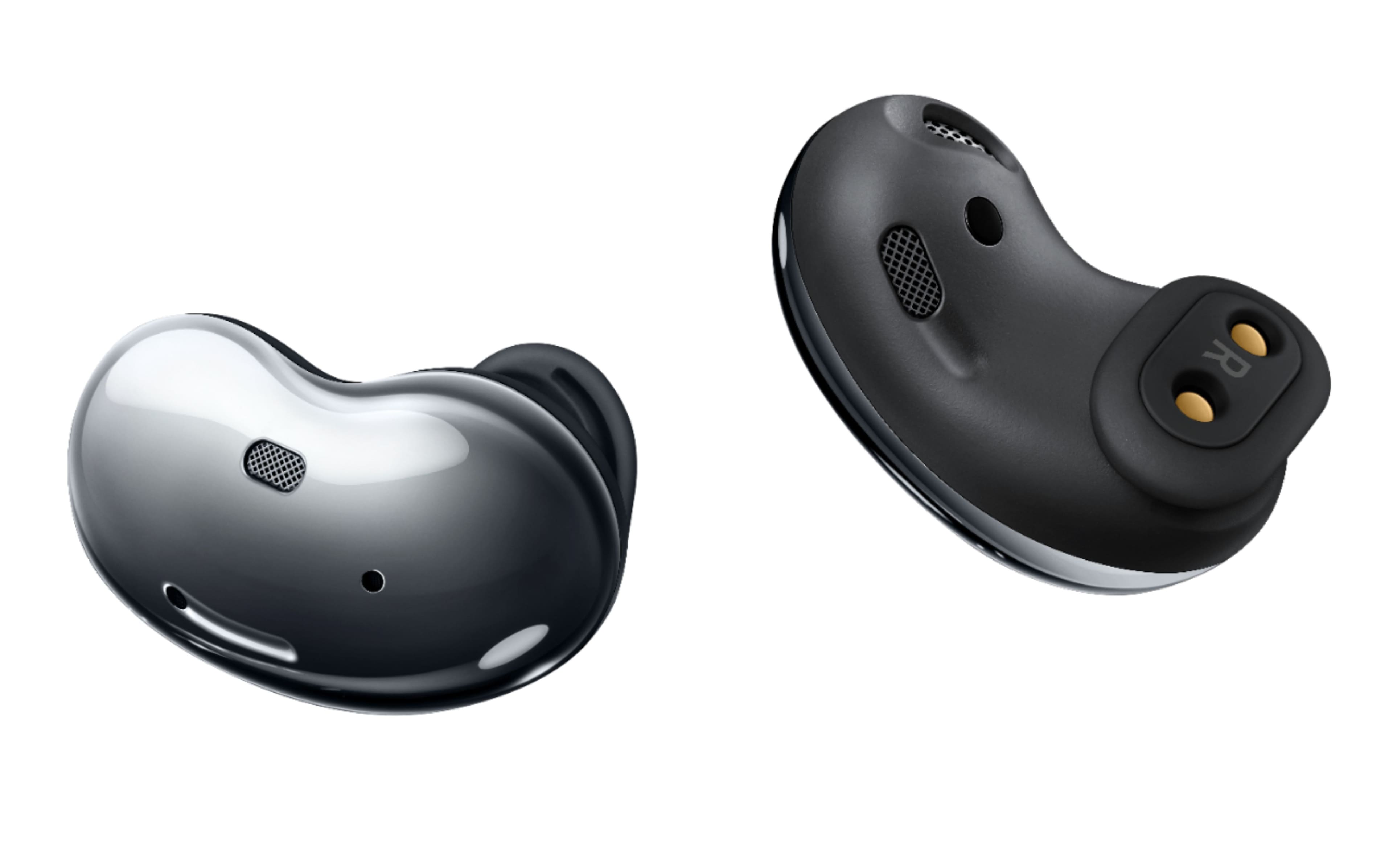
How to Pair Samsung Wireless Headphones With an iPhone
You can use many Samsung wireless headphones with an iPhone as standard Bluetooth earbuds. However, the Galaxy Wearable app has limited or no support for some Galaxy Buds models on iOS.
Connect Samsung headphones to an iPhone
- Open Settings on the iPhone.
- Tap Bluetooth.
- Turn Bluetooth on.
- Put the earbuds in the charging case.
- Open the case near the iPhone.
- If the earbuds do not appear, place them in pairing mode.
- Tap the Samsung earbuds under Other Devices.
- Wait until the status changes to Connected.
You can now play music, stream video, and make calls. The iPhone may show the earbuds’ basic connection status, but advanced controls may not be available.
If the earbuds connect but the app does not work
This usually means the model does not support full iPhone management. Use the iPhone’s Bluetooth settings for connection control. Adjust touch controls and sound modes from a supported Android phone if the model requires the Galaxy Wearable app.
Do not assume that every Galaxy Buds feature works on iPhone. Check Samsung’s support page for your exact model before relying on features such as firmware updates or noise-control settings.

How to Connect Samsung Wireless Headphones to a Windows PC
Samsung wireless headphones can connect to a Windows PC through Bluetooth. This works well for music, video, online meetings, and calls.
Pair Samsung headphones with Windows 11
- Open the charging case.
- Put the earbuds into pairing mode if they do not appear.
- On the PC, open Settings.
- Select Bluetooth & devices.
- Turn Bluetooth on.
- Click Add device.
- Choose Bluetooth.
- Select your Samsung earbuds.
- Wait for Windows to confirm the connection.
To select the earbuds for sound:
- Click the speaker icon on the Windows taskbar.
- Open the sound output list.
- Select the Samsung earbuds.
For calls, open the meeting app’s audio settings and choose the earbuds as both the speaker and microphone. Some computers show separate Stereo and Hands-Free options. Stereo mode often gives better music quality, while hands-free mode may be required when the earbud microphone is active.
Connect Samsung headphones to a Mac
- Open the earbud case.
- Put the earbuds in pairing mode if needed.
- On the Mac, open System Settings.
- Select Bluetooth.
- Turn Bluetooth on.
- Find the Samsung earbuds in the device list.
- Click Connect.
Then open System Settings > Sound and choose the earbuds for output and input.
A computer may connect to the earbuds but still send sound through its built-in speakers. Selecting the earbuds in the sound output menu fixes this common problem.
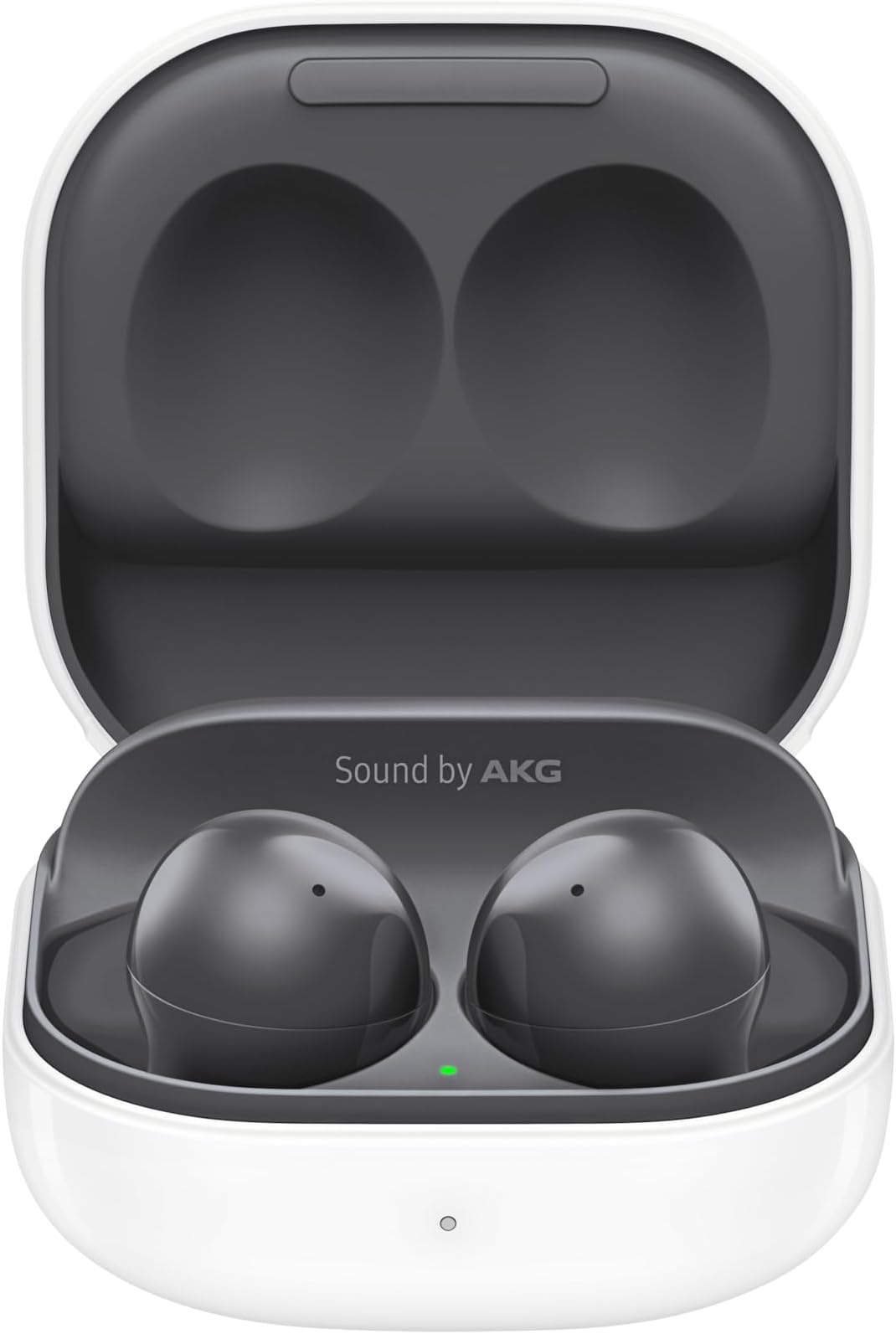
How to Use Samsung Wireless Headphone Controls
Samsung earbuds usually use touch controls or touch-and-hold controls. The exact action depends on the model and the settings selected in Galaxy Wearable.
Common controls include:
| Action | Common result |
|---|---|
| Single tap | Play or pause media |
| Double tap | Skip to the next track or answer a call |
| Triple tap | Return to the previous track |
| Touch and hold | Change noise-control mode or use a custom command |
| Swipe | Adjust volume on supported models |
| Remove one earbud | Pause media or change sound behavior on supported models |
These actions are examples, not universal rules. Samsung lets some models change the touch-and-hold command. One user may set it to noise control, while another may set it to voice assistant access.
Change touch controls
- Open the Galaxy Wearable app.
- Select your earbuds.
- Tap Touch controls or a similar control menu.
- Choose the left or right earbud.
- Assign the available action.
- Test the new command with music playing.
If a tap does not work, make sure you are touching the earbud’s touch area rather than pressing the outer earbud into your ear. Excess moisture, gloves, hair, or a poor fit can also affect touch detection.
Use noise control
Supported Galaxy Buds models may offer:
- Active noise cancellation: Uses microphones to reduce outside sound.
- Ambient sound: Lets outside sound in so you can hear people or traffic.
- Off: Turns off the main noise-control modes.
Noise cancellation does not make an environment silent. It usually works best against steady sounds such as an airplane engine or air conditioner. It may reduce voices and sudden sounds less effectively.
For safety, keep ambient sound on or remove the earbuds when you need to hear traffic, alarms, announcements, or people around you.
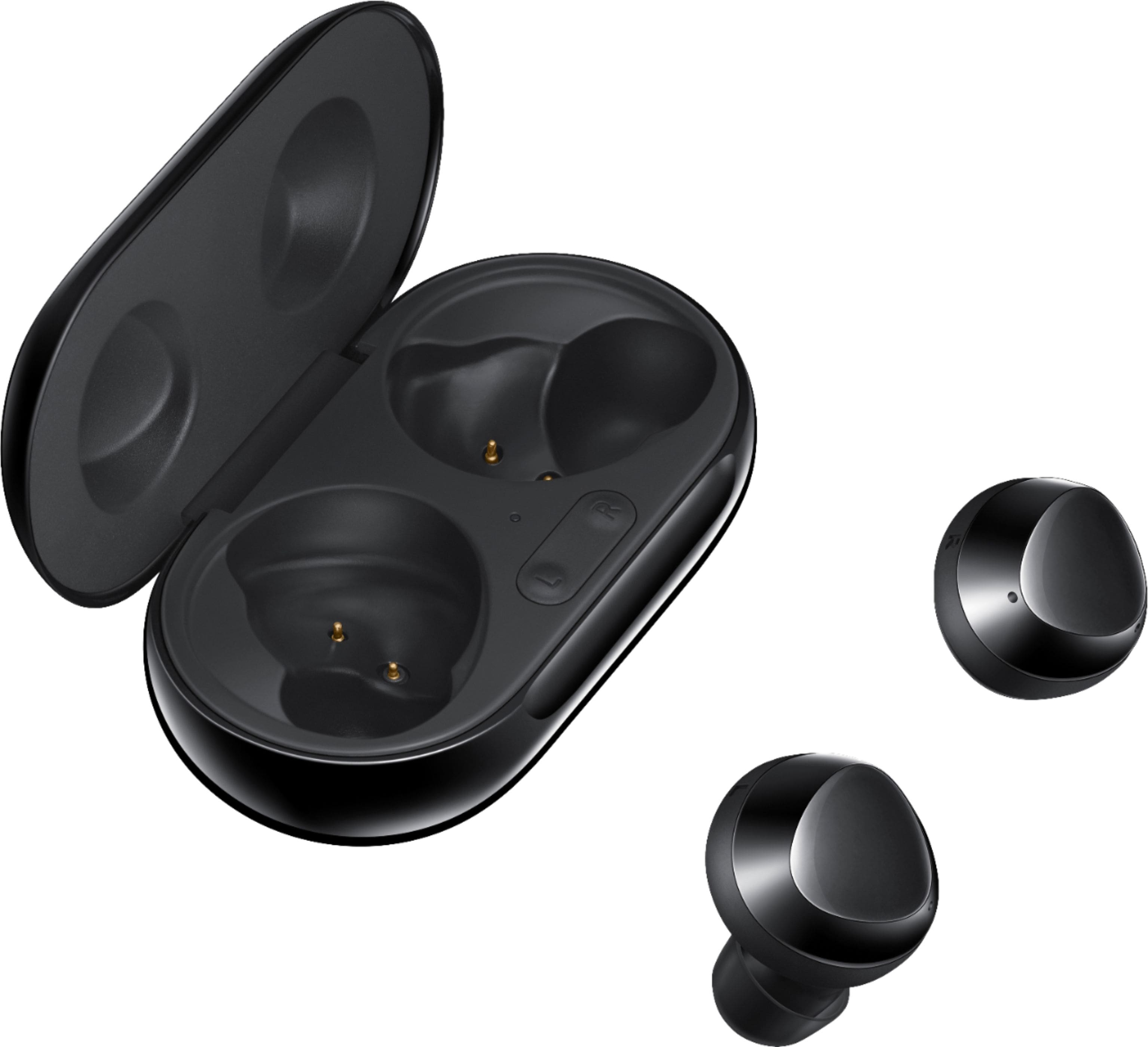
How to Charge Samsung Wireless Headphones
Place each earbud into the matching slot in the charging case. The contacts on the earbud must touch the contacts in the case.
The case’s indicator light can show charging or battery status, but the meaning of each color varies by model. The Galaxy Wearable app and connected phone usually provide a clearer battery reading.
Charge the earbuds
- Put the left and right earbuds into the case.
- Close the lid.
- Connect the case to a compatible USB charging cable and power source.
- Leave the earbuds in the case while they charge.
- Check the battery level in the app or on the connected device.
Some Galaxy Buds cases support wireless charging. If your model supports it, place the case on a compatible wireless charging pad with the charging surface aligned correctly.
If one earbud will not charge
Check the following:
- Remove dirt or wax from the earbud charging contacts.
- Clean the case contacts with a dry, soft cloth.
- Confirm that the earbud is seated correctly.
- Check whether the case itself has power.
- Remove any protective film from a new earbud.
- Restart or reset the earbuds if the model’s instructions allow it.
Do not use water, metal tools, sharp objects, or excess force near the charging contacts. If the battery or case becomes unusually hot, swollen, damaged, or wet, stop using it and contact Samsung Support.

How to Use Samsung Wireless Headphones for Calls
Samsung wireless headphones can use their built-in microphones for phone calls, video calls, and voice commands.
To make a call:
- Connect the earbuds to your phone or computer.
- Open the phone or meeting app.
- Start the call.
- Confirm that the audio output is set to the Samsung earbuds.
- Speak toward the earbud microphones.
If the other person cannot hear you, check the selected microphone in the call app. On a computer, the app may use the computer’s built-in microphone even when the earbuds handle sound output.
Wind, hair, clothing, and a loose fit can reduce microphone quality. Moving to a quieter area often helps more than changing an app setting.
During a call, use the earbud tap controls to answer, end, or mute if your model supports those commands. The available actions differ by model and software version.
How to Switch Samsung Wireless Headphones Between Devices
Samsung earbuds can remember more than one paired device, but connection behavior depends on the model and device type. Many earbuds connect to the last device used, not every device at the same time.
To switch manually:
- Pause audio on the current device.
- Open Bluetooth settings on the device you want to use.
- Select the Samsung earbuds.
- Confirm the connection.
- Start playback on the new device.
Some Galaxy Buds models support automatic switching between compatible Samsung devices signed in to the same Samsung account. This feature may require specific Galaxy phones, tablets, software versions, and settings.
If automatic switching causes confusion, disconnect the earbuds from the device you do not want to use. You can also turn off Bluetooth on that device for a quick test.

How to Fix Samsung Wireless Headphones That Will Not Connect
Use this order because it starts with simple and low-risk checks.
1. Check battery power
Charge both earbuds and the case. A low case battery can prevent pairing even if one earbud still shows some power.
2. Restart Bluetooth
Turn Bluetooth off on the phone or computer. Wait about 10 seconds, then turn it back on. Try connecting again.
3. Move closer
Keep the earbuds close to the device. Avoid testing near many active Bluetooth devices, routers, or other sources of wireless interference.
4. Disconnect another device
The earbuds may already be connected to a tablet, laptop, or phone nearby. Turn Bluetooth off on those devices or disconnect the earbuds from their Bluetooth menus.
5. Forget and pair again
On the phone or computer, open the Bluetooth device list. Select the Samsung earbuds and choose Forget, Remove, or Unpair. Then place the earbuds into pairing mode and connect them again.
6. Update the software
Use Galaxy Wearable on a supported Android device to check for earbud software updates. Install phone, computer, and app updates when available.
7. Reset the earbuds
A reset removes saved connection data and restores settings. The reset path varies by Galaxy Buds model. In many cases, it is available in Galaxy Wearable under the earbuds’ settings. Pair the earbuds again after the reset.
Common symptom guide
| Symptom | Likely causes | Best first checks |
|---|---|---|
| Earbuds do not appear | Not in pairing mode, low battery, connected elsewhere | Charge, disconnect other devices, reopen the case |
| Only one earbud works | Poor contact, different battery levels, software issue | Clean contacts, charge both, reconnect |
| Sound cuts out | Distance, interference, poor fit, software issue | Move closer, reduce interference, update software |
| Music works but calls do not | Wrong microphone or call output | Select earbuds in the call app |
| Earbuds connect but no sound plays | Wrong output device | Choose the earbuds as the active sound output |
| Touch controls fail | Touch setting, moisture, poor contact | Check controls, dry earbuds, try a lighter tap |

How to Improve Sound Quality and Comfort
A correct fit improves both comfort and sound. It can also help passive noise blocking and microphone performance.
Try each included ear tip size. The right size should seal the ear without painful pressure. If bass sounds weak or outside noise remains loud, the ear tip may be too small or the earbud may not be seated correctly.
Use the Galaxy Wearable equalizer only after confirming the fit. Equalizer changes can alter bass, treble, or vocal detail, but they cannot correct a poor physical seal.
For safer listening:
- Keep volume at a level that lets you notice nearby sounds when needed.
- Take breaks during long listening sessions.
- Avoid wearing noise-canceling earbuds when you must hear alarms or traffic.
- Stop using the earbuds if they cause pain, skin irritation, dizziness, or unusual heat.
- Keep the earbuds dry unless the exact model is rated for the type of water exposure involved.
Water resistance is not the same as waterproofing. A rating may cover sweat or splashes under stated test conditions, but it does not make the earbuds safe for swimming or high-pressure water.
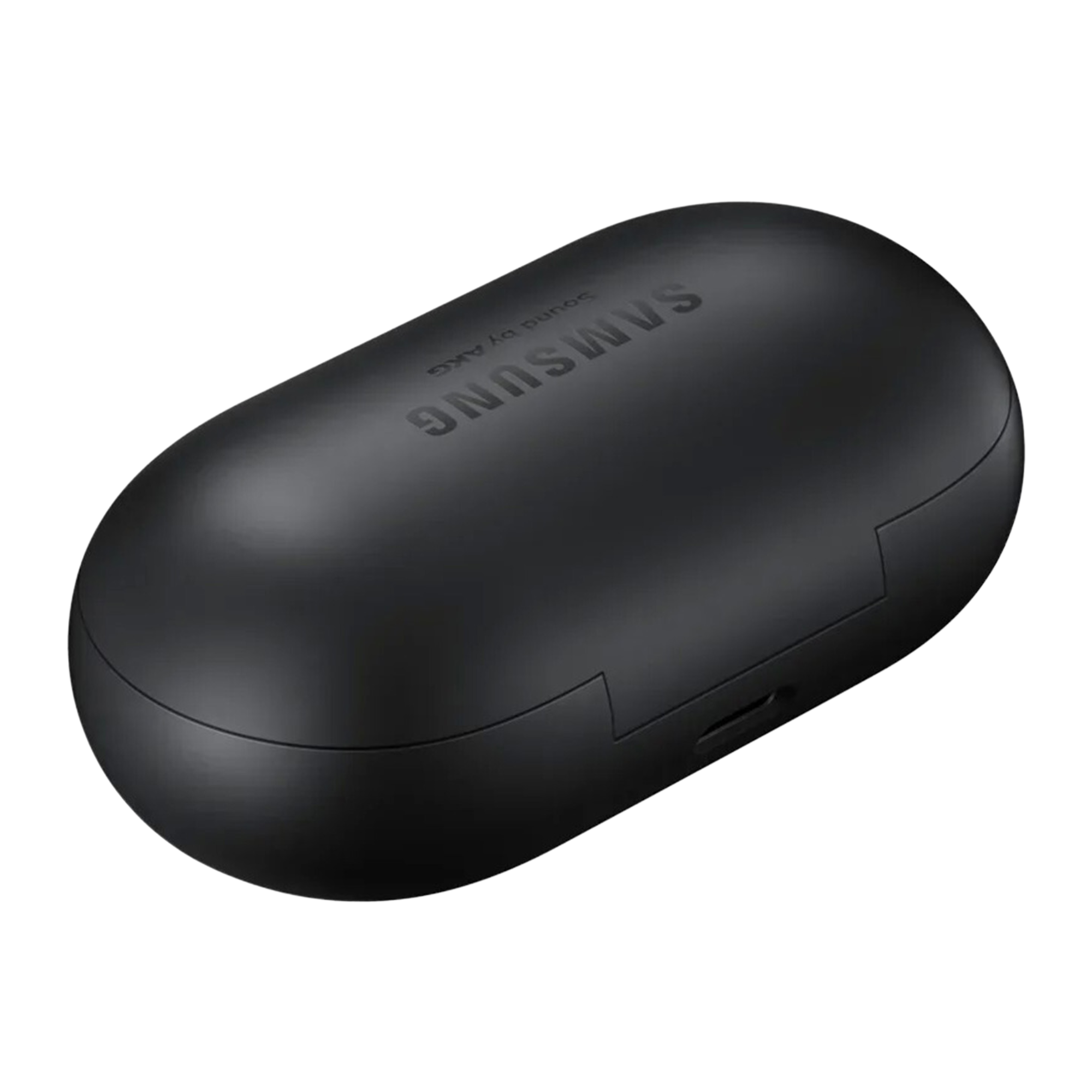
How to Clean and Maintain Samsung Wireless Headphones
Clean the ear tips and outer surfaces with a soft, dry cloth. Remove earwax from speaker mesh with care. Do not push debris deeper into the mesh.
For regular care:
- Wipe the earbuds after exercise.
- Keep the charging case free of dust and moisture.
- Dry the earbuds before putting them in the case.
- Store them in the case when not in use.
- Avoid extreme heat, cold, and direct sunlight.
- Use only suitable charging cables and power sources.
- Do not charge wet earbuds.
Never use sharp tools to clean the speaker mesh or charging contacts. If buildup remains or the earbud is damaged, Samsung Support or an authorized service provider can advise on the next step.
Samsung Wireless Headphones: Key Takeaways
- Pair Galaxy Buds through Galaxy Wearable on supported Android phones.
- Use the Bluetooth menu for iPhone, Windows, Mac, and unsupported devices.
- Open the charging case and keep Bluetooth on during setup.
- Use Galaxy Wearable to change controls, noise modes, and supported settings.
- Select the earbuds as the sound output for music and calls.
- Charge both earbuds and the case before troubleshooting.
- Forget and re-pair the earbuds if a normal Bluetooth restart does not help.
- Keep earbuds dry and do not use sharp tools near the speaker mesh or charging contacts.
Frequently Asked Questions
Can Samsung wireless headphones work without a Samsung phone?
Yes. Most Samsung wireless headphones can provide standard Bluetooth audio with Android phones, iPhones, Windows PCs, Macs, and some TVs. Advanced features may require a compatible Samsung device or the Galaxy Wearable app.
Why are my Samsung earbuds connected but silent?
The device may be sending sound to its built-in speakers or another Bluetooth product. Open the sound output menu and select the Samsung earbuds. For calls, also select the earbuds as the speaker and microphone inside the calling app.
How do I put Samsung earbuds into pairing mode?
The method depends on the model. Start with the earbuds in the open case. If they do not appear, place them in your ears and touch and hold both earbuds until you hear a pairing sound. Check the manual for the exact model if this does not work.
Can I use only one Samsung earbud?
Usually, yes. Remove the earbud you want to use and leave the other in the case. Some features, such as certain noise-control modes or touch commands, may change when only one earbud is active.
How do I reset Samsung wireless headphones?
Open Galaxy Wearable on a supported Android device, select the earbuds, and look for a reset option in the earbuds’ settings. A reset removes connection data and settings, so you must pair the earbuds again afterward.
Why does one Samsung earbud have no sound?
The earbud may not be charging, may have dirty contacts, or may not be seated correctly in the case. Clean the contacts with a dry cloth, charge both earbuds, and reconnect them. If the problem continues, reset the earbuds or contact Samsung Support.
Conclusion
To use Samsung wireless headphones, charge the earbuds, enable Bluetooth, place them in pairing mode, and select them on your phone, computer, or tablet. Use Galaxy Wearable on supported Android devices for controls, updates, sound modes, and battery information.
If pairing fails, first check the battery and nearby connections. Then restart Bluetooth, forget the earbuds, pair them again, and reset them only if simpler steps fail. Always confirm the exact model’s instructions because Galaxy Buds controls, app support, water resistance, and advanced features differ across models.