How to Connect Wireless Headphones to TV Easily

The easiest way is to use your TV’s built-in Bluetooth if it has it. If not, connect a wireless headphone transmitter to the TV’s optical or AUX output and pair the headphones to that device.
Wireless headphones can make TV watching much more comfortable, especially if you want late-night viewing, clearer dialogue, or a private gaming setup. The good news is that there are several reliable ways to do it, even if your TV does not have built-in Bluetooth.
- Fastest method: Smart TV Bluetooth is usually the simplest setup.
- Best for older TVs: A transmitter fills the gap when Bluetooth is missing.
- Gaming tip: Low-latency support matters more than convenience.
- Common fix: Check audio output settings if you get no sound.
How to Connect Wireless Headphones to TV: What Viewers Need in 2025
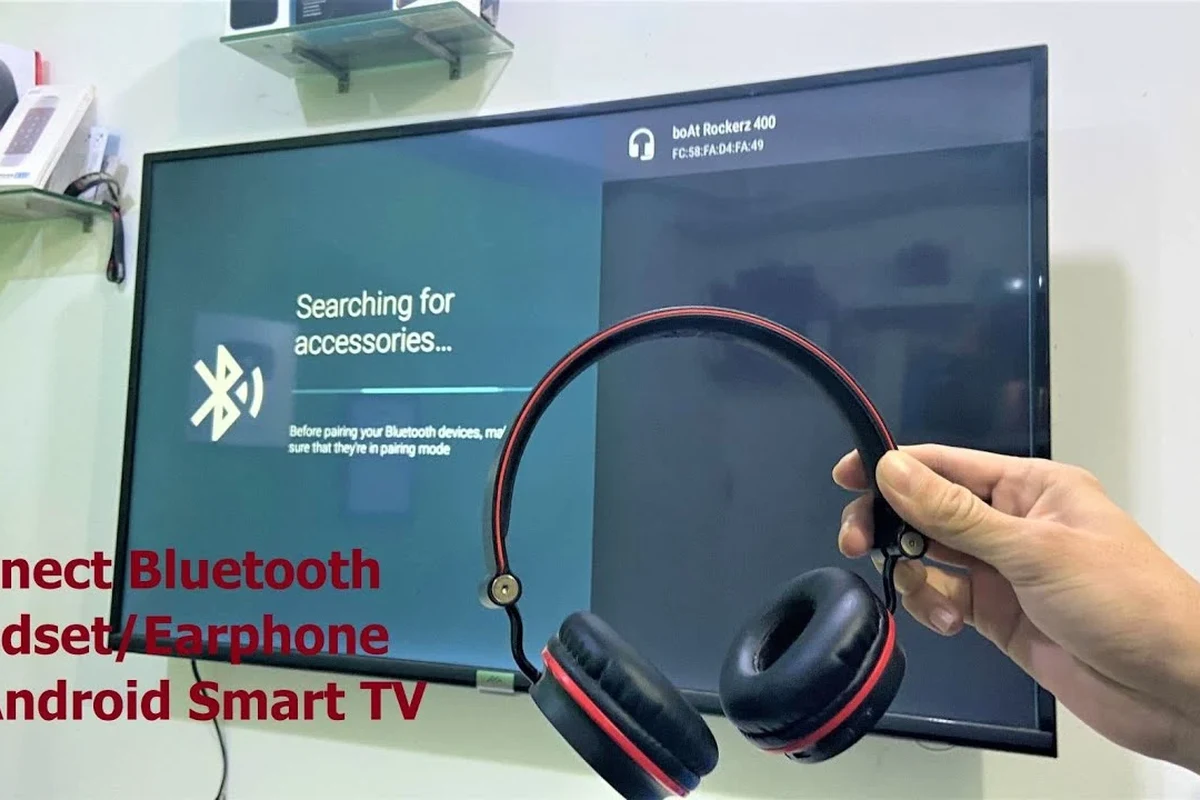
If you are figuring out how connect wireless headphones to tv, the first thing to check is what kind of audio output your TV supports. Some smart TVs can pair directly with Bluetooth headphones, while older models usually need a transmitter or adapter.
That matters because TV audio setups are not all the same. A simple pairing process may work for casual watching, but gaming, lip-sync accuracy, and long-range stability often depend on the connection method you choose.
Wireless headphone performance can vary by TV brand, headphone model, codec support, room layout, and how far you sit from the screen.
For readers comparing wireless setups in general, our guide on wired vs wireless headphones explains the main tradeoffs in comfort, convenience, and latency.
Best Wireless Connection Methods for TVs and Headphones
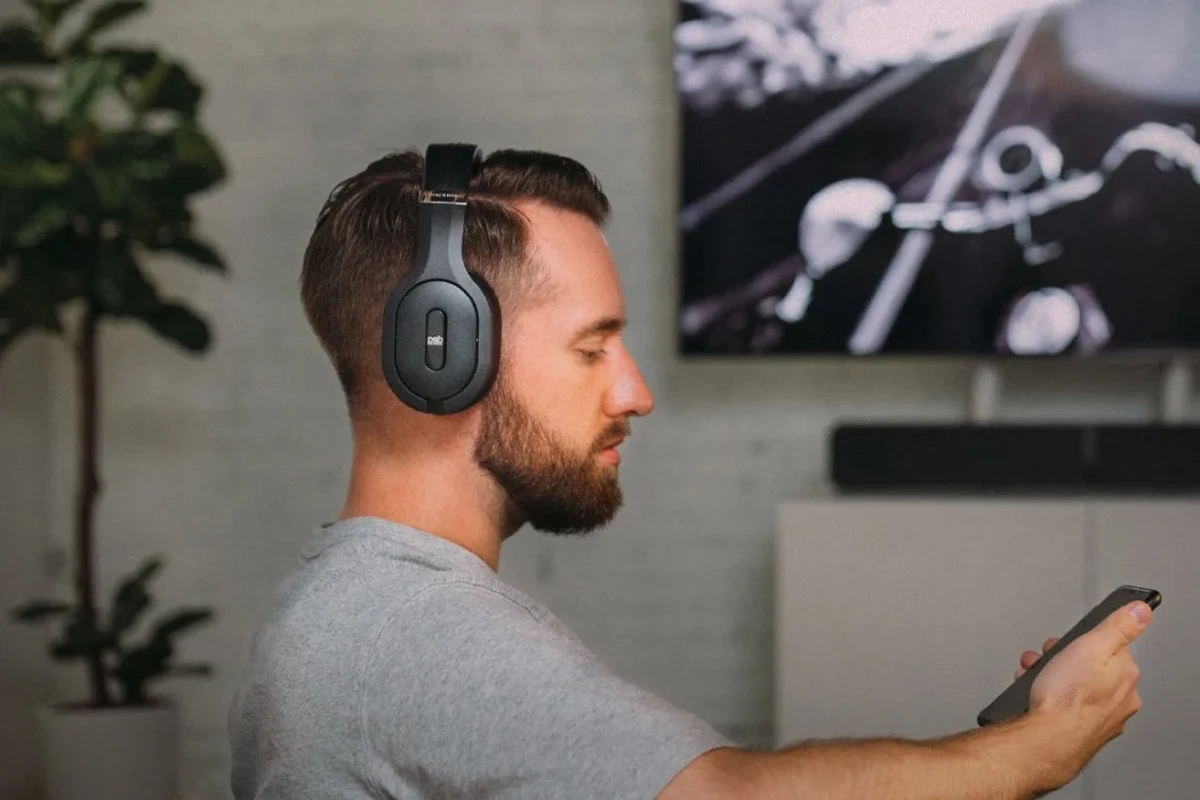
The best method depends on your TV, your headphones, and how sensitive you are to delay. For movies and casual TV, Bluetooth is usually the easiest option. For gaming or dialogue-heavy content, a dedicated transmitter often gives more consistent results.
Bluetooth Pairing for Smart TVs
If your smart TV supports Bluetooth audio, pairing is usually the simplest route. Open the TV’s sound or Bluetooth menu, put the headphones into pairing mode, and select them from the list of available devices.
This is the most convenient option because it does not require extra hardware. It is also the cleanest setup for viewers who want fewer cables around the entertainment center.
If your TV supports Bluetooth but the sound feels delayed, check whether the TV has an audio delay or lip-sync setting before buying extra gear.
Using a Wireless Headphone Transmitter with Optical or AUX
If your TV lacks Bluetooth, a wireless headphone transmitter can solve the problem. These devices usually connect through optical audio, AUX, or occasionally RCA, then send sound to compatible headphones.
This approach is especially helpful for older TVs and for users who want a more stable connection than basic built-in Bluetooth. It can also be a better choice when the TV’s native Bluetooth menu is limited or unreliable.
Not every transmitter works with every TV port. Before buying, confirm whether your TV has optical, AUX, or RCA output and whether that output can be set to send audio externally.
Connecting Through TV Streaming Devices, Consoles, or Soundbars
Sometimes the easiest path is not the TV itself. Streaming devices, game consoles, and some soundbars can also support headphone connections or Bluetooth audio output.
This can be useful if your TV menu is limited or if your console is the main source for movies and games. Still, you should confirm where the audio is being routed so you do not end up with silence, doubled sound, or delayed audio.
Some soundbars can pass audio through while also offering Bluetooth output, but the exact behavior depends on the model and TV settings.
Step-by-Step Setup for Different TV Types
Once you know the connection method, the setup itself is usually straightforward. The exact steps depend on whether you have a smart TV, an older non-Bluetooth TV, or a gaming-focused setup.
Smart TV Setup: Samsung, LG, Sony, and Roku TV Examples
Most smart TVs follow a similar process: open settings, find sound or audio output, choose Bluetooth headphones, and pair the device. Brands may label the menus differently, but the overall flow is usually easy to follow.
Go to the audio or Bluetooth section in your TV menu and look for wireless device options.
Hold the pairing button or follow the headset’s instructions until the status light indicates discovery mode.
Choose the headphone name from the TV list and confirm the connection.
Play a show or app, then adjust both TV and headphone volume to a comfortable level.
If you are still learning the basics of pairing, our guide on how to connect Bluetooth headphones covers the general Bluetooth process in a simple way.
Older TV Setup Without Built-In Bluetooth
Older TVs usually need a transmitter because they cannot send audio directly to wireless headphones. In most cases, you connect the transmitter to the TV’s optical output or headphone jack, then pair the headphones to the transmitter instead of the TV.
Before setup, check whether the TV mutes its speakers when the headphone jack is used. Some sets do, while others require you to change the audio output manually in the menu.
- Does the TV have optical, AUX, or RCA output?
- Does the output stay active when speakers are on?
- Does the transmitter support your headphone type?
Gaming TV Setup for Low-Latency Audio
For gaming, low latency matters more than it does for casual TV watching. Even a small delay can make footsteps, dialogue, and on-screen action feel out of sync.
That is why many gamers prefer a transmitter designed for low-latency audio or headphones with a gaming-focused wireless mode. If your TV has a game mode or audio delay control, it may help reduce noticeable lag.
If you notice persistent lip-sync issues, hearing strain, or inconsistent audio behavior across devices, a TV technician or audiologist may help you rule out setup problems or listening concerns.
Common Problems When Connecting Wireless Headphones to TV
Even a good setup can run into problems. Most issues come down to audio delay, pairing instability, or the TV sending sound to the wrong output.
Audio Delay and Lip-Sync Issues
Bluetooth can introduce delay, and that delay becomes more obvious with speech and gaming. If voices do not match mouth movement, try the TV’s audio delay settings first.
If that does not help, a transmitter with better latency handling may be a better fit. The result can vary by brand, codec support, and how the TV processes audio.
Listening at high volumes for long periods can cause hearing damage. Keep volume at 60% or below for extended sessions.
Pairing Failures, Dropped Connections, and Range Limits
If the headphones will not pair, remove old Bluetooth entries from the TV and try again. Restarting both devices often fixes temporary glitches.
Dropped connections can happen when the headphones are too far from the TV or when walls, cabinets, and other electronics interfere with the signal. For the most stable result, keep the transmitter or TV in a clear line of sight when possible.
For readers who want a deeper troubleshooting path, our article on Bluetooth headphone lag fix covers common delay and stability issues that also affect TV listening.
No Sound, Low Volume, or TV Audio Output Conflicts
No sound usually means the TV is still sending audio to its speakers or to another output. Check the sound menu and confirm that wireless headphones or external audio are selected.
Low volume can also happen if the TV and headphones are both set too low. Raise the source volume first, then fine-tune on the headphones so you do not overcompensate.
Expert Advice: Avoid These Wireless Headphone Setup Mistakes
The easiest mistakes to avoid are the ones that cause poor sound quality before you even start watching. A little compatibility checking can save time and money later.
Why Bluetooth Codec Support Matters for TV Watching
Codec support can affect delay, clarity, and overall wireless performance. While you do not need to memorize every codec name, it helps to know that not all Bluetooth audio behaves the same way.
If your TV and headphones support a better-matched codec, the result may feel smoother for movies and shows. If they do not, the connection can still work, but latency or compression may be more noticeable.
When to Skip Cheap Adapters and Budget Transmitters
Very cheap adapters can be tempting, but they may bring weak range, unstable pairing, or noisy audio. That does not mean every budget option is bad, only that build quality and compatibility matter a lot here.
If you watch TV often or care about gaming delay, it is usually worth choosing a transmitter from a reputable brand with clear device support information.
Warning Signs of Incompatible TV Audio Ports
Some TV ports look useful but do not behave the way buyers expect. A port may be output-only, disabled in certain modes, or unavailable when internal speakers are active.
Check your TV manual if you are unsure. That is especially important with optical ports, combo jacks, and older analog outputs, because the wrong assumption can lead to a setup that never works properly.
For readers comparing headphone styles for TV and gaming, our guide on types of headphones explained can help you choose between over-ear, on-ear, and in-ear options.
Cost Comparison: Free Built-In Bluetooth vs Paid Transmitter Solutions
There is no single “best” budget answer because the right setup depends on the TV you already own. Built-in Bluetooth is free to use if your TV supports it, while a transmitter adds cost but can improve compatibility.
Budget, Mid-Range, and Premium Setup Options
Budget setups usually rely on built-in Bluetooth or a basic transmitter. Mid-range options often add better range, easier pairing, and improved audio stability.
Premium setups may include lower-latency transmitters, stronger build quality, or broader device support. Exact prices vary widely by brand, region, and features, so it is better to compare use case than chase a fixed number.
Which Option Makes Sense for Casual Viewing vs Gaming
For casual TV watching, built-in Bluetooth is often enough if the sound is stable and the delay is minor. It is simple, convenient, and usually the easiest place to start.
For gaming, a paid transmitter or low-latency wireless system is often the better choice. The extra cost can be worthwhile if you want tighter audio sync and fewer connection headaches.
- Bluetooth is easiest for smart TVs.
- Transmitters help older TVs and gaming setups.
- Check ports, latency, and audio output settings before buying.
Final Recap: The Easiest Way to Connect Wireless Headphones to TV
The easiest way to connect wireless headphones to TV is usually Bluetooth pairing on a smart TV. If your TV does not support Bluetooth, a transmitter connected through optical or AUX is the most practical alternative.
For the best experience, match the method to your use case. Casual viewing is about convenience, while gaming and lip-sync accuracy need lower latency and better compatibility. If you also care about long listening comfort, our broader headphone guides at Top Headphone Reviews can help you choose the right fit and style for your setup.
Frequently Asked Questions
Wireless headphones are more convenient for TV watching because they remove cable clutter and let you move around more easily. Wired headphones can still be better if you want the simplest audio path and zero wireless delay.
Noise cancelling headphones can make dialogue easier to hear by reducing room noise and distractions. They are especially useful in shared spaces, but comfort and fit still matter for long viewing sessions.
Closed-back headphones are usually better for TV because they isolate outside noise and keep sound from leaking out. Open-back models can sound more spacious, but they are less private and usually not ideal for shared rooms.
Over-ear wireless headphones are often the best choice for gaming because they are comfortable and can offer better immersion. Look for low-latency wireless support if you want the best sync between action and audio.
Check Bluetooth support, latency, battery life, comfort, and whether your TV needs a transmitter or optical adapter. If you care about sound quality, also look at codec support, driver type, and fit.
Choose lightweight headphones with soft ear cushions and an adjustable headband. If you listen for long periods, take breaks and keep volume at a safe level to reduce ear fatigue.