How Do You Connect Bluetooth Headphones to a PS4 Easily

You can connect Bluetooth headphones to a PS4, but full compatibility is limited and not every headset will carry game audio. The easiest reliable options are a supported headset, a compatible USB Bluetooth adapter, or a wired controller connection.
If you’re wondering how do you connect bluetooth headphones to a ps4, the short answer is: sometimes directly, but often with a workaround. The PS4 supports some Bluetooth audio devices, but many headphones need a USB dongle, a wired controller connection, or a headset designed specifically for PlayStation.
That’s why setup can feel confusing even when your headphones pair successfully. In this guide from the Top Headphone Reviews Editorial Team, we’ll walk through what works, what usually fails, and the easiest ways to get stable game audio and chat on PS4.
- Compatibility first: PS4 Bluetooth support is limited, so pairing does not always mean full audio works.
- Best workaround: A USB Bluetooth adapter or supported headset usually gives better results than direct pairing.
- Backup option: The DualShock 4 controller’s wired jack is the simplest fallback.
- Watch latency: Bluetooth delay can affect footsteps, dialogue, and voice chat.
How Do You Connect Bluetooth Headphones to a PS4: What Works in 2026
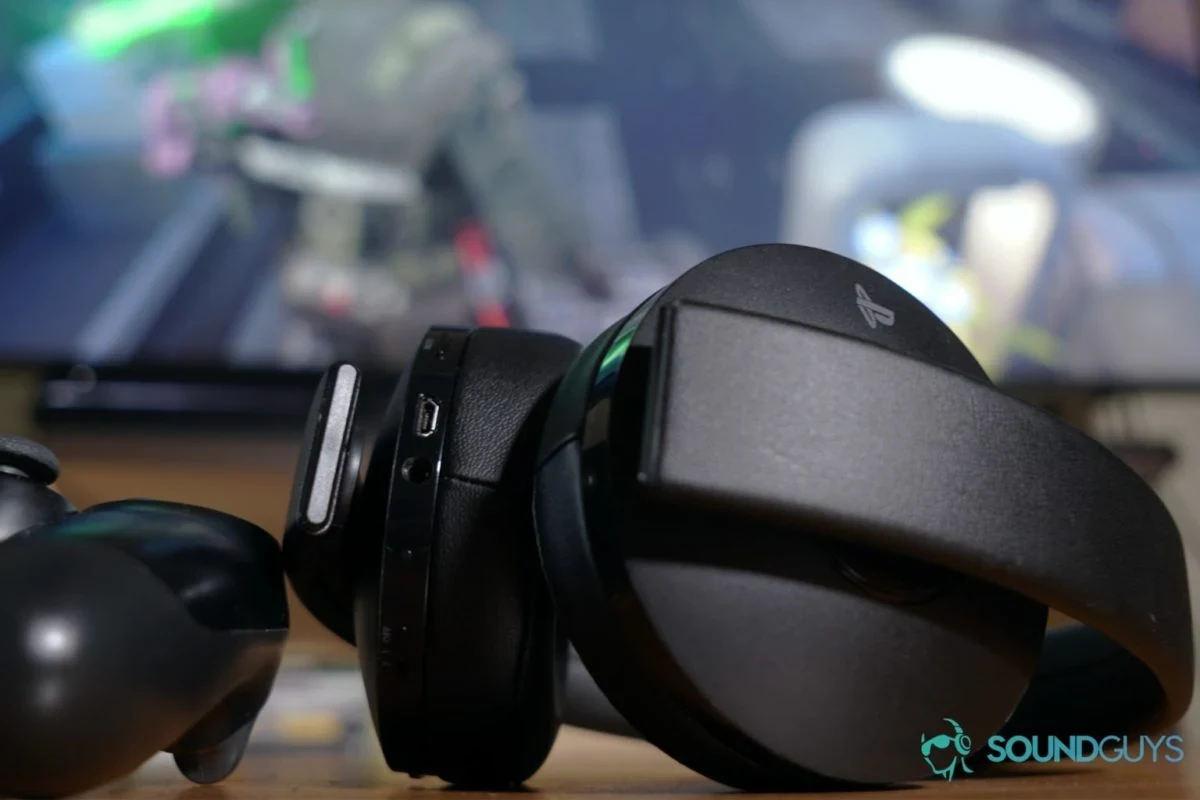
In 2026, the basic answer is still the same: PS4 Bluetooth audio is limited. The console can see many Bluetooth devices, but that does not always mean it will route full game sound through them.
For most players, the most reliable options are a supported headset, a compatible USB Bluetooth adapter, or a wired connection through the DualShock 4 controller. If you want the least frustration, start by checking whether your headset is officially supported before trying anything else.
Bluetooth support on PS4 can vary by headset model, adapter type, and system settings. A device that works on a phone may still behave differently on a console.
Why PS4 Bluetooth Headphone Setup Is Different from Other Devices
Phones and laptops are built to handle many Bluetooth audio profiles. The PS4 is more selective, especially when it comes to game audio, voice chat, and microphone routing.
That means pairing is only part of the job. Even if the headset shows up in the menu, the console may still refuse to send all audio to it.
PS4 Bluetooth limitations and compatibility rules
The PS4 does not behave like a universal Bluetooth audio hub. Some headphones connect only for chat, while others may not connect at all without extra hardware.
Compatibility depends on the headset’s Bluetooth profile and how the PS4 interprets it. In practice, that means one model may work fine while another brand-new headset may not.
Why some headphones pair but still do not carry game audio
This is one of the most common frustrations. A headset can appear in the Bluetooth list, yet the PS4 may still send sound to the TV or controller instead of the headphones.
That usually happens because the console recognizes the headset as a communication device rather than a full audio output device. If that happens, you may need a USB adapter or a wired backup plan.
Best Ways to Use Bluetooth Headphones with a PS4
There are three practical ways to get audio on PS4. Which one is best depends on your headset, your budget, and how much delay you can tolerate.
If you also want a broader headphone setup guide, our article on connect bluetooth headphones covers the general pairing process on other devices too.
Direct pairing with supported Bluetooth headsets
Some Bluetooth headsets are built to work with consoles more smoothly than generic models. If your headset is supported, direct pairing is the simplest option.
This route is best when you want fewer accessories and you mainly care about casual gaming, menus, and chat. Still, audio quality and latency may vary by headset.
Using a Bluetooth USB adapter for broader compatibility
A USB Bluetooth adapter can expand compatibility with headsets that do not connect properly on their own. This is often the most practical fix when the PS4 detects your headphones but refuses to route audio correctly.
Even then, not every adapter is equally reliable. Look for models that clearly state PS4 support and avoid vague listings that promise universal compatibility without details.
Cheap adapters can cause lag, dropouts, or one-way audio. If a product page uses broad claims but gives little setup guidance, treat it carefully.
Using a wired controller connection as a backup option
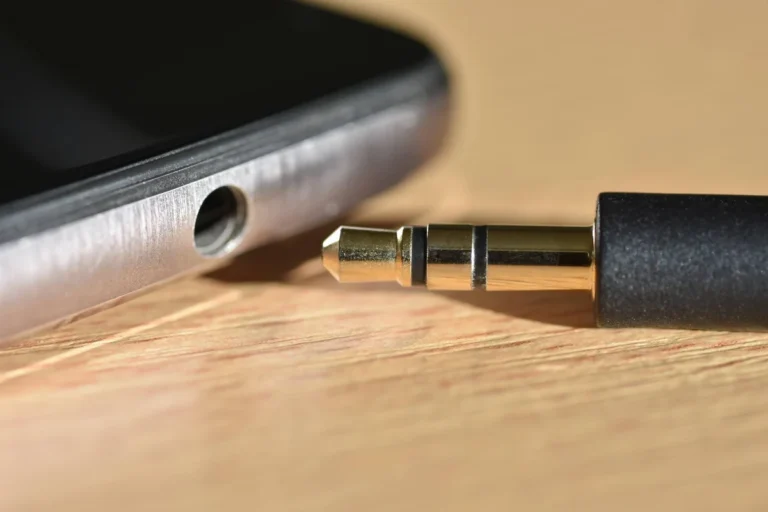
If Bluetooth gives you trouble, the simplest fallback is the 3.5 mm connection on the PS4 controller. This is not wireless, but it is often the most dependable way to get game audio and microphone support quickly.
For many players, this is the best temporary solution while they decide whether to buy a supported wireless headset or adapter.
Step-by-Step: How to Connect Bluetooth Headphones to a PS4
Before you start, make sure your headset is charged and close to the console. If you’re using an adapter, plug it in first so the PS4 can detect it during setup.
Prepare the headset and put it in pairing mode
Turn on the headset and enter pairing mode according to the manufacturer’s instructions. Usually, that means holding a power or Bluetooth button until the light flashes.
Keep the headset near the PS4 or adapter during pairing. Distance and interference can make the first connection fail even when the headset is otherwise compatible.
Open PS4 device settings and scan for audio devices
On the PS4, go to Settings, then Devices, then Bluetooth Devices. Wait for the console to scan and list nearby devices.
Select your headset if it appears. If it does not show up, restart pairing mode and try again, or connect through a USB adapter if your headset supports that route.
Confirm audio output and test chat/game sound
After pairing, check the sound and devices settings. Make sure the output device is set correctly and that the volume is not muted or too low.
Then test both game audio and voice chat. A headset that works for one may not work perfectly for the other, so it’s worth checking both before you settle in for a long session.
If your headset connects but sounds weak or delayed, try lowering other wireless interference nearby and keep the console’s audio output settings simple.
Common Problems When Connecting Bluetooth Headphones to PS4
Most PS4 Bluetooth issues come down to compatibility, routing, or signal stability. The good news is that many of them are fixable once you know what the console is actually doing.
Headphones appear but no sound plays
This usually means the PS4 recognizes the device but is not sending audio to it. Check the output device, chat audio settings, and volume controls on both the headset and console.
If that does not help, the headset may not support full PS4 audio routing. In that case, a USB adapter or wired connection may be the better choice.
Mic works but game audio does not
This is common with devices that connect as voice accessories instead of full headphones. The microphone may function while the game audio stays on the TV or controller.
When that happens, don’t assume the headset is broken. It may simply be limited by the PS4’s Bluetooth profile support.
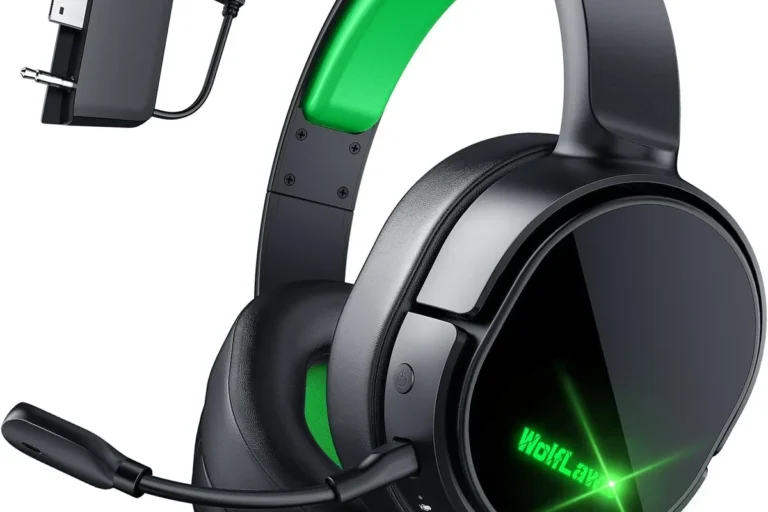
Some wireless gaming headsets use a USB dongle instead of standard Bluetooth because it can reduce delay and improve compatibility with consoles.
Lag, dropouts, and unstable wireless connection
Bluetooth lag is especially noticeable in gaming because sound needs to stay close to the action. If audio arrives late, footsteps, gunfire, and dialogue can feel out of sync.
Dropouts can also happen if there is interference from other wireless devices, distance from the console, or a weak adapter. For competitive play, a dedicated wireless headset or wired setup is usually safer.
Expert Advice: What to Watch Out for Before Buying a Bluetooth Headphone for PS4
Not every Bluetooth headphone is a good gaming headphone. A model that sounds great for music may still be frustrating on PS4 if it has too much delay or poor device support.
If you often notice delayed sound, uncomfortable pressure, or hearing fatigue during long sessions, it may be worth speaking with an audiologist or audio specialist. Persistent ringing, pain, or sensitivity should not be ignored.
Latency concerns for gaming and voice chat
Latency is one of the biggest reasons Bluetooth is not always ideal for PS4 gaming. Even a small delay can make fast-paced games feel less responsive.
Voice chat also becomes harder to follow when sound timing is off. If you play shooters or rhythm games, prioritize low-latency options over flashy features.
Battery life, codec support, and dongle compatibility
Battery life matters because a headset that dies mid-session is more annoying than a wired one. Codec support can also affect how clean or delayed the audio feels, though results vary by model and setup.
If you choose a USB adapter, confirm that it is compatible with your headset and PS4 before buying. A mismatch can lead to connection problems that are hard to troubleshoot later.
Warning signs of cheap adapters and misleading product claims
Be cautious with listings that claim “works with everything” but say little about PS4 behavior. Those products may connect in a limited way, or not reliably at all.
Clear setup instructions, model-specific compatibility notes, and realistic marketing language are usually better signs than exaggerated promises.
Bluetooth Headphones vs USB Wireless Headsets for PS4: Cost and Performance
If your main goal is comfortable gaming with fewer headaches, USB wireless headsets often make more sense than standard Bluetooth headphones. They are usually designed with console audio in mind.
Bluetooth headphones can still be a good choice if you already own a pair and mainly want casual use. But for dedicated gaming, performance and compatibility matter more than convenience alone.
Budget-friendly setup options
The most affordable route is often a headset you already own, plus the PS4 controller’s wired headphone jack if needed. That keeps costs down and avoids extra accessories.
Another budget option is a basic USB adapter, but only if it has clear PS4 support. Otherwise, you may spend less upfront and more later replacing it.
Mid-range and premium choices for better audio and lower delay
Mid-range and premium gaming headsets often offer better comfort, stronger microphone performance, and more stable wireless behavior. Some use USB dongles instead of standard Bluetooth, which can improve responsiveness.
If you care about long sessions, look for comfortable ear cushions, manageable weight, and battery life that fits your routine. For more on choosing between wireless and cabled listening, see our guide on bluetooth vs wired headphones sound quality.
For readers comparing headphone styles, our overview of types of headphones explained is a helpful place to understand over-ear, on-ear, and in-ear differences before buying.
Listening at high volumes for long periods can cause hearing damage. Keep volume at 60% or below for extended sessions.
Final Recap: The Easiest Way to Get Bluetooth Audio Working on PS4
The easiest way to connect Bluetooth headphones to a PS4 is to use a headset or adapter that is known to work with the console. Direct pairing may succeed, but it is not always enough for full game audio and chat.
If you want the smoothest experience, check compatibility first, then test sound output, latency, and microphone behavior before committing to long gaming sessions. When Bluetooth proves unreliable, a wired controller connection or a USB wireless headset is usually the most practical backup.
Frequently Asked Questions
Wireless headphones are more convenient, but wired options usually give you lower delay and fewer connection issues. For competitive gaming, wired or USB wireless headsets often perform better than standard Bluetooth.
Noise cancelling can help block background noise, which is useful in shared rooms or noisy setups. Just remember that ANC performance varies by model, and some players prefer closed-back designs instead.
Closed-back headphones are usually better for PS4 gaming because they isolate sound and keep game audio from leaking out. Open-back models can sound more spacious, but they are less private and less practical in noisy spaces.
Driver type matters, but tuning and comfort matter too. Many gamers prefer drivers that deliver clear mids and controlled bass so footsteps, dialogue, and effects stay easy to hear.
Check compatibility, latency, battery life, microphone support, and whether the headset needs a USB dongle. Comfort, weight, and ear cushion material also matter for long sessions.
Look for lightweight designs, soft ear cushions, and an adjustable headband. If you feel pressure, heat, or ear fatigue, take breaks and lower volume to protect your hearing.