How to Connect Bluetooth Headphones to TCL Roku TV Easily

Yes, you can connect Bluetooth headphones to some TCL Roku TVs, but not every model supports direct Bluetooth audio. If your TV does not, Roku private listening or a Bluetooth transmitter are the easiest alternatives.
If you want to know how to connect bluetooth headphones to tcl roku tv, the first thing to check is whether your exact TCL Roku model supports direct Bluetooth audio. Some models do, but many TCL Roku TVs rely on Roku’s private listening features or an external Bluetooth transmitter instead.
That matters because “Bluetooth headphones on a Roku TV” can mean a few different things depending on the TV model, Roku software version, and the headphones you already own. In this guide from the Top Headphone Reviews Editorial Team, we’ll keep it simple, practical, and focused on the easiest working method for your setup.
- Check compatibility: Not all TCL Roku TVs support direct Bluetooth headphone audio.
- Pair correctly: Put headphones in pairing mode and connect through the TV settings.
- Watch for lag: Bluetooth delay can affect movies and especially gaming.
- Use backups: Roku private listening and Bluetooth transmitters solve many setup issues.
How to Connect Bluetooth Headphones to TCL Roku TV: What You Need to Know First
Contents
- 1 How to Connect Bluetooth Headphones to TCL Roku TV: What You Need to Know First
- 2 Step-by-Step: How to Connect Bluetooth Headphones to TCL Roku TV in 2025
- 3 When Your TCL Roku TV Does Not Show Bluetooth Headphones
- 4 Common Problems People Run Into During Pairing
- 5 Expert Advice: Best Practices for Better Sound and Fewer Headaches
- 6 Bluetooth Headphones vs Roku Private Listening: Which Is Better for TCL Roku TV?
- 7 Final Recap: The Easiest Way to Connect Bluetooth Headphones to TCL Roku TV
- 8 Frequently Asked Questions
- 9 Author
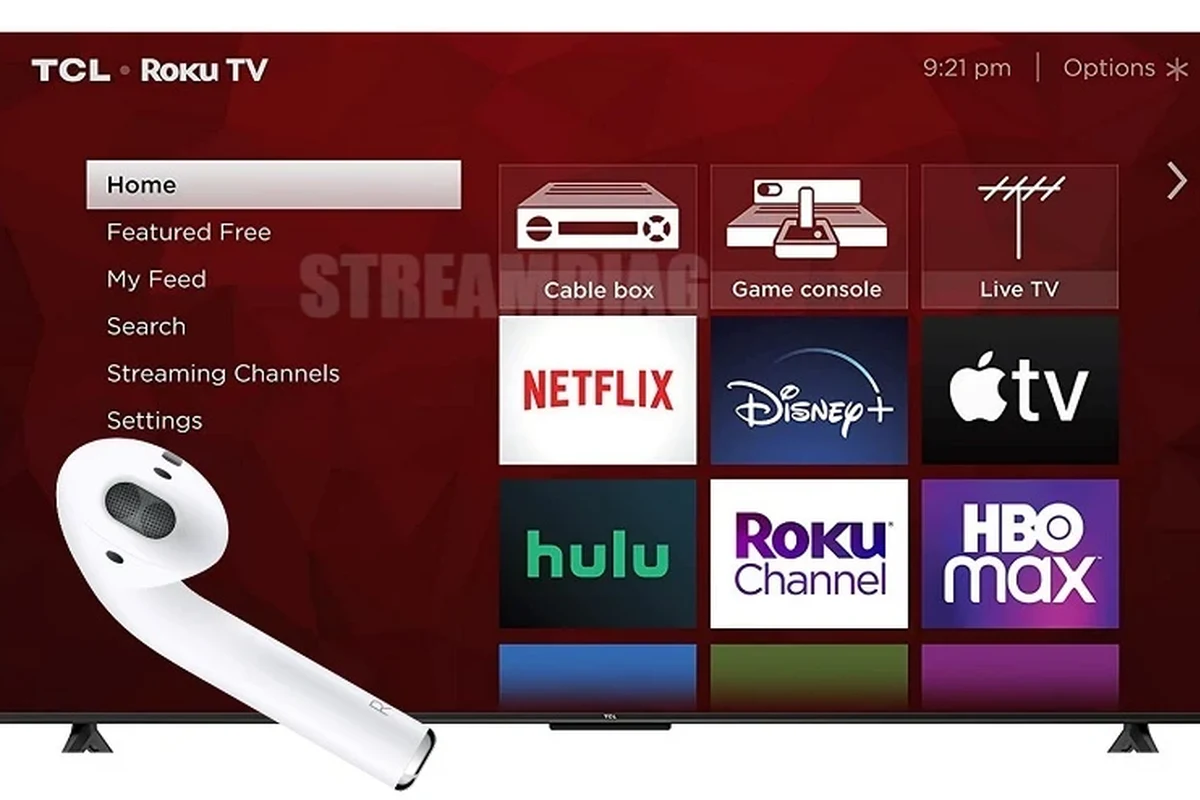
Before you start tapping through menus, it helps to understand what your TCL Roku TV can actually do. Bluetooth support is not identical across every TCL Roku TV, and that is usually where confusion begins.
Check whether your TCL Roku TV supports Bluetooth audio
Some TCL Roku TVs include Bluetooth for certain accessories, but not all of them support sending TV audio directly to Bluetooth headphones. If your TV has no Bluetooth audio option in the settings, that usually means direct pairing is not available.
The easiest way to confirm is to open the settings menu and look for audio output, headphones, or Bluetooth device options. If you do not see a headphone pairing path, you may need a workaround instead of direct connection.
Understand the difference between native Bluetooth and Roku wireless headphone features
Native Bluetooth means the TV can pair with Bluetooth headphones directly, much like a phone or laptop. Roku wireless headphone features are different because they often depend on the Roku mobile app or a Roku-connected listening method rather than standard Bluetooth audio.
If you are trying to use headphones you already own, this difference matters a lot. A pair of Bluetooth headphones may work perfectly with one TCL Roku TV and not connect at all with another.
What users are actually trying to solve: private listening, late-night viewing, and low-latency audio
Most people are not just looking for “Bluetooth.” They want private listening so they do not disturb others, late-night viewing with lower volume, or a setup that keeps audio in sync for movies and gaming.
For gaming especially, latency matters. If you want to learn more about connection basics and common pairing behavior, our guide on how to connect Bluetooth headphones can help you understand the general process before you troubleshoot the TV side.
Bluetooth audio support can vary by TCL model, Roku software version, and region. When in doubt, check your TV manual or on-screen settings before assuming a feature is missing.
Step-by-Step: How to Connect Bluetooth Headphones to TCL Roku TV in 2025
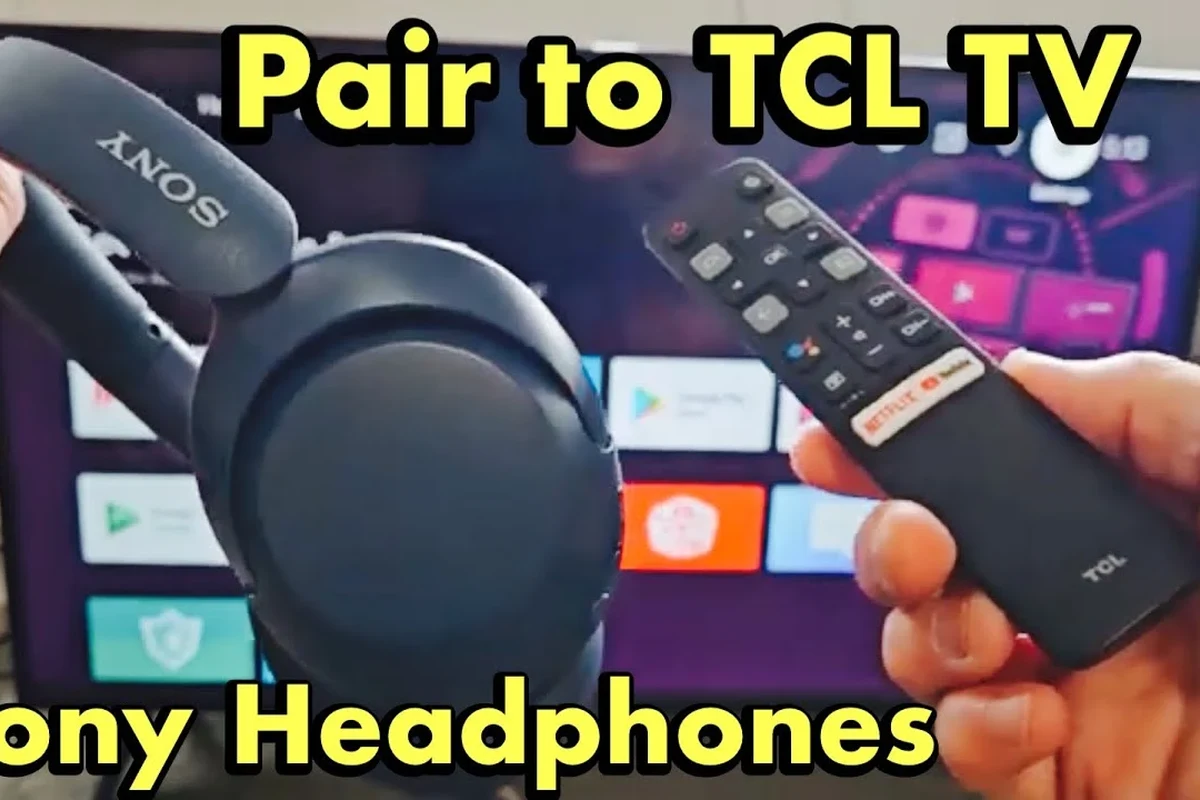
If your TCL Roku TV supports direct Bluetooth audio, pairing is usually straightforward. The exact menu names may vary slightly, but the basic process is similar across compatible models.
Put your Bluetooth headphones into pairing mode
Start by turning on your headphones and putting them into pairing mode. On many models, this means holding the power button or a dedicated Bluetooth button until a light flashes or you hear a pairing prompt.
If the headphones do not enter pairing mode, reset them first and try again. Our reset Bluetooth headphones guide can be useful if the headset has been paired to another device and refuses to show up.
Open the TCL Roku TV audio or remote settings menu
Using your TCL Roku remote, open the settings menu and look for the audio section, Bluetooth devices, or a headphone-related option. Some Roku interfaces place private listening or device pairing under system settings rather than under sound settings.
If your TV offers a headphone or Bluetooth device list, that is the place to start. Keep the headphones close to the TV during setup so the pairing signal is strong.
Select Bluetooth headphones and complete pairing
When your headphones appear in the list, select them and wait for the TV to confirm the connection. You may hear a tone in the headphones or see an on-screen message showing that the device is connected.
If the TV asks for confirmation, approve the pairing. Once connected, the TV should route audio to the headphones automatically, though some models may still let the speakers remain active unless you change the audio output setting.
Test volume, range, and audio sync after connecting
After pairing, test the sound at a low volume first. Move a few feet away from the TV to see whether the connection stays stable and whether voices remain clear.
For movies and games, check lip-sync as well. If the sound feels delayed, your headphones may be the issue, the TV may be adding processing, or Bluetooth latency may simply be too noticeable for your use case.
Listening at high volumes for long periods can cause hearing damage. Keep volume at 60% or below for extended sessions.
When Your TCL Roku TV Does Not Show Bluetooth Headphones
Many readers reach this point and assume they did something wrong. In reality, the TV may simply not support direct Bluetooth headphone audio, even if it supports other wireless functions.
Why some TCL Roku models do not support direct Bluetooth audio
Some TCL Roku TVs are designed to work with Roku’s own ecosystem rather than standard Bluetooth audio output. That means the TV may support Bluetooth for limited accessories or remote functions, but not for headphones.
This is why two TCL Roku TVs that look very similar can behave differently. Model year, software version, and hardware features all matter.
Using the Roku mobile app for private listening as an alternative
If direct Bluetooth pairing is not available, the Roku mobile app may offer private listening through your phone. In that setup, the TV audio streams to the app, and you listen through headphones connected to the phone.
This is a good option if you already use wired or wireless headphones with your phone. It is also convenient for quiet nighttime viewing, though it depends on your phone battery and app connection.
Private listening through a phone app can feel more reliable than direct Bluetooth on some TVs because the TV is not managing the headphone connection itself.
Using a Bluetooth transmitter through the TV’s audio output
Another workaround is a Bluetooth transmitter connected to the TV’s audio output, such as optical, AUX, or sometimes USB depending on the setup. The transmitter sends the TV sound to your Bluetooth headphones even when the TV cannot do it natively.
This option is often the best choice if you want to keep using your favorite headphones without relying on a phone app. If you are comparing Bluetooth and wired listening more generally, our Bluetooth vs wired headphones sound quality article explains why the connection method can affect clarity and delay.
Which workaround is best for different TCL Roku TV setups
If you want the simplest setup and already use the Roku app, private listening is usually the easiest. If you want a more permanent solution with better flexibility, a Bluetooth transmitter may be the better fit.
For gaming, a transmitter with low-latency support is often the smarter pick. For casual TV watching, the Roku app may be enough if you do not mind using your phone as the middle step.
Common Problems People Run Into During Pairing
Even when the TV supports Bluetooth audio, pairing does not always go perfectly on the first try. The good news is that most issues are easy to narrow down.
Headphones not appearing in the device list
If your headphones do not appear, make sure they are actually in pairing mode and not still connected to another device. Bluetooth headphones often reconnect to the last device automatically, which can block discovery on the TV.
Also keep the headphones close to the TV during setup. If needed, turn Bluetooth off on nearby phones, tablets, or laptops so the headphones stop jumping back to something else.
Audio delay, lip-sync issues, or choppy sound
Audio delay is one of the most common complaints with Bluetooth TV listening. It can be more noticeable in dialogue-heavy shows, action scenes, or games where timing matters.
If the sound stutters or cuts out, interference may be part of the problem. Wi-Fi congestion, walls, soundbars, and other wireless devices can all affect the signal.
If you regularly notice delay, distortion, or unstable connections, consider a low-latency headset, a transmitter with aptX Low Latency or similar support where compatible, or speak with an audiologist if you are also experiencing hearing discomfort.
Connection drops after switching inputs or apps
Some TCL Roku TVs may disconnect headphones when you switch inputs, open certain apps, or change audio settings. That does not always mean the headphones are broken.
Try reconnecting after switching sources, and keep your headphones powered on during use. If the issue keeps happening, a transmitter or app-based listening method may be more stable.
TV still playing sound through speakers instead of headphones
In some setups, the TV may send audio to both the speakers and headphones, or it may not switch output automatically. Look for an audio output setting that lets you choose headphones, speakers, or private listening.
If you are using a transmitter or the Roku app, the behavior may be different from direct Bluetooth. That is normal, but it can be confusing the first time you set it up.
Expert Advice: Best Practices for Better Sound and Fewer Headaches
A little planning goes a long way with TV headphones. The right headphones can make listening easier, but the wrong setup can add delay, dropouts, or comfort issues during longer sessions.
Why Bluetooth version, codec support, and latency matter
Bluetooth version alone does not guarantee great performance, but newer hardware often handles connections more smoothly. Codec support and latency behavior matter too, especially if you care about lip-sync or gaming response time.
For most readers, the practical takeaway is simple: if you watch a lot of video, choose headphones or adapters known for lower latency when possible. If you only watch casual content, standard Bluetooth may be perfectly fine.
How to reduce interference from Wi-Fi, soundbars, and other devices
Keep the TV area as uncluttered as possible during pairing. Other wireless devices, nearby routers, and even some soundbars can compete for attention in a busy living room.
Try moving closer to the TV, reducing the number of active Bluetooth devices, and avoiding physical barriers between the headphones and the set. Small changes often help more than people expect.
When low-latency headphones or a transmitter are worth the extra cost
If you watch a lot of sports, gaming content, or action movies, low-latency gear can be worth it. The same is true if you share a home and need a reliable private listening solution every night.
You do not need the most expensive option, but you should choose based on your use case. For more general headphone terminology, our Bluetooth headphones explained guide is a helpful place to start.
Bluetooth Headphones vs Roku Private Listening: Which Is Better for TCL Roku TV?
Both options solve the same basic problem, but they do it in different ways. The better choice depends on how often you watch, what headphones you already own, and how much convenience matters.
Compare convenience, audio quality, and compatibility
Direct Bluetooth is convenient if your TCL Roku TV supports it and your headphones pair easily. Roku private listening is often more compatible because it works through the app, but it adds an extra device into the chain.
Audio quality can vary in both cases depending on the TV model, headphones, and connection strength. For some users, the difference is small; for others, latency or compression is noticeable.
Cost differences between using existing headphones and buying an adapter
If you already own Bluetooth headphones, direct pairing or the Roku app may cost nothing extra. A Bluetooth transmitter adds another purchase, but it can unlock compatibility on TVs that do not support headphone pairing natively.
Best choice for gaming, movies, and shared living spaces
For gaming, a low-latency transmitter or a compatible low-delay headphone setup is usually the safest choice. For movies and shows, Roku private listening can be an easy everyday solution.
In shared spaces, comfort and quick switching matter too. Over-ear headphones may be better for long sessions, while lighter earbuds can be easier for short viewing bursts, depending on your preference and ear fit.
- Private listening without disturbing others
- Can improve nighttime viewing comfort
- Workarounds exist even when direct Bluetooth is missing
- Not every TCL Roku TV supports direct pairing
- Bluetooth latency can affect video and gaming
- Some fixes require extra devices or apps
Final Recap: The Easiest Way to Connect Bluetooth Headphones to TCL Roku TV
The easiest way to connect Bluetooth headphones to TCL Roku TV is to check whether your model supports direct Bluetooth audio, then put your headphones in pairing mode and select them from the TV’s Bluetooth or audio menu. If the option is available, that is the cleanest path.
Quick summary of the direct pairing method
Turn on pairing mode on your headphones, open the relevant Roku or TCL audio settings, and connect when the headphones appear. After that, test volume, range, and sync before settling in for a long viewing session.
Best backup options if your TCL Roku TV does not support Bluetooth
If direct pairing is missing, use the Roku mobile app for private listening or add a Bluetooth transmitter to the TV’s audio output. Those two workarounds solve most compatibility problems without forcing you to replace your headphones.
Last tip for choosing the right setup for 2025 viewing habits
Choose the setup that matches your real use case, not just the one that sounds simplest on paper. If you mostly watch TV quietly at night, convenience may matter most, but if you game or care about sync, low-latency performance should come first.
- Check whether your TCL Roku TV supports direct Bluetooth audio before pairing.
- If it does, put your headphones in pairing mode and connect through the TV settings.
- If it does not, use Roku private listening or a Bluetooth transmitter.
- Test for delay, range, and comfort before relying on the setup daily.
Frequently Asked Questions
Wireless headphones are more convenient, but wired headphones usually avoid Bluetooth delay. For movies and gaming, choose based on whether you care more about freedom or sync.
Yes, noise cancelling headphones can work well for TV watching if they connect properly. They are especially useful in shared spaces, but comfort and latency still matter.
Closed-back headphones are usually better for TV because they block more outside noise and keep sound private. Open-back models can sound wider, but they leak sound and are less ideal for shared rooms.
Look at latency, Bluetooth support, comfort, and overall tuning more than one single spec. Bass, clarity, and soundstage can vary by model and personal preference.
For gaming, low latency is the biggest priority. For movies and casual viewing, comfort, battery life, and stable connection are often more important.
Check ear cushion material, headband pressure, weight, and build quality. If you listen for long periods, comfort matters as much as sound quality.