How to Use Headphones on Xbox One Easily and Fast

Use a wired 3.5mm headset or the Xbox stereo headset adapter for the easiest Xbox One setup. Bluetooth headphones usually need a workaround, and compatibility matters more than brand name.
If you want to know how to use headphones on Xbox One, the fastest answer is simple: use a wired headset with the controller, or use an Xbox-compatible wireless headset. Bluetooth headphones usually do not connect directly, so the best setup depends on the headphone type you already own.
- Fastest setup: Plug a 3.5mm headset into the controller.
- Bluetooth limit: Direct pairing usually does not work on Xbox One.
- Best fix: Check chat mixer, volume, and headset compatibility first.
- Buying tip: Choose Xbox-compatible gear if you want fewer issues.
How to Use Headphones on Xbox One: What Works and What You Need
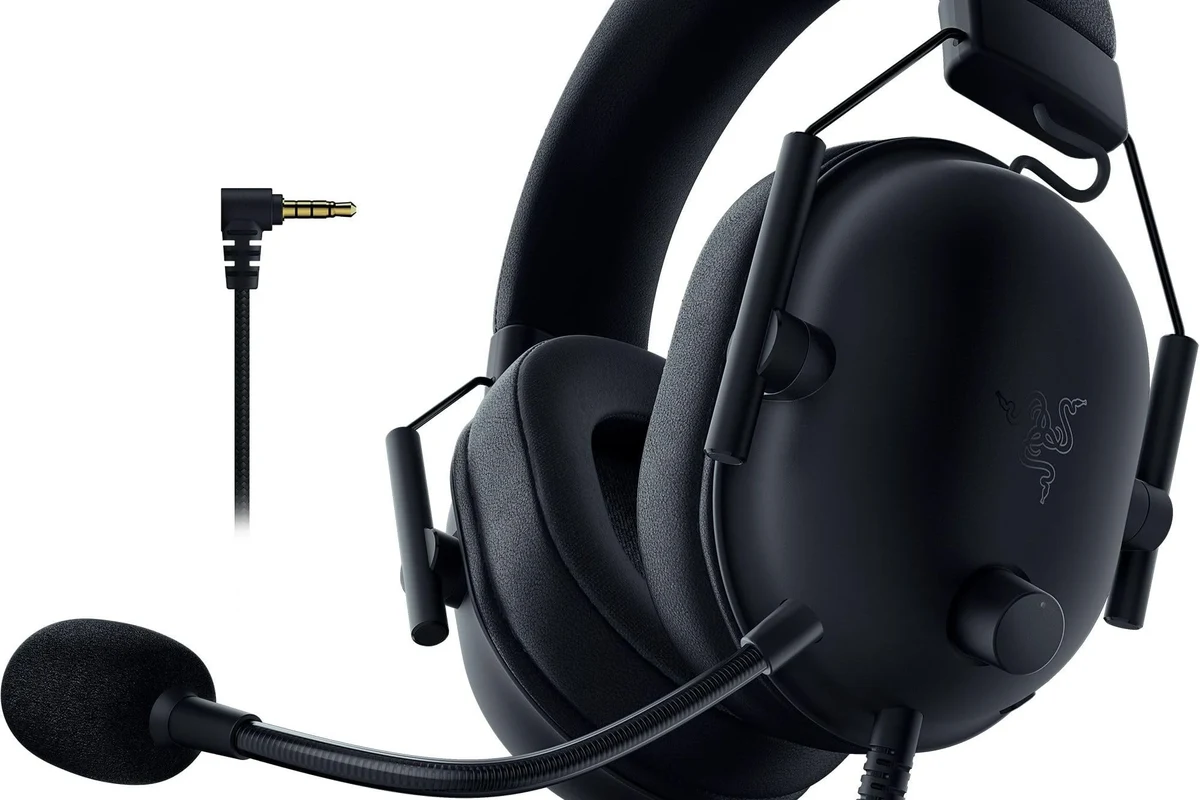
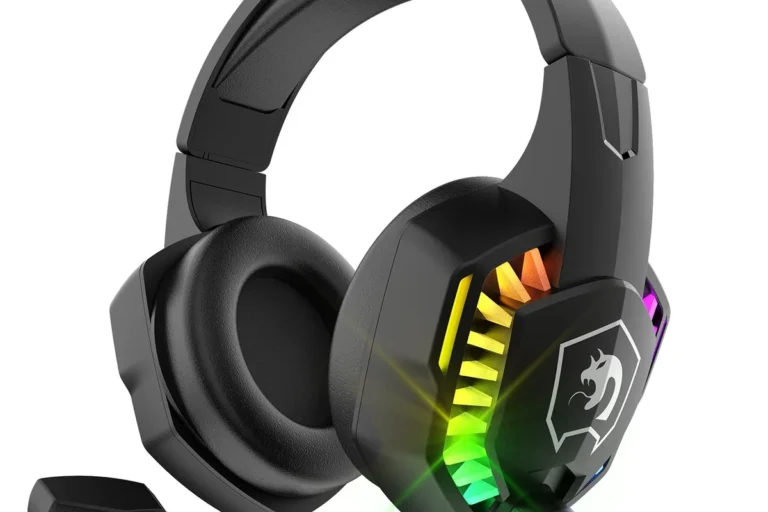
Xbox One supports a few headphone connection paths, but not every pair works the same way. The easiest options are a 3.5mm wired headset plugged into the controller, an Xbox stereo headset adapter, or a headset designed specifically for Xbox audio.
Before you start, check whether your headphones are meant for game audio, chat audio, or both. Some models only handle listening, while others include a microphone for party chat. If you are trying to compare headset styles first, our guide to types of headphones explained can help you choose a better fit for gaming.
Xbox One audio support can vary by controller version, headset model, and whether the headset uses analog, USB, optical, or wireless connections.
For most players, a wired headset is still the simplest solution because it avoids pairing problems and latency. Wireless can be more convenient, but compatibility matters a lot more on Xbox than on phones or PCs.
Quick Setup Methods for Wired and Wireless Headphones on Xbox One
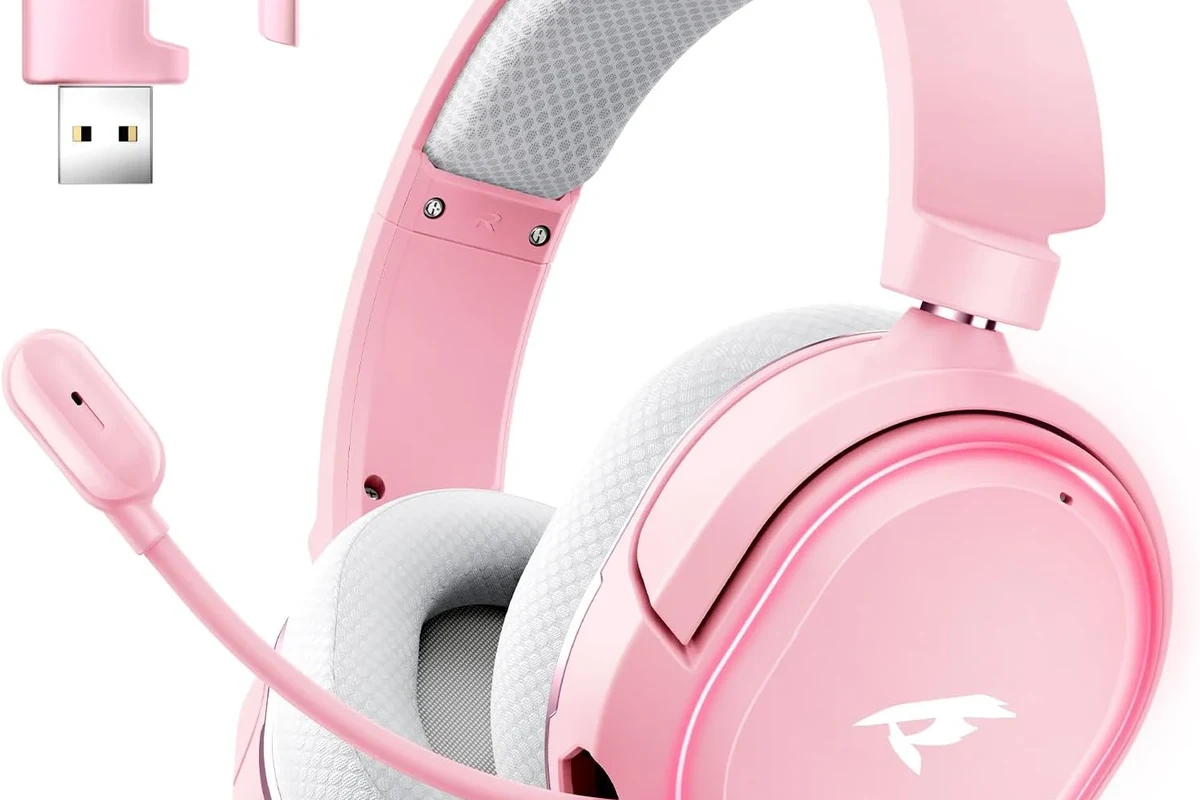
The quickest way to get sound on Xbox One is to match the headset to the connection method it supports. If your headphones are standard wired gaming headphones, setup is usually straightforward. If they are wireless, you may need an Xbox-specific dongle or a base station.
Using a 3.5mm headset with the Xbox One controller
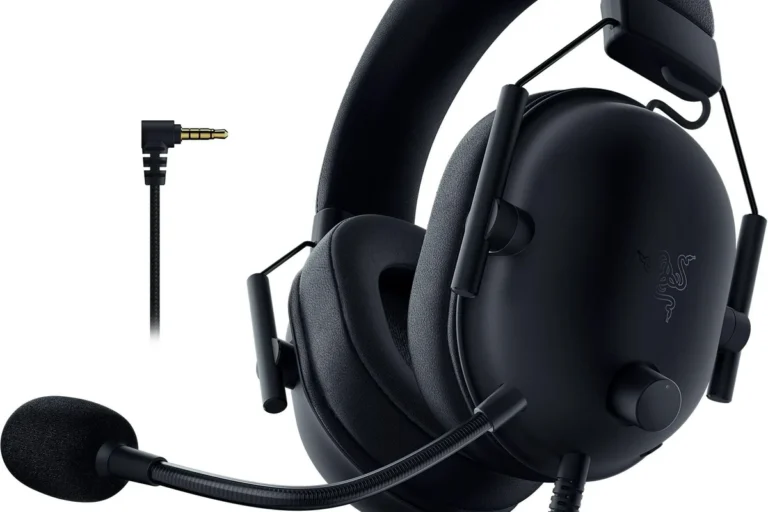
If your controller has a 3.5mm headset jack, plug the headset directly into the bottom of the controller. Then press the Xbox button, open the audio settings, and make sure headset volume is turned up enough to hear game and chat audio.
This is the easiest option for most people because it does not need extra accessories. It also works well for budget headsets, earbuds with a mic, and many gaming headsets that use a standard analog plug.
Insert the 3.5mm connector into the controller until it clicks or seats firmly.
Open Xbox audio settings and confirm headset volume, chat mixer, and mic monitoring are set correctly.
If you only hear one side or the sound cuts out, remove the plug and reconnect it slowly. A loose 3.5mm fit is one of the most common causes of weak or missing audio.
Connecting a headset through the Xbox One stereo headset adapter
If your controller does not have a built-in 3.5mm jack, the Xbox One stereo headset adapter is the classic workaround. It connects to the controller and gives you a place to plug in a wired headset, plus buttons for chat and volume control on some versions.
This is useful for older controllers and for players who already own a good wired headset. It can also be a practical fix if you want to keep using a headset that does not connect through USB.
Not every adapter works the same way. Cheap third-party versions may feel loose, produce static, or fail to pass microphone audio reliably.
Using USB or optical audio options with compatible setups
Some Xbox One setups use USB or optical audio through a compatible headset, audio extractor, or TV/monitor system. These options are more situational, but they can be helpful when you want to route game sound through a headset base station or a home audio setup.
USB support depends heavily on the headset and Xbox compatibility. Optical audio is more often used with external sound systems or older console setups, so it is not the first choice for most beginners. If you are also curious about how headset compatibility changes across devices, see our guide on wireless headphones for a simple look at connection limits in different environments.
Many gaming headsets that work on PC through USB still need special Xbox support to work properly on Xbox One.
How to Connect Bluetooth Headphones to Xbox One: What’s Possible in 2026
In 2026, the biggest thing to know is that standard Bluetooth headphones still usually do not connect directly to Xbox One for regular gameplay audio. That surprises a lot of people because Bluetooth works so easily on phones, tablets, and laptops.
Xbox One uses its own audio ecosystem, so Bluetooth headphones are not a simple plug-and-play option. If you want a deeper overview of Bluetooth behavior in general, our article on Bluetooth headphones explained is a good background read.
Why standard Bluetooth headphones usually do not connect directly
Most Bluetooth headphones are built for phones and portable devices, not Xbox console audio. Even if you can technically pair them through a TV or another device, the console itself usually does not support direct Bluetooth headphone pairing for gaming sound and chat.
The main issue is compatibility, not sound quality. Your headphones may be excellent, but if the console does not support the connection method, they will not work the way you expect.
Workarounds with Bluetooth transmitters and their limitations
Some players use a Bluetooth transmitter connected to the TV, controller, or console audio output. This can send sound to Bluetooth headphones, but it often introduces trade-offs such as latency, reduced chat support, or extra setup steps.
That means the workaround may be fine for casual listening, but less ideal for fast-paced games where audio delay matters. If you want to avoid lag, wired headsets or Xbox-compatible wireless headsets are usually safer choices. For more detail on delay issues, our Bluetooth headphone lag fix guide explains the common causes.
Best Audio Settings to Improve Headphone Sound on Xbox One
Even a good headset can sound weak if the Xbox One audio settings are wrong. A few quick adjustments can improve game volume, chat clarity, and the balance between voice and gameplay.
Start with the basics, then test with a game or party chat before making bigger changes. Small adjustments often make a bigger difference than people expect.
Adjusting chat mixer, volume, and mic monitoring
The chat mixer controls the balance between game sound and voice chat. If teammates sound too loud, raise game audio or shift the mix toward game sound. If the game drowns out voices, move it the other way.
Mic monitoring is also worth checking. It lets you hear your own voice in the headset, which can help you avoid shouting during long sessions. For readers who want a broader audio control reference, our article on select headphones in Windows 11 covers a similar idea: the right output setting matters a lot.
Choosing stereo uncompressed, Windows Sonic, or Dolby Atmos
Xbox One may offer different audio output formats, including stereo uncompressed, Windows Sonic, and Dolby Atmos on supported setups. Stereo uncompressed is often the simplest and most reliable choice, especially if you want a clean, direct signal.
Windows Sonic and Dolby Atmos can create a wider, more spatial feel for some games, but results vary by headset and personal preference. If your headset already has strong imaging, one of these virtual surround options may help. If not, stereo may sound more natural.
- Stereo is simple and consistent
- Spatial audio can improve immersion
- Settings are easy to test and switch
- Virtual surround may sound unnatural on some headsets
- Wrong settings can reduce clarity
- Results vary by game and headset
Common Problems When Using Headphones on Xbox One and How to Fix Them
If your headset does not work right away, the problem is usually simple. It is often a loose plug, the wrong audio setting, a controller issue, or a headset that is not fully compatible with Xbox One.
- Headset is fully plugged in
- Controller battery is not low
- Chat mixer is not muted
- Headset is Xbox-compatible
No sound, low volume, or only chat audio
If you get no sound, first check the headset plug and the controller volume. Then make sure the Xbox audio output is set correctly and that the headset itself is not muted.
Only hearing chat audio usually means the game audio mix is set too low or the console is outputting sound in a way your headset does not fully support. Try switching the output setting and retesting in a game menu or party chat.
Microphone not working or party chat issues
If your microphone does not work, confirm the headset has an actual mic and that it is not muted on the cable or inline controls. Some headphones are made for listening only, so they will never handle chat properly.
Also check party chat permissions and controller connection. Sometimes the headset is fine, but the controller needs a restart or firmware update before chat audio behaves normally.
If you notice persistent distortion, one-sided hearing, pain, ringing, or volume sensitivity, stop using the headset and consider speaking with an audiologist or hearing professional.
Loose connections, controller firmware, and compatibility mistakes
A headset that works for a minute and then cuts out often has a connection issue rather than a speaker problem. Re-seat the plug, try another controller if available, and check for controller firmware updates.
Compatibility mistakes are also common. Some wireless headsets need a USB dongle, some need a base station, and some are not designed for Xbox at all. If you are buying on a budget, our best headphones under 100 guide can help you avoid the most common low-cost mistakes.
Expert Advice: What to Avoid Before Buying Headphones for Xbox One
Before you buy, focus on Xbox compatibility first and sound quality second. A great-sounding headset is still a bad choice if it cannot connect properly or support chat on your console.
It also helps to think about your main use case. Competitive gaming, casual story games, and shared living-room TV use do not need the same type of headset.
Compatibility warnings for wireless headsets, adapters, and budget models
Be careful with “universal” wireless claims. Some wireless headphones work on many devices but still fail on Xbox One unless they are specifically built for the console or use a supported transmitter.
Budget adapters can also be hit or miss. If you already know you want a wired setup, a simple 3.5mm headset is often safer than chasing a cheap wireless workaround. For readers comparing headset styles, our headphones vs earphones complete guide can help you decide whether earbuds or full headphones make more sense.
When a pricier headset is worth it versus a basic wired option
A more expensive headset is worth considering if you want better comfort, stronger microphone quality, easier Xbox compatibility, or wireless convenience without constant troubleshooting. That said, a basic wired headset can still be the smartest value for many players.
If you mostly play at a desk or close to the console, wired is usually the easiest route. If you sit farther away, share the room with others, or want less cable clutter, a better Xbox-compatible wireless headset may be worth the extra cost.
Final Recap: The Fastest Way to Use Headphones on Xbox One Without Hassle
The fastest way to use headphones on Xbox One is to plug a wired 3.5mm headset into the controller or use the stereo headset adapter if your controller needs one. That gives you the fewest setup problems and the most predictable sound.
Bluetooth headphones usually need a workaround, and those workarounds can add delay or reduce chat support. If you want the simplest experience, choose a headset that is clearly Xbox-compatible, then fine-tune the audio settings for volume, chat balance, and comfort.
- Wired headsets are the easiest Xbox One option.
- Bluetooth usually needs a transmitter or workaround.
- Audio settings can greatly improve sound and chat balance.
- Compatibility matters more than brand hype.
Listening at high volumes for long periods can cause hearing damage. Keep volume at 60% or below for extended sessions.
Frequently Asked Questions
Wired headphones often give the most reliable connection and may avoid latency. Wireless can still sound very good, but performance varies by headset and setup.
Yes, noise-cancelling headphones can work well if they connect properly to Xbox One. They may help reduce background noise, but comfort and microphone quality still matter for long sessions.
Closed-back headphones usually block more outside noise and are better for shared rooms. Open-back models can sound more spacious, but they leak sound and are less private.
Focus on comfort, compatibility, mic quality, and how the headset handles bass and clarity rather than chasing one spec. Driver type, tuning, and fit often matter more than frequency response on paper.
Start with compatibility and wired support before paying extra for features you may not use. A basic Xbox-friendly wired headset is often the safest value choice.
Look for a lightweight design, soft ear cushions, and a headband that does not clamp too hard. If you feel pressure, heat, or pain, take breaks and adjust the fit.