How to Use Headphones for Xbox One Easily and Quickly

Use a wired 3.5mm headset for the simplest Xbox One setup, or use an Xbox-compatible adapter or wireless model if your headset needs it. Then adjust chat mix, volume, and mic settings so game audio and voice chat sound clear.
If you want to know how to use headphones for Xbox One, the good news is that the setup is usually simple once you know which connection type your headset uses. Most players can get game audio and chat working in minutes with the controller jack, the stereo headset adapter, or a compatible wireless option.
- Fastest setup: Plug a 3.5mm headset into the controller.
- Wireless caution: Standard Bluetooth usually needs a workaround.
- Best audio balance: Adjust game volume, chat mix, and mic monitoring.
- Common fix: Check ports, adapters, and firmware updates first.
- Smart buying tip: Prioritize compatibility and comfort over flashy features.
How to Use Headphones for Xbox One: What Gamers Need to Know First
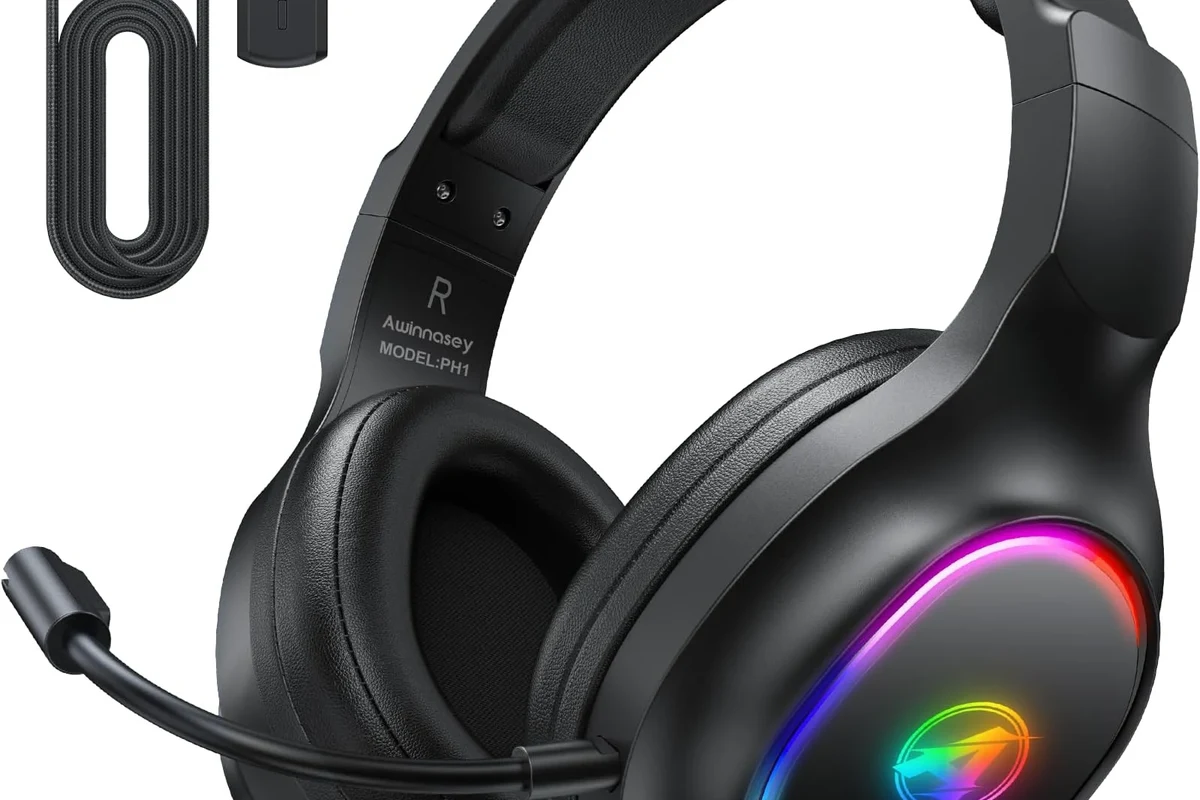
Before you plug anything in, it helps to understand one key point: Xbox One does not treat every headphone the same way. Some headsets work directly through the controller, while others need an adapter or a wireless accessory to function properly.
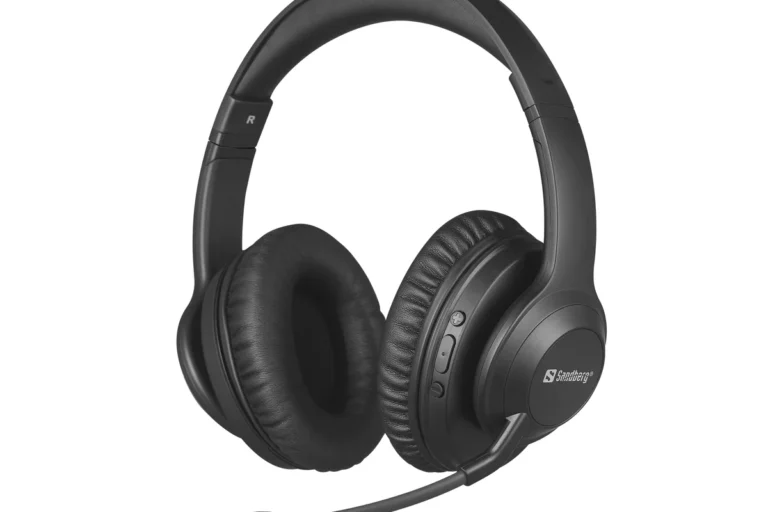
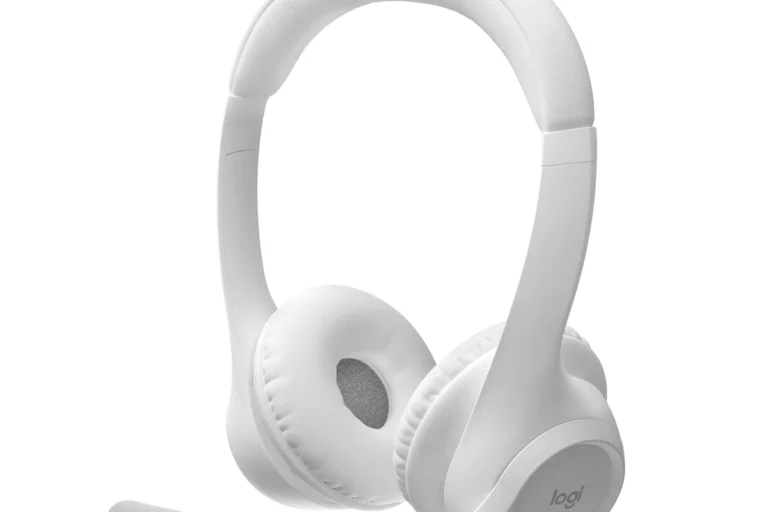
The easiest setup is usually a wired headset with a 3.5mm plug and a built-in microphone. If you are using standard headphones without a mic, you can still get game audio, but chat support depends on the model and the way you connect it. For readers comparing headset styles, our guide on types of headphones explained can help you pick the right fit before you start.
Listening at high volumes for long periods can cause hearing damage. Keep volume at 60% or below for extended sessions.
One more thing to keep in mind is comfort. Gaming sessions can run long, so ear pad material, clamping force, and headset weight matter just as much as sound quality. If you already own a pair and just want to know whether it will work, check the connector type first and then match it to the Xbox One’s supported options.
Xbox One Headphone Connection Options Explained: Controller Jack, Adapter, and Wireless
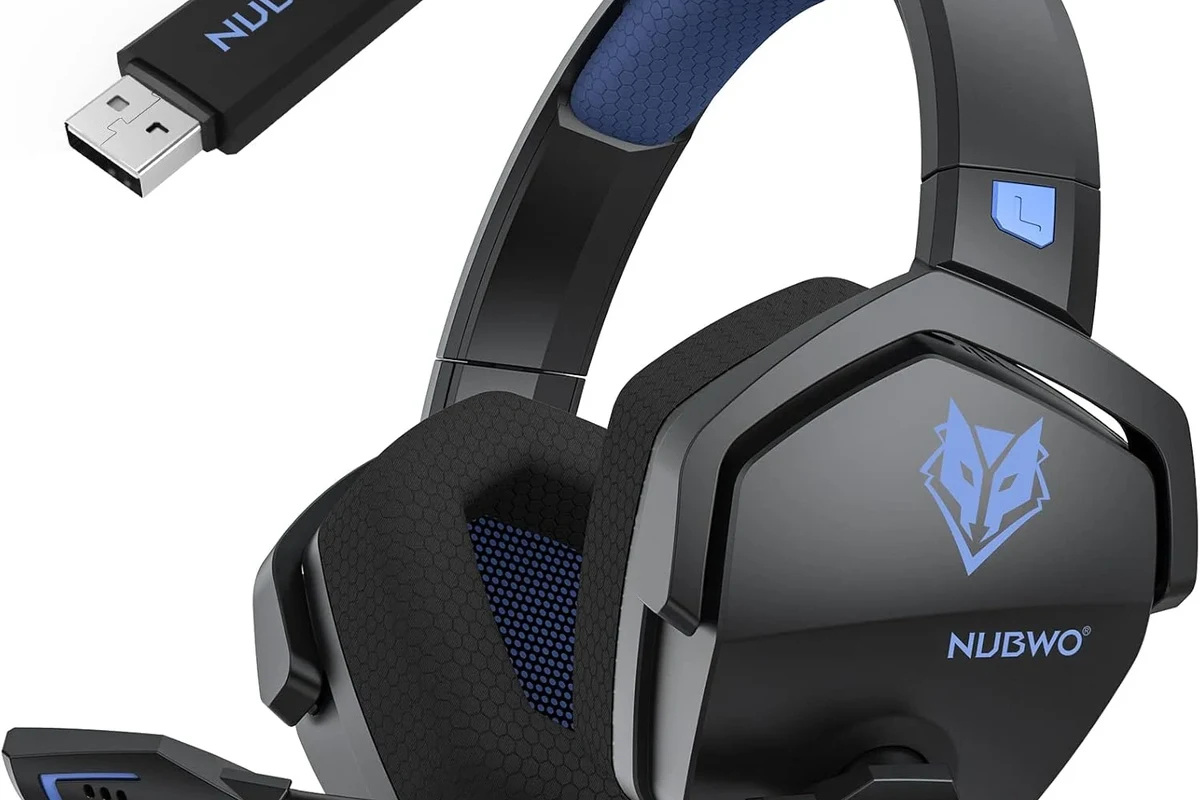
Xbox One gives you a few ways to connect headphones, but not every method supports the same features. Your choice affects whether you get only game sound, game plus chat, or full wireless convenience.
Using a 3.5mm Headset with the Xbox One Controller
Many Xbox One controllers include a 3.5mm headset jack. If your headphones or gaming headset has a standard 3.5mm plug, this is the simplest route because you can plug it straight into the controller.
This method works best for wired gaming headsets with a mic. Once connected, the console usually detects the headset automatically, and you can adjust volume from the Xbox settings or the controller controls, depending on your model.
If your headset has a detachable cable, make sure the plug is fully seated in the controller. A loose connection can cause one earcup, low volume, or no mic detection.
Connecting via the Xbox One Stereo Headset Adapter
If your controller does not have a 3.5mm jack, or if you want easier access to volume and chat controls, the stereo headset adapter can help. It connects to the controller and gives you a headphone port plus quick controls for chat balance and mute.
This is useful for older controllers and some headset setups that need a more reliable physical interface. It is also a practical choice if you frequently switch between party chat and game audio and want faster control without opening the console menu.
Adapter compatibility can vary by controller version and headset design. If you are unsure, check the headset and controller manuals before buying extra accessories.
Using Wireless Headphones with Xbox One and Compatible Adapters
Wireless headphones can be convenient for couch gaming, but Xbox One wireless support is more limited than many people expect. Some headsets connect through Xbox-compatible wireless systems, while others need a USB dongle or a dedicated adapter.
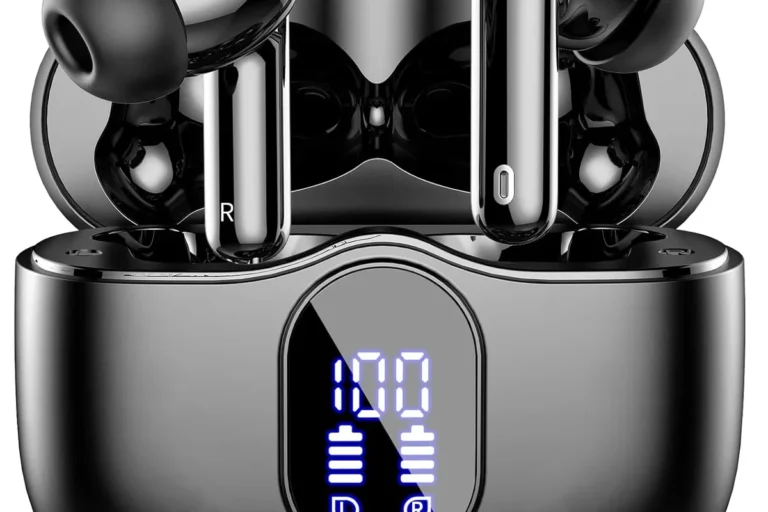
Standard Bluetooth headphones usually do not pair directly with Xbox One for game audio in the same way they do with phones or laptops. If you want wireless convenience, look for Xbox-compatible wireless headsets or models that include a supported transmitter. For readers who want a deeper look at wireless basics, our Bluetooth headphones explained guide is a useful place to start.
Step-by-Step Setup for Different Headphone Types on Xbox One
The right setup depends on whether your headphones are wired, wireless, or built for chat. Below is the simplest way to handle the most common use cases without wasting time on trial and error.
Wired Headphones with Mic: Fast Plug-and-Play Setup
Use the 3.5mm jack on the Xbox controller or the headset adapter if your controller needs one.
Check that headset output is enabled and that volume is not muted or set too low.
Join a party or open a game with voice chat to confirm your mic and playback are working.
Wired headsets are the most reliable for beginners because they usually avoid pairing problems and battery concerns. If your headset supports inline controls, you may also be able to adjust mute and volume directly on the cable.
Headphones Without a Mic: How to Get Game Audio Only
Standard headphones without a microphone can still be used for listening to game sound on Xbox One. In many cases, you simply connect them through the controller jack or an adapter and use them as audio-only headphones.
The limitation is that you will not have voice chat unless you add a separate microphone solution. That may be fine for single-player gaming, watching cutscenes, or playing titles where chat is not important. If you want a broader comparison between headsets and regular headphones, see our headphones vs earphones complete guide.
Some headphones sound perfectly fine for gaming even without a mic, but you may miss out on directional chat cues and team coordination in multiplayer games.
Bluetooth Headphones: Why They Usually Need a Workaround
Bluetooth headphones are popular for phones and tablets, but Xbox One typically does not support them as a simple direct-pair option for game audio. That means you often need a workaround such as a compatible transmitter, a controller-based adapter, or a headset designed specifically for Xbox.
If you already own Bluetooth headphones, do not assume they will work just because they connect to other devices. Latency can also become an issue, especially in fast games where sound timing matters. For more on timing issues, our article on Bluetooth headphone lag fix is worth reading.
Bluetooth solutions can add delay, and audio quality may vary depending on the transmitter, headset, and room interference. If low-latency gaming matters to you, wired or Xbox-certified wireless options are usually safer choices.
How to Adjust Xbox One Audio Settings for Clear Game and Chat Sound
Even a good headset can sound disappointing if the Xbox One audio settings are not balanced properly. A few small adjustments can make voice chat clearer and game audio easier to hear.
Balancing Game Volume, Chat Mix, and Mic Monitoring
Start by setting the overall headset volume at a comfortable level, then adjust chat mix so voices do not drown out game effects. If your headset supports mic monitoring, use a light amount so you can hear your own voice without echo or distraction.
The best balance depends on the game. Competitive shooters usually benefit from clearer voice chat and directional sound, while story games may sound better with stronger game audio and lower chat volume. If your headset has EQ controls, a small boost to midrange clarity can help voices stand out, but avoid overdoing bass if it makes dialogue muddy.
Setting Party Chat and In-Game Voice Chat Correctly
Party chat and in-game chat are not always handled the same way. Make sure your console privacy and communication settings allow voice chat, especially if you are joining friends across different game modes or using family account restrictions.
If people can hear you but you cannot hear them, or if your mic seems dead in game but works in party chat, the issue may be a game-specific voice setting rather than a headset problem. In those cases, check the game’s audio menu before replacing hardware.
Common Mistakes When Using Headphones on Xbox One
Most headset problems on Xbox One come from simple setup errors, not broken hardware. A quick check of ports, settings, and updates can solve many issues.
Wrong Port, Wrong Adapter, or Unsupported Wireless Pairing
One of the most common mistakes is plugging the headset into the wrong device or using an adapter that does not match the controller. Another frequent issue is trying to pair a standard Bluetooth headset directly when the Xbox One does not support it the way users expect.
If your headset is supposed to work with the controller but does not, inspect the plug and the adapter first. A partially inserted cable or a mismatched accessory can cause silent audio, missing chat, or unstable volume.
Audio Too Low, Echo, or No Mic Detection
Low audio often comes from volume settings on the headset, controller, or console rather than from the headphones themselves. Echo can happen when mic monitoring is too high or when the headset is picking up sound from open speakers nearby.
No mic detection usually points to a muted microphone, a cable issue, or an incompatible headset. If your headset works on another device but not on Xbox One, the problem may be the connection method rather than the headset driver itself.
If you notice persistent distortion, one-sided audio, or hearing discomfort even at moderate volume, consider consulting an audiologist or a professional audio specialist. It is better to rule out hearing or device issues early than to keep guessing.
Forgetting Console, Controller, or Headset Firmware Updates
Firmware updates can matter more than many players realize. A controller update may improve accessory detection, while a headset update can fix pairing or audio stability issues on supported models.
If your setup suddenly stops working after months of normal use, check for updates before assuming the headset is damaged. This is especially useful with wireless gear, where software and firmware can affect reliability.
Best Headphone Choices for Xbox One in 2026: Budget vs Premium
Choosing the best headphones for Xbox One depends on your budget, whether you need a microphone, and how long you usually play. Prices and features vary by brand and model, so focus on compatibility and comfort first.
Affordable Wired Headphones for Casual Gaming
Budget wired headphones are a smart option if you mainly want game audio and basic voice chat. They are usually simple to use, easy to replace, and less likely to create connection problems than wireless models.
For casual players, the main priorities should be a secure 3.5mm connection, decent comfort, and a mic that picks up speech clearly enough for party chat. You do not need the most expensive model to get a solid experience.
Mid-Range Gaming Headsets for Comfort and Chat Clarity
Mid-range gaming headsets tend to offer a better balance of comfort, microphone quality, and overall sound. This is often the sweet spot for players who spend several hours at a time in multiplayer games or long story campaigns.
Look for soft ear cushions, a lightweight frame, and a mic that reduces background noise without making your voice sound thin. If you want to understand how headset design affects comfort, our noise cancelling headphones guide can also help you think through isolation and listening comfort.
Premium Wireless Options for Long Sessions and Better Features
Premium wireless headsets are best for players who want freedom from cables and more advanced features like stronger battery life, better sidetone controls, or easier console integration. These models can be more comfortable for long sessions, but only if they are truly compatible with Xbox One.
Before buying premium wireless gear, verify that it supports Xbox One directly or through an approved adapter. A premium price does not guarantee easy pairing, so compatibility should come first.
Expert Advice: What Top Headphone Reviews Recommends Before You Buy or Set Up
At Top Headphone Reviews, our editorial advice is simple: match the headset to the way you actually play, not just to the label on the box. A good purchase is one that works reliably, feels comfortable, and fits your chat needs.
Compatibility Checks That Save Time and Money
Before you buy, check whether the headset uses 3.5mm wired connection, needs an adapter, or is designed for Xbox wireless support. Also confirm whether it includes a microphone if you plan to use party chat or in-game voice.
For buyers who already own a headset, test it on a phone or laptop first if you are unsure whether the cable or mic is working. That can help you separate a headset problem from a console setup problem.
- Controller jack or adapter support
- Mic support for chat
- Wireless compatibility with Xbox One
- Comfort for long sessions
- Firmware update availability
Warning Signs of Poor Mic Quality, Latency, or Build Issues
Be cautious if a headset has vague compatibility claims, weak cable strain relief, or very limited control over chat volume. These are often signs that the product may be frustrating in real gaming use.
Also watch for wireless lag, hollow-sounding microphones, and earcups that feel too tight after short sessions. Sound quality matters, but stable connection and comfort matter just as much for Xbox One gaming.
- Use the controller jack for the easiest wired setup.
- Use an adapter if your controller or headset needs one.
- Choose Xbox-compatible wireless gear instead of assuming Bluetooth will work directly.
- Check audio settings, chat balance, and firmware updates if sound is weak or missing.
Final Recap: The Easiest Way to Use Headphones for Xbox One Successfully
The easiest way to use headphones for Xbox One is to start with a wired 3.5mm headset and plug it directly into the controller. If you need more control, use the stereo headset adapter; if you want wireless, choose a model that is specifically compatible with Xbox One.
Once connected, adjust game volume, chat mix, and mic monitoring so the sound stays clear and comfortable. That simple approach solves most setup problems and gives you a better gaming experience without unnecessary guesswork.
Frequently Asked Questions
Wired headphones are usually simpler and more reliable on Xbox One, especially for chat. Wireless can be more convenient, but only if the headset is Xbox-compatible and low-latency enough for gaming.
Noise cancelling headphones can help block outside noise and improve focus. Sound quality, mic clarity, and comfort still matter more than cancellation alone, especially for long gaming sessions.
Closed-back headphones are usually better for Xbox One because they isolate game sound and reduce bleed into the microphone. Open-back models can sound more spacious, but they leak sound and are less ideal for chat-focused gaming.
For gaming, focus on comfort, connection type, mic quality, and balanced sound rather than chasing one spec alone. Driver type, frequency response, and EQ options can affect bass, clarity, and soundstage, but real-world tuning matters most.
For gaming, prioritize microphone support and compatibility. For commuting, look for comfort and noise isolation, while studio use usually calls for more accurate sound and reliable wired connections.
Look for lightweight construction, durable hinges, soft ear cushions, and a fit that does not feel too tight. Materials and build quality vary by model, so long-session comfort is best judged by the design and return policy.