
How to Set Up Bluetooth Headphones on PS5 Easily

Most Bluetooth headphones will not connect directly to a PS5, so the easiest reliable setup is a USB Bluetooth adapter or a PS5-compatible wireless headset. If you want the best audio with the least lag, choose a low-latency gaming solution instead of standard Bluetooth alone.
If you want to know how to set up bluetooth headphones on ps5, the short version is this: most standard Bluetooth headphones will not pair directly with the console, so you usually need a USB Bluetooth adapter or a PS5-compatible wireless headset. The best setup depends on whether you care most about convenience, low latency, microphone support, or budget.
- Best fix: Use a USB adapter or gaming headset transmitter.
- Latency matters: Standard Bluetooth can add delay in games.
- Mic check: Confirm chat support before buying.
- Stable setup: Keep adapters clear of interference.
How to Set Up Bluetooth Headphones on PS5: What Works in 2025 and What Doesn’t
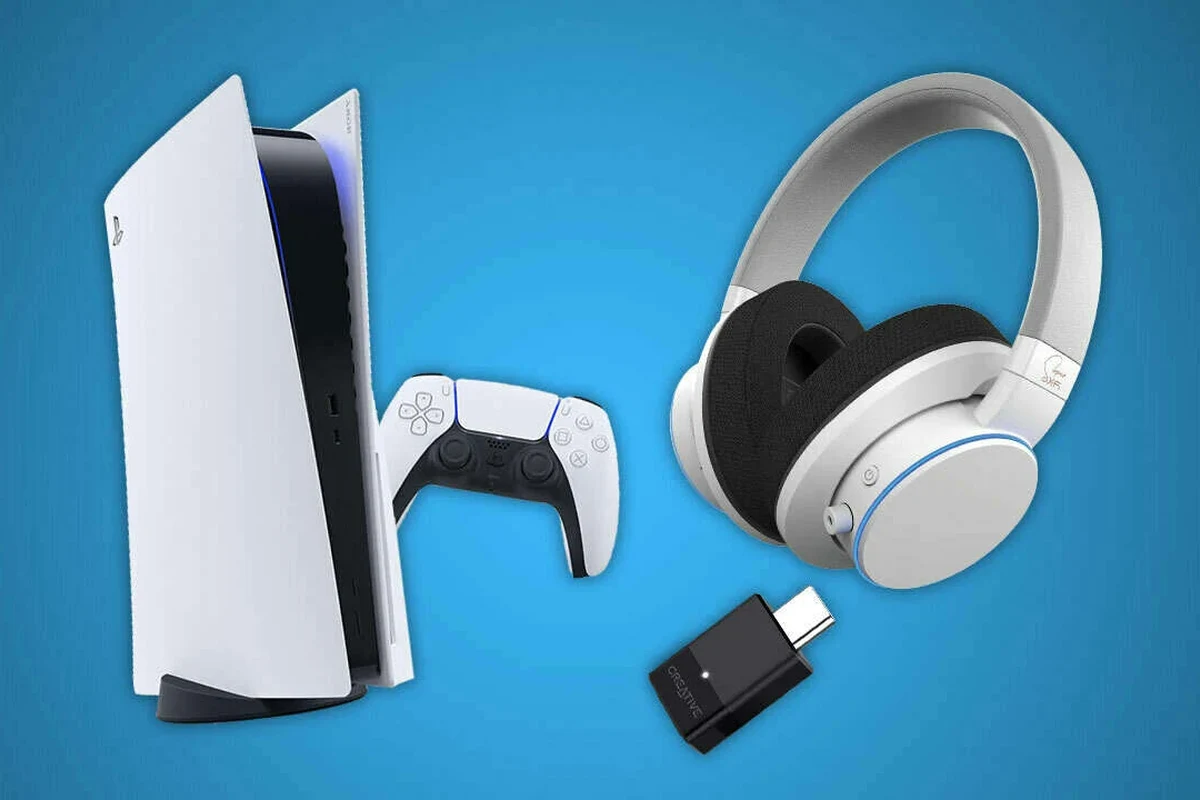
The PS5 is a great gaming console, but its wireless audio support is more limited than many people expect. In 2025, the most reliable way to use Bluetooth headphones is still through a compatible USB transmitter or a headset designed for PlayStation use.
If you are comparing wireless audio options in general, our guide to Bluetooth headphones explained simply can help you understand why some connections work better than others. The same basic rules apply here: not every Bluetooth device is built for low-lag gaming audio.
Why the PS5 doesn’t support most Bluetooth headphones natively
Sony limits native Bluetooth headphone support on PS5 mainly to avoid audio delay, connection instability, and microphone issues. That matters in games, where even a small delay can make footsteps, dialogue, and action feel out of sync.
Another reason is that many Bluetooth headphones use codecs and profiles that are better for music or calls than real-time gaming. The result is that a headset may connect to a phone instantly, but still fail to pair properly with a PS5.
What readers are actually trying to solve: wireless audio without lag
Most people searching for this topic want a simple setup with no cable running from the controller to their head. They also want sound that stays in sync with the game and, ideally, a mic that works for party chat.
That is why low-latency wireless systems are so important. If you want a broader comparison of connection types, our article on Bluetooth vs wired headphones sound quality is a useful reference for understanding the trade-offs.
Before You Start: Check Your Headphones, PS5 Settings, and Accessories
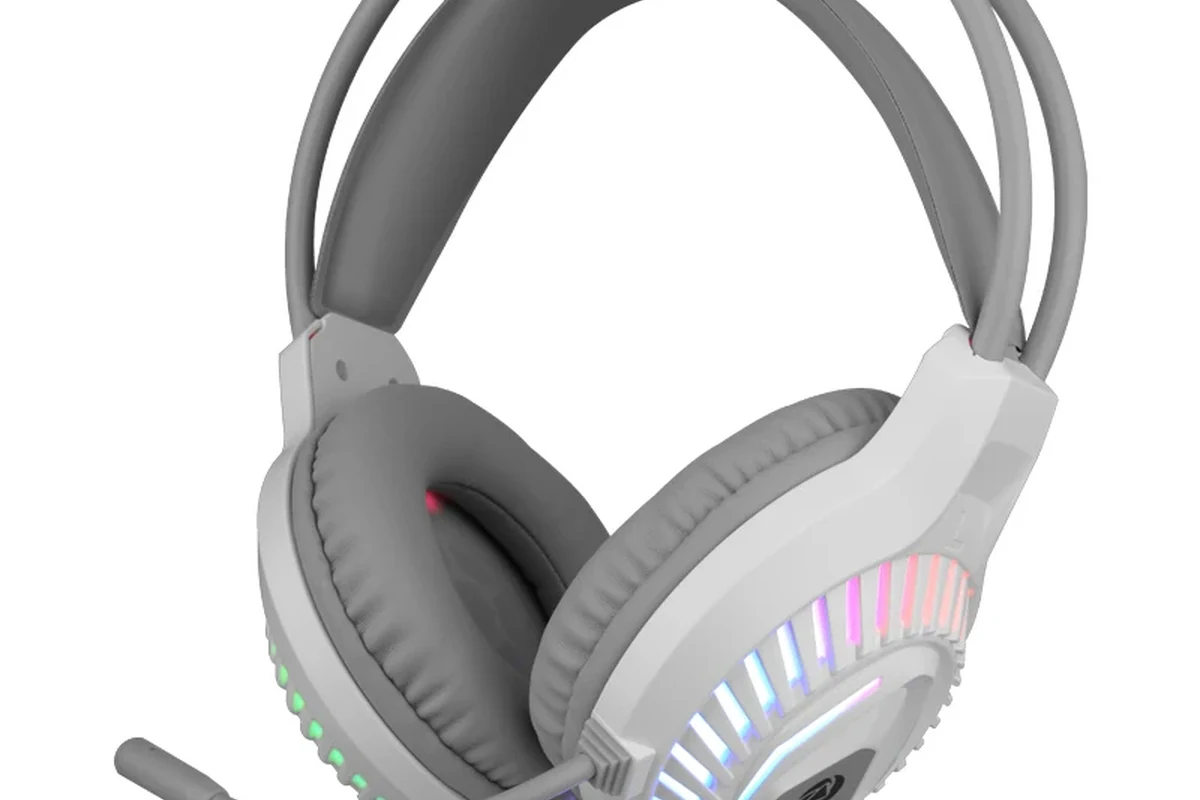
Before buying anything, check what type of headphones you already own and whether they support gaming-friendly wireless modes. This can save you from spending money on an adapter you may not need, or worse, on one that still gives you laggy audio.
How to identify Bluetooth compatibility and low-latency support
Look for terms like low latency, gaming mode, aptX Low Latency, or a dedicated USB transmitter in the product description. Keep in mind that codec support varies by brand and model, and not every “Bluetooth” headset handles game audio the same way.
Also check whether your headphones support a microphone over the same wireless connection. Some models can play audio well but still have limited chat support on consoles.
If your headphones came with a USB dongle, that dongle is often the best way to use them on PS5. It usually offers a more stable connection than trying to rely on standard Bluetooth alone.
When you need a USB Bluetooth adapter or dongle
You need a USB Bluetooth adapter when your headphones do not pair directly with the PS5, which is common. The adapter acts as a bridge between the console and your headset, often using a low-latency wireless link instead of standard Bluetooth.
This is the most common fix for people asking how to set up bluetooth headphones on ps5, because it keeps the setup simple while improving sound stability. If you are also troubleshooting connection behavior on other devices, our guide on how to connect Bluetooth headphones covers the basic pairing logic in a beginner-friendly way.
Typical price ranges for adapters and compatible headset options
Prices vary widely by brand, feature set, and whether the adapter is a basic model or a gaming-focused transmitter. In general, budget adapters are usually cheaper than buying a new premium headset, but performance can also vary more.
Some users may find that a dedicated PlayStation-compatible wireless headset is the cleaner long-term choice. Others will prefer an adapter because it lets them keep using headphones they already own.
Step-by-Step: How to Set Up Bluetooth Headphones on PS5 Using a USB Adapter
If your headphones do not connect natively, this is usually the easiest path. The process is straightforward, but the exact menus and results can depend on the adapter and headset model.
Plugging in the adapter and putting headphones in pairing mode
Start by plugging the USB Bluetooth adapter or wireless transmitter into an open USB port on the PS5. Most people use a front USB-C port or a rear USB-A port, depending on the adapter design.
Next, put your headphones into pairing mode using the manufacturer’s instructions. This is usually done by holding the power or Bluetooth button until an indicator light flashes.
Connect the USB adapter to the PS5 and wait for it to power on.
Put the headphones in pairing mode so the adapter can detect them.
Wait for the adapter and headphones to show a stable connection light or voice prompt.
Selecting the correct audio output on PS5
Once connected, go to the PS5 sound settings and make sure the USB device or headset is selected as the output. If the console is still sending audio to the TV, you may hear nothing in your headphones.
Also check the output device, volume level, and whether chat audio is routed to the headset. Small menu differences can matter, so it is worth testing both game audio and voice chat separately.
Some USB adapters handle audio only, while others also support chat microphones. Always check the product description if you need party chat or in-game voice input.
Testing game audio, chat audio, and microphone performance
After setup, launch a game with clear sound cues, such as footsteps, menu sounds, or dialogue. This makes it easier to notice delay, distortion, or channel imbalance.
Then test party chat or a voice recording feature if your headset supports a mic. If others cannot hear you, the adapter may not support microphone input, or the PS5 may be using the wrong input device.
Many Bluetooth-style adapters support headphone audio but not full microphone functionality. If chat matters to you, verify mic support before buying.
Alternative Ways to Use Wireless Headphones on PS5
A USB adapter is not the only option. Depending on your setup, you may get better results from a PlayStation-compatible headset, a TV connection, or Remote Play.
Using a PlayStation-compatible wireless headset with a USB transmitter
This is often the smoothest solution because the headset and transmitter are designed to work together. In many cases, you simply plug in the dongle, power on the headset, and select the correct output on the PS5.
For many gamers, this option balances convenience and performance better than standard Bluetooth. It is especially useful if you want low-lag audio and dependable chat support without troubleshooting a generic adapter.
Connecting through your TV, monitor, or soundbar Bluetooth
Some TVs, monitors, and soundbars offer Bluetooth audio output, which can be used as a workaround. The PS5 sends sound to the display, and the display sends it wirelessly to your headphones.
The downside is that this path can add noticeable delay, and lip-sync may become an issue. It can work for casual play, but it is usually not the best choice for competitive gaming.
Using the PS5 Remote Play app as a workaround
Remote Play lets you stream the PS5 to a phone, tablet, or computer, then connect your headphones to that device instead. This can be handy if your headphones work well with your phone but not directly with the console.
Just remember that Remote Play adds another layer to the signal path. Your internet connection, device performance, and Wi-Fi quality can all affect responsiveness.
Many gaming headsets use a 2.4GHz wireless link instead of standard Bluetooth because it usually offers lower latency and more stable voice chat.
Common Setup Mistakes That Cause Audio Delay, Dropouts, or No Sound
Most setup problems come from a mismatch between the headset, adapter, and PS5 audio settings. The good news is that many of these issues are easy to fix once you know what to look for.
Pairing the wrong device or using a high-latency codec
It is easy to pair the headphones to the wrong source, especially if the headset remembers a phone, tablet, or laptop. If audio keeps cutting out, disconnect nearby devices and try pairing again from scratch.
Latency can also be caused by the codec the headset uses. Music-friendly codecs may sound fine for movies, but they are not always ideal for fast gaming where timing matters.
Forgetting microphone limitations on Bluetooth connections
One of the most common surprises is that the headphones work for sound but not for voice chat. That happens because some Bluetooth paths are audio-only, or they downgrade quality when the mic activates.
If you need clear communication in multiplayer games, check the mic support before you buy. Otherwise, you may end up with a headset that sounds fine but cannot do everything you expected.
Interference from Wi-Fi, controllers, and nearby devices
Wireless audio can be affected by other 2.4GHz devices, including routers, controllers, and nearby headsets. If your connection is unstable, move the adapter closer to the headset or reduce clutter around the console.
Sometimes the simplest fix is also the best one: reposition the adapter, avoid blocking it behind metal furniture, and keep it away from crowded USB hubs. If you are still getting dropouts, a wired option may be more reliable.
Listening at high volumes for long periods can cause hearing damage. Keep volume at 60% or below for extended sessions.
Expert Advice: Best Practices for Clear Audio and Low Latency in 2025
For most PS5 players, the best wireless experience comes from choosing hardware built for gaming rather than general-purpose Bluetooth. That usually means a low-latency adapter, a proprietary 2.4GHz headset, or a good wired backup.
Why aptX Low Latency and proprietary 2.4GHz systems matter
Low-latency codecs and dedicated wireless systems reduce the delay between what happens on screen and what you hear. That matters in shooters, rhythm games, and anything with fast sound cues.
Standard Bluetooth can still be fine for slower games or casual use, but it is less predictable. If audio timing is important, prioritize a headset or adapter that is designed with gaming in mind.
How to position the adapter and reduce signal interference
Keep the adapter in a clear line of sight when possible, and avoid hiding it behind the console or a TV stand. Small changes in placement can improve stability more than people expect.
If your PS5 is surrounded by other wireless devices, try moving competing receivers farther away. That can help reduce random pops, dropouts, or brief audio cutouts.
If you have tinnitus, hearing loss, or ongoing ear pain, follow safe listening guidelines and consider speaking with an audiologist before long gaming sessions. A professional audio specialist can also help if you are unsure whether your headset, adapter, or console settings are causing the issue.
When wired USB-C or a dedicated gaming headset is the better choice
Sometimes the cleanest answer is to skip Bluetooth entirely. A wired USB-C headset can be simpler, more stable, and easier to use if you want to avoid pairing issues or latency concerns.
Dedicated gaming headsets are also worth considering if you play often, use chat regularly, or want fewer setup headaches. For many readers, that is the most practical long-term solution.
Final Recap: The Easiest Way to Get Bluetooth Headphones Working on PS5
The easiest path is usually a USB Bluetooth adapter or, even better, a PlayStation-compatible wireless headset with its own transmitter. That gives you the best chance of stable audio, lower lag, and fewer pairing problems.
Quick summary of the best setup path for most users
If your headphones do not connect directly, plug in a compatible USB adapter, pair the headset, and select the correct audio output in PS5 settings. Then test game sound, chat audio, and microphone performance before you settle in for a long session.
- Most Bluetooth headphones do not connect natively to PS5.
- A USB adapter or gaming headset transmitter is usually the best fix.
- Check microphone support before buying if you use party chat.
- Low-latency wireless options are better for competitive gaming.
Choosing the best option based on budget, performance, and convenience
If you want the cheapest route, try a compatible adapter and see whether your current headphones perform well enough. If you want the least hassle, a headset made for PS5 or a wired USB-C option is often the smarter buy.
For readers comparing headphone styles and comfort for longer sessions, our guide to types of headphones explained can help you choose between over-ear, on-ear, and in-ear designs before you commit to a setup.
Frequently Asked Questions
Not usually. Most Bluetooth headphones need a USB adapter or a PlayStation-compatible wireless transmitter to work well on PS5.
A gaming headset with a 2.4GHz USB transmitter is often the most reliable choice. It usually offers lower lag and better chat support than standard Bluetooth.
Some do, but many only handle audio playback. Check the product details carefully if you need voice chat or party chat support.
Wireless is more convenient, but wired is usually simpler and more stable. If you want the least delay and fewer setup issues, wired can be the safer choice.
Look for low-latency support, microphone compatibility, comfort, build quality, and whether the headset uses a USB transmitter or standard Bluetooth. Battery life and fit also matter for long sessions.
Choose a lightweight headset with soft ear cushions and a secure but not too tight fit. If you feel pressure, heat, or ear fatigue, take breaks and lower the volume.


